Peugeot 3008 (2024 year). Manual in english - page 4
PEUGEOT Connect Radio
The system’s Open Source Software
Press in the shaded area to go back up a level
PEUGEOT Connect
10
(OSS) source codes are available at the
or confirm.
Radio
following addresses:
Press the back arrow to go back a level or
confirm.
Multimedia audio system -
The touch screen is of the "capacitive"
Applications - Bluetooth®
type.
To clean the screen, use a soft, non-abrasive
telephone
First steps
cloth (e.g. spectacles cloth) with no additional
The functions and settings described
With the engine running, a press mutes
product.
vary according to the vehicle version and
the sound.
Do not use sharp objects on the screen.
configuration, as well as the country of sale.
With the ignition off, a press turns the system on.
Do not touch the screen with wet hands.
Increase or decrease the volume using
Certain information is displayed permanently in
For safety reasons and because they
the wheel or the "plus" or "minus" buttons
the upper bar of the touch screen:
require sustained attention by the driver,
(depending on the equipment).
- Air conditioning status information (depending
the following operations must be carried out
Use the buttons on either side of or below the
on version), and direct access to the
with the vehicle stationary and the ignition
touch screen to access the menus, then press
corresponding menu.
on:
the virtual buttons on the touch screen.
- Radio Media and Telephone menu status
- Pairing the smartphone with the system via
Depending on the model, use the "Source" and
information.
Bluetooth.
"Menu" buttons on the left of the touch screen to
- Privacy status information.
- Using the smartphone.
access the menus, then press the virtual buttons
- Access to the touch screen and digital
- Connecting to the CarPlay® or Android
on the touch screen.
instrument panel settings.
Auto applications (certain applications stop
At all times it is possible to display the rolling
Audio source selection (depending on
displaying when the vehicle is moving).
menus by pressing the screen briefly with three
equipment):
- Changing the system settings and
fingers.
- FM/DAB/AM radio stations (depending on
configuration.
All touch-sensitive areas on the screen are
equipment).
white.
- Telephone connected via Bluetooth and
On pages with multiple tabs at the bottom of the
The system is protected so that it only
Bluetooth multimedia broadcast (streaming).
screen, you can switch between pages either
operates in the vehicle.
- USB Memory stick.
by tapping the tab for the desired page or by
The message Energy economy mode is
- Media player connected via the auxiliary
swiping the pages to the left or right with your
displayed when the system is about to go into
socket (depending on equipment).
finger.
standby.
241
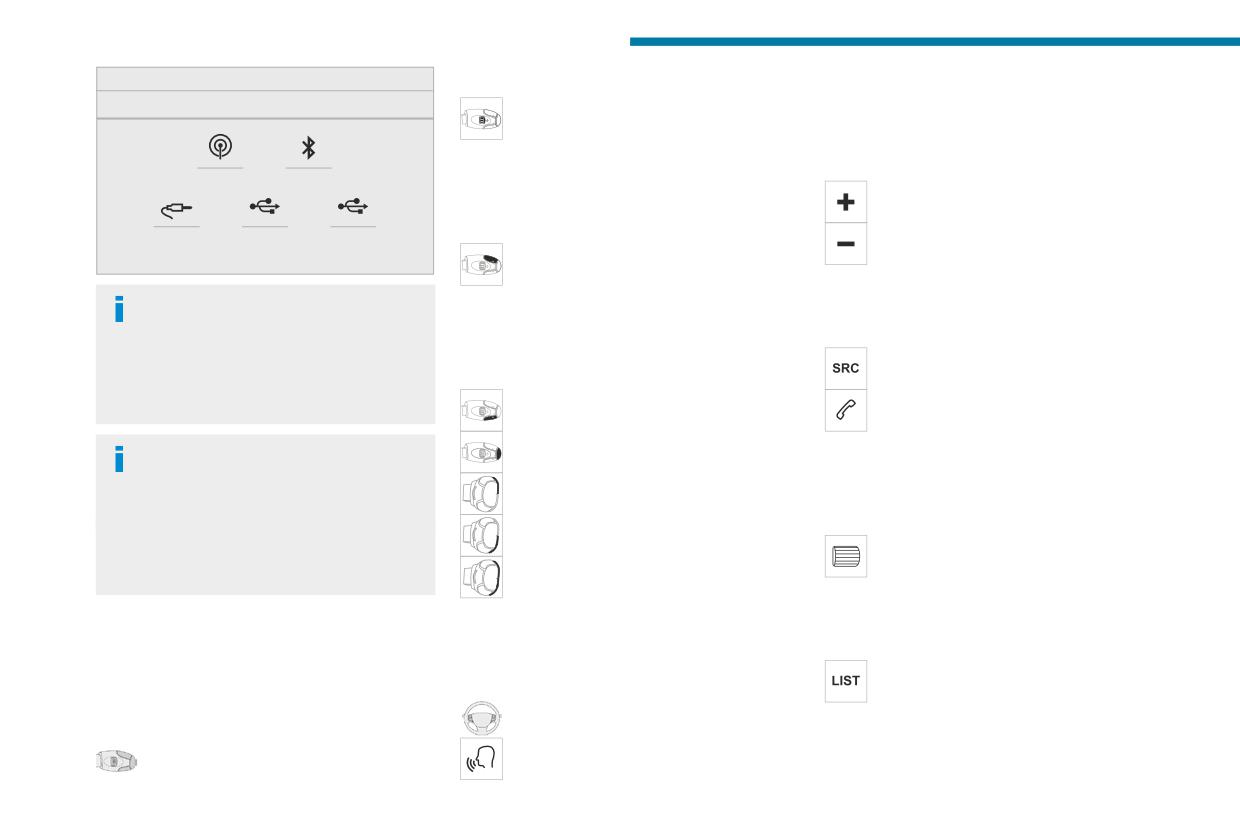
PEUGEOT Connect Radio
This control is located on the steering wheel or
Radio:
at the end of the lighting control stalk (depending
Select the previous/next preset radio
on equipment).
station.
Short press, smartphone voice commands via
Select the previous/next item in a menu or a list.
the system.
Media:
Increase volume.
Select the previous/next track.
Select the previous/next item in a menu or a list.
Decrease volume.
Radio:
Mute by pressing the volume increase
Short press: display the list of radio
and decrease buttons simultaneously
stations.
(depending on equipment).
In the "Settings" menu, it is possible to
Long press: update the list.
Restore the sound by pressing one of the two
create a profile for an individual or for a
Media:
volume buttons.
group of people with shared interests, and
Short press: display the list of folders.
Media (short press): change the
configure a wide range of settings (radio
Long press: display the available sorting options.
multimedia source.
presets, audio settings, ambiences, etc.).
Change audio source (radio; USB; AUX if
Telephone (short press): start telephone
Settings are applied automatically.
equipment connected; CD; streaming).
call.
Confirm a selection.
Call in progress (short press): access
In very hot conditions, the volume may
telephone menu.
be limited to protect the system. It may
Increase volume.
Telephone (long press): reject an incoming call,
enter standby mode (with the screen and
end call; when no call is in progress, access
sound off) for 5 minutes or more.
Decrease volume.
telephone menu.
The system will resume normal operation
Radio (rotate): automatic search for the
when the temperature in the passenger
Mute/restore sound by simultaneously
previous/next station.
compartment has dropped.
pressing the increase and decrease
Media (rotate): previous/next track, move in a
volume buttons.
list.
Short press: confirm a selection; if nothing
Steering mounted controls
Steering mounted controls -
selected, access to presets.
Radio: display the list of stations.
Type 2
Steering mounted controls -
Media: display the list of tracks.
Radio (press and hold): update the list of
Type 1
stations received.
Voice commands:
242
PEUGEOT Connect Radio
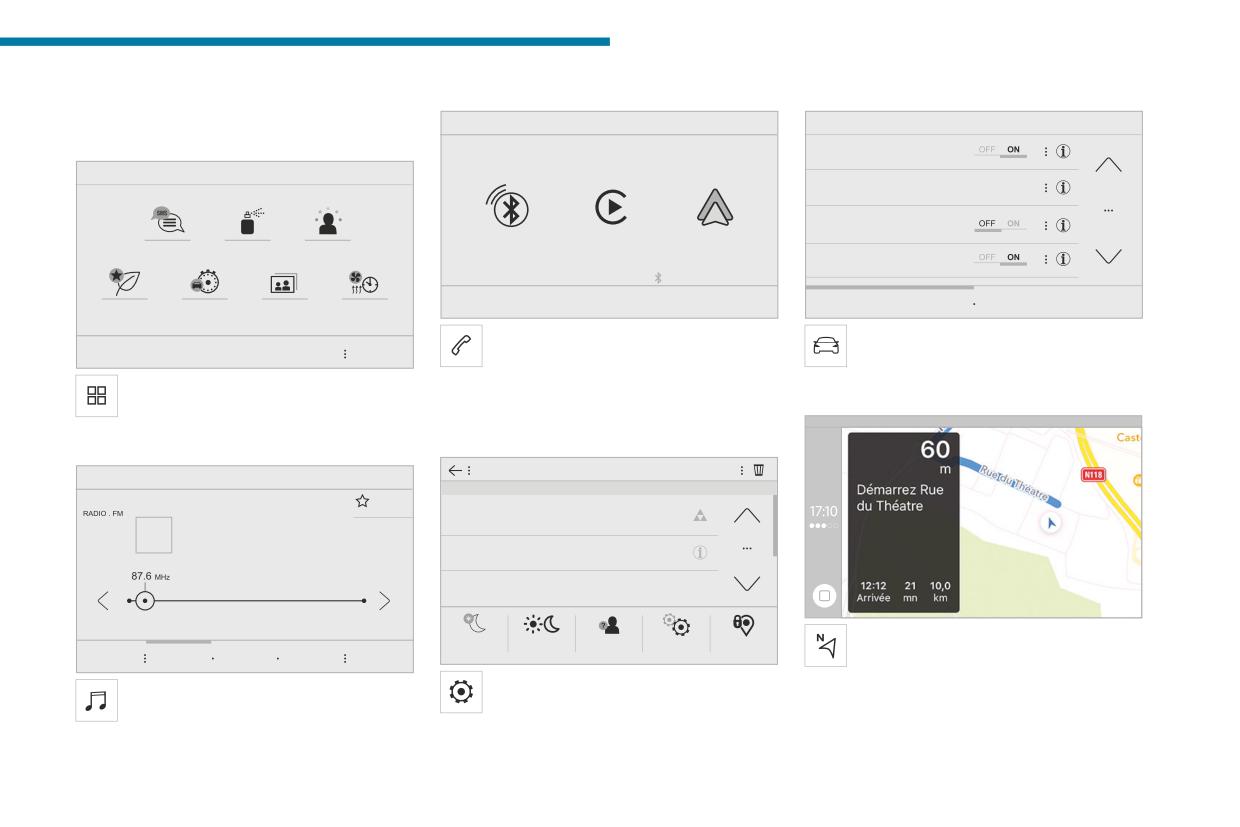
Menus
Telephone
Driving
10
Applications
Connect a mobile phone via Bluetooth®.
Activate, deactivate or configure certain
Run certain applications from a
vehicle functions.
smartphone connected via CarPlay® or Android
Access configurable equipment.
Auto.
Navigation
Settings
Radio Media
Configure the navigation and select your
destination via CarPlay® or Android Auto.
Configure a personal profile and/or
Select an audio source or radio station.
configure the sound (balance, ambience,
etc.) and the display (language, units, date, time,
etc.).
243
PEUGEOT Connect Radio
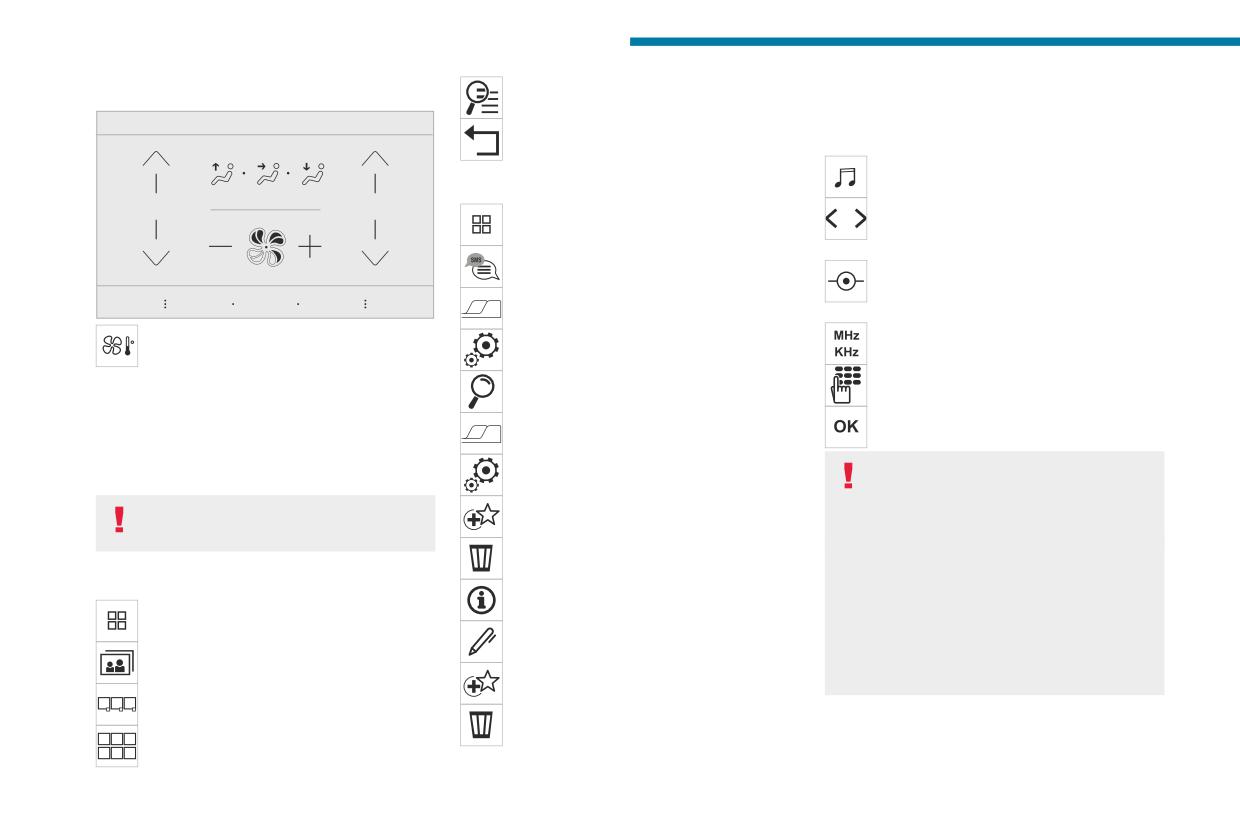
Air conditioning
Press this button to display the details of
Radio
the photo.
Press the back arrow to go back a level.
Selecting a station
Press Radio Media to display the main
Managing messages
page.
18,5
21,5
Press Applications to display the main
Press one of the buttons to perform an
automatic search for radio stations.
page.
Or
Press "SMS".
Move the slider to manually search for
frequencies up or down.
Select the "SMS” tab.
Or
Manage various temperature and air flow
Press this button to select the display
Press the frequency.
settings.
settings for messages.
Enter the FM and AM waveband values
Press this button to search and select a
using the virtual keypad.
recipient.
Applications
Press "OK" to confirm.
Select the "Quick messages” tab.
Viewing photos
Press this button to select the display
Radio reception may be affected by the
Insert a USB memory stick in the USB port.
settings for messages.
use of electrical equipment not approved
Press this button to write a new message.
by the Brand, such as a USB charger
To protect the system, do not use a USB
hub.
connected to the 12 V socket.
Press the bin alongside the selected
The exterior environment (hills, buildings,
The system can read folders and image files in
message to delete it.
tunnels, basement car parks, etc.) may
the formats: .tiff; .gif; .jpg/jpeg; .bmp and .png.
Press this button alongside the selected
block reception, including in RDS mode.
Press Applications to display the main
message to display the secondary page.
This phenomenon is perfectly normal in the
page.
Press this button to edit and modify the
context of radio wave transmission, and
Press "Photos".
existing text.
in no way indicative of an audio system
Press this button to write a new message.
malfunction.
Select a folder.
Press the bin to delete the message.
Select an image to view.
244
PEUGEOT Connect Radio
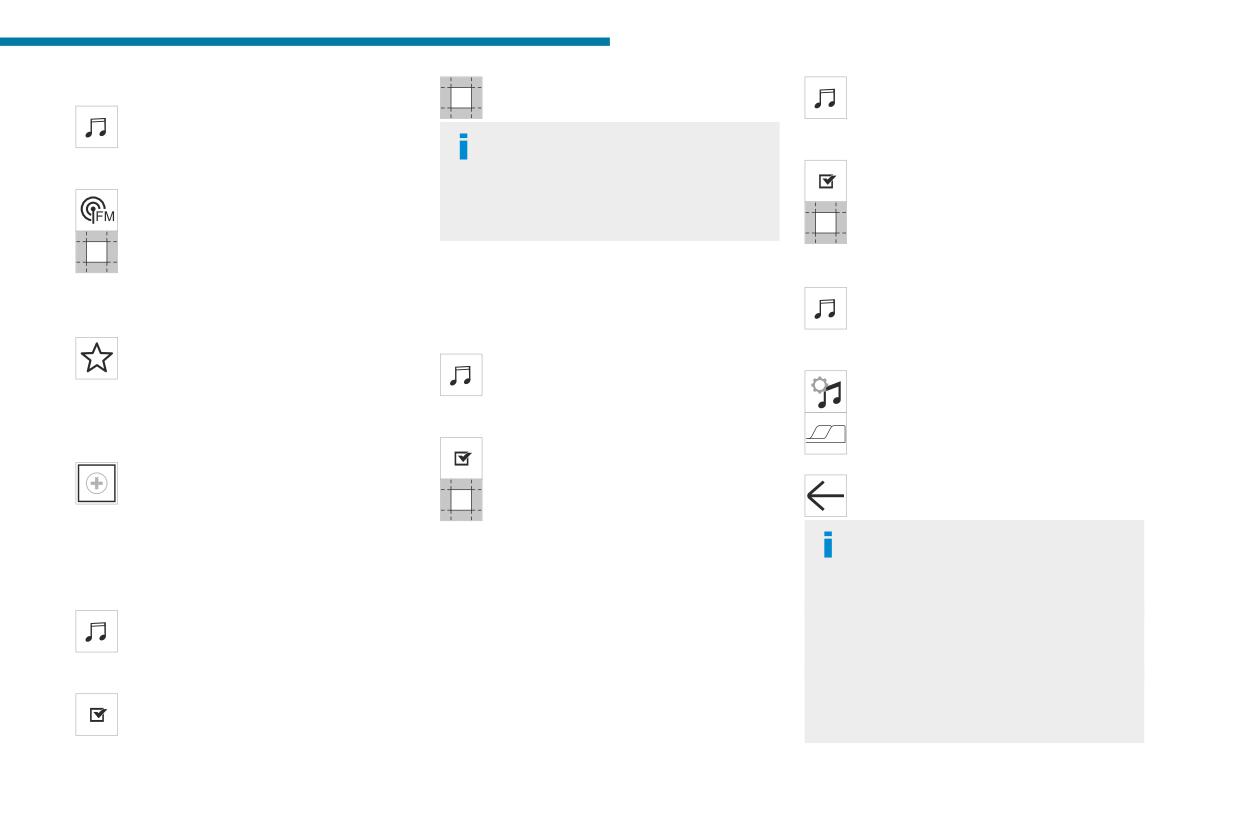
Changing the waveband
Press in the shaded area to confirm.
Press Radio Media to display the main
10
page.
Press Radio Media to display the main
Press the "OPTIONS" button to access the
page.
RDS station tracking may not be
secondary page.
Press the "OPTIONS" button to access the
available nationwide, as many radio
Activate/deactivate "TA".
secondary page.
stations do not cover 100 % of the country.
Press "Band" to change waveband.
This explains the loss of reception of the
Press in the shaded area to confirm.
station during a journey.
Press in the shaded area to confirm.
Displaying text information
Audio settings
Presetting a station
The "Radio Text" function displays information
Press Radio Media to display the main
transmitted by the radio station relating to the
page.
Select a radio station or frequency.
station or the currently playing song.
Press the "OPTIONS" button to access the
Make a short press on the star outline. If
Press Radio Media to display the main
secondary page.
the star is solid, the radio station is
page.
Press "Audio settings".
already preset.
Or
Press the "OPTIONS" button to access the
secondary page.
Select the "Tone", "Balance", "Sound",
Select a radio station or frequency.
Activate/deactivate "News".
"Voice" or "Ringtones" tab to configure
Press "Preset".
the sound settings.
Make a long press on one of the buttons
Press in the shaded area to confirm.
Press the back arrow to confirm.
to preset the station.
Activating/Deactivating RDS
In the "Tone" tab, the Ambience, Bass,
Playing TA messages
RDS, if activated, allows you to continue
Medium and Treble sound settings are
listening to the same station by automatically
The TA (Traffic Announcement) function gives
different and independent for each audio
retuning to alternative frequencies.
priority to TA alert messages. To operate, this
source.
Press Radio Media to display the main
function needs good reception of a radio station
In the "Balance” tab, the All passengers,
page.
that transmits this type of message. While traffic
Driver and Front only settings are common
Press the "OPTIONS" button to access the
information is being broadcast, the current
to all sources.
secondary page.
media is automatically interrupted so that the
In the "Sound” tab, activate or deactivate
Activate/deactivate "RDS".
TA message can be heard. Normal play of the
"Volume linked to speed", "Auxiliary input"
previously playing media resumes at the end of
and "Touch tones".
the message.
245
PEUGEOT Connect Radio
The balance/distribution (or spatialisation
When the digital radio signal is poor, the
Media
with the Arkamys© system) uses audio
"FM-DAB Follow-up" enables you to continue
processing to adjust the sound quality
listening to the same station by automatically
USB port
according to the number of passengers in the
switching to the corresponding "FM" analogue
vehicle.
station (if there is one).
Insert the USB memory stick into the USB
Press Radio Media to display the main
port or connect the USB device to the
page.
USB port using a suitable cable (not supplied).
Onboard audio: Arkamys Sound Staging©
optimises the sound distribution inside
Press the "OPTIONS" button to go to the
To protect the system, do not use a USB
the passenger compartment.
secondary page.
hub.
Activate/deactivate "FM-DAB Follow-up".
The system builds playlists (in temporary
Press in the shaded area to confirm.
memory); this operation can take from a
DAB (Digital Audio
few seconds to several minutes at the first
Broadcasting) radio
connection.
If "FM-DAB Follow-up" is activated, there
Reduce the number of non-music files and the
may be a time offset of a few seconds
Terrestrial Digital Radio
number of folders to reduce the waiting time.
when the system switches to "FM" analogue
Playlists are updated whenever the ignition
Digital radio provides higher quality sound.
radio, and in some cases a change in volume.
is switched off or a USB memory stick is
The various "multiplexes/ensembles" offer a
When the digital signal quality is restored, the
connected. The audio system memorises these
choice of radio stations organised in alphabetical
system automatically changes back to "DAB".
lists, which will subsequently load faster if they
order.
To minimise this time lag, storing radio
have not been changed.
Press Radio Media to display the main
stations in the "DAB" band is recommended.
page.
Auxiliary (AUX) jack socket
Press the "OPTIONS" button to access the
If the "DAB" station being listened to is
Depending on equipment
secondary page.
not available on "FM", or if "FM-DAB
Connect a portable device (MP3 player,
Press "Band" to select "DAB band".
Follow-up" is not activated, the sound will cut
etc.) to the auxiliary jack socket using an
out when the digital signal becomes too weak.
audio cable (not supplied).
Press in the shaded area to confirm.
This source is only available if "Auxiliary input"
has been selected in the audio settings.
FM-DAB Follow-up
First adjust the volume on the portable device
(to a high level). Then adjust the volume of the
"DAB" does not cover 100% of the territory.
audio system.
Controls are managed via the portable device.
246
PEUGEOT Connect Radio
Selecting the source
classification structured in the form of a
All ".wma" files must be standard WMA 9 files.
10
library.
The supported sampling rates are 11, 22, 44 and
Press Radio Media to display the main
The default classification used is by artist. To
48 KHz.
page.
modify the classification used, return to the
To avoid reading and display problems, we
Press the "SOURCES" button.
first level of the menu then select the desired
recommend choosing file names less than 20
Select the source.
classification (playlists for example) and
characters long that do not contain any special
confirm to go down through the menu to the
characters (e.g. “ ? . ; ù).
BluetoothStreaming®
desired track.
Use only USB memory sticks in FAT32 format
Streaming allows you to listen to the audio feed
(File Allocation Table).
from your smartphone.
The version of software in the audio system may
The Bluetooth profile must be activated.
not be compatible with the generation of the
We recommend using the original USB
First adjust the volume on the portable device
Apple® player.
cable for the portable device.
(to a high level). Then adjust the volume of the
system.
Information and advice
If play does not start automatically, it may be
The system supports USB mass storage
Telephone
necessary to start the audio playback from the
devices, BlackBerry® devices or Apple® players
smartphone.
USB sockets
via the USB ports. The adapter cable is not
Control is from the portable device or by using
supplied.
Depending on equipment, for more information
the system's touch buttons.
Devices are managed using the audio system
on the USB sockets compatible with CarPlay® or
controls.
Android Auto applications, refer to the "Ease of
Once connected in Streaming mode, the
Other devices, not recognised on connection,
use and comfort" section.
smartphone is considered to be a media
source.
must be connected to the auxiliary socket using
For the list of compatible smartphones,
a jack cable (not supplied) or via Bluetooth
visit the Manufacturer's website in your
streaming, if compatible.
country.
Connecting Apple® players
To protect the system, do not use a USB
Connect the Apple® player to the USB socket
hub.
Synchronising a smartphone enables
using a suitable cable (not supplied).
users to display applications that support
Play starts automatically.
The audio system will only play audio files with
the smartphone’s CarPlay® or Android Auto
Control is via the audio system.
".wav", ".wma", ".aac", ".ogg" and ".mp3" file
technology on the vehicle’s screen. For
extensions, at bit rates between 32 Kbps and
The classifications available are those of
320 Kbps.
the portable device connected (artists/
It also supports VBR (Variable Bit Rate) mode.
albums/genres/playlists/audio books/
No other file types (".mp4", etc.) can be read.
podcasts). It is also possible to use a
247
PEUGEOT Connect Radio
CarPlay® technology, the CarPlay® function
Connect the USB cable. The smartphone
Telephone not connected by
must first be activated on the smartphone.
charges when connected by the USB
Bluetooth®
Unlock the smartphone for the communication
cable.
Connect a USB cable. The smartphone
process between the smartphone and the
From the system, press "Telephone" to
charges when connected by a USB cable.
system to work.
display the main page.
From the system, press "Telephone" to
As principles and standards are constantly
Press the "PHONE" button to go to the
display the main page.
changing, we recommend keeping the
secondary page.
Press "Android Auto" to start the
smartphone's operating system up-to-
Press "CarPlay" to display the CarPlay®
application in the system.
date, together with the date and time on
interface.
Depending on the smartphone, it may be
the smartphone and the system.
When the USB cable is disconnected
necessary to activate the "Android Auto"
and the ignition is switched off then back
function.
CarPlay® smartphone
on, the system will not automatically switch to
During the procedure, several screen
Radio Media mode; the source must be
pages relating to certain features are
connection
displayed.
changed manually.
Depending on country.
Accept to start and complete the connection.
The CarPlay® navigation can be accessed
When connecting a smartphone to the
On connecting the USB cable, the
at any time by pressing the system's
system, we recommend enabling
CarPlay® function deactivates the
Navigation button.
Bluetooth® on the smartphone.
system's Bluetooth® mode.
The "CarPlay" function requires the use of
Android Auto smartphone
Telephone connected by Bluetooth®
a compatible smartphone and compatible
From the system, press "Telephone" to
applications.
connection
display the main page.
Depending on country.
Connect the USB cable. The smartphone
Press the "PHONE" button to display the
On the smartphone, download the
charges when connected by the USB
secondary page.
Android Auto application.
cable.
Press "Android Auto" to start the
From the system, press Telephone to
The "Android Auto" function requires the
application in the system.
display the CarPlay® interface.
use of a compatible smartphone and
Access to the different audio sources remains
Or
applications.
available in the margin of the Android Auto
If the smartphone has already connected
display, using the touch buttons located in the
by Bluetooth®.
upper bar.
Access to the menus for the system is possible
at any time using the dedicated buttons.
248
PEUGEOT Connect Radio
There may be a pause before
In the system, accept the connection request
The profiles compatible with the system
10
applications become available,
from the telephone.
are: HFP, OPP, PBAP, A2DP, AVRCP,
depending on the quality of the network.
MAP and PAN.
Procedure from the system
Visit the Brand's website for more information
Press Telephone to display the main
Pairing a Bluetooth®
(compatibility, additional help, etc.).
page.
telephone
Press "Bluetooth search".
Automatic reconnection
The list of detected telephones is
The services available depend on the
On returning to the vehicle, if the last telephone
displayed.
network, the SIM card and the
connected is present again, it is automatically
Select the name of the chosen telephone
compatibility of the Bluetooth devices used.
recognised and within about 30 seconds
in the list.
Consult the telephone user guide and the
after switching on the ignition, the pairing is
service provider to check which services are
Connection sharing
established automatically (Bluetooth activated).
available.
To modify the connection profile:
The system offers to connect the telephone with
Press Telephone to display the main
3 profiles:
The Bluetooth function must be activated
- "Telephone" (hands-free kit, telephone only),
page.
and the telephone configured as "Visible
- “Streaming" (streaming: wireless playing of
Press the "PHONE" button to access the
to all” (in the telphone settings).
audio files on the telephone),
secondary page.
Press "Bluetooth connection" to
- "Mobile internet data".
To complete the pairing, whichever procedure is
display the list of paired devices.
Select one or more profiles.
used (from the telephone or from the system),
Press the "Details" button for a paired
ensure that the code is the same in the system
device.
Press "OK" to confirm.
and in the telephone.
Select one or more profiles.
If the pairing procedure fails, we
Depending on the type of telephone, you may by
Press "OK" to confirm.
recommend deactivating and then
prompted to accept the transfer of contacts and
reactivating the Bluetooth function on the
messages.
telephone.
The ability of the system to connect just
Managing paired telephones
one profile depends on the telephone.
This function lets you connect or disconnect a
Procedure from the telephone
All three profiles may connect by default.
device or delete a pairing.
Select the name of the system in the list
Press Telephone to display the main
of detected devices.
page.
249
PEUGEOT Connect Radio
Press the "PHONE" button to access the
Making a call
Or
secondary page.
Press and hold
Press "Bluetooth connection" to
Using the telephone is not recommended
display the list of paired devices.
while driving.
the steering mounted button.
Press on the name of the telephone
Parking the vehicle.
selected in the list to disconnect it.
Make the call using the steering mounted
Press "Recent calls".
Press again to connect it.
controls.
Select the desired contact from the displayed list.
It is always possible to make a call
Deleting a telephone
Calling a new number
directly from the telephone; as a safety
Press the basket at the top right of the
Press Telephone to display the main
measure, first park the vehicle.
screen to display a basket alongside the
page.
telephone chosen.
Enter the phone number using the digital
Press the basket alongside the telephone
Setting the ringtone
keypad.
chosen to delete it.
Press Telephone to display the main
Press "Call" to start the call.
page.
Receiving a call
Press the "OPTIONS" button to access the
An incoming call is announced by a ring and a
secondary page.
Calling a contact
superimposed display in the screen.
Press "Ring volume" to display the
Press Telephone to display the main
Make a short press on the steering
volume bar.
page.
mounted PHONE button to accept an
Press the arrows or move the slider to set
Or press and hold
incoming call.
the ring volume.
And
the steering mounted PHONE button.
Make a long press
Settings
Press "Contacts".
on the steering mounted PHONE button
Select the desired contact from the displayed list.
to reject the call.
Configuring profiles
Press "Call".
Or
Press Settings to display the main page.
Press "End call".
Press "Profiles".
Calling a recently used
number
Select "Profile 1", "Profile 2", "Profile 3” or
Press Telephone to display the main
"Common profile".
page.
250
PEUGEOT Connect Radio
Press this button to enter a name for the
Press the "Factory settings" tab to restore the
Press the back arrow to confirm.
10
profile using the virtual keypad.
initial settings.
Press "OK" to save.
Press "Animation".
Returning the system to factory settings
Activate or deactivate: “Automatic
activates the English language by default
Press the back arrow to confirm.
scrolling”.
(depending on version).
Select "Animated transitions".
Press this button to activate the profile.
Press the "System info" tab to display the
versions of the various modules installed in the
Press the back arrow to confirm.
Press the back arrow again to confirm.
system.
Press the "Privacy" tab,
Press this button to reset the selected
Selecting the language
or
profile.
Press Settings to display the main page.
Press Settings to display the main page.
Adjusting the brightness
Press "Privacy" to activate or deactivate
Press "Configuration" to access the
Press Settings to display the main page.
the private data mode.
secondary page.
Activate or deactivate:
Select "Language" to change the
Press Brightness.
language.
- "No sharing (data, vehicle position)".
Press the back arrow to confirm.
Move the slider to adjust the brightness of
- "Only data sharing”
the screen and/or the instrument panel
- "Data and vehicle position sharing"
(depending on version).
Press the back arrow to confirm.
Setting the time
Press in the shaded area to confirm.
Press Settings to display the main page.
Press Settings to display the main page.
Press "Configuration" to access the
Modifying system settings
Press "Configuration" to access the
secondary page.
Press Settings to display the main page.
secondary page.
Press "Date and time".
Press "Screen configuration".
Press "Configuration" to access the
Select "Time".
secondary page.
Press "Brightness".
Press this button to set the time using the
Press "System configuration".
Move the slider to adjust the brightness of
virtual keypad.
the screen and/or the instrument panel
Press "OK" to save the time.
Press the "Units" tab to change the units of
(depending on version).
distance, fuel consumption and temperature.
251
PEUGEOT Connect Radio
Press this button to set the time zone.
Time and date setting is only available if
I cannot find some radio stations in the list of
"GPS Synchronisation:" is deactivated.
received stations.
Select the display format for the time
The name of the radio station changes.
(12h/24h).
The station is no longer received or its name has
Activate or deactivate summer time (+1
Frequently asked
changed in the list.
hour).
► Press the round arrow on the "List" tab on the
questions
Activate or deactivate GPS
"Radio" page.
synchronisation (UTC).
The following information groups together the
Some radio stations send other information
Press the back arrow to save the settings.
answers to the most frequently asked questions
in place of their name (the title of the song for
concerning the system.
example).
The system interprets these details as the station
The system may not automatically
Radio
name.
manage the change between winter and
The reception quality of the tuned radio
► Press the round arrow on the "List" tab on the
summer time (depending on the country of
station gradually deteriorates or the station
"Radio" page.
sale).
presets are not working (no sound, 87.5 MHz
Media
is displayed, etc.).
Setting the date
The vehicle is too far from the selected station’s
Playback of my USB memory stick starts only
Press Settings to display the main page.
transmitter, or no transmitter is present in the
after a very long wait (around 2 to 3 minutes).
geographical area.
Some files supplied with the memory stick may
Press "Configuration" to access the
► Activate the "RDS" function in the upper bar
greatly slow down access to reading the memory
secondary page.
to enable the system to check whether there is
stick (multiplication by 10 of the cataloguing
Press "Date and time".
a more powerful transmitter in the geographical
time).
area.
► Delete the files supplied with the memory
The environment (hills, buildings, tunnels,
stick and limit the number of sub-folders in the
Select "Date".
Press this button to set the date.
basement car parks, etc.) is blocking reception,
file structure on the memory stick.
including in RDS mode.
Some characters in information about the
Press the back arrow to save the date.
This is a perfectly normal phenomenon, and is
currently playing media are not displayed
not indicative of an audio system malfunction.
correctly.
Select the display format for the date.
The aerial is missing or has been damaged
The audio system is unable to process certain
(for example while entering a car wash or
types of character.
Press the back arrow again to confirm.
underground car park).
► Use standard characters to name tracks and
► Have the aerial checked by a dealer.
folders.
Playback of streaming files does not start.
252
PEUGEOT Connect Radio
The connected device does not automatically
The volume depends on both the system and the
► Modify the balance setting or the distribution
10
launch playback.
telephone.
setting to obtain the desired sound quality.
► Start playback from the device.
► Increase the volume of the audio system, to
There is a difference in sound quality
Track names and playing times are not
maximum if required, and increase the volume of
between audio sources.
displayed on the audio streaming screen.
the telephone if necessary.
To allow for optimal listening quality, the sound
The Bluetooth profile does not allow the transfer
Ambient noise affects the quality of the
settings can be tailored to different audio
of this information.
telephone call.
sources, which can generate audible differences
► Reduce ambient noise (close windows, turn
when changing source.
Telephone
down ventilation, slow down, etc.).
► Check that the sound settings are appropriate
I cannot connect my Bluetooth telephone.
The contacts are not listed in alphabetical
to the sources listened to. Adjust the sound
The telephone's Bluetooth function may be
order.
functions to the middle position.
switched off or the device may not be visible.
Some telephones offer display options.
When the engine is off, the system switches
► Check that the telephone has Bluetooth
Depending on the settings chosen, contacts can
off after several minutes of use.
switched on.
be transferred in a specific order.
When the engine is switched off, the system's
► Check in the telephone settings that it is
► Modify the telephone directory display
operating time depends on the state of charge of
"visible to all".
settings.
the battery.
The Bluetooth telephone is not compatible with
The switch-off is normal: the system
the system.
Settings
automatically goes into energy economy mode
► Check the compatibility of the telephone on
When the treble and bass settings are
and switches off to maintain an adequate charge
the Brand's website (services).
changed, the ambience is deselected.
in the battery.
Android Auto and/or CarPlay do not work.
When the ambience is changed, the treble
► Start the vehicle’s engine to increase the
Android Auto and CarPlay may not activate if the
and bass settings are reset.
charge of the battery.
USB cables are of poor quality.
Selecting an ambience imposes the treble and
► Use genuine USB cables to ensure
bass settings, and vice versa.
compatibility.
► Modify the treble and bass or ambience
Android Auto and/or CarPlay do not work.
settings to obtain the desired musical ambience.
Android Auto and CarPlay are not available in all
When the balance settings are changed, the
countries.
distribution is deselected.
► Check the Google Android Auto or Apple
When the distribution setting is changed, the
website to see which countries are supported.
balance settings are deselected.
The volume of the telephone connected in
Selecting a distribution setting imposes the
Bluetooth mode is inaudible.
balance settings, and vice versa.
253
PEUGEOT Connect Nav
The system is protected so that it only
All of the touch areas of the screen are white.
PEUGEOT Connect Nav
operates in the vehicle.
Press the back arrow to go back a level.
The message Energy economy mode is
Press "OK" to confirm.
GPS navigation -
displayed when the system is about to go into
The touch screen is of the "capacitive"
Applications - Multimedia
standby.
type.
audio system - Bluetooth®
To clean the screen, use a soft, non-abrasive
System and map updates can be
cloth (e.g. spectacles cloth) with no additional
telephone
downloaded from the Brand's website.
product.
The update procedure is also available there.
The functions and settings described
Do not use sharp objects on the screen.
vary according to the vehicle version and
Do not touch the screen with wet hands.
configuration, as well as the country of sale.
The system’s Open Source Software
(OSS) source codes are available at the
Certain information is displayed permanently
following addresses:
in the side bars or in the upper bar of the touch
For safety reasons and because they
screen (depending on equipment):
require sustained attention by the driver,
- Air conditioning status information (depending
the following operations must be carried out
on version), and direct access to the
with the vehicle stationary and the ignition
corresponding menu.
on:
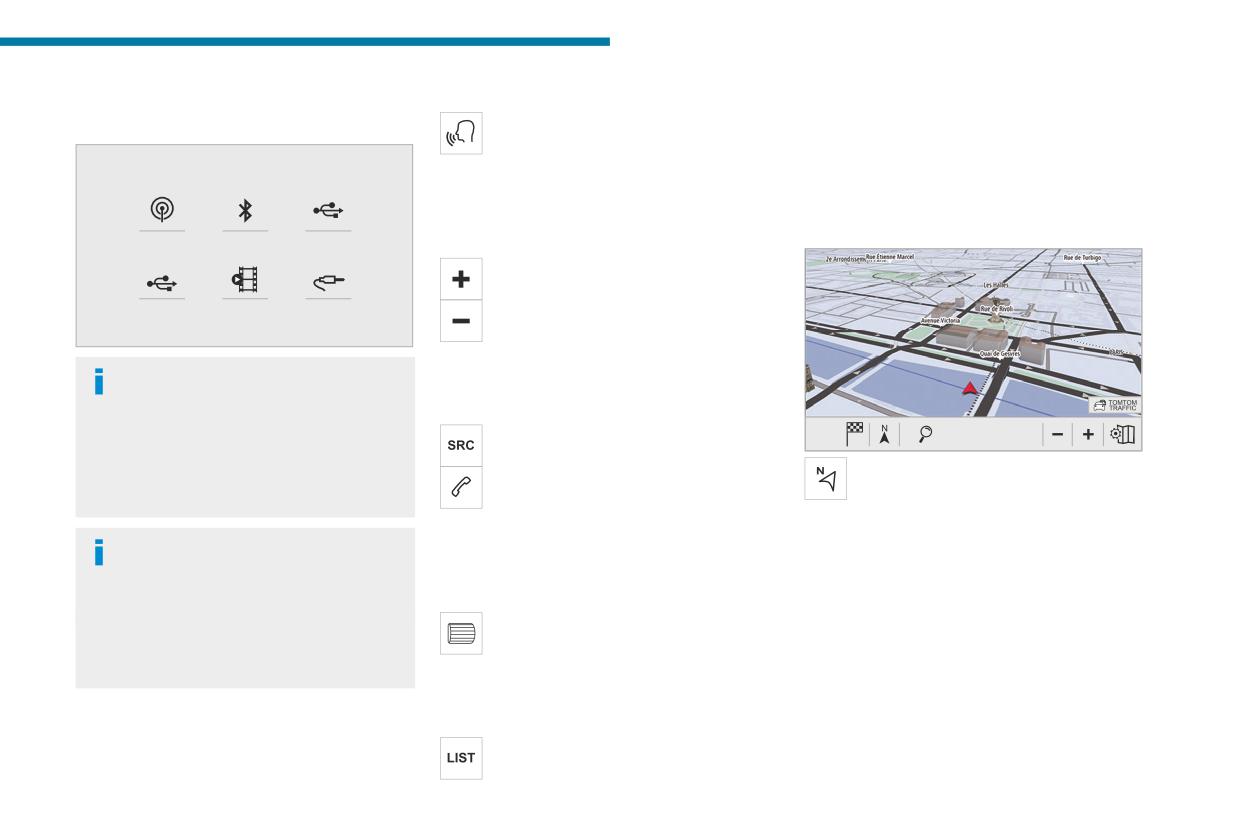
- Go directly to the audio source selection
- Pairing the smartphone with the system via
First steps
option, to view the list of radio stations (or list of
Bluetooth.
With the engine running, a press mutes
titles depending on the source).
- Using the smartphone.
the sound.
- Go to the "Notifications" of messages, emails,
- Connecting to the CarPlay® or Android
With the ignition off, a press turns the system on.
map updates and, depending on the services,
Auto applications (certain applications stop
Increase or decrease the volume using
the navigation notifications.
displaying when the vehicle is moving).
the wheel or the "plus" or "minus" buttons
- Go to the settings for the touch screen and the
- Watching a video (the video stops when the
(depending on the equipment).
digital instrument panel.
vehicle starts to move again).
Use the menu buttons on either side of or below
Audio source selection (depending on
- Changing the system settings and
the touch screen for access to the menus, then
equipment):
configuration.
press the virtual buttons in the touch screen.
- FM/DAB/AM radio stations (depending on
Depending on the model, use the "Source" or
equipment).
AM and DAB radio are not available on
"Menu" buttons to access the rolling menus, then
- Telephone connected via Bluetooth and
Hybrid vehicles.
press the virtual buttons in the touch screen.
Bluetooth multimedia broadcast (streaming).
Display the rolling menus at any time by pressing
- USB memory stick.
the screen briefly with three fingers.
254
PEUGEOT Connect Nav
- Media player connected via the auxiliary
Media: display the list of tracks.
Steering mounted controls
11
socket (depending on equipment).
Radio (press and hold): update the list of
Voice control:
- Video (depending on equipment).
detected stations.
This control is located on the steering
wheel or at the end of the lighting control stalk
(depending on equipment).
Menus
Short press, system voice control.
Long press, voice commands from smartphone
Connected navigation
or CarPlay®, Android Auto via the system.
Increase volume.
Decrease volume.
Mute by pressing the volume increase
and decrease buttons simultaneously
In the "Settings" menu, it is possible to
(depending on equipment).
create a profile for an individual or for a
Restore the sound by pressing one of the two
group of people with shared interests, and
volume buttons.
configure a wide range of settings (radio
Media (short press): change the
presets, audio settings, navigation history,
multimedia source.
Enter navigation settings and choose a
favourite contacts, etc.). Settings are applied
Telephone (short press): start telephone
destination.
automatically.
call.
Use real-time services, depending on equipment.
Call in progress (short press): access
telephone menu.
In very hot conditions, the volume may
Telephone (long press): reject an incoming call,
be limited to protect the system. It may
end call; when no call is in progress, access
enter standby mode (with the screen and
telephone menu.
sound off) for 5 minutes or more.
Radio (rotate): automatic search for the
The system will resume normal operation
previous/next station.
when the temperature in the passenger
Media (rotate): previous/next track, move
compartment has dropped.
through a list.
Short press: confirm a selection; if nothing
selected, access presets.
Radio: display the list of stations.
255
PEUGEOT Connect Nav
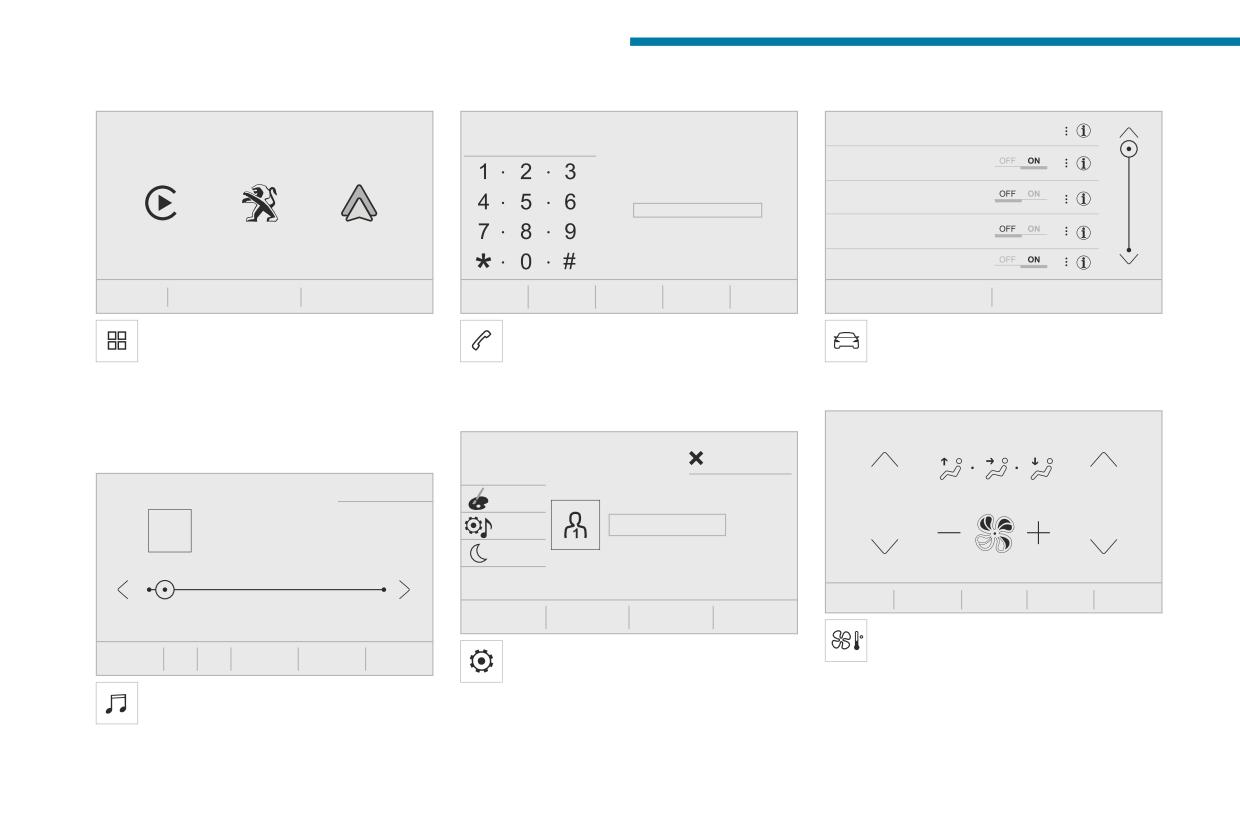
Applications
Telephone
Vehicle
Run certain applications from a
Connect a telephone via Bluetooth®, read
Activate, deactivate or configure certain
smartphone connected via CarPlay® or
messages and emails and send quick
vehicle functions.
Android Auto.
messages.
Check the status of the Bluetooth® and Wi-Fi
Air conditioning
connections.
Settings
Radio Media
18,5
21,5
FM 87.5 MHz
Manage various temperature and air flow
Configure a personal profile and/or
settings.
configure the sound (balance, ambience,
Select an audio source or radio station, or
etc.) and the display (language, units, date, time,
display photographs.
etc.).
256
PEUGEOT Connect Nav
Example of a "voice command" for the radio and
Voice commands
11
media:
"Play artist Madonna"
Steering wheel-mounted
Example of a "voice command" for the
controls
telephone:
Voice commands:
"Call David Miller"
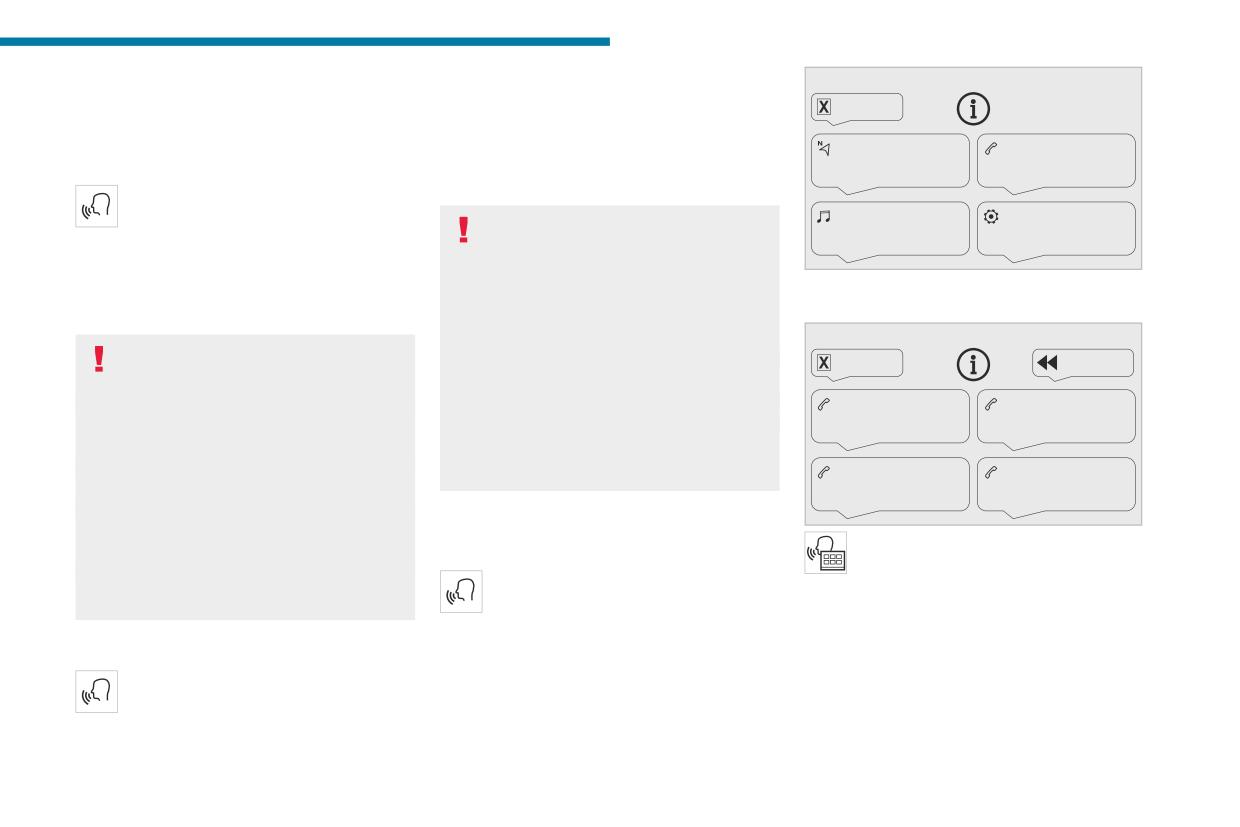
Voice commands can be issued from any
The voice commands, with a choice of 17
screen page after a short press on the "Voice
languages (Arabic, Brazilian, Czech,
commands" button located on the steering
Danish, Dutch, English, Farsi, French,
wheel or at the end of the lighting control stalk
German, Italian, Norwegian, Polish,
A number of commands are available when a
(depending on equipment), as long as there is no
Portuguese, Russian, Spanish, Swedish,
menu is selected.
telephone call in progress.
Turkish), are made using the language
To ensure that voice commands are
previously chosen and set in the system.
always recognised by the system, please
For some voice commands, there are
follow these recommendations:
alternative synonyms.
- use natural language in a normal tone
Example: Guide to / Navigate to / Go to / ...
without breaking up words or raising your
The voice commands in Arabic for: "Navigate
voice.
to address" and "Display POI in the city", are
- always wait for the "beep" (audible signal)
not available.
before speaking.
- for best results, closing the windows and
Information - Using the
sunroof is recommended, to avoid extraneous
Press the Push To Talk button and tell me
interference (depending on version).
system
what you'd like after the tone. Remember
- before issuing a voice command, ask any
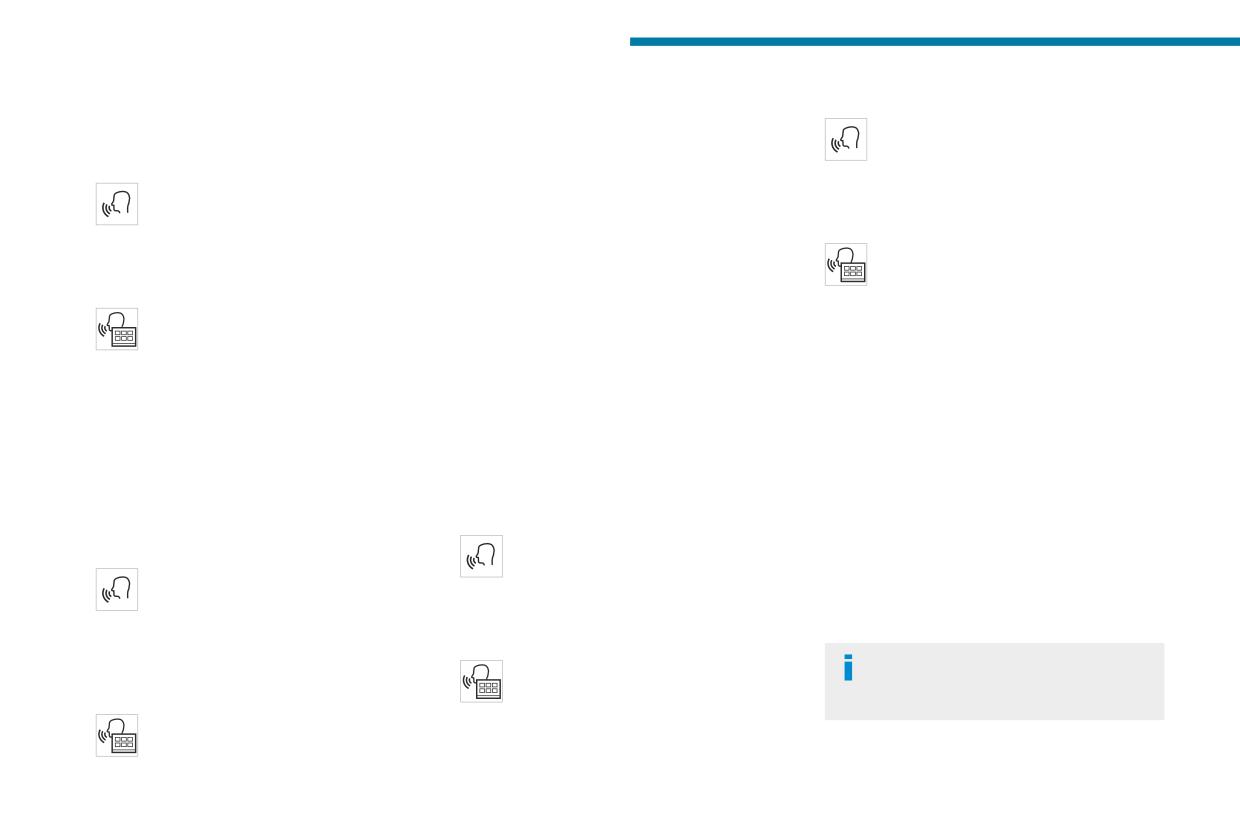
When voice commands are activated, by
you can interrupt me at any time by pressing this
other passengers to refrain from speaking.
briefly pressing the button, help is
button. If you press it again while I'm waiting for
displayed on the touch screen, offering various
you to speak, it'll end the conversation. If you
menus and enabling voice-based interaction with
need to start over, say "cancel". If you want to
First steps
the system.
undo something, say "undo". And to get
Example of a "voice command" for
information and tips at any time, just say "help".
navigation:
If you ask to me do something and there's some
"Navigate to address 11 regent street,
information missing that I need, I'll give you
London"
some examples or take you through it step by
257
PEUGEOT Connect Nav
step. There's more information available in
To plan a route, say "navigate to" followed by the
distance" or "arrival time". To learn more
"novice" mode. You can set the dialogue mode to
address, the contact name or an intersection. For
commands, try saying "help with navigation".
"expert" when you feel comfortable.
example, "navigate to address 11 Regent Street,
Voice commands
London", "navigate to contact, John Miller",
Global voice commands
or "navigate to intersection of Regent Street,
Show POI ''hotel'' at the destination
Voice commands
London". You can specify if it's a preferred
Show nearby POI petrol station
address, or a Point of Interest. For example, say
Navigate to POI Heathrow Airport in London
Set dialogue mode as novice - expert
"navigate to preferred address, Tennis club", or
Navigate to POI petrol station along the route
Select user 1 / Select profile John
"navigate to POI Heathrow Airport in London".
Help messages
Increase temperature
Or, you can just say, "navigate home". To see
Decrease temperature
Points of Interest on a map, you can say things
To see points of interest on a map, you can
Help messages
like "show POI hotels in Banbury". For more
say things like "show hotels in Banbury", "show
information say "help with points of interest" or
nearby parking", "show hotel at the destination"
There are lots of topics I can help you with.
"help with route guidance".
or "show petrol station along the route". If you
You can say: "help with phone", "help with
To choose a destination, say something like
prefer to navigate directly to a point of interest,
navigation", "help with media" or "help with
"navigate to line three" or "select line two". If you
you can say "navigate to nearby petrol station".
radio". For an overview on how to use voice
can't find the destination but the street's right,
If you feel you are not being well understood,
controls, you can say "help with voice controls".
say for example "select the street in line three".
try to say the word "POI" in front of the point
Say "yes" if I got that right. Otherwise, say "no"
To move around a displayed list, you can say
of interest. For example say "navigate to POI
and we'll start that again.
"next page" or "previous page". You can undo
restaurant at the destination".
your last action and start over by saying "undo",
To choose a POI, say something like "select
"Navigation" voice
or say "cancel" to cancel the current action.
line 2". If you've searched for a Point of Interest
Voice commands
and don't see the one you're after, you can filter
commands
further by saying something like "select POI in
Voice commands
Tell me the remaining distance
line 2", or "select the city in line 3". You can also
Tell me the remaining time
scroll through the list by saying "next page" or
Navigate home
Tell me the arrival time
"previous page".
Navigate to work
Stop route guidance
Navigate to preferred address, Tennis club
Depending on the country, give
Help messages
Navigate to contact, John Miller
destination (address) instructions in the
Navigate to address 11 regent street, London
language configured for the system.
You can say "stop" or "resume route guidance".
Help messages
To get information about your current route, you
can say "tell me the remaining time", "remaining
258
PEUGEOT Connect Nav
"Radio Media" voice
Voice commands
Media voice commands are available
11
only with a USB connection.
commands
What's playing?
Voice commands
Help messages
"Telephone" voice
Turn on source radio - Streaming Bluetooth
To choose what you'd like to play, start by saying
commands
- …
"play" and then the item. For example, say "play
Help messages
If there is no telephone connected by
song Hey Jude", "play line 3" or "select line 2".
Bluetooth, a voice message announces:
You can undo your last action and start over
You can select an audio source by saying "turn
by saying "undo", or say "cancel" to cancel the
"Please first connect a telephone", and the
on source" followed by the device name. For
voice session is closed.
current action.
example, "turn on source, Streaming Bluetooth",
Voice commands
Voice commands
or "turn on source, radio". Use the command
"play" to specify the type of music you'd like to
Play song Hey Jude
Call David Miller*
hear. You can choose between "song", "artist",
Play artist Madonna
Call voicemail*
or "album". Just say something like "play artist,
Play album Thriller
Display calls*
Madonna", "play song, Hey Jude", or "play
Help messages
Help messages
album, Thriller".
Voice commands
I'm not sure what you'd like to play. Please say
To make a phone call, say "call" followed by
"play" and then a song title, an album title, or
the contact name, for example: "Call David
Tune to channel BBC Radio 2
an artist name. For example, say "play song
Miller". You can also include the phone type, for
Tune to 98.5 FM
Hey Jude", "play artist Madonna" or "play
example: "Call David Miller at home". To make
Tune to preset number five
album Thriller". To select a line number from the
a call by number, say "dial" followed by the
Help messages
display, say "select line two". To move around
phone number, for example, "Dial 107776 835
a displayed list, you can say "next page" or
417". You can check your voicemail by saying
You can pick a radio station by saying "tune to"
"previous page". You can undo your last action
"call voicemail". To send a text, say "send quick
and the station name or frequency. For example
and start over by saying "undo", or say "cancel"
message to", followed by the contact, and then
"tune to channel Talksport" or "tune to 98.5
to cancel the current action.
the name of the quick message you'd like to
FM". To listen to a preset radio station, say for
send. For example, "send quick message to
example "tune to preset number five".
* This function is available only if the telephone connected to the system supports downloading of contacts and recent calls and the corresponding
download has been performed.
259
PEUGEOT Connect Nav
David Miller, I'll be late". To display the list of
From the list of quick messages, say the name of
Bill Carter, I'll be late". Check the phone menu
calls, say "display calls". For more information on
the one you'd like to send. To move around the
for the names of the supported messages.
SMS, you can say "help with texting".
list you can say "go to start", "go to end", "next
The system only sends pre-recorded
To choose a contact, say something like "select
page" or "previous page". You can undo your last
"Quick messages".
line three". To move around the list say "next
action and start over by saying "undo", or say
page" or "previous page". You can undo your last
"cancel" to cancel the current action.
action and start over by saying "undo", or say
Voice commands
Navigation
"cancel" to cancel the current action.
Send SMS to John Miller, I'm just arriving
"Text message" voice
Send SMS to David Miller at the office, don't
Choice of a destination
wait for me
commands
Help messages
To a new destination
If there is no telephone connected by
Intuitive method:
Bluetooth, a voice message announces:
Please say "call" or "send quick message to",
Press Navigation to display the main
"Please first connect a telephone", and the
and then select a line from the list. To move
page.
voice session is closed.
around a list shown on the display, you can
Press "Search…".
say "go to start", "go to end", "next page" or
The "Text messages" voice commands
"previous page". You can undo your last action
Enter an address or the key words for the
function allows you to dictate and send
and start over by saying "undo", or say "cancel"
destination.
an SMS.
to cancel the current action.
Press "OK" to select the "Guidance
Dictate the text, taking care to pause briefly
Voice commands
criteria".
between each word.
Or
When you have finished, the voice recognition
Listen to most recent message*
Guided method:
system will automatically generate an SMS.
Help messages
In order to be able to use the navigation,
Voice commands
you must enter the "City", the "Street"
To hear your last message, you can say "listen to
(suggestions are displayed automatically
most recent message". When you want to send
when you begin typing), then enter the
Send quick message to Bill Carter, I'll be late
a text, there's a set of quick messages ready for
Help messages
you to use. Just use the quick message name
"Number" using the virtual keypad, or select
and say something like "send quick message to
* This function is available only if the telephone connected to the system supports downloading of contacts and recent calls and the corresponding
download has been performed.
260
PEUGEOT Connect Nav
an address from the "Contact" list or the
To a recent destination
To a contact
11
address "History".
Press Navigation to display the main
Press Navigation to display the main
page.
page.
If you do not confirm the number, the
Press the "MENU" button to access the
Press the "MENU" button to access the
navigation system will show one end of
secondary page.
secondary page.
the street.
Select "My destinations".
Select "My destinations".
Press the "MENU" button to access the
Select the "Recent” tab.
Select the "Contact” tab.
secondary page.
Select the address chosen in the list to display
Select a contact in the list to start guided
Select "Enter address".
the "Guidance criteria”.
navigation.
Press "OK" to start guided navigation.
Then
To points of interest (POI)
Select the "Country".
Guided method:
Select "Position" to see the point of
Points of interest (POI) are listed in different
Select the keyboard “language”.
arrival on the map.
categories.
Press Navigation to display the main
Change the keyboard "type" according to
To "Home" or "My work"
page.
the selected "language": ABCDE;
Press Navigation to display the main
Press the "MENU" button to access the
AZERTY; QWERTY or QWERTZ.
page.
secondary page.
Enter the "City", the "Street" and the
Press the "MENU" button to access the
Select "Points of interest".
"Number", and confirm by pressing on
the displayed suggestions.
secondary page.
Select "My destinations".
Select the "Travel", "leisure",
Press "OK" to select the "Guidance
"Commercial", "Public" or "Geographic”
criteria".
tab.
And/or
Select the "Preferred” tab.
Select "Home".
Or
Select "See on map" to choose the
Select "Search" to enter the name and
"Guidance criteria".
address of a POI.
Press "OK" to start guided navigation.
Or
Select "My work".
Press "OK" to calculate the route.
Zoom in/out using the touch buttons or
Or
Or
with two fingers on the screen.
Intuitive method:
Select a preset favourite destination.
261
PEUGEOT Connect Nav
You can only select this method of
To a point on the map
A marker is displayed in the middle of the
using the service if a network connection
screen, with the "Latitude" and
Press Navigation to display the main
is active; this may be either a "network
"Longitude" coordinates.
page.
connection provided by the vehicle", if you
Choose the type of coordinates:
Explore the map by sliding a finger on the
use the Peugeot Connect Packs solution, or
DMS for: Degrees, Minutes, Seconds.
screen.
else a "network connection provided by the
DD for: Degrees, Decimals.
Select the destination by pressing on the map.
user" via a smartphone,
Press this button to start guided
Tap the screen to place a marker and
In both cases, the system is automatically
navigation.
display the sub-menu.
connected to the Internet, if network coverage
Or
Press this button to start guided
permits.
Press this button to save the displayed
navigation.
address.
Or
Press Navigation to display the main
OR
Press this button to save the displayed
page.
Press this button to enter the "Latitude"
address.
Press the "MENU" button to access the
value using the virtual keypad.
secondary page.
A long press on a point opens a list of
And
Select "Search".
nearby POIs.
Press this button to enter the "Longitude"
value using the virtual keypad.
Press on the mode shown in the bottom right of
the screen (On-Board or Connected) to change
To GPS coordinates
TMC (Traffic Message
the "Database".
Press Navigation to display the main
Channel)
Select the "Database" in "On-Board"
page.
mode (integrated into the map), or in
Explore the map by sliding a finger on the
Available in some countries.
"Connected" mode (connected to the Internet).
screen.
TMC (Traffic Message Channel) messages
Press the back arrow to confirm.
Touch the screen with a finger to go to the next
are based on a European standard for traffic
image.
information broadcasting via the RDS system on
Enter an address or the key words for the
Press this button to display the world
FM radio, sending traffic information in real time.
destination (POI).
map.
The TMC information is then displayed on a GPS
Press "OK" to start the search.
Using the grid, select the desired country or
Navigation system map and taken into account
region by zooming.
straight away when routes are calculated, to
Select the "On the route", "Around the
Press this button to display or enter the
avoid accidents, traffic jams and closed roads.
vehicle" or "At destination" tab to refine
GPS coordinates.
Danger zone alerts may or may not be
your search.
displayed, depending on the applicable
Select the desired address to calculate the route.
262
PEUGEOT Connect Nav
legislation and subscription to the
update the smartphone operating system
Select the "Secured", "Not secured" or
11
corresponding service.
as well as the date and time on the
"Stored” tab.
smartphone and system, to ensure that the
Select a network.
communication process between the
Connected navigation
smartphone and the system functions
Using the virtual keypad, enter the "Key"
correctly.
network Wi-Fi and the "Password".
Press "OK" to establish a connection
Connected navigation
USB connection
between the smartphone and the
Connect the USB cable.
connection
vehicle’s system.
The smartphone charges when
Depending on version, vehicle trim level and
connected by the USB cable.
Usage restrictions:
subscription to online services and options.
Bluetooth connection
With CarPlay®, connection sharing is only
Activate the Bluetooth function on the
available with a Wi-Fi connection.
Network connection provided by the
telephone and ensure that it is visible to
The quality of services depends on the quality
vehicle
all (see the "Connect-App" section).
of the network connection.
With the Peugeot Connect Packs
Wi-Fi connection
solution, the system is automatically
Select a Wi-Fi network detected by the
connected to the Internet and connected
Authorize sending
system and connect to it.
services, and does not require the user to
information
provide a connection via their smartphone.
This function is only available if it has
Press Settings to display the main page.
OR
been activated either via the
"Notifications" or via the "Applications" menu.
Network connection provided by the
Press the "OPTIONS" button to access the
Press "Notifications".
secondary page.
user
Select "System configuration".
Select Wi-Fi to activate it.
Select the "Private mode" tab.
For the list of compatible smartphones,
OR
Press Connect-App to display the main
OR
visit the Brand's website in your country.
page.
Press "Notifications".
Activate and enter settings for sharing the
Press the "OPTIONS" button to access the
smartphone connection.
secondary page.
Press "Private mode".
Select "Wi-Fi network connection".
As processes and standards are
THEN
constantly changing, we recommend you
263
PEUGEOT Connect Nav
Activate or deactivate:
- "Give an audible warning".
Press Navigation to display the main
- "Advise proximity of POI 1".
page.
- "No data sharing except for company
- "Advise proximity of POI 2".
Press the "Declare a new danger zone"
vehicles".
Press “OK” to confirm your selection.
button located in the side bars or the
- "Only data sharing"
upper bar of the touch screen (depending on
- "Sharing data and vehicle position"
equipment).
The "Notifications", located in the upper
Select the "Type” option to select the type
bar, can be accessed at any time.
Settings specific to
of "Danger area".
Select the "Speed" option and enter it
connected navigation
Danger zone alerts may or may not be
using the virtual keypad.
Press Navigation to display the main
displayed, depending on the applicable
Press "OK" to save and send the
page.
legislation and subscription to the
information.
Press the "MENU" button to access the
corresponding service.
secondary page.
Displaying fuel information
Select "Settings".
When "TOMTOM TRAFFIC” appears, the
Press Navigation to display the main
services are available.
page.
Select the "Map” tab.
The services offered with connected
Press this button to display the list of
navigation are as follows.
services.
Activate or deactivate:
A Connected Services pack:
Press "POI on map" to display the list
- "Allow declaration of danger zones".
- Weather,
of points of interest.
- "Guidance to final destination on foot".
- Filling stations,
Press one of the buttons to search for
These settings must be configured for each
- Car park,
"Stations".
profile.
- Traffic,
Activate/deactivate "Stations".
Press “OK” to confirm your selection.
- POI local search.
A Danger area pack (optional).
Press this button to display a secondary
Select the "Alerts” tab.
page.
Select the "Settings” tab.
Activate or deactivate:
Declaration: "Risk areas
alert"
Select the desired fuel.
- "Advise of car park nearby".
- "Filling station alert".
To send information about danger zones,
Press "OK" to save.
- “Risk areas alert" then press the warning icon
select the option:Allow declaration of
(triangle) to configure the alerts.
danger zones
264
PEUGEOT Connect Nav
Displaying charging station
Press this button to display basic
As principles and standards are constantly
11
information.
changing, we recommend keeping the
details
Press this button to display detailed
smartphone's operating system up-to-
Press Navigation to display the main
weather information.
date, together with the date and time on
page.
the smartphone and the system.
The temperature displayed at 6 a.m. will
Press this button to display the list of
be the maximum temperature for the day.
services.
The temperature displayed at 6 p.m. will be
Connectivity
Press "POI on map" to display the list
the minimum temperature for the night.
of points of interest.
Press Applications to display the main
Press one of the buttons to search for
page.
"Stations".
Press "Connectivity" to access the CarPlay® or
Activate/deactivate "Stations".
Applications
Android Auto functions.
USB sockets
Press this button to display a secondary
CarPlay® smartphone
page.
Depending on equipment, for more information
connection
Select the "Settings" tab.
on the USB sockets compatible with CarPlay® or
Depending on country.
Android Auto applications, refer to the "Ease of
Select the desired connector type.
use and comfort" section.
On connecting the USB cable, the
CarPlay® function deactivates the
For the list of compatible smartphones,
Press "OK" to save.
system's Bluetooth® mode.
visit the Manufacturer's website in your
The "CarPlay" function requires the use of
country.
a compatible smartphone and compatible
Displaying weather
applications.
Synchronising a smartphone enables
information
users to display applications that support
Connect the USB cable. The smartphone
Press Navigation to display the main
the smartphone’s CarPlay® or Android Auto
charges when connected by the USB
page.
technology on the vehicle’s screen. For
cable.
Press this button to display the list of
CarPlay® technology, the CarPlay® function
Press "Telephone" to display the
services.
must first be activated on the smartphone.
CarPlay® interface.
Select "View map".
Unlock the smartphone for the communication
Or
process between the smartphone and the
Connect the USB cable. The smartphone
Select "Weather".
system to work.
charges when connected by the USB
cable.
265
PEUGEOT Connect Nav
From the system, press "Applications" to
During the procedure, several screen
Select the country of residence.
display the main page.
pages relating to certain features are
Press "Connectivity" to access the "CarPlay®”
displayed.
Press "OK" to save and start the browser.
function.
Accept to start and complete the connection.
Press "CarPlay" to display the CarPlay®
Access to the different audio sources remains
Connection to the internet is via one of
interface.
available in the margin of the Android Auto
the network connections provided by the
display, using the touch buttons located in the
When the USB cable is disconnected
vehicle or the user.
upper bar.
and the ignition is switched off then back
Access to the menus for the system is possible
on, the system will not automatically switch to
at any time using the dedicated buttons.
Bluetooth connection®
Radio Media mode; the source must be
changed manually.
In Android Auto mode, the function that
The services available depend on the
displays rolling menus by briefly pressing
network, the SIM card and the
the screen with three fingers is disabled.
compatibility of the Bluetooth devices used.
Android Auto smartphone
Consult the smartphone user guide and the
connection
There may be a pause before
service provider to check which services are
Depending on country.
applications become available,
available.
depending on the quality of the network.
Install the "Android Auto" application on
the smartphone via "Google Play".
The Bluetooth function must be activated
The "Android Auto" function requires the use
Car Apps
and the smartphone configured as
of a compatible smartphone and compatible
"Visible to all".
Press Applications to display the main
applications.
page.
To complete the pairing, whichever procedure is
Press "Car Apps" to display the applications
used (from the smartphone or from the system),
Connect the USB cable. The smartphone
home page.
ensure that the code is the same in the system
charges when connected by the USB
cable.
and in the smartphone.
Internet Browser
From the system, press "Applications" to
If the pairing procedure fails, we
Press Applications to display the main
display the main page.
recommend deactivating and then
page.
Press "Connectivity" to access the "Android
reactivating the Bluetooth function on the
Press "Connectivity" to access the "Connected
Auto” function.
smartphone.
Apps” function.
Press "Android Auto" to start the
Press "Connected Apps" to display the browser
application in the system.
home page.
266
PEUGEOT Connect Nav
Procedure from the smartphone
the vehicle does not have "Emergency and
Press Connect-App to display the main
11
Select the name of the system in the list
assistance call" services), after first activating
page.
of detected devices.
smartphone connection sharing.
Press the "OPTIONS" button to access the
In the system, accept the connection request
secondary page.
Select one or more profiles.
from the smartphone.
Select "Share Wi-Fi connection".
Press "OK" to confirm.
Procedure from the system
Select the "Activation" tab to activate or
Press Connect-App to display the main
deactivate Wi-Fi connection sharing.
page.
And/or
Wi-Fi connection
Press the "OPTIONS" button to access the
Select the "Settings" tab to change the system’s
Network connection via the smartphone's Wi-Fi.
network name and password.
secondary page.
Press Connect-App to display the main
Press "OK" to confirm.
Press "Bluetooth connection".
page.
Press the "OPTIONS" button to access the
Select "Search".
To protect against unauthorised access
secondary page.
The list of detected smartphones is
and to make all systems as secure as
Select "Wi-Fi network connection".
displayed.
possible, the use of a security code or a
Select the name of the chosen
complex password is recommended.
Select the "Secured", "Not secured" or
smartphone in the list.
"Stored” tab.
Depending on the type of smartphone,
Select a network.
Managing connections
you may by prompted to accept the
Press Connect-App to display the main
transfer of contacts and messages.
Using the virtual keypad , enter the Wi-Fi
page.
network "Key" and "Password".
Press the "OPTIONS" button to access the
Press "OK" to establish the connection.
Connection sharing
secondary page.
The system offers to connect the smartphone
Select "Manage connection".
with 3 profiles:
The Wi-Fi connection and Wi-Fi
- "Telephone" (hands-free kit, telephone only),
connection sharing are exclusive.
With this function, you can view the access to
- “Streaming" (streaming: wireless playing of
connected services, the availability of connected
audio files on the smartphone),
services and modify the connection mode.
Wi-Fi connection sharing
- "Mobile internet data".
Depending on equipment.
The "Mobile internet data" profile must
Creation of a local Wi-Fi network by the system.
be activated for connected navigation (if
267
PEUGEOT Connect Nav
This phenomenon is perfectly normal in the
Press "OK" to confirm.
Radio
context of radio wave transmission, and
in no way indicative of an audio system
Selecting a station
RDS station tracking may not be
malfunction.
available nationwide, as many radio
Press Radio Media to display the main
stations do not cover 100 % of the country.
page.
Presetting a station
This explains the loss of reception of the
Press "Frequency".
station during a journey.
Press one of the buttons to perform an
Select a radio station or frequency.
automatic search for radio stations.
(refer to the corresponding section)
Or
Press "Presets".
Displaying text information
Move the slider to manually search for
Make a long press on one of the buttons
The "Radio Text" function displays information
frequencies up or down.
to preset the station.
transmitted by the radio station relating to the
Or
station or the currently playing song.
Press Radio Media to display the main
Changing the waveband
Press Radio Media to display the main
page.
Press Radio Media to display the main
page.
Press the "OPTIONS" button to access the
page.
Press the "OPTIONS" button to access the
secondary page.
To change the waveband, press "Band…",
secondary page.
Select "Radio stations" on the secondary
displayed at the top right of the screen.
Select "Radio settings".
page.
Press "Frequency".
Activating/Deactivating RDS
Select "General".
Enter the values using the virtual keypad.
RDS, if activated, allows you to continue
Activate/deactivate "Display radio text".
First enter the units then click on the
listening to the same station by automatic
decimals field to enter the figures after the
retuning to alternative frequencies.
Press "OK" to confirm.
decimal point.
Press Radio Media to display the main
Press "OK" to confirm.
page.
Press the "OPTIONS" button to access the
Playing TA messages
secondary page.
Radio reception may be affected by the
The TA (Traffic Announcement) function gives
Select "Radio settings".
use of electrical equipment not approved
priority to TA alert messages. To operate, this
by the Brand, such as a USB charger
function needs good reception of a radio station
connected to the 12 V socket.
Select "General".
that carries this type of message. While traffic
Activate/deactivate "Station follow".
The exterior environment (hills, buildings,
information is being broadcast, the current
tunnels, basement car parks, etc.) may
media is automatically interrupted so that the
block reception, including in RDS mode.
268
PEUGEOT Connect Nav
TA message can be heard. Normal play of the
Press the "OPTIONS" button to go to the
Media
11
previously playing media resumes at the end of
secondary page.
the message.
Select "Radio settings".
USB port
Select "Announcements".
Activate/deactivate "Traffic
Select "General".
Insert the USB memory stick into the USB
announcement".
Activate/deactivate "FM-DAB Follow-up".
port or connect the USB device to the
Press "OK" to confirm.
USB port using a suitable cable (not supplied).
Activate/deactivate "Station follow".
To protect the system, do not use a USB
hub.
Press "OK".
DAB (Digital Audio
The system builds playlists (in temporary
Broadcasting) radio
memory); this operation can take from a
If "FM-DAB auto tracking" is activated,
few seconds to several minutes at the first
there may be a time lag of a few seconds
connection.
Terrestrial Digital Radio
when the system switches to "FM" analogue
Reduce the number of non-music files and the
Digital radio provides higher quality sound.
radio, and in some cases a change in volume.
number of folders to reduce the waiting time.
The various "multiplexes/ensembles" offer a
When the digital signal quality is restored, the
Playlists are updated whenever the ignition
choice of radio stations organised in alphabetical
system automatically changes back to "DAB".
is switched off or a USB memory stick is
order.
To minimise this time lag, storing radio
connected. The audio system memorises these
Press Radio Media to display the main
stations in the "DAB" band is recommended.
lists, which will subsequently load faster if they
page.
have not been changed.
Press “Band …" at the top right of the screen to
If the "DAB" station being listened to is
display the "DAB" waveband.
not available on "FM" ("FM-DAB" greyed
Auxiliary socket (AUX)
out), or "FM-DAB auto tracking" is not
Depending on equipment
FM-DAB tracking
activated, the sound will cut out when the
Connect a portable device (MP3 player,
"DAB" does not cover 100% of the territory.
digital signal becomes too weak.
etc.) to the auxiliary jack socket using an
When the digital radio signal is poor,
audio cable (not supplied).
“FM-DAB auto tracking" enables you to continue
This source is only available if "Auxiliary input"
listening to the same station by automatically
has been selected in the audio settings.
switching to the corresponding FM analogue
First adjust the volume on the portable device
station (if there is one).
(to a high level). Then adjust the volume of the
Press Radio Media to display the main
audio system.
page.
Controls are managed via the portable device.
269
PEUGEOT Connect Nav
Selecting the source
If play does not start automatically, it may be
Information and advice
necessary to start the audio playback from the
Press Radio Media to display the main
The system supports USB mass storage
smartphone.
page.
devices, BlackBerry® devices and Apple® players
Control is from the portable device or by using
Select "SOURCES".
via the USB ports. The adapter cable is not
the system's touch buttons.
Select the source.
supplied.
Once connected in streaming mode, the
Devices are managed using the audio system
Watching a video
smartphone is considered to be a media
controls.
Depending on equipment/Depending on version/
source.
Other devices, not recognised on connection,
Depending on country.
must be connected to the auxiliary socket using
Insert a USB memory stick in the USB port.
a jack cable (not supplied) or via Bluetooth
Connecting Apple® players
streaming, if compatible.
Video control commands are accessible
Connect the Apple® player to the USB port using
The audio system will only play audio files with
only through the touch screen.
a suitable cable (not supplied).
".wma", ".aac", ".flac", ".ogg" and ".mp3" file
Play starts automatically.
extensions, at bit rates between 32 Kbps and
Press Radio Media to display the main
Control is via the audio system.
320 Kbps.
page.
It also supports VBR (Variable Bit Rate) mode.
Select "SOURCES".
The classifications available are those of
No other file types (".mp4", etc.) can be read.
Select Video to start the video.
the portable device connected (artists/
All ".wma" files must be standard WMA 9 files.
albums/genres/playlists/audio books/
The supported sampling rates are 32, 44 and
To remove the USB memory stick, press
podcasts).
48 KHz.
the pause button to stop the video, then
The default classification used is by artist. To
To avoid reading and display problems, we
remove the memory stick.
modify the classification used, return to the
recommend choosing file names less than 20
The system can play video files in the MPEG-4
first level of the menu then select the desired
characters long that do not contain any special
Part 2, MPEG-2, MPEG-1, H.264, H.263, VP8,
classification (playlists for example) and
characters (e.g. “ ? . ; ù).
WMV and RealVideo formats.
confirm to go down through the menu to the
Use only USB memory sticks in FAT32 format
desired track.
Streaming Bluetooth®
(File Allocation Table).
The version of software in the audio system may
Streaming allows you to listen to the audio feed
We recommend using the original USB
not be compatible with the generation of the
from your smartphone.
cable for the portable device.
Apple® player.
The Bluetooth profile must be activated.
First adjust the volume on the portable device (to
a high level).
Then adjust the volume of the audio system.
270
PEUGEOT Connect Nav
Procedure from the system
The ability of the system to connect just
Telephone
11
Press Telephone to display the main
one profile depends on the telephone.
page.
All three profiles may connect by default.
Pairing a Bluetooth®
Press "Bluetooth search".
telephone
The profiles compatible with the system
Or
are: HFP, OPP, PBAP, A2DP, AVRCP,
The services available depend on the
Select "Search".
MAP and PAN.
network, the SIM card and the
The list of detected telephones is
compatibility of the Bluetooth devices used.
Visit the Brand's website for more information
displayed.
Consult the telephone user guide and the
(compatibility, additional help, etc.).
Select the name of the chosen telephone
service provider to check which services are
in the list.
available.
Automatic reconnection
Connection sharing
On returning to the vehicle, if the last telephone
The Bluetooth function must be activated
connected is present again, it is automatically
The system offers to connect the telephone with
and the telephone configured as "Visible
recognised and within about 30 seconds
3 profiles:
to all” (in the telphone settings).
after switching on the ignition, the pairing is
- "Telephone" (hands-free kit, telephone only),
established automatically (Bluetooth activated).
- “Streaming" (streaming: wireless playing of
To complete the pairing, whichever procedure is
To modify the connection profile:
audio files on the telephone),
used (from the telephone or from the system),
Press Telephone to display the main
- "Mobile internet data".
ensure that the code is the same in the system
page.
and in the telephone.
The "Mobile internet data" profile must
Press the "OPTIONS" button to access the
be activated for connected navigation,
secondary page.
If the pairing procedure fails, we
after first activating smartphone connection
Select "Bluetooth connection" to display
recommend deactivating and then
sharing.
the list of paired devices.
reactivating the Bluetooth function on the
telephone.
Press the "Details" button.
Select one or more profiles.
Select one or more profiles.
Procedure from the telephone
Press "OK" to confirm.
Select the system name in the list of
Press "OK" to confirm.
Depending on the type of telephone, you may by
detected devices.
prompted to accept the transfer of contacts and
In the system, accept the connection request
messages.
from the telephone.
271
PEUGEOT Connect Nav
Managing paired telephones
Select "End call" on the touch screen.
Calling a recently used
This function lets you connect or disconnect a
number
device or delete a pairing.
Making a call
Press Telephone to display the main
Press Telephone to display the main
page.
page.
Using the telephone is not recommended
Or
Press the "OPTIONS" button to access the
while driving.
Press and hold
secondary page.
Park the vehicle.
Select "Bluetooth connection" to display
Make the call using the steering mounted
the steering mounted telephone button.
the list of paired devices.
controls.
Press on the name of the telephone
Select "Calls".
selected in the list to disconnect it.
Select the desired contact from the displayed list.
Press again to connect it.
Calling a new number
Press Telephone to display the main
It is always possible to make a call
Deleting a telephone
page.
directly from the telephone; as a safety
Select the basket at top right of the
Enter the phone number using the digital
measure, first park the vehicle.
screen to display a basket alongside the
keypad.
telephone chosen.
Press "Call" to start the call.
Managing contacts/entries
Press the basket alongside the telephone
chosen to delete it.
Press Telephone to display the main
Calling a contact
page.
Receiving a call
Select "Contact".
Press Telephone to display the main
An incoming call is announced by a ring and a
page.
Select "Create" to add a new contact.
superimposed display in the screen.
Or press and hold
Make a short press on the steering
Press the "Telephone" tab to enter the
mounted telephone button to accept an
the steering mounted telephone button.
contact’s telephone number(s).
incoming call.
Press the "Address" tab to enter the
And
contact’s address(es).
Select "Contact".
Make a long press
Select the desired contact from the displayed list.
Press the "Email" tab to enter the
contact’s email address(es).
Select "Call".
on the steering mounted telephone button
Press "OK" to save.
to reject the call.
Or
272
PEUGEOT Connect Nav
Press this button to sort contacts by
Managing quick messages
Access to email messages depends on
11
Surname+first name or by First
the compatibility between the
Press Telephone to display the main
name+surname.
smartphone and the onboard system.
page.
The "Email" function allows email
Press the "OPTIONS" button to access the
addresses to be entered for a contact,
secondary page.
but the system is not able to send emails.
Select "Quick messages" to display the
Settings
list of messages.
Select the "Delayed", "My arrival", "Not
Audio settings
Managing messages
available" or "Other" tab, enabling you to
Press Settings to display the main page.
Press Telephone to display the main
create new messages.
page.
Press "Create" to write a new message.
Select "Audio settings".
Press the "OPTIONS" button to access the
secondary page.
Select the message chosen in one of the
Then select "Ambience", "Position", "Sound",
Select "Messages" to display the list of
lists.
"Voice" or "Ringtone".
messages.
Press "Transfer" to select one or more
Press "OK" to save the settings.
Select the "All", "Incoming" or "Sent”
recipients.
tab.
Press "Play" to start playing the message.
Select the details of the message chosen
The balance/distribution (or spatialisation
in one of the lists.
with the Arkamys© system) uses audio
Press "Answer" to send a quick message
Managing email
processing to adjust the sound quality
stored in the system.
according to the number of passengers in the
Press Telephone to display the main
Press "Call" to start the call.
vehicle.
page.
Available only with the front and rear speaker
Press the "OPTIONS" button to access the
Press "Play" to listen to the message.
configuration.
secondary page.
Select "Email" to display the list of
messages.
The Ambience setting (choice of 6
Access to "Messages" depends on the
Select the "Incoming", "Sent" or "Not
ambiances) as well as for Bass, Medium
compatibility between the smartphone
read” tab.
and Treble are different and independent for
and the onboard system.
Select the message chosen in one of the lists.
each audio source.
Some smartphones retrieve messages or
Press "Play" to start playing the message.
Activate or deactivate "Loudness".
email messages more slowly than others.
273
PEUGEOT Connect Nav
The "Position" settings (All passengers,
Press "OK" again to save the settings.
Move the slider to adjust the brightness of
Driver and Front only) are common to all
the screen and/or the instrument panel.
sources.
Press Settings to display the main page.
The location for the photograph is
Activate or deactivate "Touch tones",
square; the system reshapes the original
"Volume linked to speed" and "Auxiliary
Press the "OPTIONS" button to access the
photograph if in another format.
input".
secondary page.
Press this button to reset the selected
Select "System settings".
Onboard audio: Arkamys Sound Staging©
profile.
optimises the sound distribution inside
Select "Units" to change the units of distance,
Resetting the selected profile activates
the passenger compartment.
fuel consumption and temperature.
the English language by default.
Select "Factory settings" to restore the initial
settings.
Select a "Profile" (1 or 2 or 3) to link "Audio
Configuring profiles
settings" with it.
Resetting the system to "Factory
Press Settings to display the main page.
Select "Audio settings".
settings" activates English and degrees
Fahrenheit and deactivates summer time.
Press the "OPTIONS" button to access the
Then select "Ambience", "Position"; "Sound",
secondary page.
Select "System info" to display the versions of
"Voice" or "Ringtone".
Select "Setting of the profiles".
the various modules installed in the system.
Press "OK" to save the selected profile’s
settings.
Select "Profile 1", "Profile 2", "Profile 3” or
Selecting the language
"Common profile".
Modifying system settings
Press Settings to display the main page.
Press this button to enter a name for the
Press Settings to display the main page.
profile using the virtual keypad.
Press the "OPTIONS" button to access the
Press "OK" to confirm.
secondary page.
Press the "OPTIONS" button to access the
secondary page.
Select "Languages" to change the
Press this button to add a photograph to
Select "Screen configuration".
language.
the profile.
Insert a USB memory stick containing the
Setting the date
Select "Animation".
photograph in the USB port.
Activate or deactivate:Automatic
Press Settings to display the main page.
Select the photograph.
scrolling
Press "OK" to accept the transfer of the
Select "Brightness".
Press the "OPTIONS" button to access the
photograph.
secondary page.
274
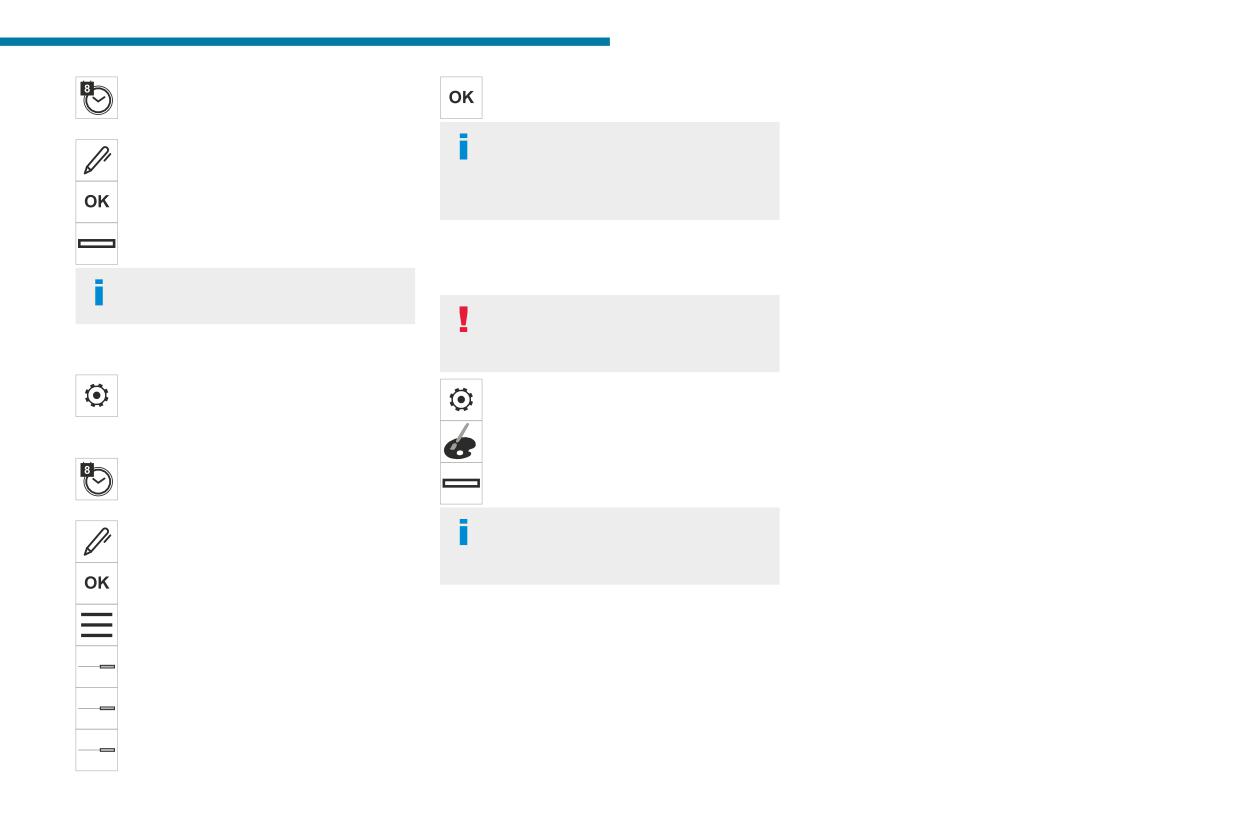
PEUGEOT Connect Nav
Select "Setting the time-date".
Press "OK" to confirm.
Navigation
11
I cannot enter the navigation address.
Select "Date".
The system may not automatically
The address is not recognised.
Press this button to set the date.
manage the change between winter and
► Use the "intuitive method" by pressing
summer time (depending on the country of
the "Search…" button at the bottom of the
Press "OK" to confirm.
sale).
"Navigation” page.
The route calculation is not successful.
Select the display format for the date.
The route settings may conflict with the current
Colour schemes
location (for example, if toll roads are excluded
Time and date setting is only available if
Depending on equipment/Depending on version.
but the vehicle is on a toll road).
"GPS synchronisation" is deactivated.
► Check the route settings in the "Navigation"
As a safety measure, the procedure for
menu.
changing the colour scheme is only
I am not receiving "Danger zone" alerts.
possible when the vehicle is stationary.
Setting the time
You have not subscribed to the online services
Press Settings to display the main page.
Press Settings to display the main page.
option.
► If you have subscribed to the option:
Press the "OPTIONS" button to access the
Select "Color schemes".
- a few days may elapse before the service is
secondary page.
activated,
Select "Setting the time-date".
Select a colour scheme in the list then
- services may not be selected in the system
press "OK" to confirm.
menu,
Select "Time".
- online services are not active ("TOMTOM
Whenever the colour scheme is
Press this button to set the time using the
TRAFFIC" not shown on the map).
changed, the system restarts, temporarily
virtual keypad.
The POIs do not appear.
displaying a black screen.
Press "OK" to confirm.
The POIs have not been selected.
► Set the zoom level to 200 metres (656 ft), or
Press this button to set the time zone.
select POIs from the POI list.
Frequently asked
The "Danger zone" audible warning feature is
Select the display format for the time
not working.
questions
(12h/24h).
The audible warning is not active or the volume
Activate or deactivate summer time (+1
The following information groups together the
is too low.
hour).
answers to the most frequently asked questions
Activate or deactivate GPS
concerning the system.
synchronisation (UTC).
275
PEUGEOT Connect Nav
► Activate the audible warning in the
On starting, GPS initialisation may take up to
► Have the aerial checked by a dealer.
"Navigation" menu and check the voice volume
3 minutes to receive more than 4 satellites
The surrounding area (e.g. hill, building, tunnel,
in the sound settings.
correctly.
underground car park, etc.) is blocking reception,
The system does not suggest a detour
► Wait until the system has started up
including in RDS tracking mode.
around an incident on the route.
completely so that there is GPS coverage by at
This is a perfectly normal phenomenon, and is
The route settings do not take account of TMC
least 4 satellites.
not indicative of an audio system malfunction.
messages.
Depending on the geographical environment
I cannot find some radio stations in the list of
► Configure the "Traffic info" function in the
(tunnel, etc.) or the weather, the conditions of
stations received.
route settings list (None, Manual or Automatic).
reception of the GPS signal may vary.
The name of the radio station changes.
I am receiving a "Danger zone" alert which is
This behaviour is normal. The system is
The station is no longer received or its name has
not on my route.
dependent on the GPS signal reception
changed in the list.
As well as providing guided navigation, the
conditions.
Some radio stations send other information
system announces all "Danger areas" positioned
My navigation is no longer connected.
in place of their name (the title of the song for
in a cone located in front of the vehicle. It may
During start-up and in certain geographical
example).
provide an alert for "Danger areas" located on
areas, the connection may be unavailable.
The system interprets these details as the station
nearby or parallel roads.
► Check that the online services are activated
name.
► Zoom the map to show the exact location
(settings, contract).
► Press "Update list" in the "Radio stations"
of the "Danger area". You can select "On the
secondary menu.
route" to stop receiving warnings or decrease the
Radio
warning duration.
The reception quality of the radio station
Media
Certain traffic jams along the route are not
being listened to gradually deteriorates or
Playback of my USB memory stick starts only
indicated in real time.
the station presets are not working (e.g. no
after a very long wait (around 2 to 3 minutes).
On starting, a few minutes may elapse before
sound, "87.5" MHz is displayed).
Some files supplied with the memory stick may
the system begins to receive traffic information.
The vehicle is too far from the selected station’s
greatly slow down access to reading the memory
► Wait until traffic information is being received
transmitter, or no transmitter is present in the
stick (multiplication by 10 of the cataloguing
correctly (traffic information icons shown on the
geographical area.
time).
map).
► Activate the "RDS" function by means of the
► Delete the files supplied with the memory
In certain countries, only major routes
short-cut menu to enable the system to check
stick and limit the number of sub-folders in the
(motorways, etc.) are listed for the traffic
whether there is a more powerful transmitter in
file structure on the memory stick.
information.
the geographical area.
There may be an extended pause after
This is perfectly normal. The system is
The aerial is missing or damaged (e.g. when
inserting a USB stick.
dependent on the traffic information available.
going through a car wash or in an underground
The altitude is not displayed.
car park).
276
PEUGEOT Connect Nav
The system reads a variety of data (folder, title,
► You can check the compatibility of the
Some telephones offer display options.
11
artist, etc.). This can take from a few seconds to
telephone on the Brand's website (services).
Depending on the settings chosen, contacts can
a few minutes.
Android Auto and/or CarPlay do not work.
be transferred in a specific order.
This is perfectly normal.
Android Auto and CarPlay may not activate if the
► Modify the telephone directory display
Some characters in information about the
USB cables are of poor quality.
settings.
currently playing media may not be displayed
► Use genuine USB cables to ensure
The system is not receiving SMS text
correctly.
compatibility.
messages.
The audio system is unable to process certain
Android Auto and/or CarPlay do not work.
Bluetooth mode does not allow SMS text
types of character.
Android Auto and CarPlay are not available in all
messages to be sent to the system.
► Use standard characters to name tracks and
countries.
folders.
► Check the list of supported countries via
Settings
Playback of streaming files does not start.
these websites: Google Android Auto or Apple.
When the treble and bass settings are
The connected device does not automatically
The volume of the telephone connected via
changed, the ambience is deselected.
launch playback.
Bluetooth is too low.
When the ambience is changed, the treble
► Start playback from the device.
The volume depends on both the system and the
and bass settings are reset.
Track names and playing times are not
telephone.
Selecting an ambience imposes the treble and
displayed on the audio streaming screen.
► Increase the volume of the audio system, to
bass settings, and vice versa.
The Bluetooth profile does not allow the transfer
maximum if required, and increase the volume of
► Modify the treble and bass or ambience
of this information.
the telephone if necessary.
settings to obtain the desired musical ambience.
Ambient noise affects the quality of the
When the balance settings are changed, the
Telephone
telephone call.
distribution is deselected.
I am unable to connect my Bluetooth
► Reduce ambient noise (e.g. close the
When the distribution setting is changed, the
telephone.
windows, reduce ventilation, slow down).
balance settings are deselected.
The telephone's Bluetooth function may be
Some contacts are duplicated in the list.
Selecting a distribution setting imposes the
switched off or the device may not be visible.
The options for synchronising contacts are:
balance settings, and vice versa.
► Check that the telephone has Bluetooth
synchronise the contacts on the SIM card, the
► Modify the balance setting or the distribution
switched on.
contacts on the telephone, or both. When both
setting to obtain the desired sound quality.
► Check in the telephone settings that it is
synchronisations are selected, some contacts
There is a difference in sound quality
"visible to all".
may be duplicated.
between audio sources.
► Deactivate then reactivate the telephone’s
► Select "Display SIM card contacts" or
To allow for optimal listening quality, the sound
Bluetooth function.
"Display telephone contacts".
settings can be tailored to different audio
The Bluetooth telephone is not compatible with
The contacts are not listed in alphabetical
sources, which can generate audible differences
the system.
order.
when changing source.
277
PEUGEOT Connect Nav
► Check that the sound settings are appropriate
to the sources listened to. We recommend
setting the sound functions (Bass, Treble,
Balance) to the middle position, setting the
musical ambience to "None", setting loudness
correction to "Active" in USB mode and "Inactive"
in Radio mode.
► In all cases, after applying sound settings,
adjust the volume level on the portable device (to
a high level) first. Then adjust the volume level
on the audio system.
When the engine is off, the system switches
off after several minutes of use.
When the engine is switched off, the system's
operating time depends on the state of charge of
the battery.
The switch-off is normal: the system
automatically goes into energy economy mode
and switches off to maintain an adequate charge
in the battery.
► Start the vehicle’s engine to increase the
charge of the battery.
The date and time cannot be set.
Date and time settings are only available if
satellite synchronisation is deactivated.
► Settings menu/Options/Date-Time Setting.
Select the "Time" tab and deactivate "GPS
synchronisation" (UTC).
278
Vehicle data recording and privacy
- Environmental conditions (e.g. temperature,
identification number and used if necessary.
Vehicle data recording
12
rain sensor, distance sensor).
The personnel working for the servicing network
and privacy
As a general rule, this data is temporary, is
(e.g. garages, manufacturers) or third parties
Electronic control units are installed in your
not stored for longer than one operating cycle
(e.g. roadside assistance agents) may read
vehicle. These control units process data
and is only used within the vehicle itself. The
the vehicle's data. This also applies to work
received from the vehicle's sensors, for example,
control units often record this data (including the
carried out under warranty and quality assurance
or data they generate themselves or exchange
vehicle's key). This function allows either the
measures.
with each other. Some of these control units are
temporary or permanent storage of information
This data is generally read via the OBD
required for the correct operation of your vehicle,
about the state of the vehicle, stresses on
(On-Board Diagnostics) port fitted by law to
some others assist you while driving (driving or
components, servicing requirements, as well as
the vehicle. It is used to report on the technical
manoeuvring aids), while others provide comfort
events and technical errors.
state of the vehicle or its components and
or infotainment functions.
Depending on the vehicle's equipment level, the
facilitates the diagnosis of malfunctions, in
The following contains general information about
data stored is as follows:
compliance with warranty obligations and for
how data is processed within the vehicle.
- Operating state of system components
quality improvement. This data, in particular the
You will find additional information about the
(e.g. filling level, tyre pressures, battery charge
information relating to stress on components,
specific data which is downloaded, stored
status).
technical events, operator errors and other
and transmitted to third parties and what it is
- Faults and malfunctions in important system
malfunctions, is sent to the Manufacturer, if
used for in your vehicle under the keyword
components (e.g. lamps, brakes).
necessary, along with the vehicle's identification
"Data protection". This information is directly
- System reactions in specific driving situations
number. The Manufacturer's liability may also be
associated with the references for the functions
(e.g. deployment of an airbag, triggering of
engaged. The Manufacturer may also use the
in question contained in the corresponding
stability control and braking systems).
operating data taken from the vehicle for product
vehicle handbook, or in the general terms and
- Information about events which have
recalls. This data may also be used to check the
conditions of sale.
damaged the vehicle.
customer's warranty and any claims made under
This information is also available online.
- For electric and rechargeable hybrid vehicles,
warranty.
the traction battery charge level and the
Any malfunctions stored in the vehicle may be
Vehicle operating data
estimated driving range.
reset by an after-sales service company during
In particular circumstances (e.g. if the vehicle
servicing or repair work, or at your request.
The control units process the data used for the
has detected a malfunction), it may be necessary
operation of the vehicle.
to record data which would otherwise simply not
This data includes, for example:
be stored.
- Information about the state of the vehicle
When taking your vehicle in for servicing
(e.g. speed, travel time, lateral acceleration,
(e.g. repairs, maintenance), the stored operating
wheel rotation rate, fastened seat belts display).
data may be read along with the vehicle's
279
Vehicle data recording and privacy
Comfort and infotainment
online services in line with the settings that you
Online services
have selected.
If your vehicle is connected to a wireless
functions
network, data can be exchanged between
Comfort settings and personalised settings
Smartphone integration
your vehicle and other systems. Connection
may be saved in the vehicle and modified or
(e.g. Android Auto® or
to a wireless network is made possible via a
reinitialised at any time.
transmitter located in your vehicle or a mobile
Depending on the vehicle's equipment level, this
Apple®CarPlay®)
device that you have provided (e.g. smartphone).
may include:
If your vehicle is equipped accordingly, you can
The online services can be used via this wireless
- Seat and steering wheel position settings.
connect your smartphone or another mobile
connection. These include online services and
- Chassis and air conditioning settings.
device to the vehicle in order to operate it using
applications (apps) provided to you by the
- Personalised settings such as the interior
the vehicle's integrated controls. Images and
Manufacturer or other suppliers.
lighting.
sounds from the smartphone can be transmitted
You can enter your own data into the functions
through the audio and telematics system.
Exclusive services
of your vehicle's audio and telematic system, as
Specific information is simultaneously sent
As regards the Manufacturer's online services,
part of the selected functionalities.
to your smartphone. Depending on the type
the corresponding functions are described by
Depending on the vehicle's equipment level, this
of integration, this includes data such as location,
the Manufacturer in an appropriate medium
may include:
day/night mode and other general information
(e.g. handbook, Manufacturer's website) and the
- Multimedia data such as music, videos or
about the vehicle. For more information, please
information about data protection is provided.
photos to be read by an integrated multimedia
refer to the user instructions for the vehicle or the
Personal data may be used for online services.
system.
audio and telematics system.
The exchange of data for this purpose takes
- Address book data to be used with an
Integrating a smartphone allows you to use
place over a secure connection, using for
integrated hands-free system or with an
its applications, such as a navigation app or
example the Manufacturer's dedicated computer
integrated navigation system.
music player. No other integration between
systems. The collection, processing and use of
- Entered destinations.
the smartphone and the vehicle is possible, in
personal data for the development of services
- Data regarding the use of online services.
particular active access to vehicle data. How the
are carried out solely on the basis of a legal
This data for the comfort and infotainment
data is processed subsequently is determined
authorisation, for example in the case of a
functions may be stored locally in the vehicle
by the supplier of the application being used.
legal emergency call system or a contractual
or saved to a device that you have connected
The ability the change settings depends on the
agreement or else under a consent agreement.
to the vehicle (e.g. smartphone, USB memory
application in question and on the operating
You can activate or deactivate the services and
stick or MP3 player). Data that you have entered
system installed on your smartphone.
functions (some may be chargeable) and, in
yourself may be deleted at any time.
some cases, the vehicle's entire connection to
This data may also be transmitted outside the
the wireless network. This does not include the
vehicle at your request, particularly when using
280
Vehicle data recording and privacy
statutory functions and services such as the
12
emergency or assistance call system.
Third-party services
If you use online services provided by other
(third-party) suppliers, these services are subject
to the responsibility, the data protection and
the terms and conditions of use of the supplier
in question. The Manufacturer often has no
influence over the content exchanged in this
regard.
Please therefore ensure that you are aware of
the nature, extent and purpose of the collection
and use of personal data as part of the third-
party services provided by the service provider
in question.
281
Alphabetical index
Air conditioning, dual-zone
60
Boot
35-36, 39, 76
A
Air conditioning, dual-zone automatic
60
Boot (fittings)
72
ABS
91
Air intake
62-63
Brake discs
200
Accelerated charging unit (Wallbox)
181-182
Air vents
59
Brake lamps
219
Accessories
87
Alarm
40-41
Brakes
200
Accessories, electrical
87
Amplifier, audio
67
Braking
127
Active Safety Brake
158-161
Anti-lock braking system (ABS)
91
Braking assistance system
91
AdBlue®
20, 201
Antitheft / Immobiliser
30
Braking, automatic emergency
158-161
AdBlue® tank
202
Applications
266
Braking, dynamic emergency
119-121
Additive, Diesel
199
Armrest, front
68
Brightness
251
Adjusting headlamps
79
Armrest, rear
71
Bulbs (changing)
218-220
Adjusting head restraints
47
Assistance call
88-89
Adjusting seat
46, 48, 53-55
Assistance, emergency braking
91, 160
Adjusting the air distribution
62-63
Audio streaming (Bluetooth)
247, 270
Adjusting the air flow
62-63
C
Adjusting the date
252, 274
Cable, audio
269
Adjusting the headlamp beam height
79
Cable, Jack
269
Adjusting the height and reach of
B
Capacity, fuel tank
175
the steering wheel
50
Backrest, folding
47
Care of the bodywork
205
Adjusting the lumbar support
46, 48
Battery, 12 V
195, 199, 221-228
Central locking
32-33
Adjusting the seat belt height
96
Battery, 48 V
177-178, 226
Changing a bulb
218-220
Adjusting the temperature
61
Battery, ancillaries
221
Changing a fuse
221
Adjusting the time
251, 275
Battery, charging
222-223, 225-227
Changing a wheel
207-209, 213-215
Advanced Grip Control
93
Battery, remote control
34
Changing a wiper blade
85
Advice on care and
Blanking screen (snow shield)
194
Changing the remote control battery
34
maintenance
177, 179, 204
Blind
43-44
Changing to free-wheeling
203
Advice on driving
8, 115-116
Blind spot monitoring
163
Charge level indicator (Rechargeable
Airbags
98-101, 103
Blinds, side
71
hybrid)
23
Airbags, curtain
100-101
BlueHDi
20, 23, 199, 207
Charger, induction
67
Airbags, front
99-100, 103
Bluetooth (hands-free)
249, 271
Charger, wireless
67
Airbags, lateral
100-101
Bluetooth (telephone)
249-250, 271-272
Charging cable
183
Air conditioning
60, 63
Bodywork
205
Charging cable (Rechargeable
Air conditioning, automatic
64
Bonnet
196
hybrid)
181-182, 188
282
Alphabetical index
Charging connector (Rechargeable
Connection, Wi-Fi network
267
Defrosting, rear screen
64
hybrid)
181, 187-189
Connectivity
265
Demisting
51, 64
Charging flap (Rechargeable hybrid)
181,
Consumptions
27
Demisting, front
64
187-189
Container, AdBlue®
202
Demisting, rear
64
Charging the battery
226
Control, emergency boot release
36
Dials and gauges
10
Charging the traction battery (Rechargeable
Control, emergency door
33-34
Digital instrument panel
10-11
hybrid)
179, 187-189
Control, heated seats
49
Dimensions
239
CHECK
23
Controls, steering mounted
125-127, 129
Dipstick
20, 197
Checking the engine oil level
20
Control stalk, lighting
77-78
Direction indicators (turn signals)
78, 219-220
Checking the levels
197-198
Control stalk, wipers
83-85
Domestic charging
183
Checking tyre pressures
Control unit
181-183, 188
Domestic charging (Rechargeable
(using the kit)
210, 212
Courtesy lamps
69-70
hybrid)
188-189
Checks
197-198, 199-201
Cruise control
139, 142, 145-147
Door pockets
66
Checks, routine
199-200
Cruise control, adaptive
147-148
Doors
35
Child lock
113
Cruise control, adaptive with Stop
Drive Assist Plus
147
Children
98, 105-106, 109-110, 112
function
142
Driver’s attention warning
162
Children (safety)
113
Cruise control by speed limit recognition
142
Driving
45-46, 115-116
Child seats
98, 101-102, 104-105, 111, 112
Cup holder
66
Driving aids camera (warnings)
138
Child seats, conventional
104-105
Driving aids (recommendations)
138
Child seats, i-Size
112
Driving economically
8
Child seats, ISOFIX
106, 108-109
Driving modes
93-94, 132
Cleaning (advice)
177, 179, 204-206
D
Driving positions (storing)
48-49
Closing the boot
32, 36
DAB (Digital Audio Broadcasting) -
Dynamic stability control (DSC)
91-93
Closing the doors
32, 35
Digital radio
246, 269
Collision Risk Alert
158-159
Date (setting)
252, 274
Configurations, seats
59
Daytime running lamps
78, 219
Configuration, vehicle
26
Deactivating the passenger airbag
99, 103
E
Connected applications
266
Deadlocking
30, 32
e-Auto mode
60, 136, 175, 195
Connection, Android Auto
266
Deferred charging
27, 188
EBFD
91
Connection, Apple CarPlay
248, 265
Deferred charging (Rechargeable
Eco-driving (advice)
8
Connection, Bluetooth
249-250, 266-267,
hybrid)
26-27, 181, 187
ECO mode
132
271-272
Defrosting
51, 64
Electric windows
41
Connection, MirrorLink
248
Defrosting, front
64
Electronic brake force distribution (EBFD)
91
283
Alphabetical index
Emergency braking assistance (EBA)
91
Fitting roof bars
192-193
Gear shift indicator
134
Emergency call
88-89
Fittings, boot
72
Glove box
66
Emergency switching off
118-119
Fittings, front
66
G.P.S.
262
Emergency warning lamps
87, 207
Fittings, interior
66-67
Grab handles
66
Emissions control system, SCR
21, 201
Fittings, rear
70
Energy economy (mode)
195
Flap, charging
188
Energy economy mode
195
Flap, fuel filler
175-176
Energy flows
26
Flap, ski
71
H
Energy recovery
22, 127
Flashing indicators
78
Hands-free access
37-38
Engine
201
Flat bed (towing)
230
Hands-free tailgate
37-39
Engine, 48 V hybrid
136, 177, 230, 237
Floor, boot, adjustable
75
Hazard warning lamps
87, 207
Engine compartment
195-197
Floor, concertina
56
Headlamps (adjustment)
79
Engine, Diesel
175, 197, 207, 236
Fluid, brake
198
Headlamps, automatic dipping
80-81
Engine, petrol
133, 197, 234
Fluid, engine coolant
198
Headlamps, automatic operation
79
Engines
233-234, 236-238
Foglamps, rear
77, 221
Headlamps, dipped beam
219
Environment
8, 34
Folding the rear seats
52-55
Headlamps, halogen
79
e-Save function (energy reserve)
27
Four-wheel drive (4WD)
133, 194
Headlamps, main beam
80, 219
ESC (electronic stability control)
91
Frequency (radio)
268
Head restraints, front
47-48
Event data recorder
90
Fuel
8, 175
Head restraints, rear
51-53
Expanded traffic sign recognition
143
Fuel consumption
8, 22
Heating
59
Exterior lighting
80
Fuel level, low
175
Heating, programmable
27, 65
Fuel (tank)
175-176
Hi-Fi system
67
Fuses
221
High voltage
179
Hill Assist Descent Control (HADC)
94
F
Hill start assist
131-132
Fatigue detection
161-162
Histogramme, fuel consumption
27
Filling the AdBlue® tank
199, 202
G
Horn
88
Filling the fuel tank
175-176
Gauge, fuel
175
Hybrid, 48 V mild
5, 136, 177, 230, 237
Filter, air
199
Gearbox, automatic
121, 124-129,
Hybrid system
5, 177
Filter, oil
199
131, 200, 222
Filter, particle
199
Gearbox, dual-clutch automatic
128
Filter, passenger compartment
60, 199
Gearbox, manual
121, 131, 200
Fitting a wheel
215, 217
Gear lever, manual gearbox
121
284