Peugeot 4008 (2017 year). Instruction - part 21
 

  Index      Peugeot     Peugeot 4008 - instruction 2017 year in english


Search            copyright infringement  


Content   ..  19  20  21  22   ..


Peugeot 4008 (2017 year). Instruction - part 21


04

319

4008_en_Chap10d_Mitsu4_ed01-2016

RADIO

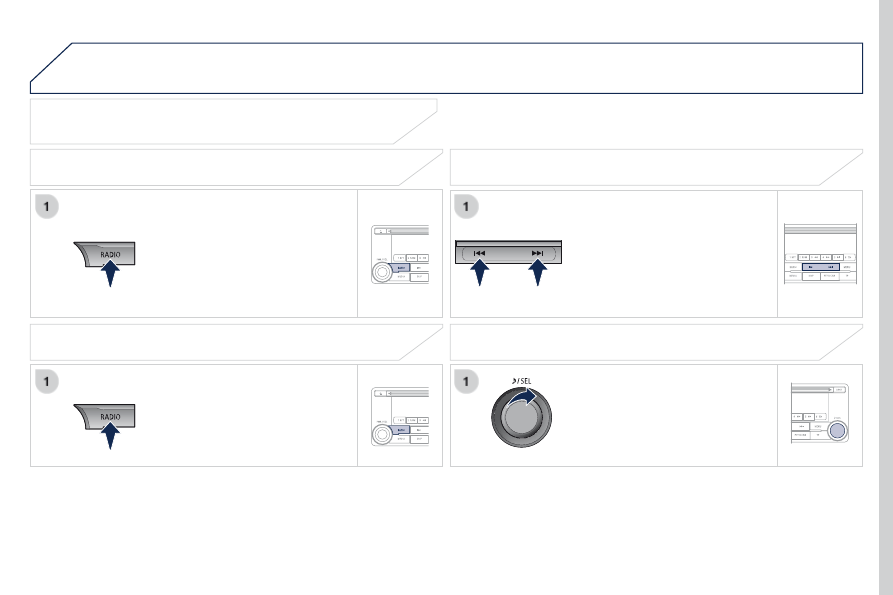
Selecting radio source

Press the RADIO button to switch on 
the radio.

Press the RADIO button repeatedly 
to select the waveband; it changes in 
the following order: FM1 / FM2 / FM3 / 
MW / LW / FM1...

Automatic station search

Manual station search

turn the SEL knob to the left to search 
the lower frequencies or to the right to 
search the higher frequencies.

Press the "9" or ":" button to search 
the lower frequencies or the higher 
frequencies respectively.
the search begins automatically and 

stops at the first station found.

Selecting the waveband

Selection / Presetting

04

320

4008_en_Chap10d_Mitsu4_ed01-2016

Press one of the six buttons "1" to "6" until an 
audible signal is heard.
the sound cuts out then becomes audible again 
when the station has been preset.
the number of the button and the associated radio 
frequency appear in the screen.

Manual station presetting

to recall the pre-set stored setting, press the button and release it 
within two seconds.

RADIO

You can preset up to six stations on each waveband.
Presetting a new station replaces the previous station.

Automatic station presetting

Disconnecting the battery terminals clears the preset radio stations.

Stations can only be preset automatically on wavebands FM1,  
FM2 and FM3.
Presetting new stations replaces the previous stations.
this presetting can be activated automatically irrespective of the 
waveband selected.

Press the RADIO button for more than 
two seconds.
the six stations offering the best 

reception are preset and classified 

from the weakest to the strongest on 
the six corresponding buttons.

Recalling preset stations

Press one of the six buttons "1" to "6". the station 
corresponding to the waveband selected appears on 
the screen.

04

321

4008_en_Chap10d_Mitsu4_ed01-2016

RADIO

the "

Radio Data System" (RDS) function on the FM waveband 

permits:

access to the display of information, such as the name of the 
station, ...

listening to the same station while travelling through different 
regions,

-  temporary tuning to traffic information announcements.
Most FM stations use RDS. these stations transmit non-audible 
data in addition to their programmes.
the data transmitted in this way allows you access to various 
functions, mainly displaying of the name of the station, automatic 

retuning to alternative frequencies or temporary retuning to traffic 

information announcements.
RDS allows you to continue listening to the same station by means 
of alternative frequencies that carry the same station. However, in 
certain conditions, RDS alternative frequencies may not be provided 
throughout the country. Radio stations do not cover the whole country, 
which explains the loss of reception of the station during a journey.

"AF" alternative frequencies

Your radio automatically checks and selects the best frequency for 
the radio station to which it is tuned (if the station broadcasts on 
several transmitters or frequencies).
the frequency of a radio station covers approximately 30 miles 
(50 km). the change from one frequency to another explains the 
temporary loss of reception during a journey.
If the station to which you are listening does not have several 
frequencies in the region in which you are currently located, you can 
deactivate alternative frequencies.

Some stations are organised in a network.
In different regions, they broadcast different or shared programmes 
depending on the time of day.
You can follow:

a regional station only,

the entire network, with the possibility that you will be listening 
to a different programme.

REG regional mode

On long distance journeys, when the stored station becomes weak, 

the radio searches first for another frequency for the same station 

(AF). then, if this fails, it searches for a frequency broadcasting the 
regional programme (Reg). If this also fails, the radio returns to the 
stored station.

RDS

Press the MENU button.

Press the SEL knob repeatedly to 
select the RDS mode: "AF", "Reg" 
and "tP" then turn the knob to select 
the desired value.

04

322

4008_en_Chap10d_Mitsu4_ed01-2016

RADIO

"TP" traffic information

the "

Traffic Programme" (tP) function permits automatic 

and temporary switching to an FM station broadcasting traffic 

information.
the radio station or the source that you are listening to at this point 
is put on hold.
Once the traffic information has ended, the system switches back to 

the radio station or the source that you were listening to initially.

Press the TP button.
"tP" appears in the screen. If the 
station is compatible, "RDS" also 
appears.

If the radio detects traffic information, "TRAF INF" appears on the 

display, followed by the frequency of the broadcasting station, then 
its name.
the volume is different from that of the previous source.
Following the broadcasting of the traffic information, the volume 

returns to that of the source prior to the interruption.

When "tP" appears in the screen, the radio stops only at RDS 

stations broadcasting traffic information.

"ALERT" emergency broadcasts

An emergency broadcast automatically and temporarily interrupts 
the FM station or the source that you are listening to.
the message "ALeRt" appears in the screen and the volume is 
different from that of the previous source.
Following the emergency broadcast, the message disappears and 
the volume returns to that of the source prior to the interruption.

"PTY" themed type of programme

Some stations offer the option of listening to a themed type of 
programme as a priority, selected from the list available below:
NeWS, AFFAIRS, INFO, SPORt, eDuCAte, DRAMA, CuLtuRe, 
SCIeNCe, VARIeD, POP M, ROCK M, eASY M, LIgHt M, 
CLASSICS, OtHeR M, WeAtHeR, FINANCe, CHILDReN, 

SOCIAL, RELIGION, PHONE IN, TRAVEL, LEISURE, JAZZ, 

COuNtRY, NAtION M, OLDIeS, FOLK M, DOCuMeNt.

04


323

4008_en_Chap10d_Mitsu4_ed01-2016

RADIO

Search for a "PTY" broadcast

Press the PTY/SCAN button.

ten seconds after reception, the PTY mode is cancelled.

Press one of the six buttons "1" to "6" for more than 
two seconds.
the sound cuts out then becomes audible again 
when the programme has been stored.
the number of the button and the associated PtY 
programme appear in the screen.

Presetting a "PTY" programme

You can preset up to six PtY programmes.
each new programme stored replaces the previous one.

turn the SEL knob to select PTY 

mode; the symbol flashes and an 

automatic search is made.
Once the station has been found, its 
name appears in the screen.

Press the "9" or ":

" buttons to find 

another station.

Press the PTY/SCAN button.

turn the SEL knob to select PTY 
mode, then press one of the six 

buttons "1" to "6" to define the preset 

location.

04

324

4008_en_Chap10d_Mitsu4_ed01-2016

RADIO

Changing the display language of the "PTY" programme

Functions setting mode

this permits activation or deactivation 
of the functions below.
Press the SEL knob repeatedly; the 
setting mode for the functions changes 
in the following order : gRACeNOte 
DB / AF / Reg / tP-S / PI-S / PtY 
(languages) / PH setting / Ct / OFF.

the functions setting mode is deactivated after approximately 
10 seconds without any action.

Press the MENU button.

Press the SEL knob repeatedly to 
select the PTY lang mode.

turn the SEL knob to select the 
language (eNgLISH, FRANCAIS, 
DeutSCH, SVeNSK, eSPAgNOL, 
ItALIANO).

Press then MENU button.

turn the SEL knob to the left to 
deactivate the function ("OFF") or to 
the right to activate it ("ON").

04

325

4008_en_Chap10d_Mitsu4_ed01-2016

DAB (Digital Audio Broadcasting)

Digital radio

Press the RADIO button repeatedly to 
select the waveband; this changes in 
the following order: FM1 / FM2 / FM3 / 
DAB1 / DAB2 / DAB3 / MW / LW.

Selecting the waveband

Digital radio provides a superior audio quality and also additional 

categories of traffic announcements.
the different channels offer a choice of radio stations in alphabetical order.

Automatic station search

Manual station search

turn the SEL thumbwheel respectively 
to the left to search for lower 
frequencies or to the right to search for 
higher frequencies.

Press button "7" or "8" respectively 
to search for lower or higher 
frequencies.
the search begins automatically and 

stops on the first station found.

Press one of the six buttons "1" to "6" until an 
audible signal is heard.
the sound cuts out, then becomes audible again 
after storing.
the number of the button and the frequency of the 
associated radio station appear on the display.

Storing stations

to retrieve the pre-set memory setting, press the button and release 
it within two seconds.

You can store up to six stations for each waveband.
each new stored station replaces the previous station.

"DAB" does not have 100% coverage of the country.
When the digital signal is weak, "DAB" allows you to continue 
listening to the same station, by automatically switching to the 
corresponding analogue "FM" station (if it exists).

RADIO

05

326

4008_en_Chap10d_Mitsu4_ed01-2016

MUSIC MEDIA PLAYERS

this can play audio CDs (CD-DA, CD-text, CD-R/RW)  
or MP3 CDs.

Ejecting a disc

CD player

Selecting CD mode

If the player already contains a disc, 
press the MEDIA button.
"MeDIA", the track number and the 
playing time appear in the screen.

Insert circular compact discs only.
8 cm compact discs must be inserted in the centre of the player slot.

After inserting a disc, printed face upwards, the player starts 
automatically.

Press this button to remove the 
disc from the player. the system 
automatically switches to radio mode.

Once ejected, if the compact disc is not removed within 

fifteen seconds, it is reloaded into the player.

05

327

4008_en_Chap10d_Mitsu4_ed01-2016

MUSIC MEDIA PLAYERS

Random playing of a disc

Press the RDM button to start random 
play of the tracks on the disc. "RDM" 
appears in the screen.
to exit this mode, press this button 
again.

Audio CD

Press and hold the "7" or "8" button 
to carry out a rewind or fast forward 
search respectively.
Play begins when the button is 
released.

Fast search

Press the "9" or ":" button to select 
the previous or next track respectively.

Selecting a track

Press the RPT button to repeat 
the play of the current track. "RPt" 
appears in the screen.
to exit this mode, press this button 
again.

Repeating a track

Playing the beginning of each track

Press the PTY/SCAN button to start 

playback of the first ten seconds 

of each track on the disc. "SCAN" 
appears in the screen and the 

corresponding track number flashes.
to exit this mode, press this button 
again.

On CD-R/RWs, the quality of the playback sound depends on the 
encoding software, the burning device and the burning speed used.

05

328

4008_en_Chap10d_Mitsu4_ed01-2016

CD-TEXT display

Press the DISP button repeatedly; the 
CD-text information appears in the 
following order:
DISC NAMe / tRACK NAMe / 
NORMAL DISPLAY MODe.

the CD player is compatible with the display of CD-text 
information.

In the case of compact discs containing both CD-DA and MP3 files, 

play automatically begins with the CD-DA files.

To switch play between the two types of file, press the CD button for 

more than two seconds until an audible signal is heard.
While using these compact discs, the "Repeat", "Random play" and 
"Playing of the beginning of the tracks" functions are only applied to 

files of the same format.

If the information exceeds 
12 characters, press the 

PAGE button 

to see the rest.
In the absence of CD-text information 
to be displayed, "NOtItLe" appears 
on the screen.

MP3 / ID3 Tag CD

Selecting an MP3 folder

turn the SEL knob to the right to 
select a folder in ascending order or to 
the left to select a folder in descending 
order.

the CD player and the CD changer are compatible with the playing 

of MP3 files.
these must be recorded in ISO-8859 Level 1 / Level 2, Joliet or 
Romeo format on CD ROMs, CD-Rs or CD-RWs. the CDs can 

contain a maximum of 255 files and 100 folders on 16 levels.
the ID3 version 1.0, 1.1, 2.2, 2.3 and 2.4 tag can be displayed 

while playing MP3 files.

MUSIC MEDIA PLAYERS

05

329

4008_en_Chap10d_Mitsu4_ed01-2016

MUSIC MEDIA PLAYERS

Repeating the tracks in a folder

Press the RPT button for more than 
two seconds to repeat the playing of 
the tracks contained in the current 
folder. "D-RPt" appears in the screen.
to exit this mode, press this button 
again.

Press the RDM button to start random 
playing of the tracks in the current 
folder. "RDM" appears in the screen.
to exit this mode, press this button 
again.

Playing the beginning of each track

MP3 / ID3 Tag display

Press the DISP button repeatedly; 
the MP3 information appears in the 
following order:
FOLDeR NAMe / tRACK NAMe / 
NORMAL DISPLAY MODe.

Press the PTY/SCAN button to start 

playing the first ten seconds of each 

track in all of the folders. "SCAN" 
appears in the screen and the 

corresponding track number flashes.
to exit this mode, press this button 
again.

Random playing of a folder

Random playing of a disc

Press the RDM button for more than 
two seconds to start random playing of 
the tracks in all of the folders. "D-RDM" 
appears in the screen.
to exit this mode, press this button 
again.

When play begins, "ReADINg" appears in the screen then 
disappears to make way for the folder number, the track number, 
the playing time and "MP3".

05

330

4008_en_Chap10d_Mitsu4_ed01-2016

Press the DISP button for more than 
two seconds to activate the ID3 tag 
information. "tAg" appears in the 
screen.
Press the DISP button repeatedly; the 
tag ID3 information appears in the 
following order:
ALBuM NAMe / tRACK NAMe / 
ARtISt NAMe / NORMAL DISPLAY 
MODe.
to deactivate this information, press 
the DISP button again for more than 
two seconds.

If the information exceeds  
12 characters, press the 

PAGE button 

to see the rest.
In the absence of MP3 or ID3 
tag information to be displayed, 
"NOtItLe" appears in the screen.

On CD-R/RWs, the quality of the playing sound depends on the 
encoding software, the burning device and the burning speed used.
Depending on the flow chart of the MP3 folders and files on the 

disc, play may not begin immediately.

MUSIC MEDIA PLAYERS

Using the auxiliary input (AUX)

the auxiliary socket allows the 
connection of a portable device  
(MP3 player...).

Connect the portable device (MP3 player…) to the RCA audio 
sockets (red and white) using a suitable cable, not supplied.

First adjust the volume on your portable device (to a high level). 
then adjust the volume on the audio system.
Operation and play is done using the controls on your portable 
device.

Press the MEDIA button for more 
than two seconds.
"AuX" appears in the screen and the 
external mode is activated.
Press MEDIA again to deactivate the 
AUX mode and change to another 
mode.

06

331

4008_en_Chap10d_Mitsu4_ed01-2016

USB PLAYER

Using the USB port

With the vehicle stationary, ignition 
switch in the LOCK position, connect 
a suitable cable to the portable player.

the uSB port is used to connect a 
portable device (MP3 player, Apple

®


player, etc.). The files are sent from the 

player to your audio system and heard 
through the vehicle's speakers.

then connect the cable to the 
vehicle's uSB port.

use only uSB memory sticks in the format FAt32 (File Allocation 
table).
File formats: MP3, WMA, AAC, WAV.

Maximum number of levels (including root): 8.

Number of folders: 100.

-  Number of files: 255.

to protect the system, do not use a uSB hub.

to disconnect the cable, the ignition switch must be in the LOCK 
position.
take care not to trap the cable when closing the armrest.

06

332

4008_en_Chap10d_Mitsu4_ed01-2016

Once the portable player / iPod

® 

is 

connected, make several successive 
presses on the MEDIA button and 
select uSB, the source selected is 
displayed.
Once the player is selected, play 
starts.

Play

Managing a track (or folder)

Stop

Press MEDIA to change mode or on 
RADIO.

turn the knob to select a previous or 
next track.

Select a folder (or track)

Select a track

Press the knob to select the folder 
and go down or up one level.

the knob can also be used for tracks.

USB PLAYER

Press the "7" or "8" button to select 
the previous or next track respectively.
Press and hold to go faster.

Playing the start of each track

Press the PTY/SCAN button to start 

the play of the first ten seconds of each 

track in all folders. "SCAN" appears in 
the screen and the corresponding track 

number flashes.
Press this button again to quit this 
mode.

07

333

4008_en_Chap10d_Mitsu4_ed01-2016

Play

Managing a track

Pause / Stop / Resume*

BLUETOOTH

®

 STREAMING

Press and hold the ";" button to 
pause the play.
Press the "Back" button to stop play.

Press this button to start play.

Select a track*

Repeat play*

Press this button during play.
Press again to exit this mode.

Press this button during play.
Press again to exit this mode.

* If the function is supported by the device.

Random play*

Streaming allows music files on a telephone to be heard via the vehicle's 

speakers.
the telephone must support the appropriate Bluetooth

®

 profiles 

(profiles A2DP / AVRCP).
Connect the telephone: see the "BLuetOOtH

®

 teLePHONe WItH 

VOICe ReCOgNItION" section.

Press the MEDIA button repeatedly 
and select Bluetooth

®

 (the source 

selected is displayed).

Press the "7" or "8" button to select 
the previous or next track respectively.

07

334

4008_en_Chap10d_Mitsu4_ed01-2016

Press this button.
"PtY/SCAN" appears in the screen 
and the start of each track on the 
telephone connected via Bluetooth

®

 is 

played for around 10 seconds.
Press again to exit this mode.

Play the start of each track*

Changing the display*

Press and hold this button until an 
audible signal is heard and "tAg" is 
displayed.
Press this button to change the 
display.
Make a new long press to exit this 
mode.

the screen displays a maximum of 11 characters at a times. If 
the end of the title is cut off, press the 

PAGE button. the next 

characters are displayed each time the button is pressed.
If no title is stored: "NO tItLe" appears in the screen.
Characters that cannot be displayed are replaced by ".".

* If the function is supported by the device.

BLUETOOTH

®

 STREAMING


Content   ..  19  20  21  22   ..