Lexus LX600 (2022 year). Manual in english - page 17
 

  Index      Manuals     Lexus LX600 (2022 year). Manual in english


Search            copyright infringement  


Content      ..     15      16      17      18     ..


Lexus LX600 (2022 year). Manual in english - page 17


283

4-5. Using the driving support systems

4

D

riv

ing

This function will operate in situations such as the following if a vehicle is detected 
in the traveling direction of the vehicle.

When reversing, a vehicle is approaching and the brake pedal is not 
depressed, or is depressed late

P.258

The Parking Support Brake function 

(Moving Vehicles Rear of the Vehicle) 

will operate when

The function will operate when the PKSB 

OFF indicator is not illuminated or flashing 

(

P.73, 75) and all of the following condi-

tions are met:

Engine output restriction control

• The Parking Support Brake is enabled.

• The vehicle speed is approximately 9 

mph (15 km/h) or less.

• Vehicles are approaching from the right 

or left at the rear of the vehicle at a travel-

ing speed of approximately 5 mph (8 

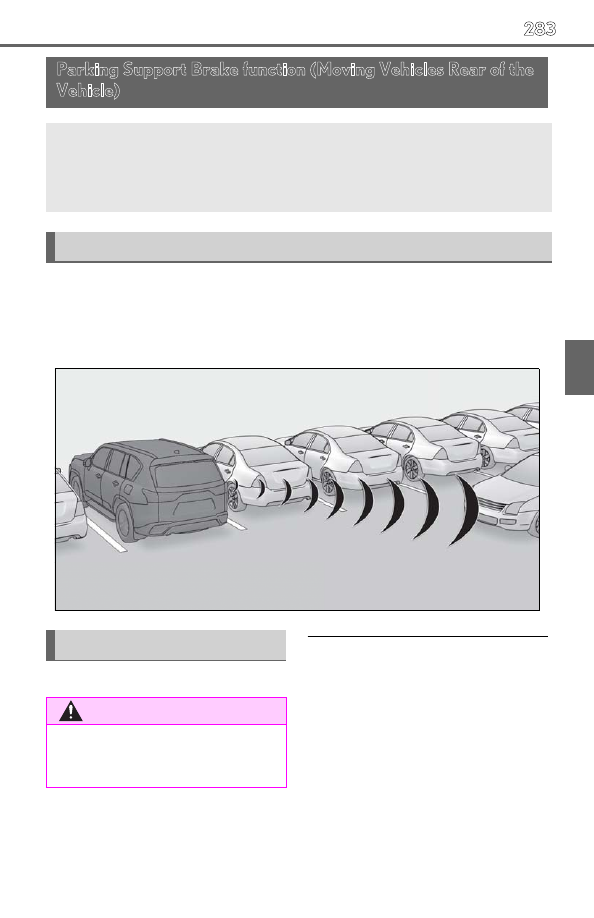
Parking Support Brake function (Moving Vehicles Rear of the 
Vehicle)

If a rear radar sensor detects a vehicle approaching from the right or left at the 
rear of the vehicle and the system determines that the possibility of a collision 
is high, this function will perform brake control to reduce the likelihood of an 
impact with the approaching vehicle.

Examples of function operation

Types of sensors

WARNING

To ensure the system can operate 

properly

P.258

284

4-5. Using the driving support systems

km/h) or more.

• The shift lever is in R.

• The Parking Support Brake determines 

that a stronger than normal brake opera-

tion is necessary to avoid a collision with 

an approaching vehicle.

Brake control

• Engine output restriction control is oper-

ating

• The Parking Support Brake determines 

that an emergency brake operation is 

necessary to avoid a collision with an 

approaching vehicle.

The Parking Support Brake function 

(Moving Vehicles Rear of the Vehicle) 

will stop operating when

The function will stop operating if any of the 

following conditions are met:

Engine output restriction control

• The Parking Support Brake is disabled.

• The collision becomes avoidable with 

normal brake operation.

• A vehicle is no longer approaching from 

the right or left at the rear of the vehicle.

Brake control

• The Parking Support Brake is disabled.

• Approximately 2 seconds have elapsed 

since the vehicle was stopped by brake 

control.

• The brake pedal is depressed after the 

vehicle is stopped by brake control.

• A vehicle is no longer approaching from 

the right or left at the rear of the vehicle.

Detection area of the Parking Support 

Brake function (Moving Vehicles Rear 

of the Vehicle)

The detection area of the Parking Support 

Brake function (Moving Vehicles Rear of 

the Vehicle) differs from the detection area 

of the RCTA function (

P.269). There-

fore, even if the RCTA function detects a 

vehicle and provides an alert, the Parking 

Support Brake function (Moving Vehicles 

Rear of the Vehicle) may not start operat-

ing.

Situations in which the system may not 

operate properly

P.270

Situations in which the system may 

operate even if there is no possibility of a 

collision

P.271

285

4-5. Using the driving support systems

4

D

riv

ing

When a pedestrian is detected behind the vehicle while backing up, the brake 
pedal is not depressed or is depressed late.

Displays a message to urge the driver 
to take evasive action when a pedes-
trian is detected in the detection area 
behind the vehicle. (A message will 
also be displayed on the multi-informa-
tion display and head-up display [if 
equipped].)

Pedestrian detection icon

Brake reminder

Parking Support Brake function (Pedestrians Rear of the Vehi-
cle)

If the rear camera sensor detects a pedestrian behind the vehicle while back-
ing up and the system determines that the possibility of colliding with the 
detected pedestrian is high, a buzzer will sound. If the system determines that 
the possibility of colliding with the detected pedestrian is extremely high, the 
brakes will be applied automatically to help reduce the impact of the collision.

Examples of system operation

Multimedia Display

A
B

286

4-5. Using the driving support systems

Parking Support Brake function (Pedes-

trians Rear of the Vehicle) will operate 

when

The function will operate when the PKSB 

OFF indicator is not illuminated or flashing 

(

P.73, 75) and all of the following condi-

tions are met:

Engine output restriction control

• The Parking Support Brake is enabled.

• The vehicle speed is 9 mph (15 km/h) or 

less.

• The shift position is in R.

• The rear camera sensor detects a pedes-

trian behind the vehicle while backing up 

and the system determines that the possi-

bility of colliding with the detected 

pedestrian is high.

Brake control

• Engine output restriction control is oper-

ating.

• The Parking Support Brake determines 

that an emergency brake operation is 

necessary to avoid a collision with a 

pedestrian.

The Parking Support Brake function 

(Pedestrians Rear of the Vehicle) will 

stop operating when

The function will stop operating if any of the 

following conditions are met:

Engine output restriction control

• The Parking Support Brake is disabled.

• The collision becomes avoidable with 

normal brake operation.

• The pedestrian is no longer detected 

behind your vehicle.

Brake control

• The Parking Support Brake is disabled.

• Approximately 2 seconds have elapsed 

since the vehicle was stopped by brake 

control.

• The brake pedal is depressed after the 

vehicle is stopped by brake control.

• The pedestrian is no longer detected 

behind your vehicle.

Re-enabling the Parking Support Brake 

function (Pedestrians Rear of the Vehi-

cle)

P.278

Detection area of the Parking Support 

Brake function (Pedestrians Rear of the 

Vehicle)

The detection area of the Parking Support 

Brake function (Pedestrians Rear of the 

Vehicle) differs from the detection area of 

the RCD function (

P.273). Therefore, 

even if the RCD function detects a pedes-

trian and provides an alert, the Parking Sup-

port Brake function (Pedestrians Rear of 

the Vehicle) may not start operating.

Situations in which the system may not 

operate properly

P.274

Situations in which the system may 

operate unexpectedly

P.274

WARNING

If the Parking Support Brake function 

(Pedestrians Rear of the Vehicle) 

operates unnecessarily

Depress the brake pedal immediately 

after the Parking Support Brake function 

(Pedestrians Rear of the Vehicle) oper-

ates. (Operation of the function is can-

celed by depressing the brake pedal.) 

Correct use of the Parking Support 

Brake function (Pedestrians Rear of 

the Vehicle)

P.272

287

4-5. Using the driving support systems

4

D

riv

ing

The screen illustrations used in this text 

are intended as examples, and may differ 

from the image that is actually displayed 

on the screen.

The following screens can be selected 
according to driving conditions.
• Screens that can be selected vary 

depending on conditions such as 
shift position and vehicle speed. 
(

P.291)

• Depending on the displayed screen, 

the display can be switched from 
normal to full screen display.

Screens when the four-wheel drive 
control switch is in L4 or H4 and 
Multi-terrain Select is in on.

When checking the area to the front 
and sides of the vehicle

Front view & dual side views

P.295

Multi-terrain Monitor

The Multi-terrain Monitor helps 
the driver to check the vehicle sur-
roundings. It assists in determining 
the conditions around the driver in 
a variety of situations, such as when 
judging conditions during off-road 
driving or checking for obstacles 
when parking.

WARNING

When using the Multi-terrain Moni-

tor system

Observe the following precautions to 

avoid an accident that could result in 

death or serious injuries.

Never rely solely on the Multi-terrain 

Monitor. As with unequipped vehi-

cles, drive carefully while directly con-

firming the safety of your surroundings 

and the area to the rear of the vehicle. 

Take particular care to avoid parked 

cars and other obstacles.

Due to the characteristics of the cam-

era lens, the actual position and dis-

tance of people and other obstacles 

will differ from those shown on the 

Multi-terrain Monitor screen. Directly 

confirm the safety of your surround-

ings before driving.

Never drive while looking only at the 

screen as the image on the screen is 

different from actual conditions. If you 

are driving while looking only at the 

screen, you may hit a person or an 

object, resulting in an accident. When 

driving, be sure to check the vehicle’s 

surroundings with your own eyes and 

the vehicle’s mirrors.

In low temperatures, the screen may 

darken or the images may become 

faint.

Images of moving objects in particular 

may distort or disappear from the 

screen. Therefore, make sure to drive 

carefully while directly visually con-

firming the safety of your surround-

ings.

Multi-terrain Monitor screens

288

4-5. Using the driving support systems

Front view (magnified)

P.295

When checking the condition of the 
road surface under the vehicle

Under vehicle terrain view & dual side 
views

P.297

Under vehicle terrain view (magnified)

P.297

Under vehicle terrain view (rear wheel) 
& dual side views

P.300

Under vehicle terrain view (rear wheel) 
(magnified)

P.300

When checking the area to the rear 
of the vehicle

Rear view & dual side views

P.303

289

4-5. Using the driving support systems

4

D

riv

ing

Wide rear view & dual side views

P.303

Under vehicle terrain view (rear 
side) & dual side views)

P.306

Under vehicle terrain view (rear 
side) (magnified)

P.306

Screens when the four-wheel drive 
control switch is in H4 and Multi-
terrain Select is in off.

When checking the area to the 
around of the vehicle

Moving view

P.309

See-through view

P.309

When checking the area to the front 
of the vehicle

Wide front view & panoramic view

P.310

290

4-5. Using the driving support systems

Side Clearance View & panoramic view

P.312

Cornering View & panoramic view

P.312

When checking the area to the rear 
of the vehicle

Rear view & panoramic view

P.317

Wide rear view & panoramic view

P.317

When folding the outside rear view 
mirrors

Wide front view & dual side views

P.326

Rear view & dual side views

P.326

291

4-5. Using the driving support systems

4

D

riv

ing

Wide rear view & dual side views

P.326

The VIEW switch is located as shown 
in the illustration.

When you press the VIEW switch while the engine switch is in ON, the monitor 
displays operates.
The monitor displays various views of the position of the vehicle. (The following is 
an example)

VIEW switch

How to switch the screen

292

4-5. Using the driving support systems

When the shift lever is in the P, D or N position

Audio screen, etc.

Front view & dual side views

Under vehicle terrain view & dual side views

Front view (magnified)

Under vehicle terrain view (magnified)

Under vehicle terrain view (rear wheel) (magnified)

Under vehicle terrain view (rear wheel) & dual side views

Press the VIEW switch

Select the Multi-terrain Monitor screen

Select the under vehicle terrain view (rear wheel) button

Select the return button

Four-wheel drive control switch is in L4 or H4 and Multi-terrain Select is in 
on

A
B
C
D

E
F

G

H

I

J

K

293

4-5. Using the driving support systems

4

D

riv

ing

Select the display mode button

When the shift lever is in the R position

Rear view & dual side views

Wide rear view & dual side views

Under vehicle terrain view (rear side) & dual side views

Under vehicle terrain view (rear side) (magnified)

Select the under vehicle terrain view (rear side) button

Select the return button

Select the Multi-terrain Monitor screen

Select the display mode button

L

A
B
C
D

E
F

G

H

294

4-5. Using the driving support systems

When the shift lever is in the P position

Audio screen, etc.

Moving view

See-through view

Press the VIEW switch

Select the display mode button

When the shift lever is in the D or N position

Four-wheel drive control switch is in H4 and Multi-terrain Select is in off

A
B
C
D

E

295

4-5. Using the driving support systems

4

D

riv

ing

Audio screen, etc.

Wide front view & panoramic view

Side Clearance View & panoramic view

Cornering View & panoramic view

Press the VIEW switch

When the steering wheel is turned by 180° or more from the center (straight-
line) position

Select the display mode button

When the shift lever is in the R posi-
tion

Rear view & panoramic view

Wide rear view & panoramic view

Select the display mode button

Multi-terrain Monitor screen display

The amount of time that the Multi-terrain 

Monitor screen is displayed changes as 

follows according to the vehicle speed at 

the time the VIEW switch was pressed.

The Multi-terrain Monitor screen is dis-

played if the vehicle speed is approxi-

mately 7 mph (12 km/h) or less when the 

VIEW switch is pressed.

If the vehicle speed exceeds approxi-

mately 7 mph (12 km/h), the Multi-terrain 

Monitor display is canceled.

The guide lines mode and other display 

settings can be saved by registering the 

user profile.

When the four-wheel drive control 
switch is in L4 or H4 and Multi-terrain 
Select is on, the various screens display 
information to support several different 
driving situations, such as when check-
ing for obstacles when moving forward 
or in reverse, or when judging road 
surface conditions during off-road 
driving.

Front view & dual side views can be 
used to check the area around the 
front of the vehicle.
To display the screen, press the VIEW 
switch when the shift lever is in the P, D 
or N position.

A
B
C
D

E
F

G

A
B
C

Screen display and functions

Front view & dual side views

296

4-5. Using the driving support systems

In addition to an image of the front 
of the vehicle, guide lines are dis-
played in a composite view to pro-
vide reference for when deciding a 
direction to move forward in.

If the front view display is selected 
while the screen is displayed, the 
screen switches from normal to 

magnified display. (Selecting the 
display again returns the screen to 
the normal display)

If the steering wheel is turned 270° 
or more, guide lines and other fea-
tures to support turning are auto-
matically displayed.

If the steering wheel is turned 270° or more

Selecting the display

1.5 ft. (0.5 m) distance guide line (red)

3 ft. (1 m) distance guide line (blue)

6 ft. (2 m) distance guide line (blue)

Items 

 to 

 indicate the estimated distance from the front end of the vehicle.

Front tire course line (yellow)

Indicates the estimated course of the front tires according to steering wheel position.

Vehicle width lines (blue)

Indicate the width of the vehicle including the outside rear view mirrors.

Front tire contact line (blue)

Rear tire contact line (blue)

Screen display

A
B
C
D

E

C

E

F

G

H

I

297

4-5. Using the driving support systems

4

D

riv

ing

Items 

 and 

 indicate estimated tire positions on the image.

Rear tire course line (yellow)

Indicates the estimated course of the rear tires.

Forward movement guide line (blue)

Indicates the estimated tire course of the tightest possible turn.

Intuitive parking assist

Displayed if an obstacle is detected while the intuitive parking assist is turned on.

Display off button

Changes the screen back to the previously displayed screen, such as the audio screen.

Display mode switching button

Switches display mode every time touch the button.

Under vehicle terrain view (rear wheel) selection button

Switch the under vehicle terrain view (rear wheel) & dual side views (

P.300)

Automatic display mode selection button

P.297

Setting button

Changes settings, such as the automatically display cornering view, the vehicle body color, 
the intuitive parking assist detection distance. (

P.328)

In addition to screen switching by 
operating the VIEW switch, automatic 
display mode is available. In this mode, 
the screen is switched automatically in 
response to vehicle speed.
In automatic display mode, the monitor 
will automatically display images in the 
following situations:

When the shift lever is shifted to N 
or D position.

When vehicle speed is reduced to 
approximately 6 mph (10 km/h) or 
less.

Front view & dual side views display

The screen can be displayed when the shift 

lever is in P, D or N.

Lines indicating current vehicle and tire position are displayed in a composite view 
on an image taken behind the current vehicle position and assists the driver to 
check conditions underneath the vehicle or determine the position of the front 
tires.
To display the screen, press the VIEW switch when the shift lever is in the P, D or N 

H

I

J

K

L

M

N

O

P

Q

Automatic display mode

Under vehicle terrain view & dual side views

298

4-5. Using the driving support systems

position.

It is necessary to drive a certain distance or more for the image to be displayed.

If the under vehicle terrain view display is selected while the screen is displayed, 
the screen switches from normal to magnified display. (Selecting the display 
again returns the screen to the normal display)

Current vehicle position

Image displayed in the under vehicle terrain view (image taken behind the cur-
rent vehicle position)

Vehicle position at the time the image was taken (behind the current vehicle 
position)

Selecting the display

Vehicle width lines (blue)

Indicate the width of the vehicle including the outside rear view mirrors.

Front tire contact line (blue)

Rear tire contact line (blue)

Items 

 and 

 indicate estimated tire positions on the image.

1.5 ft. (0.5 m) distance guide line (red, black)

Indicate the estimated distance from the front end of the vehicle.

Rear tire course line (yellow)

Indicates the estimated course of the rear tires.

Screen display

A
B

C

D

E

F

G

F

G

H

I


Content      ..     15      16      17      18     ..