Lexus GX460 (2022 year). Manual in english - page 18
 

  Index      Manuals     Lexus GX460 (2022 year). Manual in english


Search            copyright infringement  


Content      ..     16      17      18      19     ..


Lexus GX460 (2022 year). Manual in english - page 18


300

4-5. Using the driving support systems

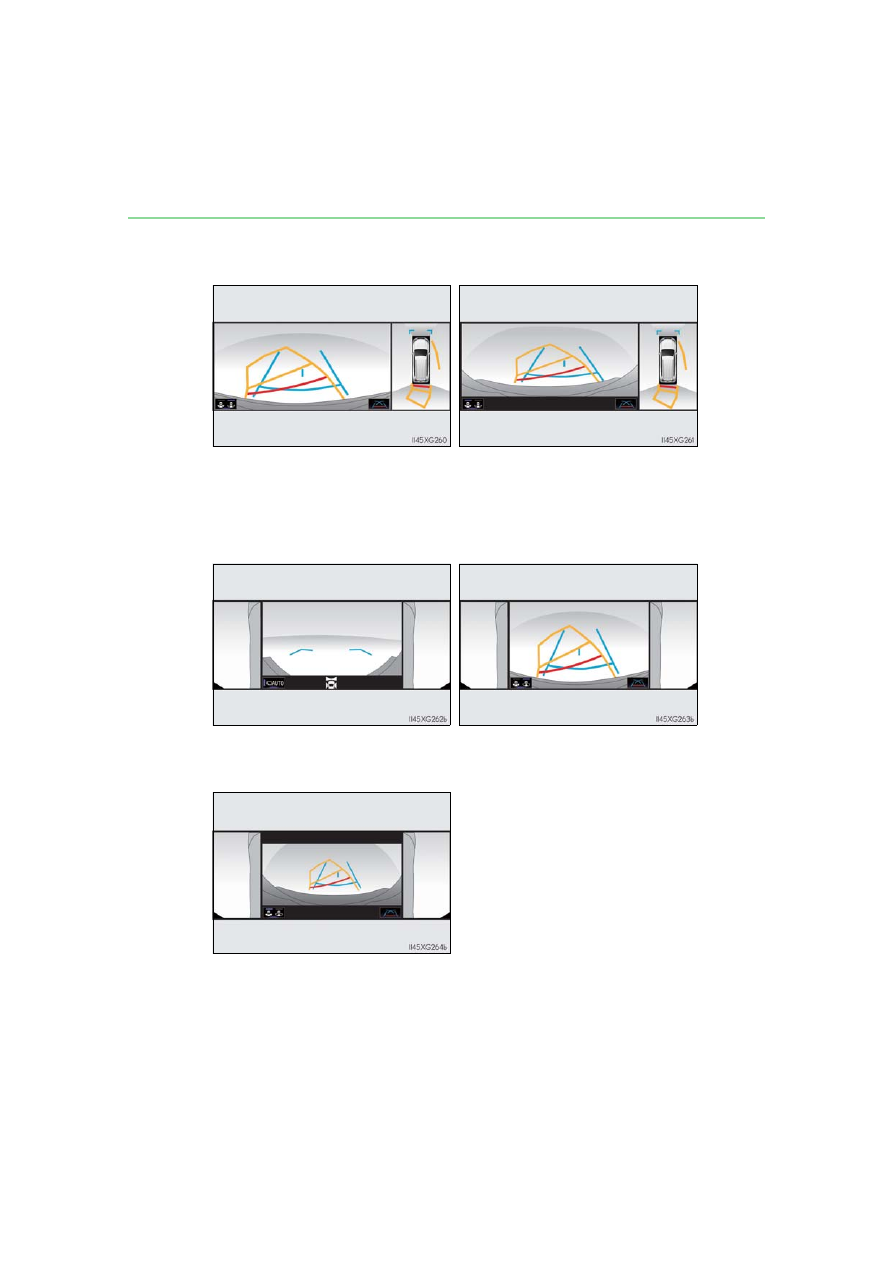
When checking the area to the rear of the vehicle

When checking the area to the sides, front and rear of the vehicle (with out-
side rear view mirrors retracted)

Panoramic view & rear view

Panoramic view & wide rear view

P. 326

P. 326

Wide front view & dual side views

Rear view & dual side views

P. 332

P. 332

Wide rear view & dual side views

P. 332

301

4-5. Using the driving support systems

4

Dr

iving

Displaying the Multi-terrain Monitor screen

The Multi-terrain Monitor screen will be displayed when the VIEW switch is
pressed while the engine switch is in IGNITION ON mode.

When the vehicle speed exceeds a certain value for a specific amount of time, the

display returns to the navigation or information display screen.
The amount of time that the Multi-terrain Monitor is displayed differs depending

on conditions such as the vehicle speed. (

P. 308)

VIEW switch
Display

Using the Multi-terrain Monitor screen

1

2

302

4-5. Using the driving support systems

Switch operations

On some screens, the display mode or display settings can be changed using
the switches.

Automatic display mode switch
When automatic display mode is turned on, the Multi-terrain Monitor
screen is displayed in the following conditions, even if the VIEW switch has
not been operated.

• The shift lever is shifted to D or N
• While driving, the vehicle speed drops to approximately 6 mph (10 km/h)

or less (except when the shift lever is in R)

The automatic display mode
switches between on and off each

time 

 is selected.

When automatic display mode is
on, an indicator illuminates on the
icon.
Even when automatic display
mode is on, the display can still be
switched by pressing the VIEW
switch.

Indicator

303

4-5. Using the driving support systems

4

Dr

iving

Display selection switches
The following switches can be pressed or selected to switch the Multi-ter-
rain Monitor display screen and to switch from normal to wide view display.

Switch

Switch Function

VIEW switch

Changing a display (

P. 304)

Angle mode

selection switch

Switches between the wide rear view and

wide view display (

P. 317, 326)

Under vehicle ter-

rain view selection

switch

Switch the under vehicle terrain view (rear

wheel) & dual side views (

P. 314)

Return switch

Return to the previous screen

Display mode

selection switch

Switches between the moving view and see-

through view (

P. 319)

304

4-5. Using the driving support systems

The screen display can be switched by operating the switches as follows while
the Multi-terrain Monitor screen is displayed. (Screens that can be displayed will
vary depending on the positions of the shift lever and four-wheel drive control
switch)

The monitor displays various views of the position of the vehicle. (The following is an

example)

Screens when the four-wheel drive control switch is in L4

When the shift lever is in the P, D or N position

: Press 

: Select 

: Select 

: Select the Multi-terrain Monitor screen

Changing the Multi-terrain Monitor screen

305

4-5. Using the driving support systems

4

Dr

iving

Audio screen, etc.
Front view & dual side views: 

P. 308

Under vehicle terrain view & dual
side views: 

P. 311

Front view (magnified): 

P. 308

Under vehicle terrain view (magni-
fied): 

P. 311

Under vehicle terrain view (rear
wheel) & dual side views: 

P. 314

Under vehicle terrain view (rear
wheel) (magnified): 

P. 314

1

2

3

4

5

6

7

306

4-5. Using the driving support systems

When the shift lever is in the R position

: Select 

Screens when the four-wheel drive control switch is in H4

When the shift lever is in the P position

: Press 

: Select 

Rear view & dual side views: 

P. 317

Wide rear view & dual side views:

P. 317

1

2

Audio screen, etc.
Moving view: 

P. 319

See-through view: 

P. 319

1

2

3

307

4-5. Using the driving support systems

4

Dr

iving

When the shift lever is in the D or N position

: Press 

When the shift lever is in the R position

: Select 

Audio screen, etc.
Panoramic view & wide front view: 

P. 320

Panoramic view & side views: 

P. 323

1

2

3

Panoramic view & rear view: 

P. 326

Panoramic view & wide rear view: 

P. 326

1

2

308

4-5. Using the driving support systems

Multi-terrain Monitor screen display

The amount of time that the Multi-terrain Monitor screen is displayed changes as follows

according to the vehicle speed at the time the VIEW switch was pressed.
The Multi-terrain Monitor screen is displayed if the vehicle speed is approximately 7 mph

(12 km/h) or less when the camera switch is pressed.
If the vehicle speed exceeds approximately 7 mph (12 km/h), the Multi-terrain Monitor

display is canceled.

When the four-wheel drive control switch is in L4, the various screens display
information to support several different driving situations, such as when checking
for obstacles when moving forward or in reverse, or when judging road surface
conditions during off-road driving.

Front view & dual side views

Front view & dual side views can be used to check the area around the front of
the vehicle.
To display the screen, press the VIEW switch when the shift lever is in the P, D
or N position.

• In addition to an image of the front of the vehicle, guide lines are displayed

in a composite view to provide reference for when deciding a direction to
move forward in.

• If the front view display is selected while the screen is displayed, the screen

switches from normal to magnified display. (Selecting the display again
returns the screen to the normal display)

• If the steering wheel is turned 270

 or more, guide lines and other features

to support turning are automatically displayed.

Screen display and functions

309

4-5. Using the driving support systems

4

Dr

iving

Screen description

Automatic display mode selection
switch

P. 302

Under vehicle terrain view (rear
wheel) selection switch

Switch the under vehicle terrain view

(rear wheel) & dual side views. 

(

P. 314

)

Tilt meter

Displays the vehicle’s estimated degree

of incline. (

P. 310)

Intuitive parking assist/slip display

Displayed if an obstacle is detected

while the intuitive parking assist is

turned on.

1.5 ft. (0.5 m) distance guide line
(red)
3 ft. (1 m) distance guide line (blue)
6 ft. (2 m) distance guide line (blue)

Items  

to  

indicate 

the 

estimated

distance from the front end of the vehi-

cle.

Front tire course line (yellow)

Indicates the estimated course of the

front tires according to steering wheel

position.

Vehicle width lines (blue)

Indicate the width of the vehicle

including the outside rear view mirror.

Front tire contact line (blue)
Rear tire contact line (blue)

Items  

and  

indicate 

estimated 

tire

positions on the image.

Forward movement guide line
(blue)

Indicates the estimated tire course of

the tightest possible turn.

Rear tire course line (yellow)

Indicates the estimated course of the

rear tires.

1

2

3

4

5

6
7

5

7

8

9

10

11

10

11

12

13

310

4-5. Using the driving support systems

Tilt meter
Tilt meter displays the vehicle
inclination to the front, rear, left
and right within a range of 0

 to

approximately 40

.

Degree markers of incline to
the left and right

Indicates the vehicle inclination in

degrees in the left and right direc-

tions.

Degree markers of incline to the front and rear

Indicates the vehicle inclination in degrees in the front and rear directions.

Pointer

Indicates the degree of the vehicle inclination in comparison to a parallel line.

Slip display
When tire slippage is detected,
the tilt meter display area is auto-
matically switched to the slip dis-
play.

Tire display

Indicates the position of freely

spinning tires in amber if the tire

spins. (During Crawl Control is

operating, all of the tires are indi-

cated in amber.)

Pop-up display of the intuitive parking assist

Displayed if an obstacle is detected while the intuitive parking assist is turned

on.

Front view & dual side views display

The screen can be displayed when the shift lever is in P, D or N.

Tilt meter display

The display indicates the incline of the vehicle in degrees shown by the movement of

the pointer and the rotation of the vehicle image.

The color of the degree markers of incline to the front, rear, left and right changes

according to the current incline of the vehicle.

After the engine switch is turned to IGNITION ON mode, the degree of incline is not

displayed until such information is determined.

The degree of incline showed on the tilt meter is only an approximate indication, and

may differ from the degree of incline measured using other equipment.

1

2

3

1

2

311

4-5. Using the driving support systems

4

Dr

iving

Under vehicle terrain view & dual side views

Lines indicating current vehicle and tire position are displayed in a composite
view on an image taken behind the current vehicle position and assists the
driver to check conditions underneath the vehicle or determine the position of
the front tires.
To display the screen, press the VIEW switch when the shift lever is in the P, D
or N position.

• If the under vehicle terrain view display is selected while the screen is dis-

played, the screen switches from normal to magnified display. (Selecting
the display again returns the screen to the normal display)

Current vehicle position
Image displayed in the under vehicle terrain view (image taken behind the
current vehicle position)

Switches the screen to under vehicle terrain view (magnified) display when you touch

the display.

Vehicle position at the time the image was taken (behind the current vehicle
position)

1

2

3

312

4-5. Using the driving support systems

Screen description

Tire position indicator lines (black, white)

Indicates the estimated position of the front tires.

Vehicle position indicator lines (blue)

Indicates the estimated position of the vehicle.

1

2

313

4-5. Using the driving support systems

4

Dr

iving

Under vehicle terrain view & dual side view

The screen can be displayed when the shift lever is in P, D or N.

While the under vehicle terrain view is displayed, if the vehicle speed reaches or

exceeds approximately 7 mph (12 km/h), under vehicle terrain view will disappear.

In the following situations, under vehicle terrain view will disappear.
• After the engine starts or the system returns to normal, a fixed distance or more has

not yet been driven

• When the tires are slipping or spinning

• ABS is activated

• When there is a malfunction in the system

• When the steering wheel is operated at or more than a specified steering angle

If the outside rear view mirrors are folded while the under vehicle terrain view is being

displayed, a separate screen is displayed.

In the following situations, the system may not operate normally.
• The road is covered with snow

• When there are shadows due to light sources such as sunlight or illumination

• When driving on slippery roads or tires are spinning

• Dirt or foreign matter is adhering to the camera lens

• There is water in front of the vehicle (a river, puddle, sea water, etc.)

• Optional equipment has been installed

• When the camera is covered or there is an object in the image capture range

• Tires have been replaced

• When the back door is open

• When the steering wheel is operated at or more than a specified steering angle

• On roads that are not flat, such as slopes

WARNING

Guide lines

The tire position indicator lines and vehicle position indicator lines may differ from

actual vehicle positions depending on the number of passengers, cargo weight, road

grade, road surface conditions, brightness of the surrounding environment, whether

tires or suspension parts other than those specified are equipped, etc. Always drive the

vehicle while confirming the safety of your surroundings.

Under vehicle terrain view display

The image displayed is one that was previously taken at a point behind the current vehi-

cle position. In cases such as when objects move after the image is taken, the image

displayed on the screen may differ from the actual state. In addition, when driving in the

dark such as at night, there are cases when obstacles cannot be confirmed from the

image.

314

4-5. Using the driving support systems

Under vehicle terrain view (rear wheel) & dual side views

Lines indicating current vehicle and tire position are displayed in a composite
view on an image taken behind the current vehicle position and assists the
driver to check conditions underneath the vehicle or determine the position of
the rear tires.
To display the screen, press the VIEW switch when the shift lever is in the P, D
or N position, select the under vehicle terrain view (rear wheel) selection
switch.

• If the under vehicle terrain view (rear wheel) display is selected while the

screen is displayed, the screen switches from normal to magnified display.
(Selecting the display again returns the screen to the normal display)

Current vehicle position
Image displayed in the under vehicle terrain view (rear wheel) (image taken
behind the current vehicle position)

Switches the screen to under vehicle terrain view (rear wheel) (magnified) display

when you touch the display.

Vehicle position at the time the image was taken (behind the current vehicle
position)

1

2

3

315

4-5. Using the driving support systems

4

Dr

iving

Screen description

Tire position indicator lines (black, white)

Indicates the estimated position of the rear tires.

Vehicle position indicator lines (blue)

Indicates the estimated position of the vehicle.

Under vehicle terrain view (rear wheel)

The screen can be displayed when the shift lever is in P, D or N.

While the under vehicle terrain view (rear wheel) is displayed, if the vehicle speed

reaches or exceeds approximately 3 mph (5 km/h), the screen automatically returns to

the previous display.

In the following situations, the display of the under vehicle terrain view (rear wheel)

ends and the screen automatically returns to the most recently used camera screen. In

addition, the under vehicle terrain view (rear wheel) selection switch cannot be oper-

ated until the next screen can be displayed.
• After the engine starts or the system returns to normal, a fixed distance or more has

not yet been driven

• When the tires are slipping or spinning

• ABS is activated

• When there is a malfunction in the system

• When the steering wheel is operated at or more than a specified steering angle

If the outside rear view mirrors are folded while the under vehicle terrain view (rear

wheel) is being displayed, a separate screen is displayed.

1

2


Content      ..     16      17      18      19     ..