Hyundai Santa Fe (2023 year). Manual in english - page 6
05
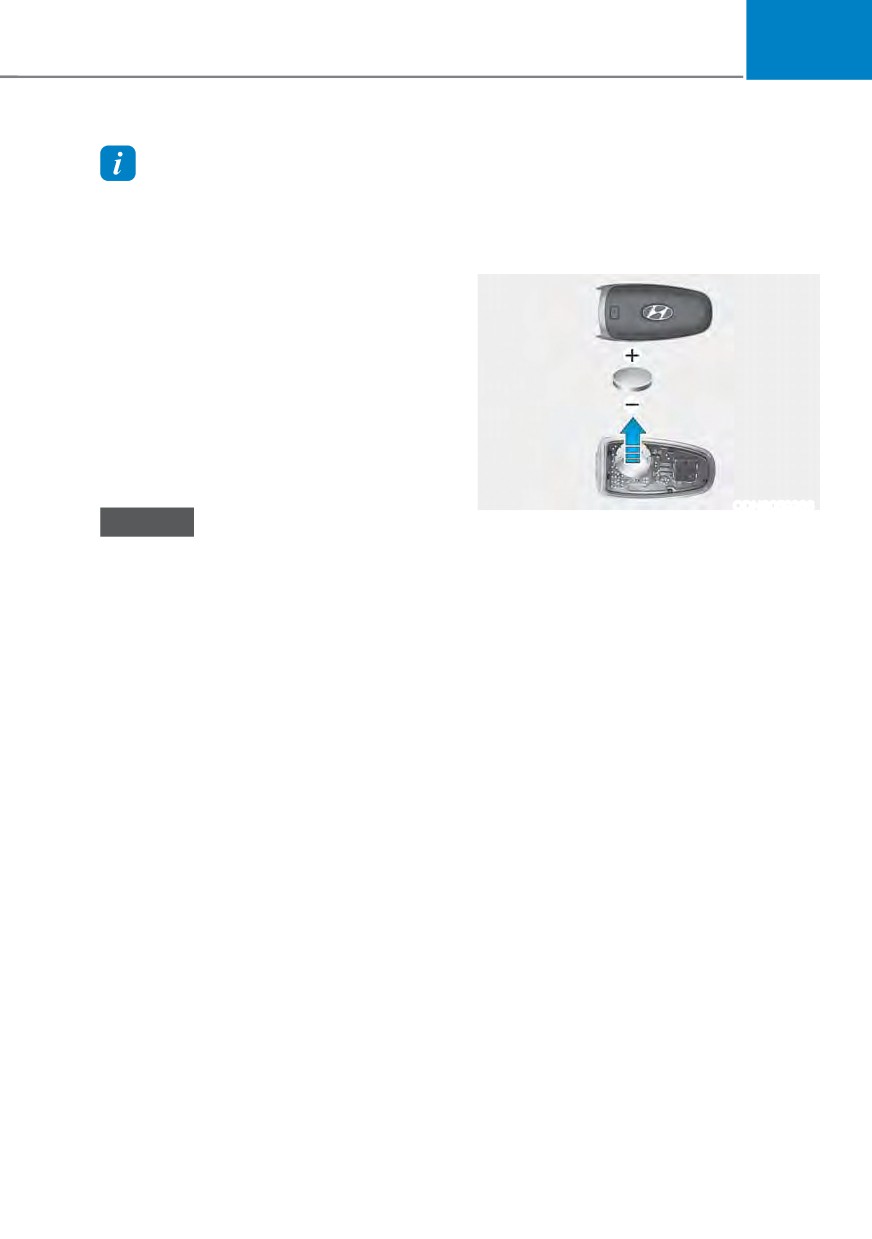
Battery replacement
Information
If the Smart Key is not working properly,
This device complies with Part 15 of the
try replacing the battery with a new one.
FCC rules.
Battery Type: CR2032
Operation is subject to the following three
conditions:
To replace the battery:
1. This device may not cause harmful
interference.
2. This device must accept any
interference received, including
interference that may cause undesired
operation.
3. Changes or modifications not expressly
approved by the party responsible
for compliance could void the user’s
authority to operate the device.
ODN8059266
NOTICE
If the Smart Key is not working properly,
ś Keep the smart key away from
try replacing the battery with a new one.
electromagnetic materials that
Remove the smart key cover by turning
blocks electromagnetic waves to the
the screwdriver clockwise by inserting
key surface.
the screwdriver (-) into the hole.
ś Always have the smart key with
Battery Type: CR2032
you when leaving the vehicle. If the
To replace the battery:
smart key is left near the vehicle, the
vehicle battery may be discharged.
1. Remove the mechanical key.
2. Use a slim tool to pry open the rear
cover of the smart key.
3. Remove the old battery and insert the
new battery. Make sure the battery
position is correct.
4. Reinstall the rear cover of the smart
key.
If you suspect your smart key might have
sustained some damage, or you feel
your smart key is not working correctly,
it is recommended that you contact an
authorized HYUNDAI dealer.
5-13
Convenience features
Do not attempt to alter this system
WARNING
or add other devices to it. Electrical
THIS PRODUCT CONTAINS A BUTTON
problems could result that may make
BATTERY.
your vehicle inoperable.
If swallowed, a lithium button battery
can cause severe or fatal injuries within
WARNING
2 hours. Keep batteries out of reach of
children.
In order to prevent theft of your
vehicle, do not leave spare keys
If you think batteries may have been
anywhere in your vehicle. Your
swallowed or placed inside any part
immobilizer password is a customer
of the body, seek immediate medical
unique password and should be kept
attention.
confidential.
Information
NOTICE
An inappropriately disposed
The transponder in your key is an
battery can be harmful to
important part of the immobilizer
the environment and human
system. It is designed to give years
health. Dispose of the battery
of trouble-free service, however you
according to your local law(s) or
should avoid exposure to moisture,
regulations.
static electricity and rough handling.
Immobilizer system malfunction could
Immobilizer system
occur.
The immobilizer system helps protect
your vehicle from theft. If an improperly
coded key (or other device) is used, the
Information
engine’s fuel system is disabled.
This device complies with Part 15 of the
When the Engine Start/Stop button
FCC rules.
is pressed to the ON position, the
Operation is subject to the following three
immobilizer system indicator should
conditions:
come on briefly, then go off. If the
1. This device may not cause harmful
indicator starts to blink, the system does
interference.
not recognize the coding of the key.
2. This device must accept any
Press the Engine Start/Stop button to
interference received, including
the OFF position, then press the Engine
interference that may cause undesired
Start/Stop button to the ON position
operation.
again.
3. Changes or modifications not expressly
The system may not recognize your
approved by the party responsible
key’s coding if another immobilizer
for compliance could void the user’s
key or other metal object (for example,
authority to operate the device.
key chain) is near the key. The engine
may not start because the metal may
interrupt the transponder signal from
transmitting normally.
If the system repeatedly does not
recognize the coding of the key, it is
recommended that you contact your
HYUNDAI dealer.
5-14
05
Hyundai Digital Key
Digital key (smartphone) NFC
function
Digital Key Application
To use Hyundai Digital Key mobile app,
You can use the Digital Key NFC (Near
you should install Hyundai digital key
Field Communication) function after turn
application. Search ‘Hyundai digital key’
your smartphone NFC settings on. And
in the Google Play Store and download
you should unlock & turn on smartphone
the app. Please refer to the detailed
screen to use it.
manual of the digital key app. The option
à To change the NFC mode of the
can be found under the following app
smartphone, please refer to the
menu:
smartphone manual or contact
0HQX Ɵ $SSOLFDWLRQ ,QIR Ɵ 7XWRULDO
to the customer service center of
smartphone manufacturers.
Please note the manual before using the
app.
à This service is only available for
Android smartphones. Please confirm
supported/compatible devices on our
website.
WARNING
For used vehicle
If any of the digital key (smartphone key
or card key) is already registered when
you press ON button after unlocking the
doors, the message ‘Digital key(s) active’
appears on the instrument cluster once.
If you buy a used vehicle, you should
confirm the message and delete the
registered smartphone key and card key.
In addition, please notify the Hyundai
Customer Care Center.
If the card key does not work properly,
please delete the card key and register
the smartphone key and re-register the
card key.
For vehicle maintenance
If you need to have your Digital Key
System repaired or replaced please
ensure you Smartphone Key is still active.
You may have to pair your phone again.
In the case, re-initialize your Digital Keys
using the Hyundai Digital Key mobile app.
5-15
Convenience features
Digital key (smartphone)
Information
The [Save] button will be disabled if the
digital key (Smartphone key) is already
saved.
Please refer to “Digital Key Delete” in this
manual and follow the digital key delete
procedure in your car before Digital key
save.
Please refer to the ‘Tutorial’ on your
Digital key app and delete the previous
saved key in your smartphone before save.
ODN8A059129
3. Select the vehicle to save on your
Digital key application and activate
the save mode.
à Save mode is available only on
the vehicle owner’s Digital key
application.
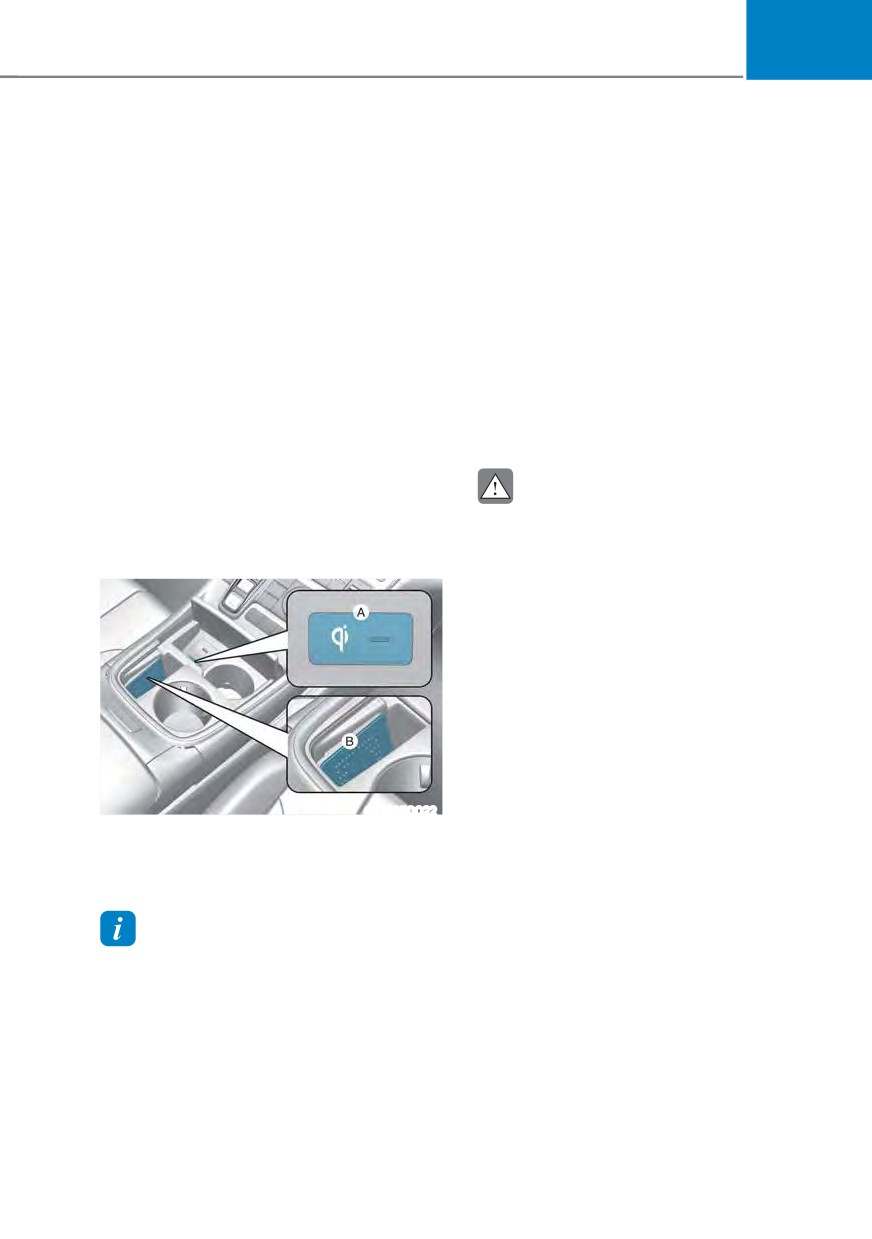
4. Place the backside of smartphone
onto the wireless charging pad(in-
vehicle authentication pad).
The saving process will begin
ODN8A059240
automatically.
5. Once the digital key save is complete,
Hyundai Digital Key (Smartphone)
Pairing
a message will be shown on the
infotainment screen or cluster.
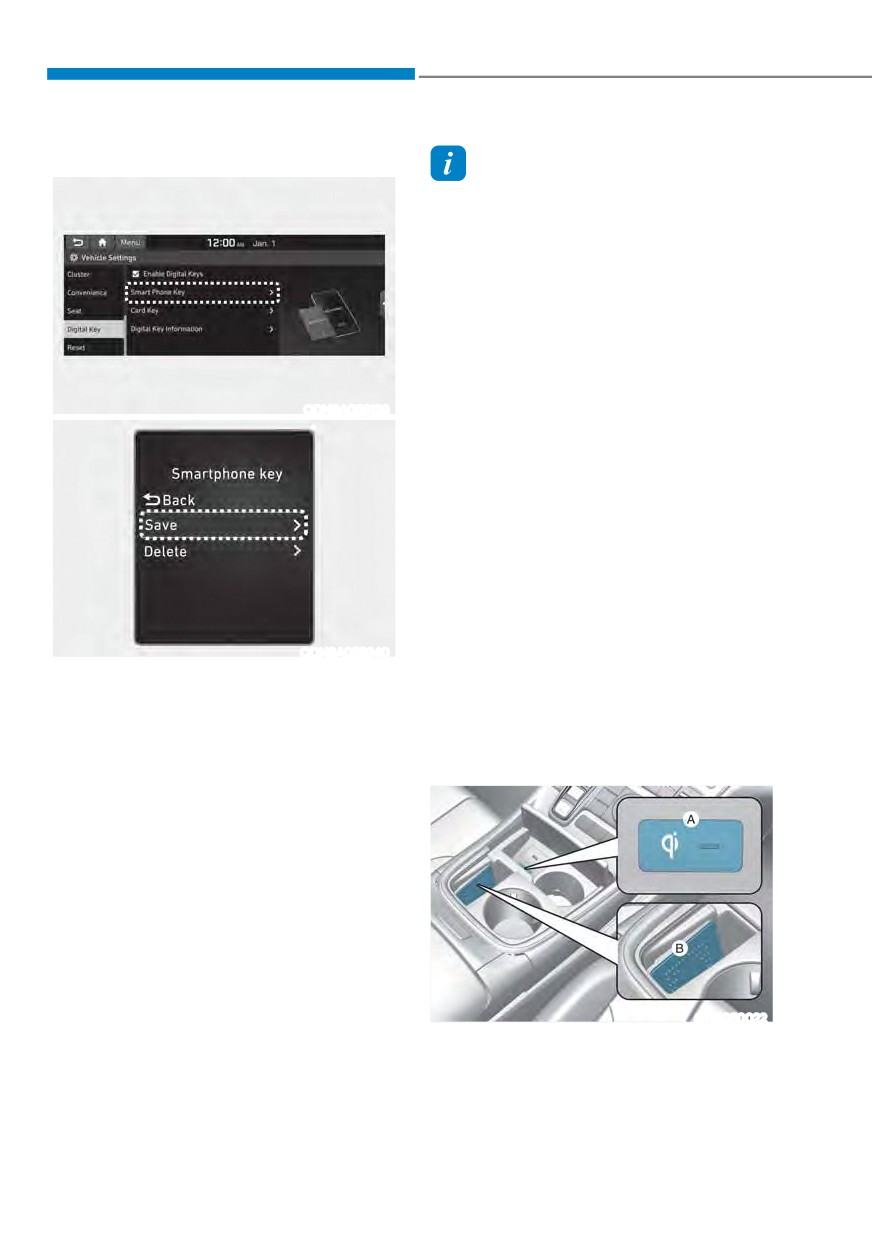
1. Turn the vehicle on with the Smart key
and make sure to keep the smart key
6. Remove the smartphone from the pad
and complete the saving process.
inside the vehicle during digital key
registration.
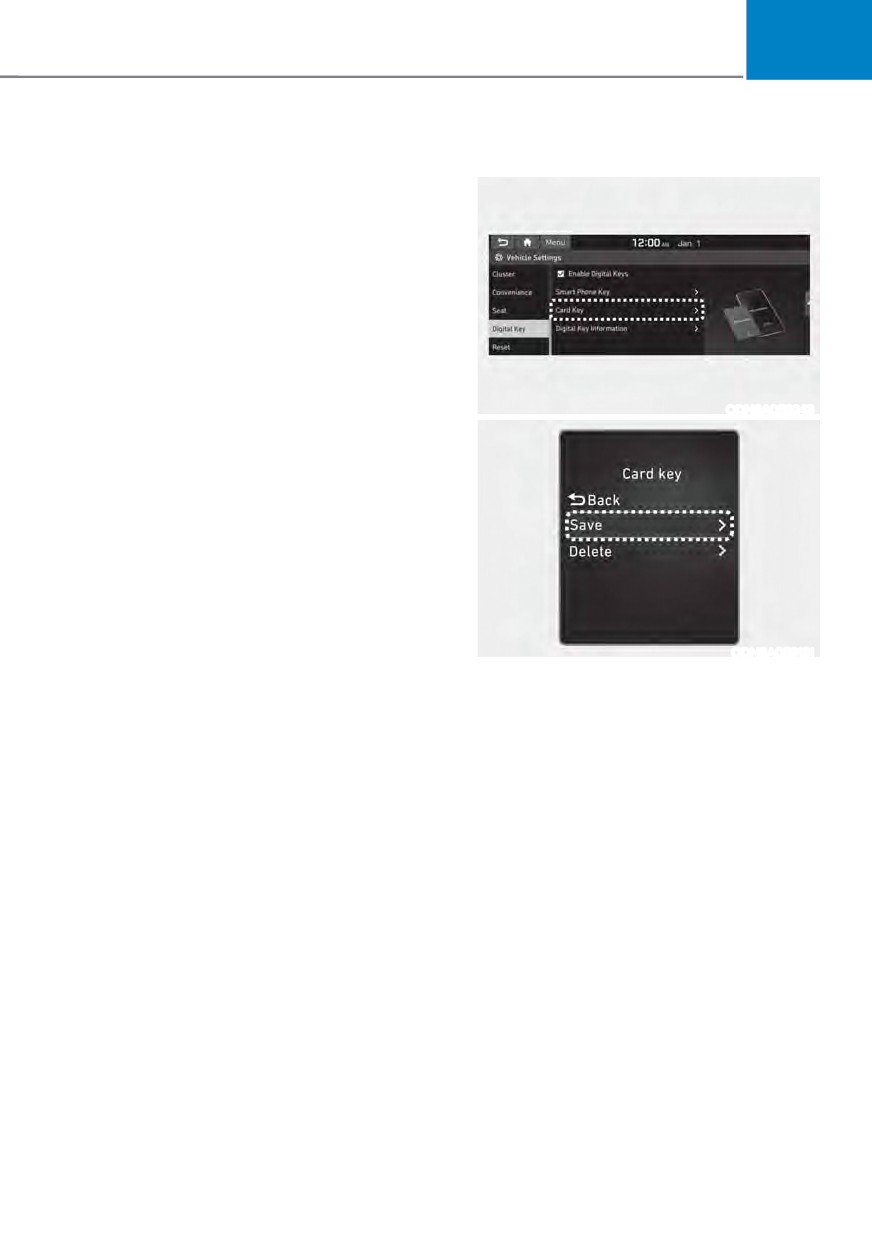
2. Register your Digital key from the
vehicle user setting menu as follows.
à With Navigation screen :
From the infotainment screen menu,
go to [Setup] - [Vehicle] - [Digital Key]
- [Smart Phone Key] then select the
[Save] from submenu.
à Without navigation screen :
From cluster menu, go to [Digital Key]
- [Smart Phone Key] and select [Save].
OTM050022
[A] : Indicator light
[B] : Wireless Charging Pad
(In-vehicle Authentication Pad)
5-16
05
3. Once the digital key delete is
complete, a message will be shown
on the infotainment screen or cluster.
4. Go to [Initialize Digital Key] menu on
the digital key application and select
the vehicle to delete the digital key
information.
ś
2SHQ WKH +\XQGDL 'LJLWDO .H\ DSS Ɵ
0HQX Ɵ ,QLWLDOL]H 'LJLWDO .H\
à If the saved digital key information
in your car is deleted due to vehicle
ODN8A059129
maintenance, the digital key in your
smartphone should be deleted as well.
à For more information, please refer to
the ‘Tutorial’ on your Digital key app.
CAUTION
ś
If the smartphone is removed
from the interior authentication
pad during enrollment, the saving
process will be cancelled.
ODN8A059130
ś
If the infotainment or instrument
Hyundai Digital Key (Smartphone Key)
cluster screen is changed during
Deletion
enrollment, the saving process will
be cancelled.
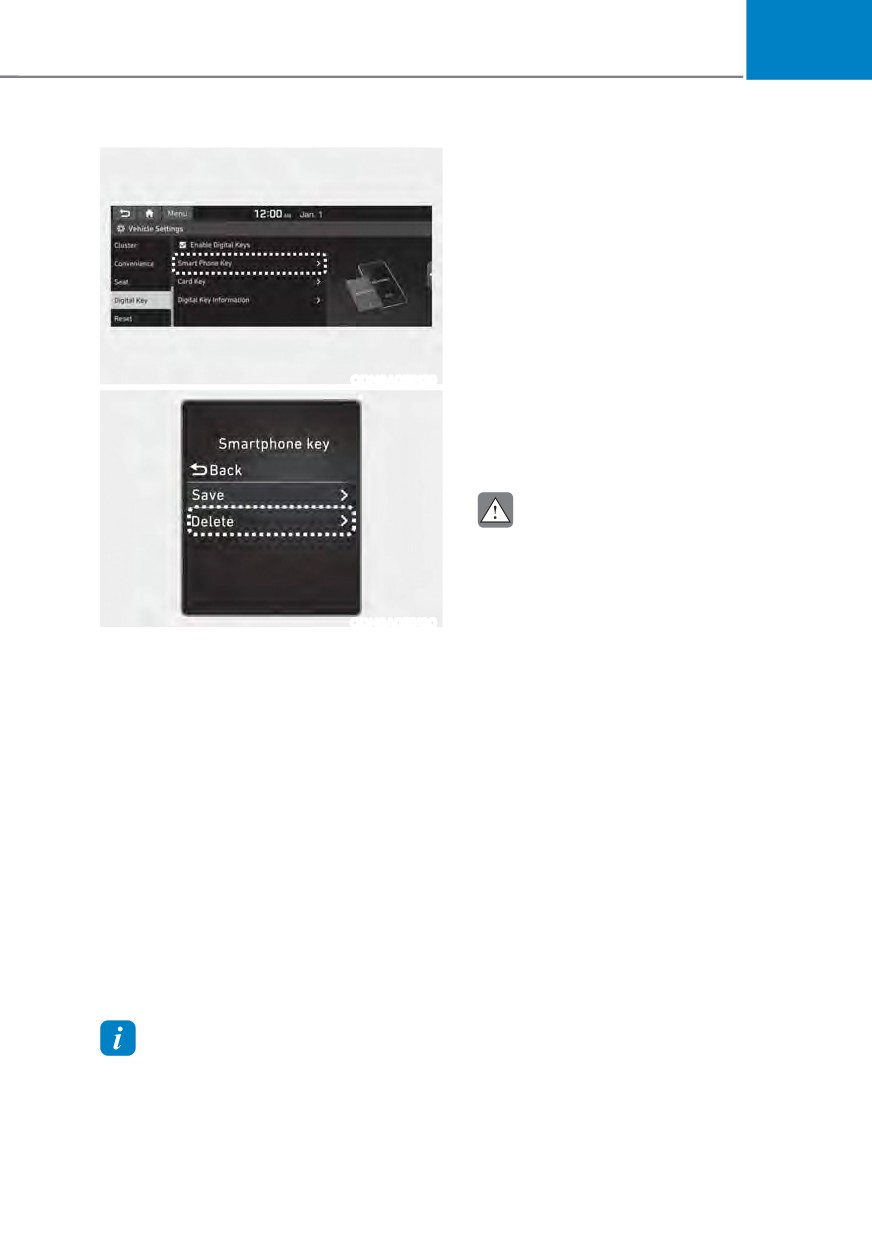
1. Turn the vehicle on with the Smart
key and make sure to keep the smart
ś
If the vehicle is turned off during
key inside the vehicle during delete
enrollment, the saving process will
process.
be cancelled.
2. Delete your Digital key from the
ś
If the gear is shifted, the saving
vehicle user setting menu as follows.
process will be cancelled.
à With Navigation screen :
ś
If you try to save the smartphone
From the infotainment screen menu,
which is not logged in with the
go to [Setup] - [Vehicle] - [Digital Key]
vehicle owner’s ID or if you try to
- [Smart Phone Key] then select the
save the Card key, the saving process
[Delete] from submenu.
will not begin.
à Without navigation screen :
ś
If the NFC setting on your
From cluster menu, go to [Digital
smartphone is off, the saving process
Key] - [Smart Phone Key] and select
will not begin.
[Delete].
ś
If the smartphone screen is changed
to off or locked status, the saving
process will be cancelled.
Information
ś
If there is no Smart key during the
The [Delete] button will be disabled if there
save process, the saving process will
is no digital key (Smartphone key) saved.
not begin.
5-17
Convenience features
Set up main vehicle
You can manage multiple digital keys
from the Digital key app. From the list of
digital keys you own, select the vehicle
you want to make your priority vehicle.
For more information, please refer to
the ‘Tutorial’ on your Digital key app.
OTMA050020
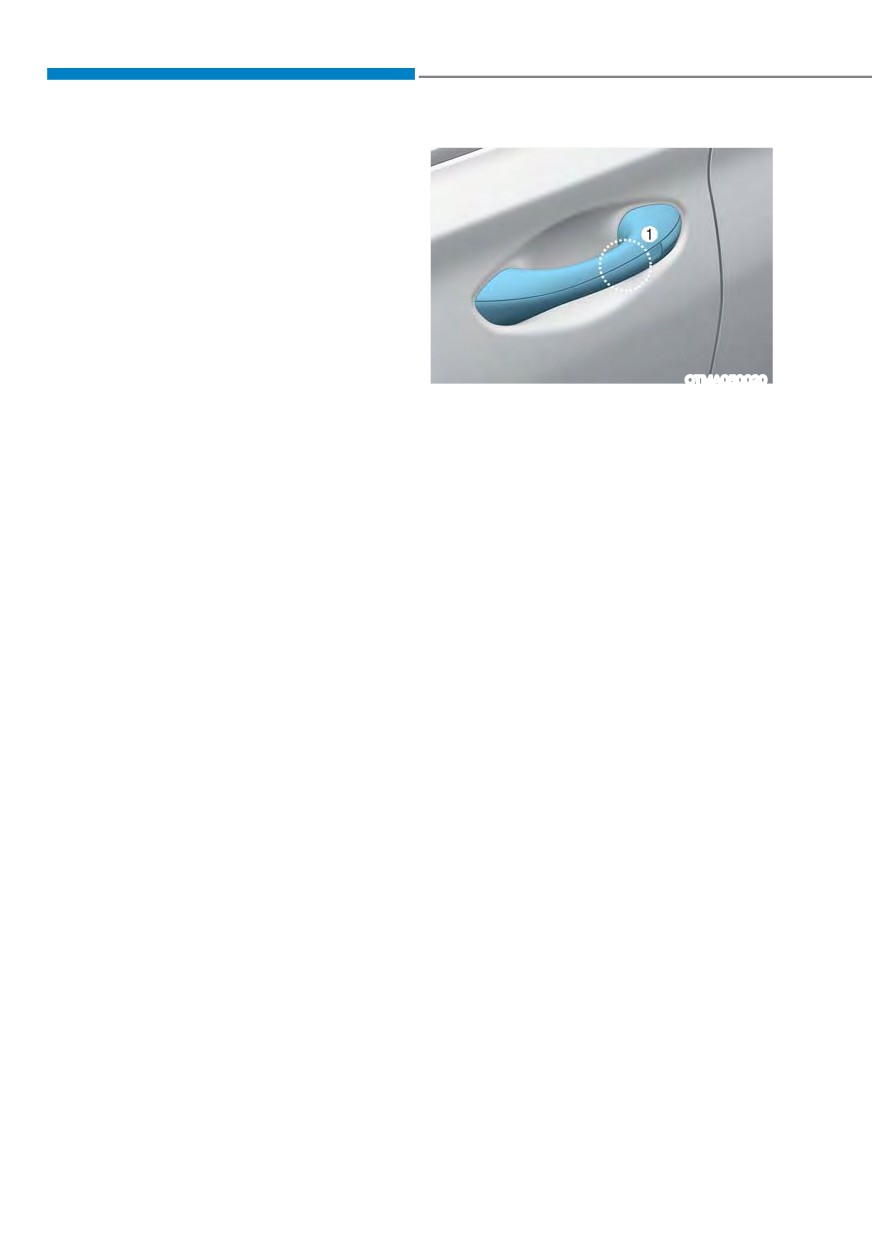
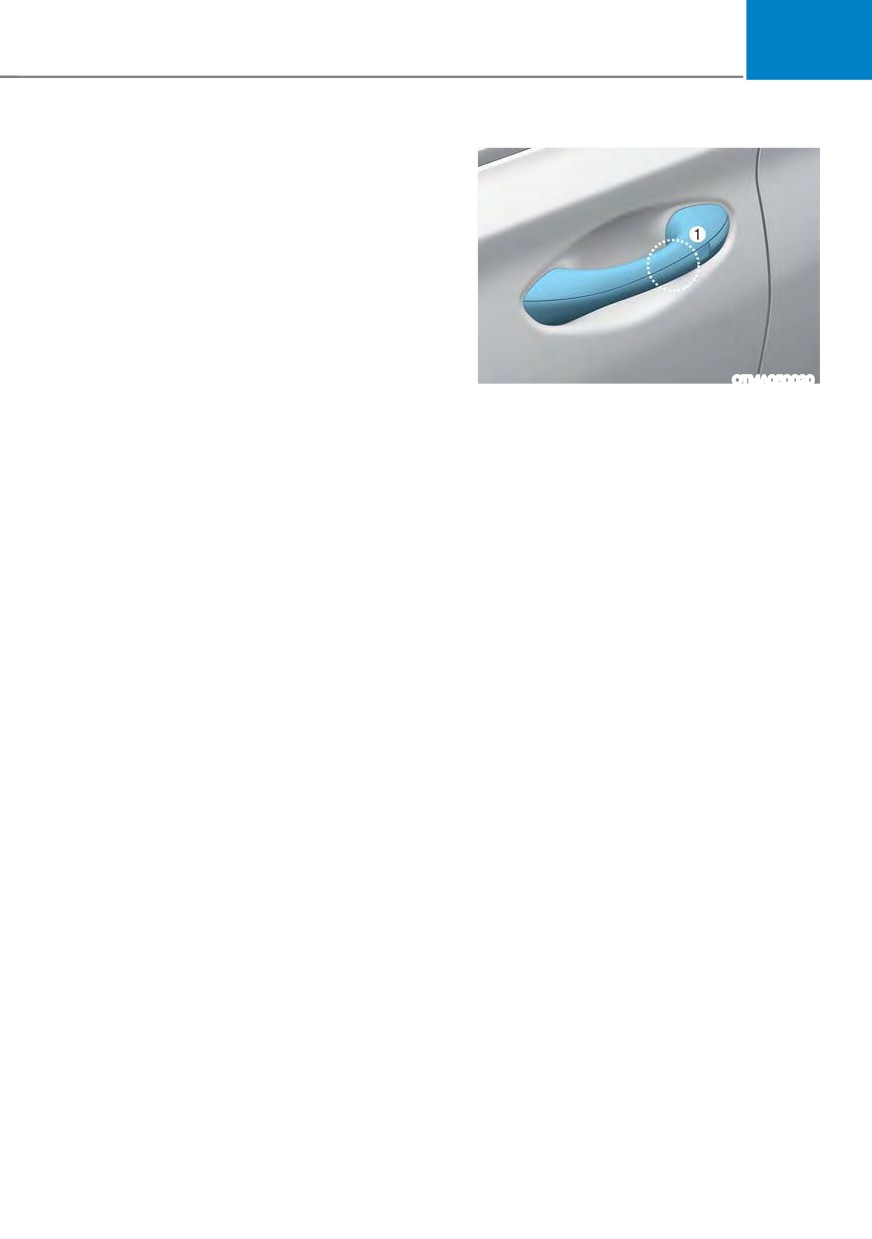
[1] : Door handle authentication pad
NFC door lock/unlock
You should contact your smartphone’s
NFC antenna(backside of phone) to door
handle authentication pad (1) marked
position near by the lock button) of
driver’s (or front passenger’s) outside
door for 2 seconds to lock or unlock the
doors. If the Two Press Unlock feature
is applied (press twice for unlocking),
driver’s seat door will be unlocked by
contacting the digital key (smartphone
key). In this state, if you contact one
more time within 4 seconds, all the doors
unlock. Please make sure the doors are
locked. If you do not open any of the
doors after unlocking, it automatically
re-lock after 30 seconds.
Note that you cannot lock your vehicle
when you contact NFC antenna in the
smartphone to the door handle pad if
any of the following occurs:
ś The Proximity / Smart Key is in the
vehicle.
ś The Engine Start/Stop button is in
ACC or ON position.
ś Any of the doors, hood and trunk is
opened.
If the smartphone digital key does not
work, please remove the smartphone
more than 4 inches (0.1 m) from the door
handle authentication pad and try it
again.
5-18
05
After unlock the door or start up the
The solution allows for offline mode usage
vehicle with digital key, even though
when the mobile data connection of the
the driver tries to lock the doors by the
smartphone is weak. When you are in the
central door lock switch, the door lock
place where the mobile data connection
will be once locked and immediately
of your smartphone is available and
released at the moment of door closed.
place your smartphone on the interior
authentication pad (wireless charger) and
Start-up with Digital Key
start up your vehicle or contact the digital
key on the door handle to lock or unlock
1. After placing your registered
the door, the remote renewal of security
smartphone onto the interior
information starts automatically. Even
authentication pad (wireless charger),
though the engine is turned on, please
step on the brake and press the
wait until the remote renewal process
Engine Start/Stop button.
is completed and wireless charger is
2. After start-up, the digital key data
converted to charging mode.
will be automatically updated. It
takes 5 to 20 seconds, after that,
the smartphone can be go into the
CAUTION
wireless charging mode automatically.
The engine can be turned on if the
Once the engine started, you can
registered smartphone or card key is
remove the smartphone from the pad.
placed on the interior authentication
pad (wireless charger). Do not leave
unsupervised children or people who
are not aware of the system since it
can result in serious injury or death.
Always have the registered digital key
(smartphone) or card key with you to
prevent vehicle theft when leaving the
vehicle.
For more information, refer to the
Engine Start/Stop button in chapter 6.
OTM050022
[A] : Indicator light
[B] : Wireless Charging Pad
(In-vehicle Authentication Pad)
Information
After reconnecting the vehicle battery
power supply or charging the battery, it
may take time to operate due to remote
renewal of security information. When you
lock or unlock the door with NFC, please
contact and hold your smartphone on the
door handle until it works.
5-19
Convenience features
Remote Control with Digital Key
CAUTION
To use the remote control function with
ś
If metallic window tint was applied
your android smartphone, Bluetooth
to your vehicle, it may cause
must be turned on.
bad Bluetooth connection or
performance degradation of the
Remote Control Connection with Digital
digital key.
Key
ś
If multiple users operate the remote
1. Open Hyundai digital key application
control function simultaneously, the
on the smartphone. Select the
connection between the digital key
vehicle to activate the remote control
and the vehicle might result in failed
function as a main vehicle.
commands. Please connect and
2. Approach with the activated
operate the remote control function
smartphone app to your vehicle
only the necessary user.
and you can check whether the
ś
When using the remote control
connection is available. If it enables
operation, the driver (the remote
your smartphone to connect, connect
control user) should leave the vehicle
with your vehicle by pressing the
after confirming the door lock (the
connect button. The remote control
chime sounds once and the hazard
function is activated after completing
warning lights blink).
the process.
ś
The remote functions of the Digital
Key app enable the vehicle to be
Remote Control Operation with Digital
controlled from a set distance. If
Key
the digital key or the vehicle goes
You can execute the remote control
beyond the operable distance, the
operation including door lock/unlock,
remote control function might be
panic on/off, remote start / remote
disconnected or cancelled.
stop and trunk opening. The icon for
ś
If the digital key (smartphone) is
each function will be highlighted and
connected with the vehicle for the
alarm/vibration also provided when the
remote control, the driver with the
operation is performed.
key goes far away from the vehicle,
Note that you cannot lock your vehicle
the function might not work.
using the Hyundai digital key app if any
ś
If the remote control operation
of the following occurs:
is executed where the mobile
ś The Engine Start/Stop button is in
connection is weak, Bluetooth
ACC or ON position.
connection is poor due to several
ś Any doors are open.
Bluetooth devices or there is an
object such as metal or concrete, it
When the smartphone and the vehicle
might be delayed or the operable
are connected by the Bluetooth function
distance might decrease. You should
but the remote control command
not cover the smartphone with your
cannot be received over 5 minutes, the
hand or place other devices which
remote control connection is cancelled
can cause frequency interference. It
automatically.
may result in poor performance.
ś
If the remote control function is not
available, please use NFC function to
lock or unlock the doors.
5-20
05
Remote Start with Digital Key
Smartphone change/App deletion
ś When the shift button of your vehicle
If you change your smartphone or delete
is in P (Park) and all of the doors
the Hyundai Digital Key App, please refer
including trunk and hood is locked
to the following to set up your Digital
and the vehicle is off, press the Door
Key:
Lock button in the Hyundai Digital
Key app then press the Remote Start
Smartphone Change/ Reset
button within 4 seconds.
If you change or reset the smartphone,
You can confirm the engine is on if the
the registered digital key in your previous
hazard warning lights blinks two times
smartphone may not be used. Please
and the chime sounds.
refer to following procedure to use the
ś If you want to turn off the engine,
digital key.
press Remote Engine Stop. Air
1. Install the digital key application and
Conditioner / Heating system
log in.
maintains the same status as when
you last used the vehicle.
2. If you are the owner, retry the Digital
key save process.
ś Unless you put the registered digital
key(smartphone) on the interior
3. If you are the sharer, need to re-share
authentication pad (wireless charger)
the key from owner.
when the remote start function is on,
the engine will turn off.
App delete & reinstall/ Delete App data
ś If you do not get on the vehicle within
You can re-download the digital key
10 minutes after the engine turns on,
from server in these cases as follow
the vehicle will turn off.
procedure.
For more information, refer to the Engine
1. Reinstall the application and log in.
Start/Stop button in chapter 6.
2. Input the PIN number for user
verification.
Vehicle information Display
3. If PIN is correct, digital key data
The digital key application displays
will be re-downloaded to your
the vehicle information such as
smartphone and you can use it
driving or door conditions through the
without any further registration or
communication with the vehicle.
sharing.
ś How to check : Select the vehicle
what you want to check and touch
Smartphone operability with Digital Key
the vehicle image, then vehicle
The digital key application may not
information display page will be
be available to old type smartphones.
shown.
Please check the available smartphone
ś Contents : accumulated odometer,
models with your dealer. NFC antenna
latest fuel economy, driving range,
position on the smartphone can be
fuel remaining, tire pressure, doors
confirmed on each smartphone’s manual
lock/unlock status and last data
or contact to customer service center of
updated time.
the smartphone manufacture.
à Displayed vehicle date could be
differed from the current vehicle
condition.
à For more information, please refer to
the ‘Tutorial’ on your Digital key app.
5-21
Convenience features
ś
If the remote control function is not
CAUTION
activated, please use NFC function to
ś
Do not leave the registered digital
lock or unlock the doors
key (smartphone) and card key in
ś
You should be careful not to
your vehicle. Please carry around
press the remote control button
your keys all the times.
on the digital key (smartphone)
ś
If you happen to lose your digital
accidentally.
key (smartphone) or card key
ś
If the digital key (smartphone) is
registered as a main user’s key, you
discharged or defective or you
should immediately delete the key
cannot use the digital key since the
on the vehicle’s key menu. For more
vehicle battery is discharged, use the
information, refer to the Digital Key
inside door lock button to lock all of
Deletion in this chapter.
the doors.
ś
If you registered your digital key
(smartphone) or card key in the
vehicle, a message appears on the
CAUTION
instrument cluster and let you know
ś
Hyundai digital key app on the
the key is registered.
smartphone and card key may not
(Message: Digital key(s) active.)
work if any of the following occurs:
ś
If you buy a used vehicle, you should
-
Hyundai digital key app on the
confirm the message and delete the
smartphone is deleted. (Required
registered smartphone key and card
to reinstall the app)
key. In this case, you should carry
-
Account log in information of
your smart key.
Hyundai digital key app is expired.
ś
If you keep place the NFC card
(Required to re-log in)
of the digital key on the interior
-
When you try to log in to another
authentication pad (wireless
smartphone instead of the
charger) while driving, it may cause a
registered smartphone with same
malfunction of the NFC card.
user account.
ś
You should remove your NFC card
-
Smartphone rooting or app
of the digital key on the interior
hacking is detected.
authentication pad after turning on
the engine.
-
Smartphone battery or the vehicle
battery is discharged.
ś
Hyundai digital key app may not
work properly when the NFC or
-
Smartphone’s screen is off or
Bluetooth communication between
locked.
smartphone and car is not good.
-
NFC or Bluetooth is turned off on
ś
If the remote control operation
the smartphone settings.
is executed where the mobile
-
Smartphone’s mobile network
connection is weak, Bluetooth
setting is off or airplane mode is
connection is poor due to lots of
activated.
Bluetooth devices or there is an
-
A credit card is overlapped in the
object such as metal or concrete, it
back of your smartphone or metal
might be delayed or the operable
or thick case is used.
distance might decrease. Especially,
you should not cover the smartphone
-
Use the card key with insert it
with your hand or place other
into the wallet or card holder or
devices which can cause frequency
overlapping with other cards.
interference. It may result in poor
performance.
5-22
05
- If you use a smart phone cover that
Digital key (Card key)
uses wireless communication or is
made of metal, the digital key NFC
function may not work properly.
Remove the smart phone cover
before using the digital key NFC
function.
ś The vehicle may not be controlled by
the smartphone if any of the following
occurs:
- Basic and necessary functions of
the smartphone manufacturer are
operating. (General call, urgent
ODN8A059243
call, audio or NFC payment)
- Wireless earphone is operating.
(General call, urgent call or audio)
- The digital key app function such
as basic setting or app launching
is limited by prior policy according
to the manufacturer while using a
smartphone produced by domestic
and foreign manufactures.
à If you change the smartphone
number, you should modify the user
ODN8A059131
account information on the HYUNDAI
customer web site to use the digital
Digital key (Card key) save
key app.
1. Install Hyundai digital key app in
à If the vehicle owner changes
main user’s smartphone and register
the digital key (smartphone). Please
the smartphone device, the new
smartphone should be registered in
refer to the registration method of the
digital key (smartphone).
the car after deleting the registered
digital key(smartphone).
2. Using the [Pair Card Key] menu on
the digital key application, you can
à If a sharer changes or reset the
smartphone, the key should be re-
activate the Card Key registration
mode.
shared from owner.
à NFC authentication : enter the NFC
à Some of the old smartphone may
not work properly. Please check the
authentication menu and contact
the smartphone on the outside door
available smartphone models with
your dealer.
handle.
à Bluetooth authentication : enter the
à NFC antenna position on the
smartphone can be confirmed
Bluetooth authentication menu and
press the [OK] button for activation.
on each smartphone’s manual or
contact to customer service center
If you activate the registration mode,
of the smartphone manufacture.
you should complete the Card saving
process with in 5 minutes.
à If you have not registered the digital
key (smartphone), please register the
digital key (card key) with two smart
keys.
5-23
Convenience features
Ã
3. Register the NFC card key on the
User’s Settings menu after turning on
the vehicle.
à With Navigation screen : From the
infotainment screen menu, go to
[Setup] - [Vehicle] - [Digital Key] -
[Card Key] then select the [Save] from
submenu.
à Without navigation screen : From
cluster menu, go to [Digital Key] -
ODN8A059243
[Card Key] and select [Save].
The [Save] button will be disabled if
the digital key (Card key) is already
saved.
Please refer to “Digital Key Delete” in
this manual and follow the digital key
delete procedure in your car before
Digital key save.
4. Place the NFC card key onto the
interior authentication pad (wireless
charger). The saving process will
ODN8A059132
begin automatically.
Digital key (Card key) deletion
5. If the key is enrolled, the message
will be displayed on the infotainment
You should have the smart key to delete
screen or instrument cluster.
the digital key (card key) so please carry
around the key.
1. Get on the vehicle with the smart key.
ś Once the card key registration mode
is activated, the process should be
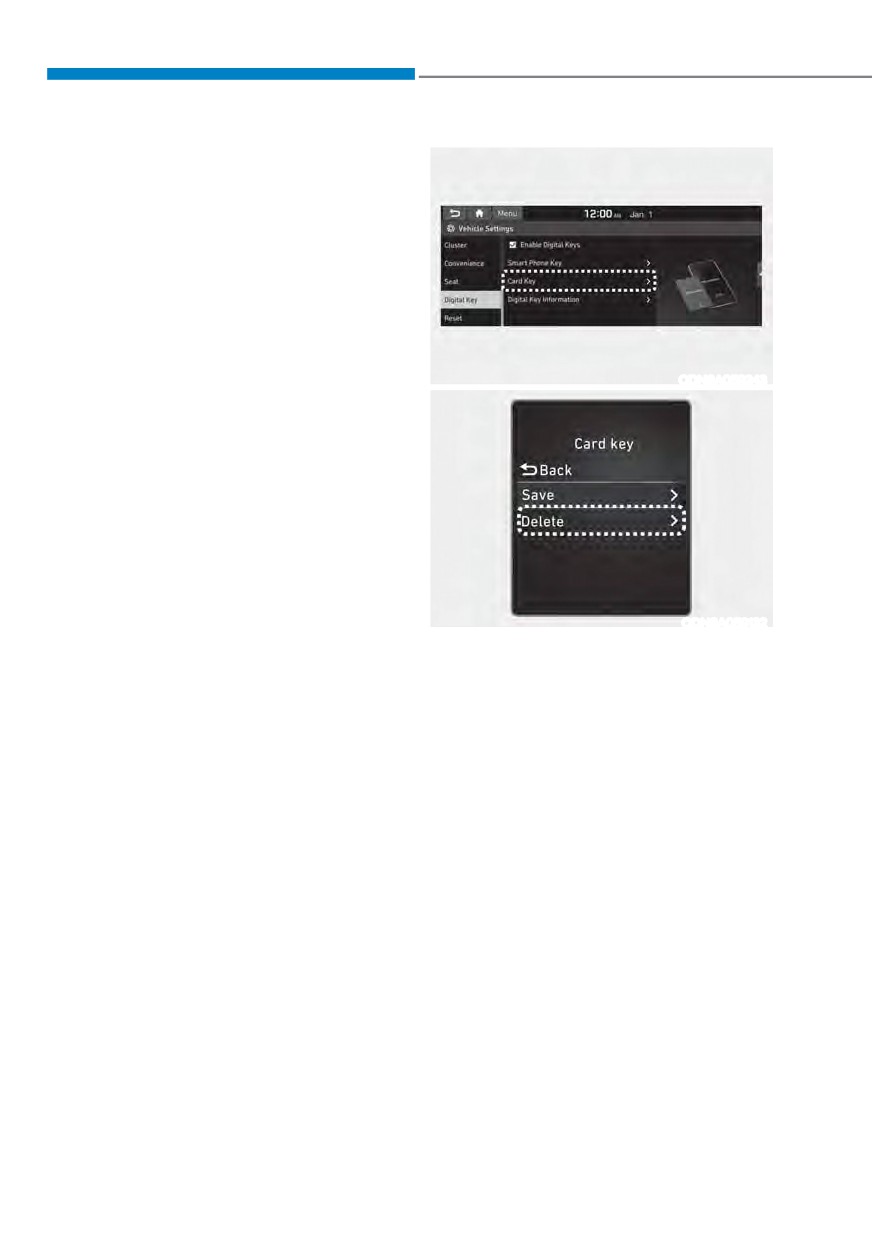
2. Delete the NFC card key on the User’s
Settings menu after turning on the
completed within 5 minutes. After
then, you should reactivate once
engine.
again for registration.
à With Navigation screen : From the
infotainment screen menu, go to
ś For the digital key(card key) saving,
[Setup] - [Vehicle] - [Digital Key] -
the smart key(fob) must be exist inside
[Card Key] then select the [Delete]
of vehicle.
from submenu.
ś Once a Card key is registered, it
à Without navigation screen : From
cannot be reuse onto another vehicle.
cluster menu, go to [Digital Key] -
[Card Key] and select [Delete].
If there is no saved digital key(card key),
[Delete] menu will not be activated.
5-24
05
ś
To delete the saved digital key (card
key), the smart key must be exist
inside the vehicle.
ś
The deleted digital key (card key) can
be re-registered before registering a
new digital key (card key).
ś
If you try to register a new digital key
(card key), the previously registered
digital key (card key) cannot be used
again.
OTMA050020
[1] : Door handle authentication pad
NFC door lock/unlock
You should contact digital key (card key)
to door handle authentication pad (1,
marked position near by the lock button)
of driver’s (or front passenger’s) outside
door for 2 seconds to lock or unlock the
doors. If the Two Press Unlock feature
is applied (press twice for unlocking),
driver’s seat door will be unlocked by
contacting the digital key (card key). In
this state, if you contact one more time
within 4 seconds, all the doors unlock.
Inoperable condition
If you do not contact the digital key (card
key) to the center of the door handle
authentication pad accurately., it may
not work. In addition, if you overlap and
use the key with NFC-enabled cards such
as transportation card or credit card, it
does not work.
Note that if you try to lock your vehicle
with digital key (card key) in following
cases, the doors will not be locked and
chime will sound for 3 seconds.
ś The Smart Key is in the vehicle.
ś The Engine Start/Stop button is in
ACC or ON position.
ś Any of the doors, hood and trunk are
open
5-25
Convenience features
If the digital key (card key) does not
Start-up with Card key
work, please detach the key around
After placing your registered card key
4 inches (0.1 m) from the handle
onto the interior authentication pad
authentication pad and retry to contact.
(wireless charger), step on the brake and
The card key may be damaged by the
press the Engine Start/Stop button.
impact. It would not work properly if
the key is damaged. You should buy a
new card and register again. Long-time
WARNING
exposure to high temperature may cause
ś If you do not place the digital key
the card key to malfunction. Please be
(card key) onto the center of the
careful not to expose the key to direct
interior authentication pad (wireless
sunlight or high temperature.
charger) exactly, the card key may
After unlock the door or start up the
not be recognized. If the engine is
vehicle with digital key, even though
not turned on, adjust and place the
the driver tries to lock the doors by the
key again.
central door lock switch, the door lock
ś If you overlap and use the key
will be once locked and immediately
with NFC-enabled cards such as
released at the moment of door closed.
transportation card or credit card,
the card key may not be recognized.
ś If the digital key (card key) does not
work, please detach the key around
4 inches (0.1 m) from the handle
authentication pad and retry to
contact.
ś The card key may be damaged due to
impact. It would not work properly if
the key is damaged. You should buy a
new card and register again.
For more information, refer to the
Engine Start/Stop button in chapter 6.
5-26
05
Type A
CAUTION
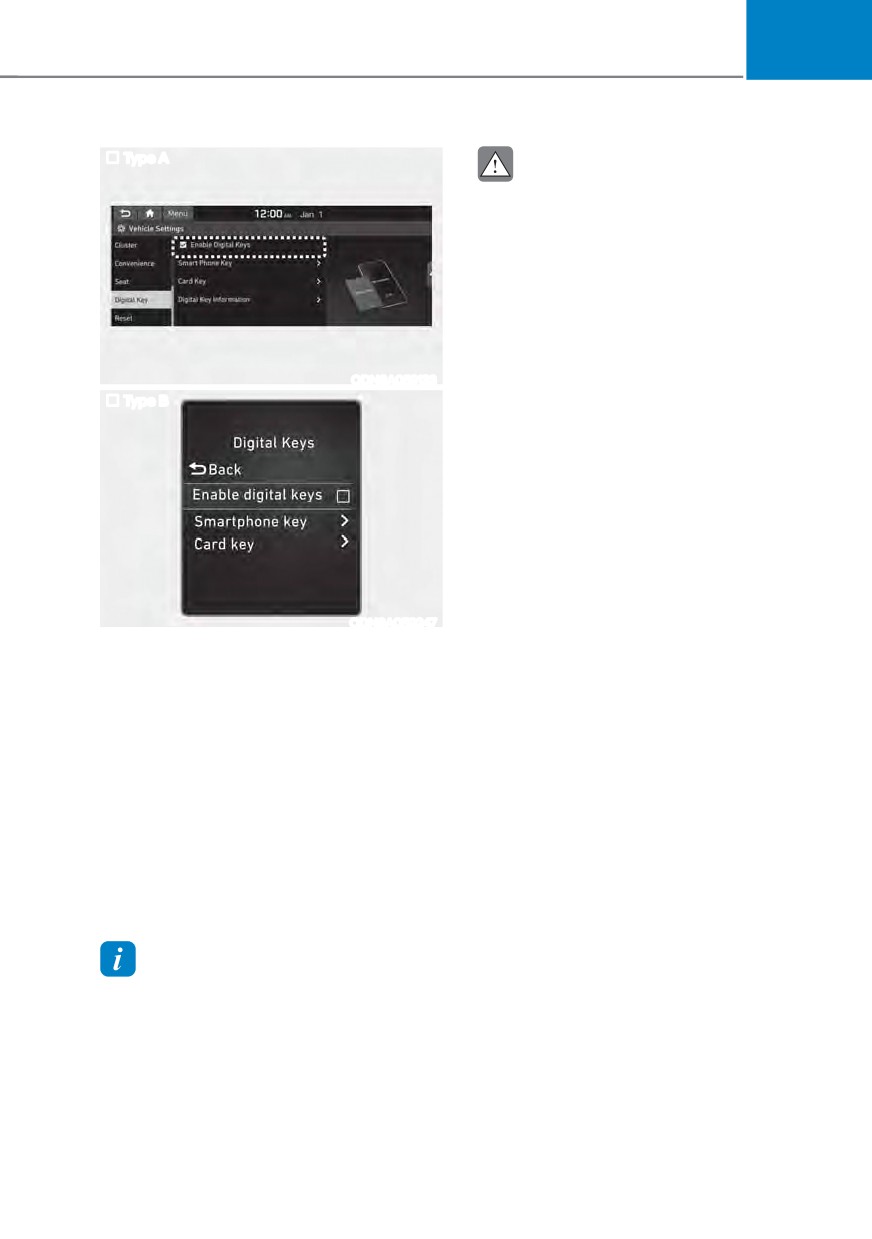
If you uncheck Enable digital keys, it is
impossible to lock or unlock the doors
or start up the vehicle with digital keys
such as smartphone and card key. If
you check Enable digital keys again, the
registered digital keys(smartphone and
card key) are available. Even though
you stop the digital key function, the
registered keys (smartphone and card
key) are not deleted.
ODN8A059133
Type B
Personalized profile and vehicle
settings
Connect the registered digital key with
personalized profile. Then in case you
lock or unlock the door with the digital
key NFC function or unlock the door
remotely by digital key application
Bluetooth connection, the vehicle
will play the personalized user profile
settings. Profile connection and
ODN8A059247
personalization are available for Driver 1
and Driver 2.
Digital key application/cancellation
If you do not want to use the digital key
(smartphone and card key), you can
disable the function temporarily. You
should have the smart key when you
change the settings
à With Navigation screen :
From the infotainment screen menu,
go to [Setup] - [Vehicle] - [Digital Key]
- [Enable Digital Keys] (deselect)
à Without navigation screen :
From cluster menu, go to [Digital Key]
- [Enable Digital Keys] (deselect)
Information
For the digital key disable, the smart key
must be exist inside the car. For the digital
key enable, the smart key does not need.
5-27
Convenience features
Profile link/unlinked
PRECAUTION for vehicle profile link and
unlink
Profile link
6HOHFW 6HWXS Ɵ 8VHU 3URILOH Ɵ
When you link or unlink the profile of
digital key, you should be careful of the
3URILOH 6HWWLQJV Ɵ /LQN 'LJLWDO .H\
(Smartphone) on the infotainment
following.
system menu.
ś
Profile link is possible to use with the
digital key. (Infotainment Vehicle
2. Unlock and place your smartphone on
6HWWLQJV 0RGH Ɵ 'LJLWDO .H\ Ɵ (QDEOH
the wireless charger according to a
Digital Keys)
message and it automatically starts to
interwork.
ś
Profile link information remains even
when you set the digital key function
3. It begins the profile link with a
disable.
message.
ś
Only the smart phone with digital key
4. If you select Link, the registered
phone number’s digital key and the
app enables you to link your profile.
(Impossible to link with NFC card)
user’s profile are linked.
ś
Profile link works only when the
5. The interconnection process is
smart phone and the digital key are
completed with a message.
registered to the vehicle. The smart
phone with another vehicle’s digital
Profile unlink
key cannot link profile.
1. Select Digital Key information on
ś
If you remove the smart phone
infotainment Vehicle Settings menu. It
from the wireless charger before
is possible to unlink only if the profile
completing the profile link, it does not
is interconnected.
work.
2. Profile unlink is completed with a
ś
To unlink the profile, the smart phone
message.
does not need to be on the wireless
charger.
Information
If you connect both Driver 1 and Driver 2
with a single smartphone, the smartphone
digital key always works as Driver 1.
If you unlink the Driver 1, personalization
function will operate as Driver 2.
5-28

05
Vehicle personalization operation
Precaution for digital key profile link and
unlink
The personalization function linked with
digital key works as following conditions:
Profile operation according to door lock/
unlock system is as follows.
ś Contact the driver’s door handle with
the profile linked smart phone to lock
Personalization
or unlock the doors (Personalization
Item
does not operate when locking or
Operation
unlocking the front passenger door.)
Initial value
Guest
ś Remote door unlock with the profile
Profile linked
linked smartphone digital key app.
smart phone
Linked profile
key
The profile linked with digital key can be
changed manually in the infotainment
Profile unlinked
system setup screen.
smart phone
key
Recently activated
profile
NFC card key
Smart key
ś The personalization function using
the digital key can be operated
after linking the digital key on the
infotainment system profile menu.
ś You should use the personalization
function during stopping your vehicle
safely.
5-29

Convenience features
Vehicle personalization with digital key
The available personalization function in the vehicle is as follows.
System
Personalization Item
Position adjustment of image, Information display
HUD
selection, Size and color of speedometer
Lamp
Blink number of one-touch signal lamps
Information display on the cluster, Voice volume,
Cluster
Welcome sound
USM
Seat position, O/S mirror position, Easy Access
Seat/Mirror
Intelligent driving posture assist (Smart IMS)
Convenience
Wireless charging system on/off
Door
Automatic door lock/unlock, Two Press Unlock
Preferred volume of the navigation system, Recent
Navigation
destination
AVN
User preset
My menu list settings, Radio preset
Phone
Bluetooth preferential connect
connectivity
CarPlay/Android Auto/MirrorLink On/Off
Latest operation setup of the following functions:
Operating
Air conditioning
Temperature, AUTO, air flow direction, air volume,
condition
air conditioner, air intake control, SYNC, Front
windshield defroster, OFF
For more information of personalization, refer to the infotainment system manual.
CAUTION
If you leave the digital key after locking or unlocking the doors or starting up the
vehicle with the smart key, the doors can be locked by the central door lock. Please
carry around the digital key all the time.
5-30
05
DOOR LOCKS
Operating door locks from
Remote key
outside the vehicle
Mechanical key
Remote key
OTMA050015MX
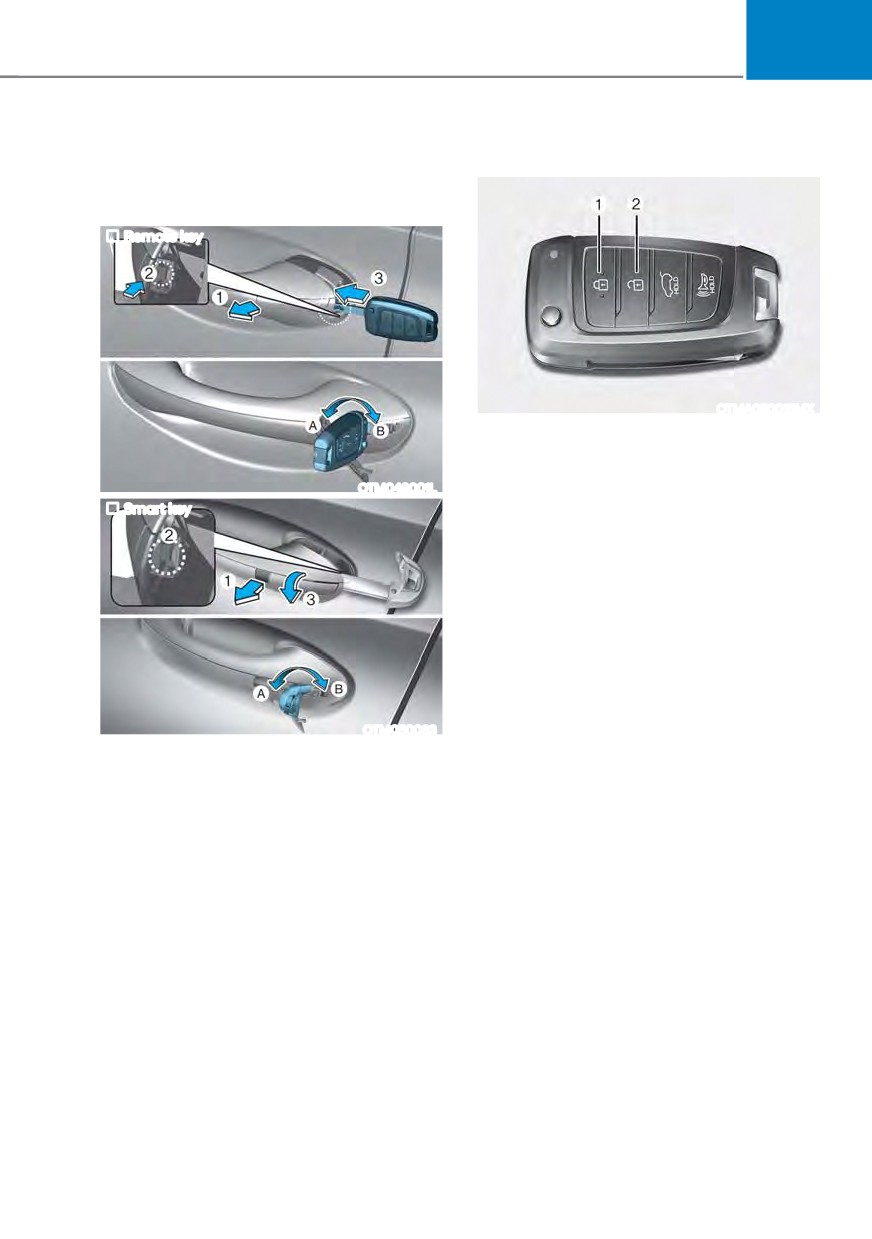
To lock the doors, press the Door Lock
button (1) on the remote key.
To unlock the doors, press the Door
OTM048001L
Unlock button (2) on the remote key.
Smart key
Once the doors are unlocked, they may
be opened by pulling the door handle.
When closing the door, push the door by
hand. Make sure that doors are closed
securely.
OTM050083
[A] : Unlock, [B] : Lock
First, pull the outside door handle (1)
and push the hook (2) located inside
of outside door handle by using the
mechanical key. And remove the cover
(3).
Turn the key toward the rear of the
vehicle to lock and toward the front of
the vehicle to unlock.
If you lock/unlock the driver’s door with
a key, a driver’s door will lock/unlock.
Once the doors are unlocked, they may
be opened by pulling the door handle.
When closing the door, push the door by
hand. Make sure that doors are closed
securely.
5-31
Convenience features
Smart key
Operating door locks from inside
the vehicle
With the door lock button
OTM048000
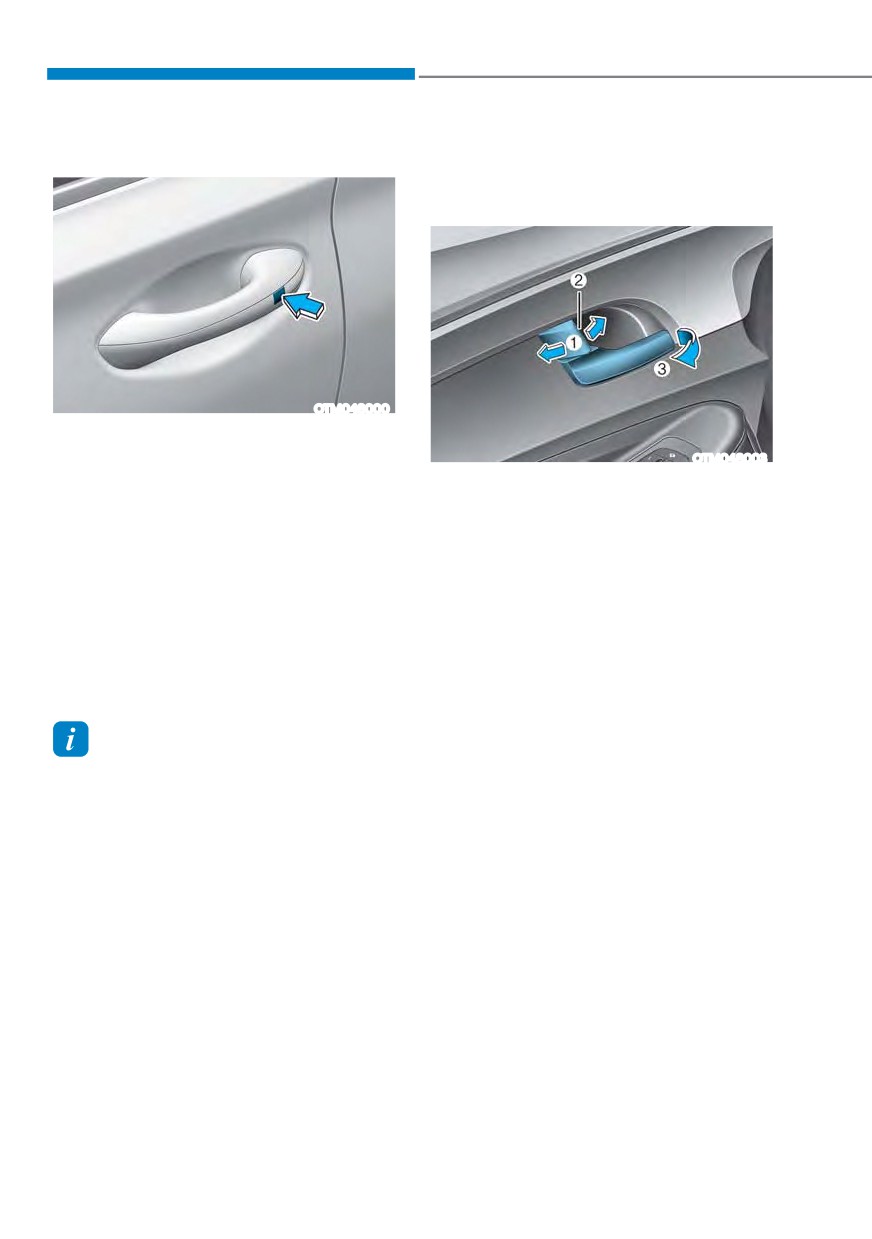
To lock the doors, press the button on
the outside door handle while carrying
OTM048003
the smart key with you or press the door
ś
To unlock a door, push the door lock
lock button on the smart key.
button (1) to the “Unlock” position.
To unlock the doors, press the button on
The red mark (2) on the door lock
the outside door handle while carrying
button will be visible.
the smart key with you or press the door
ś
To lock a door, push the door lock
unlock button on the smart key.
button (1) to the “Lock” position. If the
Once the doors are unlocked, they may
door is locked properly, the red mark
be opened by pulling the door handle.
(2) on the door lock button will not be
When closing the door, push the door by
visible.
hand. Make sure that doors are closed
ś
To open a door, pull the door handle
securely.
(3) outward.
ś
Front doors cannot be locked if the
key is in the ignition switch and any
Information
front door is open.
ś In cold and wet climates, door lock
ś
Doors cannot be locked if the smart
and door mechanisms may not work
key is in the vehicle and any door is
properly due to freezing conditions.
open.
ś If the door is locked/unlocked multiple
times in rapid succession with either
the vehicle key or door lock switch, the
system may stop operating temporarily
in order to protect the circuit and
prevent damage to system components.
5-32
05
With the central door lock/unlock
Information
switch
If a power door lock ever fails to function
while you are in the vehicle try one or
more of the following techniques to exit:
Operate the door unlock feature
repeatedly (both electronic and manual)
while simultaneously pulling on the door
handle.
Operate the other door locks and handles.
Lower a front window and use the
mechanical key to unlock the door from
outside.
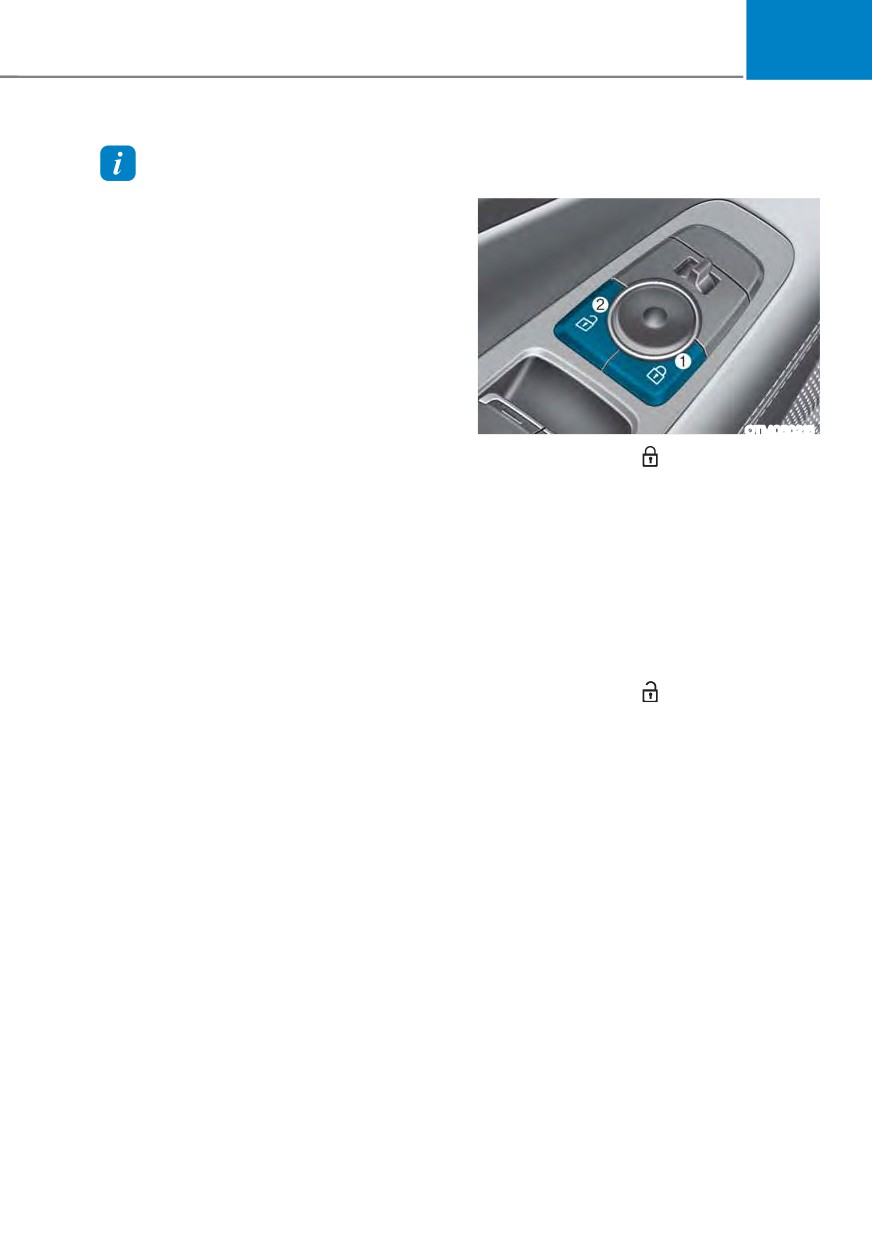
OTM050215
When pressing the (
) portion (1) on the
switch, all vehicle doors will lock.
ś If any door is opened, the doors will
not lock even though the lock button
(1) of the central door lock switch is
pressed.
ś If the smart key is in the vehicle and
any door is opened, the doors will
not lock even though the lock button
(1) of the central door lock switch is
pressed.
When pressing the (
) portion (2) on the
switch, all vehicle doors will unlock.
5-33

Convenience features
WARNING
CAUTION
ś The doors should always be fully
Opening a door when something is
closed and locked while the
approaching may cause damage or
vehicle is in motion. If the doors
injury. Be careful when opening doors
are unlocked, the risk of being
and watch for vehicles, motorcycles,
thrown from the vehicle in a crash is
bicycles or pedestrians approaching the
increased.
vehicle in the path of the door.
ś Do not pull the inner door handle of
the driver’s or passenger’s door while
WARNING
the vehicle is moving.
If you stay in the vehicle for a long time
while the weather is very hot or cold,
WARNING
there are risks of injuries or danger to
life. Do not lock the vehicle from the
Do not leave the elderly, children or
outside when someone is in the vehicle.
animals unattended in your vehicle. An
enclosed vehicle can become extremely
hot, causing death or serious injury
to the elderly, unattended children
or animals who cannot escape from
the vehicle. Children might operate
features of the vehicle that could injure
them, or they could encounter other
harm, possibly from someone gaining
entry to the vehicle.
WARNING
Always secure your vehicle.
Leaving your vehicle unlocked increases
the potential risk to you or others from
someone hiding in your vehicle.
To secure your vehicle, while
depressing the brake, shift the gear
to the P (Park) position, engage the
parking brake, and press the Engine
Start/Stop button to the OFF position,
close all windows, lock all doors, and
always take the key with you.
5-34
05
Auto door lock/unlock features
Child-protector rear door locks
Your vehicle is equipped with features
(if equipped)
that will automatically lock or unlock
your vehicle based on settings you select
in the infotainment system screen.
Auto LOCK Enable on speed
When this feature is set in the
infotainment system screen, all the doors
will be locked automatically when the
vehicle exceeds 9 mph (15 km/h).
Auto LOCK Enable on shift
When this feature is set in the
infotainment system screen, all the doors
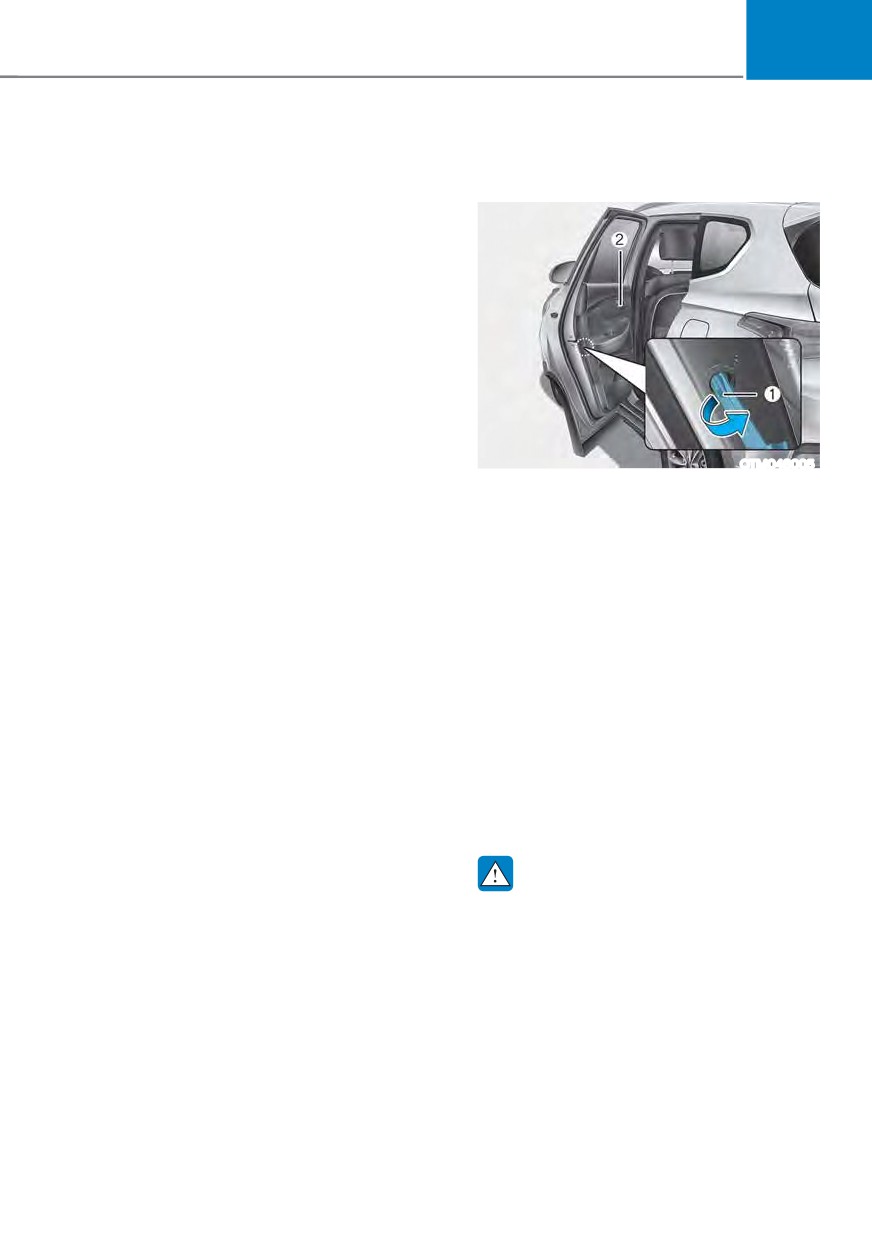
OTM048005
will be locked automatically when the
The child safety lock is provided to help
vehicle is shifted out of P (Park) while the
prevent children seated in the rear from
engine is running.
accidentally opening the rear doors. The
rear door safety locks should be used
Auto UNLOCK On Shift to P
whenever children are in the vehicle.
When this feature is set in the
The child safety lock is located on the
infotainment system screen, all the doors
edge of each rear door. When the child
will be unlocked automatically when the
safety lock is in the lock position, the
vehicle is shifted back into P (Park) while
rear door will not open if the inner door
the engine is running.
handle is pulled.
To lock the child safety lock, insert a
Auto UNLOCK Vehicle off
small flat blade tool (like a screwdriver or
When this feature is set in the
similar) (1) into the slot and turn it to the
infotainment system screen, all the doors
lock position as shown.
will be unlocked automatically when the
To allow a rear door to be opened from
vehicle is turned off.
inside the vehicle, unlock the child safety
lock.
See additional information in supplied
Infotainment Manual.
WARNING
Additional unlock safety feature air
If children accidently open the rear
bag deployment
doors while the vehicle is in motion,
As an additional safety feature, all doors
they could fall out of the vehicle. The
will be automatically unlocked when an
rear door safety locks should always
impact causes the air bags to deploy.
be used whenever children are in the
vehicle.
5-35
Convenience features
Electronic child safety lock (if
ś If the power is supplied again after
removing the battery or battery is
equipped)
discharged while the electronic child
safety lock button is in the LOCK
position, press the button once more
to match the state of the indicator on
the electronic child safety lock button
and actual status of the electronic
child safety lock function.
ś If the airbag is activated while the
electronic child safety lock button
is in the LOCK position (indicator
light ON), the rear doors will unlock
automatically.
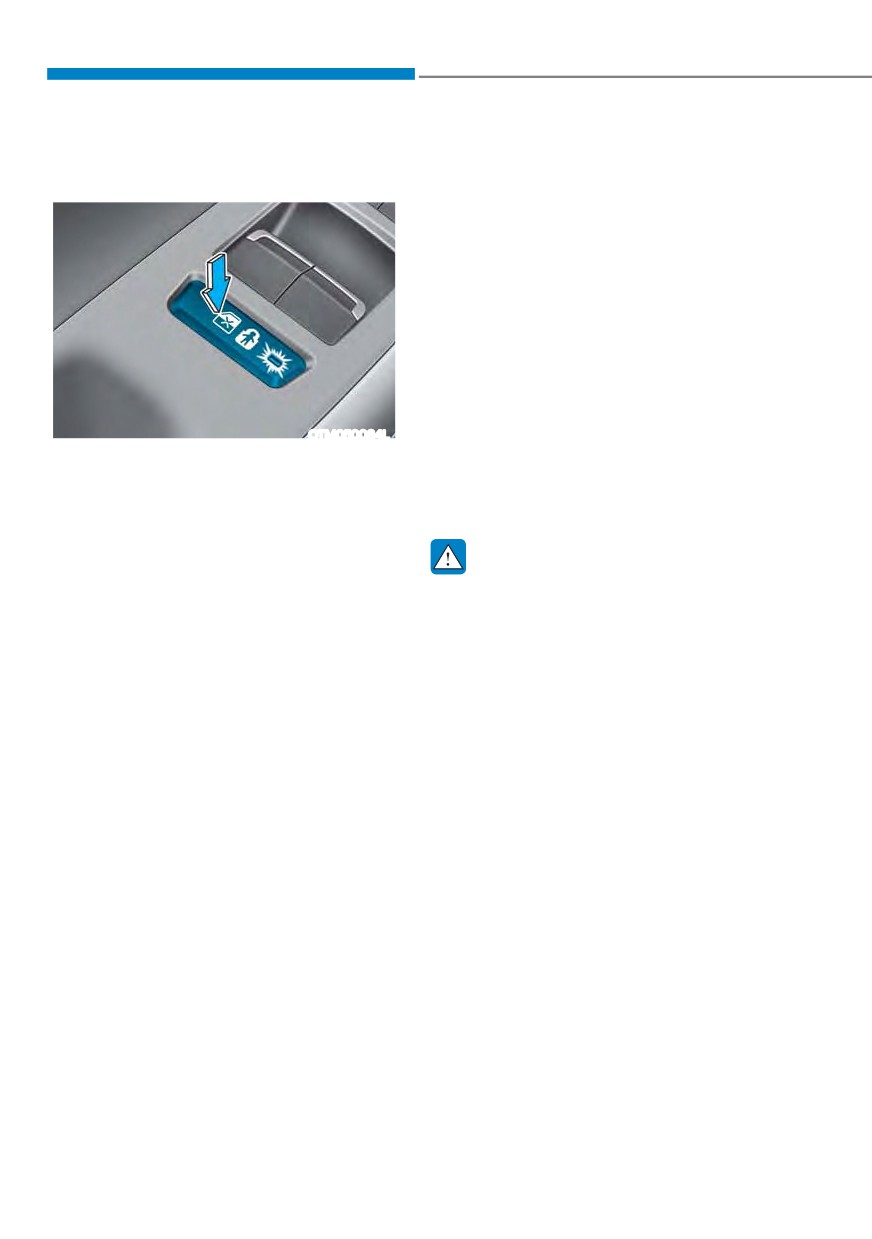
OTM050084L
ś Vehicles equipped with the electronic
When the electronic child safety lock
child safety lock feature is not
button is pressed and the indicator
provided with a manual child safety
light on the button illuminates, the rear
lock.
doors cannot be opened from inside the
vehicle.
ś The rear door window cannot be
WARNING
opened or closed while the electronic
If children accidentally opens the rear
child safety lock button is in the LOCK
door while the vehicle is in motion, they
position (indicator light ON).
could fall out of the vehicle. Electronic
For more details, refer to “Windows”
child safety lock should always be used
section in this chapter.
whenever children are in the vehicle.
ś Electronic child safety lock does not
automatically turn on unless the driver
presses the electronic child safety
lock button.
ś If 3 minutes passes after the Engine
Start/Stop button is pressed to the
OFF or ACC, the indicator on the
button turns off, and the driver cannot
turn off electronic child safety lock by
pressing the button. To turn off the
function, press the Engine Start/Stop
button to the ON position, and then
press the electronic child safety lock
button.
5-36
05
NOTICE
Safe Exit Assist (if equipped with
electronic child safety lock)
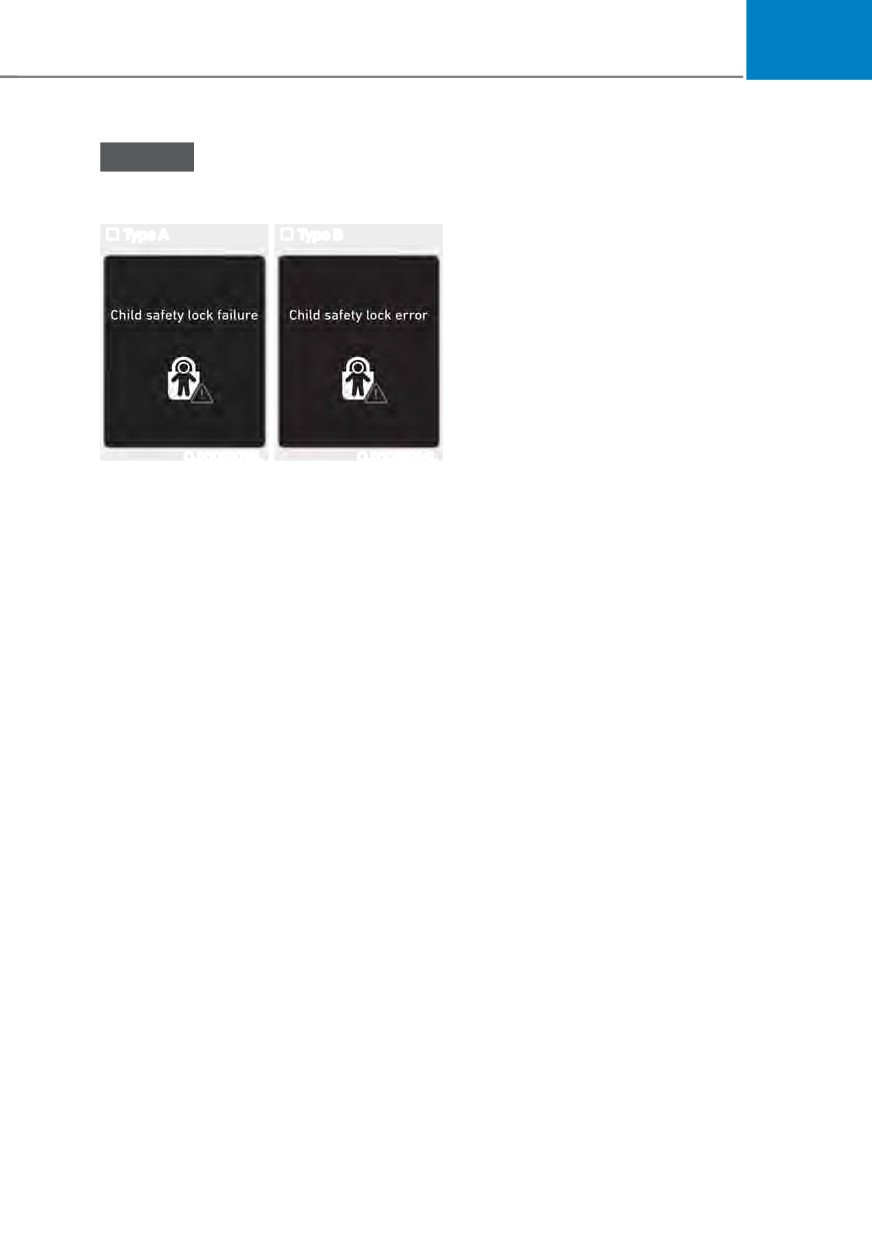
Child safety lock failure / Child safety
lock error
Safe Exit Assist helps prevent the rear
occupant from opening the rear door.
Type A
Type B
When an approaching vehicle from the
rear area is detected after the vehicle
stops, the rear doors will not unlock even
when the driver tries to unlock the rear
doors using the electronic child safety
lock button.
For more details, refer to “Safe Exit
Assist (SEA)” section in chapter 7.
OJX1059018L
OJX1059254L
When electronic child safety lock does
not work even though the button is
pressed, the message will be displayed
and an alarm will sound. If this occurs,
have the vehicle be inspected by an
authorized HYUNDAI dealer.
5-37
Convenience features
7+()7ǘ$/$50 6<67(0
This system helps to protect your vehicle
Information
and valuables. The horn will sound and
the hazard warning lights will blink
ś
Do not lock the doors until all
continuously if any of the following
passengers have left the vehicle. If the
occur:
remaining passenger leaves the vehicle
when the system is armed, the alarm
- A door is opened without using the
will be activated.
smart key.
ś
If the vehicle is not disarmed with the
- The liftgate is opened without using
smart key, open the doors by using the
the smart key.
mechanical key and start the engine by
- The engine hood is opened.
directly pressing the Engine Start/Stop
The alarm continues for 30 seconds, then
button with the smart key.
the system resets. To turn off the alarm,
ś
If the system is disarmed by unlocking
unlock the doors with the smart key.
the vehicle, but neither a door or the
The Theft Alarm System automatically
liftgate is opened within 30 seconds, the
sets 30 seconds after you lock the
doors will relock and the system will
doors and the liftgate. For the system to
rearm automatically.
activate, you must lock the doors and
the liftgate from outside the vehicle with
the smart key or by touching the touch
sensor on the outside of the door handle
with the smart key in your possession.
The hazard warning lights will blink and
the chime will sound once to indicate the
system is armed.
Once the security system is set, opening
any door, the liftgate, or the hood
without using the smart key will cause
the alarm to activate.
The Theft Alarm System will not set if the
hood, the liftgate, or any door is not fully
closed. If the system will not set, check
the hood, the liftgate, or the doors are
fully closed.
Do not attempt to alter this system or
add other devices to it.
5-38
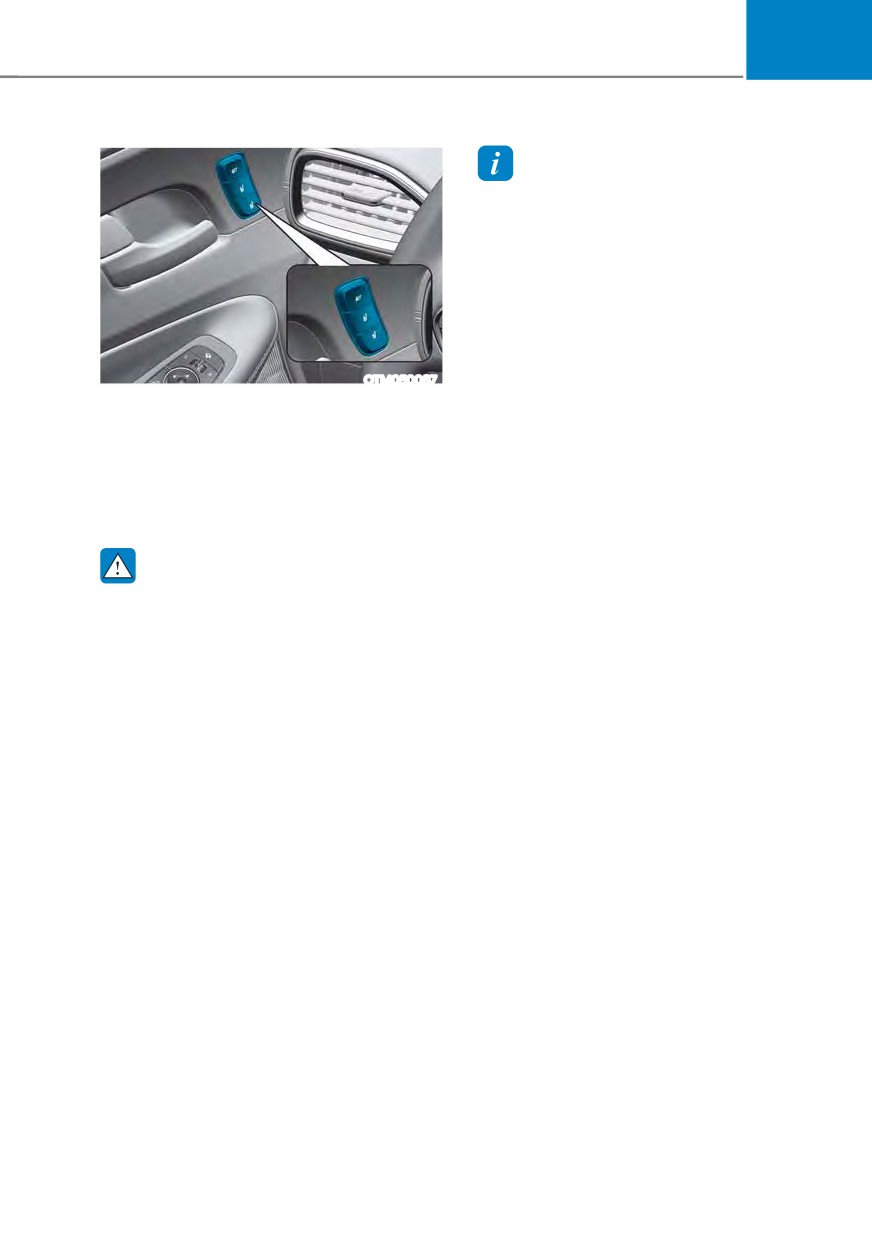
05
,17(*5
$7(' 0(025< 6<67(0 ǣ,) (48,33('Ǥ
Information
ś If the battery is disconnected, the
memory settings will be erased.
ś If integrated memory system does not
operate normally, have the system
inspected by an authorized HYUNDAI
dealer.
Storing memory positions
1. Shift to P (Park) while the Engine
OTM050087
Start/Stop button is in the ON
Integrated Memory System for the
position.
driver’s seat is provided to store and
2. Adjust the driver’s seat position,
recall the following memory settings with
side view mirror position, steering
a simple button operation.
wheel position, instrument panel
ś Driver’s seat position
illumination intensity and head-up
ś Side View mirror position
display height/brightness to the
desired position.
3. Press the SET button. The system
WARNING
will beep once and notify you ‘Press
Never attempt to operate the
button to save settings’ on the cluster
integrated memory system while the
LCD display.
vehicle is moving.
4. Press one of the memory buttons (1
This could result in loss of control, and
or 2) within 4 seconds. The system
an accident causing death, serious
will beep twice when the memory has
injury, or property damage.
been successfully stored.
5. ‘Driver 1 (or 2) settings saved’ will
appear on the cluster LCD display. The
message appears only for the driver’s
seat position memory setting.
5-39
Convenience features
Recalling memory positions
Resetting the system
1. Shift to P (Park) while the Engine
Take the following procedures to reset
Start/Stop button is in the ON
integrated memory system, when it does
position.
not operate properly.
2. Press the desired memory button (1
or 2). The system will beep once, and
Resetting integrated memory
then the driver’s seat position, side
system
view mirror position, steering wheel
1. Stop the vehicle and open the driver’s
position, instrument panel illumination
door with the Engine Start/Stop
intensity and head-up display height/
button in the ON position and the
brightness will automatically adjust to
vehicle shifted to P (Park).
the stored positions.
2. Adjust the driver’s seat and seatback
3. ‘Driver 1 (or 2) settings applied’ will
to the foremost position.
appear on the cluster LCD display.
3. Press the SET button and push
forward the driver’s seat movement
switch over 2 seconds simultaneously.
Information
ś
If you press the SET button or the
While resetting integrated memory
corresponding button which the
system
setting is being recalled, the setting will
1. Resetting starts with a notification
temporarily deactivate. If you press the
other buttons, the setting of the pressed
sound.
button will activate.
2. The driver’s seat and seatback is
For example, if you press the SET
adjusted to the rearward position with
the notification sound.
button or number 1 button with the
number 1 setting in operation, the
3. The driver’s seat and seatback is
setting will temporarily deactivate. If
re-adjusted to the default position
you press the number 2 button, the
(central position) with the notification
number 2 setting will activate.
sound.
ś
If you adjust the seat, rearview mirror,
steering wheel, instrument panel
However, in the following cases, the
illumination or head-up display while
resetting procedure and the notification
recalling the stored positions, the pre-
sound may stop.
set settings will become ineffective.
ś The memory button is pressed.
ś The seat control switch is operated.
ś The gear is shifted out of P (Park).
ś The driving speed exceeds
2 mph (3km/h).
ś The driver’s door is closed.
5-40
05
NOTICE
Easy access function
ś
While integrated memory system
The system will move the driver’s seat
is being reset, if the resetting
automatically as follows:
and notification sound stops
ś With remote key
incompletely, restart the resetting
- It will move the driver’s seat
procedure again.
rearward when the ignition key is
ś
Make sure that there is no objects
removed.
around the driver’s seat in advance
- It will move the driver’s seat forward
of resetting the integrated memory
when the ignition key is inserted.
system.
ś With smart key
- It will move the driver’s seat
rearward when the Engine Start/
Stop button is pressed to the OFF
position.
- It will move the driver’s seat forward
when the Engine Start/Stop button
is pressed to the ACC or START
position.
You can activate or deactivate the Easy
Access Function from the User Settings
mode on the LCD display. ‘Convenience
Ɵ 6HDW (DV\ $FFHVV Ɵ 2II 1RUPDO
Extended’.
For more details, refer to “LCD Display”
In chapter 4.
CAUTION
Driver should be cautious when using
this function to assure no injury to
passenger or child on the back seat.
In case of emergency the driver has to
stop movement of front seat (when easy
access feature is activated) by pressing
SET button or any of the driver seat
control switches.
5-41
Convenience features
STEERING WHEEL
Electric Power Steering (EPS)
Information
The system assists you with steering the
The following symptoms may occur during
vehicle. If the vehicle is turned off or
normal vehicle operation:
if the power steering system becomes
ś
The steering effort may be high
inoperative, you may still steer the
immediately after pressing the Engine
vehicle, but it will require increased
Start/Stop button to the ON position.
steering effort.
This happens as the system performs
Should you notice any change in the
the EPS system diagnostics. When the
effort required to steer during normal
diagnostics are completed, the steering
vehicle operation, have the system
wheel effort will return to its normal
checked by an authorized HYUNDAI
condition.
dealer.
ś
When the battery voltage is low, you
might have to put more steering effort.
CAUTION
However, it is a temporary condition so
If Electric Power Steering does not
that it will return to normal condition
operate normally, the
warning light
after charging the battery.
and the message ‘Check motor driven
ś
A click noise may be heard from the
power steering’ will illuminate on the
EPS relay after the Engine Start/Stop
instrument cluster. You may steer the
button is in the ON or OFF position.
vehicle, but it will require increased
ś
Motor noise may be heard when the
steering efforts. Take your vehicle to
vehicle is at a stop or at a low driving
an authorized HYUNDAI dealer or to
speed.
a service station and have the system
ś
When you operate the steering wheel
checked as soon as possible.
in low temperatures, abnormal noise
may occur. If the temperature rises, the
noise will disappear. This is a normal
condition.
ś
When an error is detected from EPS,
the steering effort assist function will
not be activated in order to prevent
fatal accidents. Instrument cluster
warning lights may be on or the
steering effort may be high. If these
symptoms occur, drive the vehicle to
a safe area as soon as it is safe to do
so. Have the system be checked by an
authorized HYUNDAI dealer as soon
as possible.
5-42
05
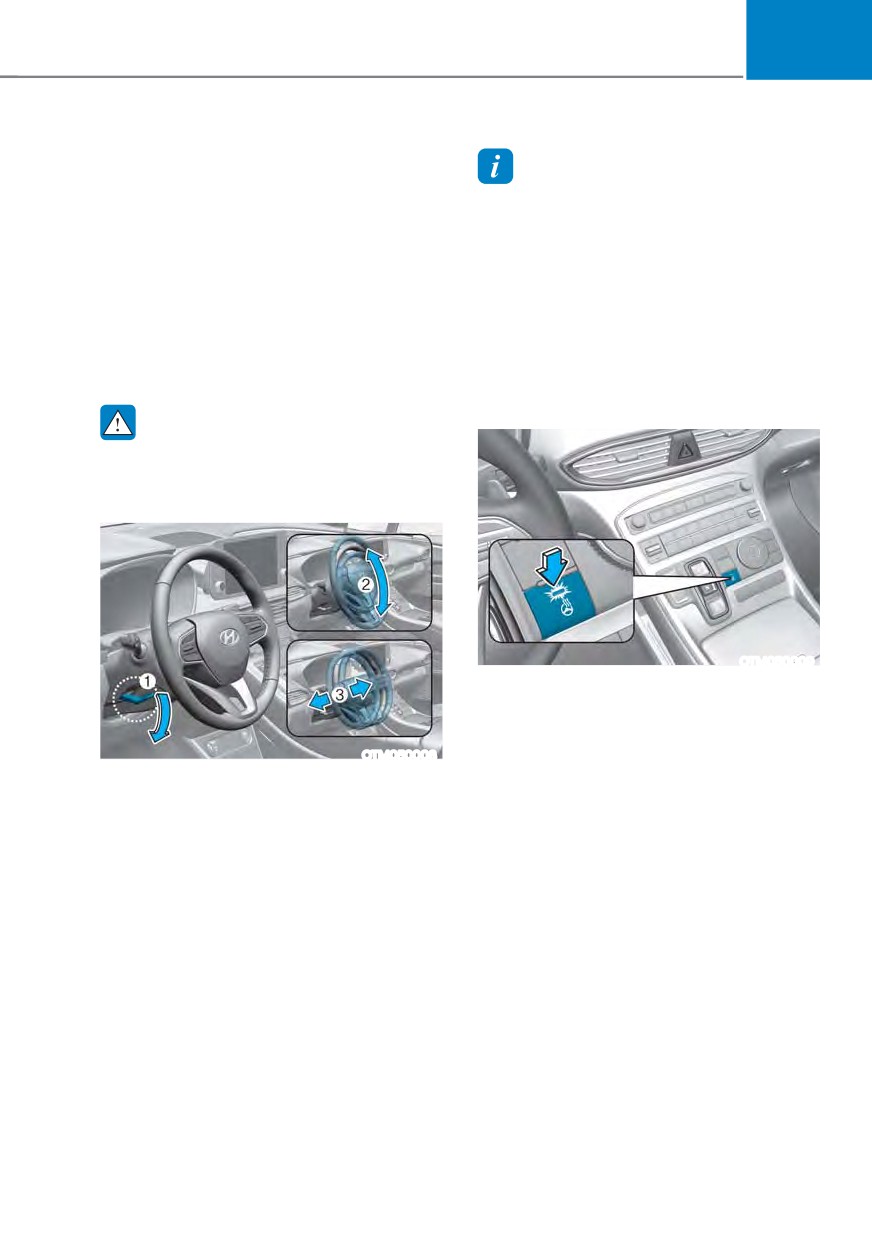
Tilt / Telescopic steering
Information
When adjusting the steering wheel to a
Sometimes the lock release lever may not
comfortable position, adjust the steering
engage completely. This may occur when
wheel so that it points toward your chest,
the gears of the locking mechanism do not
not toward your face. Make sure you can
completely mesh. If this occurs, pull down
see the instrument cluster warning lights
on the lock-release lever, readjust the
and gauges. After adjusting, push the
steering wheel again, and then pull back
steering wheel both up and down to be
up on the release lever to lock the steering
certain it is locked in position.
wheel in place.
Always adjust the position of the steering
wheel before driving.
Heated steering wheel
(if equipped)
WARNING
NEVER adjust the steering wheel while
driving. This may cause loss of vehicle
control resulting in an accident.
OTM050009
When the ignition switch is in the ON
position or when the engine is running,
press the heated steering wheel button
to warm the steering wheel.
OTM050008
The indicator on the button will
To adjust the steering wheel angle and
illuminate.
height:
To turn the heated steering wheel off,
1. Pull down the lock-release lever (1).
press the button again. The indicator on
2. Adjust the steering wheel to the
the button will turn off.
desired angle (2) and distance
forward/back (3).
3. Pull up the lock-release lever to lock
the steering wheel in place.
5-43