Honda Pilot (2024 year). Manual in english - page 14
 

  Index      Manuals     Honda Pilot (2024 year). Manual in english


Search            copyright infringement  


Content      ..     12      13      14      15     ..


Honda Pilot (2024 year). Manual in english - page 14


Continued

453

uu

Bluetooth

®

 HandsFreeLink

®

u

HFL Menus

Features

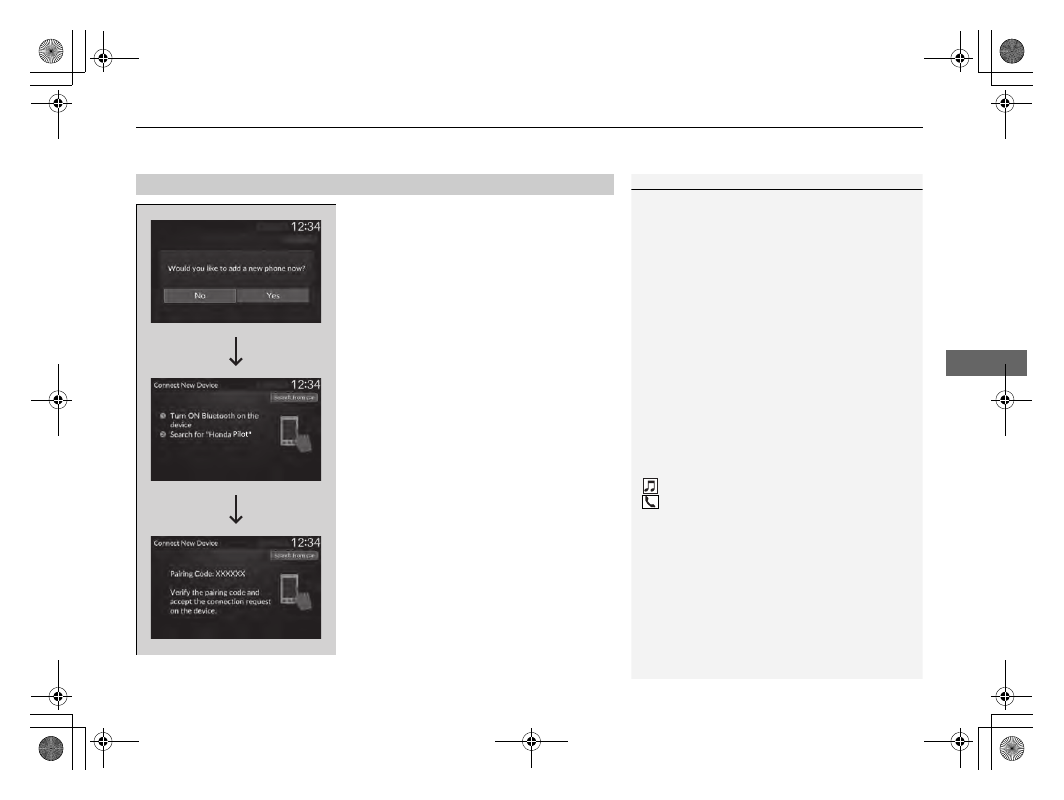
To pair a cell phone (No phone has 
been paired to the system)

1.

Press the 

PHONE

 button.

2.

Make sure your phone is in search or 
discoverable mode.

3.

Select 

Yes

.

u

The audio system will enter a waiting 
mode for pairing.

4.

Select 

Honda Pilot

 from your phone.

u

If you want to pair a phone from this 
audio system, select 

Search from car


and follow the prompts.
When your phone appears on the list, 
select it.

5.

The system gives you a pairing code on the 
audio/information screen.

u

Confirm if the pairing code on the screen 
and your phone matches.
This may vary by phone.

6.

A notification appears on the screen if 
pairing is successful.

Phone Setup

1

Phone Setup

Your 

Bluetooth

-compatible phone must be paired to 

HFL before you can make and receive hands-free 
calls.

Phone Pairing Tips:

You cannot pair your phone while the vehicle is 
moving.

Up to six phones can be paired.

Your phone’s battery may drain faster when it is 
connected to HFL.

If your phone is not ready for pairing or not found 
by the system within three minutes, the system will 
time out and return to the 

Bluetooth Settings


screen.

Once you have paired a phone, you can see it 
displayed on the screen with one or two icons on the 
right side.
These icons indicate the following:

: The phone is compatible with 

Bluetooth

®

 Audio.

: The phone can be used with HFL.

When pairing a phone from this audio system:
If your phone doesn’t appear on the audio/
information screen, select 

Search from phone

 and 

search for 

Bluetooth

®

 devices using your phone. 

From your phone, select 

Honda Pilot

.

454

uu

Bluetooth

®

 HandsFreeLink

®

u

HFL Menus

Features

To pair a cell phone (when a phone has 
already been paired to the system)

1.

Press the 

PHONE

 button.

u

If a prompt appears asking to connect to 
a phone, select 

No

 and proceed with 

step 2.

2.

Select 

Settings

.

3.

Select 

Bluetooth Settings

.

4.

Select 

Connect New Device

.

u

The audio system will enter a waiting 
mode for pairing.

455

uu

Bluetooth

®

 HandsFreeLink

®

u

HFL Menus

Continued

Features

5.

Make sure your phone is in search or 
discoverable mode.

6.

Select 

Honda Pilot

 from your phone.

u

If you want to pair a phone from this 
audio system, select 

Search from car


and follow the prompts.
When your phone appears on the list, 
select it.

7.

The system gives you a pairing code on the 
audio/information screen.

u

Confirm if the pairing code on the screen 
and your phone matches.
This may vary by phone.

8.

A notification appears on the screen if 
pairing is successful.

u

You can prioritize a 

Bluetooth

®

 device at 

the same time. Select 

Yes

 if you want to 

prioritize the device.

456

uu

Bluetooth

®

 HandsFreeLink

®

u

HFL Menus

Features

To change the currently paired phone

1.

Press the 

PHONE

 button.

2.

Select 

Settings

.

3.

Select 

Bluetooth Settings

.

4.

Select 

Change Device

.

u

The screen changes to a device list.

5.

Select a desired device name.

6.

Select 

Both

Audio

, or 

Phone

.

u

When another device is connected to 
Android Auto and you select 

Both

 or 

Phone

, a confirmation message appears. 

Select 

Continue

.

u

HFL disconnects the connected phone 
and starts searching for another paired 
phone.

457

uu

Bluetooth

®

 HandsFreeLink

®

u

HFL Menus

Continued

Features

To delete a paired phone 

1.

Press the 

PHONE

 button.

2.

Select 

Settings

.

3.

Select 

Bluetooth Settings

.

4.

Select 

Delete Device

.

u

The screen changes to a device list.

5.

Select a phone you want to delete.

6.

A confirmation message appears on the 
screen. Select 

Yes

.

u

When the device is connected to Android 
Auto, a confirmation message appears. 
Select 

Yes

.

uu

Bluetooth

®

 HandsFreeLink

®

u

HFL Menus

458

Features

If paring between your phone and the system is executed while you are on the 
phone, the call can be automatically transferred to HFL.

1.

Press the 

PHONE

 button.

2.

Select 

Settings

.

3.

Select 

Auto Phone Call Transfer

.

4.

Select 

ON

 or 

OFF

.

You can change the ringtone setting.

1.

Press the 

PHONE

 button.

2.

Select 

Settings

.

3.

Select 

Ringtone

.

4.

Select 

Phone

 or 

Vehicle

.

Automatic Transferring

Ringtone

1

Ringtone

Phone: 

Depending on the make and model of the 

cell phone, the ringtone stored in the phone will 
sound if the phone is connected.

Vehicle: 

The fixed ringtone sounds from the 

speakers.

459

uu

Bluetooth

®

 HandsFreeLink

®

u

HFL Menus

Continued

Features

Phone settings, paired phones, all favorite contacts entries, all call history data, and 
all imported phonebook data are erased.

1.

Press the 

PHONE

 button.

2.

Select 

Settings

.

3.

Select 

Hands-Free System Clear

.

4.

Select 

Yes

.

5.

A confirmation message appears on the 
screen. Select 

Yes

.

6.

A notification appears on the screen. Select 

OK

.

To Clear the System

uu

Bluetooth

®

 HandsFreeLink

®

u

HFL Menus

460

Features

When your phone is paired, the contents of its phonebook and call history are 
automatically imported to HFL.

Automatic Import of Cellular Phonebook and Call History

1

Automatic Import of Cellular Phonebook and Call History

When you select a person from the list in the cellular 
phonebook, you can see up to five category icons. 
The icons indicate what types of numbers are stored 
for that name.

On some phones, it may not be possible to import the 
category icons to HFL.

The phonebook is updated after every connection. 
Call history is updated after every connection or call.

Pref

Home

Mobile

Pager

Work

Fax

Car

Other

Voice

461

uu

Bluetooth

®

 HandsFreeLink

®

u

HFL Menus

Continued

Features

To add a favorite contact

1.

Press the 

PHONE

 button.

2.

Select 

Recent Calls

Contacts

, or 

Keypad

.

3.

Select the star icon.

3.

Select 

Add to Favorite

.

u

A notification appears on the screen if 
the favorite contact is successfully stored.

u

To remove the favorite contact, select 
the star icon again.

Favorite Contacts

Recent Calls Screen

Star Icon

Contacts Screen

Star Icon

Keypad Screen

Add to Favorite

On the Recent Calls or Contacts screen

On the Keypad screen

462

uu

Bluetooth

®

 HandsFreeLink

®

u

HFL Menus

Features

To delete a favorite contact

1.

Press the 

PHONE

 button.

2.

Select 

Favorite Contacts

.

3.

Select the star icon.

4.

A confirmation message appears on the 
screen. Select 

Yes

.

Star Icon

Continued

463

uu

Bluetooth

®

 HandsFreeLink

®

u

HFL Menus

Features

You can make calls by inputting any phone number, or by using the imported 

Recent Calls

Favorite Contacts

, and 

Contacts

 entries.

To make a call using the imported 
phonebook

When your phone is paired, the contents of its 
phonebook are automatically imported to 
HFL.

1.

Press the 

PHONE

 button.

2.

Select 

Contacts

.

3.

The phonebook is stored alphabetically.
Select a name.

4.

Select a number.

u

Dialing starts automatically.

Making a Call

1

Making a Call

Once a call is connected, you can hear the voice of 
the person you are calling through the audio 
speakers.

uu

Bluetooth

®

 HandsFreeLink

®

u

HFL Menus

464

Features

To make a call using a phone number

1.

Press the 

PHONE

 button.

2.

Select 

Keypad

.

3.

Select a number.

4.

Select 

Call

.

u

Dialing starts automatically.

To make a call using the call history

Call history is stored by 

All

Dialed

Missed

or 

Received

.

1.

Press the 

PHONE

 button.

2.

Select 

Recent Calls

.

u

You can sort by 

All

Dialed

Missed

, or 

Received

. Select the icon on the upper 

right of the screen.

3.

Select a number.

u

Dialing starts automatically.

1

To make a call using the call history

The call history appears only when a phone is 
connected to HFL, and displays the last 20 dialed, 
received, or missed calls.

465

uu

Bluetooth

®

 HandsFreeLink

®

u

HFL Menus

Continued

Features

To make a call using a favorite contact

1.

Press the 

PHONE

 button.

2.

Select 

Favorite Contacts

.

3.

Select a number.

u

Dialing starts automatically.

uu

Bluetooth

®

 HandsFreeLink

®

u

HFL Menus

466

Features

When there is an incoming call, an audible 
notification sounds and the 

Incoming Call...


screen appears.

You can answer the call using the left selector 
wheel.
To pick up the call, roll up or down to select 

Answer

 on the driver information interface 

and then press the left selector wheel.

u

If you want to decline or end the call, 
select 

Ignore

 on the driver information 

interface using the left selector wheel.

Receiving a Call

1

Receiving a Call

Call Waiting
Select 

Answer

 using the left selector wheel to put 

the current call on hold to answer the incoming call.
Select 

Swap Calls

 using the left selector wheel to 

return to the current call.
Select 

Ignore

 using the left selector wheel to ignore 

the incoming call if you do not want to answer it.
Select 

Hang Up

 using the left selector wheel if you 

want to hang up the current call.

You can select the icons on the audio/information 
screen instead of the icons on the driver information 
interface.

HFL Mode

Caller’s Name

467

uu

Bluetooth

®

 HandsFreeLink

®

u

HFL Menus

Features

The following options are available during a call.

Swap Calls: 

Put the current call on hold to answer the incoming call.

Mute: 

Mute your voice.

Use Handheld: 

Transfer a call from HFL to your phone.

Keypad: 

Send numbers during a call. This is useful when you call a menu-driven 

phone system.

The available options are shown on the lower 
half of the screen.

Select the option.

u

The mute icon appears when 

Mute

 is 

selected. Select 

Mute

 again to turn it off.

Options During a Call

1

Options During a Call

Keypad

: Available on some phones.

Mute Icon

468

Features

Bluetooth

®

 HandsFreeLink

®

Bluetooth

®

 HandsFreeLink

®

 (HFL) allows you to place and receive phone calls using 

your vehicle’s audio system, without handling your cell phone.

Using HFL

*1 : Models with A-type meter
*2 : Models with B-type meter

1

Bluetooth

®

 HandsFreeLink

®

Place your phone where you can get good reception.

To use HFL, you need a 

Bluetooth

-compatible cell 

phone. For a list of compatible phones, pairing 
procedures, and special feature capabilities:

U.S.: Visit 

https://mygarage.honda.com/s/honda-

handsfreelink-compatibility-check

, or call 1-888-

528-7876.

Canada: For more information on smartphone 
compatibility, call 1-855-490-7351.

To use the system, the 

Bluetooth

 setting must be 

ON

. If there is an active connection to Apple CarPlay, 

HFL is unavailable.

2

Customized Features

 P. 426

Voice control tips

Aim the vents away from the ceiling and close the 
windows, as noise coming from them may interfere 
with the microphone.

Press the 

 button when you want to call a 

number using a phonebook name or a number. 
Speak clearly and naturally after a beep.

If the microphone picks up voices other than yours, 
the command may be misinterpreted.

To change the volume level, the volume level is able 
to change by the audio system’s volume.

If there is no Favorite Contact entry in the system, the 
pop-up notification appears on the screen.

2

Favorite Contacts

 P. 479

Models with 9-in. Color Touchscreen

HFL Buttons

 (Talk) Button

Left Selector Wheel

VOL

(

+

/

VOL

(

-

 (Volume) Switch

 (Home) Button

*2

*1

Left Selector Wheel

 (Talk) Button

VOL

(

+

/

VOL

(

-

 (Volume) Switch

Continued

469

uu

Bluetooth

®

 HandsFreeLink

®

u

Using HFL

Features

 (Talk) button: 

Press to access Voice Portal.

 (Home) button

*1

Press to go back to the home screen of the driver 

information interface.

Left Selector Wheel:

 Press the 

 (Home) button

*1

. Roll up or down to select 

Phone

 on the driver information interface, and then press the left selector wheel.

While receiving a call, the incoming call screen is displayed on the driver information 
interface. You can pick up the call using the left selector wheel.

2

Receiving a Call

 P. 483

To go to the phone screen:

1.

Press the 

 button.

2.

Select 

Phone

 to switch the display to the phone screen.

*1 : Models with A-type meter

1

Bluetooth

®

 HandsFreeLink

®

Bluetooth

®

 Wireless Technology

The 

Bluetooth

®

 word mark and logos are registered 

trademarks owned by 

Bluetooth

 SIG, Inc., and any 

use of such marks by Honda Motor Co., Ltd., is under 
license. Other trademarks and trade names are those 
of their respective owners.

HFL Limitations
An incoming call on HFL will interrupt the audio 
system when it is playing. It will resume when the call 
is ended.

uu

Bluetooth

®

 HandsFreeLink

®

u

Using HFL

470

Features

The audio/information screen notifies you when there is an incoming call.

Certain manual functions are disabled or inoperable while the vehicle is in motion. 
You cannot select a grayed-out option until the vehicle is stopped.

Only previously stored, phonebook names, or numbers can be called using voice 
commands while the vehicle is in motion.

2

Favorite Contacts

 P. 479

HFL Status Display

1

HFL Status Display

The information that appears on the audio/
information screen varies between phone models.

Limitations for Manual Operation

Bluetooth

 Indicator

Appears when your 
phone is connected to 
HFL.

Signal Strength

HFL Mode

Battery Level Status

Caller’s Name (If 
registered)/Caller’s 
Number (If not 
registered)

471

uu

Bluetooth

®

 HandsFreeLink

®

u

HFL Menus

Continued

Features

HFL Menus

The power mode must be in ACCESSORY or ON to use the system.

Phone settings screen

1.

Press the 

 button.

2.

Select 

Phone

.

3.

Select 

Settings

.

1

HFL Menus

To use HFL, you must first pair your 

Bluetooth

-

compatible cell phone to the system while the vehicle 
is parked.

Some functions are limited while driving.

Set phonebook and call history data to be automatically imported when a phone is paired to HFL.

+ Connect New Device

(Existing entry list)

Connect, disconnect, or delete a paired device.

Change Devices

Pair a new phone to the system.

Auto Sync Phone

Auto Phone Call Transfer

Ringtone

HondaLink Assist

Set calls to automatically transfer from your phone to HFL when you enter the vehicle.

Select a fixed ringtone or the one from the connected cell phone.

Turn HondaLink

®

 Assist on and off.

472

uu

Bluetooth

®

 HandsFreeLink

®

u

HFL Menus

Features

Phone menu screen

1.

Press the 

 button.

2.

Select 

Phone

.

Dial the selected number in the favorite contacts list.

All

(Existing entry list)

Display the last outgoing calls.

Recent Calls

Display the last outgoing, incoming, and missed calls.

Favorite Contacts

Contacts

Keypad

Display the phonebook of the paired phone.

Enter a phone number to dial.

Dialed

Display the last missed calls.

Missed

Display the last incoming calls.

Received

Continued

473

uu

Bluetooth

®

 HandsFreeLink

®

u

HFL Menus

Features

Bluetooth

®

 setup

You can turn 

Bluetooth

®

 function on and off.

1.

Press the 

 button.

2.

Select 

General Settings

.

3.

Select 

Connections

.

4.

Select 

Bluetooth

.

5.

Select 

Options

.

6.

Select 

Bluetooth

, then select 

ON

.

To pair a cell phone (when there is no 
phone paired to the system)

1.

Select 

Phone

.

2.

Select 

Connect New Device

.

3.

Make sure your phone is in search or 
discoverable mode.

4.

Select 

Honda Pilot

 from your phone.

u

If you want to pair a phone from this 
audio system, select 

Search for 

Devices

, and then select your phone 

when it appears on the list.

5.

The system gives you a pairing code on the 
audio/information screen.

u

Confirm if the pairing code on the 
screen and your phone match.
This may vary by phone.

6.

Select desired functions and then select 

Connect

.

Phone Setup

1

Phone Setup

Your 

Bluetooth

-compatible phone must be paired to 

the system before you can make and receive hands-
free calls.

Phone Pairing Tips:

You cannot pair your phone while the vehicle is 
moving.

Up to six phones can be paired.

Your phone's battery may drain faster when it is 
paired to the system.

Once you have paired a phone, you can see it 
displayed on the screen with one or more icons on 
the right side.
These icons indicate the following:

: The phone is compatible with 

Bluetooth

®

 Audio.

: The phone can be used with HFL.

: The phone is compatible with Apple CarPlay.

: The phone is compatible with Android Auto.

If there is an active connection to Apple CarPlay or 
Android Auto, pairing of additional 

Bluetooth

-

compatible devices is unavailable.

474

uu

Bluetooth

®

 HandsFreeLink

®

u

HFL Menus

Features

7.

A notification appears on the screen if 
pairing is successful.

8.

Select 

OK

.

u

A confirmation message for phone data 
collection appears.

9.

Select 

ON

 or 

OFF

.

u

A confirmation message for HondaLink 
Assist appears.

10.

Select 

Yes

 or 

No

.

Continued

475

uu

Bluetooth

®

 HandsFreeLink

®

u

HFL Menus

Features

To change the currently paired phone

1.

Go to the phone settings screen.

2

Phone settings screen

 P. 471

2.

Select 

Change Devices

.

3.

Select a phone to connect.

u

HFL disconnects the connected phone 
and starts searching for another paired 
phone.

u

You can set the connected phone 
priority. Select the box checked on the 
phone you want to prioritize.

4.

Select , ,   

or  .

u

 and 

 can be selected 

simultaneously; however, when 

 or 

 is selected, 

 and 

 cannot be 

selected.

5.

Select 

Apply

.

1

To change the currently paired phone

If no other phones are found or paired when trying to 
switch to another phone, HFL will inform you that the 
original phone is connected again.

To pair other phones, select 

+ Connect New Device


from the 

Bluetooth

 screen.

476

uu

Bluetooth

®

 HandsFreeLink

®

u

HFL Menus

Features

To delete a paired phone

1.

Go to the phone settings screen.

2

Phone settings screen

 P. 471

2.

Select 

Change Devices

.

3.

Select a phone you want to delete.

4.

Select 

Options

.

5.

Select 

Delete Device

.

6.

A confirmation message appears on the 
screen. Select 

Delete

.

Continued

477

uu

Bluetooth

®

 HandsFreeLink

®

u

HFL Menus

Features

You can change the ringtone setting.

1.

Go to the phone settings screen.

2

Phone settings screen

 P. 471

2.

Select 

Ringtone

.

3.

Select 

Vehicle

 or 

Phone

.

If you get into the vehicle while you are on the phone, the call can be automatically 
transferred to HFL.

1.

Go to the phone settings screen.

2

Phone settings screen

 P. 471

2.

Select 

Auto Phone Call Transfer

.

3.

Select 

ON

 or 

OFF

.

Ringtone

1

Ringtone

Vehicle

: The fixed ringtone sounds from the 

speakers.

Phone

: Depending on the make and model of the 

cell phone, the ringtone stored in the phone will 
sound if the phone is connected.

Automatic Transferring

uu

Bluetooth

®

 HandsFreeLink

®

u

HFL Menus

478

Features

When Automatic Phone Sync is set to 
On:

When your phone is paired, the contents of its 
phonebook and call history are automatically 
imported to the system.

Changing the Automatic Phone Sync 
setting

1.

Go to the phone settings screen.

2

Phone settings screen

 P. 471

2.

Select 

Auto Sync Phone

.

3.

Select 

ON

 or 

OFF

.

Automatic Import of Cellular Phonebook and Call History

1

Automatic Import of Cellular Phonebook and Call History

When you select a name from the list in the cellular 
phonebook, you can see a category icon. The icons 
indicate what types of numbers are stored for that 
name.

On some phones, it may not be possible to import the 
category icons to the system.

The phonebook is updated after every connection.
Call history is updated after every connection or call.

Home

Mobile

Work

Pager

Fax

Car

Voice

Other

Pref

479

uu

Bluetooth

®

 HandsFreeLink

®

u

HFL Menus

Continued

Features

To add a favorite contact

1.

Select 

Phone

.

2.

Select 

Recent Calls

Contacts

, or 

Keypad

.

3.

Select the star icon.

3.

Select 

Add to Favorite Contacts

.

u

A notification appears on the screen if 
the favorite contact is successfully stored.

u

To remove the favorite contact, select 
the star icon again.

Favorite Contacts

Recent Calls Screen

Star Icon

Contacts Screen

Star Icon

Keypad Screen

Add to Favorite Contacts

On the Recent Calls or Contacts screen

On the Keypad screen

480

uu

Bluetooth

®

 HandsFreeLink

®

u

HFL Menus

Features

To edit a favorite contact

1.

Select 

Phone

.

2.

Select 

Favorite Contacts

.

3.

Select 

Edit

 on the favorite contacts entry 

you want to edit.

4.

Select a setting you want.

5.

Select 

Done

.

To delete a favorite contact

1.

Select 

Phone

.

2.

Select 

Favorite Contacts

.

3.

Select 

Edit

 on the favorite contacts entry 

you want to delete.

4.

Select 

Remove

.

5.

A confirmation message appears on the 
screen. Select 

Yes

.

Continued

481

uu

Bluetooth

®

 HandsFreeLink

®

u

HFL Menus

Features

You can make calls by inputting any phone 
number, or by using the imported 

Recent 

Calls

Favorite Contacts

, and 

Contacts


entries.

To make a call using the imported 
phonebook

1.

Select 

Phone

.

2.

Select 

Contacts

.

3.

Select a name.

u

You can sort by 

First Name

 or 

Last 

Name

. Select the icon on the upper right 

of the screen.

4.

Select a number.

u

Dialing starts automatically.

Making a Call

1

Making a Call

Once a call is connected, you can hear the voice of 
the person you are calling through the audio 
speakers.

While there is an active connection with Apple 
CarPlay, phone calls cannot be made with 
HandsFreeLink

®

 and are only made from Apple 

CarPlay.

uu

Bluetooth

®

 HandsFreeLink

®

u

HFL Menus

482

Features

To make a call using a phone number

1.

Select 

Phone

.

2.

Select 

Keypad

.

3.

Select a number.

u

Use the keyboard on the touch screen for 
entering numbers.

4.

Select 

Call

.

u

Dialing starts automatically.

To make a call using the Call History

Call history is stored by 

All

Dialed

Missed

and 

Received

.

1.

Select 

Phone

.

2.

Select 

Recent Calls

.

u

You can sort by 

All

Dialed

Missed

, or 

Received

. Select the icon on the upper 

right of the screen.

3.

Select a number.

u

Dialing starts automatically.

To make a call using a favorite contacts 
entry

1.

Select 

Phone

.

2.

Select 

Favorite Contacts

.

u

You can change the order of favorite 
contacts entries by selecting 

Reorder

.

3.

Select a number.

u

Dialing starts automatically.

1

To make a call using the Call History

The call history displays the last 20 all, dialed, missed, 
or received calls.
(Appears only when a phone is connected to the 
system.)

Continued

483

uu

Bluetooth

®

 HandsFreeLink

®

u

HFL Menus

Features

When there is an incoming call, an audible 
notification sounds (if activated) and the 

Incoming Call...

 screen appears.

You can answer the call using the left selector 
wheel.
To pick up the call, roll up or down to select 

 (answer) on the driver information 

interface and then press the left selector 
wheel.

u

If you want to decline or end the call, 
select 

 (ignore) on the driver 

information interface using the left 
selector wheel.

Receiving a Call

1

Receiving a Call

Call Waiting

Select 

 (answer) to put the current call on hold to 

answer the incoming call.

Select 

 using the left selector wheel to return to 

the current call.
Select 

 (ignore) to ignore the incoming call if you 

do not want to answer it.
Select 

 if you want to hang up the current call.

You can select the icons on the audio/information 
screen instead of the 

 and 

 on the driver 

information interface.

uu

Bluetooth

®

 HandsFreeLink

®

u

HFL Menus

484

Features

The following options are available during a call.

Mute

: Mute your voice.

Use Handheld

: Transfer a call from the system to your phone.

Keypad

: Send numbers during a call. This is useful when you call a menu-driven 

phone system.

The available options are shown on the lower 
half of the screen.

Select the option.

u

The mute icon appears when 

Mute

 is 

selected when the other source screen 
other than the phone screen is displayed. 
Select 

Mute

 again to turn it off.

Options During a Call

1

Options During a Call

Keypad

: Available on some phones.

You can select the icons on the audio/information 
screen.


Content      ..     12      13      14      15     ..