Honda Accord Hybrid (2022 year). Manual in english - page 19
 

  Index      Manuals     Honda Accord Hybrid (2022 year). Manual in english


Search            copyright infringement  


Content      ..     17      18      19      20     ..


Honda Accord Hybrid (2022 year). Manual in english - page 19


uu

Audio System Basic Operation

u

Playing an iPod

302

Features

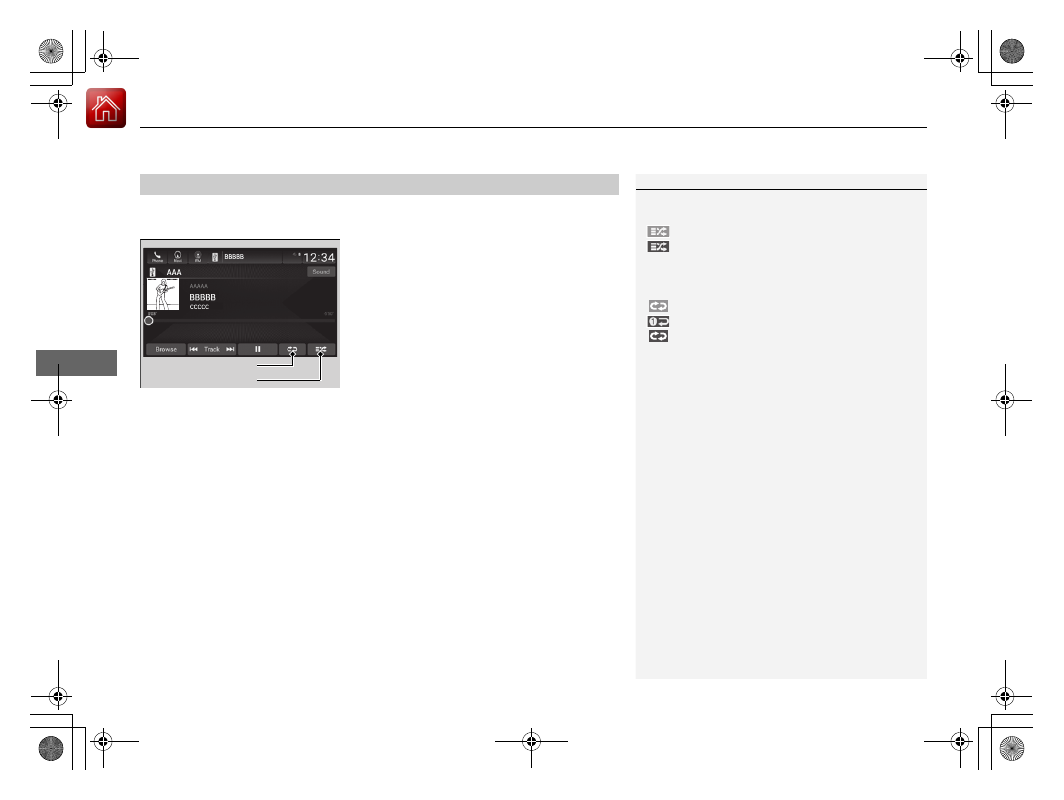
You can select shuffle and repeat modes when playing a file.

Shuffle/Repeat

Repeatedly select the shuffle or repeat icon 
until you find a play mode option of your 
preference.

To turn off a play mode

Select the mode you want to turn off.

How to Select a Play Mode

1

How to Select a Play Mode

Play Mode Menu Items

Shuffle

 Shuffle off: 

Shuffle mode to off.

 Shuffle All Songs: 

Plays all available songs in a 

selected list in random order.

Repeat

 Repeat off: 

Repeat mode to off.

 Repeat Song: 

Repeats the current song.

 Repeat all: 

Repeats all available songs in a 

selected list.

Repeat Icon
Shuffle Icon

303

uu

Audio System Basic Operation

u

Playing a USB Flash Drive

Continued

Features

Playing a USB Flash Drive

Your audio system reads and plays audio files on a USB flash drive in either MP3, 
WMA, AAC

*1

, FLAC or WAV format.

Connect your USB flash drive to the USB ports, then select the USB mode.

2

USB Ports

 P. 251

*1:Only AAC format files recorded with iTunes are playable on this unit.

 (Back) Button

Press to go back to the previous 

display.

Seek Buttons

Press 

 or 

 to change files.

Select and hold to move rapidly 

within a track.

VOL/

 AUDIO (Volume/Power) Knob

Push to turn the audio system on and off.
Turn to adjust the volume.

Audio/Information Screen

Play/Pause Icon

Sound Icon

Select to display the sound 

settings.

Repeat Icon

Select to repeat the current file.

Track Icons

Select 

 or 

 to change files.

Select and hold to move rapidly within a track.

Browse Icon

Select to display the menu items.

Random Icon

Select to play all files in the current 

category in random order.

Selector Knob

Turn to change files.
Press and turn to select an item, 

then press to set your selection.

uu

Audio System Basic Operation

u

Playing a USB Flash Drive

304

Features

1.

Select 

Browse

.

2.

Select a search category (e.g., Artists, 
Albums, etc.).

3.

Continue making selections until you find 
the song of your choice.

How to Select a File from the Music Search List

1

Playing a USB Flash Drive

Use the recommended USB flash drives.

2

General Information on the Audio System


P. 335

WMA files protected by digital rights management 
(DRM) cannot be played.
The audio system displays 

The selected file cannot 

be played

, then skips to the next file.

If there is a problem, you may see an error message 
on the audio/information screen.

2

iPod/USB Flash Drive

 P. 333

305

uu

Audio System Basic Operation

u

Playing a USB Flash Drive

Features

You can select repeat and random modes when playing a file.

Random/Repeat

Select random or repeat icon repeatedly until 
a desired mode.

To turn off a play mode

Select the mode you want to turn off.

How to Select a Play Mode

1

How to Select a Play Mode

Play Mode Menu Items

Random

 Random off: 

Random mode to off.

 Random All Tracks: 

Plays all files in random 

order.

 Random in Folder: 

Plays all files in the current 

folder in random order.

Repeat

 Repeat off: 

Repeat mode to off.

 Repeat track: 

Repeats the current playing file.

 Repeat in Folder: 

Repeats all files in the 

current folder.

Repeat Icon
Random Icon

306

uu

Audio System Basic Operation

u

Playing 

Bluetooth

®

 Audio

Features

Playing 

Bluetooth

®

 Audio

Your audio system allows you to listen to music from your 

Bluetooth

-compatible 

phone.
This function is available when the phone is paired and connected to the vehicle’s 

Bluetooth

®

 HandsFreeLink

®

 (HFL) system.

2

Phone Setup

 P. 386

1

Playing 

Bluetooth

®

 Audio

Not all 

Bluetooth

-enabled phones with streaming 

audio capabilities are compatible with the system. For 
a list of compatible phones:

U.S.: Visit 

automobiles.honda.com/handsfreelink/

or call 1-888-528-7876.

Canada: For more information on smartphone 
compatibility, call 1-855-490-7351.

It may be illegal to perform some data device 
functions while driving.

Only one phone can be used with HFL at a time.
When there is more than one paired phone in the 
vehicle, the first paired phone the system finds is 
automatically connected. 

The connected phone for 

Bluetooth

®

 Audio can be 

different.

If more than one phone is paired to the HFL system, 
there may be a delay before the system begins to 
play.

In some cases, the name of the artist, album, or track 
may not appear correctly.

Some functions may not be available on some 
devices.

If a phone is currently connected via Apple CarPlay or 
Android Auto, 

Bluetooth

®

 Audio from that phone 

will be unavailable. However, you can have a second 
previously paired phone stream 

Bluetooth

®

 Audio by 

selecting 

 from the 

Bluetooth

®

 device list.

2

Phone Setup

 P. 386

Audio/Information Screen

 (Back) 

Button

Press to go 

back to the 

previous 

display.

VOL/

 AUDIO (Volume/

Power) Knob

Push to turn the audio 

system on and off.
Turn to adjust the volume.

Selector Knob

Turn to change groups. Press, 

and then turn to select an item. 

After that, press again to make 

your selection.

Play/Pause Icon

Bluetooth

 Indicator

Appears when your phone is 

connected to HFL.

Track Icons

Select 

 or 

 to change tracks.

Browse Icon

Select to display 

the menu items.

307

uu

Audio System Basic Operation

u

Playing 

Bluetooth

®

 Audio

Features

1.

Make sure that your phone is paired and 
connected to the system.

2

Phone Setup

 P. 386

2.

Select the 

Bluetooth

®

 Audio mode.

If the phone is not recognized, another HFL-
compatible phone, which is not compatible 
for 

Bluetooth

®

 Audio, may already be 

connected.

To play or pause a file

Select the play/pause icon.

1.

Select 

Browse

.

2.

Select a search category (e.g., Albums).

3.

Select an item.

u

The selection begins playing.

To Play 

Bluetooth

®

 Audio Files

1

To Play 

Bluetooth

®

 Audio Files

To play the audio files, you may need to operate your 
phone. If so, follow the phone maker’s operating 
instructions.

Switching to another mode pauses the music playing 
from your phone.

You can change the connected phone by selecting 

Change Device

.

2

Phone Setup

 P. 386

Searching for Music

1

Searching for Music

Depending on the 

Bluetooth

®

 device you connect, 

some or all of the lists may not be displayed.

308

uu

Audio System Basic Operation

u

HondaLink

®

Features

HondaLink

®

HondaLink

®

 connects you to the latest information from Honda. You can connect 

your phone wirelessly through Wi-Fi or 

Bluetooth

®

.

2

Wi-Fi Connection

 P. 317

2

Phone Setup

 P. 386

Use the following procedure to connect to HondaLink

®

.

To enable the HondaLink

®

 service

You must consent to location sharing to enable the HondaLink

®

 service.

Disable: 

Does not allow this consent.

Enable Once: 

Allows only one time. (Shows 

again next time.)

Always Enable: 

Allows anytime. (Never 

show again.)

To Connect to HondaLink

®

1

HondaLink

®

If your vehicle has a telematics control unit (TCU), you 
can use HondaLink

®

 without connecting the phone.

The HondaLink

®

 connect app is compatible with most 

iPhone and Android phones.

If the system is connected to the HondaLink

®

 connect 

app through 

Bluetooth

®

 and another 

Bluetooth

®


audio device is connected, the 

Bluetooth

®


connection to the HondaLink

®

 connect app will be 

severed. 

Some cell phone carriers charge for tethering and 
smartphone data use. Check your phone’s data 
subscription package.

309

uu

Audio System Basic Operation

u

HondaLink

®

Continued

Features

To link with HondaLink

®

You may see the connection guide screen 
after launching HondaLink

®

 when there is no 

connection available.

Connect

Displays instruction messages when the vehicle needs service.

Help & Support

Displays tips for vehicle usage, and get support via roadside or customer service 
center.

HondaLink

®

 Menu

310

uu

Audio System Basic Operation

u

HondaLink

®

Features

Message

Displays helpful and important information from Honda.

You can check the messages that are received quickly in the shortcut operation.

1.

A notification appears and notifies you of a 
new message in the header area.

2.

A notification is continuously displayed in 
the header area until the new message is 
read.

Vehicle Information and Message from Honda Tips

Notification

311

uu

Audio System Basic Operation

u

HondaLink

®

Features

3.

Select the system status icon to see the 
messages.

4.

Select a new message to open.

u

If you have selected the update option 
for HondaLink

®

, follow the directions on 

the screen to complete the process.

1

Vehicle Information and Message from Honda Tips

When you update HondaLink

®

, you must keep the 

engine running and maintain a constant connection 
with HondaLink

®

.

If the update is interrupted, the system will 
automatically resume the process. If, however, a 
week has elapsed since the process was first 
interrupted, you must repeat the process from the 
beginning.

You can update HondaLink

®

 by selecting 

Message 

from Honda

 on the HondaLink

®

 menu.

312

uu

Audio System Basic Operation

u

HondaLink

®

 Service

*

Features

HondaLink

®

 Service

*

Is a subscription-based service that provides convenient features such as voice 
communication in case of emergency, online security, and one-on-one operator 
assistance.

Automatic collision notification

If your vehicle’s airbags deploy or if the unit 
detects that the vehicle is severely impacted, 
your vehicle automatically will attempt to 
connect to the HondaLink

®

 operator. If 

connected, information about your vehicle, its 
location, and its condition can be sent to the 
operator

*1

; you also can speak to the operator 

when connected.

IMPORTANT: 

In a crash, HondaLink

®

 will attempt to notify emergency services but 

NEITHER HONDA NOR ITS SERVICE PROVIDERS GUARANTEE THAT SUCH 
NOTIFICATION WILL OCCUR.

Honda reserves the right to terminate HondaLink

®

 services at any time or for any 

reason, and in the future may not be able to provide services due to changes in, or 
obsolescence of, technology integral to the service or changes in governmental 
regulation.

*1: Depending on your phone and adequate cellular coverage, your vehicle’s location may not 
be sent to the operator.

In Case of Emergency

1

HondaLink

®

 Service

*

HondaLink

®

 also provides services you can operate 

from the Internet or your smartphone.

To subscribe to HondaLink

®

, or to get more 

information about all of its features, contact a Honda 
dealer, or visit 

hondalink.honda.com

1

In Case of Emergency

Your vehicle may not be able to connect to the 
operator if the battery level is low, the line is 
disconnected, or you do not have adequate cellular 
coverage.

You cannot use this emergency services when:

You travel outside the HondaLink

®

 service coverage 

areas.

There is a problem with the connecting devices, 
such as the microphones, speakers, or the unit 
itself.

You cannot operate other phone-related functions 
using the screen while talking to the operator.
Only the operator can terminate the connection to 
your vehicle.

1

Automatic collision notification

If the unit fails to connect to the operator, it 
repeatedly tries until it succeeds.

* Not available on all models

Continued

313

uu

Audio System Basic Operation

u

HondaLink

®

 Service

*

Features

Manual operator connection

If you need to talk to the HondaLink

®

 operator 

in a situation where no airbag has deployed, 
you can manually connect to them by pressing 
the 

ASSIST

 button with the power mode in 

ACCESSORY or ON.

1.

Open the cover attached to the ceiling 
console.

2.

Press the 

ASSIST

 button.

u

You are connected to the HondaLink

®


operator.

1

Manual operator connection

Do not press the button while driving. When you 
need to contact the operator, park the vehicle in a 
safe place.

If the unit fails to connect to the operator, it 
automatically cancels the action after three minutes.

If necessary, the cover can be broken to access the 

ASSIST

 button.

ASSIST

 Button

uu

Audio System Basic Operation

u

HondaLink

®

 Service

*

314

Features

Your subscribed telematics service provider can track your vehicle’s location, 
remotely lock or unlock doors, and help you find your vehicle.
To use these features, you need your user ID and personal identification number 
(PIN).

Stolen vehicle tracking

This feature searches and tracks down your vehicle position even if it is on the 
move.If you believe that your vehicle has been stolen, contact the police as well as 
the provider.

Remote door lock/unlock

The provider can remotely lock or unlock doors upon your request.

Vehicle finder

This feature is convenient to use when trying to locate your vehicle in large areas, 
such as a crowded parking lot. If you cannot locate your vehicle after using the 
remote transmitter’s answerback function, you can contact the provider which can 
then flash your vehicle’s exterior lights and sound the horn, and sends vehicle 
location via web/Smartphone.

Security alarm notification

If the security system in your vehicle detects an abnormal condition, such as 
someone tampering with the lock on your vehicle, the provider notifies you by email.

Security Features

1

Security Features

The contact information of your provider, your user 
ID and PIN will be given when you subscribe to 
HondaLink

®

. If you forget any of the above, contact a 

Honda dealer, or go to 

hondalink.honda.com

.

You can also activate the remote door lock/unlock 
and vehicle finder features from the Internet or using 
your smartphone app. Ask a dealer, or visit 

hondalink.honda.com

.

1

Vehicle finder

The lights will stop flashing and horn will stop 
sounding under the following:

When conditions 30 seconds have elapsed.

You unlock the doors using the remote transmitter.

You unlock the doors using the keyless access 
system.

You unlock the doors using the built-in key.

The power mode is set to ACCESSORY or ON.

Continued

315

uu

Audio System Basic Operation

u

HondaLink

®

 Service

*

Features

Connect to the HondaLink

®

 operator when trying to find a destination or for 

roadside assistance.

1.

Press the 

LINK

 button.

u

Connection to the operator begins.

2.

Talk to the operator.

u

To disconnect, select 

Hang Up

 on the 

audio/information screen or press the 

 button on the steering wheel.

Operator Assistance

1

Operator Assistance

Remain attentive to road conditions and driving 
during operator assistance.

If you want to add or renew a subscription, call the 
Operator Assistance.
1. Press the 

 button.

2. Select 

HondaLink

.

3. Select 

HondaLink Subscription Status

.

LINK

 Button

Audio/information screen when 

connected to the HondaLink

®


operator.

uu

Audio System Basic Operation

u

HondaLink

®

 Service

*

316

Features

Your subscribed telematics service provider can check your vehicle’s condition.

Virtual Dashboard

You can remotely check the mileage, fuel range, and oil life in your app.

Remote start and stop the engine

You can remotely start and stop engine using your app as same as the keyless 
remote.

Geofence Alert

You can receive a notification anytime your vehicle enters or leaves a region set by 
you.

Speed Alert

You can receive a notification when your vehicle has exceeded a speed limit set by 
you.

Personal Data Wipe

You can reset your audio and navigation system settings to factory defaults with the 
app.

Wi-Fi hotspot

Vehicle provides 4G LTE network environment as Wi-Fi router to use tablet or 
smartphone in your vehicle.

Convenient Features

1

Convenient Features

The contact information of your provider, your user 
ID and PIN will be given when you subscribe to 
HondaLink

®

. If you forget any of the above, contact a 

Honda dealer, or go to 

hondalink.honda.com

.

317

uu

Audio System Basic Operation

u

Wi-Fi Connection

Features

Wi-Fi Connection

This vehicle is equipped with Wi-Fi connectivity. You can connect to an external Wi-
Fi hotspot or communication device.

1.

Press the 

 button.

2.

Select 

Settings

.

3.

Select 

Connections

.

4.

Select 

Wi-Fi

.

5.

Select 

Change Mode

.

6.

Select 

Network

 or 

Hotspot

, then 

Confirm

.

u

To change the Wi-Fi settings, select 

Options

 or 

Setup

.

u

Select the access point you want to 
connect to the system.

7.

Select 

Connect

.

u

Enter a password for the access point, 
and select 

Done

.

u

When the connection is successful, the 

 icon is displayed on the list.

8.

Press the 

 button to go back to the home 

screen.

Connect the Vehicle to a Wi-Fi Hotspot

1

Wi-Fi Connection

Wi-Fi and Wi-Fi Direct are registered trademarks of 
Wi-Fi Alliance

®

.

1

Connect the Vehicle to a Wi-Fi Hotspot

You cannot go through the setting procedure while 
the vehicle is moving. Park in a safe place to set the 
audio system in Wi-Fi mode.

Some cell phone carriers charge for tethering and 
smartphone data use. Check your phone’s data 
subscription package.

Check your phone manual to find out if the phone 
has Wi-Fi connectivity.

You can confirm whether Wi-Fi connection is on or 
off with the 

 icon on the Wi-Fi network list. 

Transmission speed and others will not be displayed 
on this screen.

In case of Wi-Fi connection with your phone, make 
sure your phone’s Wi-Fi setting is in access point 
(tethering) mode.


Content      ..     17      18      19      20     ..