Honda Accord Hybrid (2022 year). Manual in english - page 17
 

  Index      Manuals     Honda Accord Hybrid (2022 year). Manual in english


Search            copyright infringement  


Content      ..     15      16      17      18     ..


Honda Accord Hybrid (2022 year). Manual in english - page 17


uu

Audio System Basic Operation

u

Audio/Information Screen

270

Features

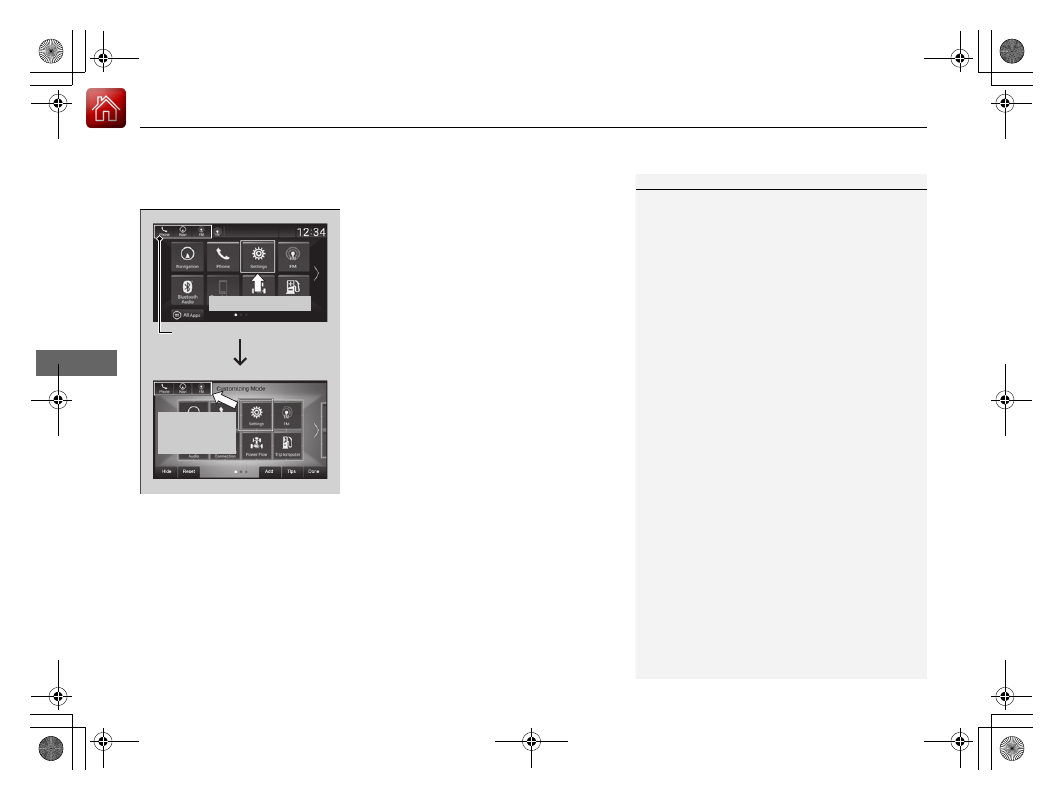
To shortcut icons on the home screen

You can store up to three icons on the upper left of the home screen.

1.

Select and hold an icon.

u

The screen switches to the customization 
screen.

2.

Drag and drop the icon you want to store to 
the upper left of the home screen.

u

The icon is stored as a shortcut.

3.

Select 

Done

.

u

The screen will return to the home 
screen.

1

To shortcut icons on the home screen

Select 

Tips

 to show tips. To hide them, select it again.

Select and hold.

Drag and 

drop to 

preset icon.

Shortcut 

Icons

271

uu

Audio System Basic Operation

u

Audio/Information Screen

Continued

Features

1.

Select the system status icon.

u

The status area appears.

2.

Select an item to see the details.

3.

Press the 

 button or select the system 

status icon to close the area.

Status Area

System 

Status Icon

Status Area

uu

Audio System Basic Operation

u

Audio/Information Screen

272

Features

You can edit, show, or hide the meter contents on the driver information interface.

1.

Press the 

 button.

2.

Select 

Settings

.

3.

Select 

System

.

4.

Select 

Config. of Instrument Panel

.

5.

Select the content you wish to show or 
hide.

u

The checked items are displayed on the 
driver information interface.

6.

Select 

Done

.

Editing order

To change the order of the contents on the driver information interface, first select:

1.

Press the 

 button.

2.

Select 

Settings

.

3.

Select 

System

.

4.

Select 

Config. of Instrument Panel

.

5.

Select 

Reorder

.

6.

Select and hold the contents you want to 
move.

7.

Drag and drop the contents to where you 
want them to be.

8.

Select 

Done

.

Customizing the Meter

1

Customizing the Meter

You can store up to three customized configurations.
To select or customize a configuration, select 

Select 

configuration

.

273

uu

Audio System Basic Operation

u

System Updates

*

Continued

Features

System Updates

*

The audio system’s firmware can be updated with a Wi-Fi connection or with a USB 
device.

Wireless connection mode setup

1.

Press the 

 button.

2.

Select 

System Updates

.

3.

Select 

Settings

.

4.

Select 

Connection Setup

.

5.

Select 

Wi-Fi

.

6.

Select 

Change Mode

.

7.

Select 

Network

, then 

Confirm

.

u

The display returns to the network list.

8.

Select an access point from the network list, 
then 

Save

.

u

If the audio system requires a password, 
enter a password.

How to Update Wirelessly

1

Wireless connection mode setup

If your vehicle has a telematics control unit (TCU), you 
do not need the wireless connection mode setup.

* Not available on all models

uu

Audio System Basic Operation

u

System Updates

*

274

Features

How to update

When the audio system update is available, the notification is shown on the audio/
information screen. Use the following procedure to update the system.

1.

Press the 

 button.

2.

Select 

System Updates

.

3.

Select 

via Wireless

.

u

If a notification is displayed on the 
screen, the screen of step 5 will be 
displayed.

4.

Select 

Download Now

.

u

A notification appears on the screen.

1

How to update

You can update the system via Wi-Fi, but cannot use 
the captive portal that require login or agreement the 
terms of use on the browser.

Your download will be canceled if:

Your Wi-Fi connection is severed.

You turn off the ignition when the battery is low on 
power.

Your download will recommence the next time a Wi-
Fi connection is established.

Notification

Continued

275

uu

Audio System Basic Operation

u

System Updates

*

Features

5.

Select 

Install Now

 or 

Install while 

Vehicle OFF

.

u

A notification appears on the screen if 
the update is successful.

1

How to update

For battery protection, 

Install while vehicle OFF


cannot be selected when the battery is low on power.
If you want to install the updated data, recharge the 
battery or select 

Install Now

.

276

uu

Audio System Basic Operation

u

System Updates

*

Features

Automatic download settings

Use the following procedure to change to the automatic download setting.

1.

Press the 

 button.

2.

Select 

System Updates

.

3.

Select 

Settings

.

4.

Select 

Auto Download

.

5.

Select the access point, then 

Yes

.

View a version and update status

Use the following procedure to confirm the version and update status.

1.

Press the 

 button.

2.

Select 

System Updates

.

3.

Select 

Settings

.

4.

Select 

Version Status

.

Continued

277

uu

Audio System Basic Operation

u

System Updates

*

Features

Download the update files from the server

1.

Press the 

 button.

2.

Select 

System Updates

.

3.

Select 

via USB

.

u

A notification appears on the screen.

4.

Connect a USB device into the USB port in 
the center pocket.

u

The inventory data is copied into the USB 
device.

2

USB Ports

 P. 251

5.

Remove the USB device from the USB port.

6.

Connect the USB device into your 
computer, and then download the update 
files.

u

Follow the link to download the required 
software update files. Refer to 

https://usb.honda.com

 for instructions.

How to Update with a USB Device

1

How to Update with a USB Device

A USB device with a minimum of 8 GB of free space 
or more is recommended.

Be sure to delete any previous inventory or update 
files from the USB before starting the USB update 
process.

278

uu

Audio System Basic Operation

u

System Updates

*

Features

Update the audio system

1.

Press the 

 button.

2.

Select 

System Updates

.

3.

Select 

via USB

.

u

A notification appears on the screen.

4.

Connect the USB device with the update 
files into the USB port.

u

A notification appears on the screen.

2

USB Ports

 P. 251

5.

Select 

Install Now

.

u

A notification appears on the screen if 
the update is successful.

279

uu

Audio System Basic Operation

u

Adjusting the Sound

Features

Adjusting the Sound

1.

Press the 

 button.

2.

Select an audio source icon.

3.

Select 

Sound

.

4.

Select the setting you want.

5.

Select 

Save

.

Select an item from the following choices:

Bass / Treble

: Treble, Midrange, Bass, 

Subwoofer

*

Balance / Fader

: Balance, Fader

DTS Neural Surround

*

: DTS Neural 

Surround

TM

Speed Volume Compensation

: Speed 

Volume Compensation (SVC)

1

Adjusting the Sound

The SVC adjusts the volume level based on the 
vehicle speed. As you go faster, audio volume 
increases. As you slow down, audio volume 
decreases.

You can also adjust the sound the following 
procedure.
1. Press the 

 button.

2. Select 

Settings

.

3. Select 

Sound

.

To reset each setting for 

Bass / Treble

Balance / 

Fader

DTS Neural Surround

*

 and 

Speed Volume 

Compensation

 select 

Default

.

* Not available on all models

280

uu

Audio System Basic Operation

u

Display Setup

Features

Display Setup

You can change the brightness of the audio/information screen.

1.

Press the 

 button.

2.

Select 

Settings

.

3.

Select 

Display

.

4.

Select 

Day Mode

 or 

Night Mode

.

5.

Select the setting you want.

6.

Select 

Save

.

Changing the Screen Brightness

1

Changing the Screen Brightness

You can change the 

Contrast

 and 

Black Level


settings in the same manner.

To reset the settings, select 

Default

.

281

uu

Audio System Basic Operation

u

Display Setup

Features

Select the current source icon, then select an icon on the source list or use the 

SOURCE

 button to switch the audio source.

Certain manual functions are disabled or inoperable while the vehicle is in motion.
You cannot select a grayed-out option until the vehicle is stopped.

Selecting an Audio Source

Limitations for Manual Operation

*

Select the source icon

Source Select Screen

Source List Icons

SOURCE

 Button

* Not available on all models

282

uu

Audio System Basic Operation

u

Voice Control Operation

Features

Voice Control Operation

Your vehicle has a voice control system that allows hands-free operation.
The voice control system uses the 

 (talk) and 

 (back) buttons on the steering 

wheel and a microphone near the map lights on the ceiling.

To achieve optimum voice recognition when using the voice control system:

Make sure the correct screen is displayed for the voice command that you are 
using.
The system recognizes only certain commands.
Available voice commands:

2

Voice Portal Screen

 P. 283

Close the windows and moonroof

*

.

Adjust the dashboard and side vents so air does not blow onto the microphone 
on the ceiling.

Speak clearly in a clear, natural speaking voice without pausing between words.

Reduce any background noise if possible. The system may misinterpret your 
command if more than one person is speaking at the same time.

Voice Recognition

1

Voice Control Operation

When you press the 

 button, a helpful prompt asks 

what you would like to do. Press and release the 


button again to bypass this prompt and give a 
command.

* Not available on all models

283

uu

Audio System Basic Operation

u

Voice Control Operation

Continued

Features

When the 

 (talk) button is pressed, 

available voice commands appear on the 
screen.
For a complete list of commands, say “

Voice 

Help

” after the beep.

The system only recognizes the commands 
on the following pages, at certain screens.
Free-form voice commands are not 
recognized.

Voice Portal Screen

These commands can only be used when a 
phone is connected.
When the system recognizes a phone 
command, the screen will change to the 
dedicated phone voice recognition screen.

Phone

Call <Your Contact Name>

Call <Phone Number>

The system only recognizes contact names 
stored in the phonebook of your phone. If a 
full name is registered in the first name 
field, the system will recognize the first 
name and last name as one contact name.

Phone commands are not available if using 
Apple CarPlay.

When the system recognizes an audio 
command, the screen will change to the 
dedicated audio voice recognition screen.

Phone Commands

Audio Commands

FM Commands

FM

Tune to <87.7-107.9> FM

AM Commands

AM

Tune to <530-1710> AM

Sirius XM Commands

*

Sirius XM

Channel <1-999>

Channel <station name>

USB Commands

USB

Play Genre <Genre name>

Play Artist <Artist name>

Play Album <Album name>

Play Playlist <Playlist name>

Play Song <Song name>

Play Music

List Genre <Genre name>

List Artist <Artist name>

List Album <Album name>

List Playlist <Playlist name>

* Not available on all models

284

uu

Audio System Basic Operation

u

Voice Control Operation

Features

The system will accept navigation voice 
commands when on the dedicated voice 
command screen for navigation.

2

Refer to the Navigation System Manual

Voice Help

Cancel

Back

Voice Help provides guidance for the 
current screen.

*1: Models with navigation system

Navigation Commands

*1

Standard Commands

285

uu

Audio System Basic Operation

u

Playing AM/FM Radio

Continued

Features

Playing AM/FM Radio

 (Back) Button

Press to go back to the previous 

display.

Seek Buttons

Press 

 or 

 to search up and 

down the selected band for a 

station with a strong signal.

VOL/

 AUDIO (Volume/Power) Knob

Push to turn the audio system on and off.
Turn to adjust the volume.

Tune Icon

Select to use the on-screen keyboard for 

entering the radio frequency directly.

Audio/Information Screen

Scan Icon

Select to scan each station with a strong signal.

Preset Icons

Tune the radio frequency for 

preset memory.Select and hold the 

preset icon to store that station. 

Select 

 to display beyond preset 

5.

>

Settings Icon

Select whether to tune to HD Radio

TM*


automatically.

Selector Knob

Turn to tune the radio frequency.
Press, and then turn to select an item. After that, 

press again to make your selection.

* Not available on all models


Content      ..     15      16      17      18     ..