Honda CR-V (2022 year). Manual in english - page 24
 

  Index      Manuals     Honda CR-V (2022 year). Manual in english


Search            copyright infringement  


Content      ..     22      23      24      25     ..


Honda CR-V (2022 year). Manual in english - page 24


381

uu

Audio System Basic Operation

u

Smartphone Connection

Features

1.

Connect your phone to the audio system 
via 

Bluetooth

®

.

2

Phone Setup

 P. 465

2.

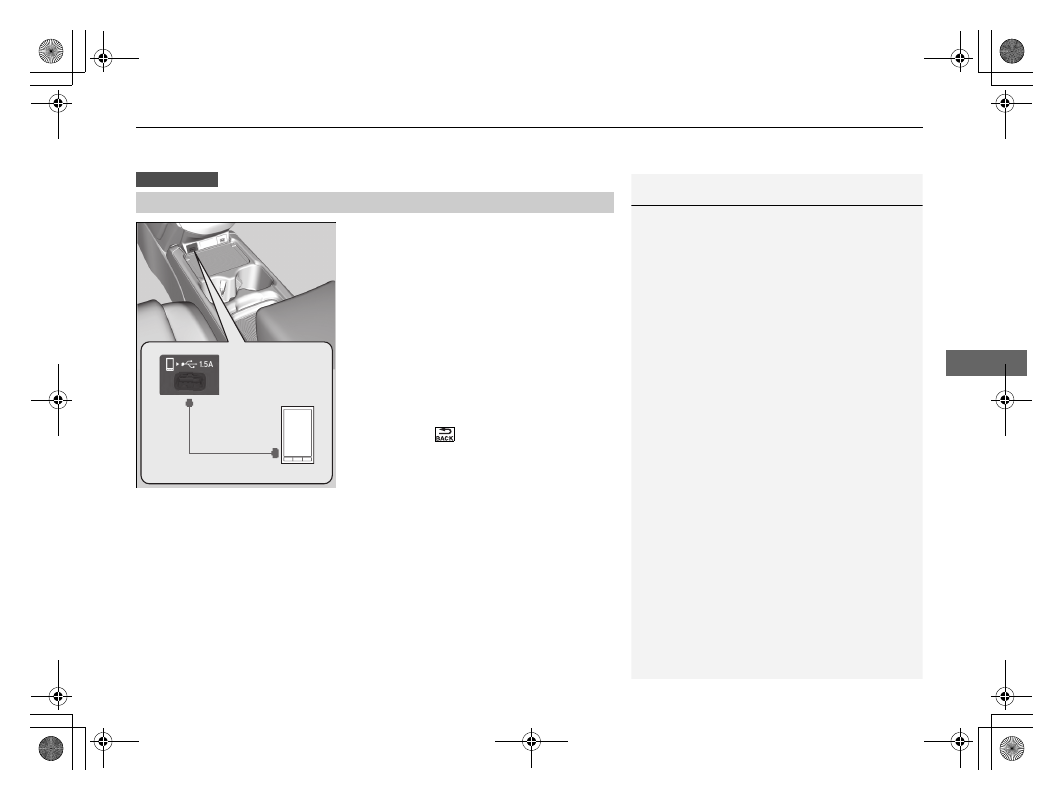
Plug in your phone to the USB port.

u

You may need to operate from the 
phone.

3.

Select 

Smartphone Connection

 to display 

the available smartphone apps on the 
audio/information screen.

4.

Select an app you want to operate from the 
audio/information screen.

u

To go back to the previous screen, select 
and hold 

.

Connecting Your Smartphone

Except iPhone

1

Connecting Your Smartphone

The phone is rechargeable while being connected to 
the USB port. However, if the phone is overloaded 
with many operational tasks, the battery level may 
get lowered.

USB Cable

382

uu

Audio System Basic Operation

u

Wi-Fi Connection

Features

Wi-Fi Connection

You can connect the Display Audio to the Internet using Wi-Fi and browse websites 
or use online services on the audio/information screen. If your phone has wireless 
hotspot capabilities, the system can be tethered to the phone. Use the following 
steps to setup.

1.

Select .

2.

Select 

Settings

.

3.

Select 

Bluetooth / Wi-Fi

.

4.

Select the 

Wi-Fi

 tab.

5.

Select 

Wi-Fi On/Off Status

, then select 

On

.

6.

Select 

Yes

.

7.

Select 

Wi-Fi Device List

.

u

Make sure your phone’s Wi-Fi setting is 
in access point (tethering) mode.

u

Select the phone you want to connect to 
the system.

u

If you do not find the phone you want to 
connect in the list, select 

Scan

.

Wi-Fi mode (setting for the first time)

1

Wi-Fi mode (setting for the first time)

You cannot go through the setting procedure while a 
vehicle is moving. Park in a safe place to set the audio 
system in Wi-Fi mode.

Some mobile phone carriers charge for tethering and 
smartphone data use. Check your phone’s data 
subscription package.

Check your phone manual to find out if the phone 
has Wi-Fi connectivity.

You can confirm whether Wi-Fi connection is on or 
off with the 

 icon on the 

Wi-Fi Device List


screen. Network speed will not be displayed on this 
screen.

383

uu

Audio System Basic Operation

u

Wi-Fi Connection

Features

8.

Select 

Add

.

u

If needed, enter a password for your 
phone and select 

Done

.

u

When the connection is successful, the 

 icon is displayed on the top of the 

screen.

9.

Select 

 to go back to the home screen.

Make sure your phone’s Wi-Fi setting is in access point (tethering) mode.

Wi-Fi mode (after the initial setting has been made)

1

Wi-Fi mode (after the initial setting has been made)

You may need to go through an initial setup for Wi-
Fi connection again after you boot your phone.

iPhone users

384

uu

Audio System Basic Operation

u

Siri Eyes Free

Features

Siri Eyes Free

You can talk to Siri using the 

 (Talk) button on the steering wheel when your 

iPhone is paired to the Hands-Free Telephone (HFT) system.

2

Phone Setup

 P. 465

Using Siri Eyes Free

1

Siri Eyes Free

Siri is a trademark of Apple Inc.

Check Apple Inc. website for features available for 
Siri.

We recommend against using Siri other than in Siri 
Eyes Free while operating a vehicle.

1

Using Siri Eyes Free

Some commands work only on specific phone 
features or apps.

 (Talk) Button

Press and hold until 
the display changes 
as shown.

 (Hang-up/back) Button

Press to deactivate Siri Eyes Free.

While in Siri Eyes Free:
The display remains the same. 
No feedback or commands 
appear.

Appears 
when Siri is 
activated in 
Siri Eyes Free

385

uu

Audio System Basic Operation

u

Apple CarPlay

Continued

Features

Apple CarPlay

If you connect an Apple CarPlay-compatible iPhone to the system via the 1.5A USB 
port, you can use the audio/information screen, instead of the iPhone display, to 
make a phone call, listen to music, view maps (navigation), and access messages.

2

USB Port(s)

 P. 299

Phone

Access the contact list, make phone calls, or listen to voice mail.

Messages

Check and reply to text messages, or have messages read to you.

Music

Play music stored on your iPhone.

Apple CarPlay Menu

1

Apple CarPlay

Only iPhone 5 or newer versions with iOS 8.4 or later 
are compatible with Apple CarPlay.

Park in a safe place before connecting your iPhone to 
Apple CarPlay and when launching any compatible 
apps.

To use Apple CarPlay, connect the USB cable to the 
1.5A USB port. Other USB ports will not enable Apple 
CarPlay operation.

2

USB Port(s)

 P. 299

To directly access the Apple CarPlay phone function, 
select 

Phone

 on the home screen. While connected 

to Apple CarPlay, calls are only made through Apple 
CarPlay. If you want to make a call with the Hands-
Free Telephone system, turn Apple CarPlay OFF or 
detach the USB cable from your iPhone.

2

Setting Up Apple CarPlay

 P. 387

When your iPhone is connected to Apple CarPlay, it is 
not possible to use the 

Bluetooth

®

 Audio or the 

Hands-Free Telephone system. However, other 
previously paired phones can stream audio via 

Bluetooth

®

 while Apple CarPlay is connected.

2

Phone Setup

 P. 465

Home screen

Apple CarPlay icon

Apple CarPlay menu screen

Go back to the Apple 
CarPlay menu screen

Select the Honda icon 
to go back to the home 
screen

uu

Audio System Basic Operation

u

Apple CarPlay

386

Features

Maps

Display Apple Maps and use the navigation function just as you would on your 
iPhone.

Only one navigation system (pre-installed navigation or Apple CarPlay) can give 
directions at a time. When you are using one system, directions to any prior 
destination set on the other system will be cancelled, and the system you are 
currently using will direct you to your destination.

1

Apple CarPlay

For details on countries and regions where Apple 
CarPlay is available, as well as information pertaining 
to function, refer to the Apple homepage.

Apple CarPlay Operating Requirements & 
Limitations

Apple CarPlay requires a compatible iPhone with an 
active cellular connection and data plan. Your 
carrier’s rate plans will apply.

Changes in operating systems, hardware, software, 
and other technology integral to providing Apple 
CarPlay functionality, as well as new or revised 
governmental regulations, may result in a decrease or 
cessation of Apple CarPlay functionality and services. 
Honda cannot and does not provide any warranty or 
guarantee of future Apple CarPlay performance or 
functionality.

It is possible to use 3rd party apps if they are 
compatible with Apple CarPlay. Refer to the Apple 
homepage for information on compatible apps.

Models with navigation system

Continued

387

uu

Audio System Basic Operation

u

Apple CarPlay

Features

After you have connected your iPhone to the system via the 1.5A USB port, use the 
following procedure to set up Apple CarPlay. Use of Apple CarPlay will result in the 
transmission of certain user and vehicle information (such as vehicle location, speed, 
and status) to your iPhone to enhance the Apple CarPlay experience. You will need 
to consent to the sharing of this information on the audio/information screen.

Enabling Apple CarPlay

Enable once

: Allows only once. (Prompt 

shows again next time.)

Always enable

: Allows anytime. (Prompt 

does not show again.)

Cancel

: Does not allow this consent.

You may change the consent settings under 
the 

Smartphone

 settings menu.

Setting Up Apple CarPlay

1

Setting Up Apple CarPlay

You can also use the method below to set up Apple 
CarPlay:
Select HOME

Settings

Smartphone

Apple CarPlay

Use of user and vehicle information

The use and handling of user and vehicle information 
transmitted to/from your iPhone by Apple CarPlay is 
governed by the Apple iOS terms and conditions and 
Apple’s Privacy Policy.

uu

Audio System Basic Operation

u

Apple CarPlay

388

Features

Press and hold the 

 (Talk) button to activate Siri.

Operating Apple CarPlay with Siri

1

Operating Apple CarPlay with Siri

Below are examples of questions and commands for 
Siri.

What movies are playing today?

Call dad at work.

What song is this?

How’s the weather tomorrow?

Read my latest email.

For more information, please visit 

www.apple.com/ios/siri

.

 (Talk) button:

Press and hold to activate Siri.
Press again to deactivate Siri.
Press and release to activate standard voice recognition 
system.

389

uu

Audio System Basic Operation

u

Android Auto

Continued

Features

Android Auto

When you connect an Android phone to the Display Audio system via the 1.5A USB 
port, Android Auto is automatically initiated. When connected via Android Auto, 
you can use the audio/information screen to access the Phone, Google Maps 
(Navigation), Google Play Music, and Google Now functions. When you first use 
Android Auto, a tutorial will appear on the screen.
We recommend that you complete this tutorial while safely parked before using 
Android Auto.

2

USB Port(s)

 P. 299

2

Auto Pairing Connection

 P. 391

NOTE:

Android Auto may not be available in your country or region. For details about 
Android Auto, please refer to the Google support site.

1

Android Auto

To use Android Auto, you need to download the 
Android Auto app from Google Play to your 
smartphone.

Only Android 5.0 (Lollipop) or later versions are 
compatible with Android Auto.

Bluetooth

 A2DP cannot be used while your phone is 

connected to Android Auto.

Park in a safe place before connecting your Android 
phone to Android Auto and when launching any 
compatible apps.

To use Android Auto, connect the USB cable to the 
1.5A USB port. Other USB ports will not enable 
Android Auto operation.

2

USB Port(s)

 P. 299

When your Android phone is connected to Android 
Auto, it is not possible to use the 

Bluetooth

®

 Audio. 

However, other previously paired phones can stream 
audio via 

Bluetooth

®

 while Android Auto is 

connected.

2

Phone Setup

 P. 465

uu

Audio System Basic Operation

u

Android Auto

390

Features

a

 Maps (Navigation)

Display Google Maps and use the navigation function just as you would with your 
Android phone. When the vehicle is in motion, it is not possible to make keyboard 
entries. Stop the vehicle in a safe location to undertake a search or provide other 
inputs.

Only one navigation system (pre-installed navigation or Android Auto) can give 
directions at a time. When you are using one system, directions to any prior 
destination set on the other system will be cancelled, and the system you are 
currently using will direct you to your destination.
The audio/information screen shows you turn-by turn driving directions to your 
destination.

b

 Phone (Communication)

Make and receive phone calls as well as listen to 

voicemail.

c

 Google Now (Home screen)

Display useful information organized by Android Auto into simple cards that appear 
just when they’re needed.

Android Auto Menu

1

Android Auto

For details on countries and regions where Android 
Auto is available, as well as information pertaining to 
function, refer to the Android Auto homepage.

Screens may differ depending on the version of the 
Android Auto app you are using.

Android Auto Operating Requirements & 
Limitations

Android Auto requires a compatible Android phone 
with an active cellular connection and data plan. 
Your carrier’s rate plans will apply.

Changes in operating systems, hardware, software, 
and other technology integral to providing Android 
Auto functionality, as well as new or revised 
governmental regulations, may result in a decrease or 
cessation of Android Auto functionality and services. 
Honda cannot and does not provide any warranty or 
guarantee of future Android Auto performance or 
functionality.

It is possible to use 3rd party apps if they are 
compatible with Android Auto. Refer to the Android 
Auto homepage for information on compatible apps.

: Go back to 

the home screen

Android Auto icon

6

Models with navigation system

Continued

391

uu

Audio System Basic Operation

u

Android Auto

Features

d

 Music and audio

Play Google Play Music and music apps that are compatible with Android Auto.
To switch between music apps, press this icon.

e

 Go back to the Home Screen.

f

 Voice

Operate Android Auto with your voice.

When you connect an Android phone to the unit via the 1.5A USB port, Android 
Auto is automatically initiated.

Enabling Android Auto

Enable once

: Allows only once. (Prompt 

shows again next time.)

Always enable

: Allows anytime. (Prompt 

does not show again.)

Cancel

: Does not allow this consent.

You may change the consent settings under 
the 

Smartphone

 settings menu.

Auto Pairing Connection

1

Enabling Android Auto

Only initialize Android Auto when you are safely 
parked. When Android Auto first detects your phone, 
you will need to set up your phone so that auto 
pairing is possible. Refer to the instruction manual 
that came with your phone.

You can use the method below to change Android 
Auto settings after you have completed the initial 
setup:
Select HOME

Settings

Smartphone

Android Auto

Use of user and vehicle information

The use and handling of user and vehicle information 
transmitted to/from your phone by Android Auto is 
governed by the Google’s Privacy Policy.

uu

Audio System Basic Operation

u

Android Auto

392

Features

Press and hold the 

 (Talk) button to operate Android Auto with your voice.

Operating Android Auto with Voice Recognition

1

Operating Android Auto with Voice Recognition

Below are examples of commands you can give with 
voice recognition:

Reply to text.

Call my wife.

Navigate to Honda.

Play my music.

Send a text message to my wife.

Call flower shop.

For more information, please refer to the Android 
Auto homepage.

You can also activate the voice recognition function 
by pressing the 

 icon in the upper-right corner of 

the screen.

 (Talk) button:

Press and hold to operate Android Auto with your voice.
Press and release to activate standard voice recognition 
system.

 (Hang-up/back) button:

Press to deactivate voice recognition.

393

Continued

Features

Audio Error Messages

iPod/USB Flash Drive

If an error occurs while playing an iPod or USB flash drive, you may see the following 
error messages. If you cannot clear the error message, contact a dealer.

*1:Models with colour audio system
*2:Models with Display Audio

Error Message

Solution

USB error

*1, *2

Appears when there is a problem with the audio system. Check if the device is 
compatible with the audio system.

A charging error has occurred with the 
connected USB device. When safe please 
check the compatibility of the device and 
USB cable and try again.

*2

Appears when an incompatible device is connected. Disconnect the device. Then turn 
the audio system off, and turn it on again. Do not reconnect the device that caused the 
error.

Unsupported ver

*1

Unsupported Version

*2

Appears when an unsupported iPod is connected. If it appears when a supported iPod 
is connected, update the iPod software to the newer version.

Connect retry

*1, *2

Appears when the system does not acknowledge the iPod. Reconnect the iPod.

Unplayable File

*1, *2

Appears when the files in the USB flash drive are copyright protected or an unsupported 
format. This error message appears for about three seconds, then plays the next song.

No song

*1

No Data

*2

Appears when the iPod is empty.

Appears when the USB flash drive is empty or there are no MP3, WMA, AAC, WAV, or 
MP4

*

 files in the USB flash drive.

Check that compatible files are stored on the device.

iPod

USB flash drive

iPod and USB flash drive

* Not available on all models

394

uu

Audio Error Messages

u

Android/Apps

Features

*1:Models with colour audio system
*2:Models with Display Audio

Android/Apps

If an error occurs while using the audio system or apps, you may see the following 
error messages. If you cannot clear the error message, contact a dealer.

*1:****part is variable characters, and will change depending upon where an error 

occurs.

Error Message

Solution

Unsupported

*1, *2

Appears when an unsupported device is connected. If it appears when a supported 
device is connected, reconnect the device.

Device no response

*1

Appears when the system does not communicate with a connected device. If it appears 
when a device is connected, contact your place of device purchase.

HUB Unsupported

*1

Appears when only a HUB is connected. If it appears, connect a USB flash drive to the 
HUB.

Error Message

*1

Solution

Unfortunately, **** has 
stopped.

Error has occurred within app, select 

OK

 on the screen to close the app.

**** is not responding. 
Would you like to close it?

App is not responding.
Select 

Wait

 if you can wait for a response from app a little longer. If it does not respond even if you keep 

waiting, select 

OK

 to close the app and start it up. If the error message continues, perform 

Factory Data 

Reset

.

2

Defaulting All the Settings

 P. 435

Models with Display Audio

395

Continued

Features

General Information on the Audio System

Compatible iPod, iPhone, and USB Flash Drives

A USB flash drive of 256 MB or higher is recommended.

Some digital audio players may not be compatible.

Some USB flash drives (e.g., a device with security lockout) may not work.

Some software files may not allow for audio play or text data display.

Some versions of MP3, WMA, AAC, WAV, or MP4

*

 formats may be unsupported.

iPod and iPhone Model Compatibility

Model

iPod (5th generation)
iPod classic 80GB/160GB (launch in 2007)
iPod classic 120GB (launch in 2008)
iPod classic 160GB (launch in 2009)
iPod nano (1st to 7th generation) released between 2005 and 2012
iPod touch (1st to 5th generation) released between 2007 and 2012
iPhone 3G/iPhone 3GS/iPhone 4/iPhone 4s/iPhone 5/iPhone 5s/iPhone 5c/iPhone 6/
iPhone 6 Plus

Model

iPod touch (6th generation) released 2015
iPhone 5s/iPhone 6/iPhone 6 Plus/iPhone 6s/iPhone 6s Plus/iPhone SE/iPhone 7/
iPhone 7 Plus/iPhone 8/iPhone 8 Plus/iPhone X/iPhone XS/iPhone XS Max/iPhone XR

USB Flash Drives

1

iPod and iPhone Model Compatibility

This system may not work with all software versions 
of these devices.

Models with colour audio system

Models with Display Audio

1

USB Flash Drives

Files on the USB flash drive are played in their stored 
order. This order may be different from the order 
displayed on your PC or device.

* Not available on all models

396

uu

General Information on the Audio System

u

Compatible iPod, iPhone, and USB Flash Drives

Features

Recommended Devices

*

Media

USB Flash Drive

Profile (MP4 version)

Baseline Level 3 (MPEG4-AVC), Simple Level 5 

(MPEG4)

File extension (MP4 version)

.mp4/.m4v

Compatible audio codec

AAC

MP3

Compatible video codec

MPEG4-AVC (H.264)

MPEG4 (ISO/IEC 14496 

Part.2)

Bit rate

10 Mbps (MPEG4-AVC)

8 Mbps (MPEG4)

Maximum image

720 x 576 pixels

* Not available on all models


Content      ..     22      23      24      25     ..