Honda CR-V (2022 year). Manual in english - page 22
 

  Index      Manuals     Honda CR-V (2022 year). Manual in english


Search            copyright infringement  


Content      ..     20      21      22      23     ..


Honda CR-V (2022 year). Manual in english - page 22


349

uu

Audio System Basic Operation

u

Audio/Information Screen

Continued

Features

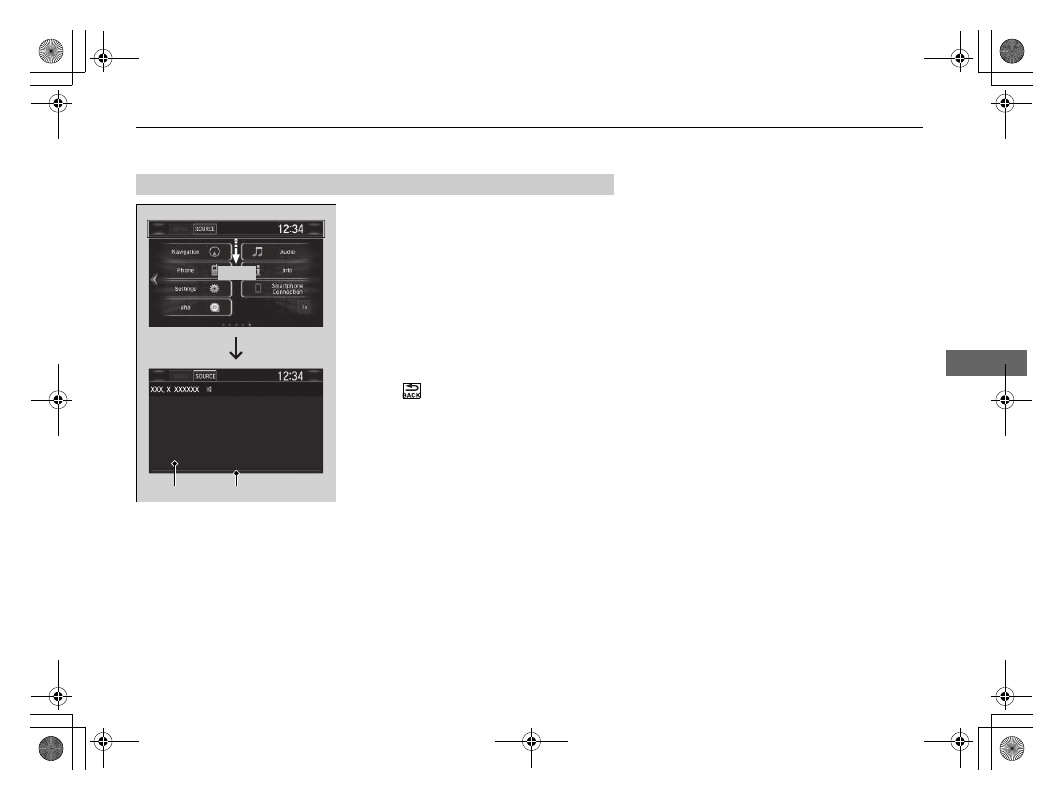
1.

Swipe down from the top of the screen.

u

The status area appears.

2.

Select an item to see the details.

3.

Select 

 or swipe up from the bottom bar 

to close the area.

Status Area

Swipe

Status Area

Bar

uu

Audio System Basic Operation

u

Audio/Information Screen

350

Features

You can change the screen interface design.

1.

Select .

2.

Select 

Settings

.

3.

Select 

System

.

4.

Select the 

Others

 tab.

5.

Select 

Change Skin

.

6.

Select 

Yes

.

Changing the Screen Interface

1

Changing the Screen Interface

After changing the screen interface design, you can 
change the wallpaper by following procedure.
1. Select .
2. Select .
3. Select and hold empty space on the home screen.

The pop-up menu appears on the screen.

4. Select 

Change wallpaper

.

5. Select 

Gallery

Live wallpapers

, or 

Wallpapers

.

If you change the screen interface, some of the 
setting items will change.

2

Customized Features

 P. 408

Continued

351

uu

Audio System Basic Operation

u

Audio/Information Screen

Features

You can change menu icons on the right side of 

Audio

Phone

, and 

Info

 screen.

1.

Select any of the three icons (

Audio

/

Phone

/

Info

) on the screen, then select and 

hold the menu icon.

u

Selecting the 

 or 

 icon, you can 

change 

Audio

Phone

, or 

Info

 on the 

Menu Customize

 screen.

2.

Select and hold the menu icon you want to 
change, then drag and drop the icon to the 
bottom.

3.

Select and hold the menu icon you want to 
add, then drag and drop the icon above.

4.

Select 

OK

.

Menu Customize

1

Menu Customize

You can also use the method below to change the 
menu icon:
Select 

Settings

System

Home

 tab

Menu Icon 

Position

Select and hold

Menu Icons

To change

Menu Icon

To add

Drag and drop

Drag and drop

uu

Audio System Basic Operation

u

Audio/Information Screen

352

Features

You can close specific apps running in the background on the system.

1.

Select and hold 

.

2.

Select the 

Active

 tab.

u

If you select the 

Active/History

 tab, you 

can close the apps that are currently 
running and delete the app activity 
history simultaneously.

3.

Select an app you want to close.

4.

Select 

Clear

.

u

The display will return to the app list.

Closing Apps

1

Closing Apps

If you have a number of apps running in the 
background and something goes wrong with the 
audio system, some of those apps may not work 
properly. If this happens, close all the apps and re-
launch the app/apps that you want to use.

To close all apps on the system, select 

Clear All

, then 

Yes

.

You cannot close the Aha

TM

 and Garmin

*

 apps.

* Not available on all models

353

uu

Audio System Basic Operation

u

Adjusting the Sound

Features

Adjusting the Sound

1.

Select .

2.

Select 

MENU

.

3.

Select 

Sound

.

Select a tab from the following choices:

BAS-MID-TRE: 

Bass, Middle, Treble

FAD-BAL-SUBW

*

Fader, Balance, 

Subwoofer

*

SVC: 

Speed Volume Compensation

1

Adjusting the Sound

The SVC has four modes: 

Off

Low

Mid

, and 

High

.

SVC adjusts the volume level based on the vehicle 
speed. As you go faster, audio volume increases. As 
you slow down, audio volume decreases.

You can also adjust the sound by the following 
procedure.
1. Select .
2. Select 

Settings

.

3. Select 

Audio

.

4. Select 

Sound

.

* Not available on all models

354

uu

Audio System Basic Operation

u

Display Setup

Features

Display Setup

You can change the brightness or colour theme of the audio/information screen.

1.

Select .

2.

Select 

Settings

.

3.

Select 

System

.

4.

Select the 

Display

 tab.

5.

Select 

Display Settings

.

6.

Select the setting you want.

7.

Select 

OK

.

1.

Select .

2.

Select 

Settings

.

3.

Select 

System

.

4.

Select the 

Display

 tab.

5.

Select 

Background Colour

.

6.

Select the setting you want.

7.

Select 

OK

.

Changing the Screen Brightness

1

Changing the Screen Brightness

You can change the 

Contrast

 and 

Black Level


settings in the same manner.

Changing the Screen’s Colour Theme

1

Changing the Screen’s Colour Theme

You cannot change the 

Background Colour

 if you 

change the screen interface design.

355

uu

Audio System Basic Operation

u

Display Setup

Features

Select the current source icon, then select an icon on the source list to switch the 
audio source.

Selecting an Audio Source

1

Selecting an Audio Source

If you startup preinstalled audio apps, 

 is displayed 

on the screen.
These preinstalled apps cannot be displayed on the 
source select screen.
You can startup those audio apps from 

.

When you are using the Aha

TM

 screen and you want 

to select another source, select 

SOURCE

 on the 

upper left of the screen. The source select screen will 
appear. Select the source you want.

Select the source icon.

Source Select Screen

Source List Icons

356

uu

Audio System Basic Operation

u

Voice Control Operation

*

1

Features

Voice Control Operation

*1

Your vehicle has a voice control system that allows hands-free operation.
The voice control system uses the 

 (Talk) and 

 (hang-up/back) buttons on 

the steering wheel and a microphone near the map lights in the ceiling.

To achieve optimum voice recognition when using the voice control system:

Make sure the correct screen is displayed for the voice command that you are 
using.
The system recognizes only certain commands.
Available voice command

2

Voice Portal Screen

*

 P. 357

Close the windows and panoramic roof

*

.

Adjust the dashboard and side vents so air does not blow onto the microphone in 
the ceiling.

Speak clearly in a natural speaking voice without pausing between words.

Reduce any background noise if possible. The system may misinterpret your 
command if more than one person is speaking at the same time.

*1: Languages that the voice control system recognises are English, German, French, Spanish, 
and Italian.

Voice Recognition

Models with navigation system

1

Voice Control Operation

*

1

When you press the 

 button, a helpful prompt asks 

what you would like to do. Press and release the 


button again to bypass this prompt and give a 
command.

1

Voice Recognition

The voice control system can only be used from the 
driver’s seat because the microphone unit removes 
noises from the front passenger’s side.

* Not available on all models

357

uu

Audio System Basic Operation

u

Voice Control Operation

*

1

Continued

Features

When the 

 (Talk) button is pressed, 

available voice commands appear on the 
screen.
For a complete list of commands, say “

Voice 

Help

” after the beep or select 

Voice Help

.

You can see the list of commands in 

Voice 

Info

 on the 

Info Menu

 screen. Select 

Info

then select 

MENU

.

The system only recognises the commands 
on the following pages, at certain screens.
Free form voice commands are not 
recognised.

Voice Portal Screen

*

Phone Call

This can be only used when the phone is 
connected. When the system recognises the 

Phone call

 command, the screen will 

change to the voice recognition screen for 
phone commands.

Dial by Number

Call History

Redial

Call <Your contact Name>

Call <Phone Number>

Phone Call commands are not available if 
using Apple CarPlay.

Music Search

This can be only used when the iPod or USB 
device is connected.

Climate Control

When the system recognises the 

Climate 

Control

 command, the screen will change 

the dedicated screen to the climate control 
voice recognition screen.

2

Climate Control Commands

 P. 359

Audio

When the system recognises the 

Audio


command, the screen will change to the 
audio voice recognition screen.

Audio On

*1

Audio Off

*1

Radio FM

Radio MW

Radio LW

iPod

USB

Other Sources

Navigation

The screen changes to the navigation 
screen.

2

Refer to the Navigation System Manual

Voice Setting

The screen changes to the 

Voice Recog.


tab on the 

System Settings

 screen.

*1: These commands toggle the function on and 
off, so the command may not match your 
intended action.

* Not available on all models

358

uu

Audio System Basic Operation

u

Voice Control Operation

*

1

Features

Voice Help

You can see a list of the available 
commands on the screen.

Useful Commands

Phone Commands

Audio Commands

On Screen Commands

Music Search Commands

General Commands

Climate Control Commands

The system accepts these commands on the 
voice portal top screen.

Call <Phone Number>

Call <Your contact Name>

What time is it?

What is today’s date?

Useful Commands

The system accepts these commands on the 
dedicated screen for the voice recognition 
of the phone.

Call by number

Call by name

Call <Phone Number>

Call <Your contact Name>

The system accepts these commands on the 
dedicated screen for the voice recognition 
of the audio.

Radio FM Commands

Radio tune to <87.5-108.0> FM

Radio FM preset <1-12>

Radio LW Commands

Radio tune to <153-279> LW

Radio LW preset <1-6>

Radio MW Commands

Radio tune to <531-1602> MW

Radio MW preset <1-6>

iPod Commands

iPod play

Phone Commands

Audio Commands

iPod play track <1-30>

Music Search

What album is this?

What am I listening to?

USB Commands

USB play

USB play track <1-30>

Music Search

What album is this?

What am I listening to?

DAB Commands

DAB preset <1-12>

Bluetooth

®

 audio Commands

Bluetooth

®


audio play

NOTE:

Bluetooth

®

 Audio commands may not work 

on some phones or 

Bluetooth

®

 Audio 

devices.

359

uu

Audio System Basic Operation

u

Voice Control Operation

*

1

Features

When 

On Screen Commands

 is selected, 

the explanation screen is displayed.

The system accepts these commands on the 

Music Search

 screen.

Using Song By Voice

Song By Voice

TM

 is a feature that allows you 

to select music from your iPod or USB device 
using Voice Commands. To activate this 
mode, you must push the talk switch and 
say: “

Music search

”.

Song By Voice Commands

What am I listening to?

Who am I listening to?

Who is this?

What’s playing?

Who’s playing?

What album is this?

On Screen Commands

Music Search Commands

Play Commands

Play artist <Name>

Play track/song <Name>

Play album <Name>

Play genre/category <Name>

Play playlist <Name>

Play composer <Name>

List Commands

List artist <Name>

List album <Name>

List genre/category <Name>

List playlist <Name>

List composer <Name>

What time is it?

What is today’s date?

General Commands

Climate control on

*1

Climate control off

*1

Fan speed <1-7>

Temperature max heat

Temperature max cool

Temperature <18-32> degrees

Defrost On

*1

Defrost Off

*1

Air Conditioner On

*1

Air Conditioner Off

*1

More

Vent

Dash and floor

Fan speed up

Fan speed down

Floor vents

Floor and Defrost

Temperature up

Temperature down

*1: These commands toggle the function on and 
off, so the command may not match your 
intended action.

Climate Control Commands

360

uu

Audio System Basic Operation

u

Playing AM/FM Radio

Features

Playing AM/FM Radio

*1:Some or all of the lists may not be displayed.

VOL/

 AUDIO (Volume/Power Audio) 

Knob

Press to turn the audio system on and off.
Turn to adjust the volume.

 (Back) Icon

Select to go back to the previous 
display.

Seek Icons

Select 

 or 

 to search 

the selected band up or down 
for a station with a strong 
signal.

Open/Close Icon

*1

Displays/hides the detailed 
information.

 (Audio) Icon

Select to display the audio screen.

Tune Icons

Select 

 or 

 to tune 

the radio frequency.

Audio/Information Screen

Scan Icon

Select to scan each station with 
a strong signal.

Preset Icons

Tune the preset radio frequency. Select and hold 
the preset icon to store that station. Select 

 to 

display preset 7 onwards.

Continued

361

uu

Audio System Basic Operation

u

Playing AM/FM Radio

Features

To store a station:

1.

Tune to the selected station.

2.

Select and hold the preset number for the station you want to store.

You can also store a preset station by the following procedure.

1.

Tune to the selected station.

2.

Select the open/close icon to display a list.

3.

Select the 

Preset

 tab.

4.

Select and hold the preset number for the station you want to store.

Lists the strongest stations on the selected band.

1.

Select the open/close icon to display a list.

2.

Select the 

Station List

 tab.

3.

Select the station.

Manual update

Updates your available station list at any time.

1.

Select the open/close icon to display a list.

2.

Select the 

Station List

 tab.

3.

Select 

Refresh

.

Preset Memory

Station List

1

Preset Memory

The 

ST

 indicator appears on the display indicating 

stereo FM broadcasts.
Stereo reproduction in AM is not available.

Switching the Audio Mode
Press the 

 or 

 button on the steering wheel or 

select 

SOURCE

 on the screen.

2

Audio Remote Controls

 P. 302

You can store 12 AM stations and 12 FM stations into 
preset memory. AM has two types of frequencies LW 
and MW, and each lets you store six stations.

3

4

uu

Audio System Basic Operation

u

Playing AM/FM Radio

362

Features

Samples each of the strongest stations on the selected band for 10 seconds. To turn 
off scan, select 

Cancel

 or 

.

Provides text data information related to your selected RDS-capable FM station.

To find an RDS station from Station List

1.

Select the open/close icon to display a list while listening to an FM station.

2.

Select the 

Station List

 tab.

3.

Select the station.

Manual update

Updates your available station list at any time.

1.

Select the open/close icon to display a list while listening to an FM station.

2.

Select the 

Station List

 tab.

3.

Select 

Refresh

.

Radio text

Displays the radio text information of the selected RDS station.

1.

Select 

MENU

.

2.

Select 

View Radio Text

.

Scan

Samples each of the strongest stations on the selected band for 10 seconds.

To turn off scan, select 

Cancel

 or 

.

Scan

Radio Data System (RDS)

1

Radio Data System (RDS)

When you select an RDS-capable FM station, the RDS 
automatically turns on, and the frequency display 
changes to the station name. However, when the 
signals of that station become weak, the display 
changes from the station name to the frequency.

363

uu

Audio System Basic Operation

u

Playing DAB (Digital Audio Broadcasting)

Continued

Features

Playing DAB (Digital Audio Broadcasting)

*1:Some or all of the lists may not be displayed.

VOL/

 AUDIO (Volume/Power Audio) 

Knob

Press to turn the audio system on and 
off.
Turn to adjust the volume.

 (Back) Icon

Select to go back to the previous display.

Service Icons

Select 

 or 

 to tune 

the service component.

 (Audio) Icon

Select to display the audio screen.

Open/Close Icon

*1

Displays/hides the detailed 
information.

Ensemble Icons

Select 

 or 

 to tune the ensemble.

Select and hold 

 or 

 to search the selected service up to down for 

an ensemble until an receivable ensemble is found.

Audio/Information Screen

Scan Icon

Select to scan each receivable ensemble or service.

Preset Icons

Tune the preset frequency. Select and hold the preset icon to 
store that station. Select 

 to display preset 7 onwards.

uu

Audio System Basic Operation

u

Playing DAB (Digital Audio Broadcasting)

364

Features

To store a service:

1.

Tune to the selected service.

2.

Select and hold the preset number for the service you want to store.

You can also store a preset service by the following procedure.

1.

Tune to the selected service.

2.

Select the open/close icon to display a list.

3.

Select the 

Preset

 tab.

4.

Select and hold the preset number for the service you want to store.

Lists the receivable ensembles on the selected service.

1.

Select the open/close icon to display a list.

2.

Select the 

Ensemble List

 tab.

3.

Select the ensemble.

Manual update

Updates your available ensemble list at any time.

1.

Select the open/close icon to display a list.

2.

Select the 

Ensemble List

 tab.

3.

Select 

Update List

.

Preset Memory

Ensemble List

1

Preset Memory

Switching the Audio Mode
Press the 

 or 

 button on the steering wheel or 

select 

SOURCE

 on the screen.

2

Audio Remote Controls

 P. 302

You can store 12 DAB stations into preset memory.

3

4


Content      ..     20      21      22      23     ..