Lincoln MKZ Hybrid (2020 year). Manual in english - page 26
 

  Index      Manuals     Lincoln MKZ Hybrid (2020 year). Manual in english


Search            copyright infringement  


Content      ..     24      25      26      27     ..


Lincoln MKZ Hybrid (2020 year). Manual in english - page 26


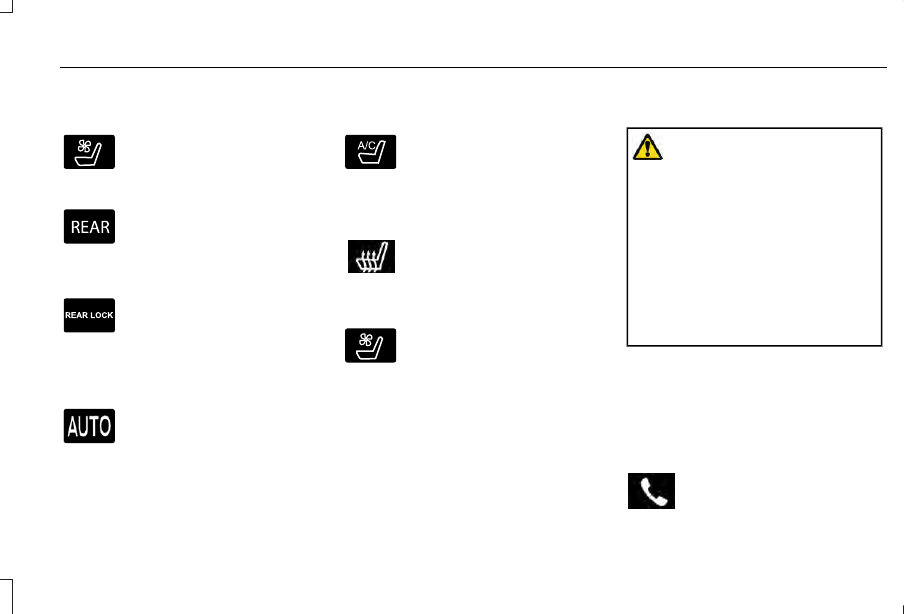
Switching the Ventilated Seats On and
Off

E268558

Touch the button to cycle through
the various ventilated seat settings.

Accessing Rear Climate Controls

E270447

Touch the button to access
additional controls for the rear
climate system.

Rear Climate Control Lock Indicator

E265289

Touch the button.

When on, you can only operate the
rear passenger settings through

the front controls.

Switching Rear Auto Mode On and Off

Touch the button to switch on rear
automatic operation, then set the
temperature.

Switching the Rear Climate Controlled
Seats On and Off

E265282

Touch the button to cycle through
the various climate controlled seat
settings.

Switching the Rear Heated Seats On
and Off

Touch the button to cycle through
the various heat settings.

Switching the Rear Ventilated Seats
On and Off

E268558

Touch the button to cycle through
the various ventilated seat settings.

PHONE

WARNING: Driving while distracted

can result in loss of vehicle control, crash
and injury. We strongly recommend that
you use extreme caution when using any
device that may take your focus off the
road. Your primary responsibility is the safe
operation of your vehicle. We recommend
against the use of any hand-held device
while driving and encourage the use of
voice-operated systems when possible.
Make sure you are aware of all applicable
local laws that may affect the use of
electronic devices while driving.

Check the compatibility of your device on
the regional website.

Pairing Your Cell Phone for the First
Time

Go to the settings menu on your cell phone
and switch Bluetooth on.

Select the phone option on the
feature bar.

419

SYNC™ 3

-------------------------------------------------------------------------------------------------------------------------------------------------------------

1. Select Add Phone.

Note: A prompt alerts you to search for your
vehicle on your cell phone.

2. Select your vehicle on your cell phone.

Note: A number appears on your cell phone
and on the touchscreen.

3. Confirm that the number on your cell

phone matches the number on the
touchscreen.

Note: The touchscreen indicates that you
have successfully paired your cell phone.

4. Download the phonebook from your cell

phone when you are prompted.

Note: If you pair more than one cell phone,
use the phone settings to specify the primary
phone. You can change this setting at any
time.

Using Your Cell Phone

Recent Call List

Display and select an entry from a list of
previous calls.

Contacts

Display a smart search form to look up your
contacts. Use the List button to alphabetically
sort your contacts.

Change Device

Display the list of paired or connected
devices that you can select.

Phone Settings

Change ring tones, alerts or pair another
phone.

Do Not Disturb

Reject incoming calls and switch ring tones
and alerts off.

Phone Keypad

Directly dial a number.

Mute

Mute the microphone.

Text Messaging

Setting Text Message Notification

iOS

1. Go to the settings menu on your cell

phone.

2. Select Bluetooth.

3. Select the information icon to the right of

your vehicle.

4. Switch text message notification on.

Android

1. Go to the settings menu on your cell

phone.

2. Select Bluetooth.

3. Select the profiles option.

4. Select the phone profile.

5. Switch text message notification on.

420

SYNC™ 3

-------------------------------------------------------------------------------------------------------------------------------------------------------------

Using Text Messaging

Description

Menu Item

Hear the text message.

Hear It

View the text message.

View

Call the sender.

Call

Reply to the text message with a standard text message.

Reply

Apple CarPlay

 (If Equipped)

1. Connect your device to a USB port.

2. Follow the instructions on the

touchscreen.

Note: Certain features of the system are not
available when you are using Apple CarPlay.

Switching Apple CarPlay Off

Select the settings option on the
feature bar.

1. Select Apple CarPlay Preferences.

2. Switch Apple CarPlay off.

Android Auto

 (If Equipped)

1. Connect your device to a USB port.

2. Follow the instructions on the

touchscreen.

Note: You might need to enable Android
Auto from the settings menu.

Note: Certain features of the system are not
available when you are using Android Auto.

Switching Android Auto Off

Select the settings option on the
feature bar.

1. Select Android Auto.

2. Switch Android Auto off.

NAVIGATION

 (IF EQUIPPED)

Note: For more information, refer to our
website.

Select the navigation option on the
feature bar.

421

SYNC™ 3

-------------------------------------------------------------------------------------------------------------------------------------------------------------

E297846

Map view menu.

A

Zoom out.

B

Zoom in.

C

Route guidance menu.

D

Destination entry menu.

E

422

SYNC™ 3

-------------------------------------------------------------------------------------------------------------------------------------------------------------

Setting a Destination

Destination Entry Menu

Description

Item

Enter a destination address.

Search

Display and select from a list of previous destinations.

Previous Destinations

Set your saved home address as your destination

Home

Set your saved place of work as your destination.

Work

Display and select from a list of favorite destinations.

Favorites

423

SYNC™ 3

-------------------------------------------------------------------------------------------------------------------------------------------------------------

Setting a Destination Using the Text Entry
Screen

E297857

Text entry field.

A

Automatic suggestions based on
the text you enter.

B

Information icon.

C

Search.

D

Keyboard settings.

E

Note: Select one of the suggestions to
copy the detail to the text entry field.

You can search by entering all or part of
the destination, such as the Address, POI
Category or Name, Intersection, City,
Latitude/Longitude, etc. Tips: If you do not
specify a location, the system will use the
current vehicle location. You can specify a
location by address, city, state or zip code.
For additional search support, please visit:
owner.lincoln.com.

Note: Press the button in the top right-hand
corner of the main map to display estimated
time of arrival, remaining travel time or
distance to destination.

Setting a Destination Using the Map Screen

E297858

Re-center the map.

A

Selected location.

B

3D map rotation. Swipe left or right.

C

Destination name.

D

Start route guidance.

E

Select the location on the map.

Select Start to begin route guidance.

424

SYNC™ 3

-------------------------------------------------------------------------------------------------------------------------------------------------------------

Changing the Format of the Map

Display the map in one of the following
formats:

A two-dimensional map with the direction
you are traveling toward the top of the
screen.

A two-dimensional map with north toward
the top of the screen.

A three-dimensional map with the
direction you are traveling toward the
front.

Zoom

Display more or less detail on the map.

Note: You can use pinch gestures to zoom
in and out. Place two fingers on the screen
and move them apart to zoom in. Place two
fingers on the screen and bring them
together to zoom out.

Route Guidance

E297859

Turn indicator. Select to hear the
last voice prompt.

A

Point of interest.

B

Estimated time of arrival, distance
to destination or time to
destination.

C

Current road.

D

Mute guidance prompts.

E

Note: To change guidance prompt volume,
turn the volume control when a guidance
prompt plays.

425

SYNC™ 3

-------------------------------------------------------------------------------------------------------------------------------------------------------------

Route Guidance Menu

Description

Menu Item

Adjust your map preferences for when route guidance is active.

Screen View

View a full screen map when route guidance is active.

Full Map

View highway exit information for your current route.

Highway Exit Info

View the turn list for your current route. Select a road to avoid it.

Turn List

You can find the SiriusXM Traffic and Travel Link information by pressing this button. This information
requires an active subscription to SiriusXM Traffic and Travel Link. When a route is not active, a list
of nearby traffic incidents displays. When a route is active, you can choose to display a list of traffic
nearby or on the route.

Traffic List

Adjust navigation settings.  See Settings (page 437).

Navigation Settings

View information about your current location.

Where Am I?

Cancel route guidance.

Cancel Route

View the entire current route on the map.

View Route

View an alternative route compared to your current one.

Detour

Change the order or remove waypoints.

Edit Waypoints

The system determines the order of waypoints for you.

Optimize Order

Go to the next screen and start the new route.

Go

426

SYNC™ 3

-------------------------------------------------------------------------------------------------------------------------------------------------------------

Adjusting the Guidance Prompt Volume

Turn the volume control when a guidance
prompt plays to adjust the volume.

Note: If you have inadvertently adjusted the
volume to zero, press the turn indicator
button to play the last voice prompt and then
adjust the volume to the desired level.

Muting Guidance Prompts

Select the mute option on the
screen to mute guidance prompts.

Note: The system mutes the next and all
future guidance prompts.

Adding Waypoints

You can add a waypoint to a navigation route
as a destination along your route. You can
add up to five waypoints.

1. Select the search option on the map.

2. Set a destination.

3. Select Add Waypoint.

4. Select Go.

Canceling Route Guidance

Select the route guidance menu
option on the active guidance
screen.

Select Cancel Route.

E297860

Note: The route guidance menu option is
always in the bottom right-hand corner of
the main map.

cityseeker

 (If Equipped)

Note: cityseeker point of interest (POI)
information is limited to approximately 1,110
cities (1,049 in the United States, 36 in
Canada and 15 in Mexico).

E225487

cityseeker, when available, is a service that
provides more information about certain
points of interest such as restaurants, hotels
and attractions.

When you have selected a point of interest,
the location and information appear, such as
address, phone number and a star rating.

Press More Information to see a photo, a
review, a list of services and facilities, the
average room or meal price and the web
address. This screen displays the point of
interest icons.

427

SYNC™ 3

-------------------------------------------------------------------------------------------------------------------------------------------------------------

For restaurants, cityseeker can provide
information such as star rating, average cost,
review, handicap access, hours of operation,
and website address.

For hotels, cityseeker can provide
information such as star rating, price
category, review, check-in and checkout
times, hotel service icons and website
address. Hotel service icons include:

Restaurant

Business center

Handicap facilities

Laundry

Refrigerator

24 hour room service

Fitness center

Internet access

Pool

Wi-Fi

Attractions include nearby landmarks,
amusement parks, historic buildings and
more. cityseeker can provide information
such as star rating, reviews, hour of operation
and admission price.

SiriusXM Traffic and Travel Link

 (If

Equipped)

SiriusXM Traffic and Travel Link is available
on vehicles equipped with navigation and
only in select markets. You must activate and
subscribe to receive SiriusXM Traffic and
Travel Link information. It helps you locate
the best gas prices, find movie listings, get
current traffic alerts, view the weather map,
get accurate ski conditions and see current
sports scores.

The system calculates a reasonable efficient
route based on available speed limits, traffic,
and road conditions. You may know a local
short cut that is more efficient at a given time
than the route provided by SYNC 3, but you
should expect a slight difference in minutes
or miles with the SYNC 3 route.

Michelin Travel Guide

 (If Equipped)

The Michelin travel guide is a service which
provides additional information about certain
places of interest, for example restaurants,
hotels and tourist sites. Points of interest that
have Michelin travel guide information
display a button to show you more
information. Push the button to see the
additional information. If you have paired
your phone with the system, you can press
the phone button to directly establish a call
with the selected point of interest.

Navigation Map Accuracy and Updates

HERE is the digital map provider for the
navigation application. If you find map data
errors, you may report them directly to HERE
by going to www.here.com. HERE evaluates
all reported map errors and responds with
the result of their investigation by e-mail.

428

SYNC™ 3

-------------------------------------------------------------------------------------------------------------------------------------------------------------

The navigation system map data may contain
inaccurate or incomplete information due to
the passage of time, changing
circumstances, sources used and the nature
of collecting comprehensive geographic
data, any of which may lead to incorrect
results. Inaccurate speed limit information,
turn restrictions and other road attributes
may affect the determined route and
associated guidance

Annual navigation map updates are available
for purchase through your dealership.
Depending on your purchase agreement,
you might be eligible for free Map update.
You can choose to download the Map data
update onto a USB, order a USB, or use Wi-Fi
to deliver automatic updates. To update your
Map data over Wi-Fi, your vehicle must be
connected to a Wi-Fi access point. Map Data
files are large, so it is highly recommended
to perform the update when free Wi-Fi is

available otherwise high data rates may
apply. For USB updates, free map update
eligibility, and other details, contact dealers
at 1-866-462-8837 in the United States and
Canada or 01-800-557-5539 in Mexico or
visit our local website for more information.

ELECTRIC VEHICLE INFORMATION

Power Flow

E260071

The power flow information for
your Hybrid vehicle is available
through the Apps section of the

touch screen.

429

SYNC™ 3

-------------------------------------------------------------------------------------------------------------------------------------------------------------

E241957

430

SYNC™ 3

-------------------------------------------------------------------------------------------------------------------------------------------------------------

Description

Item

Callout

This indicates which mode is active within the vehicle system.

Power Flow

A

Action and Description

Menu Item

The electric motor and gasoline engine are
powering the vehicle.

Status: Hybrid Drive

The hybrid system is storing power in the
high-voltage battery.

Status: Charging HV Battery

The vehicle is either at rest, or sharing very
little power between the electric system parts.

Status: Idle

The vehicle is driving in electric mode (the
power is coming from the electric motor). The
gasoline engine is off in this mode.

Status: Electric Drive

Shows the direction of power flow between the wheels and the electric motor.

Motor-to-Wheel Flow

B

Represents the hybrid electric motor. The higher the motor power is, the larger the
circle around this node. Any time the vehicle is ready to be driven, the motor node
illuminates.

Electric Motor

C

Shows the direction of power flow between the high-voltage battery and the electric
motor. Flow toward the motor indicates the battery is providing power to accelerate
the vehicle (discharging the battery). Flow toward the battery indicates the electric
motor is providing power to the battery (charging the battery).

1

Battery-to-Motor
Flow

D

431

SYNC™ 3

-------------------------------------------------------------------------------------------------------------------------------------------------------------

Description

Item

Callout

Includes all power usage from the low voltage accessories such as the climate control
fan, headlights and heated seats. The higher the power usage is from these
accessories, the larger the circle around the node. This node illuminates anytime the
vehicle is on since there is always some low level power in use.

2

Other

E

Includes the power usage from the high-voltage climate control components such
as the electric A/C compressor. The higher the power usage is from these compon-
ents, the larger the circle around this node.

2,3

Climate

F

Represents your high-voltage battery. A circle illuminates around the node when the
high-voltage battery is receiving power from regenerative braking or engine charging.
The higher the power going into the high-voltage battery, the larger the circle around
this node.

Battery

G

Represents the fuel tank in the vehicle.

Fuel

H

Shows flow from the fuel tank to the engine when the engine is on and using fuel
(there are some cases where the engine is on, but not using any fuel). When the
engine is on, but not using fuel, the engine node is active, but the fuel flow path is
off. An example of this is when your foot is off the accelerator pedal and the vehicle
is traveling at a high speed.

Fuel-to-Engine Flow

I

Provides you with the reason(s) the gasoline engine is on. When the gasoline engine
is off, this display does not appear. Engine On due to reasons displayed by the system
are in a chart following this list.

Engine On due to:

J

432

SYNC™ 3

-------------------------------------------------------------------------------------------------------------------------------------------------------------

Description

Item

Callout

Shows the direction of power flow between the engine and the electric motor. The
direction indicates if the engine is providing power to the high-voltage electrical
system, or if the high-voltage electrical system is providing power to control or start
the engine.

Motor-to-Engine Flow

K

Represents the gasoline engine. It illuminates only when the gasoline engine is on.
The higher the engine power is, the larger the circle around this node.

Engine

L

Shows the direction of the power flow between the engine and the wheels.

Engine-to-Wheels Flow

M

Represents the power going to the wheels. The higher the wheel power is, the larger
the circle around this node. When the engine is off, drive power displays in blue.
When the engine is on, drive power displays in grey.

Drive

N

1

The battery-to-motor flow includes battery

power the vehicle is using for acceleration.
It does not include energy the vehicle is
using for accessories (such as air
conditioning, headlights and radio). This
screen displays accessories and climate
usage separately.

2

Accessories indicates electrical power

demands from your vehicle’s accessory
systems. Accessories use power but do not
contribute to making the vehicle move. The
power flow displays power usage from the
climate control system and other accessories
separately.

3

The climate control system may determine

A/C is necessary even when you turn it off.
In this case, you may see some climate
power when the A/C is off.

433

SYNC™ 3

-------------------------------------------------------------------------------------------------------------------------------------------------------------

Engine On due to

The engine is on because of the heater setting. Reduce or turn off the heater setting to
return to electric mode.

Heater Setting

The engine is on because the vehicle speed exceeds the level for electric mode operation.
Reduce the speed to return to electric mode.

High Speed

The engine is on when applying pressure to the accelerator pedal or switching on the
speed control. Reduce pressure on the accelerator pedal or switch off the speed control
to return to full electric mode.

Drive Power

The engine is on because the vehicle is in neutral gear. Shift out of neutral gear to return
to electric mode.

Neutral Gear

The engine is on because the vehicle is in low gear. Shift out of low gear to return to
electric mode.

Low Gear

The engine is on to charge the high-voltage battery. The vehicle returns to electric mode
once the battery is charged.

Battery Charging

The engine is on to optimize vehicle operation. The vehicle returns to electric mode
when possible.

Normal Operation

The engine is on to provide increased powertrain braking. This can occur when you turn
on the grade assist feature, when speed control is on or when driving with your foot off
the accelerator pedal. Turning off grade assist or speed control may allow the vehicle to
return to electric mode.

Engine Braking Active

434

SYNC™ 3

-------------------------------------------------------------------------------------------------------------------------------------------------------------


Content      ..     24      25      26      27     ..