Citroën C4 (2022 year). Manual in english - page 15
 

  Index      Manuals     Citroën C4 (2022 year). Manual in english


Search            copyright infringement  


Content      ..     13      14      15     


Citroën C4 (2022 year). Manual in english - page 15


226

CITROËN Connect Nav

Telephone

Pairing a Bluetooth

®


telephone

The services available depend on the 

network, the SIM card and the 

compatibility of the Bluetooth devices used. 

Consult the telephone user guide and the 

service provider to check which services are 

available.

The Bluetooth function must be activated 

and the telephone configured as "Visible 

to all” (in the telphone settings).

To complete the pairing, whichever procedure is 

used (from the telephone or from the system), 

ensure that the code is the same in the system 

and in the telephone.

If the pairing procedure fails, we 

recommend deactivating and then 

reactivating the Bluetooth function on the 

telephone.

Procedure from the telephone

Select the system name in the list of 

detected devices.

In the system, accept the connection request 

from the telephone.

Procedure from the system

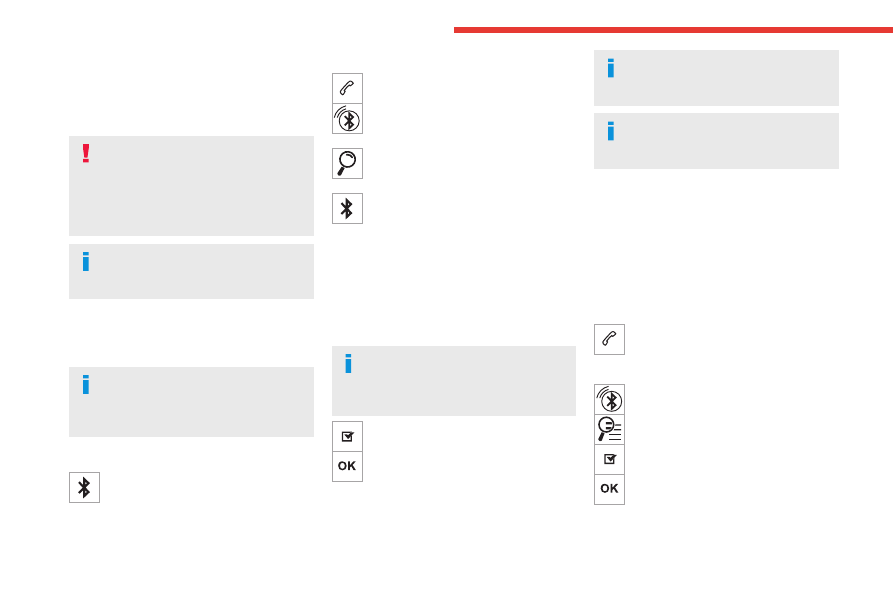
Press 

Telephone

 to display the main 

page.

Press "

Bluetooth search

". 

Or

Select "

Search

".

The list of detected telephones is 

displayed.

Select the name of the chosen telephone 

in the list.

Connection sharing

The system offers to connect the telephone with 

3 profiles:

– "

Telephone

" (hands-free kit, telephone only),

– “

Streaming

" (streaming: wireless playing of 

audio files on the telephone),

– "

Mobile internet data

".

The "

Mobile internet data

" profile must 

be activated for connected navigation, 

after first activating smartphone connection 

sharing.

Select one or more profiles.


Press "

OK

" to confirm.


Depending on the type of telephone, you may by 

prompted to accept the transfer of contacts and 

messages.

The ability of the system to connect just 

one profile depends on the telephone.

All three profiles may connect by default.

The profiles compatible with the system 

are: HFP, OPP, PBAP, A2DP, AVRCP, 

MAP and PAN.

Visit the Brand's website for more information 

(compatibility, additional help, etc.).

Automatic reconnection

On returning to the vehicle, if the last telephone 

connected is present again, it is automatically 

recognised and within about 30 seconds 

after switching on the ignition, the pairing is 

established automatically (Bluetooth activated).

To modify the connection profile:

Press 

Telephone

 to display the main 

page.

Press the "

OPTIONS

" button to access the 

secondary page.

Select "

Bluetooth connection

" to display 

the list of paired devices.

Press the "Details" button. 

Select one or more profiles.


Press "

OK

" to confirm.


-------------------------------------------------------------------------------------------------------------------------------------------------------------

227

CITROËN Connect Nav

12

Managing paired telephones

This function lets you connect or disconnect a 

device or delete a pairing.

Press 

Telephone

 to display the main 

page.

Press the "

OPTIONS

" button to access the 

secondary page.

Select "

Bluetooth connection

" to display 

the list of paired devices.

Press on the name of the telephone 

selected in the list to disconnect it.

Press again to connect it.

Deleting a telephone

Select the basket at top right of the 

screen to display a basket alongside the 

telephone chosen.

Press the basket alongside the telephone 

chosen to delete it.

Receiving a call

An incoming call is announced by a ring and a 

superimposed display in the screen.

Make a short press on the steering 

mounted telephone button to accept an 

incoming call.

And

Make a long press 

on the steering mounted telephone button 

to reject the call.

Or

Select "

End call

" on the touch screen. 

Making a call

Using the telephone is not recommended 

while driving.

Park the vehicle.

Make the call using the steering mounted 

controls.

Calling a new number

Press 

Telephone

 to display the main 

page. 

Enter the phone number using the digital 

keypad.

Press "

Call" to start the call.


Calling a contact

Press 

Telephone

 to display the main 

page.

Or press and hold 

the steering mounted telephone button. 

Select "

Contact

".

Select the desired contact from the displayed list.

Select "

Call

". 

Calling a recently used 

number

Press 

Telephone

 to display the main 

page.

Or

Press and hold 

the steering mounted telephone button. 

Select "

Calls

".

Select the desired contact from the displayed list.

It is always possible to make a call 

directly from the telephone; as a safety 

measure, first park the vehicle.

Managing contacts/entries

Press 

Telephone

 to display the main 

page.

Select "

Contact

".

Select "

Create

" to add a new contact. 

Press the "

Telephone

" tab to enter the 

contact’s telephone number(s).

Press the "

Address

" tab to enter the 

contact’s address(es).

Press the "

Email

" tab to enter the 

contact’s email address(es).

Press "

OK

" to save. 

-------------------------------------------------------------------------------------------------------------------------------------------------------------

228

CITROËN Connect Nav

Press this button to sort contacts by 

Surname+first name or by First 

name+surname.

The "

Email

" function allows email 

addresses to be entered for a contact, 

but the system is not able to send emails.

Managing messages

Press 

Telephone

 to display the main 

page.

Press the "

OPTIONS

" button to access the 

secondary page.

Select "

Messages

" to display the list of 

messages.

Select the "

All

", "

Incoming

" or "

Sent

” 

tab.

Select the details of the message chosen 

in one of the lists.

Press "

Answer

" to send a quick message 

stored in the system.

Press "

Call" to start the call.


Press "

Play

" to listen to the message. 

Access to "

Messages

" depends on the 

compatibility between the smartphone 

and the onboard system.

Some smartphones retrieve messages or 

email messages more slowly than others.

Managing quick messages

Press 

Telephone

 to display the main 

page.

Press the "

OPTIONS

" button to access the 

secondary page.

Select "

Quick messages

" to display the 

list of messages.

Select the "

Delayed

", "

My arrival

", "

Not 

available

" or "

Other

" tab, enabling you to 

create new messages.

Press "

Create

" to write a new message. 

Select the message chosen in one of the 

lists.

Press "

Transfer

" to select one or more 

recipients.

Press "

Play

" to start playing the message. 

Managing email

Press 

Telephone

 to display the main 

page.

Press the "

OPTIONS

" button to access the 

secondary page.

Select "

Email

" to display the list of 

messages.

Select the "

Incoming

", "

Sent

" or "

Not 

read

” tab.

Select the message chosen in one of the lists.

Press "

Play

" to start playing the message. 

Access to email messages depends on 

the compatibility between the 

smartphone and the onboard system.

Settings

Audio settings

Press 

Settings

 to display the main page. 

Select "

Audio settings

". 

Then select "

Ambience

", "

Position

"; "

Sound

", 

"

Voice

" or "

Ringtone

".

Press "

OK

" to save the settings. 

The balance/distribution (or spatialisation 

with the Arkamys

 system) uses audio 

processing to adjust the sound quality 

according to the number of passengers in the 

vehicle.

Available only with the front and rear speaker 

configuration.

The 

Ambience

 setting (choice of 6 

ambiences) and the 

Bass

Medium

 and 

Treble

 sound settings are different and 

independent for each audio source.

Activate or deactivate "

Loudness

".

-------------------------------------------------------------------------------------------------------------------------------------------------------------

229

CITROËN Connect Nav

12

The "

Position

” settings (All passengers, 

Driver and Front only) are common to all 

sources.

Activate or deactivate "

Touch tones

", 

"

Volume linked to speed

" and "

Auxiliary 

input

".

Onboard audio: Arkamys Sound Staging


optimises the sound distribution inside 

the passenger compartment.

Configuring profiles

Press 

Settings

 to display the main page. 

Press the "

OPTIONS

" button to access the 

secondary page.

Select "

Setting of the profiles

". 

Select "

Profile 1

", "

Profile 2

", "

Profile 3

” or 

"

Common profile

".

Press this button to enter a name for the 

profile using the virtual keypad.

Press "

OK

" to confirm.


Press this button to add a photograph to 

the profile.

Insert a USB memory stick containing the 

photograph in the USB port.

Select the photograph.

Press "

OK

" to accept the transfer of the 

photograph.

Press "

OK

" again to save the settings. 

The location for the photograph is 

square; the system reshapes the original 

photograph if in another format.

Press this button to reset the selected 

profile.

Resetting the selected profile activates 

the English language by default.

Select a "

Profile

" (1 or 2 or 3) to link "

Audio 

settings

" with it.

Select "

Audio settings

". 

Then select "

Ambience

", "

Position

"; "

Sound

", 

"

Voice

" or "

Ringtone

".

Press "

OK

" to save the selected profile’s 

settings.

Modifying system settings

Press 

Settings

 to display the main page. 

Press the "

OPTIONS

" button to access the 

secondary page.

Select "

Screen configuration

". 

Select "

Animation

".

Activate or deactivate:

Automatic 

scrolling

Select "

Brightness

".

Move the slider to adjust the brightness of 

the screen and/or the instrument panel.

Press 

Settings

 to display the main page. 

Press the "

OPTIONS

" button to access the 

secondary page.

Select "

System settings

". 

Select "

Units

" to change the units of distance, 

fuel consumption and temperature.

Select "

Factory settings

" to restore the initial 

settings.

Resetting the system to "Factory 

settings" activates English and degrees 

Fahrenheit and deactivates summer time.

Select "

System info

" to display the versions of 

the various modules installed in the system.

Selecting the language

Press 

Settings

 to display the main page. 

Press the "

OPTIONS

" button to access the 

secondary page.

Select "

Languages

" to change the 

language.

Setting the date

Press 

Settings

 to display the main page. 

Press the "

OPTIONS

" button to access the 

secondary page.

-------------------------------------------------------------------------------------------------------------------------------------------------------------

230

CITROËN Connect Nav

Select "

Setting the time-date

". 

Select "

Date

".

Press this button to set the date. 

Press "

OK

" to confirm.


Select the display format for the date. 

Time and date setting is only available if 

"GPS synchronisation" is deactivated.

Setting the time

Press 

Settings

 to display the main page. 

Press the "

OPTIONS

" button to access the 

secondary page.

Select "

Setting the time-date

". 

Select "

Time

".

Press this button to set the time using the 

virtual keypad.

Press "

OK

" to confirm.


Press this button to set the time zone. 

Select the display format for the time 

(12h/24h).

Activate or deactivate summer time (+1 

hour).

Activate or deactivate GPS 

synchronisation (UTC).

Press "

OK

" to confirm.


The system may not automatically 

manage the change between winter and 

summer time (depending on the country of 

sale).

Colour schemes

Depending on equipment/Depending on version.

As a safety measure, the procedure for 

changing the colour scheme is only 

possible when the 

vehicle is stationary

.

Press 

Settings

 to display the main page. 

Select "

Color schemes

". 

Select a colour scheme in the list then 

press "

OK

" to confirm.

Whenever the colour scheme is 

changed, the system restarts, temporarily 

displaying a black screen.

Frequently asked 

questions

The following information groups together the 

answers to the most frequently asked questions 

concerning the system.

Navigation

I cannot enter the navigation address.

The address is not recognised.

►  Use the "intuitive method" by pressing 

the "Search…" button at the bottom of the 

"Navigation” page.

The route calculation is not successful.

The route settings may conflict with the current 

location (for example, if toll roads are excluded 

but the vehicle is on a toll road).

►  Check the route settings in the "Navigation" 

menu.

I do not receive "Danger zone” alerts.

You have not subscribed to the online services 

option.

►  If you have subscribed to the option:

- a few days may elapse before the service is 

activated,

- services may not be selected in the system 

menu,

- online services are not active ("TOMTOM 

TRAFFIC" not shown on the map).

The POIs do not appear.

The POIs have not been selected.

►  Set the zoom level to 600 ft (200 m) or select 

POIs in the POI list.

The "Danger zone" audible warning feature is 

not working.

The audible warning is not active or the volume 

is too low.

-------------------------------------------------------------------------------------------------------------------------------------------------------------

231

CITROËN Connect Nav

12

►  Activate the audible warning in the 

"Navigation" menu and check the voice volume 

in the sound settings.

The system does not suggest a detour 

around an incident on the route.

The route settings do not take account of TMC 

messages.

►  Configure the "Traffic info " function in 

the route settings list (Without, Manual or 

Automatic).

I receive a warning about a "Danger area" 

that is not on my route.

As well as providing guided navigation, the 

system announces all "Danger areas" positioned 

in a cone located in front of the vehicle. It may 

provide an alert for "Danger areas" located on 

nearby or parallel roads.

►  Zoom the map to show the exact location 

of the "Danger area". You can select "On the 

route" to stop receiving warnings or decrease the 

warning duration.

Certain traffic jams along the route are not 

indicated in real time.

On starting, a few minutes may elapse before 

the system begins to receive traffic information.

►  Wait until traffic information is being received 

correctly (traffic information icons shown on the 

map).

In certain countries, only major routes 

(motorways, etc.) are listed for the traffic 

information.

This is perfectly normal. The system is 

dependent on the traffic information available.

The altitude is not displayed.

On starting, GPS initialisation may take up to 

3 minutes to receive more than 4 satellites 

correctly.

►  Wait until the system has started up 

completely so that there is GPS coverage by at 

least 4 satellites.

Depending on the geographical environment 

(tunnel, etc.) or the weather, the conditions of 

reception of the GPS signal may vary.

This behaviour is normal. The system is 

dependent on the GPS signal reception 

conditions.

My navigation is no longer connected.

During start-up and in certain geographical 

areas, the connection may be unavailable.

►  Check that the online services are activated 

(settings, contract).

Radio

The reception quality of the tuned radio 

station gradually deteriorates or the station 

presets are not working (no sound, 87.5 MHz 

is displayed, etc.).

The vehicle is too far from the selected station’s 

transmitter, or no transmitter is present in the 

geographical area.

►  Activate the "RDS" function by means of the 

short-cut menu to enable the system to check 

whether there is a more powerful transmitter in 

the geographical area.

The aerial is missing or has been damaged 

(for example while entering a car wash or 

underground car park).

►  Have the aerial checked by a dealer.

The environment (hills, buildings, tunnels, 

basement car parks, etc.) is blocking reception, 

including in RDS mode.

This is a perfectly normal phenomenon, and is 

not indicative of an audio system malfunction.

I cannot find some radio stations in the list of 

stations received.

The name of the radio station changes.

The station is no longer received or its name has 

changed in the list.

Some radio stations send other information 

in place of their name (the title of the song for 

example).

The system interprets these details as the station 

name.

►  Press the "Update list" button in the "Radio 

stations” secondary menu.

Media

Playback of my USB memory stick starts only 

after a very long wait (around 2 to 3 minutes).

Some files supplied with the memory stick may 

greatly slow down access to reading the memory 

stick (multiplication by 10 of the cataloguing 

time).

►  Delete the files supplied with the memory 

stick and limit the number of sub-folders in the 

file structure on the memory stick.

-------------------------------------------------------------------------------------------------------------------------------------------------------------

232

CITROËN Connect Nav

There may be an extended pause after 

inserting a USB stick.

The system reads a variety of data (folder, title, 

artist, etc.). This can take from a few seconds to 

a few minutes.

This is perfectly normal.

Some characters in information about the 

currently playing media may not be displayed 

correctly.

The audio system is unable to process certain 

types of character.

►  Use standard characters to name tracks and 

folders.

Playback of streaming files does not start.

The connected device does not automatically 

launch playback.

►  Start playback from the device.

Track names and playing times are not 

displayed on the audio streaming screen.

The Bluetooth profile does not allow the transfer 

of this information.

Telephone

I cannot connect my Bluetooth telephone.

The telephone's Bluetooth function may be 

switched off or the device may not be visible.

►  Check that the telephone has Bluetooth 

switched on.

►  Check in the telephone settings that it is 

"visible to all".

►  Deactivate then reactivate the telephone’s 

Bluetooth function.

The Bluetooth telephone is not compatible with 

the system.

►  You can check the compatibility of the 

telephone on the Brand's website (services).

Android Auto and/or CarPlay do not work.

Android Auto and CarPlay may not activate if the 

USB cables are of poor quality.

►  Use genuine USB cables to ensure 

compatibility.

Android Auto and/or CarPlay do not work.

Android Auto and CarPlay are not available in all 

countries.

►  Check the Google Android Auto or Apple 

website to see which countries are supported.

The volume of the telephone connected in 

Bluetooth mode is inaudible.

The volume depends on both the system and the 

telephone.

►  Increase the volume of the audio system, to 

maximum if required, and increase the volume of 

the telephone if necessary.

Ambient noise affects the quality of the 

telephone call.

►  Reduce the ambient noise level (close 

windows, turn down ventilation, slow down, etc.).

Some contacts are duplicated in the list.

The options for synchronising contacts are: 

synchronise the contacts on the SIM card, the 

contacts on the telephone, or both. When both 

synchronisations are selected, some contacts 

may be duplicated.

►  Select "Display SIM card contacts" or 

"Display telephone contacts".

The contacts are not listed in alphabetical 

order.

Some telephones offer display options. 

Depending on the settings chosen, contacts can 

be transferred in a specific order.

►  Modify the telephone directory display 

settings.

The system does not receive SMS.

Bluetooth mode does not allow SMS text 

messages to be sent to the system.

Settings

When the treble and bass settings are 

changed, the ambience is deselected.

When the ambience is changed, the treble 

and bass settings are reset.

Selecting an ambience imposes the treble and 

bass settings, and vice versa.

►  Modify the treble and bass or ambience 

settings to obtain the desired musical ambience.

When the balance settings are changed, the 

distribution is deselected.

When the distribution setting is changed, the 

balance settings are deselected.

Selecting a distribution setting imposes the 

balance settings, and vice versa.

►  Modify the balance setting or the distribution 

setting to obtain the desired sound quality.

There is a difference in sound quality 

between audio sources.

To allow for optimal listening quality, the sound 

settings can be tailored to different audio 

-------------------------------------------------------------------------------------------------------------------------------------------------------------

233

CITROËN Connect Nav

12

sources, which can generate audible differences 

when changing source.

►  Check that the sound settings are appropriate 

to the sources listened to. We recommend 

setting the sound functions (Bass:, Treble:, 

Balance) to the middle position, setting the 

musical ambience to "None", setting loudness 

correction to "Active" in USB mode and "Inactive" 

in Radio mode.

►  In all cases, after applying sound settings, 

adjust the volume level on the portable device (to 

a high level) first. Then adjust the volume level 

on the audio system.

When the engine is off, the system switches 

off after several minutes of use.

When the engine is switched off, the system's 

operating time depends on the state of charge of 

the battery.

The switch-off is normal: the system 

automatically goes into energy economy mode 

and switches off to maintain an adequate charge 

in the battery.

►  Start the vehicle’s engine to increase the 

charge of the battery.

The date and time cannot be set.

Setting of the date and time is only available 

if the synchronisation with the satellites is 

deactivated.

►  Settings menu / Options / Time-Date setting. 

Select the "Time" tab and deactivate the "GPS 

synchronisation" (UTC).

-------------------------------------------------------------------------------------------------------------------------------------------------------------

234

Event data recorders

Recording event data

Electronic control units are installed in your 

vehicle. These control units process data 

received from the vehicle's sensors, for example, 

or data they generate themselves or exchange 

with each other. Some of these control units are 

required for the correct operation of your vehicle, 

some others assist you while driving (driving or 

manoeuvring aids), while others provide comfort 

or infotainment functions.

The following contains general information about 

how data is processed within the vehicle.

You will find additional information about the 

specific data which is downloaded, stored 

and transmitted to third parties and what it is 

used for in your vehicle under the keyword 

"Data protection". This information is directly 

associated with the references for the functions 

in question contained in the corresponding 

vehicle handbook, or in the general terms and 

conditions of sale.

This information is also available online.

Vehicle operating data

The control units process the data used for the 

operation of the vehicle. 

This data includes, for example: 

–  Information about the state of the vehicle 

(e.g. speed, travel time, lateral acceleration, 

wheel rotation rate, fastened seat belts display). 

–  Environmental conditions (e.g. temperature, 

rain sensor, distance sensor). 

As a general rule, this data is temporary, is 

not stored for longer than one operating cycle 

and is only used within the vehicle itself. The 

control units often record this data (including the 

vehicle's key). This function allows either the 

temporary or permanent storage of information 

about the state of the vehicle, stresses on 

components, servicing requirements, as well as 

events and technical errors. 

Depending on the vehicle's equipment level, the 

data stored is as follows: 

–  Operating state of system components 

(e.g. filling level, tyre pressures, battery charge 

status). 

–  Faults and malfunctions in important system 

components (e.g. lamps, brakes). 

–  System reactions in specific driving situations 

(e.g. deployment of an airbag, triggering of 

stability control and braking systems). 

–  Information about events which have 

damaged the vehicle. 

–  For electric and rechargeable hybrid vehicles, 

the traction battery charge level and the 

estimated driving range. 

In particular circumstances (e.g. if the vehicle 

has detected a malfunction), it may be necessary 

to record data which would otherwise simply not 

be stored. 

When taking your vehicle in for servicing 

(e.g. repairs, maintenance), the stored operating 

data may be read along with the vehicle's 

identification number and used if necessary. 

The personnel working for the servicing network 

(e.g. garages, manufacturers) or third parties 

(e.g. roadside assistance agents) may read 

the vehicle's data. This also applies to work 

carried out under warranty and quality assurance 

measures. 

This data is generally read via the OBD 

(On-Board Diagnostics) port fitted by law to 

the vehicle. It is used to report on the technical 

state of the vehicle or its components and 

facilitates the diagnosis of malfunctions, in 

compliance with warranty obligations and for 

quality improvement. This data, in particular the 

information relating to stress on components, 

technical events, operator errors and other 

malfunctions, is sent to the Manufacturer, if 

necessary, along with the vehicle's identification 

number. The Manufacturer's liability may also be 

engaged. The Manufacturer may also use the 

operating data taken from the vehicle for product 

recalls. This data may also be used to check the 

customer's warranty and any claims made under 

warranty. 

Any malfunctions stored in the vehicle may be 

reset by an after-sales service company during 

servicing or repair work, or at your request. 

Comfort and infotainment 

functions

Comfort settings and personalised settings 

may be saved in the vehicle and modified or 

reinitialised at any time. 

-------------------------------------------------------------------------------------------------------------------------------------------------------------

235

Event data recorders

13

Depending on the vehicle's equipment level, this 

may include: 

–  Seat and steering wheel position settings. 

–  Chassis and air conditioning settings. 

–  Personalised settings such as the interior 

lighting. 

You can enter your own data into the functions 

of your vehicle's audio and telematic system, as 

part of the selected functionalities. 

Depending on the vehicle's equipment level, this 

may include: 

–  Multimedia data such as music, videos or 

photos to be read by an integrated multimedia 

system. 

–  Address book data to be used with an 

integrated hands-free system or with an 

integrated navigation system. 

–  Entered destinations. 

–  Data regarding the use of online services. 

This data for the comfort and infotainment 

functions may be stored locally in the vehicle 

or saved to a device that you have connected 

to the vehicle (e.g. smartphone, USB memory 

stick or MP3 player). Data that you have entered 

yourself may be deleted at any time. 

This data may also be transmitted outside the 

vehicle at your request, particularly when using 

online services in line with the settings that you 

have selected. 

Smartphone integration 

(e.g. Android Auto

®

 or 

Apple

®

CarPlay

®

)

If your vehicle is equipped accordingly, you can 

connect your smartphone or another mobile 

device to the vehicle in order to operate it using 

the vehicle's integrated controls. Images and 

sounds from the smartphone can be transmitted 

through the audio and telematics system. 

Specific information is simultaneously sent 

to your smartphone. Depending on the type 

of integration, this includes data such as location, 

day/night mode and other general information 

about the vehicle. For more information, please 

refer to the user instructions for the vehicle or the 

audio and telematics system.

Integrating a smartphone allows you to use 

its applications, such as a navigation app or 

music player. No other integration between 

the smartphone and the vehicle is possible, in 

particular active access to vehicle data. How the 

data is processed subsequently is determined 

by the supplier of the application being used. 

The ability the change settings depends on the 

application in question and on the operating 

system installed on your smartphone. 

Online services

If your vehicle is connected to a wireless 

network, data can be exchanged between 

your vehicle and other systems. Connection 

to a wireless network is made possible via a 

transmitter located in your vehicle or a mobile 

device that you have provided (e.g. smartphone). 

The online services can be used via this wireless 

connection. These include online services and 

applications (apps) provided to you by the 

Manufacturer or other suppliers. 

Exclusive services

As regards the Manufacturer's online services, 

the corresponding functions are described by 

the Manufacturer in an appropriate medium 

(e.g. handbook, Manufacturer's website) and the 

information about data protection is provided. 

Personal data may be used for online services. 

The exchange of data for this purpose takes 

place over a secure connection, using for 

example the Manufacturer's dedicated computer 

systems. The collection, processing and use of 

personal data for the development of services 

are carried out solely on the basis of a legal 

authorisation, for example in the case of a 

legal emergency call system or a contractual 

agreement or else under a consent agreement. 

You can activate or deactivate the services and 

functions (some may be chargeable) and, in 

some cases, the vehicle's entire connection to 

the wireless network. This does not include the 

statutory functions and services such as the 

emergency or assistance call system. 

Third-party services

If you use online services provided by other 

(third-party) suppliers, these services are subject 

-------------------------------------------------------------------------------------------------------------------------------------------------------------

236

Event data recorders

to the responsibility, the data protection and 

the terms and conditions of use of the supplier 

in question. The Manufacturer often has no 

influence over the content exchanged in this 

regard. 

Please therefore ensure that you are aware of 

the nature, extent and purpose of the collection 

and use of personal data as part of the third-

party services provided by the service provider 

in question. 

-------------------------------------------------------------------------------------------------------------------------------------------------------------


Content      ..     13      14      15