Citroën C5 X (2022 year). Manual in english - page 12
 

  Index      Manuals     Citroën C5 X (2022 year). Manual in english


Search            copyright infringement  


Content      ..     10      11      12      13     ..


Citroën C5 X (2022 year). Manual in english - page 12


178

In the event of a breakdown

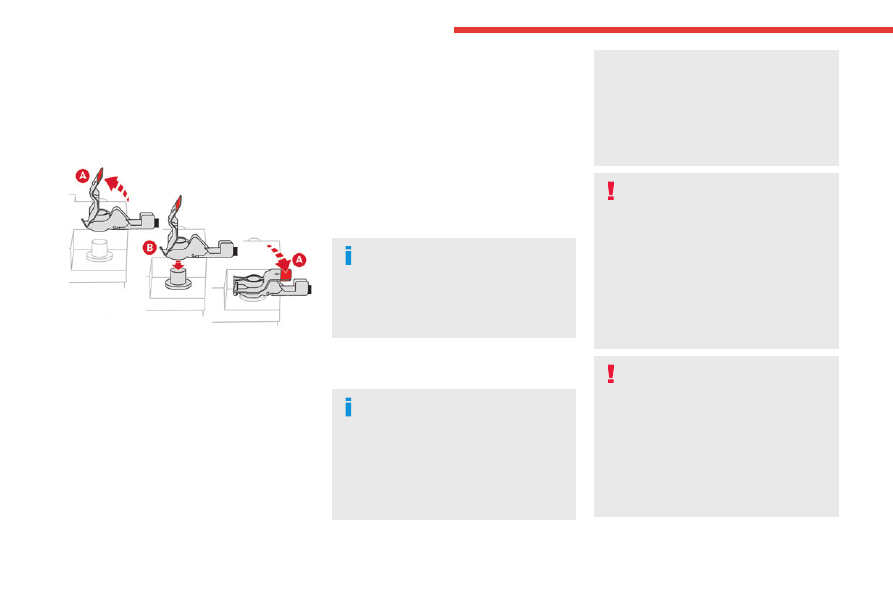
►  Disconnect the 

(+)

 terminal by disconnecting 

the red quick-release clamp:

•  Raise lever 

A

 fully to release clamp 

B

.

•  Remove clamp 

B

 by lifting it off.

Reconnection

Front battery:


►  Connect the 

(+)

 terminal by connecting the 

red quick-release clamp:

•  Raise lever 

A

 fully.

•  Refit open clamp 

B

 on the 

(+)

 terminal.

•  Push clamp 

B

 fully down.

•  Lower lever 

A

 to lock clamp 

B

.

Central battery:

►  Connect the 

(-)

 terminal using the black 

quick-release connector.

Following reconnection

After reconnecting the battery, turn on the 

ignition and wait 1 minute before starting the 

engine, to enable the electronic systems to 

initialise.

If minor problems nevertheless persist following 

this operation, contact a CITROËN dealer or a 

qualified workshop.

Referring to the relevant section, reinitialise 

certain equipment:

–  Electronic key.

– Sunroof.

–  Electric windows.

–  Date and time.

–  Preset radio stations.

After reconnecting the battery, the 

message "

Collision risk detection 

system fault

" is displayed on the instrument 

panel when the ignition is switched on. This 

operation is perfectly normal. The message 

will disappear while driving.

Towing the vehicle

General recommendations

Observe the legislation in force in the 

country where you are driving.

Ensure that the weight of the towing vehicle is 

higher than that of the towed vehicle.

The driver must remain at the wheel of the 

towed vehicle and must have a valid driving 

licence.

When towing a vehicle with all four wheels on 

the ground, always use an approved towing 

arm; rope and straps are prohibited.

The towing vehicle must move off gently.

When the vehicle is towed with its engine 

off, there is no longer braking and steering 

assistance.

A professional towing service must be 

called if:

–  Broken down on a motorway or main road.

–  Not possible to put the gearbox into neutral, 

unlock the steering, or release the parking 

brake.

–  Not possible to tow a vehicle with an 

automatic gearbox, with the engine running.

–  Towing with only two wheels on the ground.

–  Four-wheel drive vehicle.

–  No approved towbar available.

Rechargeable hybrid vehicles

Before any intervention, with the ignition 

on, depress the brake pedal and select mode 

N

, then switch off the hybrid system (

READY


indicator lamp off).

Always call on professionals for recovery of 

the vehicle on a flatbed lorry or trailer.

Use the towing eye 

only

 to free the vehicle 

if it is stuck, or to secure it for recovery on a 

flatbed lorry or trailer.

-------------------------------------------------------------------------------------------------------------------------------------------------------------

179

In the event of a breakdown

8

Towing constraints

Type of vehicle

(engine/gearbox)

Front wheels on the 

ground

Rear wheels on the 

ground

Flatbed

4 wheels on the ground 

with towbar

Internal combustion/Automatic


Hybrid 2WD


2WD:

 2-wheel drive.

In case of battery or electric parking brake failure, it is essential to call a professional using flatbed recovery vehicles.


Accessing the tools

For more information on accessing the 

Tool kit

refer to the corresponding section.

Towing your vehicle

To access the front screw thread:


►  Unclip the cover by pressing on its lower left-

hand section.

►  Release the cover downwards.

To be towed:

►  Screw the towing eye in fully.

►  Install the towbar.

►  Put the gearbox into neutral.

Failure to observe this instruction could 

result in damage to certain components 

(braking, transmission, etc.) and to the 

absence of braking assistance the next time 

the engine is started.

Automatic gearbox

Never tow the vehicle with the driving 

wheels on the ground and the engine off.

►  Unlock the steering and release the parking 

brake.

►  Switch on the hazard warning lamps on both 

vehicles.

►  Move off gently, drive slowly and only for a 

short distance.

-------------------------------------------------------------------------------------------------------------------------------------------------------------

180

In the event of a breakdown

Towing another vehicle

To access the rear screw thread:


►  Unclip the cover by pressing on its upper 

section.

►  Pull the cover downwards.

To tow:

►  Screw the towing eye in fully.

►  Install the towbar.

►  Switch on the hazard warning lamps on both 

vehicles.

►  Move off gently, drive slowly and only for a 

short distance.

-------------------------------------------------------------------------------------------------------------------------------------------------------------

181

Technical data

9

Engine technical data and 

towed loads

Engines

The engine characteristics are given in the 

vehicle's registration document, as well as in 

sales brochures.

Only the values available at the time of 

publication are presented in the tables.

Contact a CITROËN dealer or a qualified 

workshop to obtain missing values.

The maximum power corresponds to the 

value type-approved on a test bed, under 

conditions defined by European legislation 

(Directive 1999/99/EC).

For more information, contact a CITROËN dealer 

or a qualified workshop.

Weights and towed loads

The weights and towed loads relating to 

the vehicle are indicated on the registration 

document, as well as in sales brochures.

These values are also indicated on the 

manufacturer's plate or label.

For more information, contact a CITROËN dealer 

or a qualified workshop.

The GTW (Gross Train Weight) and towed load 

values indicated are valid up to a maximum 

altitude of 1,000 metres. The towed load value 

must be reduced by 10% for each additional 

1,000 metres of altitude.

The maximum authorised nose weight 

corresponds to the weight permitted on the 

towball.

When exterior temperatures are high, the 

vehicle performance may be limited in 

order to protect the engine. When the exterior 

temperature is higher than 37°C, reduce the 

towed weight.

Towing even with a lightly loaded vehicle 

can adversely affect its road holding.

Braking distances are increased when towing 

a trailer.

When using a vehicle to tow, never exceed 

a speed of 62 mph (100 km/h) (observe the 

local legislation in force).

-------------------------------------------------------------------------------------------------------------------------------------------------------------

182

Technical data

Engines and towed loads - Petrol

Engines

PureTech 130 S&S

PureTech 130 S&S

PureTech 180 S&S

Gearboxes

EAT8

(Auto. 8-speed)

EAT8

(Auto. 8-speed)

EAT8

(Auto. 8-speed)

Codes

EB2ADTS ATN8 STTd

EB2ADTSi ATN8 STTd

EP6FADTXD ATN8 STTd

Model codes:

NCHNS/P

NCHNS/P

ND5GF/P

Cubic capacity (cc)

1,199

1,199

1,598

Max. power: EC standard (kW)

96

96

133

Fuel

Unleaded

Unleaded

Unleaded

Braked trailer (within the GTW limit) (kg)

on a 10% or 12% gradient

1 050

1 050

1 600

Unbraked trailer (kg)

745

745

750

Maximum authorised nose weight (kg)

70

70

70

-------------------------------------------------------------------------------------------------------------------------------------------------------------

183

Technical data

9

Engines and towed loads - Rechargeable hybrid

Hybrid 225 e-EAT8

Code

EP6FADTXHPD

Model codes:

NDDGY/P

Braked trailer (within the GTW limit) (kg)

on a 10% or 12% gradient

1 350

Unbraked trailer (kg)

750

Maximum authorised nose weight (kg)

70

Petrol engine

PureTech 180

Gearbox

Electric automatic 8-speed

Cubic capacity (cc)

1,598

Max. power: EC standard (kW)

132

Fuel

Unleaded

Electric motor

Technology

Synchronous with permanent magnets

Max. power: EC standard (kW)

81

Traction battery

Technology

Lithium-Ion

Voltage (Volts AC)

240-400

Installed capacity (kWh)

12.4

Combined power (kW)

165

-------------------------------------------------------------------------------------------------------------------------------------------------------------

184

Technical data

Dimensions (mm)

These dimensions have been measured on an 

unladen vehicle.


* With folded mirrors.

** With unfolded mirrors.


Identification 

markings

Various visible markings for vehicle identification 

and vehicle search.


A. Vehicle Identification Number (VIN), under 

the front passenger seat, on the crossbeam.

Stamped on the crossbeam.

B. Vehicle Identification Number (VIN), on the 

dashboard.

Printed on an adhesive label visible through the 

windscreen.

C. Manufacturer's label.

Affixed to the right-hand door.

Bears the following information:

–  Manufacturer’s name.

–  European whole vehicle type approval 

number.

–  Vehicle Identification number (VIN).

–  Gross vehicle weight (GVW).

–  Gross train weight (GTW).

–  Maximum weight on the front axle.

–  Maximum weight on the rear axle.

D. Tyres/paint code label.

Affixed to the driver's door.

Bears the following information about the tyres:

–  Tyre pressures, unladen and laden.

–  Tyre specification, made up of the dimensions 

and type as well as the load and speed indices.

–  Spare tyre inflation pressure.

Also indicates the paint colour code.

The vehicle may be originally equipped 

with tyres with higher load and speed 

indices than those indicated on the label, 

without affecting tyre pressure (on cold tyres).

In the event of a change in the type of tyres, 

contact a CITROËN dealer for the tyre fits 

approved for the vehicle.

-------------------------------------------------------------------------------------------------------------------------------------------------------------

185

MYCITROËN DRIVE PLUS - MYCITROËN PLAY PLUS

10

MYCITROËN DRIVE 

PLUS - MYCITROËN 

PLAY PLUS

GPS navigation - 

Applications - Multimedia 

audio system - Bluetooth

®


telephone

The functions and settings described 

vary according to the version and 

configuration of the vehicle, and according to 

the country of sale.

For safety reasons and because they 

require sustained attention by the driver, 

the following operations must be carried out 

with the 

vehicle stationary

 and the ignition 

on:

–  Pairing the smartphone with the system via 

Bluetooth

®

.

–  Using the smartphone.

–  Connecting to Mirror Screen 

(Apple

®

CarPlay

®

 or Android Auto).

–  Changing the system settings and 

configuration.

The message 

Energy economy mode

 is 

displayed when the system is about to go 

into standby.

For more information on 

Energy economy 

mode

, refer to the “Practical information” 

section.

The AM radio selection mode is not 

available on electric and rechargeable 

hybrid vehicles.

Warning

Navigation is a driving aid. It cannot 

replace the driver. All guidance instructions 

should be carefully checked by the user.

By using the navigation, you accept the 

following terms and conditions:

https://www.tomtom.com/en_gb/legal/

eula-automotive/?388448

First steps

The system starts when the ignition is 

switched on.

With the ignition off, a press turns the system on.

With the engine running, a press mutes the 

sound.

A long press launches standby mode: the sound 

cuts off, the screens go off and the clock is 

displayed on the central screen.

Rotation: volume control.

Information

This system gives access to the following 

elements:

–  Audio equipment and telephone controls with 

display of associated information.

–  Connected services and display of associated 

information.

–  Navigation system controls and display 

of associated information (depending on 

equipment).

–  Voice recognition (depending on equipment).

–  Time and exterior temperature.

–  Heating/air conditioning system controls and 

reminders of settings.

–  Settings for driving aid functions, comfort 

and safety functions, extended head-up display 

(depending on equipment and version), audio 

equipment and digital instrument panel.

–  Settings for functions specific to rechargeable 

hybrid vehicles.

–  Display of visual manoeuvring aid functions.

–  Interactive handbook.

–  Video tutorials (e.g. screen management, 

driving aids, voice recognition).

Upper bar

Certain information is displayed permanently in 

the upper bar of the touch screen:

–  Exterior temperature from vehicle sensors 

(associated with a blue symbol in case of risk 

of ice).

–  Temperature setting reminder for driver and 

passenger side air conditionning.

-------------------------------------------------------------------------------------------------------------------------------------------------------------

186

MYCITROËN DRIVE PLUS - MYCITROËN PLAY PLUS

–  Charge level of the connected smartphone.

–  System connection status (Bluetooth

®

, Wi-Fi, 

cellular network).

– Time.

–  Quick access to the Mirror Screen

®

 functions 

(associated with a connected smartphone).

Swipe down from the upper edge of the touch 

screen, to access the notifications centre and 

display a list of quick settings:Guest, Privacy 

Settings, Brightness, My Devices, night mode, 

etc.

Principles

►  Use the HOME button to display the 

last used home page, a second press 

displays the first home page, then press the 

virtual buttons on the touch screen.

Scroll through the home pages, by sliding 

your finger on the screen to the right or to 

the left.

Principle of movement in the system

Depending on the pages displayed on the 

screen, scroll through the text or the menu (on 

the left side of the screen) by sliding your finger, 

as with a smartphone.

Touch buttons

Display/hide the context menu. 

Return to the previous page. 

►  To change the status of a function, press the 

description for the corresponding line (change 

confirmed by the slider moving to the right/left: 

function activated/deactivated).

Access additional information on the 

function.

Access to a function’s settings.


Add/delete shortcuts. 

Configuring profiles

Press the "

Settings

" application. 

In the list, select the "

Profile

” tab.

The screen display presents a “Guest” profile 

built into the system and allows for the creation 

and personalisation of several new profiles 

associated or not with mobile devices.

The “

Guest

” profile has a default display 

with the possibility of adding to it and/or 

returning it to its initial configuration. This profile 

is built into the system and cannot be deleted.

Each profile created can be associated 

with a mobile device of your choice 

connected via Bluetooth

®

; the Bluetooth

®

 function 

of the mobile device must first be activated. This 

association allows the system to detect your 

presence in the vehicle when it starts and to 

propose the activation of your personalised 

profile.

The connected mobile device serves as an 

access key to the profile and restores the last 

value of the associated Private Mode.

If a profile is not connected to the mobile device, 

the last profile used will be highlighted.

Select “

Create Profile

” to follow the 

procedure.

Creating a new profile allows you to personalise:

–  the language, the units, the Privacy Settings.

–  the screen configuration, the appearance, 

the My shortcuts (depending on equipment).

–  the audio settings, the favourite radio stations.

–  the lighting, the interior ambiance (refer to the 

"Ease of use and comfort" section).

–  some driving aids, the list of favourites.

To delete a profile, select it from the list of 

profiles then press the bin.

Privacy Settings

"Privacy Settings" management is associated 

with each profile. This function is used with:

a "Guest" profile configured by default in "Private 

Mode",

or

a profile to be created in the system, with or 

without connection with a mobile device.

If there is no connection with a mobile device, 

the mode value will be set to "Private Mode".

The connected mobile device serves as an 

access key to personal information. First 

activate the Bluetooth

®

 function of the portable 

device. The last value of the saved mode will be 

restored.

"

Share Data and Location

"

This mode allows the vehicle to transmit 

outside the vehicle all the personal data 

-------------------------------------------------------------------------------------------------------------------------------------------------------------

187

MYCITROËN DRIVE PLUS - MYCITROËN PLAY PLUS

10

necessary for each valid connected service 

available.

Personal data required for connected 

service use are sent to services 

providers.

"

Share Data

"

This mode allows the vehicle to transmit 

outside the vehicle all the data necessary for 

each valid connected service available, with the 

exception of vehicule position data (e.g. GPS 

coordinates).

Some connected services may not be 

able to function without vehicule position 

data.

"

Private Mode

"

This mode does not allow the vehicle to 

transmit personal data outside the vehicle.

Connected services will only perform 

local processing inside the vehicle with 

limited functions.

This mode won't be applied on regulation 

functions (emergency or assistance call) 

or specific services with given user's consent 

on business contracts (Connected alarm).

When the vehicule is in professional use or 

in use under specific contracts subscribed 

(connect fleet, public delegation…), some 

privacy modes won't be available to the user 

depending on services data sharing needs.

To change the mode, swipe down from the upper 

edge of the touch screen, to display all the quick 

settings.

Press this button and select the chosen 

mode. The mode is highlighted.

OR

Press the "

Settings

" application. 

In the list, select the "

Connectivity

" tab.

Select "

Privacy Settings

". 

Choose the mode. 

Internet portal

During the first use, upon acquisition of the 

vehicle, the user is invited to select the country 

of residence for the use of the Internet portal.

If the country is not selected, the notification is 

stored in the notification centre and disappears 

once the country is selected. Slide a finger on 

the touch screen from top to bottom to display all 

the notifications.

The selection of a country is necessary to use 

the available internet applications.

Press the "

Settings

" application. 

In the list, select the "

Connected Services

” tab.

Choose the country. 

The first time you use it, via a connected 

mobile device, the system links to your 

profile. The connected mobile device serves as 

an access key to saved personal information. 

First activate the mobile device’s Bluetooth

®


function.

Select the desired application, authentication will 

be requested if necessary. This authentication 

will be saved for future uses via the mobile 

device connected to the current profile.

An authentication will be requested at each use if 

the mobile device is not connected to the current 

profile or if the Guest profile is used.

With the use of the “Guest” profile, an 

identification will be requested for each 

use.

Updating the system

Remote device management and 

remote software and firmware updates

As an integral part of the service related 

to the performance of connected service 

contract(s), necessary device management 

and necessary software and firmware 

updates related to the soft- and firmware 

for the named connected service will be 

performed remotely, in particular by using 

"Over the Air"-technology.

For this, a secure radio network connection 

between the vehicle and the device 

management server of the Manufacturer will 

be established after each "ignition on" when 

a cellular network is available. Depending 

on the equipment of the vehicle, connection 

configuration must be set to "Connected 

-------------------------------------------------------------------------------------------------------------------------------------------------------------

188

MYCITROËN DRIVE PLUS - MYCITROËN PLAY PLUS

vehicle" to allow the establishment of the 

radio network connection.

Irrespective of a valid connected service 

subscription, remote product security or 

product safety related device management 

and software and firmware updates will 

be performed when the processing is 

necessary for the compliance with a legal 

obligation to which the Manufacturer is 

subject (e.g. applicable product liability law, 

e-call regulation) or when the processing 

is necessary in order to protect the vital 

interests of the respective vehicle users and 

passengers.

The establishment of a secure radio network 

connection and the related remote updates 

are not affected by privacy settings and will 

be performed in principal after an initiation 

by the vehicle user following a respective 

notification.

The system is able to notify receipt of an update 

as soon as it is connected to an exterior Wi-Fi 

network or a cellular network.

Large updates are downloaded only via the Wi-Fi 

network.

The availability of an update is notified on the 

screen at the end of the journey with an option 

of immediate installation or postponement of 

installation.

The installation time is variable and can take 

several minutes with a maximum of about 30 

minutes. A notification will give an estimate of the 

duration and a description of the update.

Update information is available through the 

“Settings” application.

Press the "

Settings

" application. 

In the list, select the "

Updates

” tab.

This button allows you to change the 

authorisation for automatic downloading 

of updates via an external Wi-Fi network.

For safety reasons and because it 

requires sustained attention by the driver, 

the installation must be carried out with the 

ignition on without starting the engine.

The installation cannot be carried out in the 

following cases:

–  engine running.

–  emergency call in progress.

–  insufficient battery level.

–  when charging for electric vehicles.

If an update has failed or has expired, contact a 

dealer or a qualified workshop.

The use of this service is not charged by 

the Contractor.

On the other hand, the use of the WI-FI and/

or cellular networks of your smartphone can 

generate additional fees if your data plan is 

exceeded.

These possible costs are reflected in the bill 

of your telephone operator.

Personalisation

Press and hold the screen from one of the 

system's home pages.

Or

Press the “

Settings

” application. 

In the list, select the "

Customisation

" tab.

Press the "

Displays

" field.

A page divided into 2 parts is displayed.

Press the "HOME" button at any time to leave 

this page.

Personalising the screen

Press the pencil in the "

Customise 

Touchscreen

" part.

A representation of the organisation of the 

different home page (

HOME

) Widgets is 

displayed.

A Widget is a reduced window of an 

application or a service.

Adding a Widget

To add a Widget, press "

Add Widget

" on 

the left of the screen.

Or

Press one of these buttons on the screen. 

Select the desired Widget.

Press the back arrow to return to the 

previous page.

-------------------------------------------------------------------------------------------------------------------------------------------------------------

189

MYCITROËN DRIVE PLUS - MYCITROËN PLAY PLUS

10

Organising the Widgets on a home 

page (HOME)

To move a Widget, press and hold it, then drag it 

to the desired location.

Adding a page

To add a page, press "

Page

" on the left of 

the screen.

Press the back arrow to return to the 

previous page.

Deleting a Widget

To move a Widget to the bin, press and 

hold it, then drag it to the bin.

Personalising the 

instrument panel

Press the pencil in the "

Customise 

Driver Information

" section.

The modification of the organisation of the 

different Widget is displayed on the instrument 

panel in real time.

A Widget is a reduced window of an 

application or a service.

Adding a Widget

To add a Widget, press "

Add Widget

" on 

the left of the screen.

Or

Press one of these buttons on the screen. 

Select the desired Widget.

Press the back arrow to return to the 

previous page.

Deleting a Widget

To move a Widget to the bin, press and 

hold it, then drag it to the bin.

Personalising My shortcuts

(depending on equipment)


From the edge of the screen, swipe right to 

display the shortcuts.

A representation of six shortcuts appears.

These shortcuts can be used to access 

an application (air-conditioning page, 

radio page, etc.) or to launch an action 

(temperature at 21°, call a person selected in 

their directory, etc.).

Briefly press a shortcut to be replaced, a panel is 

displayed with all eligible shortcuts. A notification 

also informs you of the next step to be applied.

Select the desired new shortcut. It will be 

duplicated in My Shortcuts and will replace the 

originally selected one. You will also be notified.

To exit this function at any time, press this 

button or the main button "Home".

Steering-mounted 

controls

Voice control

:

Short press, system voice commands 

(depending on equipment).

Long press, voice commands of 

the smartphone connected using Bluetooth

®

 or 

Mirror Screen

®

 (Apple

® 

CarPlay

®

/Android Auto) 

via the system.

Increase volume. 

Decrease volume.

Mute the sound: long press on the 

decrease volume button.

Restore the sound by pressing one of the two 

volume buttons.

Incoming call

 (short press): accept the 

call.

Call in progress

 (short press): hang up.

Incoming call

 (long press): refuse the incoming 

call.

Out of call

 (short press): access the call log of 

the telephone connected via Bluetooth

®

.

-------------------------------------------------------------------------------------------------------------------------------------------------------------

190

MYCITROËN DRIVE PLUS - MYCITROËN PLAY PLUS

Mirror Screen

®

 connected

 (short press): access 

the projected view of the telephone application of 

your Mirror Screen

®

 equipment.

Radio

: automatic search for the 

previous/next station (in the list of 

radio stations sorted by name or by frequencies).

Media

: previous/next track, movement in the 

lists.

Phone

: browse the telephone's call log.

Short press

: validation of a selection. Out of 

selection, display the lists.

Applications

From the home page, press this button to 

access the applications wall.

From any page, press the touch screen 

with three or more fingers to display the 

applications wall.

Help

Access the handbook and watch tutorials.

Media

Select an audio source or radio station.

Mirror Screen

®

Smartphone connected with Mirror 

Screen

®

: access the projected view of 

Apple

® 

CarPlay

®

 or Android Auto.

Smartphone not connected: access the menu 

allowing you to connect a smartphone.

Navigation

(depending on equipment)

Enter navigation settings and choose a 

destination.

Use services available in real time, depending on 

equipment.

Voice commands

(depending on equipment)

Use the system or smartphone voice recognition 

via the system.

Phone

Telephone not connected: access the 

menu allowing you to connect a telephone.

Telephone connected: access the call log, 

contacts and telephone settings.

Two connected telephones: access the contents 

of the priority telephone with the possibility of 

changing the priority of the telephone.

Settings

Main settings for the audio system, touch 

screen and digital instrument panel.

Voice commands

First steps

(depending on equipment)

The voice recognition service offers a choice 

of 17 languages   minimum (French, German, 

English (UK), English (US), Arabic, Brazilian, 

Chinese, Spanish, Hebrew, Italian, Japanese, 

Dutch, Polish, Portuguese, Russian, Swedish, 

Turkish) available with the cellular network and 

in line with the language chosen and previously 

configured in the system.

The system supports two languages   for cases 

where the area in which the vehicle is travelling 

is not covered by the cellular network.

These languages, referred to as on-board 

languages,   are downloaded into the system.

If the chosen language has not been 

downloaded, a message on the screen appears 

as soon as the cellular network is not connected 

for the first time and offers to download it.

To use this new language in all areas, download 

it beforehand (ignition on without starting the 

engine) via the Wi-Fi network.

Apply the download procedure displayed on the 

screen.

Downloading this new language removes the 

least used on-board language.

Information - Using the 

system

When voice commands are activated, say 

your command after the audible signal.

For commands in several stages, interaction 

takes place with the system to complete the 

initial request.

Some commands self-validate after 7 seconds.

If the system has not taken your command into 

account, it will indicate this by a voice message 

and an on-screen display.

-------------------------------------------------------------------------------------------------------------------------------------------------------------

191

MYCITROËN DRIVE PLUS - MYCITROËN PLAY PLUS

10

Opening voice recognition

Voice commands can be used on any 

screen page, provided there are no other 

sources which take priority in use (reverse, 

emergency or assistance call, telephone call, 

other smartphone voice recognition already 

launched).

Choice of opening voice recognition:

►  Say “Hello Citroën”.

or

►  Press the button located on the steering 

wheel.

or

►  Press the touch screen button.

To ensure that voice commands are 

always recognised by the system, please 

follow these recommendations: 

– 

use natural language in a normal tone 

without breaking up words or raising your 

voice.

–  After opening voice recognition with the 

button on the steering wheel or the touch 

screen button, always wait for the "beep" 

(sound signal) before speaking. No "beep" 

sounds when voice recognition is activated 

with "Hello Citroën".

–  for optimal operation, it is recommended 

that you close the windows and the sunroof 

(depending on equipment) to avoid any 

external interference, and switch the 

ventilation off.

–  before speaking the voice commands, ask 

the other passengers not to speak.

Voice command example for air 

conditioning:

"raise the fan speed"

"Turn on air conditioning"

"i'm too hot"

Voice command example for radio and 

media:

"I want to listen to michael jackson"

"switch to radio"

"tune to 88.5"

Media voice commands are only 

available with a USB connection.

Voice command example for navigation:

"navigate home"

"Navigate me to gabrielle's house"

"search for public parking nearby"

Depending on the country, give 

destination (address) instructions in the 

language configured for the system.

Voice command example for telephone:

"Call Matthew's mobile"

"call 0113 345 9869"

"Call jonathan"

If there is no telephone connected by 

Bluetooth

®

, a voice message announces: 

"Connect a telephone by Bluetooth

®

", and the 

voice session will be closed.

Voice command example for the weather:

"do i need a raincoat"

"how is the weather tonight"

"what is today's humidity level"

Navigation

Navigation home screen

(depending on equipment)
Access to additional videos


https://www.tomtom.com/

PSAGroup-Connected-Nav

Press the "

Navigation

" application to 

display the navigation home screen.

Press "

Search

" to enter an address or a 

name.

Press this button to display the main 

menu of the various options.

Press this button to display the 3D/2D 

mode.

Select "

Sound activated

", "

Alerts only

and "

Silent

" with successive presses on 

this button.

Press the "plus"/"minus" buttons to zoom 

in/out, or use two fingers on the screen.

-------------------------------------------------------------------------------------------------------------------------------------------------------------

192

MYCITROËN DRIVE PLUS - MYCITROËN PLAY PLUS

Main menu

Press the “

Navigation

” application to 

display the navigation home screen.

Press this button to display the main 

menu of the various options.

Select “

Search

” to enter an address, 

name or certain points of interest.

Select “

Go home

” using an address 

previously saved in "

Add home

".

Select “

Go to work

” using an address 

previously saved in "

My places

".

Select “

Recent destinations

” to display 

the latest destinations searched.

Select “

Current trip

” to open another 

menu and perform various actions on the 

current route planned.

Select “

My places

” for quick access to 

saved places as well as 

favourite destinations.

Select “

My trips

” to display the preferred 

routes.

Select “

Parking

” to display the various 

parking options in the region.

Select “

Service station

” to display the 

different service stations on the current 

route or near the current location.

Select “

TomTom service

” to access the 

network status.

Select "

Settings

" to enter the vehicle type 

and to personalise the display, voice 

instructions, map options, trip planning, sounds 

and alerts, and system information.

Select this button to display details on 

software versions as well as legal 

information. Details of the Open Source software 

libraries used and their licence URLs.

Regular connection to a Wi-Fi terminal 

automatically updates the map.

The mapping update can also be carried out 

via a cellular network, depending on version, 

depending on country of sale, depending on 

the level of equipment of the vehicle, as well 

as the subscription to connected services and 

options.

Connectivity

Connecting a wired device 

by USB

The USB connection of a portable device allows 

it to be recharged. It makes its authorised media 

content available to the system (Media content 

of iPod

®

 type).

A single USB socket allows the Mirror 

Screen connection (Apple

®

CarPlay

®

 or 

Android Auto) for compatible connected 

portable devices and to use certain applications 

from the device on the touch screen.

For more information on the USB socket 

compatible with the Mirror Screen

®

 function, 

refer to the “Ease of use and comfort - Fittings” 

section.

The portable device is in charging mode when 

connected with the USB cable.

It is recommended that you use the 

original USB cables of your devices, 

preferably with a minimal cable length to 

ensure optimum performance.

To protect the system, do not use a USB 

hub.

Bluetooth

®

 connection

The Bluetooth

®

 connection of a portable device 

to the vehicle's system provides access to its 

contents and “Media” broadcasts. It also enables 

the Phone function to be activated.

The connection can be initiated either from the 

portable device's Bluetooth

®

 menu or from the 

vehicle's system, which requires opening the "My 

Devices" menu for the first connection.

In some cases, you may need to unlock 

your device as well as check 

authorization when synchronizing contacts 

and recent calls.

Some features may not be supported by 

your device.

For information on the partial or full 

compatibility of device models or 

smartphones, please connect to the Brand’s 

national website.

-------------------------------------------------------------------------------------------------------------------------------------------------------------

193

MYCITROËN DRIVE PLUS - MYCITROËN PLAY PLUS

10

Pairing procedure from a device

From the Bluetooth

®

 menu on your 

portable device, select the system’s name 

from the list of detected devices.

In order to make your system’s 

Bluetooth

®

 visible, first open the "

My 

Devices

" menu on the system.

Continue the first connection procedure 

proposed by the system and on the device.

For example: validations of the pairing codes.

Pairing procedure from the system

Press the "

Settings

" application. 

In the list, select the "

Connectivity

” tab.

Select "

My Devices

". 

Select the name of the portable device 

you want to connect from:

–  The list of known devices (if the device has 

already been connected to the system).

or

–  The list of detected devices (if the device 

has never been connected to the system or 

previously deleted from the system).

A portable device already connected to 

the system will be able to reconnect 

automatically when the vehicle is started once 

the user profile has been selected.

Automatic reconnection is put on hold as 

soon as the "My Devices" menu is opened. 

This is to allow the system to make its 

Bluetooth

®

 visible for the connection of a new 

device.

The system is disconnected when the driver’s 

door is opened and the ignition is switched 

off.

Automatic reconnection

The system allows automatic reconnection of 

devices already connected and detected when a 

user profile is selected.

The priority reconnected devices are those which 

have been linked to the selected user profile or, 

failing this, the last connected devices.

Wi-Fi connection

The system has an external Wi-Fi connection 

mode for performing system updates.

Press the "

Settings

" application. 

In the list, select the "

Connectivity

” tab.

Select "

Wi-Fi

". 

Activate/Deactivate "

Wi-Fi

".

The system starts a search for 

nearby Wi-Fi networks.  This may take a few 

seconds.

Select the Wi-Fi network to connect to and enter 

its password.

To protect your system, only networks 

with a sufficient level of security are 

allowed to connect. WPA2 encryption level, 

equivalent to a domestic level, is required.

Any network already connected to the 

system will reconnect automatically as 

soon as it is detected by the system and after 

having previously activated the Wi-Fi function.

The Wi-Fi connection of the system to a 

device already connected using a Mirror 

Screen

®

 wireless connection is not possible. 

In this case, favour a Mirror 

Screen

®

 connection using the USB socket.

Device management

For each device already connected to the 

system using a wireless connection (Bluetooth

®


or wireless Mirror Screen

®

 connection), it is 

possible to determine a preferred connection 

mode (depending on the functions the device 

can support). It is therefore possible to determine 

whether the device should be connected using 

a wireless Bluetooth

®

 connection or a wireless 

Mirror Screen

®

 connection each time the system 

is started once the profile is chosen.

Press the "

Settings

" application. 

In the list, select the "

Connectivity

".

Select "

My Devices

" to display the list of 

paired devices.

Press this button to manage the 

connection of a device.

-------------------------------------------------------------------------------------------------------------------------------------------------------------


Content      ..     10      11      12      13     ..