Citroen C4 (2016 year). Instruction - part 21
 

  Index      Citroen     Citroen C4 - instruction 2016 year in english


Search            


Content   ..  19  20  21  22   ..


Citroen C4 (2016 year). Instruction - part 21


.

Audio and Telematics

319

C4-2_en_Chap10b_SMEGplus_ed02-2015

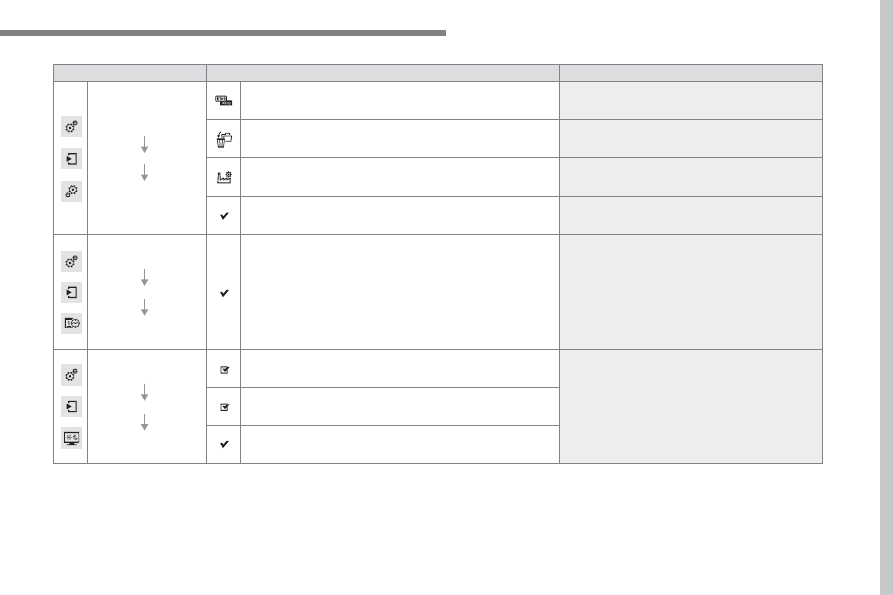
Level 1

Level 2

Comments

Settings

Secondary page

System settings

Units

Set the units used to display distance, fuel 
consumption and temperature.

Delete data

Select the desired data in the list then press 
Delete.

Factory settings

Return to factory settings.

Confirm

Save the settings.

Settings

Secondary page

Time/Date

Confirm

Set the date and time then confirm.

Settings

Secondary page

Screen settings

Activate automatic text scrolling

Activate or deactivate the setting then confirm.

Activate animations

Confirm

Audio and Telematics

320

C4-2_en_Chap10b_SMEGplus_ed02-2015

Choice of language

Calculator

Configuration

Calendar

Level 1

Level 2

.

Audio and Telematics

321

C4-2_en_Chap10b_SMEGplus_ed02-2015

Level 1

Level 2

Comments

Settings

Secondary page

Languages

Confirm

Select the language then confirm.

Settings

Secondary page

Calculator

Select the calculator.

Settings

Secondary page

Calendar

Select the calendar.

Audio and Telematics

322

C4-2_en_Chap10b_SMEGplus_ed02-2015

Audio settings

Press Settings

 to display the primary 

page.

Select "Audio settings

".

Select "Ambience"

Or

"Balance"

Or

"Sound effects"

Or

"Ringtones"

Or

"Voice

".

On-board audio: Arkamys

©

 Sound 

Staging optimises sound distribution in 
the the passenger compartment.

The distribution (or spatialisation using 
the Arkamys

®

 system) of sound is an 

audio process that allows the audio 
quality to be adapted to the number of 
passengers in the vehicle.
Available only with the 6-speaker 
configuration.

The audio settings (AmbienceBass
Treble and Loudness

) are different 

and independent for each sound 
source.
The settings for F-R balance and 
L-R balance

 are common to all 

sources.

- "Ambience

" (choice of 6 musical 

ambiences)

- "Bass"
- "Treble"
- "Loudness

" (Activate/Deactivate)

- "Balance

" ("Driver", "All 

passengers", "Front only

")

- "Audible response from touch 

screen"

- "Volume linked to vehicle 

speed:

" (Activate/Deactivate)

At each change of color scheme the 
system restarts, showing a black 
screen for a few moments.

As a safety measure, the procedure 
for changing the color scheme is only 
possible with the vehicle stationary.

Color schemes

Press on Settings to display the 
primary page.

Select "Color schemes

".

Select the color scheme in the list 
then "Confirm

".

.

Audio and Telematics

323

C4-2_en_Chap10b_SMEGplus_ed02-2015

Press on Settings to display the 
primary page.

Press on "Settings" to display the 
primary page.

Press on Settings to display the 
primary page.

Press on the secondary page.

Press on the secondary page

Press on the secondary page.

Select "System Settings

".

Select "Time/Date

" to change the 

time zone, synchronisation with GPS, 
the time and its format, then the date.

Select "Screen settings

".

Select "Units

" to change the units 

of distance, fuel consumption and 
temperature.

Select "Languages

" to change 

language.

Activate or deactivate "Activate 
automatic text scrolling
" and 
"Activate animations

".

Select "Delete data" to delete the 
list of recent destinations, personal 
points of interest, contacts in the list.

Select "Calculator" to display a 
calculator.

Choose the item then select "Delete".

Select "Calendar" to display a 
calendar.

Select "Factory settings" to return 
to the original settings.

Modifying system settings

Audio and Telematics

324

C4-2_en_Chap10b_SMEGplus_ed02-2015

Connected services

Level 1

Level 2

Level 3

.

Audio and Telematics

325

C4-2_en_Chap10b_SMEGplus_ed02-2015

Internet browser

Authentication for Internet browsing via 
a smartphone is done using the Dial-Up 
Networking (DUN) standard.

Press on "Internet browser" to 
displays the browser's home page; 
first connect your smartphone by 
Bluetooth, option "Internet", see the 
"Telephone

" section.

Some smartphones of the latest 
generation do not support this 
standard.

Press on Connected services to 
display the primary page.

Audio and Telematics

326

C4-2_en_Chap10b_SMEGplus_ed02-2015

Level 1

Level 2

Internet connection settings

Wi-Fi network connection

Bluetooth (devices)

Usage monitor

.

Audio and Telematics

327

C4-2_en_Chap10b_SMEGplus_ed02-2015

Level 1

Level 2

Comments

Connected services

Secondary page

Bluetooth 

connection

Search

Start the search for a device to connect.

Connect / Disconnect

Start or end the Bluetooth connection to the 
selected device.

Update

Import contacts from the selected telephone to 
save them in the audio system.

Delete

Delete the selected telephone.

Confirm

Save the settings.

Connected services

Secondary page

Transfer rate

Reset

Reset the usage monitor, them confirm.

Confirm

Connected services

Secondary page

WiFi connection

All

Display all Wi-Fi networks.

Secure

Display secure Wi-Fi networks.

Stored

Memorise the selected Wi-Fi network(s).

Add

Add a new Wi-Fi network.

Off/ On

Activate or deactivate a Wi-Fi network.

Connect

Select a Wi-Fi network found by the system and 
connect to it.

Audio and Telematics

328

C4-2_en_Chap10b_SMEGplus_ed02-2015

MirrorLink

TM

Applications

Car mode

Optional depending on the 

smartphone and operating system.

.

Audio and Telematics

329

C4-2_en_Chap10b_SMEGplus_ed02-2015

As a safety measure and because it 
requires sustained attention by the 
driver, using a smartphone when 
driving is prohibited.
All operations must be done with the 
vehicle stationary

.

The synchronisation of a 
smartphone allows applications on a 
smartphone that are adapted to the 
MirrorLink

TM

 technology to be displayed 

in the vehicle's screen.
As the principles and standards are 
constantly evolving, it is recommended 
that you update the operating system of 
your smartphone.
For the list of eligible smartphones, 
connect to the brand's internet website 
in your country.

Please note:
-  if your smartphone is supported, to 

make it "MirrorLink

TM

" compatible, 

some phone manufacturers 
nevertheless invite you to first 
download a dedicated application.

When connecting a smartphone to the 
system, it is recommended that Bluetooth

®


be started on the smartphone

Start the application on the 
smartphone (optional, depending 
on the smartphone and operating 
system).

During the procedure, several screen 
pages relating to certain functions 
are displayed.
Accept to start and end the 
connection.

Connect a USB cable. The 
smartphone charges when 
connected by a USB cable.

Press "MirrorLink

TM

" to start 

the application in the system.

Once connection is established, an 
"Applications

" page is displayed with the 

list of applications already downloaded to 
your smartphone and adapted to MirrorLink

TM


technology.
If only one application has been downloaded to 
the smartphone, it starts automatically.

MirrorLink

TM

 smartphone 

connection

Access to the different audio sources remains 
accessible in the margin of the MirrorLink

TM


display, using touch buttons in the upper bar.
Access to the menus for the system is possible 
at any time using the dedicated buttons.

If the smartphone is locked, 
communication with the system is only 
by USB cable.

From the system, press "Connected 
services

" to display the primary 

page.

As a safety measure, applications 
can only be viewed with the vehicle 
stationary; display is interrupted once 
the vehicle is moving.

Voice recognition

Press the end of the lighting control stalk to 
start voice recognition of your smartphone via 
the system.
Voice recognition requires a compatible 
smartphone connected to the vehicle by 
Bluetooth.

Audio and Telematics

330

C4-2_en_Chap10b_SMEGplus_ed02-2015

Level 1

Level 2

Level 3

Connect-App

Connect-App

Controls

Car mode

Car mode

Back

Home

.

Audio and Telematics

331

C4-2_en_Chap10b_SMEGplus_ed02-2015

Level 1

Level 2

Level 3

Comments

Connected 

services

MirrorLink

TM

Connect-App

Car mode

Connect-App

Access or return to the list of applications already 
downloaded to your smartphone and adapted to 
MirrorLink

TM

 technology.

Controls

"Back": abandon the current operation, go up 
one level.
"Home": access or return to the "Car mode" 
page.

Access to the "Connected services" primary 
page.

Audio and Telematics

332

C4-2_en_Chap10b_SMEGplus_ed02-2015

CarPlay

®

.

Audio and Telematics

333

C4-2_en_Chap10b_SMEGplus_ed02-2015

As a safety measure and because it 
requires sustained attention by the 
driver, using a smartphone when 
driving is prohibited.
All operations must be done with the 
vehicle stationary

.

As a safety measure, applications 
can only be viewed with the vehicle 
stationary; display is interrupted once 
the vehicle is moving.

The synchronisation of a 
smartphone allows applications on a 
smartphone that are adapted to the 
CarPlay

®

 technology to be displayed in 

the vehicle's screen.
As the principles and standards are 
constantly evolving, it is recommended 
that you update the operating system of 
your smartphone.
For the list of eligible smartphones, 
connect to the brand's internet website 
in your country.

Press "Telephone" to display the 
CarPlay

® 

interface.

Press on "CarPlay" to display the 
CarPlay

®

 interface.

Connect a USB cable. The 
smartphone charges when 
connected by a USB cable.

Press the end of the lighting control stalk to 
start voice recognition of your smartphone via 
the system.

CarPlay

®

 smartphone 

connection

During the procedure, one or more 
screen pages relating to certain 
functions are displayed on connection.

From the system, press "Connected 
services

" to display the primary 

page.

Connect the USB cable. The 
smartphone is charged while 
connected by the USB cable.

Or

Voice recognition

Audio and Telematics

334

C4-2_en_Chap10b_SMEGplus_ed02-2015

Level 1

Level 2

Level 3


Content   ..  19  20  21  22   ..