Acura ILX (2021 year). Manual in english - page 22
 

  Index      Manuals     Acura ILX (2021 year). Manual in english


Search            copyright infringement  


Content      ..     20      21      22      23     ..


Acura ILX (2021 year). Manual in english - page 22


350

uu

Bluetooth

®

 HandsFreeLink

®

u

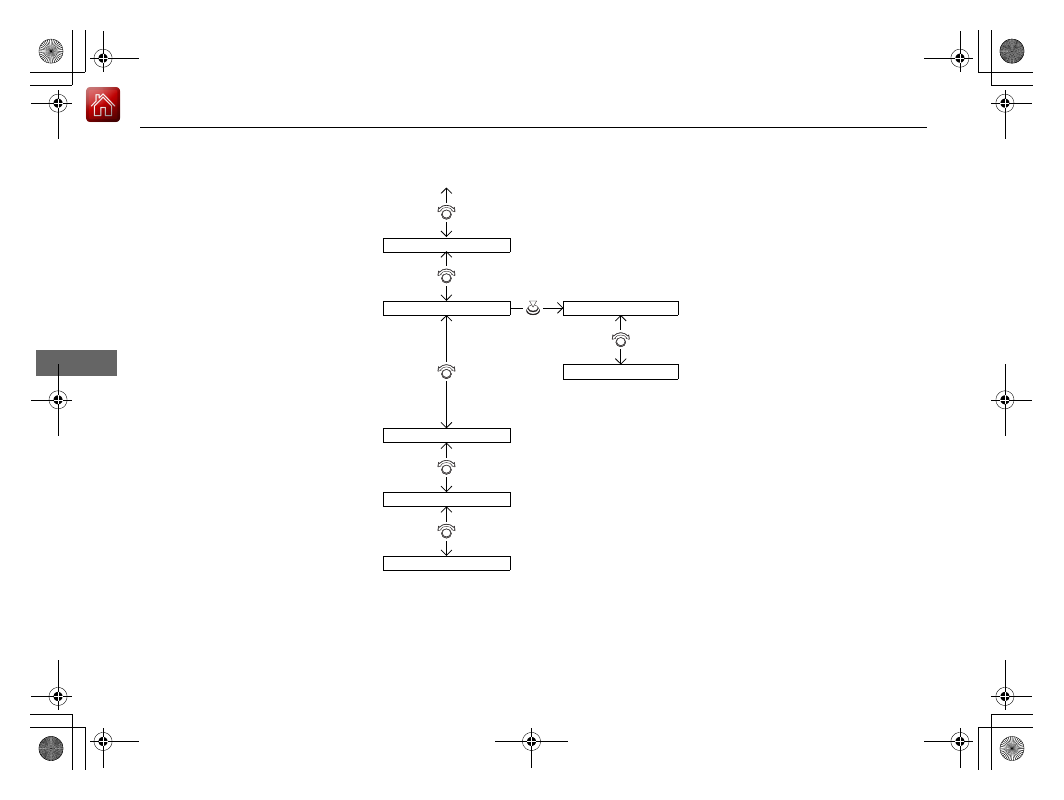
HFL Menus

Features

*1: Appears only when a phone is connected to HFL.

Passcode

*1

Auto Transfer

Caller ID Info

Name Priority

Number Priority

Message Notice

System Clear

Set calls to automatically transfer from your phone to HFL when you 
enter the vehicle.

Prioritize the caller’s name as the 
caller ID.

Prioritize the caller’s phone number as 
the caller ID.

Create a security PIN for a paired phone.

Turn incoming text message notifications on or off.

Clear the system of all paired phones, phonebook entries, and security 
codes.

-------------------------------------------------------------------------------------------------------------------------------------------------------------

Continued

351

uu

Bluetooth

®

 HandsFreeLink

®

u

HFL Menus

Features

To pair a cell phone (when there is no 
phone paired to the system)

1.

Press the 

PHONE

 button or the 

 button.

2.

Rotate 

 to select 

Yes

, then press 

.

3.

Make sure your phone is in search or 
discoverable mode, then press 

.

u

HFL automatically searches for a 
Bluetooth device.

4.

When your phone appears on the list, select 
it by pressing 

.

u

If your phone doesn’t appear, select 

Phone Not Found?

 and search for 

Bluetooth devices using your phone. 
From your phone, select 

HandsFreeLink

.

5.

HFL gives you a four-digit pairing code to 
input on your phone.
When your phone prompts you, input the 
four-digit pairing code.

6.

A notification appears on the screen if 
pairing is successful.

Phone Setup

1

Phone Setup

Your 

Bluetooth

-compatible phone must be paired to 

HFL before you can make and receive hands-free 
calls.

Phone Pairing Tips:

You cannot pair your phone while the vehicle is 
moving.

Up to six phones can be paired.

Your phone's battery may drain faster when it is 
paired to HFL.

If your phone is not ready for pairing or not found 
by the system within three minutes, the system will 
time out and returns to idle.

Once you have paired a phone, you can see it 
displayed on the screen with one or two icons on the 
right side.
These icons indicate the following:

: The phone can be used with HFL.
: The phone is compatible with 

Bluetooth

®

 Audio.

-------------------------------------------------------------------------------------------------------------------------------------------------------------

352

uu

Bluetooth

®

 HandsFreeLink

®

u

HFL Menus

Features

To pair a cell phone (when a phone has 
already been paired to the system)

1.

Press the 

PHONE

 button or the 

 button.

u

If a prompt appears asking to connect to 
a phone, select 

No

 and proceed with 

step 2.

2.

Rotate 

 to select 

Phone Setup

, then 

press .

3.

Rotate 

 to select 

Connection

, then press 

.

4.

Rotate 

 to select 

Add a New Phone

then press 

.

u

The screen changes to 

Select Location

.

5.

Rotate 

 to select 

Empty

, then press 

.

-------------------------------------------------------------------------------------------------------------------------------------------------------------

353

uu

Bluetooth

®

 HandsFreeLink

®

u

HFL Menus

Continued

Features

6.

Make sure your phone is in search or 
discoverable mode, then press 

.

u

HFL automatically searches for a 
Bluetooth device.

7.

When your phone appears on the list, select 
it by pressing 

.

u

If your phone doesn’t appear, select 

Phone Not Found?

 and search for 

Bluetooth devices using your phone. 
From your phone, select 

HandsFreeLink

.

8.

HFL gives you a four-digit pairing code to 
input on your phone.
When your phone prompts you, input the 
four-digit pairing code.

9.

A notification appears on the screen if 
pairing is successful.

-------------------------------------------------------------------------------------------------------------------------------------------------------------

uu

Bluetooth

®

 HandsFreeLink

®

u

HFL Menus

354

Features

To change the pairing code setting

1.

Press the 

PHONE

 button or the 

 button.

2.

Rotate 

 to select 

Phone Setup

, then 

press .

3.

Rotate 

 to select 

Connection

, then press 

.

4.

Rotate 

 to select 

Pairing Code

, then 

press .

5.

Rotate 

 to select 

Fixed

 or 

Random

, then 

press .

1

To change the pairing code setting

The default pairing code is 

0000

 until you change the 

setting.
To create your own, select 

Fixed

, and delete the 

current code, then enter a new one.

For a randomly generated pairing code each time you 
pair a phone, select 

Random

.

-------------------------------------------------------------------------------------------------------------------------------------------------------------

355

uu

Bluetooth

®

 HandsFreeLink

®

u

HFL Menus

Continued

Features

To delete a paired phone

1.

Press the 

PHONE

 button or the 

 button.

2.

Rotate 

 to select 

Phone Setup

, then 

press .

u

Repeat the procedure to select 

Connection

, then 

Delete a Phone

.

3.

Rotate 

 to select a phone you want to 

delete, then press 

.

4.

A confirmation message appears on the 
screen. Rotate 

 to select 

Yes

, then press 

.

u

A notification appears on the screen if it 
is successful.

-------------------------------------------------------------------------------------------------------------------------------------------------------------

uu

Bluetooth

®

 HandsFreeLink

®

u

HFL Menus

356

Features

1.

Press the 

PHONE

 button or the 

 button.

2.

Rotate 

 to select 

Phone Setup

, then 

press .

3.

Rotate 

 to select

 Message Notice

, then 

press .

4.

Rotate 

 to select a mode you want, then 

press .

To Set Up a Text Message Notice Option

1

To Set Up a Text Message Notice Option

On

: A pop-up notification comes on every time you 

receive a new text message.

Off

: The message you receive is stored in the system 

without notification.

-------------------------------------------------------------------------------------------------------------------------------------------------------------

Continued

357

uu

Bluetooth

®

 HandsFreeLink

®

u

HFL Menus

Features

You can protect each of the six cell phones with a security PIN.

1.

Press the 

PHONE

 button or the 

 button.

2.

Rotate 

 to select 

Phone Setup

, then 

press .

u

Repeat the procedure to select 

Passcode

.

3.

Select a phone you want to add a security 
PIN to.

u

Rotate 

 to select a phone you want to 

add a security PIN to, then press 

.

4.

You will receive a confirmation message on 
the screen.

u

Rotate 

 to select 

Yes

, then press 

.

5.

Enter a new four-digit number.

u

Rotate 

 to select, then press 

. Press 

 to delete. Press 

 to enter the 

security PIN.

6.

Re-enter the four-digit number.

u

The screen returns to the screen in step 
2.

To Create a Security PIN

1

To Create a Security PIN

In the phone is already security PIN protected, you 
need to enter the current security PIN before clearing 
the PIN or creating a new one.

-------------------------------------------------------------------------------------------------------------------------------------------------------------

uu

Bluetooth

®

 HandsFreeLink

®

u

HFL Menus

358

Features

If you get into the vehicle while you are on the phone, the call can be automatically 
transferred to HFL.

1.

Press the 

PHONE

 button or the 

 button.

2.

Rotate 

 to select 

Phone Setup

, then 

press .

u

Repeat the procedure to select 

Auto 

Transfer

.

3.

Rotate 

 to select 

On

, then press 

.

4.

A notification appears on the screen if the 
change is successful.

You can select a caller’s information to be displayed when you have an incoming 
call.

1.

Press the 

PHONE

 button or the 

 button.

2.

Rotate 

 to select 

Phone Setup

, then 

press .

u

Repeat the procedure to select 

Caller ID 

Info

.

3.

Rotate 

 to select a mode you want, then 

press .

4.

A notification appears on the screen if the 
change is successful.

Automatic Transferring

Caller’s ID Information

1

Caller’s ID Information

Name Priority mode: A caller’s name is displayed if it 
is stored in the phonebook.
Number Priority mode: A caller’s phone number is 
displayed.

-------------------------------------------------------------------------------------------------------------------------------------------------------------

359

uu

Bluetooth

®

 HandsFreeLink

®

u

HFL Menus

Continued

Features

Security codes, paired phones, all stored voice tags, all speed dial entries, and all 
imported phonebook data are erased.

1.

Press the 

PHONE

 button or the 

 button.

2.

Rotate 

 to select 

Phone Setup

, then 

press .

u

Repeat the procedure to select 

System 

Clear

.

3.

Rotate 

 to select 

Yes

, then press 

.

4.

A notification message appears on the 
screen. Rotate 

 to select 

Yes

, then press 

.

5.

A confirmation message appears on the 
screen. Press 

 to finish.

To Clear the System

-------------------------------------------------------------------------------------------------------------------------------------------------------------

uu

Bluetooth

®

 HandsFreeLink

®

u

HFL Menus

360

Features

When your phone is paired, the contents of its phonebook and call history are 
automatically imported to HFL.

Automatic Import of Cellular Phonebook and Call History

1

Automatic Import of Cellular Phonebook and Call History

When you select a person from the list in the cellular 
phonebook, you can see up to three category icons. 
The icons indicate what types of numbers are stored 
for that name.

On some phones, it may not be possible to import the 
category icons to HFL.

The phonebook is updated after every connection.
Call history is updated after every connection or call.

Pref

Home

Mobile

Work

Pager

Car

Fax

Message

Other

Voice

-------------------------------------------------------------------------------------------------------------------------------------------------------------

Continued

361

uu

Bluetooth

®

 HandsFreeLink

®

u

HFL Menus

Features

Up to 15 speed dial numbers can be stored per phone.

To store a speed dial number:

1.

Press the 

PHONE

 button or the 

 button.

2.

Rotate 

 to select 

Phone Setup

, then 

press .

u

Repeat the procedure to select 

Speed 

Dial

, then 

Add New

.

3.

Rotate 

 to select a place to choose a 

number from, then press 

.

By 

Phonebook

:

u

Select a number from the linked cell 
phone’s imported phonebook.

By 

Call History

:

u

Select a number from the call history.

By 

Phone Number

:

u

Input the number manually.

4.

When the speed dial is successfully stored, 
you are asked to create a voice tag for the 
number. Rotate 

 to select 

Yes

 or 

No

then press 

.

5.

Using the 

 button, follow the prompts to 

say the name for the speed dial entry.

Speed Dial

1

Speed Dial

You can use the audio preset buttons during a call to 
store a speed dial number:
1. Press and hold the desired audio preset button 

during a call.

2. The contact information for the active call will be 

stored for the corresponding speed dial.

When a voice tag is stored, press the 

 button to 

call the number using the voice tag.

-------------------------------------------------------------------------------------------------------------------------------------------------------------

uu

Bluetooth

®

 HandsFreeLink

®

u

HFL Menus

362

Features

To add a voice tag to a stored speed 
dial number

1.

Press the 

PHONE

 button or the 

 button.

2.

Rotate 

 to select 

Phone Setup

, then 

press .

u

Repeat the procedure to select 

Speed 

Dial

.

3.

Select an existing speed dial entry.

4.

Rotate 

 to select 

Store Voice Tag

, then 

press .

5.

Using the 

 button, follow the prompts to 

complete the voice tag.

To delete a voice tag

1.

Press the 

PHONE

 button or the 

 button.

2.

Rotate 

 to select 

Phone Setup

, then 

press .

u

Repeat the procedure to select 

Speed 

Dial

.

3.

Select an existing speed dial entry.

4.

Rotate 

 to select 

Delete Voice Tag

then press 

.

u

A confirmation message appears on the 
screen. Rotate 

 to select 

Yes

, then 

press .

1

Speed Dial

Avoid using duplicate voice tag.
Avoid using “home” as a voice tag.
It is easier for HFL to recognize a longer name. For 
example, use “John Smith” instead of “John.”

-------------------------------------------------------------------------------------------------------------------------------------------------------------

Continued

363

uu

Bluetooth

®

 HandsFreeLink

®

u

HFL Menus

Features

To delete a speed dial number

1.

Press the 

PHONE

 button or the 

 button.

2.

Rotate 

 to select 

Phone Setup

, then 

press .

u

Repeat the procedure to select 

Speed 

Dial

.

3.

Select an existing speed dial entry.

4.

Rotate 

 to select 

Delete Speed Dial

then press 

.

u

A confirmation message appears on the 
screen. Rotate 

 to select 

Yes

, then 

press .

You can make calls by inputting any phone number, or by using the imported 
phonebook, call history, speed dial entries, or redial.

Making a Call

1

Making a Call

Voice-tagged speed dial entries can be dialed by 
voice from any screen.
Press the 

 button and follow the prompts.

The maximum range between your phone and 
vehicles is 30 feet (10 meters).

Once a call is connected, you can hear the voice of 
the person you are calling through the audio 
speakers.

-------------------------------------------------------------------------------------------------------------------------------------------------------------

uu

Bluetooth

®

 HandsFreeLink

®

u

HFL Menus

364

Features

To make a call using the imported 
phonebook

When your phone is paired, the contents of its 
phonebook are automatically imported to 
HFL.

1.

Press the 

PHONE

 button or the 

 button.

2.

Rotate 

 to select 

Phonebook

, then press 

.

3.

The phonebook is stored alphabetically. 
Rotate 

 to select the initial, then press 

.

4.

Rotate 

 to select a name, then press 

.

5.

Rotate 

 to select a number, then press 

.

u

Dialing starts automatically.

To make a call using a phone number

1.

Press the 

PHONE

 button or the 

 button.

2.

Rotate 

 to select 

Dial

, then press 

.

3.

Rotate 

 to select a number, then press 

.

4.

Rotate 

 to select 

, then press 

.

u

Dialing starts automatically.

1

To make a call using the imported phonebook

This function is disabled while the vehicle is moving. 
However, you can call a stored speed dial number 
with a voice tag using voice commands.

2

Limitations for Manual Operation

 P. 345

2

Speed Dial

 P. 361

1

To make a call using a phone number

This function is disabled while the vehicle is moving. 
However, you can call a stored speed dial number 
with a voice tag using voice commands.

2

Limitations for Manual Operation

 P. 345

2

Speed Dial

 P. 361

-------------------------------------------------------------------------------------------------------------------------------------------------------------

Continued

365

uu

Bluetooth

®

 HandsFreeLink

®

u

HFL Menus

Features

To make a call using redial

1.

Press the 

PHONE

 button or the 

 button.

2.

Rotate 

 to select 

Redial

, then press 

.

u

Dialing starts automatically.

To make a call using the call history

Call history is stored by 

Dialed Calls

Received Calls

, and 

Missed Calls

.

1.

Press the 

PHONE

 button or the 

 button.

2.

Rotate  

to 

select 

Call History

, then press 

.

3.

Rotate 

 to select 

Dialed Calls

Received 

Calls

, or 

Missed Calls

, then press 

.

4.

Rotate 

 to select a number, then press 

.

u

Dialing starts automatically.

To make a call using a speed dial entry

1.

Press the 

PHONE

 button or the 

 button.

2.

Rotate 

 to select 

Speed Dial

, then press 

.

3.

Rotate 

 to select a number, then press 

.

u

Dialing starts automatically.

1

To make a call using the call history

The call history displays the last 20 dialed, received, or 
missed calls.
(Appears only when a phone is connected to HFL.)

1

To make a call using a speed dial entry

On the 

Phone

 screen, the first six speed dials on the 

list can be directly selected by pressing the 
corresponding audio preset buttons (1-6).

Select 

More Speed Dial Lists

 to view another paired 

phone’s speed dial list.

When a voice tag is stored, press the 

 button to 

call the number using the voice tag.

2

Speed Dial

 P. 361

Any voice-tagged speed dial entry can be dialed by 
voice from any screen.
Press the 

 button and follow the prompts.

-------------------------------------------------------------------------------------------------------------------------------------------------------------


Content      ..     20      21      22      23     ..