Acura MDX (2020 year). Manual in english - page 27
 

  Index      Manuals     Acura MDX (2020 year). Manual in english


Search            copyright infringement  


Content      ..     25      26      27      28     ..


Acura MDX (2020 year). Manual in english - page 27


Continued

429

uu

Bluetooth

®

 HandsFreeLink

®

u

HFL Menus

Features

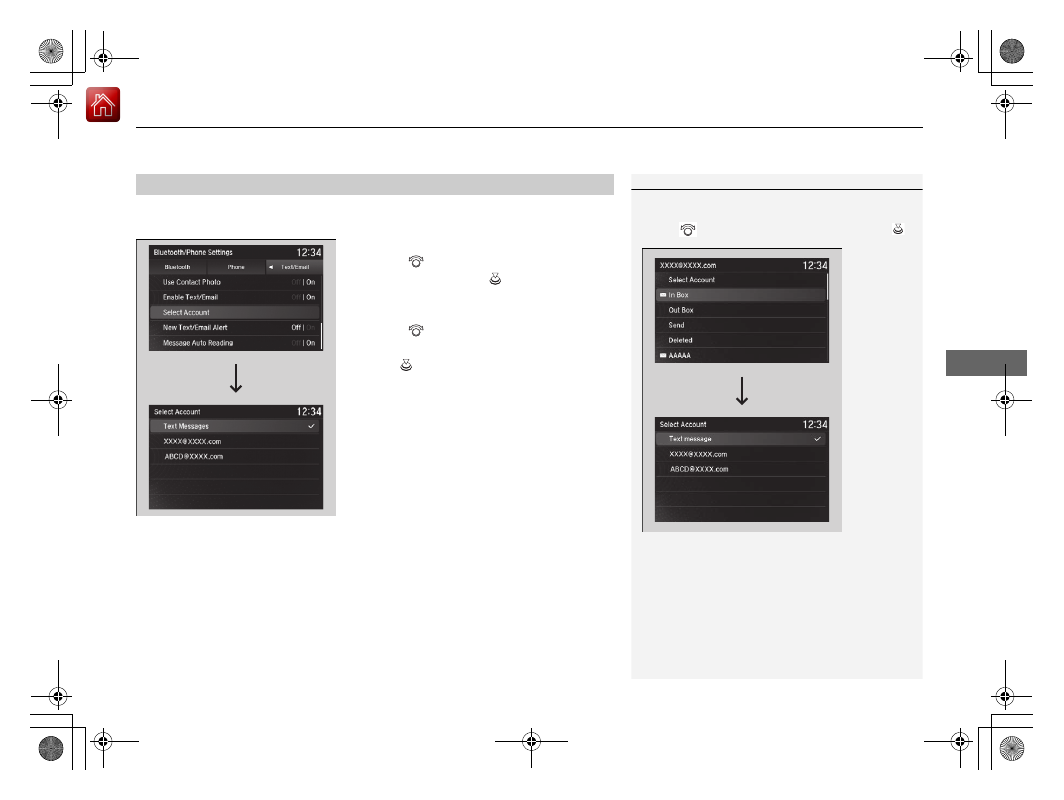
If a paired phone has text or e-mail message accounts, you can select one of them 
to be active and receive notifications.

1.

Press the 

SETTINGS

 button.

2.

Rotate 

 to select 

Bluetooth/Phone 

Settings

, then press 

.

u

Repeat the procedure to select 

Select 

Account

.

3.

Rotate 

 to select 

Text Messages

 or an 

e-mail message account you want, then 
press .

Selecting a Text/E-mail Message Account

1

Selecting a Text/E-mail Message Account

You can also select an e-mail message account from 
the folder list screen or the message list screen.
Rotate 

 to select 

Select Account

, then press 

.

You can only receive notifications from one text or e-
mail message account at a time.

-------------------------------------------------------------------------------------------------------------------------------------------------------------

uu

Bluetooth

®

 HandsFreeLink

®

u

HFL Menus

430

Features

Displaying text messages

1.

Press the 

PHONE

 button.

2.

Rotate 

 to select 

Text/Email

, then press 

.

u

Select account if necessary.

3.

Rotate 

 to select a message, then press 

.

u

The text message is displayed. The 
system automatically starts reading the 
message aloud.

4.

Rotate 

 to select 

View Full Message

.

5.

Press 

 to display the full text of the 

message.

Displaying Messages

1

Displaying Messages

The 

 icon appears next to an unread message.

If you delete a message on the phone, the message 
will also be deleted from the system. If you send a 
message from the system, the message goes to your 
phone’s outbox.

To see the previous or next message, move 

 or 


on the text message screen.

Message List

Text Message

-------------------------------------------------------------------------------------------------------------------------------------------------------------

Continued

431

uu

Bluetooth

®

 HandsFreeLink

®

u

HFL Menus

Features

Displaying e-mail messages

1.

Press the 

PHONE

 button.

2.

Rotate 

 to select 

Text/Email

, then press 

.

3.

Rotate 

 to select a folder, then press 

.

4.

Rotate 

 to select a message, then press 

.

u

The e-mail message is displayed. The 
system automatically starts reading the 
message aloud.

5.

Rotate 

 to select 

View Full Message

.

6.

Press 

 to display the full text of the 

message.

1

Displaying e-mail messages

Received text and e-mail messages may appear in the 
message list screen at the same time. In this case, text 
messages are titled 

No Subject

.

Folder List

Message List

E-mail 
Message

-------------------------------------------------------------------------------------------------------------------------------------------------------------

uu

Bluetooth

®

 HandsFreeLink

®

u

HFL Menus

432

Features

Read or stop reading a message

1.

Go to the text or e-mail message screen.

u

The system automatically starts reading 
the message aloud.

2

Displaying Messages

 P. 430

2.

Rotate 

 to select 

Stop Reading 

Messages

.

3.

Press 

 to stop reading.

Press 

 again to start reading the message 

from the beginning.

Reply to a message

1.

Go to the text or e-mail message screen.

u

The system automatically starts reading 
the message aloud.

2

Displaying Messages

 P. 430

2.

Rotate 

 to select 

Reply

, then press 

.

3.

Rotate 

 to select the reply message, then 

press .

u

Message sent

 appears on the screen 

when the reply message was successfully 
sent.

1

Reply to a message

The available fixed reply messages are as follows:

Talk to you later, I’m driving.

I’m on my way.

I’m running late.

OK

Yes

No

You cannot add, edit, or delete reply messages.

Only certain phones receive and send messages when 
paired and connected. For a list of compatible 
phones:

U.S.: Visit 

www.handsfreelink.com/Acura

, or call 1-

888-528-7876.

Canada: For more information on smartphone 
compatibility, call 1-855-490-7351.

-------------------------------------------------------------------------------------------------------------------------------------------------------------

433

uu

Bluetooth

®

 HandsFreeLink

®

u

HFL Menus

Continued

Features

Making a call to a sender

1.

Go to the text message screen.

u

The system automatically starts reading 
the message aloud.

2

Displaying text messages

 P. 430

2.

Rotate 

 to select 

Call

, then press 

.

-------------------------------------------------------------------------------------------------------------------------------------------------------------

uu

Bluetooth

®

 HandsFreeLink

®

u

HFL Menus

434

Features

Provides a nationwide service for unexpected incidents. You can call for assistance 
using a phone paired and connected to 

Bluetooth

®

 HandsFreeLink

®

.

1.

Press the 

PHONE

 button.

2.

Rotate 

 to select 

Roadside Assistance

then press 

.

3.

Rotate 

 to select a phone number, then 

press .

u

Dialing starts automatically.

Roadside Assistance

*

1

Roadside Assistance

*

If you are subscribed to a paid AcuraLink package, 
you can call roadside assistance using the 

LINK


button instead of your phone.

2

AcuraLink

®

*

 P. 435

* Not available on all models

-------------------------------------------------------------------------------------------------------------------------------------------------------------

435

Continued

Features

AcuraLink

®

*

Is a subscription-based service that provides convenient features such as voice 
communication in case of emergency, online security, one-on-one operator 
assistance, and the transmission of important messages regarding your vehicle’s 
status.

For information on traffic rerouting and traffic information updates, provided by the 
AcuraLink server, see the Navigation System Manual.

Automatic collision notification

If your vehicle’s airbags deploy or if the unit 
detects that the vehicle is severely impacted, 
your vehicle will automatically attempt to 
connect to the AcuraLink operator. Once 
connected, information about your vehicle, its 
positioning, and its condition will be sent to 
the operator; you also can speak to the 
operator when connected.

In Case of Emergency

1

AcuraLink

®

*

AcuraLink also provides services you can operate 
from the Internet or your smartphone.

To subscribe to AcuraLink, or to get more 
information about all of its features, contact an Acura 
dealer, or visit 

owners.acura.com

 (U.S.) or 

www.acura.ca/owners/acuralink

 (Canada).

Canadian models

1

In Case of Emergency

Your vehicle may not be able to connect to the operator 
if the battery level is low, the line is disconnected, or you 
do not have adequate cellular coverage.

You cannot use emergency services when:

You travel outside the AcuraLink service coverage 
areas.

There is a problem with the connecting devices, 
such as the 

ASSIST

 button, microphone, speakers, 

or the unit itself.

You are not subscribed to the service or your 
subscription is no longer valid.

You cannot operate other navigation or phone 
related functions using the screens while talking to 
the operator.
Only the operator can terminate the connection to 
your vehicle.

1

Automatic collision notification

If the unit fails to connect to the operator, it 
repeatedly tries until it succeeds.

Information screen

On Demand Multi-Use Display

TM

When connected to the AcuraLink 
operator:

* Not available on all models

-------------------------------------------------------------------------------------------------------------------------------------------------------------

uu

AcuraLink

®

*

u

436

Features

Manual operator connection

If you need to talk to the AcuraLink operator 
in an emergency situation, you can manually 
connect to them by pressing the 

ASSIST


button with the power mode in ACCESSORY 
or ON.

1.

Open the cover attached to the ceiling 
console.

2.

Press the 

ASSIST

 button.

u

You are connected to the AcuraLink 
operator.

1

Manual operator connection

Do not press the button while driving. When you 
need to contact the operator, park the vehicle in a 
safe place.

If the unit fails to connect to the operator, it 
automatically cancels the action after three minutes.

In an emergency, the cover can be broken through to 
press the 

ASSIST

 button.

ASSIST

 Button

-------------------------------------------------------------------------------------------------------------------------------------------------------------

Continued

437

uu

AcuraLink

®

*

u

Features

Your subscribed telematics service provider can track your vehicle’s location, 
remotely lock or unlock doors, and help you find your vehicle.
To use these features, you need your user ID and personal identification number 
(PIN).

Stolen vehicle tracking

This feature searches and tracks down your vehicle position even if it is on the move. 
If you believe that your vehicle has been stolen, contact the police as well as the 
provider.

Remote door lock/unlock

The provider can remotely lock or unlock doors upon your request.

Vehicle finder

This feature is convenient to use when trying to locate your vehicle in large areas, 
such as a crowded parking lot. If you cannot locate your vehicle after using the 
remote transmitter’s answerback function, you can contact the provider which can 
then flash your vehicle’s exterior lights and sound the horn.

Security alarm notification

If the security system in your vehicle detects an abnormal condition, such as 
someone tampering with the lock on your vehicle, the provider notifies you by your 
preferred method.

Security Features

1

Security Features

The contact information of your provider, your user 
ID and PIN will be given when you subscribe to 
AcuraLink. If you forget any of the above, contact a 
dealer, or visit 

owners.acura.com

 (U.S.) or 

www.acura.ca/owners/acuralink

 (Canada).

You can also activate the remote door lock/unlock 
and vehicle finder features from the Internet or using 
your smartphone app. Ask a dealer, or visit 

owners.acura.com

 (U.S.) or 

www.acura.ca/owners/

acuralink

 (Canada) for details.

1

Vehicle finder

The lights will stop flashing and horn will stop 
sounding under the following conditions:

When 30 seconds have elapsed.

You unlock the doors using the remote transmitter.

You unlock the doors using the keyless access 
system.

You unlock the doors using the built-in key.

The power mode is set to ACCESSORY or ON.

-------------------------------------------------------------------------------------------------------------------------------------------------------------

uu

AcuraLink

®

*

u

438

Features

Connect to the AcuraLink operator when trying to find a destination or for roadside 
assistance.

1.

Press the 

LINK

 button.

u

Connection to the operator begins.

2.

Talk to the operator.

u

To disconnect, select 

End Call

 or press 

the 

 (Hang-up/back) button on the 

steering wheel.

Operator Assistance

1

Operator Assistance

Remain attentive to road conditions and driving 
during operator assistance.

LINK

 Button

-------------------------------------------------------------------------------------------------------------------------------------------------------------

Continued

439

uu

AcuraLink

®

*

u

Features

AcuraLink sends you messages on vehicle 
features, safety and emissions recall 
campaigns, maintenance reminders, and 
diagnostic information.
When you receive a new message, an icon 
appears on the information screen.

Message category

There are six message categories.

Feature Guide

: Appears for the first 30 days of ownership, introducing vehicle 

features each day.

Quick Tips

information.

Diagnostic Information

: Appears when a warning indicator or message comes 

on.
Rotate 

 to select 

Check Later

 or 

Check Now

.

u

Selecting 

Check Now

 lets you know if you should see a dealer immediately or 

later in accordance with the warning severity level.

Scheduled Dealer Appointment

: An appointment made through the Acura 

server or Acura Owners website can be rescheduled or canceled from this option. 

2

 P. 441

Maintenance Minder

: Lets you know which maintenance item is due along with 

a reminder message.

Recalls/Campaigns

: Reminds you of a recall or important safety information. 

You should also be notified by mail.

AcuraLink Message

1

AcuraLink Message

Messages may not appear immediately after your 
vehicle purchase. It can take several days for your 
dealer to register your vehicle’s ID.

If an icon includes an exclamation point, it indicates 
that Acura gives high priority to this message 
compared to the one without.

: An unread message with high priority

: An unread message

Message Icon

1

Message category

Message categories can be added, edited, or deleted 
through broadcast messages from Acura.

You can call your dealer, find the nearest dealer, or 
schedule appointments from the message options in 

Maintenance Minder

Recalls/Campaigns

, and 

Diagnostic Information

.

2

Message Options

 P. 440

-------------------------------------------------------------------------------------------------------------------------------------------------------------

uu

AcuraLink

®

*

u

440

Features

Reading a message

1.

Press the 

INFO

 button or press 

, follow 

the message on the information screen.

2.

Rotate  

to 

select 

AcuraLink/Messages

then press 

.

u

AcuraLink messages appears.

3.

Rotate 

 to select a category, then press 

.

u

If there are unread messages in a 
category, a message icon appears next to 
that category.

4.

Rotate 

 to select a message you want to 

read, then press 

.

Message Options

While a message is displayed, you can use options to take immediate action to the 
message.
Available options are:

Read Messages Aloud

: Reads the message aloud. Select 

Stop Reading 

Messages

 to cancel it.

View Full Message

: Displays the entire message.

Phone number

: Dials a number displayed in the message via HFL.

Delete

: Deletes the displayed message.

Call Your Dealer

: Calls your Acura dealer using HFL.

Find Acura Dealer

: Searches for the nearest Acura dealer.

Roadside Assistance

: Makes a call to the number for the Roadside Assistance 

service.

Schedule Dealer Appoi…

: Automatically sets an appointment date at your 

dealer.

1

Reading a message

If there is no message listed on the menu, each 
category items are grayed out and cannot be 
selected.

The message icon disappears once you read the 
message.

However, the exclamation mark that indicates that 
the message has a high priority remains.

: A read message with high priority.

1

Message Options

The available options vary by message category.

You can delete all messages in a category at once.

2

Customized Features

 P. 358

-------------------------------------------------------------------------------------------------------------------------------------------------------------

Continued

441

uu

AcuraLink

®

*

u

Features

Dealer Appointments

You can confirm the scheduled appointment date when you receive a 

Maintenance Minder

Recalls/Campaigns

, or 

Diagnostic Information


message, or reschedule any existing appointments.

1.

Select a 

Maintenance Minder

Recalls/Campaigns

Diagnostic Information

or 

Scheduled Dealer Appointment

 message.

2.

Rotate 

 to select 

Schedule Dealer Appoi…

 or 

Reschedule Appoint…


(depending on the screen). Press 

.

u

A suggested time and date are displayed.

3.

Rotate 

 to select 

Confirm Appointment

. Press 

 to accept the time and 

date.

4.

Press 

 to select 

OK

.

1

Dealer Appointments

To set up an automated dealer appointment when a 
regular maintenance is due, visit the Acura Owners 
website at 

owners.acura.com

 (U.S.) or 

www.acura.ca/owners/acuralink

 (Canada), and set 

the required option. A reminder message will be sent 
as the date for the dealer appointment approaches. A 
reminder message will also be sent if you schedule an 
appointment online using Schedule Service 
Appointment function.

If you are not satisfied with the proposed 
appointment date and time, call your dealer directly.

To cancel the scheduled appointment, select 

Cancel 

Appointment

 when a message is displayed.

-------------------------------------------------------------------------------------------------------------------------------------------------------------

442

uu

AcuraLink

®

*

u

Features

You can confirm your AcuraLink subscription status.

1.

Press the 

SETTINGS

 button.

2.

Rotate 

 to select 

AcuraLink Settings

then press 

.

u

Repeat the procedure to select 

AcuraLink Subscription Status

.

AcuraLink Subscription Status

Signal Strength

Item

Information

You can check the signal strength.

Current Contract

The AcuraLink subscription number and subscription level is 
displayed.

Service

You can confirm the type of service.

Subscription

You can confirm the expiration date.

Status

The following message can be displayed:

Check Antenna

: There is a problem with the AcuraLink 

antenna. Contact a dealer.

No Signal

: Signal is not received.

No data

: The signal is received, but some error has occurred 

in the system.

OK

: The system is receiving the signal or traffic data

*

.

* Not available on all models

-------------------------------------------------------------------------------------------------------------------------------------------------------------

443

Features

Compass

*

When you set the power mode to ON, the compass self-calibrates, and the compass 
display appears.

Compass Calibration

If the compass indicates the wrong direction, or the 

CAL

 indicator blinks, you need 

to manually calibrate the system.

1.

Set the power mode to ON.

2.

On the top screen of any source, press and hold 

 for five seconds.

u

The display switches to the 

Compass Settings

 screen.

3.

Rotate 

 to select 

Calibration

, then press 

.

4.

When the display changes to 

Calibration Start

, press 

.

5.

Drive the vehicle slowly in two circles.

u

The compass starts to show a direction after the calibration. The 

CAL

 indicator 

goes off.

1

Compass

*

Compass operation can be affected under the 
following conditions:

Driving near power lines or stations

Crossing a bridge

Passing a large vehicle, or driving near a large 
object that can cause a magnetic disturbance

When accessories such as antennas and roof racks 
are mounted by magnets

1

Compass Calibration

Calibrate the compass in an open area.

While setting the compass, press the 

BACK

 button to 

cancel the setting mode and return to the previous 
screen.

Models with navigation self-calibrate using GPS. The 
compass in the MID and the direction arrow on the 
map screen (when Heading-Up view selected) may 
not be in sync when first starting the vehicle, but 
should correct themselves as you drive.
If the compass in the MID continues to indicate an 
incorrect direction, please see your Acura dealer.

Models with navigation system

* Not available on all models

-------------------------------------------------------------------------------------------------------------------------------------------------------------

444

uu

Compass

*

u

Compass Zone Selection

Features

Compass Zone Selection

1.

Set the power mode to ON.

2.

On the top screen of any source, press and hold 

 for five seconds.

u

The display switches to the 

Compass Settings

 screen.

3.

Rotate  

to 

select 

Zone Adjust

, then press 

.

u

The display shows the current zone number the system is set to.

4.

To change the zone, rotate 

 to select the zone number of your area (See Zone 

Map), then press 

.

2

3

4

5

6

7 8

9

10 11

12

13

14

15

Zone Map

Guam Island: Zone 8

Puerto Rico: Zone 11

1

Compass Zone Selection

The zone selection is done to compensate the 
variation between magnetic north and true north.

If the calibration starts while the audio system is in 
use, the display returns to normal after the calibration 
is completed.

-------------------------------------------------------------------------------------------------------------------------------------------------------------


Content      ..     25      26      27      28     ..