Acura MDX (2020 year). Manual in english - page 22
 

  Index      Manuals     Acura MDX (2020 year). Manual in english


Search            copyright infringement  


Content      ..     20      21      22      23     ..


Acura MDX (2020 year). Manual in english - page 22


Continued

349

uu

Rear Entertainment System (RES)

*

u

Rear Control Panel Operation

Features

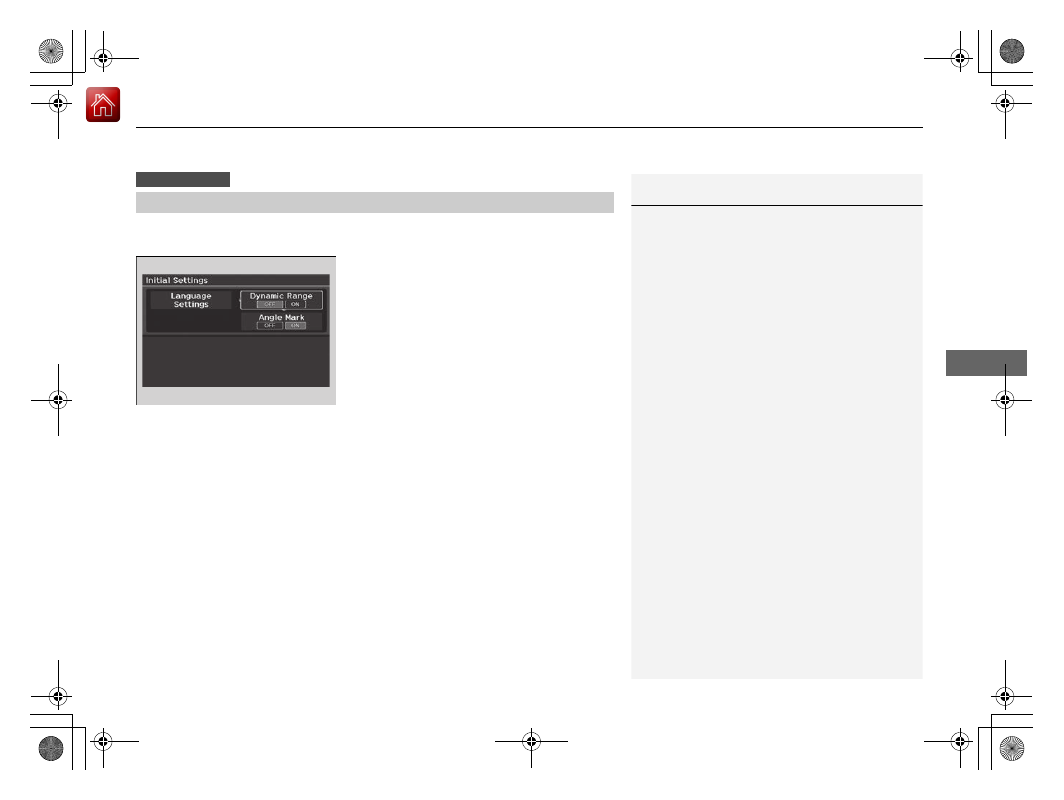
Set the DVD default settings so that you do not have to select the settings each time 
you play a DVD.

1.

Press the 

MENU

 button (in DVD mode).

2.

Select 

Initial Settings

. Press the 

ENTER


button.

3.

Select an item. Press the 

ENTER

 button.

4.

Select an option. Press the 

ENTER

 button.

The following items are available:

Language Settings

: Selects a menu language of the DVD (top) menu.

2

Selecting the DVD menu language

 P. 350

Dynamic Range

: Sets whether to control the range of the loud and low sounds.

On

: Adjusts the dynamic range to easily hear the low sound.

Off

 (factory default): Disables the feature.

Angle Mark

: Sets whether to display the angle symbol.

On

: Displays the angle symbol when playing the multiple angle scenes.

Off

 (factory default): Disables the feature.

DVD Initial Settings

Models with RES

1

DVD Initial Settings

Each item can be selected when DVD playback is 
stopped.

-------------------------------------------------------------------------------------------------------------------------------------------------------------

uu

Rear Entertainment System (RES)

*

u

Rear Control Panel Operation

350

Features

Selecting the DVD menu language

1.

Press the 

MENU

 button (in DVD mode).

2.

Select 

Initial Settings

. Press the 

ENTER


button.

3.

Select 

Language Settings

. Press the 

ENTER

 button.

4.

Select an item. Press the 

ENTER

 button.

5.

Select a language. Press the 

ENTER

 button.

Select between the two screen modes, single or dual.

2

Rear Control Panel Operation

 P. 340

Single mode

The selected source is displayed in the center of the screen.

Dual mode

Two separate screens are displayed side by side. You can only select one output 
source from the front audio system. The other source must come from “

REAR AUX 

Video

” or “

REAR AUX HDMI

”.

1

Selecting the DVD menu language

When you select 

Other

, enter a 4-digit language 

code.

Dual Screen Mode

Models with ultrawide RES

-------------------------------------------------------------------------------------------------------------------------------------------------------------

351

uu

Rear Entertainment System (RES)

*

u

Rear Control Panel Operation

Features

Single mode to dual mode

Dual mode to single mode

DVD

Press the 

DUAL


button.

Select the side 
(e.g., “

Left

”).

Select a source 
(e.g., “

REAR 

AUX Video

”).

DVD

REAR AUX Video

Press the 

SWAP


button.

REAR AUX Video

DVD

DVD

REAR AUX Video

Press the 

SINGLE

 button.

Select a source 
(e.g., “

DVD

”).

DVD

-------------------------------------------------------------------------------------------------------------------------------------------------------------

352

uu

Rear Entertainment System (RES)

*

u

Front Control Panel Operation

Features

Front Control Panel Operation

Operate the Rear Entertainment System (RES) from the On Demand Multi-Use 
Display

TM

.

1.

Press the 

REAR


 (power) button on the 

front control panel.

2.

Select 

Front

/

Rear

 to switch 

Rear

 mode.

3.

Select 

Source

.

u

The rear source is displayed on the On 
Demand Multi-Use Display

TM

.

4.

Select the audio source on the On Demand 
Multi-Use Display

TM

.

u

The rear source is heard from the front 
speakers.

5.

Select a station, channel, track, or chapter 
in the same way as the front audio system.

2

Selecting an Audio Source

 P. 240

Selecting the Audio Source using Front Control Panel

-------------------------------------------------------------------------------------------------------------------------------------------------------------

353

uu

Rear Entertainment System (RES)

*

u

Front Control Panel Operation

Continued

Features

Operating the DVD Rear Entertainment System

Source

Select to change an audio source.

Front/Rear

Select to change between the front 
side audio source selection and 
rear side audio source selection.

VOL/

 (Volume/Power) Knob

Press to turn the audio system 
on and off.
Turn to adjust the volume.

 (Information) Icon

Select to display the current DVD 
details.
Select 

 to display the previous 

screen.

Repeat Icon

Select to repeat the current chapter 
or title.

Play/Pause Icon

Select to pause or play a DVD.

Stop Icon

Select to stop the playback.

Title Up/Down Icons

Select 

 or 

 to skip to the next 

title, and to skip to the beginning 
of the previous title.

Audio Menu

Select to display the menu items.

Top Menu

Select to display the top page of 
the DVD’s title menu.

Menu

Select to display the menu.

Advanced

Select to display the DVD 
setting menu.

Chapter Up/Down Icons

Select 

 or 

 to change 

chapters.
Select and hold to fast forward 
and reverse.

On Demand Multi-Use Display

TM

-------------------------------------------------------------------------------------------------------------------------------------------------------------

uu

Rear Entertainment System (RES)

*

u

Front Control Panel Operation

354

Features

1.

Select 

Audio Menu

.

2.

Select 

Audio Settings

.

3.

Select 

DVD

.

The following items are available:

DVD Auto Play

: Turns the auto play feature on or off.

Audio Language

: Selects a language for the audio that is available on the DVD.

Subtitle Language

: Selects a language for the subtitle that is available on the 

DVD.

Menu Language

: Selects a language for the DVD menu that is available on the 

DVD.

Dynamic Range

: Sets whether to control the range of the loud and low sounds.

DVD Setup

1

Operating the DVD Rear Entertainment System

Play Mode Menu Item

Repeat

(repeat off): Repeat mode to off.

(repeat chapter): Repeats the current 
chapter.

(repeat title): Repeats the current title.

-------------------------------------------------------------------------------------------------------------------------------------------------------------

355

uu

Rear Entertainment System (RES)

*

u

Front Control Panel Operation

Continued

Features

Select 

Advanced

.

The following items are available:

Audio/Subtitle

: Selects the language of the DVD audio and the DVD subtitle.

Angle

: Selects the angle of a scene shot with multiple cameras.

Number Input

: Enters a number of a title or chapter to skip.

Return

: Return to the previous screen.

Search

: Skips to a title or chapter.

Setting the DVD Menu

-------------------------------------------------------------------------------------------------------------------------------------------------------------

356

uu

Rear Entertainment System (RES)

*

u

Front Control Panel Operation

Features

1.

Select 

Audio Menu

.

2.

Select 

RES Settings

.

The following items are available:

Rear Control

: Sets whether to use the rear control panel to control the RES. 

When setting is set to 

On

, operates the RES using the rear control panel.

Rear Speaker

: Sets the front audio source to play through the rear speakers, 

even when the RES is on. The RES source can only be heard through the wireless 
headphones. When setting is set to 

On

, outputs the sound of the front source to 

the rear speakers.

Single/Dual Screen Mode

*

: Selects a source to continue playing when you 

switch from dual mode to single mode on the overhead screen.

Rear System Setup

* Not available on all models

-------------------------------------------------------------------------------------------------------------------------------------------------------------

357

uu

Rear Entertainment System (RES)

*

u

Playable Discs

Features

Playable Discs

The discs that come with these labels can be played in your vehicle’s rear 
entertainment system.

Also look for the region code of 1 or ALL on the package or jacket on the disc.

DVD-ROMs are not playable in this unit.

1

Playable Discs

This product incorporates copyright protection 
technology that is protected by U.S. patents and 
other intellectual property rights.

Use of this copyright protection technology must be 
authorized by Rovi Corporation, and is intended for 
home and other limited viewing uses only unless 
otherwise authorized by Rovi Corporation. Reverse 
engineering and disassembly are prohibited.

For DTS patents, see 

http://patents.dts.com

Manufactured under license from DTS Licensing 
Limited. DTS, the Symbol, & DTS and the Symbol 
together are registered trademarks, and DTS Digital 
Surround and Neural Surround are trademarks of 
DTS, Inc. © DTS, Inc. All Rights Reserved.

Manufactured under license from Dolby Laboratories. 
Dolby, Pro Logic, MLP Lossless and the double-D 
symbol are trademarks of Dolby Laboratories.

The disc packages or jackets should have one of these marks.

Also includes:

-------------------------------------------------------------------------------------------------------------------------------------------------------------

358

Features

Customized Features

Use the information screen and On Demand Multi-Use Display

TM

 to customize 

certain features.

How to customize

Select your desired setting item by pressing the 

SETTINGS

 button, then rotating 


while the power mode is ON and the vehicle is at a complete stop. Press 

.

1

Customized Features

When you customize settings, make sure that the 
vehicle is at a complete stop and transmission is put 
into 

(

P

.

To customize other features, rotate 

, move 

,  , 

 or  , and press 

.

2

List of customizable options

 P. 365

Information Screen

1

How to customize

The following settings can be customized on the On 
Demand Multi-Use Display

TM

.

Edit Source Order

Sound Settings

Edit/Delete HDD Music

*

Audio Settings

Screen Settings

RES Settings

*

2

How to customize

 P. 381

Information Screen

Information Screen

SETTINGS

 Button

* Not available on all models

-------------------------------------------------------------------------------------------------------------------------------------------------------------

359

uu

Customized Features

u

Continued

Features

Customization flow

Information Screen

Press the 

SETTINGS

 button.


Bluetooth

Bluetooth

Bluetooth Device List

Edit Speed Dial

Auto Transfer

Auto Answer

Ring Tone

Automatic Phone Sync

Use Contact Photo

Enable Text/Email

Select Account

New Text/Email Alert


Text/Email


Message Auto Reading

*

Default

Edit Pairing Code

Phone


Bluetooth/

Phone 

Settings


See the Navigation System Manual.


Navigation 

Settings

*

* Not available on all models

-------------------------------------------------------------------------------------------------------------------------------------------------------------

360

uu

Customized Features

u

Features


Camera 

Settings

Fixed Guideline


Dynamic Guideline


Fixed Guideline

Dynamic Guideline


Camera 

Settings

*1

Default

*1 : Models without cross traffic monitor
*2 : Models with cross traffic monitor and multi-view rear camera
*3 : Models with surround view camera system

Default


Camera 

Settings

*2


Surround 

View 

Camera

Auto Show Camera after Reverse


Default Camera Mode in Forward

Default


Camera 

Settings

*3


Default Camera Mode in Reverse

Show Camera When Decelerating

Clear Parking Guidance Automatically

Fixed Guideline

Dynamic Guideline

Cross Traffic Monitor

Cross Traffic Monitor

Cross Traffic Monitor

Cross Traffic Monitor

-------------------------------------------------------------------------------------------------------------------------------------------------------------

361

uu

Customized Features

u

Continued

Features

“Trip A” Reset Timing

“Trip B” Reset Timing


Language Selection

Adjust Outside Temp. Display


Forward Collision Warning Distance

ACC Forward Vehicle Detect Beep


Turn by Turn Display

*

Default

Meter

Driver 

Assist

Lane Keeping Assist Suspend Beep

Blind Spot Info

*


Driving 

Position

Road Departure Mitigation Setting

ACC Display Speed Unit

Memory Position Link

Auto Engine Idle Stop Guidance Screens


Easy Entry/Exit

Reverse Alert Tone


Vehicle 

Settings

* Not available on all models

-------------------------------------------------------------------------------------------------------------------------------------------------------------

362

uu

Customized Features

u

Features


Maintenance Reset

Maintenance Info.


Preferred Dynamic Mode

Dynamic 

Mode


Key And Remote Unlock Mode

Keyless Lock Answer Back

Security Relock Timer

Auto Door Lock

Auto Door Unlock


Door

Auto Folding Door Mirror

*

Door Unlock Mode

Keyless Access Beep


Interior Light Dimming Time

Headlight Auto Off Timer

Auto Light Sensitivity

*

Remote Start System On/Off

*

Walk Away Auto Lock


Lighting


Keyless 

Access

Keyless Access Light Flash


Keyless Open Mode

Power Open By Outer Handle


Power 

Tailgate

* Not available on all models

-------------------------------------------------------------------------------------------------------------------------------------------------------------

363

uu

Customized Features

u

Continued

Features

Auto Time Zone

*


Clock/Wallpaper Type

Clock Adjustment

Clock 

Settings

Clock Format

Default

Auto Daylight

*

Clock Reset


AcuraLink Msg Notice

Delete AcuraLink Messages

AcuraLink 

Settings

*

AcuraLink Subscription Status

Default


* Not available on all models

-------------------------------------------------------------------------------------------------------------------------------------------------------------

364

uu

Customized Features

u

Features


Voice Prompt

Brightness

Contrast

Black Level


Default

Display

System 

Settings

Voice 
Reco.

Sync Display Brightness

System Device Information

*

Header Clock Display


Language

Operation Restriction Tips

*

Others


Default

Apple CarPlay Device List

Android Auto Device List


Smartphone 

Settings

Smartphone Volume


Factory Data Reset

Units

*

Song By Voice

*

Song By Voice Phonetic Modification

*

Phonebook Phonetic Modification

*

Guidance Volume

*


Feedback

*

Guidance Volume

Verbal Reminder

* Not available on all models

-------------------------------------------------------------------------------------------------------------------------------------------------------------


Content      ..     20      21      22      23     ..