RAM 1500 TRX (2022 year). Manual in english - page 18
 

  Index      Manuals     RAM 1500 TRX (2022 year). Manual in english


Search            copyright infringement  


Content      ..     16      17      18      19     ..


RAM 1500 TRX (2022 year). Manual in english - page 18


MULTIMEDIA

285

Favorites

Mobile Phonebook

Recent Call Log

SMS Message Viewer

CALL CONTROLS

The touchscreen allows you to control the following 

call features:

Uconnect 3 With 5-inch Display

Other phone call features include:

End Call

Hold/Unhold/Resume

Swap two active calls

KEY PAD NUMBER ENTRY

1. Press the Phone button.
2. Press the Dial/Keypad button on the 

touchscreen.

3. The Touch-Tone screen will be displayed.
4. Use the numbered buttons on the 

touchscreens to enter the number and press 

“Dial/Call”.

RECENT CALLS — IF EQUIPPED

You may browse a list of the most recent of each of 

the following call types: 

All Calls

Incoming Calls or Calls Received

Outgoing Calls or Calls Made

Missed Calls

These can be accessed by pressing the Recent 

Calls button on the phone main screen.
You can also push the VR button on your steering 

wheel and perform the above operation. 

For example, say “Show my incoming calls”.

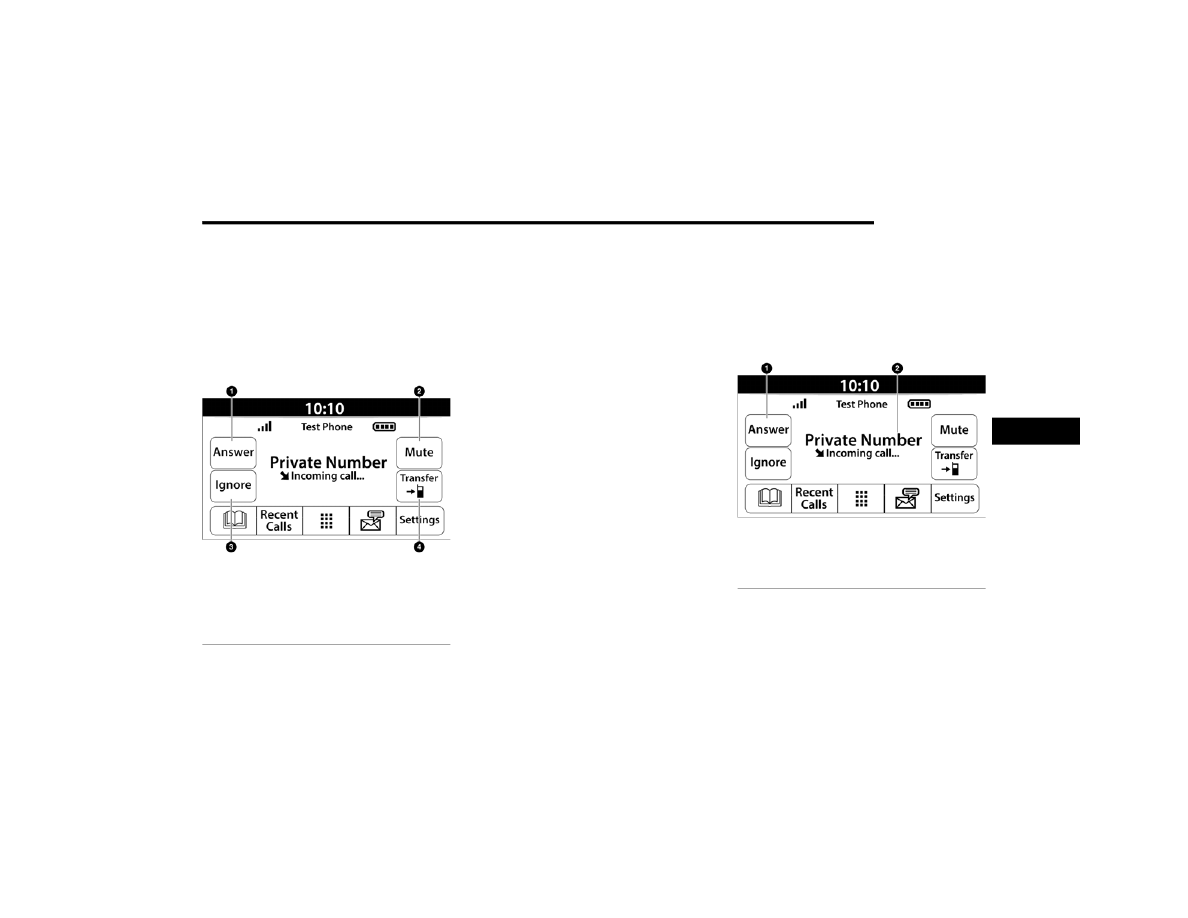
ANSWER OR IGNORE AN INCOMING CALL —

NO CALL CURRENTLY IN PROGRESS

When you receive a call on your mobile phone, the 

Uconnect Phone will interrupt the vehicle audio 

system. Push the Phone button on the steering 

wheel, press the Answer button on the 

touchscreen.

Uconnect 3 With 5-inch Display

1 — Answer
2 — Mute/Unmute
3 — Ignore
4 — Transfer

1 — Answer Button
2 — Caller ID Box

5

-------------------------------------------------------------------------------------------------------------------------------------------------------------

286

MULTIMEDIA


ANSWER OR IGNORE AN INCOMING CALL — 

CALL CURRENTLY IN PROGRESS

If a call is currently in progress and you have 

another incoming call, you will hear the same 

network tones for call waiting that you normally 

hear when using your mobile phone. Push the 

Phone button on the steering wheel, press the 

Answer button on the touchscreen, or press the 

Caller ID box to place the current call on hold and 

answer the incoming call.

NOTE:

Phones that are compatible with the Uconnect 

system in the market today do not support 

rejecting an incoming call when another call is in 

progress. Therefore, the user can only answer an 

incoming call or ignore it.

DO NOT DISTURB 

With Do Not Disturb, you can disable notifications 

from incoming calls and texts, allowing you to keep 

your eyes on the road and hands on the wheel. For 

your convenience, there is a counter display to 

keep track of your missed calls and text messages 

while Do Not Disturb is active.
Do Not Disturb can automatically reply with a text 

message, a call, or both when declining an 

incoming call and send it to voicemail.

Automatic reply messages can be:

“I am driving right now, I will get back to you 

shortly”.

Create a custom auto reply message up to 

160 characters.

NOTE:

Only the first 25 characters can be seen on the 

touchscreen while typing a custom message.
While in Do Not Disturb, “Conference Call” can be 

selected so you can still place a second call 

without being interrupted by incoming calls.

NOTE:

Reply with text message is not compatible with 

iPhone® devices.

Auto reply with text message is only available on 

phones that support Bluetooth® Message 

Access Profile (MAP).

PLACE/RETRIEVE A CALL FROM HOLD

During an active call, press the Hold or Call On Hold 

button on the Phone main screen.

MAKING A SECOND CALL WHILE CURRENT 

CALL IS IN PROGRESS

You can place a call on hold by pressing the Hold 

button on the Phone main screen, then dial a 

number from the keypad (if supported by your 

mobile phone), recent calls, SMS Inbox or from the 

phonebooks.

TOGGLING BETWEEN CALLS

Uconnect 3 With 5-inch Display

If two calls are in progress (one active and one on 

hold), press the Swap Calls button on the phone 

main screen. Only one call can be placed on hold 

at a time.
You can also push the Phone button to toggle 

between the active and held phone call.

JOIN CALLS

When two calls are in progress (one active and one 

on hold), press the Join/Merge Calls button on the 

Phone main screen to combine all calls into a 

conference call.

-------------------------------------------------------------------------------------------------------------------------------------------------------------

MULTIMEDIA

287

CALL TERMINATION

To end a call in progress, momentarily press the 

End Call button on the touchscreen or the Phone 

End button on the steering wheel. Only the active 

call(s) will be terminated and if there is a call on 

hold, it will become the new active call.

REDIAL

Push the VR button and after the 

“Listening” prompt and the following 

beep, say “Redial.”

The Uconnect Phone will call the last number that 

was dialed from your mobile phone.

CALL CONTINUATION

Call continuation is the progression of a phone call 

on the Uconnect Phone after the vehicle ignition 

has been switched to OFF.

NOTE:

The call will remain within the vehicle audio system 

until the phone becomes out of range for the Blue

-

tooth® connection. It is recommended to press the 

Transfer button on the touchscreen when leaving 

the vehicle.

Advanced Phone Connectivity

TRANSFER CALL TO AND FROM MOBILE 

PHONE

The Uconnect Phone allows ongoing calls to be 

transferred from your mobile phone without 

terminating the call. To transfer an ongoing call 

from your connected mobile phone to the 

Uconnect Phone or vice versa, press the Transfer 

button on the Phone main screen.

Things You Should Know About Uconnect 

Phone

VOICE COMMAND

For the best performance:

Always wait for the beep before speaking

Speak normally, without pausing, just as you 

would speak to a person sitting a few feet/

meters away from you

Ensure that no one other than you is speaking 

during a voice command period

Low-To-Medium Blower Setting

Low-To-Medium Vehicle Speed

Low Road Noise

Smooth Road Surface

Fully Closed Windows

Dry Weather Conditions

Even though the system is designed for many 

languages and accents, the system may not always 

work for some.

NOTE:

It is recommended that you do not store names in 

your Favorites phonebook while the vehicle is in 

motion.
Number and name recognition rate is optimized 

when the entries are not similar. You can say 

“O” (letter “O”) for “0” (zero).
Even though international dialing for most number 

combinations is supported, some shortcut dialing 

number combinations may not be supported.

WARNING!

ALWAYS drive safely with your hands on the 

wheel. You have full responsibility and assume 

all risks related to the use of the Uconnect 

features and applications in this vehicle. Only 

use Uconnect when it is safe to do so. Failure to 

do so may result in an accident involving serious 

injury or death.

5

-------------------------------------------------------------------------------------------------------------------------------------------------------------

288

MULTIMEDIA


Audio Performance
Audio quality is maximized under:

Low-To-Medium Blower Setting

Low-To-Medium Vehicle Speed

Low Road Noise

Smooth Road Surface

Fully Closed Windows

Dry Weather Conditions

Operation From The Driver's Seat

Performance such as audio clarity, echo, and 

loudness to a large degree rely on the phone and 

network, and not the Uconnect Phone.
Echo at the far end can sometimes be reduced by 

lowering the in-vehicle audio volume.
Phone Voice Commands
Making and answering hands-free phone calls is 

easy with Uconnect. When the Phonebook button 

is illuminated on your touchscreen, your system is 

ready. Check 

UconnectPhone.com

 for mobile 

phone compatibility and pairing instructions.

Push the Phone button   and wait for the beep to 

say a command. Here are some examples:

“Call John Smith”

“Dial 123 456 7890”

“Redial” (call previous outgoing phone number)

“Call back” (call previously answered incoming 

phone number)

Did You Know: When providing a Voice Command, 
push the Phone button   and say “Call”, then 

pronounce the name exactly as it appears in your 

phonebook. When a contact has multiple phone 

numbers, you can say “Call John Smith work”.
Voice Text Reply — If Equipped
Uconnect can announce incoming text messages. 
Push the VR button   or Phone button   and 

say:
1. “Listen” to have the system read an incoming 

text message. (Must have compatible mobile 

phone paired to Uconnect system.)

2. “Reply” after an incoming text message has 

been read.
Listen to the Uconnect prompts. After the 

beep, repeat one of the predefined messages 

and follow the system prompts.

NOTE:

Only use the numbering listed in the provided 

table. Otherwise, the system will not transpose the 

message.
Did You Know: Your mobile phone must have the 

full implementation of the Message Access Profile 

(MAP) to take advantage of this feature. For details 

about MAP, visit 

UconnectPhone.com

.

PRE-DEFINED VOICE TEXT REPLY RESPONSES

Yes.

Stuck in 

traffic.

See you later.

No.

Start without 

me.

I’ll be late.

Okay.

Where are 

you?

I will be 5 <or 

10, 15, 20, 

25, 30, 45, 

60> minutes 

late.

Call me.

Are you there 

yet?

I’ll call you 

later.

I need 

directions.

See you in 5 

<or 10, 15, 

20, 25, 30, 

45, 60> 

minutes.

I’m on my way. Can’t talk right 

now.

I’m lost.

Thanks.

-------------------------------------------------------------------------------------------------------------------------------------------------------------

MULTIMEDIA

289

Apple® iPhone® iOS 5 or later supports reading 

incoming text messages only. For further 

information on how to enable this feature on your 

Apple® iPhone®, refer to your iPhone® “User 

Manual”.
Did You Know: Voice Text Reply is not compatible 

with iPhone®, but if your vehicle is equipped with 

Siri® Eyes Free, you can use your voice to send a 

text message.
Siri® Eyes Free — If Equipped
When used with your Apple® iPhone® connected 

to your vehicle via Bluetooth®, Siri lets you use 

your voice to send text messages, select media, 

place phone calls and much more. Siri uses your 

natural language to understand what you mean 

and responds back to confirm your requests. The 

system is designed to keep your eyes on the road 

and your hands on the wheel by letting Siri help you 

perform useful tasks.
To enable Siri, push and hold, then release the 

Uconnect Voice Recognition (VR) button on the 

steering wheel. After you hear a double beep, you 

can ask Siri to play podcasts and music, get 

directions, read text messages, and many other 

useful requests.

BLUETOOTH® COMMUNICATION LINK

Mobile phones may lose connection to the 

Uconnect Phone. When this happens, the 

connection can generally be re-established by 

restarting the mobile phone. Your mobile phone is 

recommended to remain in Bluetooth® ON mode.

POWER-UP

After switching the ignition key from OFF to either 

the ON/RUN or ACC position, or after a language 

change, you must wait at least 15 seconds prior to 

using the system  

Ú

page 490.

CONNECTED VEHICLE SERVICES — 

IF EQUIPPED 

I

S

 M

Y

 V

EHICLE

 C

ONNECTED

?

If equipped, vehicles with ASSIST and SOS buttons 

are connected vehicles. These buttons will be 

located on either the rearview mirror or overhead 

console, depending on the vehicle. If these buttons 

are present in your vehicle, you have a connected 

radio and can take advantage of the many 

connected vehicle features.
For further information about the ASSIST and SOS 

buttons  

Ú

page 382.

I

NTRODUCTION

 T

O

 C

ONNECTED

 V

EHICLE


S

ERVICES


One of the many benefits of your vehicle’s 

Uconnect system is that you can now take 

advantage of SiriusXM Guardian™ connected 

services. To unlock the full potential of SiriusXM 

Guardian™ in your vehicle, you first need to 

activate SiriusXM Guardian™ connected services.

NOTE:

SiriusXM Guardian™ involves the collection, trans

-

mission and use of data from your vehicle  

Ú

page 309.

WARNING!

ALWAYS obey traffic laws and pay attention to 

the road. ALWAYS drive safely with your hands on 

the steering wheel. You have full responsibility 

and assume all risks related to the use of the 

features and applications in this vehicle. Only 

use the features and applications when it is safe 

to do so. Failure to comply may result in an 

accident involving serious injury or death.

5

-------------------------------------------------------------------------------------------------------------------------------------------------------------

290

MULTIMEDIA


SiriusXM Guardian™ Contact Information

SiriusXM Guardian™/Care

US residents visit: 

https://www.driveucon

-

nect.com/sirius-xm-guardian.html

 or call 

1-844-796-4827

Canadian residents visit: 

https://www.driveu

-

connect.ca/en/sirius-xm-guardian

 or call 

1-877-324-9091

What Is SiriusXM Guardian™?

SiriusXM Guardian™ uses an embedded device in 

the Uconnect system installed in your vehicle, 

which receives GPS signals and communicates 

with the SiriusXM Guardian™ Customer Care 

center via wireless and landline communications 

networks. Depending on the type of device in your 

vehicle, some SiriusXM Guardian™ connected 

services require an operable LTE (voice/data) or 

4G (data) network compatible with your device. 

SiriusXM Guardian™ is available only on equipped 

vehicles purchased within the continental United 

States, Alaska, Hawaii, Puerto Rico and Canada.

NOTE:

Certain SiriusXM Guardian™ connected 

services are dependent upon an operative 

telematics device, a cellular connection, naviga

-

tion map data, and GPS satellite signal recep

-

tion, which can limit the ability to reach the 

response center or reach emergency support.

Not all features of SiriusXM Guardian™ are 

available everywhere at all times, particularly in 

remote or enclosed areas.

Other factors outside the control of SiriusXM 

Guardian™ that may limit or prevent service 

delivery are hills, structures, buildings, tunnels, 

weather, damage to the electrical system or 

other important parts of your vehicle, network 

congestion, civil disturbances, actions of third 

parties or the government, Internet failure, 

and/or the physical location of your vehicle, 

such as in an underground parking structure or 

under a bridge.

Not all SiriusXM Guardian™ features are available 

for all models.
SiriusXM Guardian™ provides:

The ability to remotely lock/unlock and remote 

start your vehicle from virtually anywhere by 

using the Mobile App or your computer.

If equipped — Send & Go capability with the 

Mobile App. Use the Mobile App to easily search, 

map and send your locations directly to your 

Uconnect Navigation.

The ability to locate your vehicle, when you 

forget where you parked, using the Vehicle 

Finder function of the Mobile App.

Before you drive, familiarize yourself with the 

easy-to-use Uconnect system and SiriusXM 

Guardian™ connected services.

The ASSIST and SOS Call Buttons On Your 

Rearview Mirror Or Overhead Console
If equipped, the ASSIST button is used for 

contacting Roadside Assistance, Vehicle Care, 

Uconnect Care, and SiriusXM Guardian™ 

Customer Care. The SOS Call button connects you 

directly to SiriusXM Guardian™ Customer Care for 

assistance in an emergency.

Activation — If Equipped

To unlock the full potential of SiriusXM Guardian™ 

in your vehicle, you must activate your SiriusXM 

Guardian™ connected services.
1. Press the Apps icon on the bottom of your 

in-vehicle touchscreen.

2. Select the Activate Services icon from your list 

of apps.

3. For customers in the United States, select 

“Customer Care” to speak with a SiriusXM 

Guardian™ Customer Care agent who will 

activate services in your vehicle, or select 

“Enter Email” to activate on the web.
For customers in Canada, enter your email ad

-

dress to activate services in your vehicle.

-------------------------------------------------------------------------------------------------------------------------------------------------------------

MULTIMEDIA

291

Included Trial Period For New Vehicles

Your new vehicle may come with an included trial* 

period for use of SiriusXM Guardian™ connected 

services starting on the date of vehicle purchase. 

To get started with your trial, enrollment in 

SiriusXM Guardian™ is required.
* Included trial applies to new vehicles only.

Features And Packages

After the trial period, you must purchase a 

subscription to continue your services by calling a 

SiriusXM Guardian™ Customer Care agent.

G

ETTING

 S

TARTED

 W

ITH

 C

ONNECTED


V

EHICLE

 S

ERVICES


Download The Mobile App

Once you have activated your services, you’re only 

a few steps away from using connected services.

Download the Mobile App to your mobile device.

Use your Owner Account login and password to 

open the app and then set up a PIN. 

For customers in the United States, visit 

www.mopar.com

, and click the Sign In/Register 

button in the upper right-hand corner to register 

your account online.

For customers in Canada, register your account 

via your vehicle.

a. Press the Apps button in the bottom menu 

bar.

b. Press the Activate Services button from the 

apps list.

c. Enter your email and press “OK”. A confir

-

mation email will be sent to the provided 

email address.

d. Press “Continue Activation” from the confir

-

mation email. It may take a short time 

before remote services will be available, but 

you will be able to log into the Mobile App 

and the Owner’s Site.

Once on the Remote screen and you have set up 

your four-digit PIN, you can begin using Remote 

Door Lock/Unlock, Remote Vehicle Start, and 

activate your horn and lights remotely, if 

equipped.

Press the Location button on the bottom menu 

bar of the app to bring up a map to locate your 

vehicle or send a location to your Mobile Naviga

-

tion, if equipped.

Press the Settings side menu in the upper left 

corner of the app to bring up app settings and 

access the Assist Call Centers.

Using Your Owner’s Site

Your Owner’s Site website 

https://

www.mopar.com/en-us.html

 (US Residents), or 

www.mopar.ca

 (Canadian Residents) provides 

you with all the information you need, all in one 

place. You can track your service history, find 

recommended accessories for your vehicle, watch 

videos about your vehicle's features, and easily 

access your manuals. It is also where you can 

manage your SiriusXM Guardian™ account. This 

section will familiarize you with the key elements of 

the website that will help you get the most of your 

SiriusXM Guardian™ connected services.
For customers in the United States, press the Sign 

In/Register button and enter your email address 

and password.

5

-------------------------------------------------------------------------------------------------------------------------------------------------------------

292

MULTIMEDIA


For customers in Canada, press the My Vehicle 

button. Select from “Dashboard”, “Vehicle Health 

Report”, and “Recalls”. The website will then 

prompt you to log in using your email address and 

password.

Edit/Edit Profile:
To manage the details of your SiriusXM 

Guardian™ account, such as your contact infor

-

mation, password and SiriusXM Guardian™ PIN, 

click on the Edit/Edit Profile button to access 

the details of your account.

Connected Services Status:
This statement will indicate your SiriusXM 

Guardian™-equipped vehicle.

Remote Commands:
For vehicles with an active SiriusXM Guardian™ 

subscription, press one of these icons and enter 

your four-digit SiriusXM Guardian™ Security PIN 

to remotely start (if equipped), lock/unlock 

doors or sound the horn and flash the lights.

Editing Your Notifications
Notifications are an important element of your 

SiriusXM Guardian™ account. For example, any 

time you use your remote services (such as 

Remote Door Unlock), you can elect to receive a 

text message, push notification, and/or E-mail to 

notify you of the event. 

To set up the notifications, please follow these 

instructions:
1. Log on to your Owner’s Account at 

https://

www.mopar.com/en-us.html

 (US Residents) 

and select “Dashboard”, or 

www.mopar.ca


(Canadian Residents), select “My Vehicle” 

and then “Dashboard”.

2. Click the Edit/Edit Profile button.
3. Once there, select “SiriusXM Guardian™” 

where you can edit Notification Preferences.

4. You can enter a mobile phone and/or email 

address to notify you, and you can customize 

the types of messages.

U

SING

 S

IRIUS

XM G

UARDIAN

™ 

SOS Call — If Equipped

Access To Emergency Services At The Push Of A 

Button

SiriusXM Guardian™ In-Vehicle Assistance 

Features
With SiriusXM Guardian™, your vehicle has 

onboard assistance features located on the 

rearview mirror or overhead console designed to 

enhance your driving experience if you should ever 

need assistance or support.
Description
SOS Call offers a convenient way to get in contact 

with a SiriusXM Guardian™ Customer Care agent 

in the event of an emergency. When the 

connection between the vehicle and the live agent 

is made, your vehicle will automatically transmit 

location information. In the event of a minor 

collision, medical or any other emergency, press 

the SOS button to be connected to a call center 

agent who can send emergency assistance to your 

vehicle’s location.

WARNING!

Some SiriusXM Guardian™ connected services, 

including SOS Call and Roadside Assistance 

Call, will NOT work without a network connection 

compatible with your device.

Center Light Status

Description

Off

No call activated

Green

Active call in progress

Red

System error

-------------------------------------------------------------------------------------------------------------------------------------------------------------

MULTIMEDIA

293

NOTE:

Certain SiriusXM Guardian™ connected services 

are dependent on an operational Uconnect 

system, cellular network availability that is 

compatible with the device in your vehicle, and 

GPS network availability. Not all features of 

SiriusXM Guardian™ are available everywhere at 

all times, particularly in remote or enclosed areas.
How It Works 
1. Push the SOS Call button; the indicator light 

will turn green indicating a call has been 

placed.

NOTE:

In case the SOS Call button is accidentally 

pushed, there is a 10-second delay before 

the SOS call is placed. The system will 

verbally alert you that a call is about to be 

made. To cancel the SOS Call connection, 

push the SOS Call button on the rearview 

mirror or overhead console or press the 

Cancel button on the touchscreen within 10 

seconds.

During an SOS Call, the Bluetooth®-paired 

phone is disconnected so incoming or 

outgoing calls will go through your mobile 

device versus the hands-free system which 

is not available due to the SOS Call.

2. Once a connection between the vehicle and a 

SiriusXM Guardian™ Customer Care agent is 

made, the agent will stay on the line with you.

NOTE:

Calls between the vehicle occupants and the 

SiriusXM Guardian™ Customer Care center may be 

recorded or monitored for quality assurance 

purposes. Through your enrollment in and use of 

the SiriusXM Guardian™ connected services, you 

consent to being recorded.

SOS Call System Limitations
Vehicles that have been purchased in the US and 

that travel into Mexico and Canada may have 

limited services. In particular, responses to SOS 

calls or other emergency services may be 

unavailable or very limited. Vehicles purchased 

outside the United States and Canada are unable 

to receive SiriusXM Guardian™ connected 

services.
If the SOS Call system detects a malfunction, any 

of the following may occur at the time the 

malfunction is detected:

The light will continuously be illuminated red.

The screen will display the following message 

“Vehicle phone requires service. Please contact 

your dealer.”

An in-vehicle audio message will state “Vehicle 

phone requires service. Please contact your 

dealer.”

Even if the SOS Call system is fully functional, 

factors beyond FCA US LLC’s control may prevent 

or stop SOS Call system operation. These include, 

but are not limited to, the following factors:

The ignition key is in OFF position.

The vehicle’s electrical systems are not intact.

The vehicle battery loses power or becomes 

disconnected during a vehicle crash.

The SOS Call system software and/or hardware 

is damaged during a vehicle crash.

LTE (voice/data) or 4G (data) coverage and/or 

GPS signals are unavailable or obstructed.

Network congestion.

Weather conditions.

Buildings, structures, geographic terrain, or 

tunnels.

If your vehicle loses battery power for any reason 

(including during or after an accident), the SOS Call 

system, among other vehicle systems, will not 

operate.

5

-------------------------------------------------------------------------------------------------------------------------------------------------------------

294

MULTIMEDIA


(Continued)

(Continued)

Requirements 

This feature is available only on vehicles sold in 

the US or Canada.

Vehicle must be properly equipped with the Siri

-

usXM Guardian™ connected services. Vehicle 

must be registered with SiriusXM Guardian™ 

and have an active subscription that includes 

the applicable feature.

Vehicle must have an operable LTE (voice/data) 

or 4G (data) network connection compatible 

with your device.

Vehicle must be powered in the ON/RUN or ACC 

(Accessory) position with a properly functioning 

electrical system.

WARNING!

Never place anything on or near the vehicle’s 

LTE (voice/data) or 4G (data) and GPS 

antennas. You could prevent LTE (voice/data) 

or 4G (data) and GPS signal reception, which 

can prevent your vehicle from placing an 

emergency call.

Do not add any aftermarket electrical equip

-

ment to the vehicle’s electrical system. This 

may prevent your vehicle from sending a 

signal to initiate an emergency call. To avoid 

interference that can cause the SOS Call 

system to fail, never add aftermarket equip

-

ment (e.g., two-way mobile radio, CB radio, 

data recorder, etc.) to your vehicle’s electrical 

system or modify the antennas on your 

vehicle. IF YOUR VEHICLE LOSES POWER FOR 

ANY REASON (INCLUDING DURING OR AFTER 

AN ACCIDENT), NEITHER THE MOBILE APPS 

NOR THE SIRIUSXM GUARDIAN™ CONNECTED 

SERVICES WILL OPERATE.

The Occupant Restraint Controller (ORC) turns 

on the Air Bag Warning Light on the instru

-

ment panel if a malfunction in any part of the 

air bag system is detected. If the Air Bag 

Warning Light is illuminated, the air bag 

system may not be working properly and the 

SOS Call system may not be able to send a 

signal to the SiriusXM Guardian™ Customer 

Care center. If the Air Bag Warning Light is illu

-

minated, have an authorized dealer service 

your vehicle immediately.

WARNING!

Ignoring the Rearview Mirror Light could mean 

you will not have SOS Call services if needed. 

If the Rearview Mirror Light is illuminated, 

have an authorized dealer service the SOS 

Call system immediately.

If anyone in the vehicle could be in danger 

(e.g., fire or smoke is visible, dangerous road 

conditions or location), do not wait for voice 

contact from a SiriusXM Guardian™ Customer 

Care agent. All occupants should exit the 

vehicle immediately and move to a safe loca

-

tion.

Failure to perform scheduled maintenance 

and regular inspection of your vehicle may 

result in vehicle damage, accident or injury.

WARNING!

-------------------------------------------------------------------------------------------------------------------------------------------------------------

MULTIMEDIA

295

Automatic SOS — If Equipped

Automatic SOS is a hands-free safety service that 

can immediately connect you with help in the event 

that your vehicle’s airbags deploy. After an 

accident, a live agent will contact you through the 

Uconnect system and alert emergency services.

NOTE:

An active SiriusXM Guardian™ subscription is 

required for this feature to function.
After a crash where the airbags deploy:
1. Automatic SOS will initiate a call with an 

agent.

2. An agent will receive the call and confirm the 

location of the emergency.

3. If needed, the agent will request the 

assistance of emergency services.

4. First responders will arrive on scene. The 

agent will remain on the call until emergency 

services arrive.

NOTE:

Agents are available 24/7 to assist you in the 

case of an emergency.

On your behalf, agents are able to notify family 

members about the collision.

Agents can brief first responders of the situation 

before they arrive on scene.

In the event vehicle occupants are unable to 

speak, emergency services will be dispatched 

based on the last known GPS coordinates.

SiriusXM Guardian™ connected services are 

dependent upon an operative telematics 

device, a cellular connection, navigation map 

data, and GPS satellite reception, which can 

limit the ability to reach the response center or 

reach emergency support.

Terms of service of the Uconnect and the Siri

-

usXM Guardian™ subscriber agreement apply. 

See terms of services for complete service 

limitation.

Remote Commands

On the Remote Commands screen, you have 

access to several vehicle features that can be 

controlled remotely from your mobile device. These 

features include locking/unlocking, remote 

starting, and activating the horn and lights of the 

vehicle.

Lock

Press this button to lock your vehicle.

Vehicle Start

Press this button to start your vehicle.

Horn & Lights

Press this button to sound the horn and activate your lights.

Unlock

Press this button to unlock your vehicle.

Cancel Vehicle Start

Press this button to cancel remote start.

5

-------------------------------------------------------------------------------------------------------------------------------------------------------------

296

MULTIMEDIA


Remote Commands lets you send a request to your 

vehicle in one of three ways:

Anywhere using your mobile device and Mobile 

App

From your computer on the Owner’s Site 

(not available on all functions)

Contacting SiriusXM Guardian™ Customer Care 

(not available on all functions)

Using A Remote Command Through Your Mobile 

Device And The Mobile App
1. Press the desired Remote Command icon on 

your mobile device.

2. A pop-up screen will appear asking for your 

SiriusXM Guardian™ Security PIN (this is the 

same four-digit code established when you 

activated your SiriusXM Guardian™ connected 

services). Enter the SiriusXM Guardian™ 

Security PIN on the keypad.

3. It may take 30 seconds or more for the 

command to go through to your vehicle.

4. A message will let you know if the command 

was received by your vehicle.

Using A Remote Command Through Your 

Owner’s Site 
1. Log on to your Owner’s Site using the 

username and password you used when 

activating your SiriusXM Guardian™ 

connected services in your vehicle.

NOTE:

If you forgot your username or password, links are 

provided on the website to help you retrieve them.
2. If you have more than one vehicle registered 

into your Owner’s Site, select the vehicle you 

want to send the command to by clicking on its 

image along the top.

3. On your dashboard, you will see remote 

commands. Press the desired icon to activate 

that feature.

4. You will then be asked to enter your SiriusXM 

Guardian™ Security PIN (this is the same 

four-digit code established when you activated 

your SiriusXM Guardian™ connected services). 

Please enter your SiriusXM Guardian™ 

Security PIN.

5. A message will appear on the screen to let you 

know if the command was received by your 

vehicle.

Contacting SiriusXM Guardian™ Customer Care 

(for example, in case of an accidental lock-out): 
1. Contact SiriusXM Guardian™ Customer Care 

if you are unable to lock your vehicle through 

the Mobile App or your key fob.

2. For security purposes, the SiriusXM 

Guardian™ Customer Care agent will verify 

your identity by asking for your four-digit 

SiriusXM Guardian™ Security PIN.

3. After providing your SiriusXM Guardian™ 

Security PIN, you can ask them to perform a 

remote command.

NOTE:

Anyone with access to your PIN may request 

Remote Door Lock/Unlock. It is your responsibility 

to protect your PIN appropriately.

Remote Door Lock/Unlock 

Description
The Remote Door Lock/Unlock feature provides 

you the ability to lock or unlock the door on your 

vehicle without the keys and from virtually any 

distance.

-------------------------------------------------------------------------------------------------------------------------------------------------------------

MULTIMEDIA

297

Working Vehicle Conditions

The vehicle must in PARK or at a standstill.

The vehicle must be in an open area with cell 

tower reception.

Your mobile device must have a cellular or Wi-Fi 

connection.

Requirements 

Vehicle must be properly equipped with

SiriusXM Guardian™.

Vehicle must have an operable LTE (voice/data) 

or 4G (data) network connection. If using the 

Mobile App to command your vehicle, your 

device must be compatible and be connected to 

an operable LTE (voice/data) or 4G (data) 

network connection.

Vehicle must be registered with SiriusXM 

Guardian™ and have an active subscription that 

includes the applicable feature.

An ignition cycle is required for some remote 

commands, such as Remote Vehicle Start and 

Remote Door Lock/Unlock if following a Remote 

Horn & Lights activation.

Your Remote Door Lock/Unlock request will not 

be processed if the vehicle is in motion, the 

ignition key is on or during an emergency call.

NOTE:

All other remote services should be performed via 

your Owner’s Site or through the Mobile App on 

your compatible device.

Remote Vehicle Start 

Description
The Remote Vehicle Start feature provides you with 

the ability to start the engine on your vehicle 

without the keys and from virtually any distance. 

Once started, the preset climate controls in your 

vehicle can warm up or cool down the interior.
You can also send a command to turn off an 

engine that has been started using Remote Vehicle 

Start. After 15 minutes, if you have not entered 

your vehicle with the key, the engine will shut off 

automatically.
This remote function requires your vehicle to be 

equipped with a factory-installed Remote Start 

system.
You can set up push notifications every time 

a command is sent to activate or cancel 

Remote Start.

Working Vehicle Conditions

The vehicle must be off or in ACC mode.

The vehicle has been started with the key fob 

within the last 14 days.

The vehicle must be in PARK or at a standstill.

The vehicle’s security system has been armed 

and not triggered since the last vehicle start.

The doors, hood, and trunk/liftgate are closed.

The vehicle’s check engine light must be off.

The vehicle must have at least a quarter tank of 

fuel, along with oil and battery power.

The vehicle’s hazard lights must be off.

If equipped, the vehicle must have an automatic 

transmission.

The vehicle must be in an open area with cell 

tower reception.

Your mobile device must have a cellular or

Wi-Fi connection.

If the Panic button has been pressed, the 

vehicle must be started at least once after 

alarming the system.

NOTE:

The SiriusXM Guardian™ Customer Care agents 

are not authorized for Remote Vehicle Start 

services. Contact the Uconnect Care Team for 

assistance.

5

-------------------------------------------------------------------------------------------------------------------------------------------------------------

298

MULTIMEDIA


Remote Horn & Lights 

Description
It is easy to locate a vehicle in a dark, crowded or 

noisy parking area by activating the horn and 

lights. It may also help if you need to draw attention 

to your vehicle for any reason.
If you want, you can set up push notifications every 

time a command is sent to turn on the horn and 

lights.
Working Vehicle Conditions

The vehicle must in PARK or at a standstill.

The vehicle must be in an open area with cell 

tower reception.

Your mobile device must have a cellular or

Wi-Fi connection.

NOTE:

The Remote Horn & Lights feature is designed to 

be loud and get noticed. Please keep in mind the 

surroundings when using this feature. You are 

responsible for compliance with local laws, rules 

and ordinances in the location of your vehicle 

when using Remote Horn & Lights.

Assist — If Equipped

Description
Vehicles equipped with the SiriusXM Guardian™ 

connected services feature may contain an ASSIST 

button in the vehicle. Once your SiriusXM 

Guardian™ connected services have been 

activated, the ASSIST button can connect you 

directly to the Customer Care call center 

(if equipped). You will be directed to one of the 

following four services:

Roadside Assistance — If you get a flat tire or 

need a tow, you’ll be connected to someone 

who can help anytime.

Connected Services — Contact the SiriusXM 

Guardian™ Customer Care call center to acti

-

vate your services, renew after your trial has 

expired, for in-vehicle support for your SiriusXM 

Guardian™ connected services, or help 

answering any general questions surrounding 

your connected services.

Uconnect Care — In-vehicle support for all 

non-connected Uconnect system features, such 

as radio and Bluetooth® connections.

Vehicle Care — Total support for your vehicle.

SiriusXM Guardian™ In-Vehicle Assistance 

Features — If Equipped
With SiriusXM Guardian™, your vehicle has 

onboard assistance features located on the 

rearview mirror or overhead console designed to 

enhance your driving experience if you should ever 

need assistance or support.
How It Works
Simply push the ASSIST button in the vehicle and 

you will be presented with your ASSIST options on 

the touchscreen. Make your selection by pressing 

the touchscreen.
Requirements 

This feature is available only on vehicles sold in 

the US and Canada.

Vehicle must be properly equipped with the Siri

-

usXM Guardian™ connected services.

Vehicle must have an operable LTE (voice/data) 

or 4G (data) network connection.

Vehicle must be registered with SiriusXM 

Guardian™ and have an active subscription that 

includes the applicable feature.

Vehicle must be powered in the ON/RUN or ACC 

(Accessory) position with a properly functioning 

electrical system.

-------------------------------------------------------------------------------------------------------------------------------------------------------------

MULTIMEDIA

299

Disclaimers
If Roadside Assistance Call is provided to your 

vehicle, you agree to be responsible for any 

additional roadside assistance service costs that 

you may incur. In order to provide SiriusXM 

Guardian™ connected services to you, we may 

record and monitor your conversations with 

Roadside Assistance Call, Vehicle Care, Uconnect 

Care, or SiriusXM Guardian™ Customer Care, 

whether such conversations are initiated through 

the SiriusXM Guardian™ connected services in 

your vehicle, or via a landline or mobile device, and 

may share information obtained through such 

recording and monitoring in accordance with 

regulatory requirements. You acknowledge, agree 

and consent to any recording, monitoring or 

sharing of information obtained through any such 

call recordings.

Send & Go — If Equipped 

Description
The Send & Go feature allows you to search for a 

destination on your mobile device, and then send 

the route to your vehicle’s Navigation system.

How It Works
1. There are multiple ways to find a destination. 

After selecting the Location tab at the bottom 

of the App, browse through one of the 

categories provided, or type the name or 

keyword in the search box. You can also 

select categories such as “Favorites” or 

“Contact List”.

2. Select your destination from the list that 

appears. Location information will then be 

displayed on the map.
From this screen, you will be able to:

View the location on a map.

See the distance from your current location.

Send the destination to the vehicle

(Send & Go).

3. Send the destination to the Uconnect 

Navigation in your vehicle. You can also call 

the destination by pressing the Call button.

4. Confirm your destination in the vehicle through 

a notification or in the Navigation system.

Requirements

Vehicle must have an operable LTE (voice/data) 

or 4G (data) network connection compatible 

with your device.

Vehicle must have an active subscription that 

includes the applicable feature.

Vehicle Finder 

Description
The Vehicle Finder feature allows you to find the 

location of your vehicle.
You can also sound the horn and flash the lights to 

make finding your vehicle even easier.
How It Works
Select the Vehicle Finder function within the 

Mobile App and select the Location tab at the 

bottom of the App. Then, press the Vehicle icon to 

find your vehicle.
Requirements

Vehicle must be properly equipped with the 

Uconnect system.

Vehicle must have an operable LTE (voice/data) 

or 4G (data) network connection compatible 

with your device.

Vehicle must have an active subscription that 

includes the applicable feature.

Vehicle ignition must have been turned on 

within 14 days.

5

-------------------------------------------------------------------------------------------------------------------------------------------------------------

300

MULTIMEDIA


4G Wi-Fi Hotspot — If Equipped 

Description
4G Wi-Fi Hotspot is an in-vehicle service that 

connects your device to an LTE (voice/data) or 4G 

(data) network that is ready to go wherever you are. 

After you've made your purchase, turn on your 

device’s Wi-Fi and connect your devices. 

Enables all your passengers to be simultane

-

ously connected to the web.

Connect several devices at one time.

Any Wi-Fi-enabled device — such as a laptop or 

any other portable-enabled media — can 

connect over your private in-vehicle network.

A high-speed, secured connection lets anyone 

on your private network access the Web — great 

for working and relaxing.

Create A 4G Wi-Fi Hotspot For Use In Your Vehicle

How It Works
The 4G Wi-Fi Hotspot feature provides 

the vehicle passengers with an internet 

access hotspot in the vehicle, using the radio as an 

access point. The hotspot will allow Wi-Fi-enabled 

in-vehicle devices (such as a laptop or any other 

portable-enabled media device) to wirelessly 

connect to the internet. Uconnect offers a 

complimentary 3-month trial period that includes 

1GB of total data. The trial can be activated any 

time within the first year of new vehicle ownership.
Use one of these three ways to purchase a 

subscription to the 4G Wi-Fi Hotspot:
1. From your vehicle’s touchscreen, select the 

4G Wi-Fi Hotspot App, and press the How To 

Purchase button and follow the instructions.

2. Log onto your Owner’s Site and click the link to 

the AT&T portal to get set up.

3. For existing Connected Car customers: Push 

the ASSIST button to be routed to an AT&T 

Customer Care agent who will assist you.

Once the 4G Wi-Fi Hotspot is purchased, you can 

change its name and the password by selecting the 

Wi-Fi Hotspot App and pressing the Setup Wi-Fi 

Hotspot button. You can also view the connected 

devices from the app screen by pressing the View 

Connected Devices button.

NOTE:

A SiriusXM Guardian™ subscription is not required 

in order to purchase and use the 4G Wi-Fi Hotspot.

Stolen Vehicle Assistance — If Equipped

Description
If your vehicle is stolen, the SiriusXM Guardian™ 

Customer Care agent may be able to locate the 

stolen vehicle and work with law enforcement to 

help recover it.
How It Works 
1. If your vehicle is stolen, contact local law 

enforcement as soon as possible. They will 

work with you to file a stolen vehicle report.

2. Next, inform SiriusXM Guardian™ Customer 

Care that your vehicle has been stolen.

WARNING!

The driver should NEVER use the 4G Wi-Fi 

Hotspot while driving the vehicle as doing so 

may result in an accident involving serious injury 

or death.

WARNING!

Always drive safely with your hands on the 

steering wheel and obey all applicable laws. You 

have full responsibility and assume all risks 

related to the use of the features and 

applications in this vehicle. Only use the 

features and applications in this vehicle when it 

is safe to do so. Failure to comply may result in 

an accident involving in serious injury or death.

-------------------------------------------------------------------------------------------------------------------------------------------------------------


Content      ..     16      17      18      19     ..