RAM Promaster City (2020 year). Manual in english - page 20
 

  Index      Manuals     RAM Promaster City (2020 year). Manual in english


Search            copyright infringement  


Content      ..     18      19      20     


RAM Promaster City (2020 year). Manual in english - page 20


MULTIMEDIA

317

STEERING WHEEL AUDIO CONTROLS — IF 
EQUIPPED   

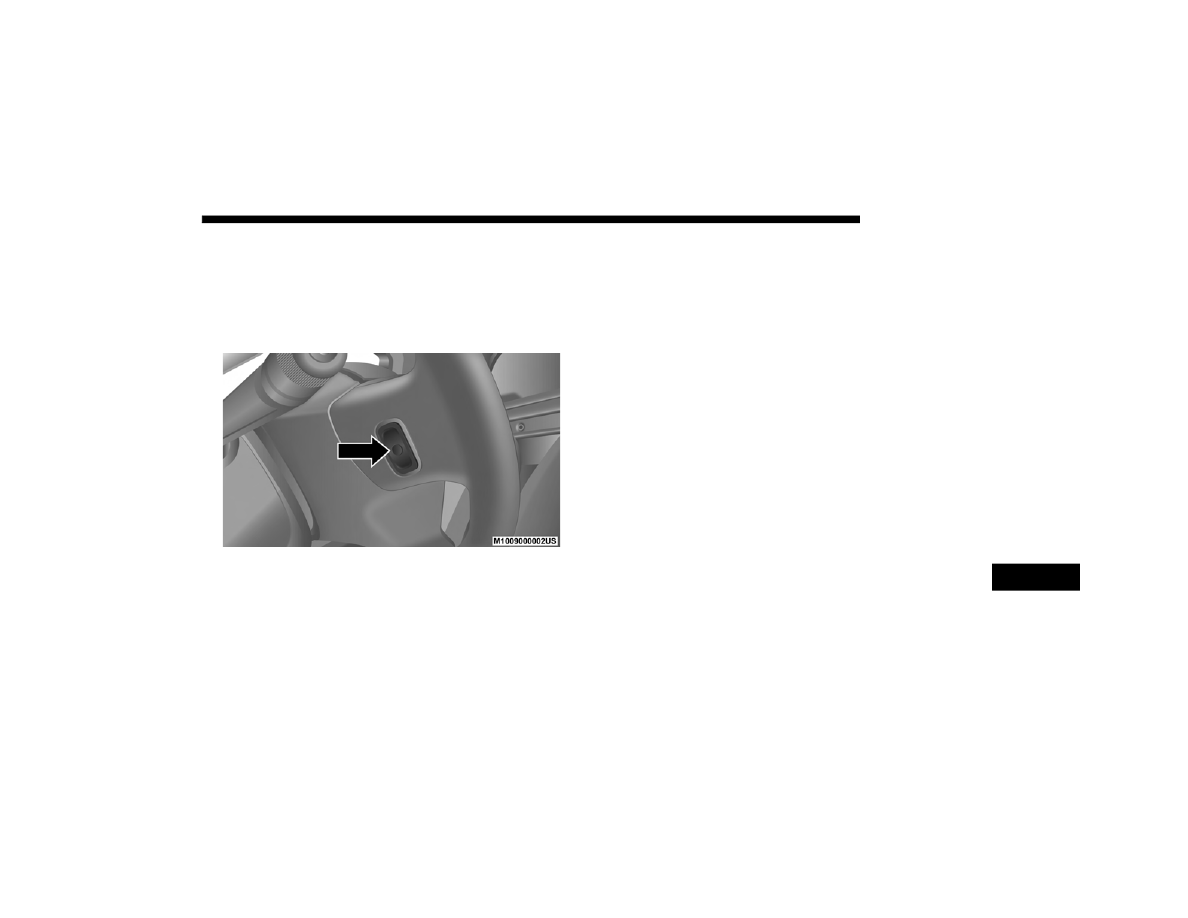
The remote sound system controls are located on the back

surface  of  the  steering  wheel.  Reach  behind  the  wheel  to

access the switches.

Remote Sound System Controls

(Back View Of Steering Wheel)

The  right-hand  control  is  a  rocker  type  switch  with  a

push-button in the center. Pushing the top of the switch will

increase the volume, and pushing the bottom of the switch

will decrease the volume.

The button located in the center of the right-hand control to

select the source (AM, FM, SiriusXM®, USB, AUX).
The  left-hand  control  is  a  rocker  type  switch  with  a

push-button  in  the  center.  The  function  of  the  left  hand

control is different depending on which mode you are in.
The  following  describes  the  left-hand  control  operation  in

each mode.

Radio Operation

Pushing  the  top  of  the  switch  will  “Seek”  up  for  the  next

listenable station and pushing the bottom of the switch will

“Seek” down for the next listenable station.
The button located in the center of the left-hand control will

tune to the next preset station that you have programmed in

the radio preset button.

Media Mode

Pushing the top of the switch once goes to the next track on

the  selected  media  (AUX/USB/Bluetooth®).  Pushing  the

bottom  of  the  switch  once  goes  to  the  beginning  of  the

current track, or to the beginning of the previous track if it is

within eight seconds after the current track begins to play.

9

-------------------------------------------------------------------------------------------------------------------------------------------------------------

318 MULTIMEDIA

IPOD®/USB/MP3 CONTROL — IF EQUIPPED  

The  USB  Input  and  Auxiliary  Jack  is  located  on  the  instrument

panel below the Climate Controls. This feature allows an iPod® or

external USB device to be plugged into the USB port.

USB Input And AUX Jack

iPod®  control  supports  Mini,  4G,  Photo,  iPod  nano®,  5G

iPod® and iPhone® devices. Some iPod® software versions

may not fully support the iPod® control features. Please visit

Apple’s® website for software updates.
For  further  information,  refer  to  the  Uconnect  Owner’s

Manual Supplement.

RAM TELEMATICS - IF EQUIPPED

Ram  Telematics  is  designed  to  help  improve  safety,  effi

-

ciency, and productivity. It gives you complete visibility of

your  fleet  options,  whether  from  behind  a  desk  or  on  a

mobile device while you are on the go. You can log-in to view

near  real-time  and  historical  activity,  including  location,

vehicle health, and driver performance.

Activating Ram Telematics In Your Vehicles

Before you get started you will need:
• The Vehicle Identification Number (VIN) of each vehicle

you want to activate.

• Your main user’s log-in and password; new customers will

be asked to register.

• If you are a new customer, you will need company credit

card  information  or  invoice  number  as  further  proof  of

customer  identification.  Don’t  worry,  you  will  not  be

charged.

• Go to 

activate.verizonconnect.com/ram/#login

. If you are

an  existing  Verizon  Connect  customer,  enter  your

company’s log-in credentials. New customers will need to

register to create a new account.

-------------------------------------------------------------------------------------------------------------------------------------------------------------

MULTIMEDIA

319

• Manually enter the VIN(s) or upload a CSV file with your

VINs. A vehicle name is optional and can be added later.

Follow online instructions to complete your vehicle entry.

• Create a password and enter billing information. An email

will be sent to you to complete the final step. After that,

you will  be  ready  to log-in  and access Verizon  Connect

Fleet!

• You are good to go! You will receive an email confirming

your vehicles are now online.

For more information, or to learn more, visit 

www.verizon

-

connect.com/ram/

.

Ram Telematics General Information

Modification Statement

Magneti Marelli has not approved any changes or modifica

-

tions to this device by the user. Any changes or modifications

could void the user’s authority to operate the equipment.
Magneti Marelli n'approuve aucune modification apportée à

l'appareil par l'utilisateur, quelle qu'en soit la nature. Tout

changement ou modification peuvent annuler le droit d'util

-

isation de l'appareil par l'utilisateur.

Interference Statement

This device complies with Part 15, 22, 24, and 27 of the FCC

and Industry Canada licence-exempt RSS standard(s). Oper

-

ation  is  subject  to  the  following  two  conditions:(1)  This

device may not cause interference, and(2) This device must

accept  any  interference,  including  interference  that  may

cause undesired operation of the device.
Le  présent  appareil  est  conforme  aux  CNR  d'Industrie

Canada  applicables  aux  appareils  radio  exempts  de

licence.L'exploitation est autorisée aux deux conditions suiv

-

antes:(1) l'appareil ne doit pas produire de brouillage, et(2)

l'utilisateur  de  l'appareil  doit  accepter  tout  brouillage

radioélectrique  subi,  même  si  le  broulliage  est  susceptible

d'en compromettre le fonctionnement.

RF Exposure

This equipment complies with FCC and IC radiation expo

-

sure limits set forth for an uncontrolled environment. The

antenna  should  be  installed  and  operated  with  minimum

distance of 20 cm between the radiator and your body.

9

-------------------------------------------------------------------------------------------------------------------------------------------------------------

320 MULTIMEDIA

Cet  appareil  est  conforme  aux  limites  d'exposition  aux

rayonnements  de  la  IC  pour  environnement  non  contrôlé.

L'antenne doit être installé de façon à garder une distance

minmale de 20 centimètres entre la source de rayonnements

et votre corps.

RADIO OPERATION AND MOBILE PHONES  

Under certain conditions, the mobile phone being on in your

vehicle  can  cause  erratic  or  noisy  performance  from  your

radio. This condition may be lessened or eliminated by relo

-

cating the mobile phone. This condition is not harmful to the

radio.  If  your  radio  performance  does  not  satisfactorily

“clear” by the repositioning of the phone, it is recommended

that the radio volume be turned down or off during mobile

phone operation when not using Uconnect (if equipped).

Regulatory And Safety Information

USA/CANADA

Exposure to Radio Frequency Radiation
The radiated output power of the internal wireless radio is

far below the FCC and IC radio frequency exposure limits.

Nevertheless,  the  wireless  radio  will  be  used  in  such  a

manner  that  the  radio  is  8 in  (20  cm)  or  further  from  the

human body.

The internal wireless radio operates within guidelines found

in radio frequency safety standards and recommendations,

which reflect the consensus of the scientific community.
The radio manufacturer believes the internal wireless radio

is safe for use by consumers. The level of energy emitted is

far less than the electromagnetic energy emitted by wireless

devices such as mobile phones. However, the use of wireless

radios may be restricted in some situations or environments,

such as aboard airplanes. If you are unsure of restrictions,

you are encouraged to ask for authorization before turning

on the wireless radio.
The  following  regulatory  statement  applies  to  all  Radio

Frequency (RF) devices equipped in this vehicle:
This device complies with Part 15 of the FCC Rules and with

Innovation,  Science,  and  Economic  Development  Canada

license-exempt RSS standard(s). Operation is subject to the

following two conditions:
1. This device may not cause harmful interference.
2. This  device  must  accept  any  interference  received,

including interference that may cause undesired opera

-

tion.

-------------------------------------------------------------------------------------------------------------------------------------------------------------

MULTIMEDIA

321

Le  présent  appareil  est  conforme  aux  CNR  d`Innovation,

Science and Economic Development applicables aux appar

-

eils radio exempts de licence. L'exploitation est autorisée aux

deux conditions suivantes:
1. l'appareil ne doit pas produire de brouillage, et
2. l'utilisateur  de  l'appareil  doit  accepter  tout  brouillage

radioélectrique subi, même si le brouillage est susceptible

d'en compromettre le fonctionnement.

La operación de este equipo está sujeta a las siguientes dos

condiciones:
1. es posible que este equipo o dispositivo no cause interfer

-

encia perjudicial y

2. este equipo o dispositivo debe aceptar cualquier interfer

-

encia, incluyendo la que pueda causar su operación no

deseada.

NOTE:

Changes  or  modifications  not  expressly  approved  by  the

party  responsible  for  compliance  could  void  the  user’s

authority to operate the equipment.

NOTE:

• This equipment has been tested and found to comply with

the limits for a Class B digital device, pursuant to Part 15

of  the  FCC  Rules.  These  limits  are  designed  to  provide

reasonable  protection  against  harmful  interference  in  a

residential  installation.  This  equipment  generates,  uses

and  can  radiate  radio  frequency  energy  and,  if  not

installed  and  used  in  accordance  with  the  instructions,

may cause harmful interference to radio communications.

However, there is no guarantee that interference will not

occur in a particular installation.

• If this equipment does cause harmful interference to radio

or  television  reception,  which  can  be  determined  by

turning the equipment off and on, the user is encouraged

to  try  to  correct  the  interference  by  one  or  more  of  the

following measures:
1. Increase the separation between the equipment and 

receiver.

2. Consult an authorized dealer or an experienced radio 

technician for help.

9

-------------------------------------------------------------------------------------------------------------------------------------------------------------

322 MULTIMEDIA

UCONNECT VOICE RECOGNITION 

Introducing Uconnect

Start using Uconnect Voice Recognition with these helpful

quick tips. It provides the key Voice Commands and tips you

need to know to control your Uconnect system.

Get Started

1. Visit 

UconnectPhone.com

  to  check  mobile  device  and

feature compatibility and to find phone pairing instruc

-

tions.

2. Reduce background noise. Wind  and passenger conversa

-

tions are examples of noise that may impact recognition.

3. Speak clearly at a normal pace and volume while facing

straight ahead. The microphone is positioned in the dome

lamp and aimed at the driver.

4. Each  time  you  give  a  Voice  Command,  you  must  first

push the VR button, wait until 

after

 the beep, then say

your Voice Command.

5. You can interrupt the help message or system prompts by

pushing  the  VR  button  and  saying  a  Voice  Command

from the current category.

All  you  need  to  control  your  Uconnect  system  with  your

voice are the buttons on your steering wheel.

VR And Phone Buttons

1 — Push To MUTE

2 — Push To Initiate Or To Answer A Phone Call, Send Or Receive A Text

3 — Push To End Call

4 — Push To Begin Using Uconnect Voice Recognition

-------------------------------------------------------------------------------------------------------------------------------------------------------------

MULTIMEDIA

323

Basic Voice Commands

The basic Voice Commands below can be given at any point

while using your Uconnect system.
Push the VR button  . After the beep, say:
• “

Cancel

” to stop a current voice session

• “

Help

” to hear a list of suggested Voice Commands

• “

Repeat

” to listen to the system prompts again

Notice the visual cues that inform you of your voice recogni

-

tion system’s status. Cues appear on the touchscreen.

Uconnect 3/3 NAV VR

9

-------------------------------------------------------------------------------------------------------------------------------------------------------------

324 MULTIMEDIA

Radio

Use your voice to quickly get to the AM, FM or SiriusXM®

Satellite Radio stations you would like to hear. (Subscription

or included SiriusXM® Satellite Radio trial required.)
Push the VR button  . After the beep, say:
• “

Tune to

 ninety-five-point-five FM”

• “

Tune to

 Satellite Channel Hits 1”

TIP:

At any time, if you are not sure of what to say or want to

learn  a  Voice  Command,  push  the  VR  button    and  say

Help

. The system provides you with a list of commands.

Uconnect 3/3 NAV Radio

-------------------------------------------------------------------------------------------------------------------------------------------------------------

MULTIMEDIA

325

Media

Uconnect offers connections via USB, Bluetooth® and Auxil

-

iary ports (if equipped). Voice operation is only available for

connected USB and iPod® devices.
Push  the  VR  button  .  After  the  beep,  say  one  of  the

following commands and follow the prompts to switch your

media source or choose an artist.
• “

Change source

 to Bluetooth®”

• “

Change source

 to iPod®”

• “

Change source

 to USB”

• “

Play  artist

  Beethoven”;  “

Play  album

  Greatest  Hits”;

Play song

 Moonlight Sonata”; “

Play genre

 Classical”

TIP:

Press the Browse button on the touchscreen to see all of the

music on your iPod® or USB device. Your Voice Command

must match 

exactly

 how the artist, album, song, and genre

information is displayed.

Uconnect 3/3 NAV Media

9

-------------------------------------------------------------------------------------------------------------------------------------------------------------

326 MULTIMEDIA

Phone

Making and answering hands-free phone calls is easy with

Uconnect. When the Phonebook button is illuminated for the

Uconnect  system,  your  system  is  ready.  Check 

Uconnect

-

Phone.com

  for  mobile  phone  compatibility  and  pairing

instructions.
Push the VR button or Phone button   (if enabled). After the

beep, say one of the following commands:
• “

Call

 John Smith”

• “

Dial

 123-456-7890 and follow the system prompts”

• “

Redial

 (call previous outgoing phone number)”

• “

Call back

 (call previous incoming phone number)”

TIP:

When providing a Voice Command, push the VR button or

Phone button   (if enabled) and say “

Call

,” then pronounce

the name 

exactly

 as it appears in your phone book. When a

contact has multiple phone numbers, you can say “

Call

 John

Smith 

work

.”

Uconnect 3/3 NAV Phone

-------------------------------------------------------------------------------------------------------------------------------------------------------------

MULTIMEDIA

327

Voice Text Reply

Uconnect will announce 

incoming

 text messages. Push the

VR button or Phone button   (if enabled) and say 

Listen.

(Must  have  compatible  mobile  phone  paired  to  Uconnect

system.)
1. Once an incoming text message is read to you, push the

VR button or Phone button   (if enabled). After the beep,

say... 

“Reply.”

2. Listen  to  the  Uconnect prompts. After  the beep,  repeat

one of the pre-defined messages and follow the system

prompts.

* Only use the numbering listed. Otherwise, the system will

not transpose the message.

TIP:

Your mobile phone must have the full implementation of the

Message  Access  Profile  (MAP)

  to  take  advantage  of  this

feature.  For  details  about  MAP,  visit 

UconnectPhone.com

.

Apple® iPhone® iOS6 or later supports reading 

incoming

text messages only.

General Information

The  following  regulatory  statement  applies  to  all  Radio

Frequency (RF) devices equipped in this vehicle:
This device complies with Part 15 of the FCC Rules and with

Innovation,  Science,  and  Economic  Development  Canada

PRE-DEFINED VOICE TEXT REPLY RESPONSES

Yes.

Stuck in traffic.

See you later.

No.

Start without me.

I’ll be late.

Okay.

Where are you? I will be <5, 10, 15, 

20, 25, 30, 45, 60> 

minutes late.*

Call me.

Are you there yet?

I’ll call you later. I need directions. See you in <5, 10, 

15, 20, 25, 30, 45, 

60> of minutes.*

I’m on my way.

Can’t talk right 

now.

I’m lost.

Thanks.

PRE-DEFINED VOICE TEXT REPLY RESPONSES

9

-------------------------------------------------------------------------------------------------------------------------------------------------------------

328 MULTIMEDIA

license-exempt RSS standard(s). Operation is subject to the

following two conditions:
1. This device may not cause harmful interference.
2. This  device  must  accept  any  interference  received,

including interference that may cause undesired opera

-

tion.

Le  présent  appareil  est  conforme  aux  CNR  d`Innovation,

Science and Economic Development applicables aux appar

-

eils radio exempts de licence. L'exploitation est autorisée aux

deux conditions suivantes:
1. l'appareil ne doit pas produire de brouillage, et
2. l'utilisateur  de  l'appareil  doit  accepter  tout  brouillage

radioélectrique subi, même si le brouillage est susceptible

d'en compromettre le fonctionnement.

La operación de este equipo está sujeta a las siguientes dos

condiciones:
1. es posible que este equipo o dispositivo no cause interfer

-

encia perjudicial y

2. este equipo o dispositivo debe aceptar cualquier interfer

-

encia, incluyendo la que pueda causar su operación no

deseada.

NOTE:

Changes  or  modifications  not  expressly  approved  by  the

party  responsible  for  compliance  could  void  the  user’s

authority to operate the equipment.

Additional Information

-

nect are registered trademarks and Mopar Owner Connect is

a trademark of FCA US LLC. Android™ is a trademark of

Google Inc. SiriusXM® and all related marks and logos are

trademarks of SiriusXM® Radio Inc.
Uconnect System Support:
• US  residents  visit 

DriveUconnect.com

  or  call:

1-877-855-8400 (24 hours a day 7 days a week)

• Canadian  residents  visit 

DriveUconnect.ca

  or  call:

1-800-465-2001 (English) or 1-800-387-9983 (French)

Mon. – Fri., 8:00 am – 8:00 pm, ET
Sat., 9:00 am – 5:00 pm, ET
Sun., Closed

-------------------------------------------------------------------------------------------------------------------------------------------------------------

329

CUSTOMER ASSISTANCE

SUGGESTIONS FOR OBTAINING SERVICE FOR 
YOUR VEHICLE 

Prepare For The Appointment

If you are having warranty work done, be sure to have the

right papers with you. Take your warranty folder. All work

to  be  performed  may  not  be  covered  by  the  warranty.

Discuss additional charges with the service manager. Keep a

maintenance log of your vehicle's service history. This can

often provide a clue to the current problem.

Prepare A List

Make a written list of your vehicle's problems or the specific

work you want done. If you've had an accident or work done

that is not on your maintenance log, let the service advisor

know.

Be Reasonable With Requests

If you list a number of items and you must have your vehicle

by the end of the day, discuss the situation with the service

advisor and list the items in order of priority. At many autho

-

rized dealers, you may obtain a rental vehicle at a minimal

daily  charge.  If  you  need  a  rental,  it  is advisable  to  make

these arrangements when you call for an appointment.

IF YOU NEED ASSISTANCE 

The manufacturer and its authorized dealers are vitally inter

-

ested in your satisfaction. We want you to be happy with our

products and services.
Warranty  service  must  be  done  by  an  authorized  dealer.  We

strongly  recommend  that  you  take  the  vehicle  to  an  authorized

dealer. They know your vehicle the best, and are most concerned

that you get prompt and high quality service. The manufacturer's

authorized dealers have the facilities, factory-trained technicians,

special tools, and the latest information to ensure the vehicle is fixed

correctly and in a timely manner.

10

-------------------------------------------------------------------------------------------------------------------------------------------------------------

330 CUSTOMER ASSISTANCE

This is why you should always talk to an authorized dealer

service manager first. Most matters can be resolved with this

process.
• If  for  some  reason  you  are still not  satisfied,  talk  to  the

general manager or owner of the authorized dealer. They

want to know if you need assistance.

• If an authorized dealer is unable to resolve the concern,

you may contact the manufacturer's customer center.

Any communication to the manufacturer's customer center

should include the following information:
• Owner's name and address
• Owner's telephone number (mobile, home and office)
• Authorized dealer name
• Vehicle Identification Number (VIN)
• Vehicle delivery date and mileage

FCA US LLC Customer Center

P.O. Box 21–8004
Auburn Hills, MI 48321–8004
Phone: (866) 726-4636

FCA Canada Inc. Customer Center

P.O. Box 1621
Windsor, Ontario N9A 4H6
Phone: (800) 465-2001 English / (800) 387-9983 French

In Mexico Contact

Av. Prolongacion Paseo de la Reforma, 1240
Sante Fe C.P. 05109
Mexico, D. F.
In Mexico City: (800) 505-1300
Outside Mexico City: +(52) 55 50817568

Puerto Rico And US Virgin Islands

FCA Caribbean LLC
P.O. Box 191857
San Juan 00919-1857
Phone: (866) 726-4636
Fax: (787) 782-3345

-------------------------------------------------------------------------------------------------------------------------------------------------------------

CUSTOMER ASSISTANCE

331

Customer Assistance For The Hearing Or Speech 
Impaired (TDD/TTY)

To assist customers who have hearing difficulties, the manu

-

facturer has installed special Telecommunication Devices for

the  Deaf  (TDD)  equipment  at  its  customer  center.  Any

hearing or speech impaired customer, who has access to a

TDD or a conventional  teletypewriter (TTY) in  the  United

States, can communicate with the manufacturer by dialing

1-800-380-CHRY.
Canadian  residents  with  hearing  difficulties  that  require

assistance can use the special needs relay service offered by

Bell Canada. For TTY teletypewriter users, dial 711 and for

Voice callers, dial 1-800-855-0511 to connect with a Bell Relay

Service operator.

Service Contract 

You may have purchased a service contract for a vehicle to

help protect you from the high cost of unexpected repairs

after  the  manufacturer's  New  Vehicle  Limited  Warranty

expires. The manufacturer stands behind only the manufac

-

turer's service contracts. If you purchased a manufacturer's

service  contract,  you  will  receive  Plan  Provisions  and  an

Owner Identification Card in the mail within three weeks of

the vehicle delivery date. If you have any questions about the

service  contract,  call  the  manufacturer's  Service  Contract

National Customer Hotline at 1-800-521-9922 (Canadian resi

-

dents, call (800) 465-2001 English / (800) 387-9983 French).
The manufacturer will not stand behind any service contract

that  is  not  the  manufacturer's  service  contract.  It  is  not

responsible for any service contract other than the manufac

-

turer's service contract. If you purchased a service contract

that is not a manufacturer's service contract, and you require

service  after  the  manufacturer's  New  Vehicle  Limited

Warranty  expires,  please  refer  to  the  contract  documents,

and contact the person listed in those documents.

10

-------------------------------------------------------------------------------------------------------------------------------------------------------------

332 CUSTOMER ASSISTANCE

We appreciate that you have made a major investment when

you  purchased  the  vehicle.  An  authorized  dealer  has  also

made a major investment in facilities, tools, and training to

assure that you are absolutely delighted with the ownership

experience. You will be pleased with their sincere efforts to

resolve any warranty issues or related concerns.

WARRANTY INFORMATION

See the Warranty Information online for the terms and provi

-

sions of FCA US LLC warranties applicable to this vehicle

and market.

MOPAR PARTS

Mopar® fluids, lubricants, parts, and accessories are avail

-

able from an authorized dealer. They are recommended for

your vehicle in order to help keep the vehicle operating at its

best.

WARNING!

Engine  exhaust  (internal  combustion  engines  only),

some of its constituents, and certain vehicle components

contain,  or  emit,  chemicals  known  to  the  State  of

California  to  cause  cancer  and  birth  defects,  or  other

reproductive harm. In addition, certain fluids contained

in  vehicles  and  certain  products  of  component  wear

contain,  or  emit,  chemicals  known  to  the  State  of

California  to  cause  cancer  and  birth  defects,  or  other

reproductive harm.

-------------------------------------------------------------------------------------------------------------------------------------------------------------


Content      ..     18      19      20