Acura CSX. Manual - part 609
*48
*49
*50
?
?
Save Users Memory
23-150
Navigation System
Return
EXPORT
IMPORT
Save Users Memory
Return
Yes
No
Return
Yes
No
Save Users Memory
Export User Data
Save Users Memory
Import User Data
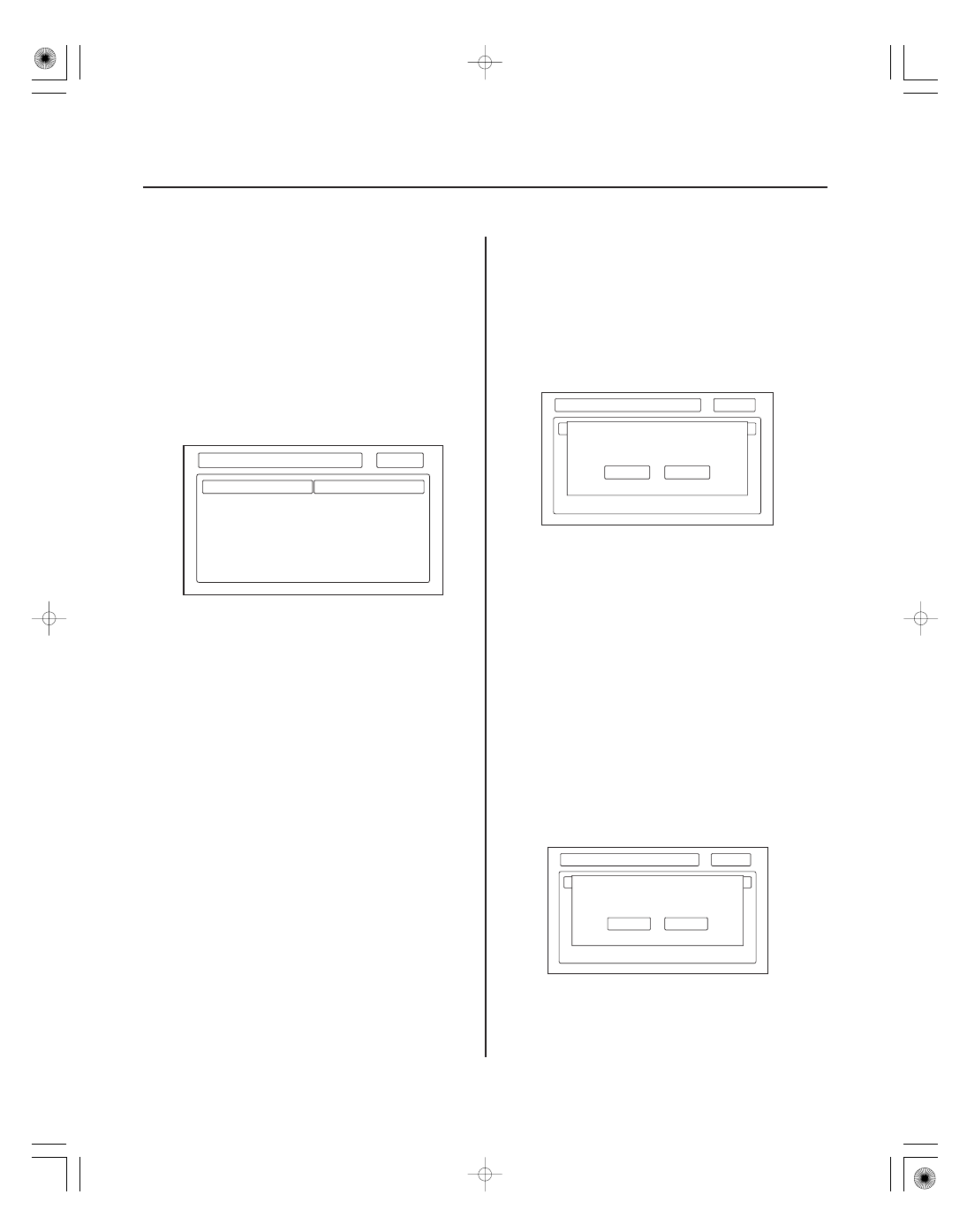
When replacing the navigation unit, this function allows
the dealer to transfer the client’s personal data to the
new navigation unit. The transferred information
includes their Setup settings, and personal addresses.
The dealer inserts a PC card to the navigation unit, and
then selects the Save Users Memory function. The two
functions in this diagnostic screen are EXPORT and
IMPORT. EXPORT saves the client’s data to the PC card,
and IMPORT moves the PC card files to the new
navigation unit.
Before starting this function, see the PC Card FAQs for
information regarding PC cards, how to use this
function.
1. Select EXPORT button to move the client’s data
from the original navigation unit to the PC card.
Select YES on the Export User Data Confirmation
screen. The process takes only a couple of seconds.
The system stores two files on the card.
NOTE: If the EXPORT button is grayed out, check
the PC card’s edge connector, and the pins inside
the navigation unit (with a flashlight) for damage.
2. After installing the client’s original DVD in the new
navigation unit, allow the system to boot up. Insert
the PC card in the new navigation unit and enter the
Save Users Memory in the navigation system
diagnostic mode.
3. Select IMPORT button to move the two files stored
by the Export process from the PC card to the new
navigation unit. Select YES on the Import User Data
Confirmation screen. When the transfer is finished
(a few seconds) the system automatically reboots.
After the system reboots, remove the PC card from
the PC card slot.
NOTE: If the IMPORT button is grayed out, check if
the Model and the Program Flash shown on the
Version screen are the same for the two navigation
units.
08/08/21 14:08:37 61SNR030_230_0153