FANUC MANUAL GUIDE i. OPERATOR’S MANUAL - page 9
10.SETTING DATA
OPERATION
B-63874EN/05
10
SETTING DATA
<1> BASIC
1. WORK COORDINATE DATA
2. TOOL ODFFSET DATA
3. FIXED FORM SENTENCE FOR MILLING
4. FIXED FORM SENTENCE FOR TURNING
5. SETTING OF OFFSET NO. AND TOOL NO.
6. TOOL MANAGEMENT DATA
7. TOOL LIFE MANAGEMENT DATA
Remark) For items 5, 6, and 7, see the description of "V. Tool
Management Function" .
<2> MEASURE COND
1. SETTING
<3> CALIBRATION
1. SETTING
Remark) For
<2> and
<3>, refer to "MANUAL GUIDE i
OPERATOR’S MANUAL Set-up Guidance Function."
NOTE
The menu mentioned above shows only items that
are required depending on the provided options
and the machine type; all the items above are not
indicated.
For details, refer to the relevant manual issued by
the machine tool builder.
- 222 -
B-63874EN/05
OPERATION
10.SETTING DATA
10.1 SETTING THE WORKPIECE COORDINATE DATA
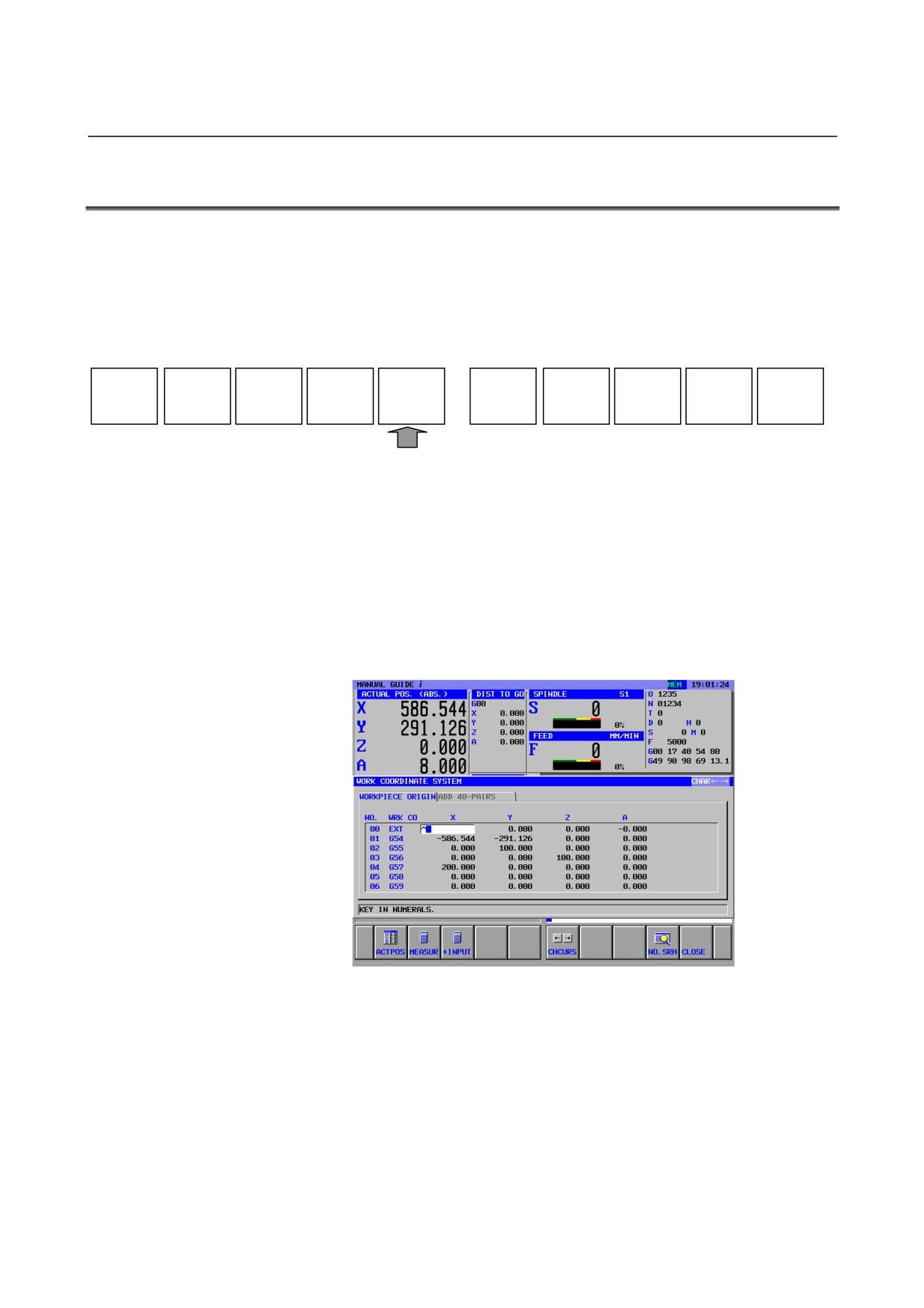
[WK SET] to open the workpiece coordinate data window can be
displayed on all mode such as MEM, EDIT and manual mode.
Pressing the leftmost soft key [<] or rightmost soft key [>] several
times displays the soft-keys including [WK SET]
Example of MEM mode soft-keys)
NC CNV
WK SET
T-OFS
SETING
Pressing [WK SET] displays the workpiece coordinate data window.
For compound machine tools, the workpiece coordinate setting
windows for the T mode and M mode can be selected with
corresponding tabs.
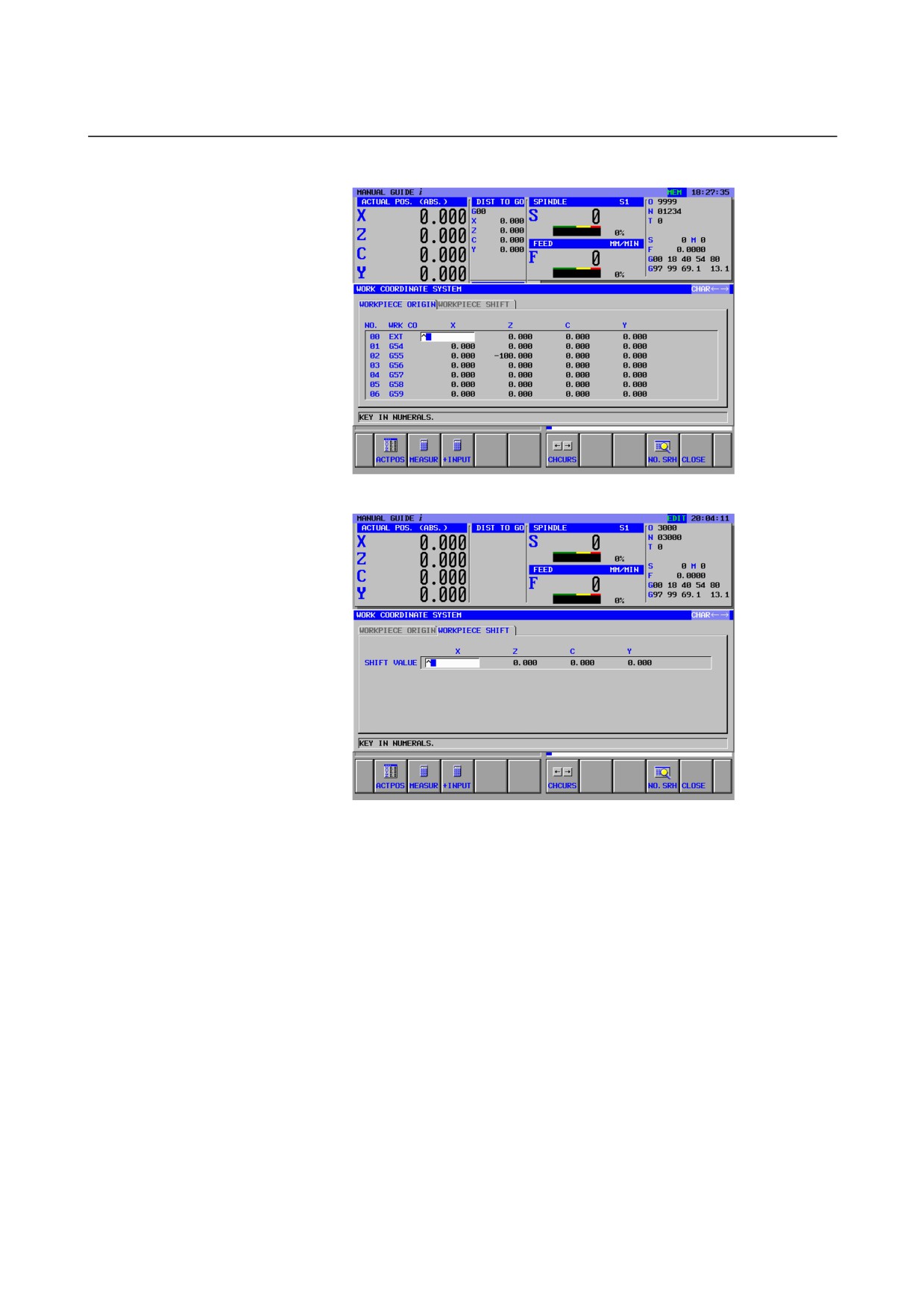
For lathes, a window for setting the workpiece origin offset data and
workpiece coordinate shift data is displayed.
For machining centers, a window for setting the workpiece origin
offset is displayed.
(Workpiece origin offset window for milling system)
- 223 -
10.SETTING DATA
OPERATION
B-63874EN/05
(Workpiece origin offset window for turning system)
(Workpiece shift offset window for turning system)
The data items to be set and displayed are common to the
corresponding data items of the CNC. So, for details, refer to the
operator's manual of the CNC.
- 224 -
B-63874EN/05
OPERATION
10.SETTING DATA
10.1.1
[MEASUR] Soft Key
ACTPOS
MEASUR
+INPUT
CHCURS
NO.SRH
CLOSE
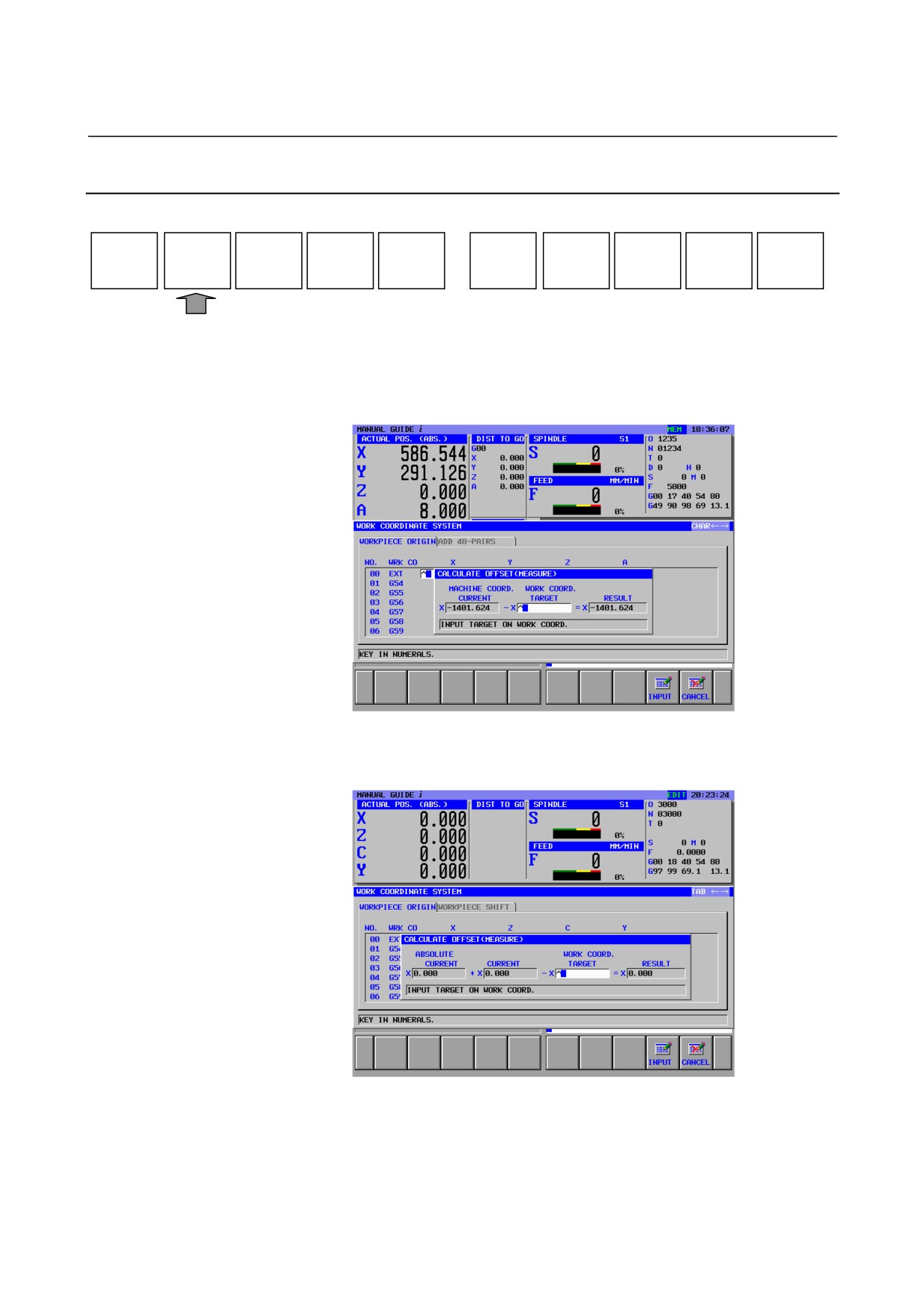
By pressing [MEASUR], the calculations below can be made.
(Workpiece origin offset window for milling system)
Current machine coordinate value - Target value of workpiece
coordinate
(Workpiece origin offset window for turning system)
Current absolute coordinate value + Current setting - Target value
of workpiece coordinate
- 225 -
10.SETTING DATA
OPERATION
B-63874EN/05
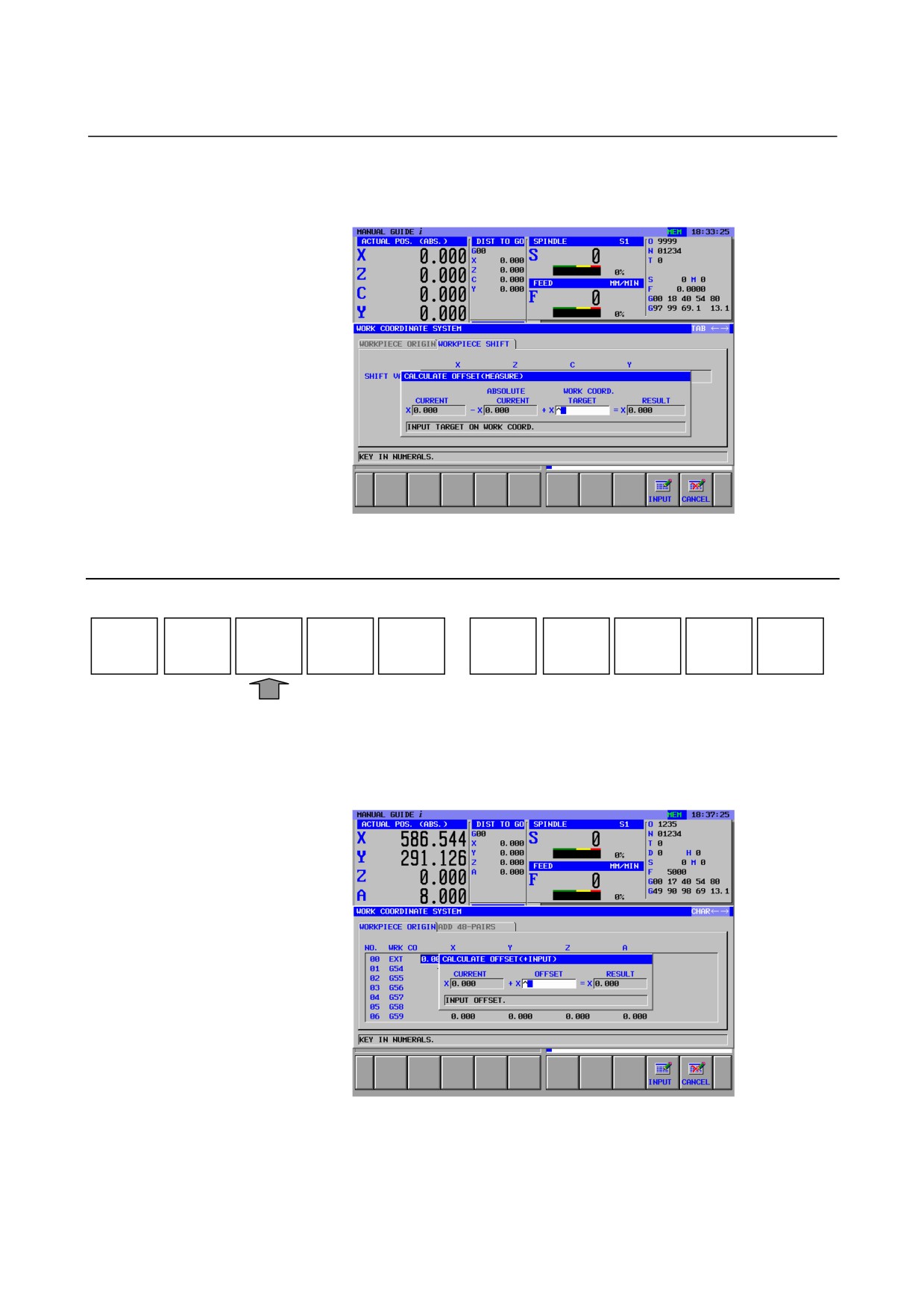
(Workpiece coordinate system shift amount with the turning system)
Current setting - Current value of absolute coordinate + Target
value of workpiece coordinate
10.1.2
[+INPUT] Soft Key
ACTPOS
MEASUR
+INPUT
CHCURS
NO.SRH
CLOSE
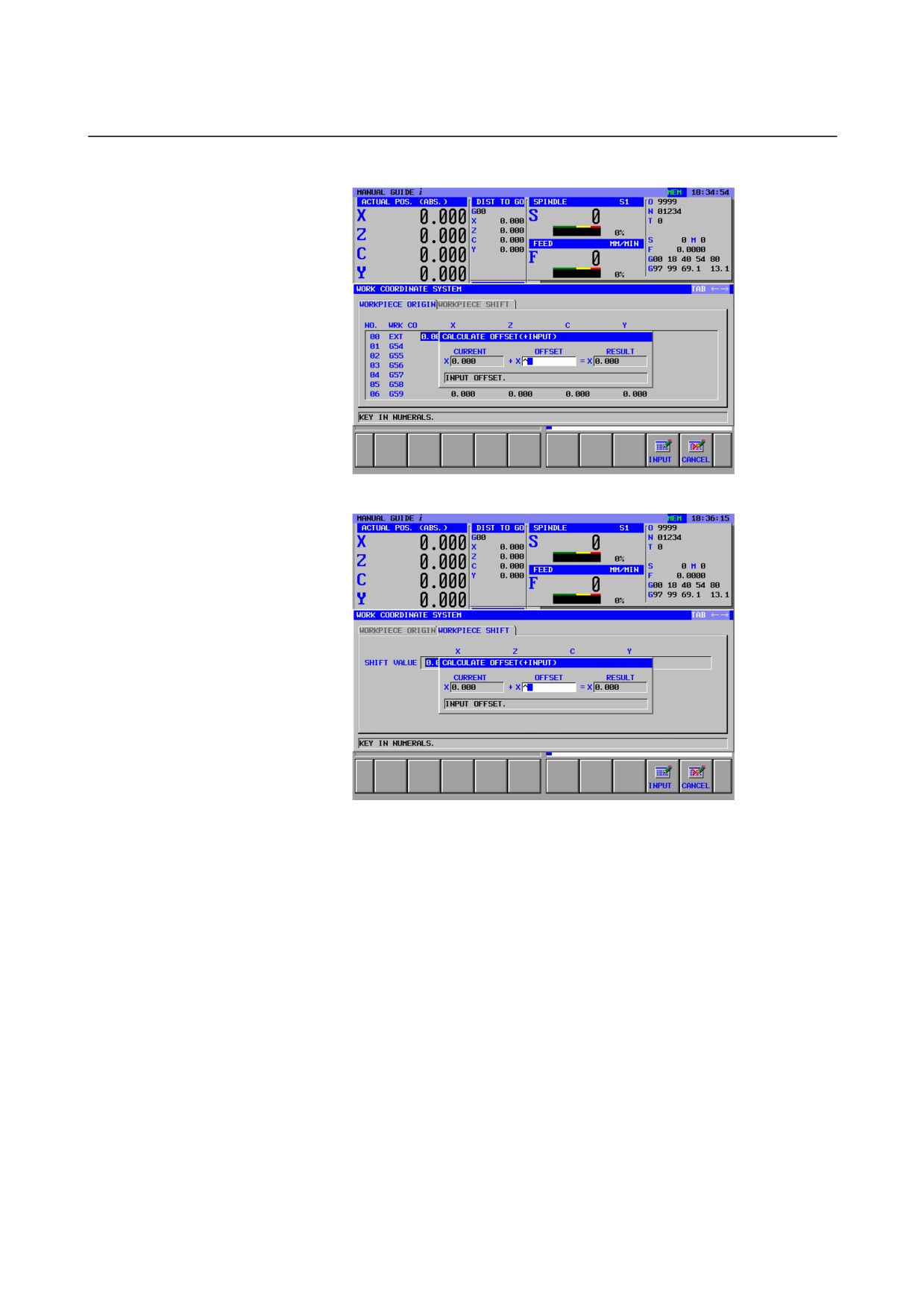
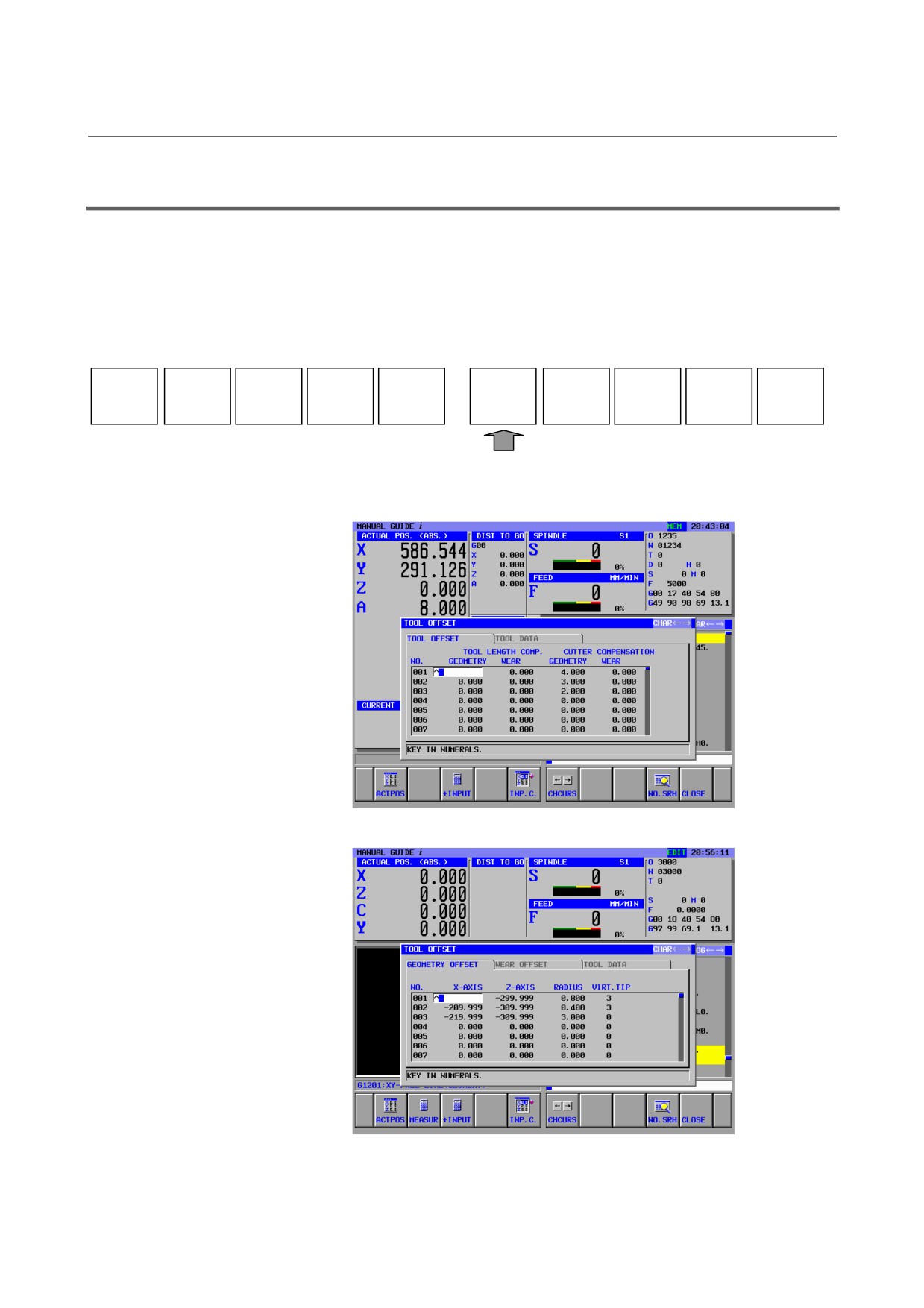
By pressing the [+INPUT], "current value + offset value" can be
calculated.
(Workpiece origin offset window for milling system)
- 226 -
B-63874EN/05
OPERATION
10.SETTING DATA
(Workpiece origin offset window for turning system)
(Workpiece coordinate system shift amount with the turning system)
- 227 -
10.SETTING DATA
OPERATION
B-63874EN/05
10.2 SETTING TOOL OFFSET DATA
[T-OFS] to open the tool offset data window can be displayed on all
mode such as MEM, EDIT and manual mode.
Pressing the leftmost soft key [<] or rightmost soft key [>] several
times displays the soft-keys including [T-OFS]
Example of MEM mode soft-keys)
NC CNV
WK SET
T-OFS
SETING
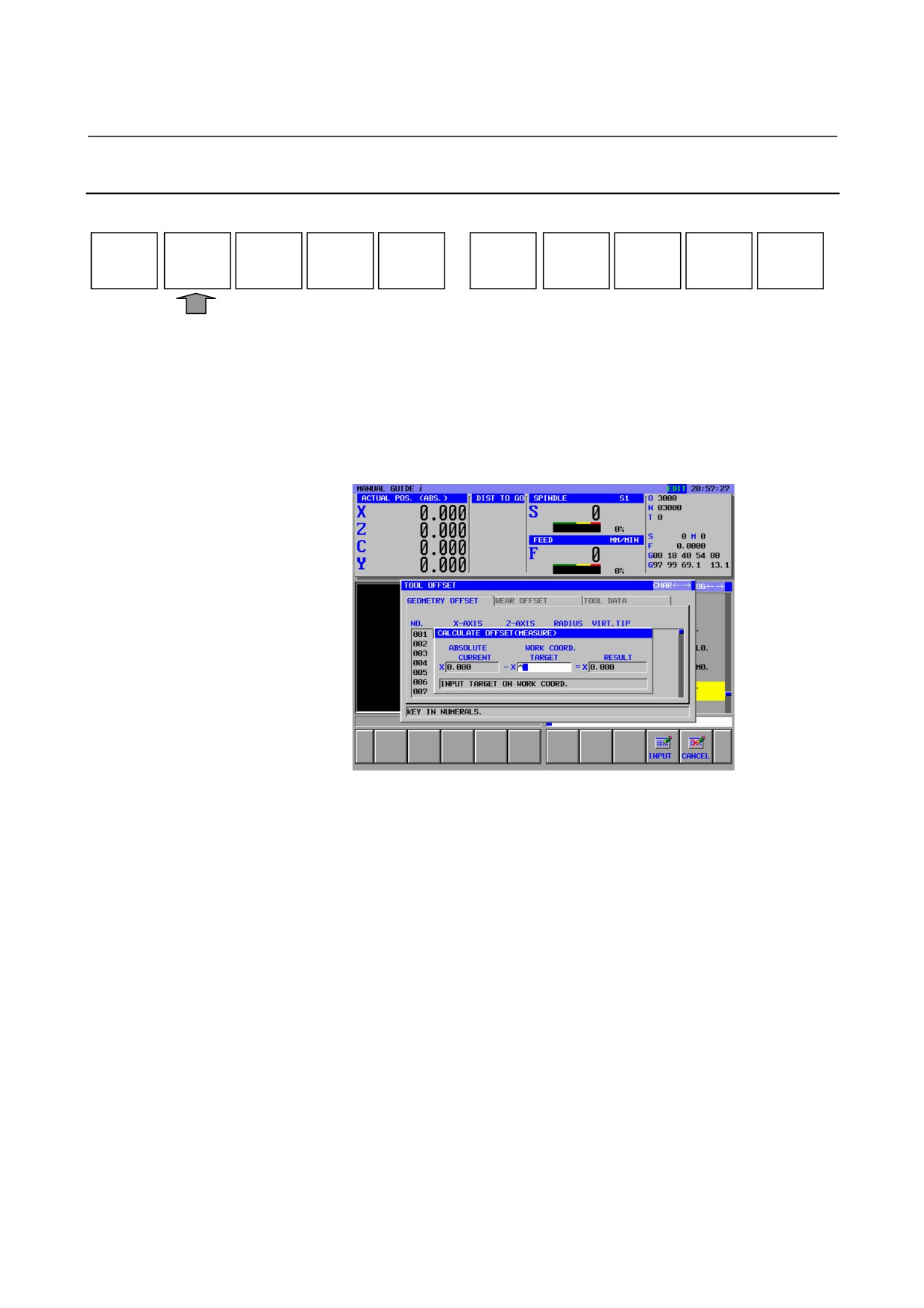
Pressing [T-OFS] displays the tool offset data window.
(M series)
(T series)
- 228 -
B-63874EN/05
OPERATION
10.SETTING DATA
For compound machine tools, the following data items are displayed
for the T mode:
<1> T: GEOMETRY OFFSET
<2> T: WEAR OFFSET
<3> T: GEOMETRY TOOL TYPE OFFSET
<4> T: GEOMETRY WEAR TYPE OFFSET
The following data items are displayed for the M mode:
<5> M: TOOL OFFSET (TOOL LENGTH COMP. / CUTTER
COMPENSATION)
<6> M: TOOL TYPE OFFSET (TOOL LENGTH COMP. / CUTTER
COMPENSATION)
Data for each mode can be selected with a corresponding tab.
For lathes, data items <1> to <4> are displayed. For machining centers,
data items <5> and <6> are displayed.
The data to be set and displayed in <1>, <2>, and <5> is common to
the corresponding data in the CNC. For details, refer to the operator's
manual of the CNC.
For data items <3>, <4>, and <6>, which are related to the tool
management function, see the description of "V. Tool Management
Function".
- 229 -
10.SETTING DATA
OPERATION
B-63874EN/05
10.2.1
[MEASUR] Soft Key
ACTPOS
MEASUR
+INPUT
INP.C.
CHCURS
NO.SRH
CLOSE
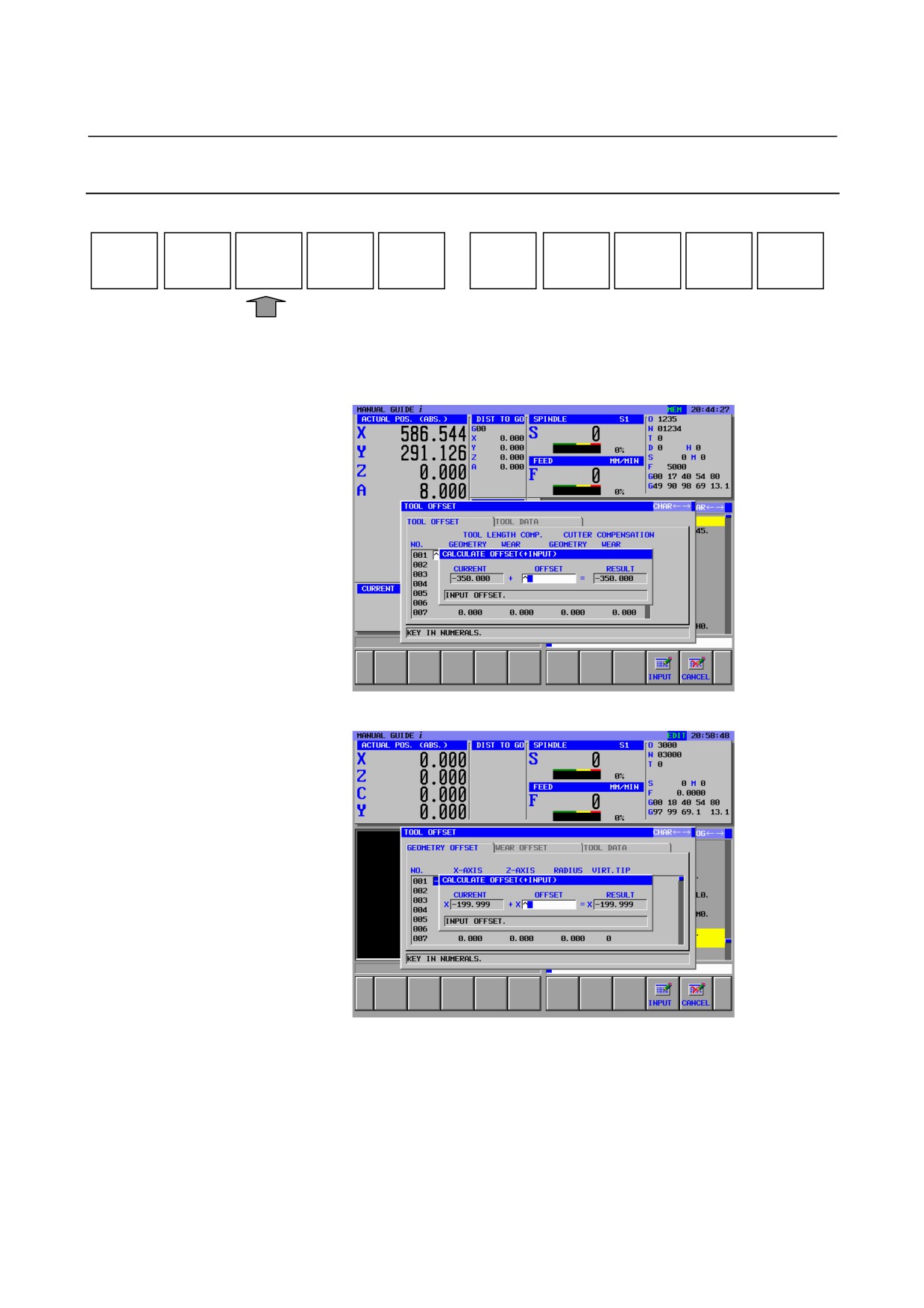
By pressing [MEASUR], "Current machine coordinate value - Target
value of workpiece coordinate” can be calculated.
With the [WEAR OFFSET] tab usable when tool geometry/wear
compensation option is specified, "Current machine coordinate value -
Current geometry offset value - Target workpiece coordinate value"
can be calculated.
[MEASUR] can be used only on T series
- 230 -
B-63874EN/05
OPERATION
10.SETTING DATA
10.2.2
[+INPUT] Soft Key
ACTPOS
MEASUR
+INPUT
INP.C.
CHCURS
NO.SRH
CLOSE
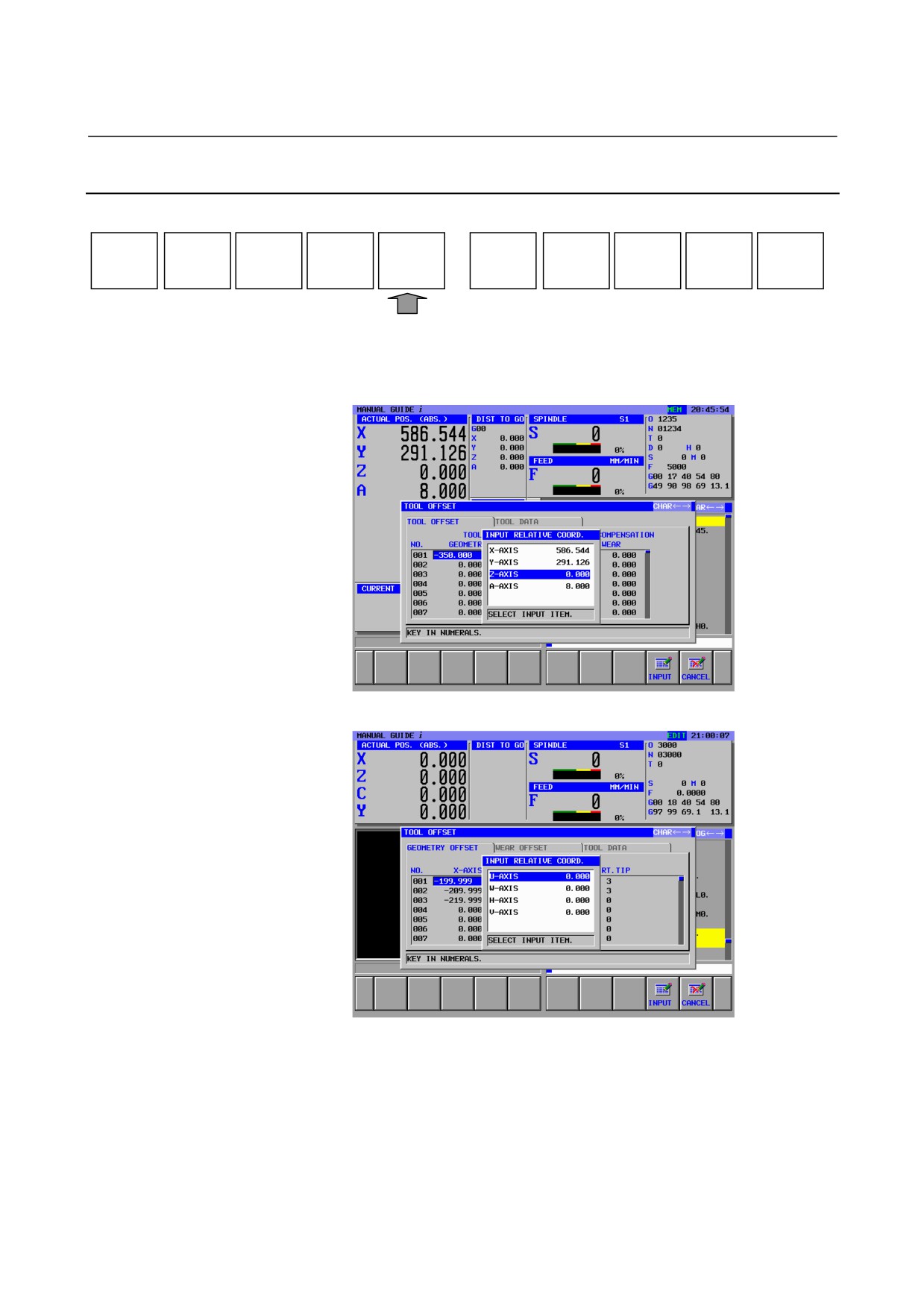
By pressing the [+INPUT] soft key, "Current value + Offset value"
can be calculated.
(M series)
(T series)
- 231 -
10.SETTING DATA
OPERATION
B-63874EN/05
10.2.3
[INP.C.] Soft Key
ACTPOS
MEASUR
+INPUT
INP.C.
CHCURS
NO.SRH
CLOSE
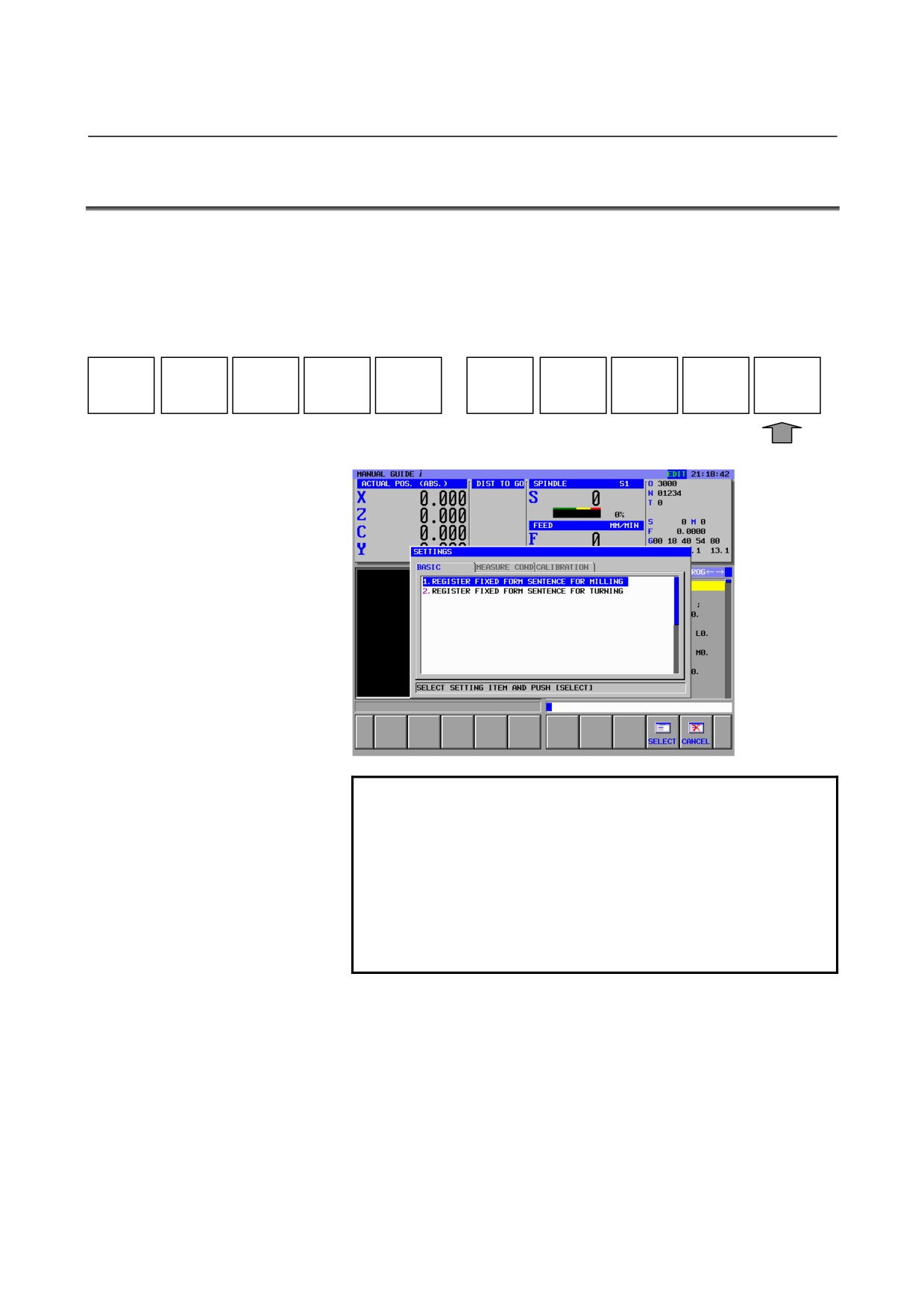
By pressing the [INP.C.] soft key, "Relative coordinate value" can be
entered to the offset value directly.
(M series)
(T series)
- 232 -
B-63874EN/05
OPERATION
10.SETTING DATA
10.3 REGISTERING FIXED FORM SENTENCES
[SETING] to open the setting window can be displayed on all mode
such as MEM, EDIT and manual mode.
Pressing the leftmost soft key [<] or rightmost soft key [>] several
times displays the soft-keys including [SETING]
Example of MEM mode soft-keys)
NC CNV
WK SET
T-OFS
SETING
Pressing [SETING] displays the window of setting data.
NOTE
1 On the T series CNC, the “REGISTER FIXED
FORM SENTENCE” menu for milling is displayed
only when the milling cycle optional function is
attached. The menu for turning is always displayed.
2 On the M series CNC, the REGISTER FIXED
FORM SENTENCE” menu for turning is displayed
only when the turning cycle optional function is
attached. The menu for milling is always displayed.
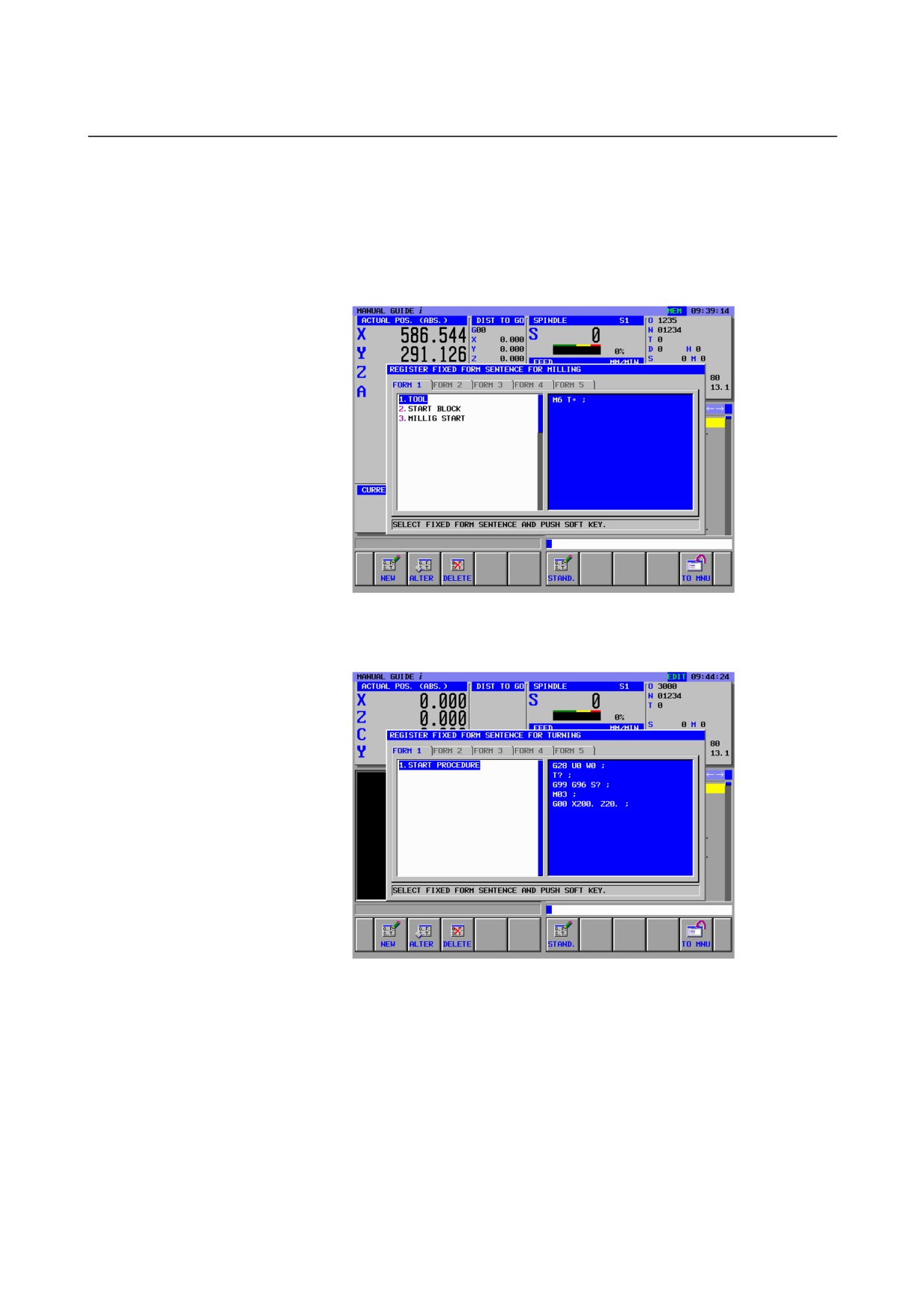
After selecting the menu of “REGISTER FIXED FORM SENTENCE
FOR MILLING” by placing the cursor, pressing [SELECT] displays
the window of data setting.
By similar operations, the window for turning can be displayed.
- 233 -
10.SETTING DATA
OPERATION
B-63874EN/05
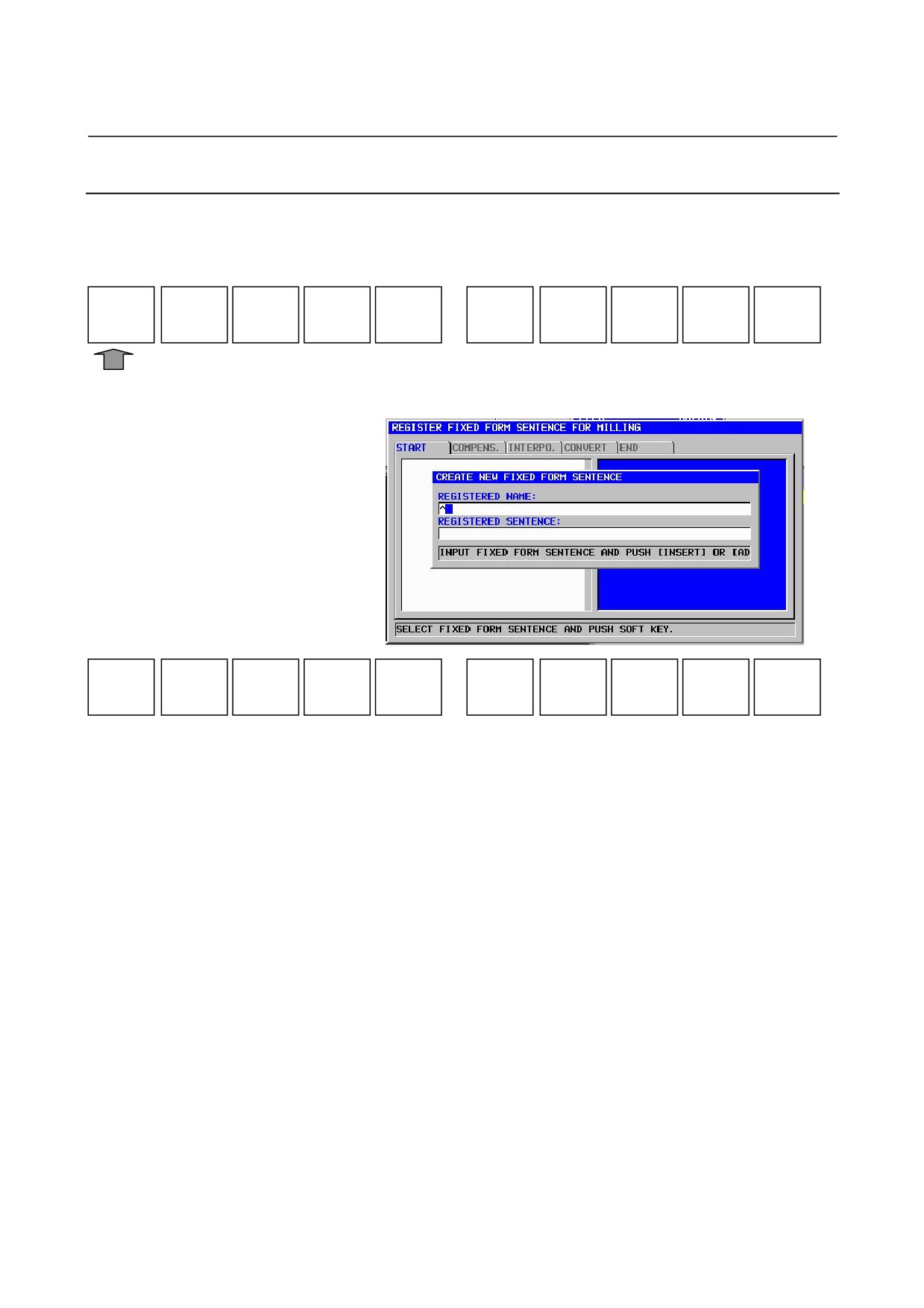
With "FIXED FORM SENTENCE FOR MILLING," which is called
by [FIXFRM] displayed together with the milling menu, you can
modify the contents of a selected fixed form sentence or add a new
sentence.
Selecting “FIXED FORM SENTENCE FOR MILLING” displays the
following screen.
Selecting “FIXED FORM SENTENCE FOR TUNING” displays the
following screen.
- 234 -
B-63874EN/05
OPERATION
10.SETTING DATA
NOTE
1 The fixed form sentence menu displayed in the tab
of “FORM1” has same contents with the one
displayed in the “START” menu. Into detail, refer to
the II 4.1 “ENTERING THE START COMMAND”.
2 The fixed form sentence menu displayed in the tab
of “FORM5” has same contents with the one
displayed in the “END” menu. Into detail, refer to
the II 4.8 “ENTERING THE END COMMAND”.
3 When the parameter No. 14850#3 is ‘1’, prohibiting
registering fixed form sentences by memory
protection key will be enabled.
- 235 -
10.SETTING DATA
OPERATION
B-63874EN/05
10.3.1 Registering a New Fixed Form Sentence
When the REGISTER FIXED FORM SENTENCE MILLING /
TURNING window is displayed on a screen, the following soft-keys
are displayed.
NEW
ALTER
DELETE
STAND.
TO MNU
By pressing [NEW], a window for registering a new fixed form
sentence appears. At the same time, the following soft keys appear:
COPY
PASTE
INSERT
ADD
CANCEL
Position the cursor at the "REGISTERED NAME" item, from the
MDI keyboard enter the name of the fixed form sentence you want to
register, then press the INPUT key to input the name.
Then, position the cursor at the "REGISTERED SENTENCE" item,
enter a fixed form sentence from the MDI keyboard, press the INPUT
key, then press [INSERT] or [ADD]. This can register the new fixed
form sentence.
[COPY]
: Select all registered names or fixed form sentences and
copy them to the clipboard.
[PASTE]
: Paste the clip board contents. You can copy a part of a
machining program being edited to the clipboard in
advance, then you can use it later to, for example, copy
it in "REGISTERED SENTENCE."
[INSERT]
: Add the name of the new fixed form sentence to be
registered to a location immediately before the item
positioned by the cursor when [NEW] is pressed. The
menu numbers of the subsequent fixed form sentences
are all incremented by one.
[ADD]
: Add the name of the new fixed form sentence to be
registered to the end of the menu already registered.
[CANCEL] : Cancel a registration operation.
- 236 -
B-63874EN/05
OPERATION
10.SETTING DATA
NOTE
1 About the number of fixed form sentences per tab
and the maximum characters per fixed form
sentence, the following settings can be selected.
<1> The number of fixed form sentences per tab
is 10 and the maximum characters per fixed
form sentence is 128.
<2> The number of fixed form sentences per tab
is 5 and the maximum characters per fixed
form sentence is 256.
2 The characters per fixed form sentence increase to
256 when bit 4 of parameter No.14852 = 1.
3 Please power on again when the above parameter
is changed. And after that, fixed form sentences
will be initialized on starting the machine again.
- 237 -
10.SETTING DATA
OPERATION
B-63874EN/05
10.3.2 Modifying a Fixed Form Sentence
NEW
ALTER
DELETE
STAND.
TO MNU
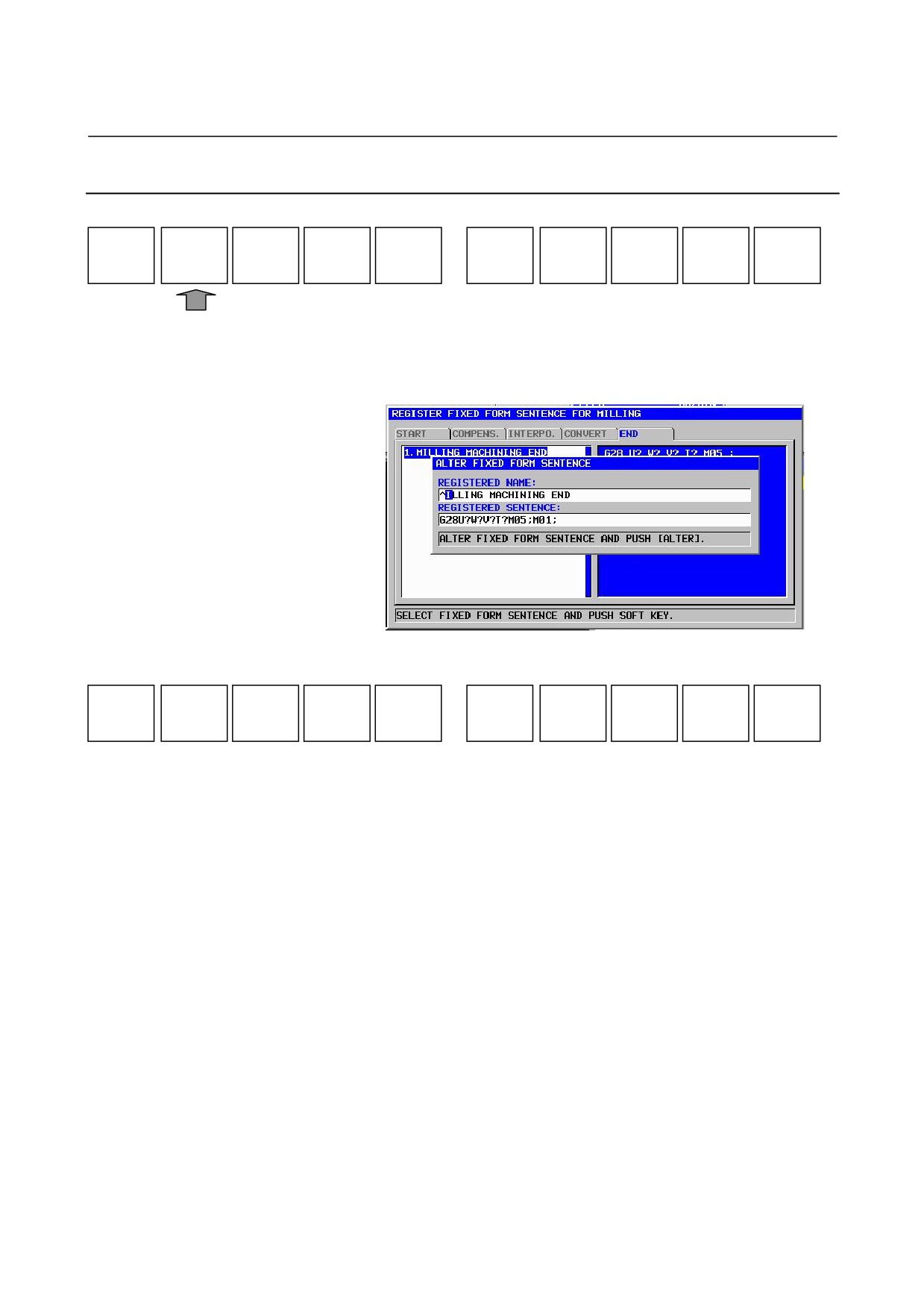
Position the cursor to the name of the fixed form sentence you want to
modify, and press [ALTER]. A window for modifying a fixed form
sentence then appears.
When the above window is displayed, the following soft keys appear:
COPY
PASTE
ALTER
CANCEL
In the "REGISTERED NAME" and "REGISTERED SENTENCE"
items, the contents of the selected fixed form sentence are displayed.
Select an item by using the ↑ and ↓ cursor keys, select the part you
want to modify by using the ← and → cursor keys, then enter a new
character string from the MDI keyboard. This character string is
inserted immediately before the cursor position.
With the CAN key, you can delete the previous character string one
character at a time.
In the same way as in registration, [COPY] and [PASTE] can also be
used.
When you have modified "REGISTERED NAME" and
"REGISTERED SENTENCE," you must press the INPUT key at the
end of the modification.
Pressing [ALTER] replaces the original fixed form sentence with the
new fixed form sentence.
- 238 -
B-63874EN/05
OPERATION
10.SETTING DATA
10.3.3 Deleting a Fixed Form Sentence
NEW
ALTER
DELETE
STAND.
TO MNU
Position the cursor at the name of the fixed form sentence you want to
delete, and press
[DELETE]. Then a message for confirming a
deletion operation is displayed. If you press [YES], the fixed form
sentence is deleted.
Pressing [NO] cancels the deletion operation.
10.3.4 Initialization to Standard Fixed Form Sentences
NEW
ALTER
DELETE
STAND.
TO MNU
The machine tool builder can factory-set particular fixed form
sentences as standard fixed form sentences. For details, refer to the
relevant manual issued by the machine tool builder.
In this case, the fixed form sentences are stored as initial data in a
memory area in which data cannot be deleted.
You can use [STAND.] to restore the initial state factory-set by the
machine tool builder.
NOTE
1 When fixed form sentences are initialized, the
sentences that have been entered or modified so
far are all deleted; so, care is necessary.
2 Also when the machine tool builder reads standard
fixed form sentences into memory, initialization
using [STAND.] is required first.
When [STAND.] is pressed, a message for confirming initialization is
displayed. By pressing [YES], initialization is performed.
Selecting [NO] cancels the initialization.
- 239 -
11.BACKGROUND EDITING
OPERATION
B-63874EN/05
11
BACKGROUND EDITING
During actual machining on the machine, contents of the other part
program can be edited.
- 240 -
B-63874EN/05
OPERATION
11.BACKGROUND EDITING
11.1 STARTING BACKGROUND EDITING
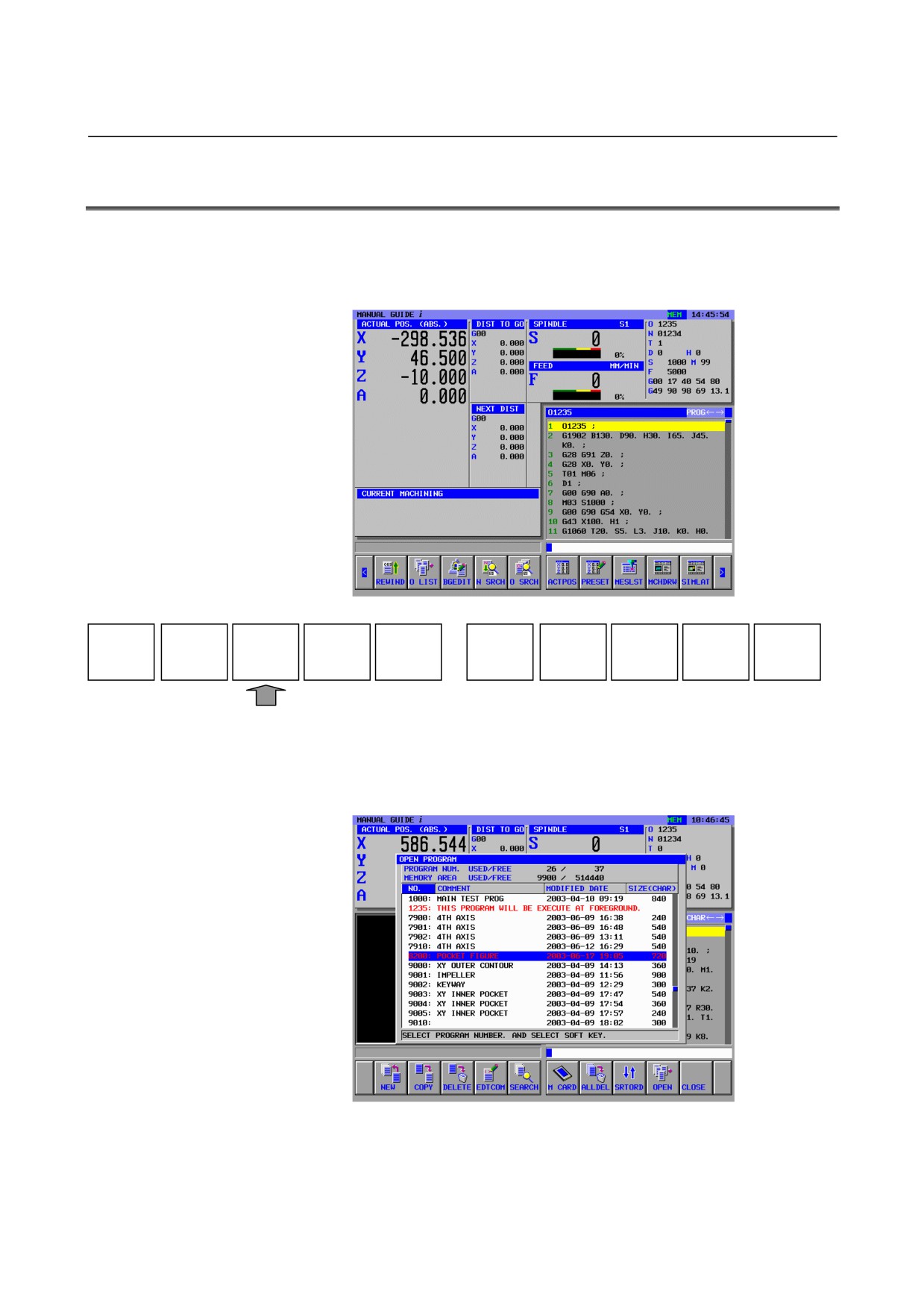
When MEM mode is selected on the machine operator’s panel, The
following program screen is displayed whether the actual machining is
executing or not.
REWIND
O LIST
BGEDIT
N SRCH
O SRCH
ACTPOS.
PRESET
MESLST
MCHDRW
SIMLAT
Pressing the [BGEDIT] soft key switches the screen display to the
background editing screen and displays the program list screen.
Move the cursor to a machining program to be edited, with the cursor
keys, then select the machining program by pressing [OPEN].
- 241 -

11.BACKGROUND EDITING
OPERATION
B-63874EN/05
11.2 ENDING BACKGROUND EDITING
During background editing, pressing the leftmost soft key
[<] or
rightmost soft key [>] several times displays the soft-keys including
[BGEND]
BGEND
Pressing the [BGEND] soft key ends the background editing screen
and returns the screen display to the automatic operation screen.
11.3 OPERATIONS DURING BACKGROUND EDITING
Operations during background editing are basically the same as
editing operations in the EDIT mode. Note, however, that the use of
some operations is restricted.
- 242 -
B-63874EN/05
OPERATION
12.NC PROGRAM CONVERSION FUNCTION
12
NC PROGRAM CONVERSION FUNCTION
Pressing the [NC CNV] soft key starts the NC program conversion
function.
With the NC program conversion function, a
4-digit G cycle
machining command can be dissolved into a single move command
and stored in the part program storage area of the NC.
* When the NC program conversion function is used, the milling
cycle option or turning cycle option is required.
- 243 -

12.NC PROGRAM CONVERSION FUNCTION
OPERATION
B-63874EN/05
12.1
BASIC SPECIFICATIONS
(1)
With the NC program conversion function, only a 4-digit G cycle
machining command can be dissolved into a single move
command. Any other types of commands are output without
modification.
(2)
The NC program conversion function can be used in the MEM
mode only.
(3)
Only an executed block becomes an NC program conversion
target.
(4)
A block containing an M98, M99, or custom macro program is
not output to the conversion destination program.
(5)
In the case of multiple paths, NC program conversion is
performed for each path.
(6)
If there is a loop or conditional branch program of a custom
macro program, executed blocks only are output. A block
containing a conditional branch program of a custom macro is
not output to the conversion destination program.
(7)
If a loop or conditional branch program of a custom macro
program includes a
4-digit G cycle, the
4-digit G cycle is
expanded as many times as the number of repeats. A block
containing a conditional branch program of a custom macro is
not output to the conversion destination program.
(8)
Whether to output a 4-digit G cycle machining command before
expansion as a comment can be chosen using bit 5 of parameter
No. 14703.
Bit 5 of parameter No. 14703 = 0:
Outputs a
4-digit G cycle machining command before
expansion as a comment in NC program conversion.
Bit 5 of parameter No. 14703 = 1:
Does not output a 4-digit G cycle machining command
before expansion as a comment in NC program conversion.
NOTE
In Series 30i, a 4-digit G cycle machining
command before expansion as a comment is not
outputted.
- 244 -
B-63874EN/05
OPERATION
12.NC PROGRAM CONVERSION FUNCTION
(9)
In the case of a subprogram call, see the examples below. A
block containing M98 or M99 is not output to the conversion
destination program.
(Example 1)
(Before conversion)
O0001
M98 P0002;
→
O0002
M30;
G0 X100. ;
%
G0 X200. ;
G0 X300. ;
(After conversion)
M99;
O0001
%
G0 X100. ;
G0 X200. ;
G0 X300. ;
M30;
%
(Example 2)
(Before conversion)
O0001
G1128I1.R0.8A95.B80.J3.P3.L3.M0.F0.5X1.Y1.Z10. ;
M98 P0002;
→
O0002
M30;
G1450H0.V75. ;
%
G1451H0.V0.K7.D0.L0.M0.T1. ;
G1451H5.V0.K1.C5.L0.M0.T1. ;
G1451H5.V75.K3.D75.L0.M0.T2. ;
G1456;
(After conversion)
M99;
O0001
%
(NC PROGRAM CONVERSION-START);
G01X963Z1616;
G01X896 Z1654;
:
(NC PROGRAM CONVERSION-END);
M30;
%
- 245 -
12.NC PROGRAM CONVERSION FUNCTION
OPERATION
B-63874EN/05
12.2 OPERATING THE NC PROGRAM CONVERSION
FUNCTION
Selecting MEM mode on the machine operator’s panel, and pressing
the leftmost soft key
[<] or rightmost soft key
[>] several times
displays the soft-keys including [NC CNV]
NC CNV
WK SET
T-OFS
SETING
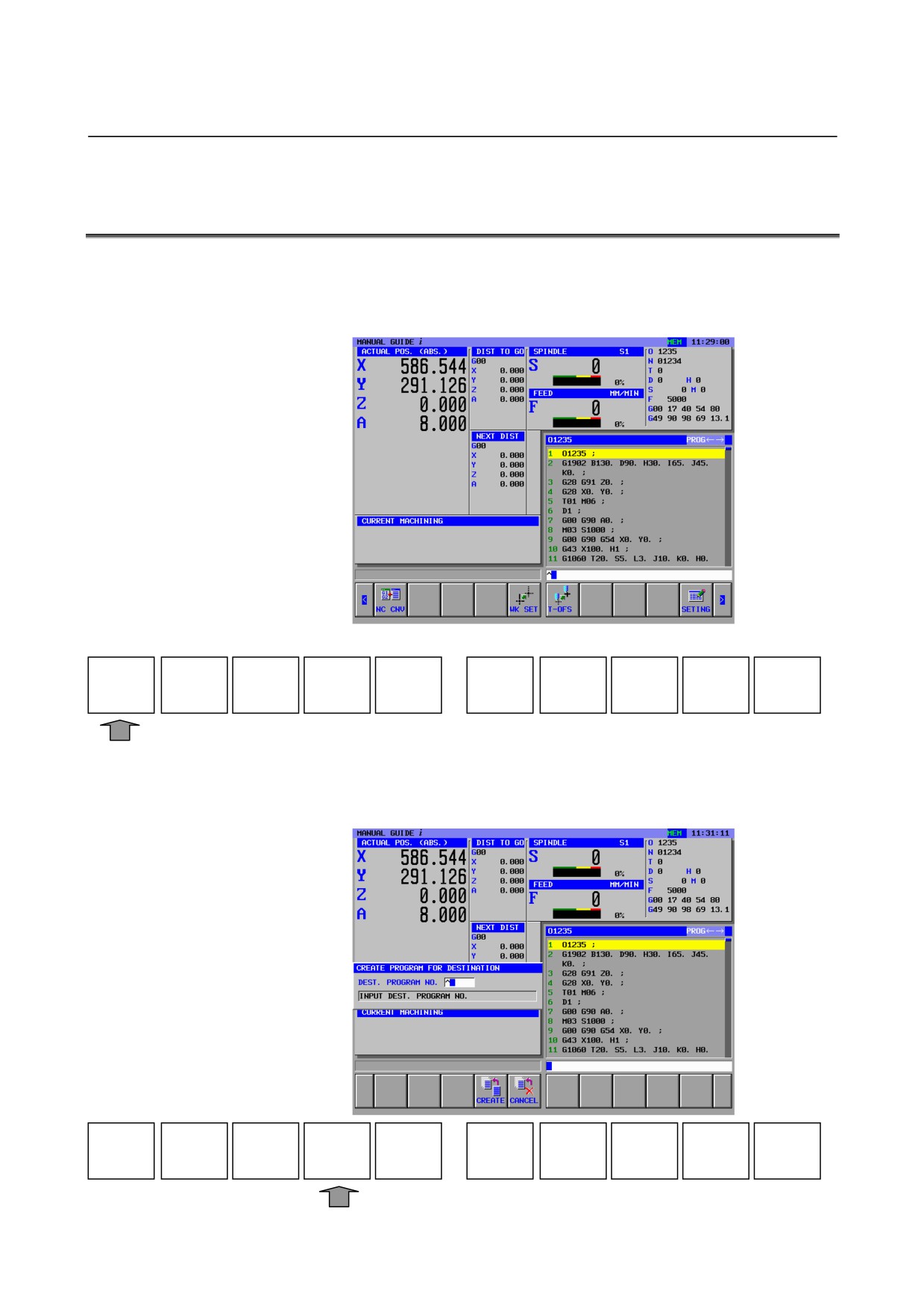
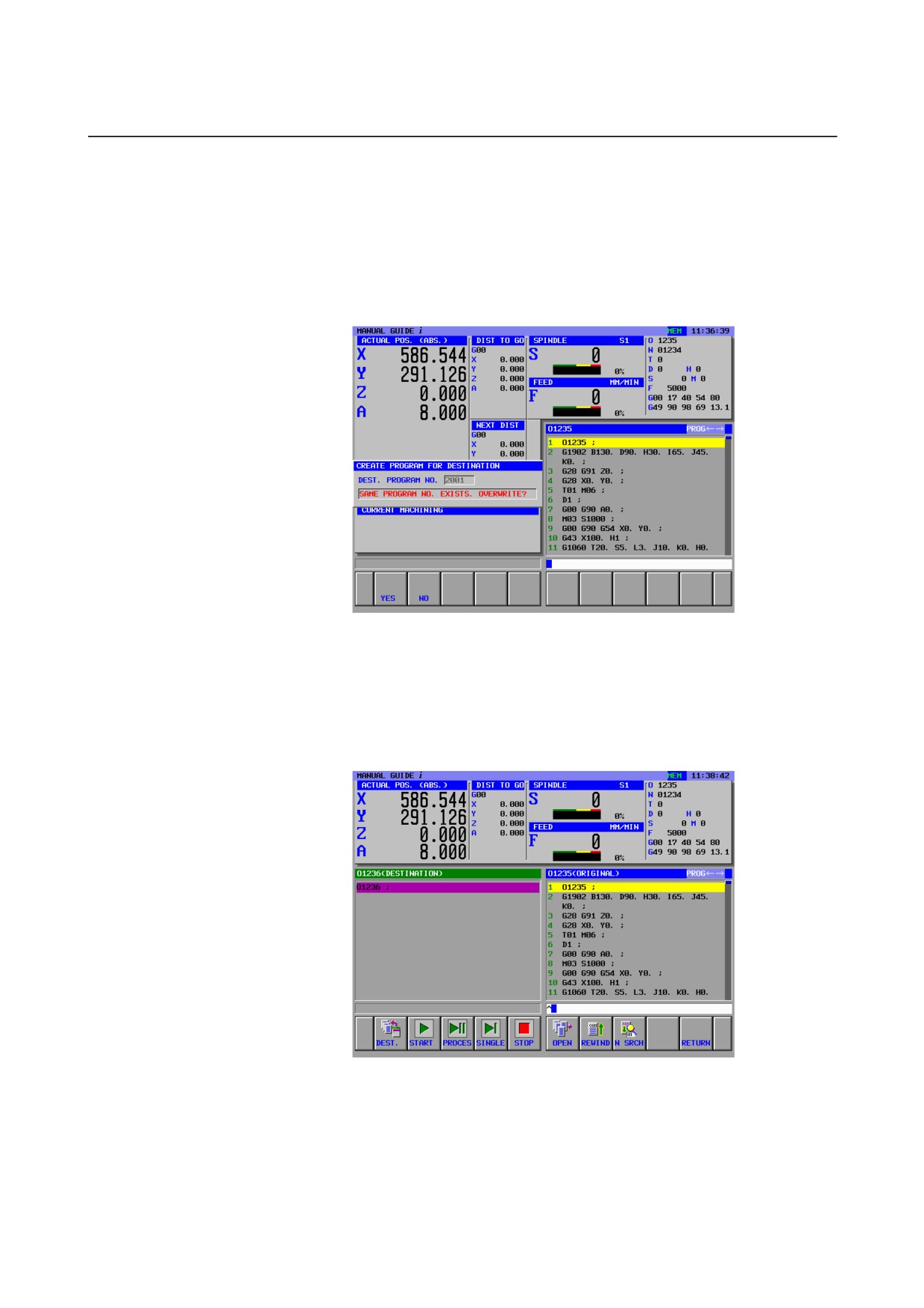
<1> The
[CREATE PROGRAM FOR DESTINATION] screen
appears. Enter the number of a conversion destination program,
then press the [CREATE] soft key.
CREATE
CANCEL
- 246 -
B-63874EN/05
OPERATION
12.NC PROGRAM CONVERSION FUNCTION
<2> If the program already exists, a message for checking if the
program may be overwritten is displayed. If the program may be
overwritten, press [YES]. If you select [NO], the screen goes
back to the memory program screen, so press [NC CNV] again
and enter other program number.
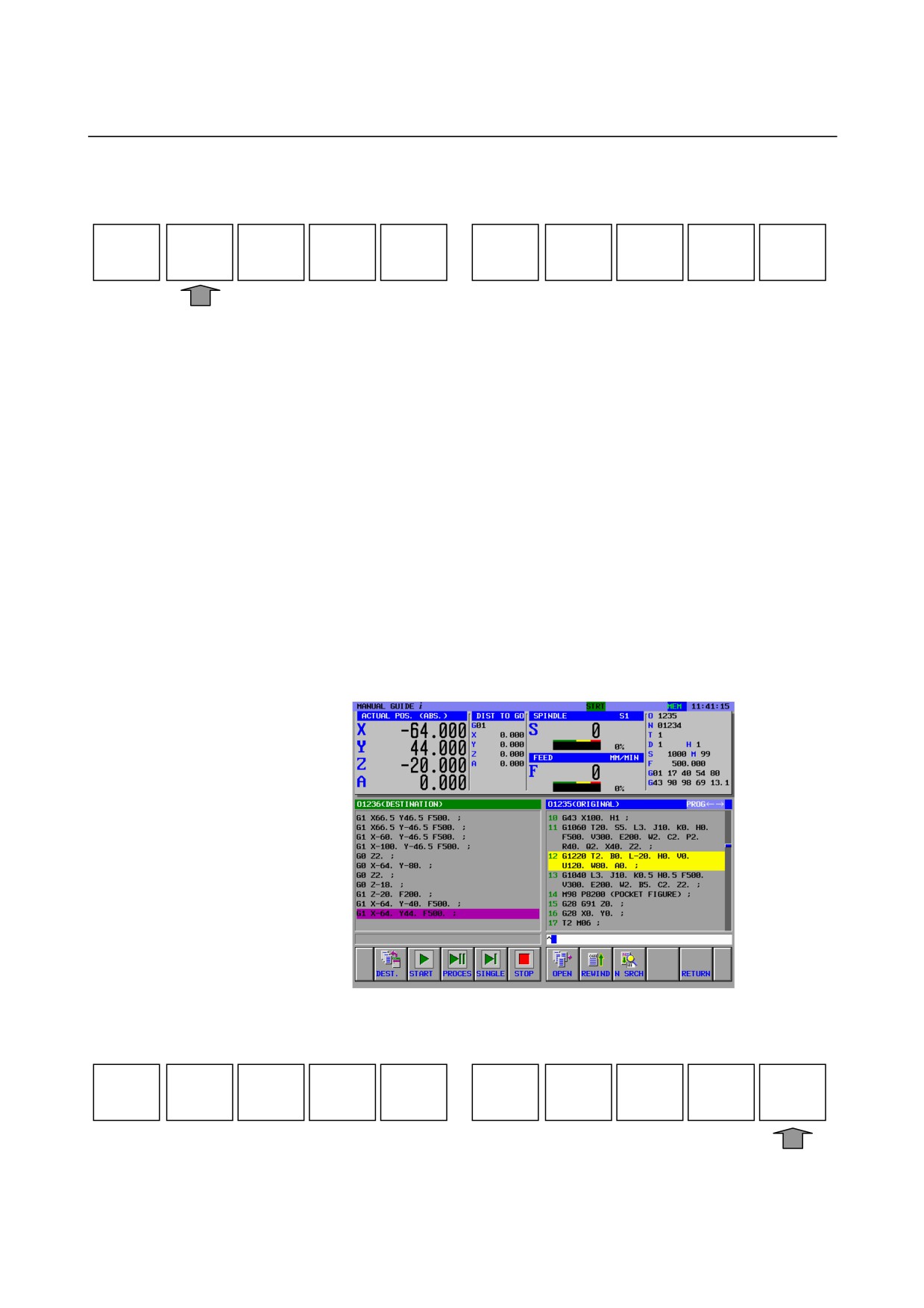
<3> Press the [CREATE] soft key. A new program with the entered
number is created. The NC program conversion function screen
shown below appears to display a conversion source program
window and a post-conversion program window at the same time.
Pressing [CANCEL] switches the screen display from the NC
program conversion function screen to the program screen.
- 247 -
12.NC PROGRAM CONVERSION FUNCTION
OPERATION
B-63874EN/05
<4> The following soft keys appear on the NC program conversion
function screen. Press [START] to start NC program conversion.
DEST.
START
PROCES
SINGLE
STOP
OPEN
REWIND
N SRCH
RETURN
[DEST.]
: Creates a new conversion destination program.
[START]
: Starts NC program conversion execution.
[PAUSE]
: Stops NC program conversion execution temporarily.
[SINGLE]
: Executes NC program conversion block by block.
[STOP]
: Stops NC program conversion execution.
[OPEN]
: Selects a conversion source program from the program
list screen.
[REWIND] : Searches for a conversion source program.
[N SRCH]
: Makes an N search for a conversion source program.
[CHPATH] : Displayed only when the multi-path option is specified.
This soft key switches between paths.
[RETURN] : Ends the NC program conversion function and returns
the screen display to the ordinary MEM mode screen.
* When bit 0 of parameter No. 27310 = 1, the [PAUSE] soft key is
replaced with the [PROCES] soft key.
[PROCES]
: Executes NC program conversion process by process.
<5> During executing NC program conversion, the converted part
program blocks are displayed in the destination window.
<6> Confirm that the NC program conversion ends, then press
[RETURN].
DEST.
START
PROCES
SINGLE
STOP
OPEN
REWIND
N SRCH
RETURN
- 248 -
B-63874EN/05
OPERATION
12.NC PROGRAM CONVERSION FUNCTION
12.3
RESTRICTIONS
(1)
The NC program conversion function cannot be used during
background editing.
(2)
Blocks containing the following words are not output to the
conversion destination program:
•
M98
•
M99
•
Custom macro conditional branch program
<1> GOTO
<2> IF
<3> THEN
<4> WHILE
<5> END
•
Custom macro variable assignment program
#?=~
•
Custom macro external output command program
<1> POPEN
<2> PCLOS
<3> BPRNT[~]
<4> DPRNT[~]
(3)
If an alarm is issued during NC program conversion, the results
of conversion at that time are output to the conversion destination
program.
(4)
During NC program conversion, the following soft keys cannot
be used:
[DEST.], [START], [OPEN], [REWIND], [SRCH], [CHPATH],
[RETURN]
(5)
If an execution mode other than MEM mode is set during NC
program conversion, the execution of NC program conversion is
terminated forcibly.
(6)
During NC program conversion, the screen display cannot be
switched to the NC screen.
(7)
If only one block is inserted between WHILE programs, blocks
as many as the loop count are not output but only one block is
output.
(Before conversion)
WHILE [#1 EQ #2]DO1;
G0 X0. ;
END1 ;
(After conversion) Only one block is output even if three loop
operations are performed.
G0 X0. ;
- 249 -
12.NC PROGRAM CONVERSION FUNCTION
OPERATION
B-63874EN/05
(8) The NC program conversion function is designed to expand a
4-digit G cycle machining code. So, NC program conversion is
not performed as expected in cases other than the cases indicated
below.
(Example 1) When both the machining command and figure command
of a cycle are present on the main program
O0001
G1128I1.R0.8A95.B80.J3.P3.L3.M0.F0.5X1.Y1.Z10. ;
G1450H0.V75. ;
G1451H0.V0.K7.D0.L0.M0.T1. ;
G1451H5.V0.K1.C5.L0.M0.T1. ;
G1451H5.V75.K3.D75.L0.M0.T2. ;
G1456;
M30;
%
(Example 2) When the figure command of a cycle is present on a
subprogram
O0001
G1128I1.R0.8A95.B80.J3.P3.L3.M0.F0.5X1.Y1.Z10. ;
M98 P0002;
→
O0002
M30;
G1450H0.V75. ;
%
G1451H0.V0.K7.D0.L0.M0.T1. ;
G1451H5.V0.K1.C5.L0.M0.T1. ;
G1451H5.V75.K3.D75.L0.M0.T2. ;
G1456;
M99;
%
* It is assumed that the subprogram includes only the figure
command of a cycle.
(9) Executed program blocks are the target of NC statement
conversion.
(10) Feedrate command is converted with decimal point
(11) When custom macro block exit before executing stop command
(M00, M01, M02, M30, M99), executing stop command (M00,
M01, M02, M30, M99) is not converted.
(12) When M98 block exit before executing stop command (M00,
M01, M02, M30, M99), executing stop command (M00, M01,
M02, M30, M99) is not converted.
(13) A block including M198 is not converted.
- 250 -
B-63874EN/05
OPERATION
13.TOOL DATA BASE FUNCTION
13
TOOL DATA BASE FUNCTION
- 251 -