FANUC Series 30i/300i/300is-MODEL A. Machining Center System. User's manual - page 237
 

  Index      Manuals     FANUC Series 30i/300i/300is-MODEL A. Machining Center System. User's manual (B-63944EN/03)


Search            copyright infringement  


Content      ..     235      236      237      238     ..


FANUC Series 30i/300i/300is-MODEL A. Machining Center System. User's manual - page 237


12.SETTING AND DISPLAYING DATA

 OPERATION 

B-63944EN/03


- 1852 - 

 - Count type 

As the count type, select the way of counting. 
Place the cursor on the count type of a target registration number, then 
press horizontal soft key [TYPE]. Count types are displayed as soft 
keys as shown below.  Select one of these soft keys, then press 
horizontal soft key [EXEC]. 


Soft key 

Meaning 

Indication 

[NO CNT] 

Counting is not performed (stopped) 

— — — — — — 

[ALL] 

Counting is performed at all times 

All times 

[POWER ON]

Counting is performed when power 

is on. 

When power is on 

[RUN] 

Counting is performed when 

operation is in progress. 

When operation is in 

progress 

[CUT] 

Counting is performed when cutting 

is being performed. 

When cutting is being 

performed 


NOTE 

1  If a setting operation is attempted when the item 

name or life time is not registered, the warning 
“EDIT REJECTED” is issued. 

2  Horizontal soft keys [INPUT] and [+INPUT] have no 

effect. 

3  When counting is performed at all times, a 24-hour 

error is generated in leap year. 

4  If horizontal soft key [ERASE] is pressed, the 

warning “EDIT REJECTED” is issued. 


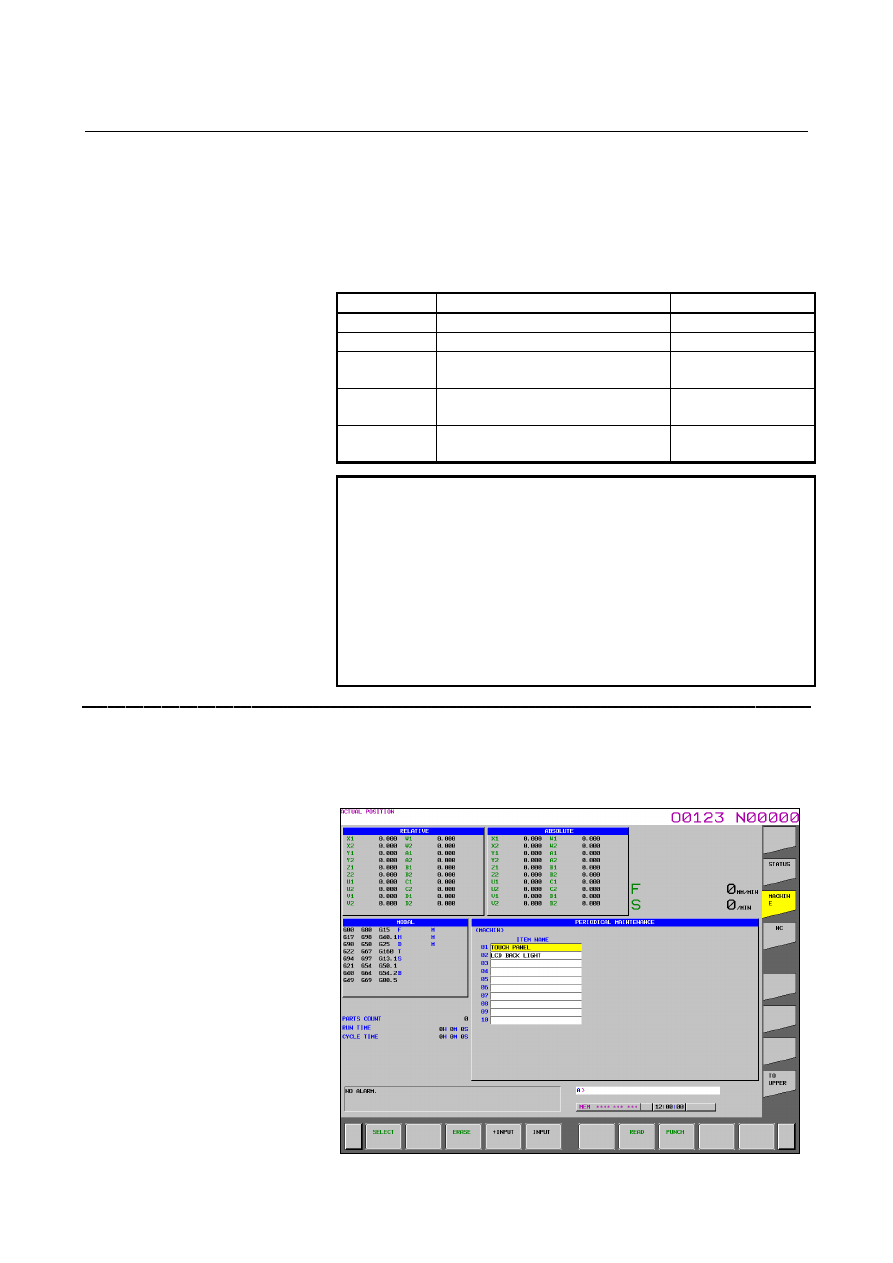
Machine menu screen 

On the machine menu screen, the names of consumables of the 
machine are registered. From this screen, item names can be added to 
the status screen. For the method of addition to the status screen, see 
the description of the status screen. 


Fig. 12.4.28 (c) Machine menu screen 

B-63944EN/03

 OPERATION 

12.SETTING AND DISPLAYING DATA


- 1853 - 


  - Displaying the screen 

1  When the status screen is displayed, press vertical soft key 

[MACHINE]. 

 
On the machine menu screen, item names can be registered using one 
of the following two methods: 


Registration from a program 


Registration using the MDI keys 


  - Registration from a program 

By executing a program having the following format, an item name 
can be registered in the menu of the machine: 


Format 

G10 L61 Px [n] 

X  Registration number 
n  Item name, format: 

[alphanumeric-characters*2-byte-characters*alphanumeric-characters] 


  - Registration using the MDI keys 

An item name can be registered on the menu screen of the machine by 
typing the item name in the format shown below on the machine menu 
screen, then pressing horizontal soft key [INPUT] (or the 

 key). 

 
When horizontal soft key [+INPUT] is pressed, the typed characters 
can be added to an already registered item name. 


Format 

Alphanumeric-characters*2-byte-characters*alphanumeric-characters 

 
Two-byte codes must conform to FANUC codes. (See Appendix G, 
"FANUC 2-BYTE CHARACTER CODE TABLE".) 
When typing 2-byte characters, type an asterisk "*" before and after 
the character codes. An item name to be registered must be up to 24 
characters long if it consists of alphanumeric characters only; or it 
must be up to 12 characters long if it consists of 2-byte characters only. 
 
Example: 
 

To register "LCD

バックライト

", enter the following: 

 >LCD

110E10F410CC114010B610FE


12.SETTING AND DISPLAYING DATA

 OPERATION 

B-63944EN/03


- 1854 - 

NOTE 

1  An asterisk "*" is used as a control code, so it 

cannot be used in item names. In addition, 
characters "[", "]", "(", and ")" cannot be used in 
item names. 

2  When an item name consisting of both 

alphanumeric characters and 2-byte characters is 
registered, the warning “DATA IS OUT OF 
RANGE” may be output. 

3  When a blank item name is selected on the 

machine screen, the warning “EDIT REJECTED” is 
issued. 

 
To delete a registered item name, move the cursor to the item name, 
press horizontal soft key [ERASE], then press horizontal soft key 
[EXEC]. 
 
From this screen, an item name can be registered on the status screen. 
For the method of registration to the status screen, see the description 
of the status screen. 


Fig. 12.4.28 (a) NC menu screen 


  - Displaying the screen 

When the status screen is displayed, press soft key [NC]. 


NOTE 


On the NC screen, the registration, deletion, and 
I/O of item names cannot be performed. 


When a blank item name is selected, a blank is set. 


B-63944EN/03

 OPERATION 

12.SETTING AND DISPLAYING DATA


- 1855 - 

12.4.29 

System Configuration Screen (15-inch Display Unit) 

 
The system configuration screen provides information about the types 
of installed hardware and software. 
 

Procedure for displaying the screen 

Procedure 

1 Press 

the 

  key, then press vertical soft key [NEXT PAGE] 

several times until vertical soft key [SYSTEM] is displayed. 

2  Press vertical soft key [SYSTEM]. The system configuration 

screen is displayed. 

There are two types of system configuration screens: the hardware 
configuration screen and the software configuration screen. The screen 
display can switch between these screens by using 

 and 

When vertical soft key [SERVO INFO] or [SPINDLE INFO] is 
pressed, information about the connected servo system or spindles is 
displayed. 


Fig. 12.4.29 (a) System configuration screen 


12.SETTING AND DISPLAYING DATA

 OPERATION 

B-63944EN/03


- 1856 - 

Hardware configuration screen 

This screen shows the names and IDs of the hardware used by the NC. 


Fig. 12.4.29 (b) Hardware configuration screen 


Software configuration screen 

This screen shows the names and series/editions of the software used 
by the NC. 


Fig. 12.4.29 (c) Software configuration screen 


B-63944EN/03

 OPERATION 

12.SETTING AND DISPLAYING DATA


- 1857 - 

Servo information screen 

When a servo system is connected to the NC, ID information of the 
connected servo devices (servo motors and servo amplifier modules) 
can be displayed on the NC. 
 

Displaying the screen 

When the system configuration screen is displayed, press vertical 
soft key [SERVO INFO]. 

The servo information screen is displayed. 


Fig. 12.4.29 (d) Servo information screen 


Spindle information screen 

When a spindle system is connected to the NC, the ID information of 
the connected spindle devices (spindle motors and spindle amplifier 
modules) can be displayed on the NC. 
 

Displaying the screen 

When the system configuration screen is displayed, press vertical 
soft key [SPINDLE INFO]. 

The spindle information screen is displayed. 


Fig. 12.4.29 (e) Spindle information screen 

12.SETTING AND DISPLAYING DATA

 OPERATION 

B-63944EN/03


- 1858 - 

12.4.30 

Overview of the History Function (15-inch Display Unit) 

 
The history function makes it possible to record a history of 
operations performed by the operator, alarms and external operator 
messages issued, and other history data, check the history, and output 
history data.


Conditions for recording history 
a Display 

screen 


A history of screens other than the operation history screen 
is recorded. 

b Signal 

selection 


Up to 60 I/O signals can be selected so that they can be 
recorded in history data. 

c Parameter 

setting 


With parameters, it is possible to separately set whether to 
record an MDI key operation history and an external 
operator message history, add external alarms and messages, 
and record data modification histories such as operation 
histories of parameters, tool offsets, workpiece offsets 
(workpiece shift amounts), custom macro common variables, 
and I/O signals. 

d Storage 

capacity 


When the storage capacity becomes full, data is deleted in 
order from the oldest data.Up to about 8000 items of history 
data can be recorded if the data consists of history data of 
MDI key operations only. 

 
2 Data 

output 


All history data stored can be output to external input/output 
devices. (See Subsection 12.4.30.5, "Outputting all history 
data".) 


Erasure of history data 


If bit 7 (EKE) of parameter No. 3195 is set to 1, soft key 
[CLEAR] is displayed, allowing the user to erase history data. 


#7 #6 #5 #4 #3 #2 #1 #0 

3195 


EKE 


 [Data 

type] 

Bit 
 

        # 7 

EKE

  Soft key [ALL CLEAR] for clearing all history data is: 

0: Not 

displayed. 

1: Displayed. 
 

B-63944EN/03

 OPERATION 

12.SETTING AND DISPLAYING DATA


- 1859 - 

NOTE 

1  History data remains even after the power is turned 

off. 
Memory clear operation, however, erases history 
data as well. 

2  Set the time and date correctly on the setting 

screen. 

3  All history data including data of alarms, external 

operator messages, operations, and I/O signals is 
integrated and maintained in a single storage area. 
When the storage capacity becomes full, history 
data is erased in order from the oldest data 
regardless of the history type. 
When history data is erased, all history data is 
erased, so care should be taken. 
It is impossible to erase only a specific history. 


Content      ..     235      236      237      238     ..