FANUC Series 0i-MODEL F Plus. CONNECTION MANUAL (FUNCTION) - page 355
 

  Index      Manuals     FANUC Series 0i-MODEL F Plus. CONNECTION MANUAL (FUNCTION) B-64693EN-1/01


Search            copyright infringement  


Content      ..     353      354      355      356     ..


FANUC Series 0i-MODEL F Plus. CONNECTION MANUAL (FUNCTION) - page 355


18. DIAGNOSIS FUNCTION


B-64693EN-1/01


- 2794 - 

In the following dialog box, input a destination folder and file name of the Excel file to be made. 


NOTE 

1  The extension of the file name must be "xls" (Excel book format). Any other 

extension is ignored and it is changed to "xls". 

2  When making a new file is failed, the message box "A trouble diagnosis 

message file cannot be made." is displayed with one of the following messages 
about the cause of that failure. 
-  The specified file name is not correct. 
-  The specified file has already existed. 
-  (Destination folder) is not found. 
-  Files in (destination folder) cannot be written. 
-  The disk space in (destination folder) is not enough to make a new file. 


Click the [OK] button, a Excel file will be made as the specified name in the specified folder. 

 
The trouble diagnosis messages can be input by opening the new Excel file. 
 

18.5.5.4 

Structure of the file to input trouble diagnosis messages 

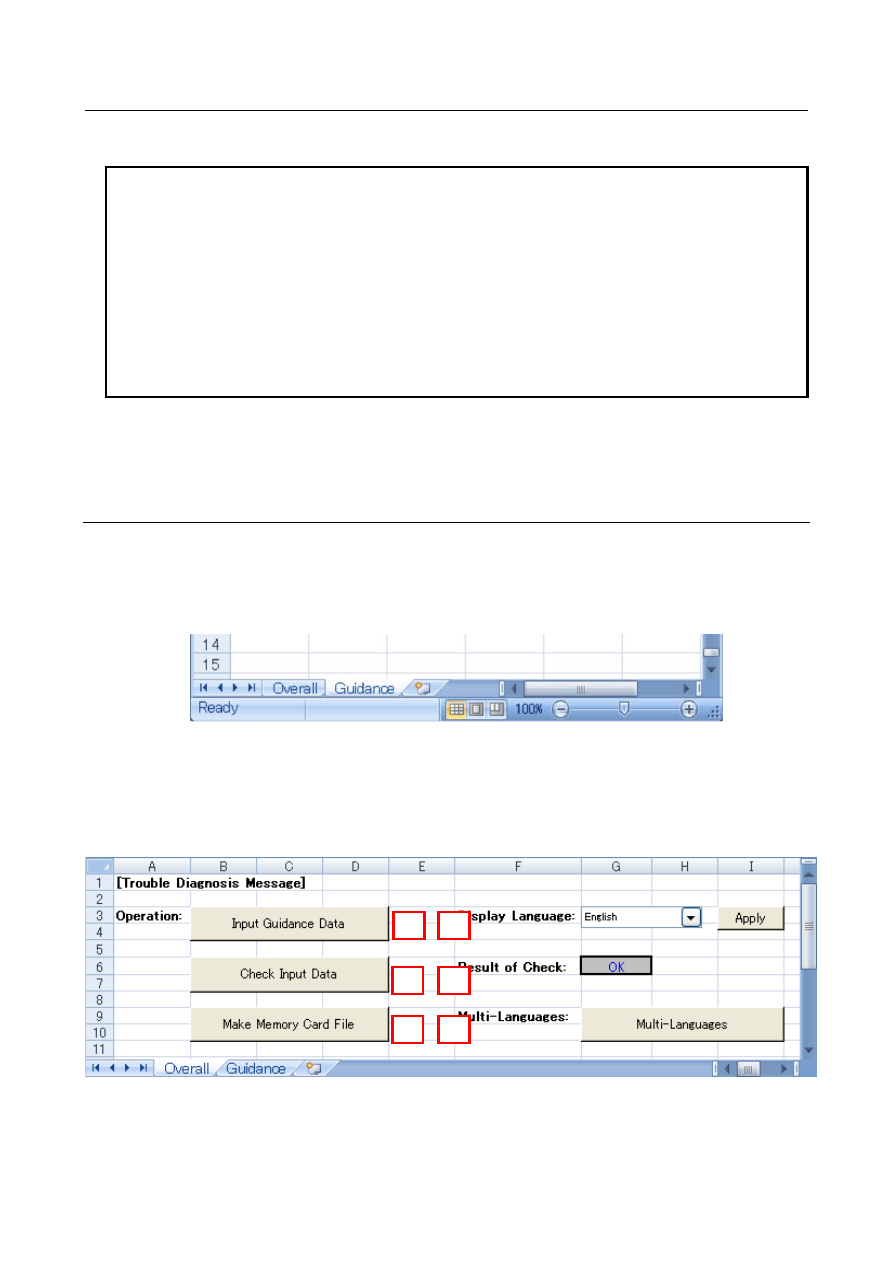
Three are 2 sheets in the Excel file to input the trouble diagnosis messages. 
 

[Overall] sheet 

・・・

The sheet for overall operations and settings 

[Guidance] sheet 

・・・

The sheet for inputting message strings 


Fig.18.5.5.4 (a) 


- Structure of [Overall] sheet 

In the [Overall] sheet, you can make the trouble diagnosis messages by using the following operation 
buttons from (1) to (3). 
And, you can switch the display language in sheets and change the settings for multi-languages. 


Fig.18.5.5.4 (b) 


(2) 

(1) 

(4) 

(5) 

(3) 

(6) 

B-64693EN-1/01


18. DIAGNOSIS FUNCTION


- 2795 - 

- Overview for each items 

Item 

Name 

Description 

Reference 

(1) 

Input Guidance Data 

Displays the [Guidance] sheet to input the trouble diagnosis 
messages. 

Chapter 

18.5.6.1 

(2) 

Check Input Data 

Checks all input data on the [Guidance] sheet as to checking 
for the range of number, the invalid letter and so on. 

Chapter 

18.5.6.2 

(3) 

Make Memory Card 
File 

Makes a CNC readable memory card format file from input data 
in the [Guidance] sheet. 

Chapter 

18.5.6.3 

(4) 

Display Language 

Switches the display language for sheets by selecting a 
language and pressing the [Apply] button. Either Japanese or 
English can be selected. 


(5) 

Result of Check 

Displays the result of check for all input data. 

Chapter 

18.5.6.2 

(6) 

Multi-Languages 

Changes the settings to input messages for multi-languages. 

Chapter 18.5.7 


- Structure of [Guidance] sheet 

In the guidance sheet, you can input numbers and messages for each alarm or operator message. 


Fig.18.5.5.4 (c) 


- Overview for each items 

Item 

Name 

Description 

Reference 

(1) 

Guidance Table 1 

The table to input numbers and titles for alarm or operator 
message. 

Chapter 
18.5.6.1 

(2) 

Guidance Table 2 

The table to input questions and instructions to an operator for 
alarm or operator message. 

Chapter 
18.5.6.1 

(3) 

Jump to Page 

Switches the display between the guidance table 1 and 2. 


(4) 

Check Input Data 

Checks input data for each guidance table. 

Chapter 
18.5.6.2 

(5) 

Set Line Number 

Adds or deletes lines by a number specified in the combo box 
at the bottom of the guidance table 1 or 2. 
Note that all line number in the guidance table is from the 
minimum 30 to the maximum 2000. 


(4


(3


(5) 

(4) 

(1) 

(2) 

(3


18. DIAGNOSIS FUNCTION


B-64693EN-1/01


- 2796 - 

18.5.6 

Making Trouble Diagnosis Messages 

Make the trouble diagnosis messages by using the following operation buttons in order from (1) to (3) on 
the [Overall] sheet. 
The brief of making procedure is as follows: 


Fig. 18.5.6 (a)   

 
(1)  Input Guidance Data   

Displays the [Guidance] sheet to input trouble diagnosis messages. 

(2)  Check Input Data 

Checks all input data on the [Guidance] sheet 

 
(3)  Make Memory Card File 

Makes a memory card format file from input data in the [Guidance] sheet. 

 
The details for each operation are as follows: 
 

(1) 

(2) 

(3) 

B-64693EN-1/01


18. DIAGNOSIS FUNCTION


- 2797 - 

18.5.6.1 

Input Guidance Data 

By clicking the [Input Guidance Data] button on the [Overall] sheet, the [Guidance] sheet will be 
displayed. 
Input data on the guidance table 1 and 2 according to the descriptions of the next section. 
The data that is input on each guidance table is displayed on the trouble diagnosis guidance screen as the 
following figure. 


Fig. 18.5.6.1 (a) 


Table 18.5.6.1 (a) Display item of trouble diagnosis guidance screen 

Display Item 

Description 

Classified code 

Classified code and number for the current alarm or operator message 

Title 

Title for the current alarm or operator message 

Probable cause 

Cause of the current alarm or operator message 

Guidance message 

Confirmation to determine cause of an alarm, or an instruction about an operator 
message 


NOTE 


The character that can be displayed on the CNC screen can be used for each 
display item. As for details, refer the following manuals. 


Series 0

i

-MODEL F Plus USER’S MANUAL (Common to Lathe 

System/Machining Center System) (B-64694EN) 
  “APPENDIX F. CHARACTER-TO-CODES CORRESPONDENCE TABLE “ 


Classified code


Title


Probable cause


Guidance message


Input items on the guidance table 1


Input item on the guidance table 2 


18. DIAGNOSIS FUNCTION


B-64693EN-1/01


- 2798 - 

- About input data in the guidance table 1 


Table 18.5.6.1 (b) Description of items in the guidance table 1 

Item 

Description 

Content of item 

Num. of letters 

(1) 

Kind 

Input a kind for an external alarm, a macro alarm or an operator 
message. 
Specify one of the following strings.   

EX 


: External alarm 

MC 


: Macro alarm 

OP 


: External operator message 

NOTE 


If a kind other than above is input, checking input data is failed. 


2 English capital 
letters 

(2) 

Number 

Input a number for an external alarm, a macro alarm or an operator 
message. 

Within 4 digits 

(3) 

Classified 
Code 

Input 2 types of code, "Code 1" and "Code 2". 
"Code 1 – Code 2" is displayed at the first line on the trouble diagnosis 
guidance screen. 


Code 1 

Input a classified code for an alarm or an operator 
message. 

Within 2 letters (1 
in multi-bytes 
letters) 

Code 2 

Input a number for an alarm or an operator messages. 

Within 16 letters 
(8 in multi-bytes 
letters) 


NOTE 

It is not necessary to make each classified code to be the same 
as (1)kind and (2)number. 

A character string "NC" is reserved as the code 1 of CNC 
alarm. Do not use "NC" as the code 1. 


(4) 

Title 

Input a string displayed at the second line on the trouble diagnosis 
guidance screen. 

Within 32 letters 
(16 in multi-bytes 
letters) 

(5) 

Probable 
Cause 

Input a string displayed at the "Probable cause" part on the trouble 
diagnosis guidance screen. 

Within 32 letters 
(16 in multi-bytes 
letters) per line 
(maximum 3 
lines) 

(6) 

Message ID 

Input an ID of a message displayed on the "Guidance Message" part 
of the trouble diagnosis guidance screen at first when an alarm occurs. 
Ex. 

The first guidance message for the external alarm message 
alarm No.1000 

EX1000A 

NOTE 


As for the message ID, see the description of the next 
description " About input data in the guidance table 2". 


Within 8 letters 
(English capital 
and numerical 
letters) 

(7) 

Additional 
information 
(Reserved) 

Do not input in the item. 


(1) 

(2) 

(3) 

(4) 

(5) 

(6) 

(7) 

B-64693EN-1/01


18. DIAGNOSIS FUNCTION


- 2799 - 

- About input data in the guidance table 2 


Table 18.5.6.1 (c) Description of items in the guidance table 2 

Item 

Description 

Content of item 

Num. of letters 

(1) 

Message ID 

It is a string to identify to one of the guidance messages in (2). 
Ex.1.  The first message ID for the external alarm No.1000 

EX1000A 

Ex.2.  The second message ID for the external alarm No.1000  : 

EX1000B 


NOTE 


The character string that starts by "M"+"Number" is not used as 
message ID. Because this shows the destination of the jump of 
the machine side to guidance table 2 from the guidance table 
for the CNC alarm. Therefore, do not use the character string 
that starts by "M"+"Number". 


Within 8 letters 
(English capital 
and numerical 
letters) 

(2) 

Guidance 
Message 

It is a message displayed on the "Guidance Message" part of the 
trouble diagnosis guidance screen. Input a question, an instruction and 
so on to an operator. 

NOTE 


When the guidance message is shown on the trouble diagnosis 
screen, a new line code is inserted to the message per 32 
letters (16 in multi-bytes letters) automatically. 
If you want to insert a new line code at a free position, input 
"¥n" that is not included as the number of letters. 


Moreover, the line number of the message is within 4 including 
the above automatic new line. 


Within 128 
letters (64 in 
multi-bytes 
letters) 

(3) 

Next Message 
ID 

Input a message ID that is jumped to when pressing the soft key [Yes] 
or [No] for each question of guidance message. 
Input "-1" when there is no message ID to be jumped. 

Within 8 letters 
(English capital 
and numerical 
letters) 

(4) 

Notes 

Free notes can be written. 


18.5.6.2 

Checking input data 

By clinking the [Check Input Data] button on the [Overall] sheet, all input data on the guidance sheet will 
be checked as to the range of number, the number of letters, the invalid letter and the line number of 
strings. 


After the check is completed, the string of the [Result of Check] on the [Overall] sheet is changed from 
"Unchecked" to "OK". 
 

NOTE 


After "OK" is displayed, it might return to "Unchecked" by editing on the 
[Guidance] sheet again. 


(1) 

(2) 

(3) 

(4) 

18. DIAGNOSIS FUNCTION


B-64693EN-1/01


- 2800 - 

If the check is failed, the string of the [Result of Check] is changed to "NG" and a name of sheet and 
guidance table where an error occurs is shown in a cell under the [Result of Check]. 


The guidance table where an error occurs is displayed by clicking the name of the guidance table. 


Fig. 18.5.6.2 (a) 

 
In the guidance table, the color of an error cell is changed to green and an error message is attached to the 
error cell as a commnet of the cell like the above figure. The list of the error messages is as follows: 

Input a number. 

The value is out of range (n to m). 

Input a string within n characters (m in multi-bytes characters). 

The line number is over limit n. 

The message referenced by the ID is not found. 

The kind(s) cannot be specified. 

m and n are numbers, s is a string 


NOTE 

1  The input data can be checked for an individual guidance table by clicking the 

[CHECK] button displayed at the top of the guidance table. 


In this case, the result of the check is displayed under the [CHECK] button like 
the following figure. 


2  In case that errors occurs on two or more guidance tables, the [Result of Check] 

on the [Overall] sheet shows the name of the guidance table where the first 
error occurs. As for the result of check for each guidance table, see the display 
under the [CHECK] button. 

 
Moreover, the color of the cell changes into light blue when the character string that shows the destination 
of the jump of the machine side to guidance table 2 from the guidance table for the CNC alarm is input to 
message ID. 
 
Example ) 


B-64693EN-1/01


18. DIAGNOSIS FUNCTION


- 2801 - 

18.5.6.3 

Making a memory card format file 

By clicking the [Make Memory Card File] button on the [Overall] sheet, the following dialog box will be 
displayed. 


Fig. 18.5.6.3 (a)   

 
Make a CNC readable memory card format file as follows: 
 

Input a folder name where you want to make a file in the [Destination folder]. 


Input a file name that you want to make in the [File name]. 
" GUI_USR.MEM " is input by default. 
When you input a file name without its extension, the extension "MEM" is added to the file name 
automatically. 


Click the [OK] button. 

 
After making the file is completed, the message box "Making the memory card format file is completed." 
will be displayed. 
 

NOTE 

1  The available file name is a short file name with alphabetic and numerical letters 

(8.3 MS-DOS format).   
Other name format cannot be read by CNC. 

2  If a file having the same name as the specified one has already existed in the 

destination folder, the file always will be overwritten.   

3  When making the memory card format file is failed, the message box "The 

memory card format file cannot be made." is displayed with one of the following 
messages about the cause of that failure. 
-  The input data have not been checked on (sheet name) – guidance table (1 

or 2) 

-  There are error(s) of the input data on (sheet name) – guidance table (1 or 2)   
-  The specified file name is not correct. 
-  (Destination folder) is not found. 
-  Files in (destination folder) cannot be written. 
-  The disk space in (destination folder) is not enough to make a new file. 

 
By loading the file to CNC with the CNC BOOT function, the trouble diagnosis message can be 
displayed on the trouble diagnosis guidance screen when the relevant  external alarm, macro alarm or 
operator message happens. 
 

NOTE 


As for the CNC BOOT function, see the following manuals. 


Series 30

i

/31

i

/32

i

-B MAINTENANCE MANUAL (B-64485EN) ”APPENDIX C. 

BOOT SYSTEM” 


Content      ..     353      354      355      356     ..