ABB Freelance Getting Started (Version 9.2 SP1) - page 1
Table of Contents
About This Book
Use of Warning, Caution, Information, and Tip Icons
9
Typographic Conventions
10
Document Conventions
10
Terminology
11
Related Documentation
11
Section 1 - Licensing
Introduction
13
Control Builder F
13
Control Builder F Standard
14
Control Builder F Professional
14
Freelance Process Stations
15
Basic Control Software License
15
Advanced Control Software License
16
Additional Control Software Options
17
Licensing Used I/Os
17
Base License
19
Optional Licenses
19
Upgrading Previous Software Versions
20
Software Management Program Automation Sentinel for Freelance
20
Section 2 - Freelance Installation
General Notes
23
Freelance Support
23
Recommended PC Equipment
24
Product Options
26
Options and Add-on Modules
26
5
Hardkey
26
First Installation of the Freelance Software
27
Checklist for Installation
27
Windows Operating System Installation
28
Manually disabling the User Account Control
29
Windows Firewall
29
Disable Automatic Updates
31
Configure Power Options
31
Disable Screen Saver
32
For Installation of DigiVis: Setting the Theme and Screen Resolution
32
For Installation of DigiVis: Additional Steps to disallow Operating System Access35
Network and IP Address Settings
36
User Account Configuration
40
Configure the Antivirus Program
40
Upgrade an Existing Version to the New Version
41
Notes to Follow Before Performing an Upgrade
41
Upgrade from V9.1 to V9.2 SP1
43
Upgrade from V9.2 to V9.2 SP1
44
Uninstall Before a New Installation
45
Start Setup
46
Install Freelance Software
48
General notes on operation in the setup procedure
48
Installation Preconditions
48
User Account Control Settings in Windows 7
48
Welcome Screen
50
License Agreement
50
Selecting a Setup type
51
Workplace Type DEMO Mode
53
Workplace Type PRODUCTION Mode
54
CUSTOM Workplac Type Option
55
Freelance Base Software Packages
56
Ready to install dialog
59
6
Import Data from Previous Versions
60
Modify initial Installation Settings
61
Finishing the Installation
62
Maintenance mode
63
Modify option
64
Repair option
64
Remove option
65
Modify Installation Settings
66
First Freelance Configuration
66
General Settings
66
Settings for Control Builder F
69
Settings for DigiVis
74
Settings for DigiBrowse
75
Settings for DDE
76
Settings for OPC Server
76
Settings for Trend Server
78
Confirm Changes
79
Installation Complete
79
Checking the Installation with Check
79
OPC Tunnel
80
Installation of OPC Tunnel Server
81
Configuration of the OPC Tunnel
82
OPC Tunnel System Tray
83
Diagnostics of the OPC Tunnel
83
FTP Server
84
FTP Server under Windows XP
86
FTP Server under Windows 7
90
Testing the FTP Server
95
Java Installation
96
Section 3 - Initial Steps
General Notes
97
Creating a Project File
97
7
Step 1: Configuring the Software View of the Project
98
Step 2: Configuring the Hardware Assignment
102
Step 3: Commissioning
104
Step 4: Testing the Configuration
105
Step 5: Saving the Project Data
106
Step 6: Configuring an Operator Station
107
Step 7: Commissioning the Operator Station
108
Step 8: Working with Tag Types and OPC Items
108
Tag Type Library
108
OPC Tunnel Configuration
109
OPC Server Configuration in CBF
110
Browsing and adding items to the OPC Item list
111
Instantiate Tags
113
Assign Variables
113
Index
8
About This Book
Use of Warning, Caution, Information, and Tip Icons
This publication includes Warning, Caution, and Information where appropriate
to point out safety related or other important information. It also includes Tip to
point out useful hints to the reader. The corresponding symbols should be
interpreted as follows:
Electrical warning icon indicates the presence of a hazard which could result in
electrical shock.
Warning icon indicates the presence of a hazard which could result in personal
injury.
Caution icon indicates important information or warning related to the concept
discussed in the text. It might indicate the presence of a hazard which could
result in corruption of software or damage to equipment/property.
Information icon alerts the reader to pertinent facts and conditions.
Tip icon indicates advice on, for example, how to design your project or how to
use a certain function
Although Warning hazards are related to personal injury, and Caution hazards are
associated with equipment or property damage, it should be understood that
operation of damaged equipment could, under certain operational conditions, result
in degraded process performance leading to personal injury or death. Therefore,
comply fully with all Warning and Caution notices.
9
Typographic Conventions
About This Book
Typographic Conventions
All text entries, shortcuts, prompts, system messages, menu items, screen elements
etc. comply with the Microsoft Windows conventions.
Document Conventions
The following conventions are used for the presentation of material:
•
The words in names of screen elements (for example, the title in the title bar of
a window, the label for a field of a dialog box) are initially capitalized.
•
Capital letters are used for the name of a keyboard key if it is labeled on the
keyboard. For example, press the ENTER key.
•
Lowercase letters are used for the name of a keyboard key that is not labeled on
the keyboard. For example, the space bar, comma key, and so on.
•
Press CTRL+C indicates that you must hold down the CTRL key while
pressing the C key (to copy a selected object in this case).
•
Press ESC E C indicates that you press and release each key in sequence (to
copy a selected object in this case).
•
The names of push and toggle buttons are boldfaced. For example, click OK.
•
The names of menus and menu items are boldfaced. For example, the File
menu.
- The following convention is used for menu operations: MenuName >
MenuItem > CascadedMenuItem. For example: select File > New > Type.
- The Start menu name always refers to the Start menu on the Windows
Task Bar.
•
System prompts/messages are shown in the Courier font, and user
responses/input are in the boldfaced Courier font. For example, if you enter a
value out of range, the following message is displayed:
Entered value is not valid.The value must be 0to30.
10

About This Book
Terminology
You may be told to enter the string TIC132 in a field. The string is shown as follows
in the procedure:
TIC132
Variables are shown using lowercase letters.
sequence name
Terminology
You will find a complete and comprehensive glossary at the end of the Engineering
Manual System Configuration. This glossary contains terms and abbreviations
that are unique to ABB or have a usage or definition that is different from standard
industry usage. Please make yourself familiar with this glossary.
Related Documentation
The following list gives an overview of the documentation relating to the Freelance
system.
Title
Number
Mounting and Installation Instructions, Control IT, AC 800F
3BDD012501Rxxxx
Mounting and Installation Instructions, Control IT, AC 700F
2PAA103858Rxxxx
Mounting and Installation Instructions, Rack-System
3BDD012603Rxxxx
DigiVis, Operators Manual, Operator Station, Conventional Design
3BDD012600Rxxxx
DigiVis, Operators Manual, Operator Station, New Design
3BDD011932Rxxxx
DigiBrowse, Operators Manual
3BDD012601Rxxxx
New Features History
3BDD011933Rxxxx
Engineering Manual, System Configuration
3BDD012503Rxxxx
Engineering Manual, DigiVis Operator Station Configuration
3BDD012518Rxxxx
Engineering Manual, Process Station - AC 800F
3BDD012505Rxxxx
11

Related Documentation
About This Book
Title
Number
Engineering Manual, Process Station - AC 700F
2PAA103857Rxxxx
Engineering Manual, Process-Station - Rack System
3BDD012520Rxxxx
Engineering Manual, S700 Modules
2PAA105800Rxxxx
Engineering Manual, OPC server F
3BDD012511Rxxxx
Engineering Manual, Trend Server
3BDD012527Rxxxx
Engineering Manual, IEC 61131-3 Programming
3BDD012504Rxxxx
Engineering Manual, Integration Process Portal B
3BDD012521Rxxxx
Engineering Manual, User Access
3BDD012513Rxxxx
Engineering Reference Manual, Functions and Function Blocks
3BDD012514Rxxxx
Engineering Reference Manual, Communication and Fieldbusses
3BDD012515Rxxxx
Engineering Reference Manual, Protronic Remote Control
3BDD012506Rxxxx
Engineering Reference Manual, DDE32
3BDD012507Rxxxx
Engineering Reference Manual, IEC 60870-5 Telecontrol Library
3BDD012509Rxxxx
Engineering Reference Manual, Interbus Blocks
3BDD012510Rxxxx
Engineering Reference Manual, Coupling Sartorius Scales
3BDD012512Rxxxx
Engineering Reference Manual, DMS / API
3BDD012508Rxxxx
Engineering Manual, Freelance Bulk Data Manager
2PAA105801Rxxxx
12
Section 1 Licensing
Introduction
The licensing for Freelance V9.2 SP1 is based on the existing I/O based licensing
model.
Freelance system 9.2 supports usage of unlimited number of OPC signals when
connected to third party OPC server.
Third party OPC integration is free from version 9.2.
Control Builder F
Control Builder F is the programming tool for AC 800F, AC 700F and the classic
rack-based controllers like DCP02 and DCP10. The engineering of the operating
console is part of Control Builder F.
The following Control Builder F packages are available:
•
Control Builder F Standard
•
Control Builder F Professional
All Control Builder F versions support the following functions:
•
Configuration and commissioning of user programs
•
IEC 61131-3 programming (FBD, IL, LD, ST, SFC)
•
Graphical hardware configuration
•
Integral fieldbus configuration for Profibus and FOUNDATION Fieldbus
•
IEC 61131-3 data types and user-defined (structured) data types
•
Project-wide variables and function block lists
13
Control Builder F Standard
Section 1 Licensing
•
Online cross-reference
•
Efficient plausibility check
•
Extensive online help
Additionally, online test functions (debugging functions) and graphical
documentation of the entire user program are supported.
Besides the programs, all hardware components are displayed in graphical form and
are submitted to a plausibility check together with the allocated software.
Contrary to DigiTool, Control Builder F alone is not enough for creating
programs as function block licenses are not included in its scope of delivery.
Additional controller software licenses have to be ordered for this purpose.
Control Builder F Standard
Control Builder F Standard supports:
•
Tag names of max. 16 characters
•
User-defined function blocks (runtime license)
Control Builder F Professional
Control Builder F Professional supports all functions of Control Builder F Standard
and additionally provides the following features:
•
Access protection (Security Lock)
•
Creation of user-defined function blocks (engineering license)
•
FDT/DTM support
•
Tag Type Library
14
Section 1 Licensing
Freelance Process Stations
Freelance Process Stations
With V6.2 and higher, a control software license is needed for every process station.
Control IT offers two license types. They are different in terms of their functionality
and of the number of supported I/Os. The license types are:
•
Basic control software license
•
Advanced software license
The license functionality can be adapted to the customer's needs for every controller,
and the number of I/Os can be extended in steps of 50.
Note that all controllers/process stations within a system must use the same
control software license type. Mixing basic and advanced control software
licenses within one system is not supported.
A control software license allows you to:
•
enable specific function block libraries for a controller
•
enable in Control Builder F a specific number of I/O signals (I/O components)
which may be used in the controller/process station configuration.
Basic Control Software License
The Basic control software license includes the following:
•
IEC 61131-3, digital and analog value processing
•
Controllers (without self-tuning)
•
Integration of Profibus
•
Integration of FOUNDATION Fieldbus (not supported for AC 700F)
•
DigiVis
•
Basic IOs
•
Serial Package Modbus Master, Modbus Slave
•
Serial Package Sartorius scales interface (not supported for AC 700F)
•
Serial Package Protronic coupling (not supported for AC 700F)
15
Advanced Control Software License
Section 1 Licensing
•
Tune (PID self-tuning)
•
Sequence of Events (not supported for AC 700F)
Options for the Basic Control Software License
The standard Basic control software license can be extended with the following
options:
•
Batch Function Block Package (PLI, FPX)
•
Interbus (only for upgrade of existing Interbus couplings)
•
Telecontrol Library (IEC 60870-5-101)
•
Maestro-UX Coupling
Advanced Control Software License
The Advanced control software license provides Process Portal A support. It
includes all features of Basic control software Base license and additionally
contains the following functionalities:
•
800xA Operation, Process Portal A Support
•
Serial Package Modbus Master, Modbus Slave
•
Serial Package Sartorius Scale interface (not supported for AC 700F)
•
Protronic Coupling (not supported for AC 700F)
•
Tune (Self tune PID)
•
Sequence of Events (only Rack I/O)
•
Advanced I/Os
When you extend your Basic license to an Advanced one at a later time, you can
continue to use the existing options for the Basic license. Additionally, all options
of the Advanced license are available.
Options for the Advanced Control Software License
The Advanced license already includes the majority of additionally available Basic
license options. In addition, the following options are provided:
•
Batch Function Block Package (PLI, FPX)
16
Section 1 Licensing
Additional Control Software Options
•
Interbus (only for upgrade of existing Interbus couplings)
•
Telecontrol Library (IEC 60870-5-101)
•
Maestro UX Coupling
Additional Control Software Options
The following control software options are available for Basic and Advanced
licenses
•
Open Communication Package (DDE, OPC)
DDE is supported with Freelance Systems running on Windows XP and not
supported with Freelance Systems running on Windows 7.
Freelance 9.2 SP1 is compatible for Windows 7 operating system.
•
Trend server
•
Application Programming Interface (API)
Licensing Used I/Os
Besides the Control Builder F engineering program all controllers/process stations
with the respective number of used I/Os and the options must be licensed.
The Control Builder F adds up and displays all I/O components used in a project.
The Control Builder F accepts CSV files from version 8.x onwards. See
Engineering Manual, System Configuration, License indicator.
Note that all blocks that might act as I/O consumers must have been installed in
order to allow for correct determination of the required I/O licenses. For example,
it is necessary to install FDT and required DTMs, if DTMs are to be used in the
project.
As a rule, only a project without any errors in plausability check indicates the
actually required number of I/O licenses.
If the number of I/Os used in a project exceeds the number of licensed I/Os, it
will not be possible for the project to pass the plausibility check. As a result, you
cannot download the software configuration into the process station.
17
Licensing Used I/Os
Section 1 Licensing
All used I/Os in an open project can be displayed in the hardware manager:
Hardware structure > Show all used I/Os
The number of I/Os relevant for licensing is determined by counting only those I/Os
that are in use, that is:
•
the I/O components used in a program, or
•
the I/O components provided through a gateway (OPC and DDE server) but not
a program.
If the same variable is used in both ways, only one of them is considered as
variable that has to be licensed, that is. how often a variable is used is not relevant
for determining the number of required I/O licenses.
The input/output variable definition depends on the respective bus/fieldbus:
•
Rack I/O (CAN bus):
Every channel used in a program or gateway independent from the data type is
considered as an I/O.
•
Profibus:
All I/O components agreed on the controller and used in a program or gateway
are considered as I/Os.
•
Foundation Fieldbus:
Every I/O component that is transferred between the linking device and the
controller/process station and that is used in a program or gateway is
considered as an I/O.
•
Modbus:
All Boolean data (coils) or registers used by the transmit and receive function
blocks are considered as an I/O.
The following data are not considered as I/Os:
•
send/receive function blocks
•
diagnostic data (DP, PA)
•
alarms (FF)
•
parameters (PA, FF)
18
Section 1 Licensing
Base License
•
global variables
Only those controllers/process stations provided with an Advanced control
software license can communicate I/Os to Process Portal A.
Base License
These kinds of base licenses are available:
•
Control Builder F
•
DigiVis
•
DigiBrowse
•
Combined Workplace Expands an Engineering workplace to a combined
workplace (Control Builder F + DigiVis)
Optional Licenses
Additional options for DigiVis
•
WEB display runtime
Web display functionality is used to load the local web browser. Calling the
web display from DigiVis will activate the link to the configured web site.
•
Dual monitor support
Windows Dual-view feature support is provided for DigiVis station. Graphic
card which supports this feature and the appropriate device driver should be
installed on the PC.
•
Control Aspect Display (read only) of Control Builder F function block
diagrams in DigiVis
•
Extended Diagnostic
19
Upgrading Previous Software Versions
Section 1 Licensing
Upgrading Previous Software Versions
•
The change-over from Versions V5.x or V6.x to Version 9.x is handled as a
step-up. In each Industrial IT software delivery a 12-months Automation
Sentinel agreement is included.
•
During the runtime of this agreement the user gets all service packs and
upgrades automatically and free of charge. No distinction will be made
between new major and minor releases.
When stepping from a version < 6.2 to a version > 6.2 (transition to new
licensing), the customer decides which Control Builder F license, which control
software licenses and how many I/Os he needs.
A step-up requires a control software license for every existing process station
license.
If DigiTool was licensed for five process stations, one Control Builder F license
and five control software licenses have to be ordered for upgrading the system. If,
for example, DigiTool was used with the user-defined function blocks, a Control
Builder F Professional license is required to define new function blocks. With the
Control Builder F license Standard existing function blocks can be used.
The appropriate control software license is needed for all controllers/process
stations. If Operate IT Process Portal B is to be used on the operator level, then
the Advanced control software is required for the controllers/process stations!
Always indicate the number of the existing hard key when ordering a software
step-up.
Software Management Program Automation Sentinel for Freelance
The Automation Sentinel Program allows you to keep your installation always up
to date and benefit from new features and improvements directly and without any
delay. A twelve (12) month Sentinel agreement starting with the date of shipment
from the factory is included with each new Freelance system software purchase.
This twelve(12) month agreement will automatically be extended to an additional
six (6) months if the customer contact information is provided as indicated in the
Automation Sentinel Product Guide. In addition to this, the base subscription now
includes a limited number of technical support hours.
20
Section 1 Licensing
Software Management Program Automation Sentinel for Freelance
Also included with the Sentinel subscription is a Solution Bank Sentinel
subscription, which will provide customers with access to software downloads and
product documentation.
Renewal of Subscription:
Before the subscription agreement expires a Sentinel renewal needs to be ordered to
continue receiving updates to the existing software and maintain the option of
evolution in the future. These renewals are valid for a period of 12 months and run
consecutively from the previous subscription.
21
Software Management Program Automation Sentinel for Freelance
Section 1 Licensing
22
Section 2 Freelance Installation
General Notes
Freelance Support
For technical assistance, please contact your local service
organization.
or
23
Recommended PC Equipment
Section 2 Freelance Installation
Recommended PC Equipment
Control Builder F
Hard disk for installation
500 MB free disk space
Hard disk for operation
10 GB free disk space
Operating system
Microsoft Windows XP Prof. SP3, 32bit
Windows 7 Professional, 32 bit
CPU Speed
> 2 GHz
RAM
3 GB
Ethernet card with supp. Interface BNC/AUI/TP
DigiVis
Hard disk for installation
500 MB free disk space
Hard disk for operation
> 2 GB free disk space
Recommended for archiving
> 80 GB (depending on configuration)
Operating system
Microsoft Windows XP Prof. SP3, 32bit, en
Windows 7 Professional, 32 bit, en
Speed
> 2 GHz
RAM
3 GB
Graphics card for dual monitor
Matrox Millenium P690
Nvidia NVS295
Multi-display Fiber-Optic Remote Matrox Extio F1400
Graphics Unit
Ethernet card with supp. Interface BNC/AUI/TP
24
Section 2 Freelance Installation
Recommended PC Equipment
OPC Server F
Hard disk for installation
500 MB free disk space
Hard disk for operation
> 2 GB free disk space
Operating system
Microsoft Windows XP Prof. SP3, 32bit
Windows 7 Professional, 32bit
Microsoft Windows 2003 Server SP2, 32bit
Microsoft Windows 2008 Server, 32bit
Speed
> 2 GHz
RAM
3 GB
Ethernet card with supp. Interface BNC/AUI/TP
The above-mentioned specifications for PC equipment are recommendations only.
They were selected to ensure a fluent workflow and to have good response times.
Depending on the size of your project you might experience a fluent behavior with a
less powerful PC as well.
For a proper and error-free operation of Freelance it is recommended that the
E
Freelance applications are the only ones installed on the PC.
It is recommended to install and operate OPC Server and Trend Server on
separate PCs always.
The Freelance software V9.2 SP1 is released for the usage on a 32 Bit Windows
operation system. 64 Bit Windows operating systems are not supported.
The Freelance setup program will show a warning, if a 64 Bit operating system is
detected.
25
Product Options
Section 2 Freelance Installation
Mixed systems with Windows XP and Windows 7
It is possible to combine PCs with Windows XP and PCs with Windows 7 operating
system in a Freelance system. With this, an update from Windows XP to Windows 7
must not be done in one step but can be done one after the other.
Exception:
If using mixed systems with Windows XP and Windows 7 operating systems for
a Freelance system, make sure that the same Windows operating system is used
for the PC of the Extended Diagnostic DigiVis station and the PC with the
Control Builder F.
Product Options
For Freelance a hardkey is required to enable the functions and features of
Control Builder F and/or DigiVis that were ordered.
In case of license extension, you will receive a new authorization code that you
should enter as follows:
> Start > Programs > ABB Industrial IT > Freelance V9.2 > Configure
Select the tree item:
> General settings > Authorization Key Installation
Options and Add-on Modules
There are two different grades of license for the Control Builder F software,
Standard and Professional, and they offer different features. To use the process
stations, each station also requires control software (either the Basic or Advanced
version). The Control Software can be used in both the Basic and Advanced grade.
Other software packages can be used as add-on modules.
You can find a more detailed description in Section 1, Licensing.
Hardkey
Freelance products are protected by means of USB/parallel port hardkey and an
associated authorization code, which activates only those products for which official
orders have been processed.
26
Section 2 Freelance Installation
First Installation of the Freelance Software
The following versions of the Hardkey are available:
•
Control Builder F
•
DigiVis
•
Combination (Control Builder F and DigiVis)
If the Freelance software is started without the USB/parallel port hardkey, it will run
as a demo version for 100 days.
The system will launch in demo mode if there is no hardkey installed on the PC
during installation.
In case of a hardkey failure, the software will enter an emergency mode which, just
like the demo mode expires, after 100 days. As long as the hardkey is replaced
within these 100 days, the rights conferred by the license will remain in effect.
Similarly, if the hardkey is unplugged after startup the software will go into
emergency mode.
First Installation of the Freelance Software
Checklist for Installation
Do you have a current authorization key file (only required for
Production Mode)?
If not please contact your local ABB sales office.
See Authorization Key Installation on page 68.
Is the USB/parallel port hardkey installed at the USB/LPT port?
Has the Windows operating system been fully installed, including
the Service Pack?
See Windows Operating System Installation on page 28.
Windows 7 only:
Is the User Account Control disabled?
See Manually disabling the User Account Control on page 29.
27
Windows Operating System Installation
Section 2 Freelance Installation
Is the Windows Firewall configured?
See Windows Firewall on page 29.
Is the automatic update of the Windows operating system disabled?
See Disable Automatic Updates on page 31.
Have the Power Options been checked?
See Configure Power Options on page 31.
Is the Screen saver deactivated?
See Disable Screen Saver on page 32.
DigiVis operator stations only:
Is the theme and screen resolution set?
See For Installation of DigiVis: Setting the Theme and Screen
Resolution on page 32.
DigiVis operator stations only:
Is the Windows Task Bar Configuration appropriate?
See For Installation of DigiVis: Additional Steps to disallow
Operating System Access on page 35.
Is TCP/IP protocol installed as network protocol?
Have the IP addresses been entered?
Has the file “hosts” been correctly edited?
See Network and IP Address Settings on page 36.
Is an administrative user with password ready to be used as
operator?
See User Account Configuration on page 40.
Is the Antivirus Program disabled before executing the Freelance
setup?
Are the directory exclusions for the virus scanner configured?
See Configure the Antivirus Program on page 40.
Windows Operating System Installation
Check to be sure that the Windows operating system and the required Service Pack
for Windows are installed.
28
Section 2 Freelance Installation
Manually disabling the User Account Control
For detailed information on required service packs please refer to the release notes,
which are available on the setup CD. The Service Packs are available free of charge
from Microsoft Corporation (also on the internet at http://www.microsoft.com).
Manually disabling the User Account Control
When the Freelance setup is started, it will detect the current User Account Control
setting and request the user to disable it. A reboot will be necessary in this case. For
more details, see User Account Control Settings in Windows 7 on page 48.
The User Account Control settings can be changed manually in this Windows
dialog:
> Start > Control Panel > User Accounts and Family Safety
> User Accounts > Change User Account control settings
The recommended setting is “Never notify”.
Reboot the computer.
Windows Firewall
The Windows OS comes with an integrated firewall. A firewall can block the
communication between applications.
Windows XP
In Windows XP it is recommended to disable the firewall to ensure the proper
operation of Freelance.
> Start > Control Panel > Windows Firewall > General
Select Off (not recommended) to disable the firewall.
29
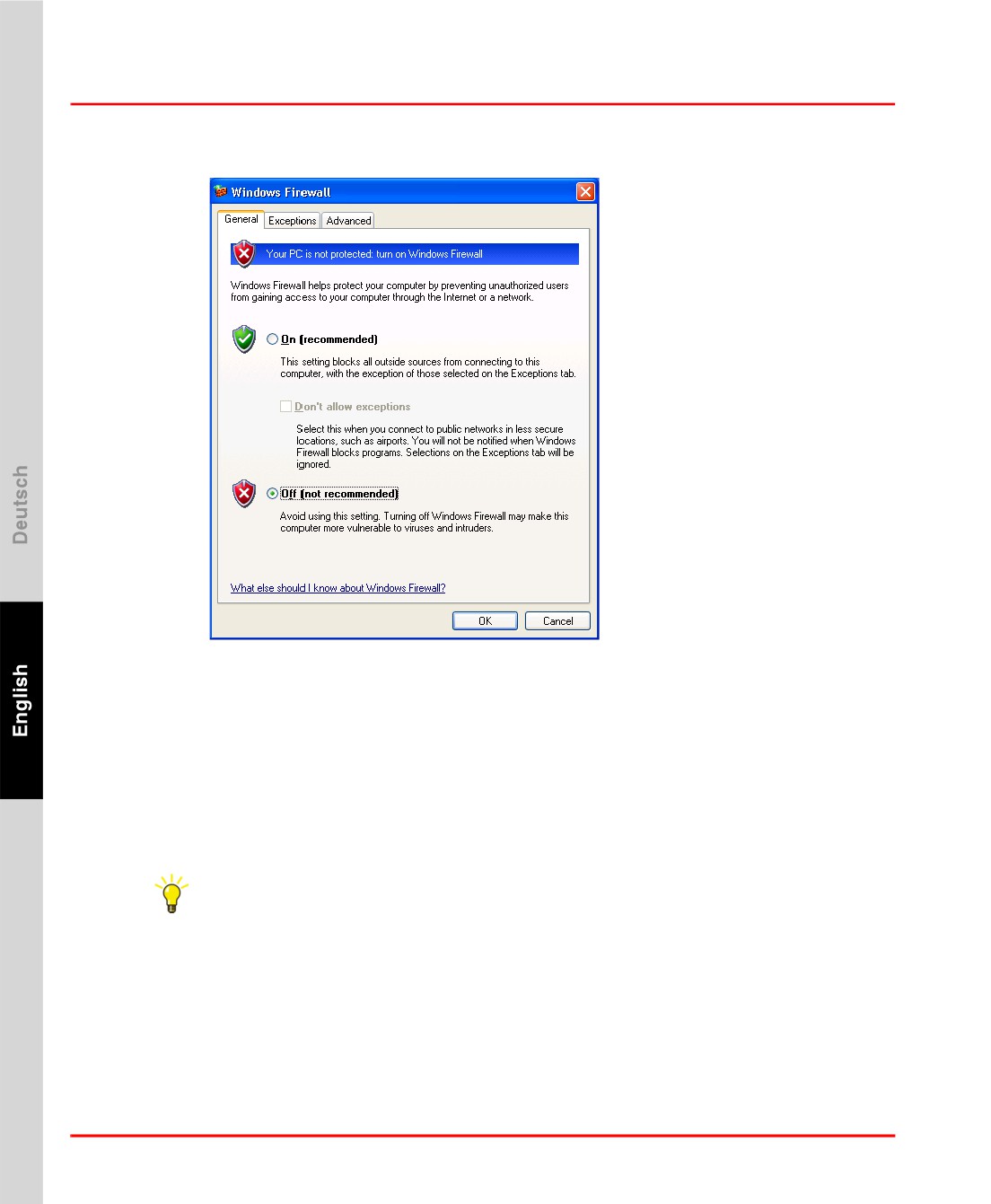
Windows Firewall
Section 2 Freelance Installation
tb200.bmp
Windows 7
For Wirdows 7 the firewall configuration is handled by the Freelance setup. The
firewall is configured to allow the Freelance applications to communicate properly.
There is no specific configuration by the user necessary.
During the installation process the setup will add several Freelance programs to the
firewall exclusion list. To verify the entries made, you can open the Windows
Advance Firewall configuration:
> Start > Control Panel > System and Security > Windows Firewall
Select Advanced settings
The Windows Firewall with Advanced Security configuration is shown.
Select Inbound Rules
When the setup has finished there are several new entries that start with
“Freelance”.
30
Section 2 Freelance Installation
Disable Automatic Updates
Disable Automatic Updates
The automatic update of the Windows operating system must be disabled.
Windows updates should be done manually from time to time due to security
considerations. The updates must be synchronized with the system administrator
and the internal company security policies.
Automatic updates may reboot the PC automatically. It is highly recommended to
disable them.
Windows XP
> Start > Control Panel > Performance and Maintenance > System
Select the tab Automatic updates and activate Turn off Automatic Updates
Press OK
Windows 7
> Start > Control Panel > System and Security > Windows Update
Select Change settings
Select Never check for updates from the list.
Press OK
Configure Power Options
The Windows power management may shut down the PC to save energy or put it to
sleep. This must be avoided. It must be ensured that the energy saving mechanisms
are configured in a way that the computer is always on.
Windows XP
Typically the preconfigured setting is Home/Office Desk, which is OK.
> Start > Control Panel > Performance and Maintenance > Power Options >
Power Schemes
Ensure that System standby is set to Never
Ensure that Turn off hard disks is set to Never
31
Disable Screen Saver
Section 2 Freelance Installation
Windows 7
By default the Balanced power plan is active in Windows 7. This means that the
computer goes into sleep after 30 minutes of inactivity.
Change the power plan to “High performance”.
> Start > Control Panel > System and Security > Power Options
If not expanded, expand show addtional plans
Select the High Performance power plan.
Disable Screen Saver
The screen saver needs to be disabled in the Windows operating system settings.
Screen Saver in Windows XP
> Start > Control Panel > Appearance and Themes > Display
The Display Properties are displayed.
Select tab Screen Saver
In the Screen Saver list, select (None)
Press OK
Screen Saver in Windows 7
> Start > Control Panel > Appearance and Personalization >Personalization
Click Screen Saver in the lower right corner.
In the Screen Saver list, select (None)
Press OK
For Installation of DigiVis: Setting the Theme and Screen Resolution
The DigiVis software supports two different user interfaces. Which one is selected
depends on theWindows screen resolution.
32
Section 2 Freelance Installation
For Installation of DigiVis: Setting the Theme and Screen
When the DigiVis program starts, the currently configured monitor screen
resolution is checked and, depending on this setting, DigiVis is started with the
conventional-design or new-design user interface.
The conventional-design GUI is in principle the display as known from the earlier
versions. For all resolutions with a minimum of 1024 pixel in the vertical direction,
DigiVis starts with the new-design GUI. On screens with a resolution of less than
1024 pixel in vertical direction, DigiVis starts with the conventional-design user
interface.
DigiVis supports the use of two monitors, even with different screen resolution.
Settings for the New-Design DigiVis User Interface
The standard resolution for the new-design user interface is 1280 x 1024 pixels.
Under Windows XP select the “Windows XP” theme. Under Windows 7 select the
“Windows 7 Basic” theme.
33
///////////////////////////////////////