Tractors X60 Series. Manual - part 22
89
Instruments and Programming
4
2.1.14 Clock setting
Pressing UP again will enable the operator to set the clock. Pressing DOWN from the AC:1 original screenshot will also
reach this section. The clock can also be set to be 12 or 24 hours in this menu. When the cluster is brand new the default
values should be 24h and 00:00.
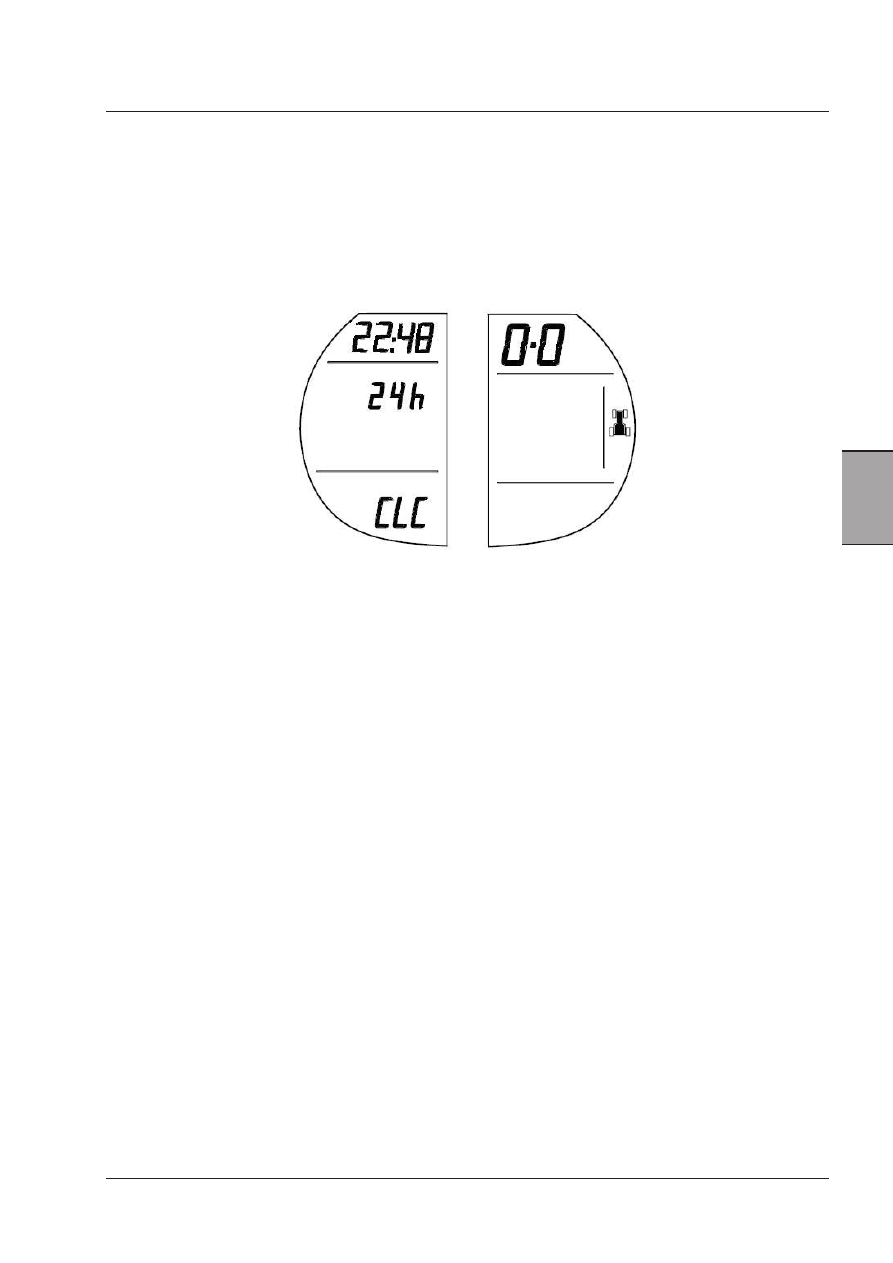
This first screen will show the current time (22:48) and whether the clock is set to 12 or 24 hours (24h). The letters CLC
will show at the bottom of the left-hand display to inform the operator this is the Clock Setting menu.
To change Clock:
1- Press the MENU button
2- The hour digits will flash.
3- Press UP or DOWN to scroll in units of 1 from 00 to 12 or 24.
4- Press the MENU button again to set the hours.
5- The minutes will flash.
6- Press UP or DOWN to scroll in units of 1 from 00 to 59.
7- Press the MENU button again to set the clock on 12 or 24 hours.
8- The text in the middle line will flash.
9- Press UP or DOWN to switch between 12h or 24h.
10-At this point the time can be saved and the menu exited by pressing and holding the MENU button for longer than
2 seconds (the digits will stop flashing), then press the UP and DOWN buttons to access other parts of the Acces-
sory menu.
If the key is turned to the off position before the new time is set the old value is used.