содержание .. 27 28 29 30 ..
FTB-2 и FTB-2 Pro. Руководство пользователя - часть 29
E COM Properties and Events
The FTB-2 and FTB-2 Pro also provides objects based on Microsoft
Component Object Model (COM). COM defines a common way to access
and create software components and services.
COM promotes the integration and the reuse of software components, as
well as interoperability. In order to interoperate, components developed
in different languages must adhere to a binary structure specified
by Microsoft.
OLE and ActiveX are based on COM. Many programming languages can
create and use COM components.
You can build your own programs using the provided properties and events
via the IcSCPIAccess interface (available on your unit). For information on
how to configure your FTB-2 and FTB-2 Pro for DCOM control, see
Configuring DCOM Access to Your Unit on page 246.
FTB-2 and FTB-2 Pro
439
COM Properties and Events
ActiveX (COM/DCOM)—Quick Reference
ActiveX (COM/DCOM)—Quick Reference
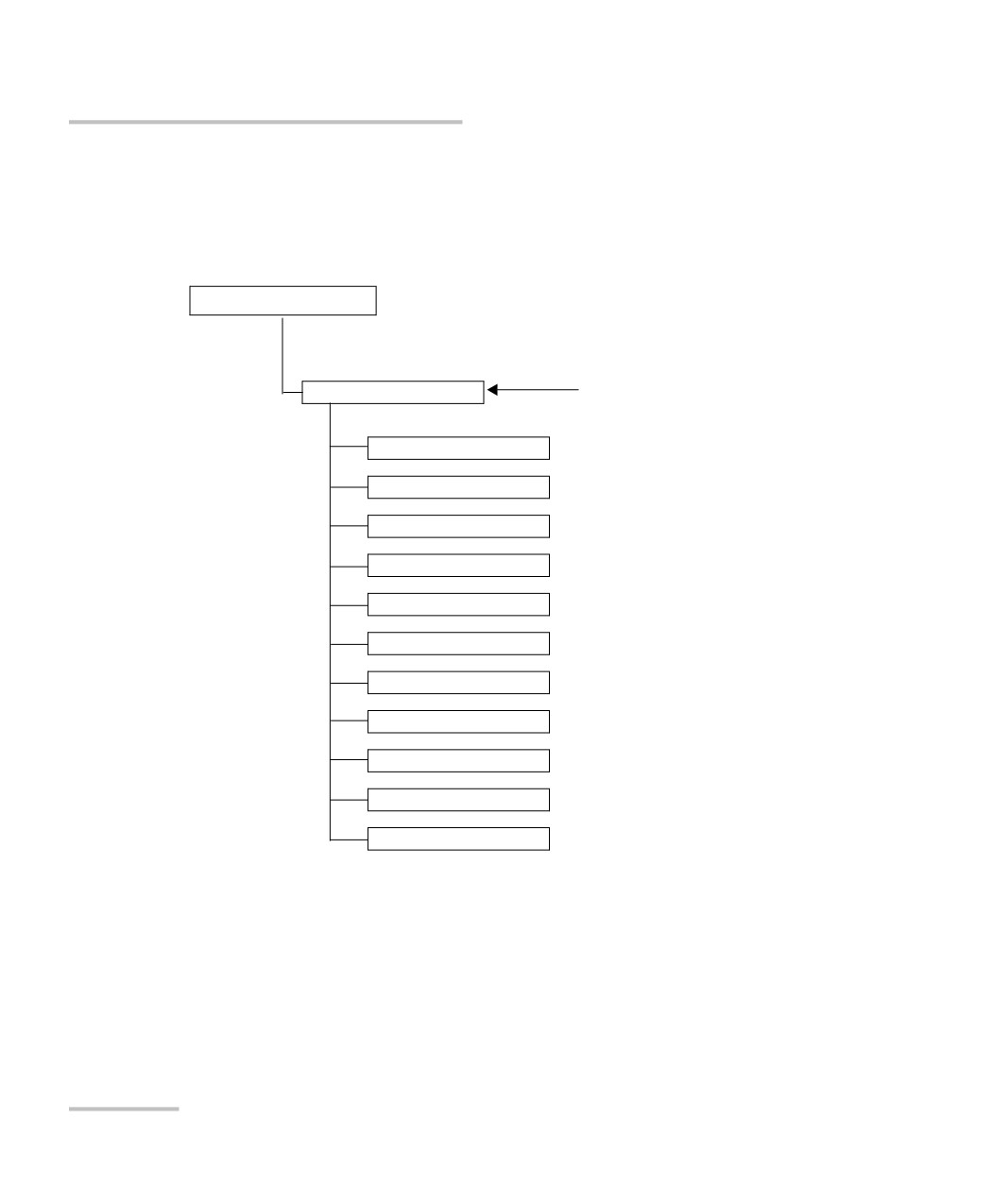
The following diagram illustrates the different properties and events
available.
ICSCPIActiveX.dll
Object acting
ICSCPIAccess
as an entry
point
Write property
WriteBinary property
Read property
ReadBinary property
Initialize property
DeviceClear property
RemoteState property
LockoutState property
StatusByte property
RequestService event
ReturnToLocal event
These properties and events are fully explained in the following pages.
440
FTB-2 and FTB-2 Pro
COM Properties and Events
Properties
Properties
Write
Description
With this method you can send a program
message (single command or compound of
commands) to the device input buffer.
Syntax
object.Write (Message)
Parameter(s)
Message: Required. A string value corresponding
to the program message to be sent.
Possible error(s)
Timeout: This error will occur if the operation
could not be completed within the allowed
delay. For information on timeout setting, see
Initialize on page 445.
FTB-2 and FTB-2 Pro
441
COM Properties and Events
Properties
WriteBinary
Description
With this method you can send a program
message (single command or compound of
commands) as an array of bytes into the device
input buffer.
Syntax
object.Write (BinaryArray)
Parameter(s)
BinaryArray: Required. An array of bytes
corresponding to the program message to be
sent.
Notes
Use this method instead of the Write method if
you need to send commands in binary (COM is
UNICODE).
Possible error(s)
Timeout: This error will occur if the operation
could not be completed within the allowed
delay. For information on timeout setting, see
Initialize on page 445.
IMPORTANT
Before you retrieve data with the Read or ReadBinary methods, you
must specify the format in which the information must be returned.
Details on how to correctly set the format can be found below.
442
FTB-2 and FTB-2 Pro
COM Properties and Events
Properties
Read
Description
With this method you can retrieve all the data
from the device output queue in a UNICODE
format.
Syntax
object.Read
Parameter(s)
None.
Response(s)
A string value (in UNICODE format).
Notes
This method must be used in conjunction with
the Write method. Always ensure that a query
has been previously sent before attempting to
read a response from the output queue.
To properly set the data format, send the
following command (using the Write method):
FORM:DATA<wsp>ASCII <number_of_digits>
where <number_of_digits> corresponds to the
number of digits after the decimal point that you
require.
Remember that the retrieved data will have to be
converted to a numeric format before you can
use it in calculations, for example.
Possible error(s)
Timeout: This error will occur if the allowed
delay has expired before the preceding Write
operation could send a response to the output
queue. For information on timeout setting, see
Initialize on page 445.
QueryUnterminated: This error will occur if the
output queue is empty (for example, no query
has been made previously).
FTB-2 and FTB-2 Pro
443
COM Properties and Events
Properties
ReadBinary
Description
With this method you can retrieve data from the
device output queue in a binary format.
Syntax
object.ReadBinary
Parameter(s)
None.
Response(s)
An array of bytes.
Notes
This method must be used in conjunction with
the Write method. Always ensure that a query
has been previously sent before attempting to
read a response from the output queue.
To properly set the data format, send the
following command (using the Write method):
FORM:DATA<wsp>PACKED
The retrieved data does not need to be converted
to a numeric format before you can use it in
calculations, for example.
To help you know the actual length of the
retrieved data, it has the following structure:
The first byte contains the # character.
The byte that immediately follows contains
the number of subsequent bytes that you
have to check to know the total length.
444
FTB-2 and FTB-2 Pro

COM Properties and Events
Properties
ReadBinary
For example, if you receive this response (here,
values are expressed in decimal instead of binary
for easier readability):
# 2 1 3 7 5 8 9 2 ...
The byte that immediately follows the # contains
2, which means that you have to read the two
following bytes to know the length (in bytes) of
the retrieved data. The bytes indicate 1 and 3.
The length will then be 13 bytes. The actual
response will begin at byte number 5, in this
case.
Possible error(s)
Timeout: This error will occur if the allowed
delay has expired before the preceding Write
operation could send a response to the output
queue. For information on timeout setting, see
Initialize on page 445.
QueryUnterminated: This error will occur if the
output queue is empty (for example, no query
has been made previously).
Initialize
Description
With this method you can configure the timeout
value that is, the allowed delay for Read and
Write operations, in milliseconds.
Syntax
object.Initialize(Timeout)
Parameter(s)
Timeout: Required. A numeric value
corresponding to the delay in milliseconds.
Notes
If the Initialize method is not invoked, the default
value is 10 000 milliseconds.
FTB-2 and FTB-2 Pro
445
COM Properties and Events
Properties
DeviceClear
Description
This method performs a Device Clear operation
as specified in the IEEE 488.1 standard.
Syntax
object.DeviceClear
Parameter(s)
None.
RemoteState
Description
This property returns or sets the device’s remote
state.
Syntax
object.RemoteState (to retrieve the state)
object.RemoteState=State (to set the state)
State: a Boolean value corresponding to:
True: Remote
False: Local
Parameter(s)
None.
Response(s)
If the property is used to get the device’s remote
state, the property will return a Boolean value.
Access
Get/Set
446
FTB-2 and FTB-2 Pro
COM Properties and Events
Properties
LockoutState
Description
This property returns or sets the device’s lockout
state.
Syntax
object.LockoutState (to retrieve the state)
object.LockoutState=State (to set the state)
State: a Boolean value corresponding to:
True: Lockout
False: No lockout
Parameter(s)
None.
Response(s)
If the property is used to get the device’s lockout
state, the property will return a Boolean value.
Access
Get/Set
StatusByte
Description
This read-only property returns the device’s
status byte. Refer to IEEE 488.2 standard for
status byte description.
Syntax
object.StatusByte
Parameter(s)
None.
Response(s)
A value corresponding to the device’s status byte.
Notes
This property can be used in conjunction with
RequestService event (see RequestService on
page 448) to find out why the device caused a
Service Request (SRQ).
Access
Get
FTB-2 and FTB-2 Pro
447
COM Properties and Events
Events
Events
RequestService
Description
This event is triggered whenever the device
causes a Service Request (SRQ).
Parameter(s)
None.
Notes
It is the user’s responsibility to configure the
different registers (*SRE, *ESE) as stated in the
IEEE 488.2 standard to receive SRQ.
When used in conjunction with StatusByte
property (see StatusByte on page 447), this event
allows you to determine the cause of the SRQ.
ReturnToLocal
Description
This event is triggered when the user presses the
Local button from the controller’s front panel
when the device is in Remote state.
Parameter(s)
None.
448
FTB-2 and FTB-2 Pro
F Communicating Through
TCP/IP over Telnet
Introducing TCP/IP over Telnet
The EXFO Instrument Control provides SCPI automation or remote control
over Telnet through TCP/IP as a Windows Service that continuously listens
to a port from a Telnet server (FTB/IQS) on which modules to be tested are
connected.
TCP/IP protocols are used for communication.
Note:
Port 5024 is designated for sending SCPI commands in the Telnet protocol.
All Windows versions include the Telnet client and the Telnet server
components. With these components, you can create a remote command
console session on a remote computer.
Commands can be executed simply by logging on the server using the
Telnet interface.
There are two types of commands that can be sent over Telnet: SCPI
commands and internal protocol commands of the TCP/IP over Telnet
service. The internal commands allow you to perform certain actions such
as send SCPI commands as a script instead of one by one, force the
disconnection of an active session, view the status of modules and of
connected clients, etc.
FTB-2 and FTB-2 Pro
449
Communicating Through TCP/IP over Telnet
Features
Features
A client from any operating system (Windows, Linux, or Unix) can use
the freely available Telnet components to connect to the service.
A client can connect to multiple modules at a time.
A user can connect to multiple modules through single/multiple
sessions.
A client can execute single commands or a batch of commands.
A user can disconnect any client/session that is already connected.
450
FTB-2 and FTB-2 Pro
Communicating Through TCP/IP over Telnet
Activating TCP/IP over Telnet
Activating TCP/IP over Telnet
The TCP/IP over Telnet Service, which is part of the EXFO Instrument
Control, is a mediator between the Telnet client and the test instrument.
Any request from the Telnet client will be transferred to IcExecutive.
IcExecutive then passes the request to the appropriate instrument. The
instrument executes the request and returns the response to IcExecutive
and to TCP/IP over Telnet accordingly.
To activate TCP/IP over Telnet:
1. Access the Instrument Control Configuration utility:
On an IQS-600: From IQS Manager, click the Utilities function tab,
and then click Instrument Control Configuration.
On an FTB-500: From ToolBox, tap the System Settings button,
then tap Instrument Control Configuration.
On an FTB-2 or FTB-2 Pro: From ToolBox X, tap the System
Settings button, then tap Instrument Control Configuration.
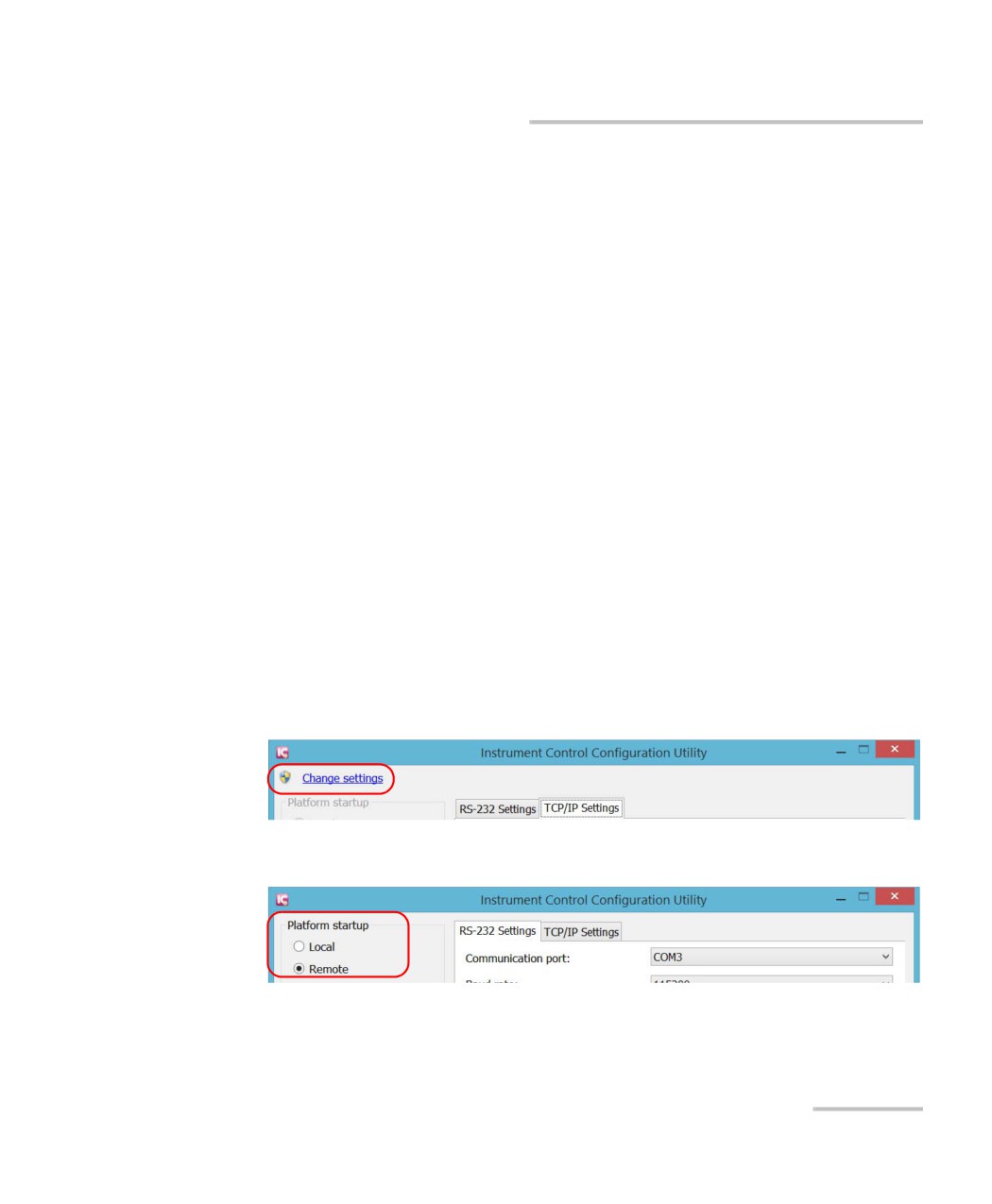
2. If necessary, click or tap Change settings, and then, when the
application prompts you to authorize the changes to your unit
(identified as “computer”), select Yes.
3. Under Platform Startup, select Remote.
FTB-2 and FTB-2 Pro
451
Communicating Through TCP/IP over Telnet
Executing SCPI Commands Over Telnet
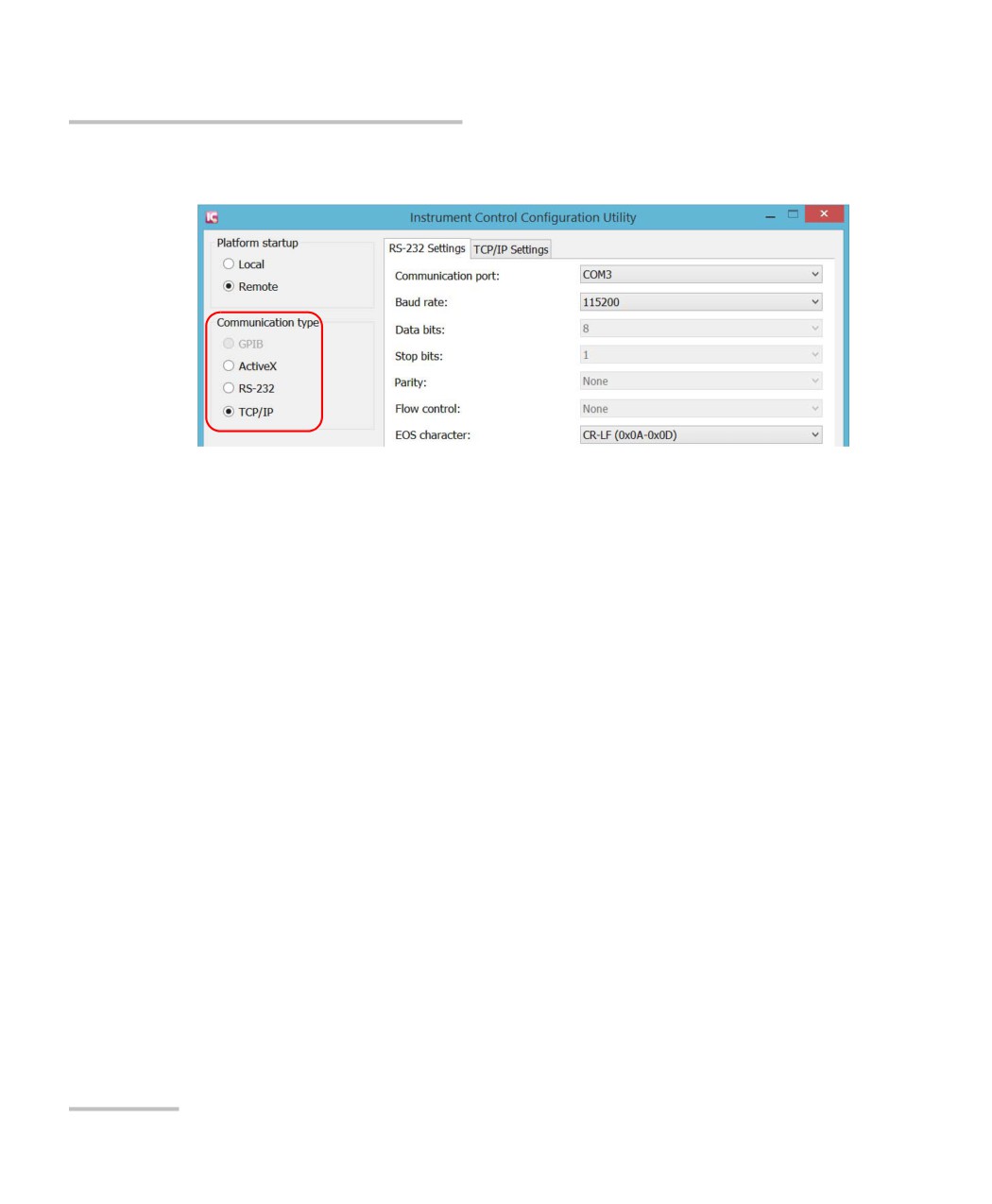
4. Under Communication Type, select TCP/IP.
5. Click or tap Apply, and then OK.
6. Depending on the unit you are using, restart either IQS Manager,
ToolBox, or ToolBox X.
Executing SCPI Commands Over Telnet
You can remotely control the modules by executing SCPI commands
through TCP/IP over Telnet. The commands are sent remotely from the
Telnet client (on a computer) to the Telnet server (in this case, the IQS or
FTB unit).
To execute a single SCPI command, you can type or paste the command
directly in the Telnet editor window.
To execute multiple SCPI commands (script), you must enclose them
within a BEGIN and END block in the Telnet editor window.
You can connect from a remote Windows client or a Linux (or Unix)
remote client.
Note: The Telnet client is available on the FTB-500, FTB-2 Pro, and IQS-600
controller if you intend to use these units as computers to connect to a
Telnet server. However, on an FTB-2, the Telnet client is not available. You
must use the PuTTY application to establish communication.
452
FTB-2 and FTB-2 Pro
Communicating Through TCP/IP over Telnet
Executing SCPI Commands Over Telnet
To connect through TCP/IP over Telnet from a remote
Windows client:
1. From your computer, start Windows.
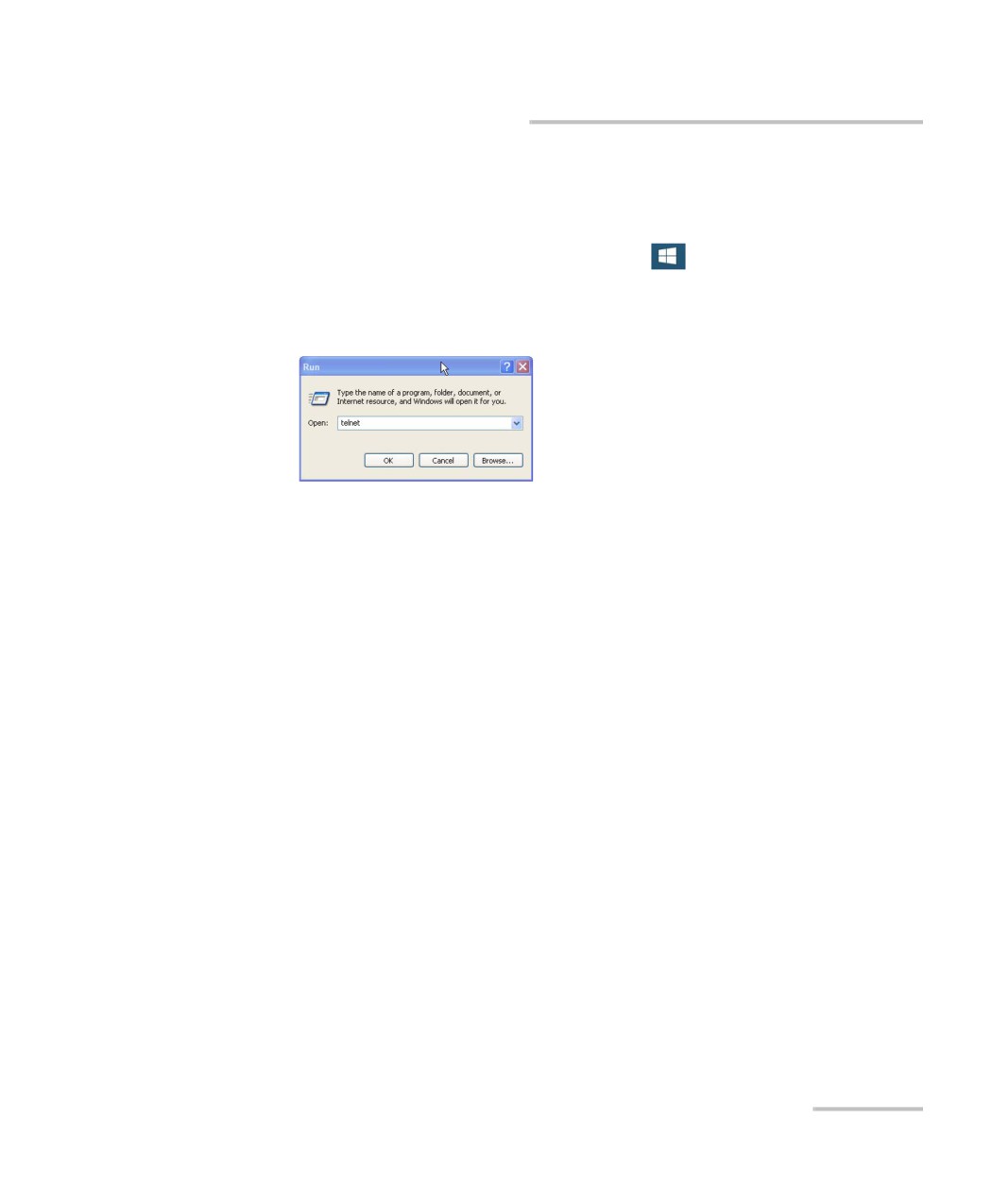
2. On the taskbar, click Start (Start button (
) under Windows 8.1) and
select Run.
3. In the Open box, type telnet, and then click OK.
Note: If you receive an error message, it probably means that the Telnet client is
not already activated on your computer. In this case, in the Open box, type
pkgmgr /iu:TelnetClient, and then click OK to enable the client. Once it is
done, perform step 3 again.
FTB-2 and FTB-2 Pro
453
Communicating Through TCP/IP over Telnet
Executing SCPI Commands Over Telnet
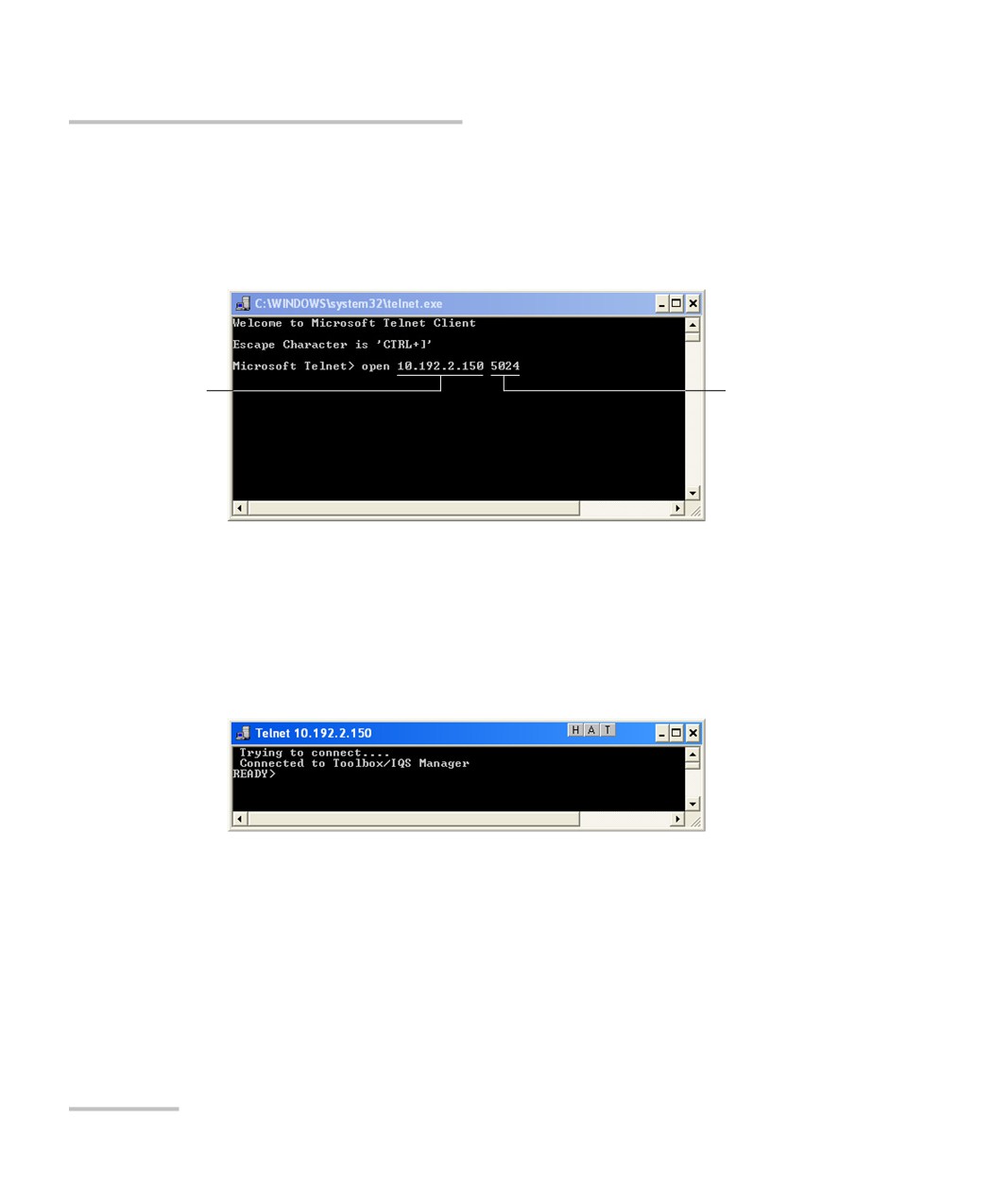
4. In the displayed Telnet editor window, type the
OPEN <IP_ADDRESS_OF_TELNET_SERVER> <PORT> command to
connect to the TCP/IP Telnet Service.
Example: open 10.192.2.45 5024
IP address of the
Port number
IQS or FTB unit
Note: Port 5024 is designated for sending SCPI commands in the Telnet protocol.
5. Press ENTER to establish a connection with the Service.
Once the connection is established, the READY> prompt is displayed
in the Telnet editor window.
Note: If the connection cannot be established, the Connection to host lost
message is displayed instead.
454
FTB-2 and FTB-2 Pro
содержание .. 27 28 29 30 ..