Seat Mii electric (2021 year). Manual in english - page 8
Infotainment System
Function button: Media source
SD card in the slot for SD cards
›››
.
USB data storage in the USB socket
›››
. You can see the location of
the connection in
.
Smartphone paired through Bluetooth
›››
External audio source connected to the
AUX-IN multimedia socket
.
When a Media source that has already been
played is selected again, playback is re-
sumed from the point at which it ended (
ex-
cept for:
AUX
›››
).
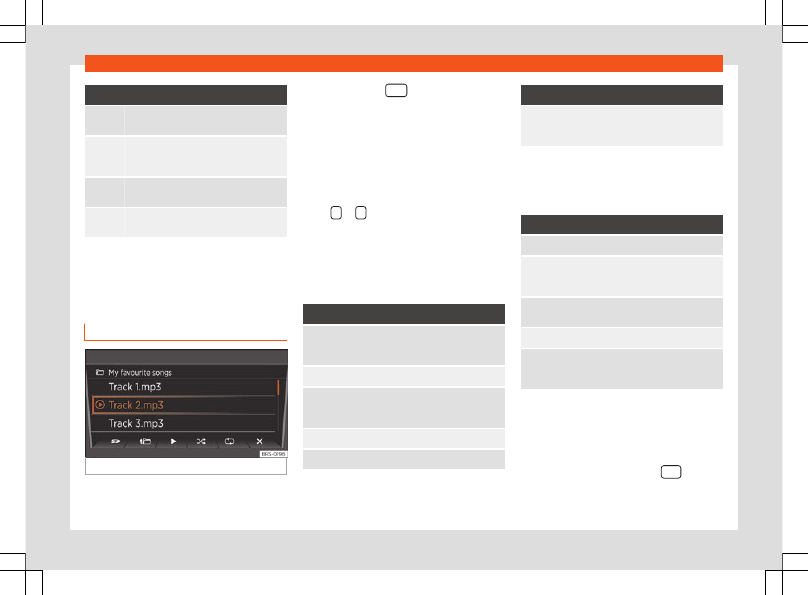
SD card playback
Fig. 125
SD card playback: List of tracks.
●
Insert the SD card first with the cut corner
facing up and the title on the left in the slot for
SD cards.
●
Press the button
.
Playback continues with the last Media
source selected. To play the SD card press
.
In the folder view, browse with the
function
button and the settings button. Press
to
access a higher golder level and rotate the
settings switch to select the desired folder.
To switch to the previous or next track, press
either
or
.
Hold one of the arrow buttons to fast-forward
or rewind the track.
During playback, the following function but-
tons are available on the bottom of the dis-
play. Active function buttons are highlighted.
Function button: Meaning
Playlist notification. Here you can also se-
lect a track directly with the settings but-
ton
Previous track or rewind.
Play. It can also be pressed to stop the
playback. In this case, the symbol
changes to
Next title or fast-forward
Random play.
Function button: Meaning
To repeat a folder or track. The
symbol
indicates that the current track is on re-
peat.
a)
Valid for Media sources: SD card, USB socket and
Bluetooth audio
In the list of playlists (button
) the following
options are available:
Function button: Meaning
To change the main folder of the SD card.
To access a higher folder level. In the folder
list, you can select a different audio source
with
.
Play. It can also be pressed to stop the
playback.
Random play.
To repeat a folder or track. The
symbol
indicates that the current track is on re-
peat.
Ejecting the SD card
Connected data storage devices must be
prepared before their disconnection in order
to remove them without damaging it.
●
Press the Infotainment button
and
then press
System settings
.
●
Select
Remove source safely
and then
SD Card
. After correctly ejecting the data
122