Peugeot 508 Dag (2010.5). Instruction - part 17
 

  Index      Peugeot     Peugeot 508 Dag 2010.5 - instruction in english


Search            


Content   ..  15  16  17  18   ..


Peugeot 508 Dag (2010.5). Instruction - part 17


243

04

1

3

2

 NAVIGATION - GUIDANCE 

  UPDATING THE RISK AREAS POIs 
(speed camera information) 

  The detailed procedure is available from PEUGEOT dealers.  

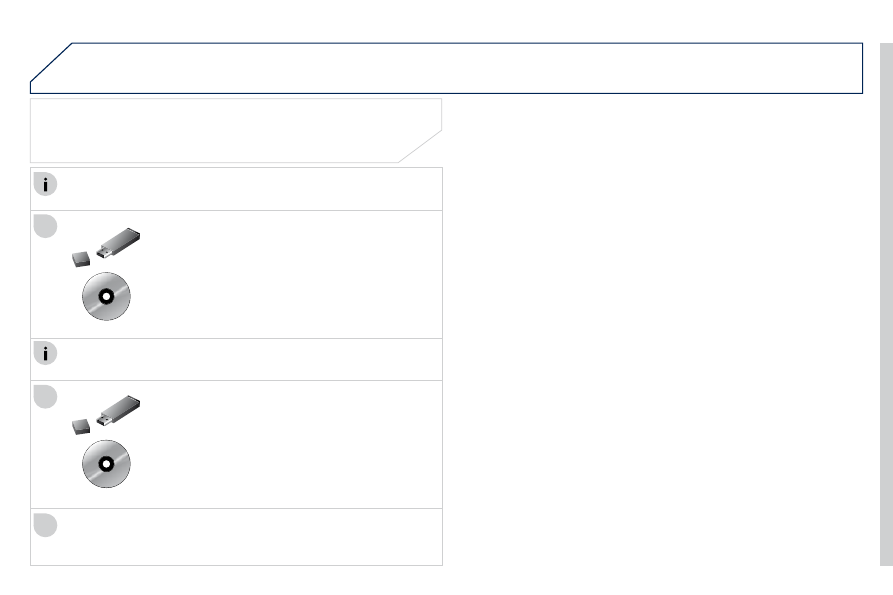
  The fi les must be copied to the root on the chosen medium.  

  Successful downloading is confi rmed by a message. 
 The medium used must not contain any other data.   

  Insert the medium (CD ROM or USB memory stick) 

containing the POI database into the system's CD 

player or USB port. 
 The system detects the medium inserted 

automatically. Confi rm the start of the update by 

validating "YES".  

  Download the "Risk areas POIs" update fi le 

onto a CD ROM or USB memory stick from the 

Internet. This service is available on https://www.

wipinforadars.fr or https://www.peugeot-connect-

downloads.co.uk.  

244

1

2

3

04  NAVIGATION - GUIDANCE 

  ALERT PARAMETERS   
RISK AREAS 

  Press  NAV  to display the 
Navigation - guidance " menu.  

  Select: 
   -   "Visual alert" 

  -   "Audible alert" 

  -   "Alert only in guidance" 
  -  

"Overspeed alarm only".  

 The choice of time of notifi cation defi nes 

how long in advance that guidance 

announcements are given. 
 Select " OK

 " to confi rm the screen.  

  Select " Guidance options

 " and confi rm, 

then select " Set parameters for risk 
areas

 " and confi rm.  

  These functions are only available if risk areas have been 
downloaded and installed on the system.   

245

04

1

4

3

1

3

2

2

 NAVIGATION - GUIDANCE 

  ADDING A STAGE 

  Press  NAV  to display the 
Navigation - guidance " menu.  

  Select " Journey leg and route " then 

confi rm.  

  Select " Close to

 " a route passing 

close to the stage or " Strict " for a route 

passing through the stage. 

 Confi rm " OK " to start the guidance, and 

give a general indication of the guidance 

route.   

  Select " Add a stage

 " then confi rm. 

 The address of the waypoint is entered 
as a destination, by " Enter an address ", 
a contact in " Directory ", ou " Previous 
destinations
 ".  

  ORGANISING STAGES 

  To organise stages, carry out operations 

1 to 2 again, then select " Order/delete 

journey legs

 " and confi rm.  

  Select and confi rm to save the 

modifi cations.  

  Select the stage that you want to move 

in the order, using the    and    buttons 

until the desired position is reached.  

  Select " Delete

 " to delete the stage.   

246

04

3

4

1

2

 NAVIGATION - GUIDANCE 

       ROUTE OPTIONS 

  CALCULATION CRITERIA  

  Select " Guidance options

 " and confi rm.  

  Select " OK

 " and confi rm to save the 

modifi cations.   

  Select " 

Defi ne calculation criteria " and 

confi rm. 

 This function allows modifi cation of: 

   -   the guidance criteria: (" Fastest 

route ", " Shortest route ", 
Distance/Time

 "), 

  -   the exclusion criteria: (" With tolls " 

or " With Ferry

 "), 

  -   traffi c avoidance: (" 

Traffi c info ").   

  Press  NAV  to display the 
Navigation - guidance " menu.  

 If traffi c avoidance (Traffi c info) is selected, the system suggests 

an alternative route if there is a delay on the guidance route.   

247

04

3

5

1

2

4

 NAVIGATION - GUIDANCE 

  Press  NAV  to display the 
Navigation - guidance " menu.  

  MAP MANAGEMENT 

  SELECTING THE POINTS OF INTEREST DISPLAYED ON THE 
MAP  

  Select " Map management

 " and confi rm.  

  Select from the various categories the 

ones that you want to display on the 
screen.  

  Select " Map details

 " and confi rm.  

  Select " By default " to have only " Oil stations, garages " and 
Accident-prone area " appear on the map (if installed in the 

system).  

  Select " OK

 " then confi rm and select 

OK

 " again then confi rm to save the 

modifi cations.   

248

04

3

1

2

4

 NAVIGATION - GUIDANCE 

  Select " Map management

 " and confi rm.  

  Select: 
   -  

Vehicle direction " to have the map 
follow the direction of travel, 

  -  

North direction " to keep the map 
always North up, 

  -  

Perspective view " to display a 
perspective view.   

  Select " Map orientation

 " and confi rm.  

  The colour of the map, different from the day and night mode, is 

confi gured in the " SETUP " menu.  

   MAP ORIENTATION  

  Press  NAV  to display the 
Navigation - guidance " menu.  

  Street names are visible when the map is displayed at the 50 m 
scale, with either direction of travel or North orientation.   

249

04

1

2

3

6

4

5

 NAVIGATION - GUIDANCE 

  Press  NAV  to display the 
Navigation - guidance " menu.  

       ADJUSTING THE GUIDANCE SPEECH SYNTHESIS 

  Select " Guidance options

 " and confi rm.  

  ADJUSTING THE VOLUME/DEACTIVATION  

  Select " Set speech synthesis " and 

confi rm.  

  Select the volume graph and confi rm.  

  Select " Deactivate

 " to deactivate voice messages.  

  Select " OK " and press the dial to 

confi rm.   

  Adjust the volume to the desired level 

and confi rm.  

  The volume of messages can be adjusted during the transmission 

of the message using the volume adjustment control.  

  The volume setting of guidance messages is also accessible via the 

SETUP

 "/" Voice synthesis " menu.  

250

04

3

1

2

 NAVIGATION - GUIDANCE 

   MALE VOICE/FEMALE VOICE  

  Press  SETUP  to display the 

confi guration menu.  

  Select " Select male voice " or " Select 
female voice

 " then confi rm " Yes

 " then confi rm " 

 " then confi rm " 

 " to 

activate a male or female voice. The 
system restarts.   

  Select " Voice synthesis

 " and confi rm.  

251

05  TRAFFIC INFORMATION 

  Access to the "TRAFFIC INFORMATION" menu 

  Go from the list to the menu (left/right). 

  " 

  " 

  " 

  " 

  " 

  " 

  " 

  " 

  " 

  " 

  " 

  " 

  " 

  " 

  " 

  " 

  " 

  " 

Traffi c information

Traffi c information

Traffi c information

Traffi c information

Traffi c information

Traffi c information

Traffi c information

Traffi c information

Traffi c information

Traffi c information

Traffi c information

Traffi c information

Traffi c information

Traffi c information

Traffi c information

Traffi c information

Traffi c information

Traffi c information

Traffi c information "   "   "   "   "   "   "   "   "   "   "   "   "   "   "   "   "   "  

 or   

 Press " TRAFFIC " 

252

05

1

2

3

4

TRAFFIC INFORMATION

          CONFIGURE THE FILTERING AND DISPLAY OF TMC MESSAGES 

  TMC (Traffi c Message Channel) messages contain information on traffi c and weather conditions, received in real time and transmitted to the 

driver in the form of audible announcements and symbols on the navigation map. 

 The navigation system can then suggest an alternative route to avoid a traffi c problem.  

  Press the  TRAFFIC  button to display the 

Traffi c information  menu.  

  Select the " 

Geographic fi lter " function 

Geographic fi lter

Geographic fi lter

and confi rm.  

  The system offers a choice of: 
   -  

Retain all the messages: ",  

or 
  -  

Retain the messages: " 

       " Around the vehicle ", (confi rm 

the mileage to modify and select 

the distance), 

      " On the route ".    

  Confi rm " OK " to save the modifi cations.   

  We recommend: 
   -   a fi lter on the route and 

  -   a fi lter around the vehicle of: 

   -   12 miles (20 km) in urban areas, 

  -   30 miles (50 km) on motorways.    

253

05

2

1

1

2

3

TRAFFIC INFORMATION

       PRINCIPAL TMC SYMBOLS 

  Red and yellow triangle: traffi c information, for example: 

  Black and blue triangle: general information, for example: 

       RECEIVING TA MESSAGES 

  The TA (Traffi c Announcement) function gives priority to TA alert 

messages. To operate, this function needs good reception of a 

radio station transmitting this type of message. When a traffi c report 

is transmitted, the current audio source (Radio, CD, USB, ...) is 

interrupted automatically to play the TA message. Normal playback 

of the audio source resumes at the end of the transmission of the 

message.  

  Press  RADIO  to display the 
FM/AM band " menu.  

  Select " Guidance options " then 

confi rm.  

  Select " Activate/Deactivate TA " then 

confi rm.  

  The volume setting for TA mesages can be adjusted only during the 

transmission of this type of alert.   

254

06  USING THE TELEPHONE 

  Access to the "TELEPHONE" menu 

  " 

  " 

  " 

  " 

  " 

  " 

  " 

  " 

  " 

  " 

  " 

  " 

  " 

  " 

  " 

  " 

  " 

  " Phone

Phone

Phone

Phone

Phone

Phone

Phone

Phone

Phone

Phone

Phone

Phone

Phone

Phone

Phone

Phone

Phone

Phone

Phone "  

 "  

 "  

 "  

 "  

 "  

 "  

 "  

 "  

 "  

 "  

 "  

 "  

 "  

 "  

 "  

 "  

 "  

  Press  PHONE .  

  In " Call list

 ", select a number in the list and confi rm  OK  to 

start the call. 

  Connecting a different telephone deletes the list of 

recent calls.  

 No telephone connected. 

 Telephone connected. 

 Incoming call. 

 Outgoing call. 

 Synchronization 
of address book in 

progress. 
 Telephone call in 

progress.   

  In the top bar of the permanent 
display 

 Calls received. 

 Calls sent.  

255

1

2

5

6

3

4

06

                PAIRING A TELEPHONE 

on the part of the driver, the operations for pairing the Bluetooth 

mobile telephone to the hands-free system of the audio unit must be 
carried out with the  vehicle stationary .  

  Activate the telephone's Bluetooth 

function and ensure that it is "shown to 

all" (telephone confi guration).  

  Press  PHONE .  

  Select the name of the desired 
peripheral from the list of devices 
detected then select " Connect " and 

confi rm.  

  The system offers to connect the 
telephone: 
   -  

in " Hands-free mode " (telephone 

only), 

  -  

in " Audio

 " mode (streaming: playing 

music fi les on the telephone), 

  -  

or " All " (for selection of both 

modes).  

 Select " OK

 " and confi rm.  

  Select " Bluetooth functions " and 

confi rm.  

  Select " Peripherals search " and 

confi rm. 
 The list of peripherals detected is 
displayed. Wait until the " Connect " 
button is available.  

 USING THE TELEPHONE 

256

8

06

7

  Enter the same code on the telephone then accept 
the connection.  

  Then accept automatic connection on the telephone to allow the 
telephone to reconnect automatically every time the vehicle is 
started.    

  On return to the vehicle,the last telephone connected 
automatically reconnects, within around 30 seconds after 

switching on the ignition. (Bluetooth activated and visible). 

 To modify the automatic connection mode, remove the pairing and 

pair the telephone again with the desired mode.   

 USING THE TELEPHONE 

  The " Hands-free mode " should be used in preference if 

"Streaming" is not desired.  

  The services available depend on the network, the SIM card and the compatibility of the Bluetooth telephone used. Check the telephone 

manual and with your network provider for details of the services available to you. A list of mobile telephones with the best level of 

compatibility is available on www.peugeot.co.uk.  

  The ability of the system to connect in only one mode depends on 
the telephone. The two modes may both connect by default.  

  Select a code for the connection then 

confi rm " OK ".  

257

1

2

2

3

1

3

4

06  USING THE TELEPHONE 

  Press  PHONE .  

  Select " Dial

 " then confi rm.  

  Select " Directory of contacts " then 

confi rm.  

  Dial the telephone number using the 

virtual keypad selecting each number 

in turn. 
 Confi rm " OK " to make the call.   

  Press  PHONE

  or make long press on 

TEL .  

  CALLING A NEW NUMBER  

   CALLING A CONTACT  

  Select the desired contact and confi rm.  

  Select the number and confi rm to start 

the call.   

       MAKING A CALL 

  Use of the telephone is not recommended while driving. We 

recommended that you park safely or make use of the steering 

mounted controls.  

258

1

2

06

1

 USING THE TELEPHONE 

   CALLING A RECENTLY DIALLED NUMBER  

  Press  PHONE 

 or make a long press on 

TEL , select " Call list

 " and confi rm.  

  Select the desired number and confi rm.  

  To erase the calls log, press  PHONE , select " Phone functions " 

and confi rm then select " Delete calls log " and confi rm.   

  ENDING A CALL 

  Press  HANG UP

  or 
 Or make a long press on the steering 

mounted  TEL  button.   


Content   ..  15  16  17  18   ..