Jeep Gladiator (2022 year). Manual in english - page 17
 

  Index      Manuals     Jeep Gladiator (2022 year). Manual in english


Search            copyright infringement  


Content      ..     15      16      17      18     ..


Jeep Gladiator (2022 year). Manual in english - page 17


MULTIMEDIA

267

CANCEL COMMAND

At any prompt, after the beep, you can say “Cancel” 

and you will be returned to the main menu.
You can also push the VR button or Phone button 

on your steering wheel when the system is listening 

for a command and be returned to the main or 

previous menu.

PAIR (LINK) UCONNECT PHONE TO A MOBILE 

PHONE

Use this QR code to access your 

digital experience.
To begin using your Uconnect 

Phone, you must pair your 

compatible Bluetooth®-enabled 

mobile phone. Mobile phone 

pairing is the process of 

establishing a wireless connection between a 

cellular phone and the Uconnect system.
To complete the pairing process, you will need to 

reference your mobile phone’s manual. Please 

visit 

UconnectPhone.com

 for complete mobile 

phone compatibility information.

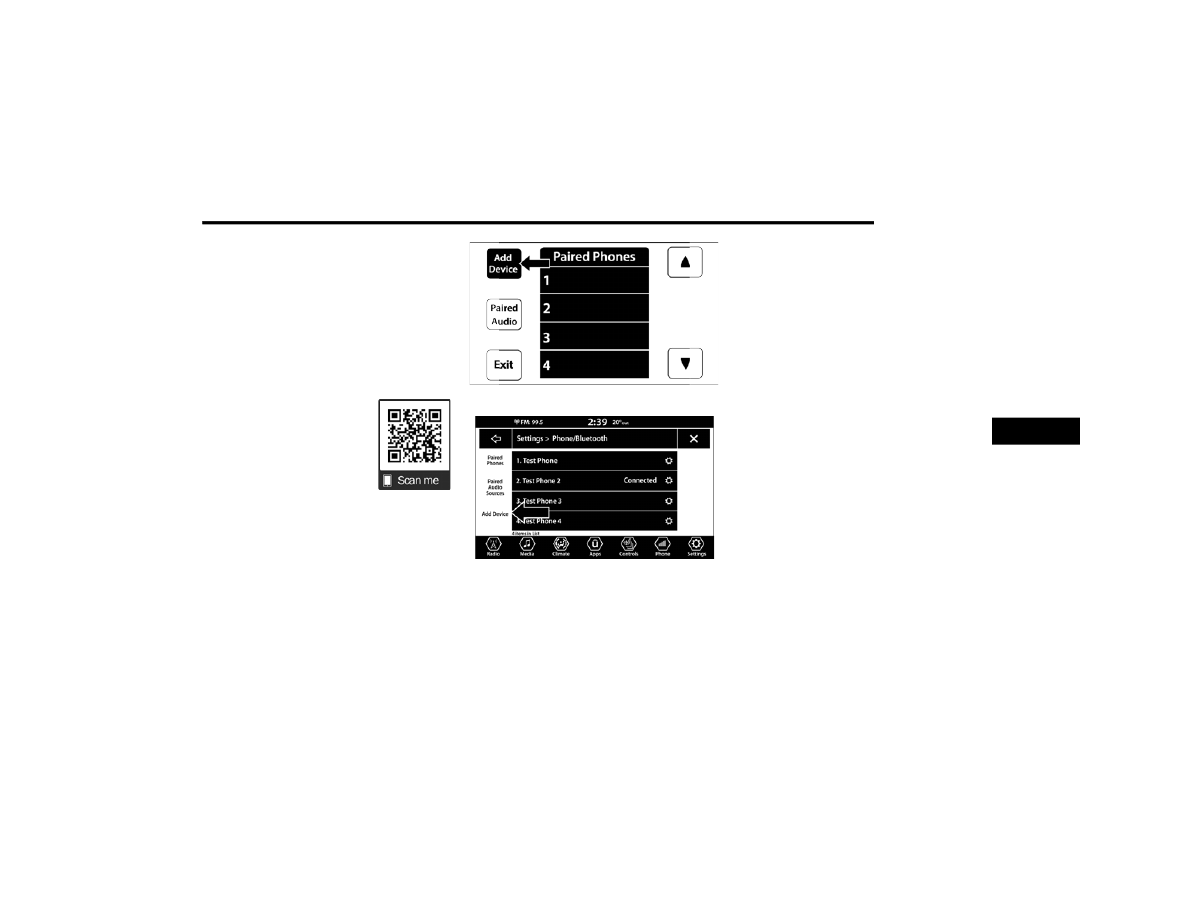
Uconnect 3 With 5-inch Display

Uconnect 4 With 7-inch Display

NOTE:

You must have Bluetooth® enabled on your 

phone to complete this procedure.

The vehicle must be in PARK or at a standstill.

Follow the steps below to pair your phone:
1. Place the ignition in the ACC or ON/RUN 

position.

2. Press the Phone button.

NOTE:

If there are no phones currently connected 

with the system, a pop-up will appear asking 

if you would like to pair a mobile phone.

This pop-up only appears when the user 

enters Phone Mode and no other device(s) 

have previously been paired. If the system 

has a phone previously paired, even if no 

phone is currently connected with the 

system, this pop-up will not appear.

3. Select “Yes” to begin the pairing process.
4. Search for available devices on your 

Bluetooth®-enabled mobile phone.

Press the Settings button on your mobile 

phone.

Select “Bluetooth®” and ensure it is 

enabled. Once enabled, the mobile phone 

will begin to search for Bluetooth® connec

-

tions.

NOTE:

During the pairing procedure, you may receive a 

pop-up on your touchscreen asking you to make 

sure the PIN on the touchscreen matches the PIN 

from the pop-up on your mobile phone.

5

268

MULTIMEDIA


5. If “No” is selected, and you still would like to 

pair a mobile phone, press the Phone Pairing 

or Settings button from the Uconnect Phone 

main screen.

Press the Paired Phones button or the Add 

Device button.

Search for available devices on your Blue

-

tooth®-enabled mobile phone (see below). 

When prompted on the phone, select 

“Uconnect” and accept the connection 

request.

6. Uconnect Phone will display an in-progress 

screen while the system is connecting.

7. When your mobile phone finds the Uconnect 

system, select “Uconnect.”

8. When prompted on the mobile phone, accept 

the connection request from Uconnect.

9. When the pairing process has successfully 

completed, the system will prompt you to 

choose whether or not this is your favorite 

phone. Selecting “Yes” will make this phone 

the highest priority. This phone will take 

precedence over other paired phones within 

range and will connect to the Uconnect system 

automatically when entering the vehicle. Only 

one mobile phone and/or one Bluetooth® 

audio device can be connected to the 

Uconnect system at a time. If “No” is selected, 

simply select “Uconnect” from the mobile 

phone/audio device Bluetooth® screen, and 

the Uconnect system will reconnect to the 

Bluetooth® device.

NOTE:

For phones which are not made a favorite, the 

phone priority is determined by the order in which 

it was paired. The most recent phone paired will 

have the higher priority.

NOTE:

During the pairing procedure, you may receive a 

pop-up on your mobile phone for the Uconnect 

system to access your “messages” and “contacts”. 

Selecting “Ok” or “Allow” will sync your contacts 

with the Uconnect system.
You can also use the following VR command to 

bring up the Paired Phone screen from any screen 

on the radio: 

“Show Paired Phones”

NOTE:

Software updates on your phone or the Uconnect 

system may interfere with the Bluetooth® 

connection. If this happens, simply repeat the 

pairing process. However, first make sure to delete 

the device from the list of phones on your 

Uconnect system. Next, be sure to remove 

Uconnect from the list of devices in your phone’s 

Bluetooth® settings.

PAIR A BLUETOOTH® STREAMING AUDIO 

DEVICE

For information on how to pair a Bluetooth® 

streaming audio device with the Uconnect 3 With 

5-inch Display radio  

Ú

page 267.

1. Press the Media button on the touchscreen to 

begin.

2. Change the source to “Bluetooth®”.
3. Press the Bluetooth® button on the 

touchscreen to display the Paired Audio 

Devices screen.

4. Press the Add Device button on the 

touchscreen.

NOTE:

If there is no device currently connected with the 

system, a pop-up will appear.
5. Search for available devices on your 

Bluetooth®-enabled audio device. When 

prompted on the device, confirm the PIN 

shown on the Uconnect screen.

6. Uconnect Phone will display an in-process 

screen while the system is connecting.

MULTIMEDIA

269

7. When the pairing process has successfully 

completed, the system will prompt you to 

choose whether or not this is your favorite 

device. Selecting “Yes” will make this device 

the highest priority. This device will take 

precedence over other paired devices within 

range.

NOTE:

For devices which are not made a favorite, the 

device priority is determined by the order in which 

it was paired. The most recent device paired will 

have the higher priority.
You can also use a following VR command to bring 

up a list of paired audio devices:

“Show Paired Phones”

CONNECTING TO A PARTICULAR MOBILE 

PHONE OR AUDIO DEVICE AFTER PAIRING

Uconnect Phone will automatically connect to the 

highest priority paired phone and/or Audio Device 

within range. If you need to choose a particular 

phone or audio device follow these steps: 
1. Press the Settings button on the touchscreen.
2. Press the Paired Phones or Audio Sources 

button.

3. Press to select the particular phone or the 

particular audio device. A pop-up menu will 

appear; press “Connect Phone”.

4. Press the X to exit out of the Settings screen.

DISCONNECTING OR DELETING A PHONE OR 

AUDIO DEVICE 

Uconnect 3 With 5-inch Display

Uconnect 4 With 7-inch Display

1. Press the Uconnect Phone Pairing or Settings 

button.

2. Press the Paired Phones or Audio Sources 

button.

3. Press the Settings button located to the right 

of the device name for a different phone or 

audio device than the currently connected 

device or press the preferred Connected 

Phone from the list.

4. The option’s pop-up will be displayed.
5. Press the Disconnect Device or the Delete 

Device button on the touchscreen.

6. Press the X to exit out of the Settings screen.

MAKING A PHONE OR AUDIO DEVICE A 

FAVORITE

1. On the Paired Phone/Audio Sources screen, 

press the Settings button located to the right 

of the device name for a different phone or 

audio device than the currently connected 

device or press the preferred “Connected 

Phone” from the list.

2. The option’s pop-up will be displayed.
3. Press the Make Favorite button on the 

touchscreen; you will see the chosen device 

move to the top of the list.

4. Press the X to exit out of the Settings screen.

5

270

MULTIMEDIA


PHONEBOOK DOWNLOAD (AUTOMATIC 

PHONEBOOK TRANSFER FROM MOBILE 

PHONE) — IF EQUIPPED

If supported by your phone, Uconnect Phone has 

the ability to download contact names and number 

entries from the mobile phone’s phonebook. 

Specific Bluetooth® Phones with Phonebook 

Access Profile may support this feature. Your 

mobile phone may receive a pop-up asking for 

permission for the Uconnect system to access your 

messages and contacts. Selecting “Ok” or “Allow” 

will sync your contacts with the Uconnect system.
See the Uconnect website, 

UconnectPhone.com

, 

for supported phones.

To call a name from a downloaded mobile 

phonebook,  

Ú

page 275.

Automatic download and update of a phone

-

book, if supported, begins as soon as the 

Bluetooth® wireless phone connection is made 

to the Uconnect Phone, for example, after you 

start the vehicle.

A maximum of 5,000 contact names with four 

numbers per contact will be downloaded and 

updated every time a phone is connected to the 

Uconnect Phone.

Depending on the maximum number of entries 

downloaded, there may be a short delay before 

the latest downloaded names can be used. Until 

then, if available, the previously downloaded 

phonebook is available for use.

Only the phonebook of the currently connected 

mobile phone is accessible.

This downloaded phonebook cannot be edited 

or deleted on the Uconnect Phone. These can 

only be edited on the mobile phone. The 

changes are transferred and updated to Ucon

-

nect Phone on the next phone connection.

MANAGING YOUR FAVORITES — IF EQUIPPED

There are two ways you can add an entry to your 

favorites:
1. After loading the mobile phonebook, press 

the Favorites button on the touchscreen, and 

then press one of the +Add Favorite Contact 

buttons that appears on the list.

2. After loading the mobile phonebook, select 

“Contacts” from the Phone main screen, and 

then select the appropriate number. Press the 

Down Arrow button or the Settings Gear button 

next to the selected number to display the 

option’s pop-up. In the pop-up, select “Add to 

Favorites”.

NOTE:

If the Favorites list is full, you will be asked to 

remove an existing favorite.

TO REMOVE A FAVORITE — IF EQUIPPED

1. To remove a Favorite, select “Favorites” from 

the Phone main screen.

2. Next, select the Down Arrow icon or the 

Settings Gear icon next to the contact you want 

to remove from your favorites. This will bring 

up the options for that Favorite contact.

3. Deselect the Star icon to delete the Favorite.

Phone Call Features

The following features can be accessed through 

the Uconnect Phone if the feature(s) are available 

and supported by Bluetooth® on your mobile 

service plan. For example, if your mobile service 

plan provides three-way calling, this feature can be 

accessed through the Uconnect Phone. Check with 

your mobile service provider for the features that 

you have.

MULTIMEDIA

271

Listed below are the phone options with Uconnect:

Redial

Dial by pressing in the number

Voice Commands (Dial by Saying a Name, Call 

by Saying a Phonebook Name, Redial or Call 

Back)

Favorites

Mobile Phonebook

Recent Call Log

SMS Message Viewer

CALL CONTROLS

The touchscreen allows you to control the following 

call features:

Uconnect 3 With 5-inch Display

Uconnect 4 With 7-inch Display

Other phone call features include:

End Call

Hold/Unhold/Resume

Swap two active calls

1 — Answer
2 — Mute/Unmute
3 — Ignore
4 — Transfer

1 — Answer
2 — End
3 — Mute/Unmute
4 — Transfer
5 — Join Calls

5

272

MULTIMEDIA


KEY PAD NUMBER ENTRY

1. Press the Phone button.
2. Press the Dial/Keypad button on the 

touchscreen.

3. The Touch-Tone screen will be displayed.
4. Use the numbered buttons on the 

touchscreens to enter the number and press 

“Dial/Call”.

RECENT CALLS — IF EQUIPPED

You may browse a list of the most recent of each of 

the following call types: 

All Calls

Incoming Calls or Calls Received

Outgoing Calls or Calls Made

Missed Calls

These can be accessed by pressing the Recent 

Calls button on the phone main screen.
You can also push the VR button on your steering 

wheel and perform the above operation. For 

example, say “Show my incoming calls”.

ANSWER OR IGNORE AN INCOMING 

CALL — NO CALL CURRENTLY IN PROGRESS

When you receive a call on your mobile phone, the 

Uconnect Phone will interrupt the vehicle audio 

system. Push the Phone button on the steering 

wheel, press the Answer button on the 

touchscreen.
You can also press the Caller ID box to place the 

current call on hold or answer the incoming call.

Uconnect 3 With 5-inch Display

Uconnect 4 With 7-inch Display

ANSWER OR IGNORE AN INCOMING 

CALL — CALL CURRENTLY IN PROGRESS

If a call is currently in progress and you have 

another incoming call, you will hear the same 

network tones for call waiting that you normally 

hear when using your mobile phone. Push the 

Phone button on the steering wheel, press the 

Answer button on the touchscreen, or press the 

Caller ID box to place the current call on hold and 

answer the incoming call.

1 — Answer Button
2 — Caller ID Box

1 — Answer Button
2 — Caller ID Box

MULTIMEDIA

273

NOTE:

Phones that are compatible with the Uconnect 

system in the market today do not support 

rejecting an incoming call when another call is in 

progress. Therefore, the user can only answer an 

incoming call or ignore it.

DO NOT DISTURB 

With Do Not Disturb, you can disable notifications 

from incoming calls and texts, allowing you to keep 

your eyes on the road and hands on the wheel. For 

your convenience, there is a counter display to 

keep track of your missed calls and text messages 

while Do Not Disturb is active.
Do Not Disturb can automatically reply with a text 

message, a call, or both when declining an 

incoming call and send it to voicemail.
Automatic reply messages can be:

“I am driving right now, I will get back to you 

shortly”.

Create a custom auto reply message up to 

160 characters.

NOTE:

Only the first 25 characters can be seen on the 

touchscreen while typing a custom message.

While in Do Not Disturb, Conference Call can be 

selected so you can still place a second call 

without being interrupted by incoming calls.

NOTE:

Reply with text message is not compatible with 

iPhone® devices.

Auto reply with text message is only available on 

phones that support Bluetooth® Message 

Access Profile (MAP).

PLACE/RETRIEVE A CALL FROM HOLD

During an active call, press the Hold or Call On Hold 

button on the Phone main screen.

MAKING A SECOND CALL WHILE CURRENT 

CALL IS IN PROGRESS

You can place a call on hold by pressing the Hold 

button on the Phone main screen, then dial a 

number from the keypad (if supported by your 

mobile phone), recent calls, SMS Inbox or from the 

phonebooks.

TOGGLING BETWEEN CALLS

Uconnect 3 With 5-inch Display

Uconnect 4 With 7-inch Display

5

274

MULTIMEDIA


If two calls are in progress (one active and one on 

hold), press the Swap Calls button on the phone 

main screen. Only one call can be placed on hold 

at a time.
You can also push the Phone button to toggle 

between the active and held phone call.

JOIN CALLS

When two calls are in progress (one active and one 

on hold), press the Join/Merge Calls button on the 

Phone main screen to combine all calls into a 

conference call.

CALL TERMINATION

To end a call in progress, momentarily press the 

End Call button on the touchscreen or the Phone 

End button on the steering wheel. Only the active 

call(s) will be terminated and if there is a call on 

hold, it will become the new active call.

REDIAL

Push the VR button and after the 

“Listening” prompt and the following 

beep, say “Redial.”

The Uconnect Phone will call the last number that 

was dialed from your mobile phone.

CALL CONTINUATION

Call continuation is the progression of a phone call 

on the Uconnect Phone after the vehicle ignition 

has been switched to OFF.

NOTE:

The call will remain within the vehicle audio system 

until the phone becomes out of range for the Blue

-

tooth® connection. It is recommended to press the 

Transfer button on the touchscreen when leaving 

the vehicle.

Advanced Phone Connectivity

TRANSFER CALL TO AND FROM MOBILE 

PHONE

The Uconnect Phone allows ongoing calls to be 

transferred from your mobile phone without 

terminating the call. To transfer an ongoing call 

from your connected mobile phone to the 

Uconnect Phone or vice versa, press the Transfer 

button on the Phone main screen.

Things You Should Know About Uconnect 

Phone

VOICE COMMAND

For the best performance:

Always wait for the beep before speaking

Speak normally, without pausing, just as you 

would speak to a person sitting a few feet/

meters away from you

Ensure that no one other than you is speaking 

during a voice command period

Low-To-Medium Blower Setting

Low-To-Medium Vehicle Speed

Low Road Noise

Smooth Road Surface

Fully Closed Windows

Dry Weather Conditions

WARNING!

ALWAYS drive safely with your hands on the 

wheel. You have full responsibility and assume 

all risks related to the use of the Uconnect 

features and applications in this vehicle. Only 

use Uconnect when it is safe to do so. Failure to 

do so may result in an accident involving serious 

injury or death.

MULTIMEDIA

275

Even though the system is designed for many 

languages and accents, the system may not always 

work for some.

NOTE:

It is recommended that you do not store names in 

your Favorites phonebook while the vehicle is in 

motion.
Number and name recognition rate is optimized 

when the entries are not similar. You can say “O” 

(letter “O”) for “0” (zero).
Even though international dialing for most number 

combinations is supported, some shortcut dialing 

number combinations may not be supported.
Audio Performance
Audio quality is maximized under:

Low-To-Medium Blower Setting

Low-To-Medium Vehicle Speed

Low Road Noise

Smooth Road Surface

Fully Closed Windows

Dry Weather Conditions

Operation From The Driver's Seat

Performance such as audio clarity, echo, and 

loudness to a large degree rely on the phone and 

network, and not the Uconnect Phone.
Echo at the far end can sometimes be reduced by 

lowering the in-vehicle audio volume.
Phone Voice Commands
Making and answering hands-free phone calls is 

easy with Uconnect. When the Phonebook button 

is illuminated on your touchscreen, your system is 

ready. Check 

UconnectPhone.com

 for mobile 

phone compatibility and pairing instructions.
Push the Phone button   and wait for the beep to 

say a command. See some examples below:

“Call John Smith”

“Dial 123 456 7890”

“Redial” (call previous outgoing phone number)

“Call back” (call previously answered incoming 

phone number)

Did You Know: When providing a Voice Command, 
push the Phone button   and say “Call”, then 

pronounce the name exactly as it appears in your 

phonebook. When a contact has multiple phone 

numbers, you can say “Call John Smith work”.

Voice Text Reply — If Equipped
Uconnect can announce incoming text messages. 
Push the VR button   or Phone button   and 

say:
1. “Listen” to have the system read an incoming 

text message. (Must have compatible mobile 

phone paired to Uconnect system.)

2. “Reply” after an incoming text message has 

been read.

Listen to the Uconnect prompts. After the 

beep, repeat one of the predefined messag

-

es and follow the system prompts.

PRE-DEFINED VOICE TEXT REPLY 

RESPONSES

Yes.

Stuck in 

traffic.

See you later.

No.

Start without 

me.

I’ll be late.

Okay.

Where are 

you?

I will be 5 <or 

10, 15, 20, 

25, 30, 45, 

60> minutes 

late.

Call me.

Are you there 

yet?

5

276

MULTIMEDIA


NOTE:

Only use the numbering listed in the provided 

table. Otherwise, the system will not transpose the 

message.
Did You Know: Your mobile phone must have the 

full implementation of the Message Access Profile 

(MAP) to take advantage of this feature. For details 

about MAP, visit 

UconnectPhone.com

.

Apple® iPhone® iOS 5 or later supports reading 

incoming text messages only. For further 

information on how to enable this feature on your 

Apple® iPhone®, refer to your iPhone® “User 

Manual”.
Did You Know: Voice Text Reply is not compatible 

with iPhone®, but if your vehicle is equipped with 

Siri® Eyes Free, you can use your voice to send a 

text message.

Siri® Eyes Free — If Equipped
When used with your Apple® iPhone® connected 

to your vehicle via Bluetooth®, Siri lets you use 

your voice to send text messages, select media, 

place phone calls and much more. Siri uses your 

natural language to understand what you mean 

and responds back to confirm your requests. The 

system is designed to keep your eyes on the road 

and your hands on the wheel by letting Siri help you 

perform useful tasks.
To enable Siri, push and hold, then release the 

Uconnect Voice Recognition (VR) button on the 

steering wheel. After you hear a double beep, you 

can ask Siri to play podcasts and music, get 

directions, read text messages, and many other 

useful requests.

BLUETOOTH® COMMUNICATION LINK

Mobile phones may lose connection to the 

Uconnect Phone. When this happens, the 

connection can generally be re-established by 

restarting the mobile phone. Your mobile phone is 

recommended to remain in Bluetooth® ON mode.

POWER-UP

After switching the ignition key from OFF to either 

the ON/RUN or ACC position, or after a language 

change, you must wait at least 15 seconds prior to 

using the system 

Ú

page 465.

ANDROID AUTO™ & APPLE CARPLAY® — 

IF EQUIPPED  

A

NDROID

 A

UTO

™ 

Use this QR code to access your 

digital experience.
Android Auto™ is a feature of your 

Uconnect system, and your 

Android™ 6.0 or higher powered 

smartphone with a data plan, that 

allows you to project your 

smartphone and a number of its apps onto the 

touchscreen radio display. Android Auto™ brings 

you useful information, and organizes it into simple 

cards that appear just when they are needed. 

Android Auto™ can be used with speech 

technology, the steering wheel controls, the knobs 

and buttons on your radio faceplate, and the radio 

display’s touchscreen to control many of your 

apps. To use Android Auto™, perform the following 

procedure:

I’ll call you 

later.

I need 

directions.

See you in 5 

<or 10, 15, 

20, 25, 30, 

45, 60> 

minutes.

I’m on my way. Can’t talk right 

now.

I’m lost.

Thanks.

PRE-DEFINED VOICE TEXT REPLY 

RESPONSES

MULTIMEDIA

277

NOTE:

Feature availability depends on your carrier and 

mobile phone manufacturer. Some Android Auto™ 

features may or may not be available in every 

region and/or language.
1. Download the Android Auto™ app from the 

Google Play store on your Android™-powered 

smartphone.

2. Connect your Android™-powered smartphone 

to one of the media USB ports in your vehicle. 

If the Android Auto™ app was not downloaded, 

the first time you plug your device in the app 

begins to download. Your vehicle should be in 

PARK the first time you use the app.

NOTE:

Be sure to use the factory-provided USB cable that 

came with your phone, as aftermarket cables may 

not work.

Android Auto™ And LTE Data Coverage

NOTE:

To use Android Auto™, make sure you are in an 

area with cellular coverage. Android Auto™ may 

use cellular data and your cellular coverage is 

shown in the upper right corner of the radio screen. 

Data plan rates apply.
3. Once the device is connected and recognized, 

the Phone icon on the drag & drop menu bar 

changes to the Android Auto™ icon.

NOTE:

Android Auto™ is set to launch immediately once a 

compatible device is connected. You can also 

launch it by pressing the Android Auto™ icon on the 

touchscreen.
Once Android Auto™ is up and running on your 

Uconnect system, the following features can be 

utilized using your smartphone’s data plan:

Google Maps™ for navigation

YouTube Music, Spotify, iHeart Radio, etc. for 

music

Hands-free calling and texting for communica

-

tion

Various compatible apps

Maps

Push and hold the Voice Recognition (VR) 

button on the steering wheel until the 

beep or tap the Microphone icon to ask 

Google to take you to a desired 

destination by voice. You can also touch the 

Navigation icon in Android Auto™ to access other 

navigation apps.
While using Android Auto™, Google Maps™ 

provides voice-guided:

Navigation

Live traffic information

Lane guidance

For further information, refer to www.android.com/

auto/ (US) or https://www.android.com/intl/

en_ca/auto/ (Canada).
For further information on the navigation function, 

please refer to https://support.google.com/

android or https://support.google.com/

androidauto/.

5

278

MULTIMEDIA


Music

Android Auto™ allows you to access and 

stream your favorite music with apps like 

YouTube Music, iHeartRadio, and Spotify. 

Using your smartphone’s data plan, you 

can stream endless music on the road.

NOTE:

Music apps, playlists, and stations must be set up 

on your smartphone prior to using Android Auto™ 

for them to work with Android Auto™.

NOTE:

To see the track details for the music playing 

through Android Auto™, select the Uconnect 

system’s media screen.
For further information, refer to 

https://

support.google.com/androidauto

.

Communication

With Android Auto™ connected, push and 

hold the VR button on the steering wheel 

to activate voice recognition specific to 

Android Auto™. This allows you to send 

and reply to text messages, have incoming text 

messages read out loud, and place and receive 

hands-free calls.

Apps

The Android Auto™ App displays all the compatible 

apps that are available to use with Android Auto™, 

every time it is launched. You must have the 

compatible app downloaded, and you must be 

signed in to the app through your mobile device for 

it to work with Android Auto™.
Refer t

https://play.google.com/store/apps/

 to 

see the latest list of available apps for Android 

Auto™.

Android Auto™ Voice Command 

NOTE:

Feature availability depends on your carrier and 

mobile phone manufacturer. Some Android Auto™ 

features may or may not be available in every 

region and/or language.
Android Auto™ allows you to use your voice to 

interact with its best-in-class speech technology 

through your vehicle’s voice recognition system, 

and use your smartphone’s data plan to project 

your Android™-powered smartphone and a 

number of its apps onto your Uconnect 

touchscreen. Connect your Android™ 6.0 or higher 

to one of the media USB ports, using the 

factory-provided USB cable, and press the new 

Android Auto™ icon that replaces your Phone icon 

on the main menu bar to begin Android Auto™. 

Push and hold the VR button on the steering wheel, 

or press and hold the Microphone icon within 

Android Auto™, to activate its VR, which recognizes 

natural voice commands, to use a list of your 

smartphone’s features:

Maps

Music

Phone

Text Messages

Additional Apps

NOTE:

To use Android Auto™ on your car display, you’ll 

need an Android phone running Android 6.0 or 

higher, an active data plan, and the Android 

Auto™ app.

To wirelessly use Android Auto™ on your car 

display, you need a compatible Android smart

-

phone with an active data plan. You can 

check which smartphones are compatible at 

g.co/androidauto/requirements

.

Android™ is a trademark of Google Inc.

MULTIMEDIA

279

A

PPLE

 C

AR

P

LAY

®

Use this QR code to access your 

digital experience.
Uconnect works seamlessly with 

Apple CarPlay®, the smarter, 

more secure way to use your 

iPhone® in the car, and stay 

focused on the road. Use your 

Uconnect Touchscreen display, the vehicle's knobs 

and controls, and your voice with Siri to get access 

to Apple Music®, Maps, Messages, and more.

NOTE:

Feature availability depends on your carrier and 

mobile phone manufacturer. Some Apple 

CarPlay® features may or may not be available in 

every region and/or language.
To use Apple CarPlay®, make sure you are using 

iPhone® 5 or later, have Siri enabled in Settings, 

ensure your iPhone® is unlocked for the very first 

connection only, and then use the following 

procedure:
1. Connect your iPhone® to one of the media 

USB ports in your vehicle.

NOTE:

Be sure to use the factory-provided Lightning cable 

that came with your phone, as aftermarket cables 

may not work.

2. Once the device is connected and recognized, 

the Phone icon on the drag & drop menu bar 

changes to the Apple CarPlay® Icon.

NOTE:

Apple CarPlay® is set to launch immediately. You 

can also launch it by pressing the Apple CarPlay® 

icon on the touchscreen.

Apple CarPlay® And LTE Data Coverage

NOTE:

To use Apple CarPlay®, make sure that cellular 

data is turned on, and that you are in an area with 

cellular coverage. Your data and cellular coverage 

is shown on the left side of the radio screen. Data 

plan rates apply.
Once Apple CarPlay® is up and running on your 

Uconnect system, the following features can be 

utilized using your iPhone® data plan:

Phone

Music

Messages

Maps

Phone

With Apple CarPlay®, push and hold the 

VR button on the steering wheel to 

activate a Siri voice recognition session. 

You can also press and hold the Home 

button within Apple CarPlay® to start talking to Siri. 

This allows you to make calls or listen to voicemail 

as you normally would using Siri on your iPhone®.

NOTE:

Only temporarily pushing the VR button on the 

steering wheel launches a built-in Uconnect VR 

session, not a Siri session, and it will not function 

with Apple CarPlay®.

1 — LTE Data Coverage
2 — Apple CarPlay® Icon

5

280

MULTIMEDIA


Music

Apple CarPlay® allows you to access all 

your artists, playlists, and music from 

iTunes® or any third party application 

installed on your device. Using your 

iPhone® data plan, you can also use select third 

party audio apps including music, news, sports, 

podcasts, and more.

Messages

Push and hold the VR button on the 

steering wheel to activate a Siri voice 

recognition session. Apple CarPlay® 

allows you to use Siri to send or reply to 

text messages. Siri can also read incoming text 

messages, but drivers will not be able to read 

messages, as everything is done via voice.

Maps

Push and hold the VR button on the 

steering wheel until the beep or tap the 

Microphone icon to ask Apple® Siri to 

take you to a desired destination by 

voice. You can also touch the Navigation icon in 

Apple CarPlay® to access Apple® Maps.

Apps

The Apple CarPlay® App plays all compatible apps 

that are available to use, every time it is launched. 

You must have the compatible app downloaded, 

and you must be signed in to the app through your 

mobile device for it to work with Apple CarPlay®.
Refer to 

http://www.apple.com/ios/carplay/


(US) or 

https://www.apple.com/ca/ios/carplay/


(Canada) to see the latest list of available apps for 

Apple CarPlay®.

Apple CarPlay® Voice Command 

NOTE:

Feature availability depends on your carrier and 

mobile phone maker. Some Apple CarPlay® 

features may not be available in every region and/

or language.
Apple CarPlay® allows you to use your voice to 

interact with Siri through your vehicle’s voice 

recognition system, and use your smartphone’s 

data plan to project your iPhone® and a number of 

its apps onto your Uconnect touchscreen. Connect 

your iPhone® 5 or higher to one of the media USB 

ports, using the factory-provided Lightning cable, 

and press the new Apple CarPlay® icon that 

replaces your Phone icon on the main menu bar to 

begin Apple CarPlay®. Push and hold the VR 

button on the steering wheel, or press and hold the 

Home button within Apple CarPlay®, to activate 

Siri, which recognizes natural voice commands to 

use a list of your iPhone® features:

Phone

Music

Messages

Maps — If Equipped

Additional Apps — If Equipped

NOTE:

Apple CarPlay® is a trademark of Apple® Inc. 

iPhone® is a trademark of Apple® Inc., registered 

in the US and other countries. Apple® terms of use 

and privacy statements apply.

MULTIMEDIA

281

A

NDROID

 A

UTO

™ A

ND

 A

PPLE


C

AR

P

LAY

® T

IPS

 A

ND

 T

RICKS

Android Auto™ And Apple CarPlay® Automatic 

Bluetooth® Pairing
After connecting to Android Auto™ or Apple 

CarPlay® for the first time and undergoing the 

setup procedure, the smartphone pairs to the 

Uconnect system via Bluetooth® without any setup 

required every time it is within range, if Bluetooth® 

is turned on.

NOTE:

Apple CarPlay® uses a USB connection while 

Android Auto™ uses both USB and Bluetooth® 

connections to function. The connected device is 

unavailable to other devices when connected 

using Android Auto™ or Apple CarPlay®.
Multiple Devices Connecting To The Uconnect 

System — If Equipped
It is possible to have multiple devices connected to 

the Uconnect system. For example, if using Android 

Auto™/Apple CarPlay®, the connected device will 

be used to place hands-free phone calls or send 

hands-free text messages. However, another 

device can also be paired to the Uconnect system, 

via Bluetooth®, as an audio source, so the 

passenger can stream music.

NOTE:

Apple CarPlay® and Android Auto™ can only be 

launched from the front and center console USB 

ports.

CONNECTED VEHICLE SERVICES — 

IF EQUIPPED 

I

S

 M

Y

 V

EHICLE

 C

ONNECTED

?

If equipped, vehicles with an ASSIST and an SOS 

button are connected vehicles. These buttons will 

be located on either the rearview mirror or 

overhead console, depending on the vehicle. If 

these buttons are present in your vehicle, you have 

a connected radio and can take advantage of the 

many connected vehicle features.
For further information about the ASSIST and SOS 

buttons  

Ú

page 361.

I

NTRODUCTION

 T

O

 C

ONNECTED

 V

EHICLE


S

ERVICES


One of the many benefits of your vehicle’s 

Uconnect system is that you can now take 

advantage of SiriusXM Guardian™ connected 

services. To unlock the full potential of SiriusXM 

Guardian™ in your vehicle, you first need to 

activate SiriusXM Guardian™ connected services.

NOTE:

SiriusXM Guardian™ involves the collection, trans

-

mission and use of data from your vehicle  

Ú

page 301.

SiriusXM Guardian™ Contact Information

SiriusXM Guardian™/Care

US residents visit: 

https://www.driveucon

-

nect.com/sirius-xm-guardian.html

 or call 

1-844-796-4827

Canadian residents visit: 

https://www.driveu

-

connect.ca/en/sirius-xm-guardian

 or call 

1-877-324-9091

WARNING!

ALWAYS obey traffic laws and pay attention to 

the road. ALWAYS drive safely with your hands on 

the steering wheel. You have full responsibility 

and assume all risks related to the use of the 

features and applications in this vehicle. Only 

use the features and applications when it is safe 

to do so. Failure to comply may result in an 

accident involving serious injury or death.

5

282

MULTIMEDIA


What Is SiriusXM Guardian™?

SiriusXM Guardian™ uses an embedded device in 

the Uconnect system installed in your vehicle, 

which receives GPS signals and communicates 

with the SiriusXM Guardian™ Customer Care 

center via wireless and landline communications 

networks. Depending on the type of device in your 

vehicle, some SiriusXM Guardian™ connected 

services require an operable LTE (voice/data) or 

3G or 4G (data) network compatible with your 

device. SiriusXM Guardian™ is available only on 

equipped vehicles purchased within the 

continental United States, Alaska, Hawaii, Puerto 

Rico and Canada.

NOTE:

Certain SiriusXM Guardian™ connected 

services are dependent upon an operative 

telematics device, a cellular connection, naviga

-

tion map data, and GPS satellite signal recep

-

tion, which can limit the ability to reach the 

response center or reach emergency support.

Not all features of SiriusXM Guardian™ are 

available everywhere at all times, particularly in 

remote or enclosed areas.

Other factors outside the control of SiriusXM 

Guardian™ that may limit or prevent service 

delivery are hills, structures, buildings, tunnels, 

weather, damage to the electrical system or 

other important parts of your vehicle, network 

congestion, civil disturbances, actions of third 

parties or the government, Internet failure, and/

or the physical location of your vehicle, such as 

in an underground parking structure or under a 

bridge.

Not all SiriusXM Guardian™ features are available 

for all models.
SiriusXM Guardian™ provides:

The ability to remotely lock/unlock and remote 

start your vehicle from virtually anywhere by 

using the Mobile App or your computer.

If equipped — Send & Go capability with the 

Mobile App. Use the Mobile App to easily search, 

map and send your locations directly to your 

Uconnect Navigation.

The ability to locate your vehicle, when you 

forget where you parked, using the Vehicle 

Finder function of the Mobile App.

Before you drive, familiarize yourself with the 

easy-to-use Uconnect system and SiriusXM 

Guardian™ connected services.
The ASSIST and SOS Call Buttons On Your 

Rearview Mirror Or Overhead Console
If equipped, the ASSIST Button is used for 

contacting Roadside Assistance, Vehicle Care, 

Uconnect Care, and SiriusXM Guardian™ 

Customer Care. The SOS Call button connects you 

directly to SiriusXM Guardian™ Customer Care for 

assistance in an emergency.

Activation — If Equipped

To unlock the full potential of SiriusXM Guardian™ 

in your vehicle, you must activate your SiriusXM 

Guardian™ connected services.
1. Press the Apps icon on the bottom of your 

in-vehicle touchscreen.

2. Select the Activate Services icon from your list 

of apps.

3. For customers in the United States, select 

“Customer Care” to speak with a SiriusXM 

Guardian™ Customer Care agent who will 

activate services in your vehicle, or select 

“Enter Email” to activate on the web.

For customers in Canada, enter your email 

address to activate services in your vehicle.

Included Trial Period For New Vehicles

Your new vehicle may come with an included trial* 

period for use of SiriusXM Guardian™ connected 

services starting on the date of vehicle purchase. 

To get started with your trial, enrollment in 

SiriusXM Guardian™ is required.
* Included trial applies to new vehicles only.


Content      ..     15      16      17      18     ..