Honda Pilot (2022 year). Manual in english - page 19
 

  Index      Manuals     Honda Pilot (2022 year). Manual in english


Search            copyright infringement  


Content      ..     17      18      19      20     ..


Honda Pilot (2022 year). Manual in english - page 19


301

uu

Audio System Basic Operation

u

Siri Eyes Free

Features

Siri Eyes Free

You can talk to Siri using the 

 (Talk) button on the steering wheel when your 

iPhone is paired to the 

Bluetooth

®

 HandsFreeLink

®

 (HFL) system.

2

Phone Setup

 P. 412

Using Siri Eyes Free

1

Siri Eyes Free

Siri is a trademark of Apple Inc.

Check Apple Inc. website for features available for 
Siri.

While driving we recommend only using Siri through 
the 

 button on the steering wheel (Siri Eyes Free).

1

Using Siri Eyes Free

Some commands work only on specific phone 
features or apps.

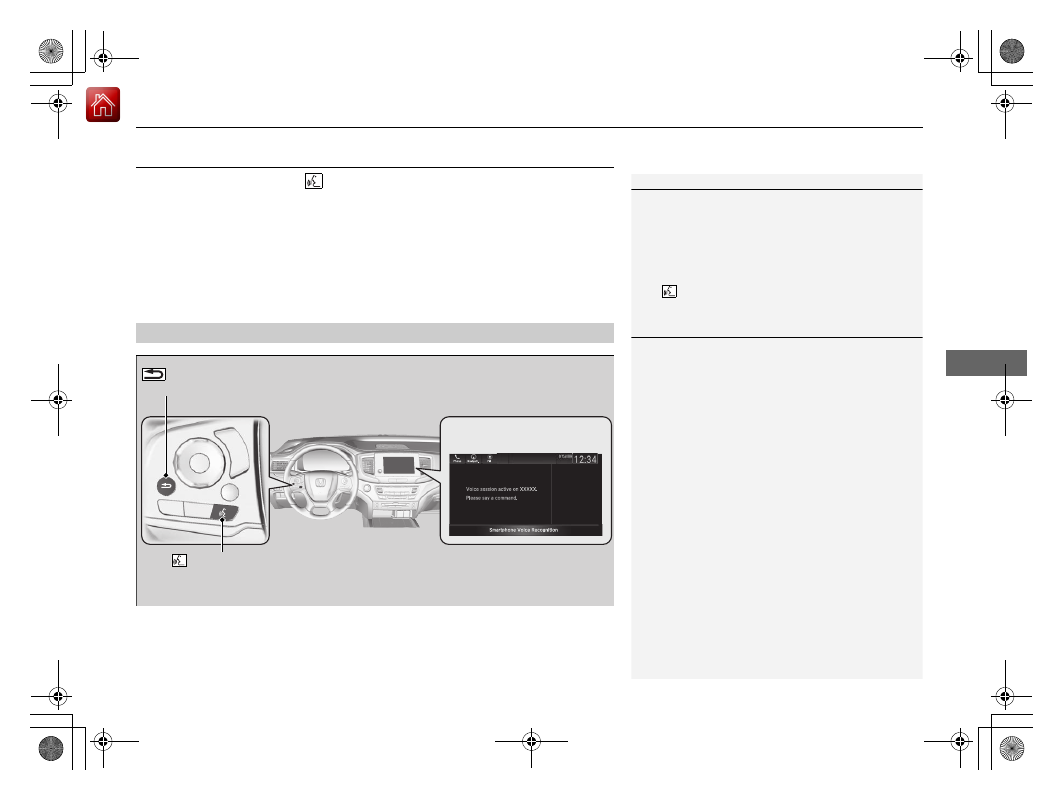
 (Talk) Button

Press and hold until the display 
changes as shown.

 (Back) Button

Press to deactivate Siri.

While in Siri Eyes Free:
The display remains the same. 
No feedback or commands 
appears.

Appears when Siri is 
activated in Siri Eyes Free

302

uu

Audio System Basic Operation

u

Apple CarPlay

Features

Apple CarPlay

If you connect an Apple CarPlay-compatible iPhone to the system via the front USB 
port, you can use the audio/information screen, instead of the iPhone display, to 
make a phone call, listen to music, view maps (navigation), and access messages.

2

USB Ports

 P. 227

Phone

Access the contact list, make phone calls, or listen to voice mail.

Messages

Check and reply to text messages, or have messages read to you.

Music

Play music stored on your iPhone.

Apple CarPlay Menu

1

Apple CarPlay

Only iPhone 5 or newer versions with iOS 8.4 or later 
are compatible with Apple CarPlay.

Park in a safe place before connecting your iPhone to 
Apple CarPlay and when launching any compatible 
apps.

To use Apple CarPlay, connect the USB cable to the 
USB port located on the console panel. The USB ports 
located in the console compartment and on the back 
of the console compartment

*

 will not enable Apple 

CarPlay operation.

2

USB Ports

 P. 227

While connected to Apple CarPlay, calls are only 
made through Apple CarPlay. If you want to make a 
call with HandsFreeLink, turn Apple CarPlay OFF or 
detach the USB cable from your iPhone.

2

Setting Up Apple CarPlay

 P. 303

When your iPhone is connected to Apple CarPlay, it is 
not possible to use the 

Bluetooth

®

 Audio or 

Bluetooth

®

 HandsFreeLink

®

. However, other 

previously paired phones can stream audio via 

Bluetooth

®

 while Apple CarPlay is connected.

2

Phone Setup

 P. 412

For details on countries and regions where Apple 
CarPlay is available, as well as information pertaining 
to function, refer to the Apple homepage.

Home screen

Apple CarPlay icon

Apple CarPlay menu screen

Go back to the Apple 
CarPlay menu screen

Select the Honda icon 
to go back to the 
home screen

* Not available on all models

Continued

303

uu

Audio System Basic Operation

u

Apple CarPlay

Features

Maps

Display Apple Maps and use the navigation function just as you would on your 
iPhone.

Only one navigation system (pre-installed navigation or Apple CarPlay) can give 
directions at a time. When you are using one system, directions to any prior 
destination set on the other system will be canceled, and the system you are 
currently using will direct you to your destination.

After you have connected your iPhone to the system via the front USB port, use the 
following procedure to set up Apple CarPlay. Use of Apple CarPlay will result in the 
transmission of certain user and vehicle information (such as vehicle location, speed, 
and status) to your iPhone to enhance the Apple CarPlay experience. You will need 
to consent to the sharing of this information on the audio/information screen.

Enabling Apple CarPlay

Enable

: Allows this consent.

Disable

: Does not allow this consent.

You may change the consent settings under 
the 

Connections

 settings menu.

Setting Up Apple CarPlay

1

Apple CarPlay

Apple CarPlay Operating Requirements & 
Limitations

Apple CarPlay requires a compatible iPhone with an 
active cellular connection and data plan. Your 
carrier’s rate plans will apply.

Changes in operating systems, hardware, software, 
and other technology integral to providing Apple 
CarPlay functionality, as well as new or revised 
governmental regulations, may result in a decrease or 
cessation of Apple CarPlay functionality and services. 
Honda cannot and does not provide any warranty or 
guarantee of future Apple CarPlay performance or 
functionality.

It is possible to use 3rd party apps if they are 
compatible with Apple CarPlay. Refer to the Apple 
homepage for information on compatible apps.

Models with navigation system

1

Setting Up Apple CarPlay

You can also use the method below to set up Apple 
CarPlay:
Select HOME

Settings

Connections

Apple 

CarPlay

Use of user and vehicle information

The use and handling of user and vehicle information 
transmitted to/from your iPhone by Apple CarPlay is 
governed by the Apple iOS terms and conditions and 
Apple’s Privacy Policy.

uu

Audio System Basic Operation

u

Apple CarPlay

304

Features

Press and hold the 

 (Talk) button to activate Siri.

Operating Apple CarPlay with Siri

1

Operating Apple CarPlay with Siri

Below are examples of questions and commands for 
Siri:

What movies are playing today?

Call dad at work.

What song is this?

How’s the weather tomorrow?

Read my latest email.

Find a table for four tonight in Chicago.

For more information, please visit 

www.apple.com/ios/siri

.

 (Talk) Button:

Press and hold to activate Siri.
Press again to deactivate Siri.
Press and release to activate standard voice recognition system.

305

uu

Audio System Basic Operation

u

Android Auto

Continued

Features

Android Auto

When you connect an Android phone to the audio system via the front USB port, 
Android Auto is automatically initiated. When connected via Android Auto, you can 
use the audio/information screen to access the Phone, Google Maps (Navigation), 
Google Play Music, and Google Now functions. When you first use Android Auto, a 
tutorial will appear on the screen.
We recommend that you complete this tutorial while safely parked before using 
Android Auto.

2

USB Ports

 P. 227

2

Auto Pairing Connection

 P. 307

1

Android Auto

To use Android Auto, you need to download the 
Android Auto app from Google Play to your 
smartphone.

Only Android 5.0 (Lollipop) or later versions are 
compatible with Android Auto.
Bluetooth A2DP cannot be used with Android Auto 
phone.

Park in a safe place before connecting your Android 
phone to Android Auto and when launching any 
compatible apps.

To use Android Auto, connect the USB cable to the 
USB port located on the console panel. The USB ports 
located in the console compartment and on the back 
of the console compartment

*

 will not enable Android 

Auto operation.

2

USB Ports

 P. 227

To directly access the Android Auto phone function, 
press 

Phone

 on the home screen.

2

Auto Pairing Connection

 P. 307

When your Android phone is connected to Android 
Auto, it is not possible to use the 

Bluetooth

®

 Audio. 

However, other previously paired phones can stream 
audio via 

Bluetooth

®

 while Android Auto is 

connected.

2

Phone Setup

 P. 412

* Not available on all models

uu

Audio System Basic Operation

u

Android Auto

306

Features

a

 Maps (Navigation)

Display Google Maps and use the navigation function just as you would with your 
Android phone. When the vehicle is in motion, it is not possible to make keyboard 
entries. Stop the vehicle in a safe location to undertake a search or provide other 
inputs.

Only one navigation system (pre-installed navigation or Android Auto) can give 
directions at a time. When you are using one system, directions to any prior 
destination set on the other system will be canceled, and the system you are 
currently using will direct you to your destination.
The audio/information screen shows you turn-by-turn driving directions to your 
destination.

b

 Phone (Communication)

Make and receive phone calls as well as listen to voicemail.

c

 Google Now (Home screen)

Display useful information organized by Android Auto into simple cards that appear 
just when they’re needed.

Android Auto Menu

1

Android Auto

For details on countries and regions where Android 
Auto is available, as well as information pertaining to 
function, refer to the Android Auto homepage.

Android Auto Operating Requirements & 
Limitations

Android Auto requires a compatible Android phone 
with an active cellular connection and data plan. 
Your carrier’s rate plans will apply.

Changes in operating systems, hardware, software, 
and other technology integral to providing Android 
Auto functionality, as well as new or revised 
governmental regulations, may result in a decrease or 
cessation of Android Auto functionality and services. 
Honda cannot and does not provide any warranty or 
guarantee of future Android Auto performance or 
functionality.

It is possible to use 3rd party apps if they are 
compatible with Android Auto. Refer to the Android 
Auto homepage for information on compatible apps.

: Go back to the 

home screen

Android Auto icon

6

Models with navigation system

Continued

307

uu

Audio System Basic Operation

u

Android Auto

Features

d

 Music and audio

Play Google Play Music and music apps that are compatible with Android Auto.
To switch between music apps, press this icon.

e

 Go back to the Home Screen.

f

 Voice

Operate Android Auto with your voice.

When you connect an Android phone to the unit via the front USB port, Android 
Auto is automatically initiated.

Enabling Android Auto

Enable

: Allows this consent.

Disable

: Does not allow this consent.

You may change the consent settings under 
the 

Connections

 settings menu.

Auto Pairing Connection

1

Enabling Android Auto

Only initialize Android Auto when you safely parked. 
When Android Auto first detects your phone, you will 
need to set up your phone so that auto pairing is 
possible. Refer to the instruction manual that came 
with your phone.

You can use the method below to change Android 
Auto settings after you have completed the initial 
setup:
Select HOME

Settings

Connections

Android 

Auto

Use of user and vehicle information

The use and handling of user and vehicle information 
transmitted to/from your phone by Android Auto is 
governed by the Google’s Privacy Policy.

uu

Audio System Basic Operation

u

Android Auto

308

Features

Press and hold the 

 (Talk) button to operate Android Auto with your voice.

Operating Android Auto with Voice Recognition

1

Operating Android Auto with Voice Recognition

Below are examples of commands you can give with 
voice recognition:

Reply to text.

Call my wife.

Navigate to Honda.

Play my music.

Send a text message to my wife.

Call flower shop.

For more information, please refer to the Android 
Auto homepage.

You can also activate the voice recognition function 
by pressing the 

 icon in the upper-right corner of 

the screen.

 (Talk) Button:

Press and hold to operate Android Auto with your voice.
Press and release to activate standard voice recognition system.

309

Features

Audio Error Messages

CD Player

*

If a disc error occurs, you may see the following error messages.

Error Message

Cause

Solution

Problem ejecting disc from the player. 
Contact Honda dealer to fix this problem.

Disc stuck in player

Contact a dealer and the player needs to be replaced.

There is a problem with the player. Eject 
and re-insert the disc. If this does not work, 
try another disc. If the error continues, 
contact Honda dealer.

Focus error
Unsupported disc error
Mechanical error
Servo error
DRM file access
Error file access

Press the   (eject) button and remove the disc, and check 
that the error message is cleared.

Check that the disc is not damaged or deformed, and 
insert the disc again.

2

Protecting CDs

 P. 315

The system has overheated. Try to reduce 
the temperature by tuning the audio 
system off and allowing the player to cool 
down.

High temperature

Turn the audio system off and allow the player to cool 
down until the error message is cleared.

There is a problem with the player. Eject 
and re-insert the disc. If this does not work, 
try another disc. If this error continues 
contact Honda dealer.

Disc error

Check that the disc is not damaged or deformed.

2

Protecting CDs

 P. 315

The system has overheated. Try to reduce 
the temperature by turning the audio 
system off and allowing the player to cool 
down.

High temperature

Turn the audio system off and allow the player to cool 
down until the error message is cleared.

* Not available on all models

310

uu

Audio Error Messages

u

iPod/USB Flash Drive

Features

iPod/USB Flash Drive

If an error occurs while playing an iPod or USB flash drive, you may see the following 
error messages. If you cannot clear the error message, contact a dealer.

Error Message

Solution

Problem reading connected device. See 
Owner’s Manual for a list of compatible 
devices. If device is compatible, try 
reconnecting device.
If this error remains, contact Honda dealer.

Appears when there is a problem with the audio system. Check if the device is 
compatible with the audio system.

Problem reading connected device. See 
Owner’s Manual for a list of compatible 
devices. If device is compatible, try 
reconnecting device.
If this error remains, contact Honda dealer.

Appears when an incompatible device is connected. Disconnect the device. Then turn 
the audio system off, and turn it on again. Do not reconnect the device that caused the 
error.

Problem reading connected device. See 
Owner’s Manual for a list of compatible 
devices. If device is compatible, try 
reconnecting device.
If this error remains, contact Honda dealer.

Appears when an unsupported iPod is connected. If it appears when a supported 
iPod is connected, update the iPod software to the newer version.

Appears when an unsupported device is connected. If it appears when a supported 
device is connected, reconnect the device.

Problem reading connected device. See 
Owner’s Manual for a list of compatible 
devices. If device is compatible, try 
reconnecting device.
If this error remains, contact Honda dealer.

Appears when the system does not acknowledge the iPod. Reconnect the iPod.

The selected file cannot be played on this 
system

Appears when the files in the USB flash drive are DRM or an unsupported format. This 
error message appears for about three seconds, then plays the next song.

311

uu

Audio Error Messages

u

iPod/USB Flash Drive

Features

Error Message

Solution

The connected device does not contain any 
files that can be played on this system. See 
Owner’s Manual for a list of compatible file 
types.

Appears when the iPod is empty.

Appears when the USB flash drive is empty or there are no MP3, WMA, or AAC files in 
the USB flash drive.

Check that compatible files are stored on the device.

iPod

USB flash drive

iPod and USB flash drive

312

uu

Audio Error Messages

u

Android/Apps

Features

Android/Apps

If an error occurs while using the audio system or apps, you may see the following 
error messages. If you cannot clear the error message, contact a dealer.

*1:****part is variable characters, and will change depending upon where an error 

occurs.

Error Message

Solution

Unfortunately, **** has 
stopped.

*1

Error has occurred within app, select 

OK

 on the screen to close the app.

**** is not responding. 
Would you like to close 
it?

*1

App is not responding.
Select 

Wait

 if you can wait for a response from app a little longer. If it does not respond even if you keep 

waiting, select 

OK

 to close the app and start it up. If the error message continues, perform 

Factory Data 

Reset

.

2

Defaulting All the Settings

 P. 403

313

Features

General Information on the Audio System

SiriusXM

®

 Radio Service

*

1.

You need your radio ID ready before registering for subscription. To see the ID in 
the screen, select 

Channel

 to 0.

2.

Have your radio ID ready, and either call or visit the SiriusXM

®

 website to 

subscribe.

Switch to the SiriusXM

®

 mode by using the audio remote controls on the steering 

wheel, or through the audio/information screen, and stay in this mode for about 30 
minutes until the service is activated. Make sure your vehicle is in an open area with 
good reception.

Channel not subscribed. Call SiriusXM to subscribe.:

You are not subscribed to the channel selected.

Subscription Update:

SiriusXM

®

 radio is receiving information update from the network.

Channel Not Available:

No such channel exits, or the artist or title information is unavailable.

No Signal:

The signal is too weak in the current location.

Check Tuner:

There is a problem with the SiriusXM

®

 tuner. Contact a dealer.

Check Antenna:

There is a problem with the SiriusXM

®

 antenna. Contact a dealer.

Subscribing to SiriusXM

®

 Radio

Receiving SiriusXM

®

 Radio

SiriusXM

®

 Radio Display Messages

1

Subscribing to SiriusXM

®

 Radio

Contact Information for SiriusXM

®

 Radio:

US: SiriusXM

®

 Radio at 

www.siriusxm.com/subscribenow,

 or 

1-866-635-2349

Canada: SiriusXM

®

 Canada at

www.siriusxm.ca/subscribe-now

, or 

1-877-209-0079

1

Receiving SiriusXM

®

 Radio

The SiriusXM

®

 satellites are in orbit over the equator; 

therefore, objects south of the vehicle may cause 
satellite reception interruptions. Satellite signals are 
more likely to be blocked by tall buildings and 
mountains the farther north you travel from the 
equator.

You may experience reception problems under the 
following circumstances:

In a location with an obstruction to the south of 
your vehicle.

In tunnels

On the lower level of a multi-tiered road

Large items carried on the roof rack

* Not available on all models

314

uu

General Information on the Audio System

u

Recommended CDs

*

Features

Recommended CDs

*

Use only high-quality CD-R or CD-RW discs labeled for audio use.

Use only CD-R or CD-RW discs on which the recordings are closed.

Play only standard round-shaped CDs.

Some software files may not allow for audio play or text data display.

Some versions of MP3, WMA or AAC formats may be unsupported.

1

Recommended CDs

*

A Dual-disc cannot play on this audio unit. If recorded 
under certain conditions, a CD-R or CD-RW may not 
play either.

CDs with MP3, WMA or AAC files

The CD packages or jackets should have one of these marks.

* Not available on all models

315

uu

General Information on the Audio System

u

Recommended CDs

*

Features

Protecting CDs

Follow these precautions when handling or storing CDs:

Store a CD in its case when it is not being played.

When wiping a CD, use a soft clean cloth from the center to the outside edge.

Handle a CD by its edge. Never touch either surface.

Never insert foreign objects into the CD player.

Keep CDs out of direct sunlight and extreme heat.

Do not place stabilizer rings or labels on the CD.

Avoid fingerprints, liquids, and felt-tip pens on the CD.

1

Protecting CDs

NOTICE

Do not insert a damaged CD. It may be stuck inside 
and damage the audio unit.

Examples:

Damaged CDs

Bubbled/
Wrinkled

With Label/
Sticker

Using 
Printer Label 
Kit

Sealed

With Plastic Ring

Poor quality 
CDs

Chipped/
Cracked

Warped

Burrs

Small CDs

3-inch 
(8-cm) 
CD

Bubbled, wrinkled, labeled, and 
excessively thick CDs

316

uu

General Information on the Audio System

u

Compatible iPod, iPad, iPhone, and USB Flash Drives

Features

Compatible iPod, iPad, iPhone, and USB Flash Drives

A USB flash drive of 256 MB or higher is recommended.

Some digital audio players may not be compatible.

Some USB flash drives (e.g., a device with security lockout) may not work.

Some software files may not allow for audio play or text data display.

Some versions of MP3, WMA, or AAC formats may be unsupported.

iPod, iPad, and iPhone Model Compatibility

Model

Made for iPod nano (7th generation) released 2012
Made for iPod touch (5th and 6th generation) released between 2012 and 2015
Made for iPhone 4s/iPhone 5/iPhone 5c/iPhone 5s/iPhone 6/iPhone 6 Plus/iPhone 
6s/iPhone 6s Plus/iPhone SE/iPhone 7/iPhone 7 Plus
Made for iPad Pro 9.7 inch/iPad Pro 12.9 inch (1st generation)
Made for iPad 2/iPad (3rd generation)/iPad (4th generation)
Made for iPad Air/iPad Air 2
Made for iPad mini/iPad mini 2/iPad mini 3/iPad mini 4

1

iPod, iPad, and iPhone Model Compatibility

This system may not work with all software versions 
of these devices.

The Lightning connector works with iPhone 5, iPhone 
5c, iPhone 5s, iPhone 6, iPhone 6 Plus, iPhone 6s, 
iPhone 6s Plus, iPhone SE, iPhone 7, iPhone 7 Plus, 
iPad Pro 9.7 inch, iPad Pro 12.9 inch (1st generation), 
iPad (4th generation), iPad Air, iPad Air 2, iPad mini, 
iPad mini 2, iPad mini 3, iPad mini 4, iPod nano (7th 
generation), iPod touch (5th and 6th generation).

The 30-pin connector works with iPhone 4s, iPad 2, 
iPad (3rd generation).

USB works with iPhone 4s, iPhone 5, iPhone 5c, 
iPhone 5s, iPhone 6, iPhone 6 Plus, iPhone 6s, iPhone 
6s Plus, iPhone SE, iPhone 7, iPhone 7 Plus, iPad Pro 
9.7 inch, iPad Pro 12.9 inch (1st generation), iPad 2, 
iPad (3rd generation), iPad (4th generation), iPad Air, 
iPad Air 2, iPad mini, iPad mini 2, iPad mini 3, iPad 
mini 4, iPod nano (7th generation), iPod touch (5th to 
6th generation).

USB Flash Drives

1

USB Flash Drives

Files on the USB flash drive are played in their stored 
order. This order may be different from the order 
displayed on your PC or device.


Content      ..     17      18      19      20     ..