Honda Passport (2022 year). Manual in english - page 18
 

  Index      Manuals     Honda Passport (2022 year). Manual in english


Search            copyright infringement  


Content      ..     16      17      18      19     ..


Honda Passport (2022 year). Manual in english - page 18


285

uu

Audio System Basic Operation

u

Playing Social Playlist

Continued

Features

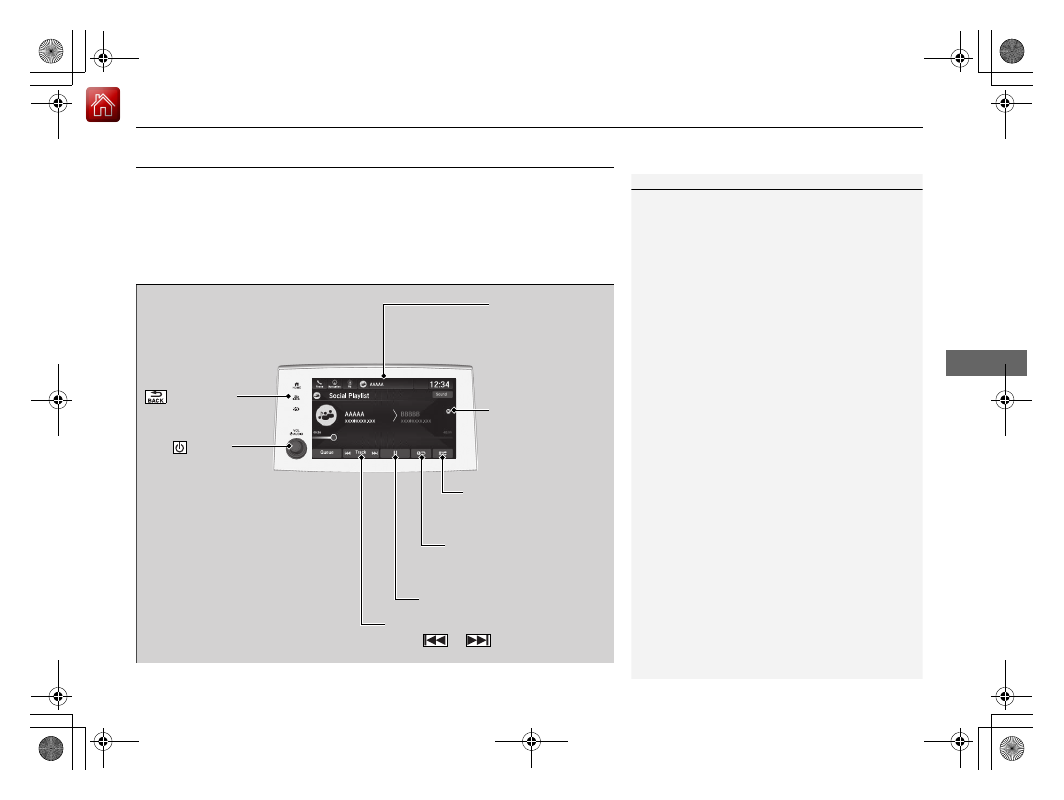
Playing Social Playlist

The Honda CabinControl

TM

 smartphone app allows users to share audio files from 

their devices to Social Playlist.
Unfortunately, the driver cannot select the audio files from the audio/information 
screen. The driver can play in order of their choice only if they individually select each 
song in the queue. The driver cannot rearrange the order of the playlist.

2

Wi-Fi Connection

 P. 292

1

Playing Social Playlist

For more information, check the Honda 
CabinControl smartphone app instruction manual.

 (Back) Icon

Select to go back to 
the previous display.

Track Icons

Select 

 or 

 to change files.

VOL/

 AUDIO 

(Volume/Power) 
Knob

Push to turn the 
audio system on 
and off.
Turn to adjust 
the volume.

Audio/Information 
Screen

Play/Pause Icon

Repeat Icon

Select to repeat the current 
file.

Random Icon

Select to play all files in 
random order.

Remove Icon

Select to remove 
the file from the 
playlist.

286

uu

Audio System Basic Operation

u

Playing Social Playlist

Features

1.

Select .

2.

Select 

Social Playlist

.

3.

Select 

Queue

.

To play a file on the playlist:

u

Select the file.

To remove a file from the playlist:

u

Select 

 on the file.

To clear the playlist:

u

Select 

Clear

, and then select 

Request 

Songs

 to reload a playlist.

To check the connected device:

u

Select 

Devices List

.

How to Edit the Playlist

287

uu

Audio System Basic Operation

u

HondaLink

®

Continued

Features

HondaLink

®

HondaLink

®

 connects you to the latest information from Honda. You can connect 

your phone wirelessly through Wi-Fi or 

Bluetooth

®

.

2

Wi-Fi Connection

 P. 292

2

Phone Setup

 P. 354

Use the following procedure to connect to HondaLink

®

 service.

To enable the HondaLink

®

 service

You must consent to location sharing to enable the HondaLink

®

 service.

Disable

: Does not allow this consent.

Enable Once

: Allows only one time. (Shows 

again next time.)

Always Enable

: Allows anytime. (Never 

show again.)

To Connect to HondaLink

®

 Service

1

HondaLink

®

The HondaLink

®

 connect app is compatible with most 

iPhone and Android phones.

Some cell phone carriers charge for tethering and 
smartphone data use. Check your phone’s data 
subscription package.

When Apple CarPlay or Android Auto is connected to 
the audio system, HondaLink

®

 can be accessed even 

without a Wi-Fi connection.

288

uu

Audio System Basic Operation

u

HondaLink

®

Features

To link with HondaLink

®

You may see the connection guide screen 
after launching HondaLink

®

 when there is no 

connection available.

Vehicle

Displays instruction messages when the vehicle needs service.

Help & Support

Displays tips for vehicle usage, and get support via roadside or customer service 
center.

HondaLink

®

 Menu

289

uu

Audio System Basic Operation

u

HondaLink

®

Continued

Features

Messages from Honda

Displays helpful and important information from Honda.

You can check the messages that are received quickly in the shortcut operation.

1.

A notification appears and notifies you of a 
new message in the header area.

2.

A notification is continuously displayed in 
the header area until the new message is 
read.

Vehicle Information and Message from Honda Tips

Notification

290

uu

Audio System Basic Operation

u

HondaLink

®

Features

3.

Select the system status icon to see the 
messages.

4.

Select a new message to open.

291

uu

Audio System Basic Operation

u

HondaLink

®

Features

Connect to the HondaLink

®

 operator when trying to find a destination or for 

roadside assistance.

1.

Press the 

LINK

 button.

u

Connection to the operator begins.

2.

Talk to the operator.

u

To disconnect, select 

Hang Up

 on the 

audio/information screen or press the 

 button on the steering wheel.

Operator Assistance

*

1

Operator Assistance

*

Remain attentive to road conditions and driving 
during operator assistance.

If you want to add or renew a subscription, call the 
Operator Assistance.
1. Select .
2. Select 

Settings

.

3. Select 

System

.

4. Select 

Subscription

.

5. Select 

HondaLink Subscription Status

.

LINK


Button

Audio/information screen 
when connected to the 
HondaLink

®

 operator.

* Not available on all models

292

uu

Audio System Basic Operation

u

Wi-Fi Connection

Features

Wi-Fi Connection

This vehicle is equipped with Wi-Fi connectivity. You can connect to an external 
Wi-Fi hotspot or communication device.

1.

Select .

2.

Select 

Settings

.

3.

Select 

Connections

.

4.

Select 

Wi-Fi

.

5.

Select 

Change Mode

.

6.

Select 

Network

 or 

HotSpot

, then 

Save

.

u

To change the Wi-Fi settings, select 

Network Options

 or 

HotSpot 

Options

.

u

Select the access point you want to 
connect to the system.

7.

Select 

Connect

.

u

Enter a password for the access point, 
and select 

OK

.

u

When the connection is successful, the 

 icon is displayed on the list.

8.

Select 

 to go back to the home screen.

Connect the vehicle to a Wi-Fi hotspot

1

Wi-Fi Connection

Wi-Fi and Wi-Fi Direct a registered trademark of Wi-Fi 
Alliance

®

.

1

Connect the vehicle to a Wi-Fi hotspot

You cannot go through the setting procedure while 
the vehicle is moving. Park in a safe place to setup the 
Wi-Fi connection.

Some cell phone carriers charge for tethering and 
smartphone data use. Check your phone’s data 
subscription package.

Check your phone manual to find out if the phone 
has Wi-Fi connectivity.

You can confirm whether Wi-Fi connection is on or 
off with the 

 icon on the Wi-Fi network list. 

Transmission speed and others will not be displayed 
on this screen.

In case of Wi-Fi connection with your phone, make 
sure your phone’s Wi-Fi setting is in access point 
(tethering) mode.

293

uu

Audio System Basic Operation

u

AT&T Hotspot

*

Features

AT&T Hotspot

*

If you have subscribed to AT&T hotspot services, your vehicle will provide data to 
connect your mobile devices to the Internet. You can use the AT&T Hotspot app to 
turn on/off vehicle data and monitor data usage left on your subscription.

AT&T Hotspot Menu

1

AT&T Hotspot

*

To use AT&T Hotspot services, your vehicle must be 
subscribed to a data plan. If your vehicle is not 
subscribed to a data plan, you can visit 

www.att.com/honda

 to add vehicle data services.

Hotspot username and password can be changed in 
the Edit Hotspot Properties of the AT&T Hotspot app. 
Settings cannot be accessed while driving. Park in a 
safe place to adjust Hotspot settings.

Alternatively, you can use your mobile hotspot to 
connect the vehicle and other mobile devices to the 
Internet.

2

Wi-Fi Connection

 P. 292

a

Hotspot Enable

Turn on/off AT&T Hotspot.

b

Data Usage Bar

Check the current status of your data plan. This Usage Bar will show your current 
plan and how much data remains on your plan. Subscription plans for AT&T 
Hotspot can be added/modified at 

www.att.com/honda

.

c

Refresh and Plan Info

Refreshes screen to show data remaining.
Shows your current AT&T subscription plan for the vehicle.

d

Edit Hotspot Properties

Shows the current username and password for vehicle Hotspot. Hotspot settings 
can be changed while the vehicle is not in motion.

e

Help

* Not available on all models

294

uu

Audio System Basic Operation

u

Siri Eyes Free

Features

Siri Eyes Free

You can talk to Siri using the 

 (Talk) button on the steering wheel when your 

iPhone is paired to the 

Bluetooth

®

 HandsFreeLink

®

 (HFL) system.

2

Phone Setup

 P. 354

Using Siri Eyes Free

1

Siri Eyes Free

Siri is a trademark of Apple Inc.

Check Apple Inc. website for features available for 
Siri.

While driving we recommend only using Siri through 
the 

 button on the steering wheel (Siri Eyes Free).

1

Using Siri Eyes Free

Some commands work only on specific phone 
features or apps.

 (Talk) Button

Press and hold until the display 
changes as shown.

 (Back) Button

Press to deactivate Siri.

While in Siri Eyes Free:
The display remains the same. 
No feedback or commands 
appears.

Appears when Siri is 
activated in Siri Eyes Free

295

uu

Audio System Basic Operation

u

Apple CarPlay

Continued

Features

Apple CarPlay

If you connect an Apple CarPlay-compatible iPhone to the system via the front USB 
port, you can use the audio/information screen, instead of the iPhone display, to 
make a phone call, listen to music, view maps (navigation), and access messages.

2

USB Ports

 P. 223

Phone

Access the contact list, make phone calls, or listen to voicemail.

Messages

Check and reply to text messages, or have messages read to you.

Music

Play music stored on your iPhone.

Apple CarPlay Menu

1

Apple CarPlay

Only iPhone 5 or newer versions with iOS 8.4 or later 
are compatible with Apple CarPlay.

Park in a safe place before connecting your iPhone to 
Apple CarPlay and when launching any compatible 
apps.

To use Apple CarPlay, connect the USB cable to the 
USB port located on the console panel. The USB ports 
located in the console compartment and on the back 
of the console compartment

*

 will not enable Apple 

CarPlay operation.

2

USB Ports

 P. 223

While connected to Apple CarPlay, calls are only 
made through Apple CarPlay. If you want to make a 
call with HandsFreeLink, turn Apple CarPlay OFF or 
detach the USB cable from your iPhone.

2

Setting Up Apple CarPlay

 P. 296

When your iPhone is connected to Apple CarPlay, it is 
not possible to use the 

Bluetooth

®

 Audio or 

Bluetooth

®

 HandsFreeLink

®

. However, other 

previously paired phones can stream audio via 

Bluetooth

®

 while Apple CarPlay is connected.

2

Phone Setup

 P. 354

For details on countries and regions where Apple 
CarPlay is available, as well as information pertaining 
to function, refer to the Apple homepage.

Home screen

Apple CarPlay icon

Apple CarPlay menu screen

: Go back to the Apple 
CarPlay Dashboard screen

Select the Honda icon to go 
back to the home screen

: Go back to the Apple 
CarPlay menu screen

* Not available on all models

uu

Audio System Basic Operation

u

Apple CarPlay

296

Features

Maps

Display Apple Maps and use the navigation function just as you would on your 
iPhone.

Only one navigation system (pre-installed navigation or Apple CarPlay) can give 
directions at a time. When you are using one system, directions to any prior 
destination set on the other system will be canceled, and the system you are 
currently using will direct you to your destination.

After you have connected your iPhone to the system via the front USB port, use the 
following procedure to set up Apple CarPlay. Use of Apple CarPlay will result in the 
transmission of certain user and vehicle information (such as vehicle location, speed, 
and status) to your iPhone to enhance the Apple CarPlay experience. You will need 
to consent to the sharing of this information on the audio/information screen.

Enabling Apple CarPlay

Enable

: Allows this data sharing.

Disable

: Does not allow this data sharing.

You may change the consent settings under 
the 

Connections

 settings menu.

Setting Up Apple CarPlay

1

Apple CarPlay

Apple CarPlay Operating Requirements & 
Limitations

Apple CarPlay requires a compatible iPhone with an 
active cellular connection and data plan. Your 
carrier’s rate plans will apply.

Changes in operating systems, hardware, software, 
and other technology integral to providing Apple 
CarPlay functionality, as well as new or revised 
governmental regulations, may result in a decrease or 
cessation of Apple CarPlay functionality and services. 
Honda cannot and does not provide any warranty or 
guarantee of future Apple CarPlay performance or 
functionality.

It is possible to use 3rd party apps if they are 
compatible with Apple CarPlay. Refer to the Apple 
homepage for information on compatible apps.

Models with navigation system

1

Setting Up Apple CarPlay

You can also use the method below to set up Apple 
CarPlay:
Select HOME

Settings

Connections

Apple 

CarPlay

Use of user and vehicle information

The use and handling of user and vehicle information 
transmitted to/from your iPhone by Apple CarPlay is 
governed by the Apple iOS terms and conditions and 
Apple’s Privacy Policy.

297

uu

Audio System Basic Operation

u

Apple CarPlay

Features

Press and hold the 

 (Talk) button to activate Siri.

Operating Apple CarPlay with Siri

1

Operating Apple CarPlay with Siri

Below are examples of questions and commands for 
Siri:

What movies are playing today?

Call dad at work.

What song is this?

How’s the weather tomorrow?

Read my latest email.

Find a table for four tonight in Chicago.

For more information, please visit 

www.apple.com/ios/siri

.

 (Talk) Button:

Press and hold to activate Siri.
Press again to deactivate Siri.
Press and release to activate standard voice recognition system.

298

uu

Audio System Basic Operation

u

Android Auto

Features

Android Auto

When you connect an Android phone to the audio system via the front USB port, 
Android Auto is automatically initiated. When connected via Android Auto, you can 
use the audio/information screen to access the Phone, Google Maps (Navigation), 
Google Play Music, and Google Now functions. When you first use Android Auto, a 
tutorial will appear on the screen.
We recommend that you complete this tutorial while safely parked before using 
Android Auto.

2

USB Ports

 P. 223

2

Auto Pairing Connection

 P. 300

1

Android Auto

To use Android Auto, you need to download the 
Android Auto app from Google Play to your 
smartphone.

Only Android 5.0 (Lollipop) or later versions are 
compatible with Android Auto.
Bluetooth A2DP cannot be used while your phone is 
connected to Android Auto.

Park in a safe place before connecting your Android 
phone to Android Auto and when launching any 
compatible apps.

To use Android Auto, connect the USB cable to the 
USB port located on the console panel. The USB ports 
located in the console compartment and on the back 
of the console compartment

*

 will not enable Android 

Auto operation.

2

USB Ports

 P. 223

To directly access the Android Auto phone function, 
press 

Phone

 on the home screen.

2

Auto Pairing Connection

 P. 300

When your Android phone is connected to Android 
Auto, it is not possible to use the 

Bluetooth

®

 Audio. 

However, other previously paired phones can stream 
audio via 

Bluetooth

®

 while Android Auto is 

connected.

2

Phone Setup

 P. 354

* Not available on all models

Continued

299

uu

Audio System Basic Operation

u

Android Auto

Features

a

 Maps (Navigation)

Display Google Maps and use the navigation function just as you would with your 
Android phone. When the vehicle is in motion, it is not possible to make keyboard 
entries. Stop the vehicle in a safe location to undertake a search or provide other 
inputs.

Only one navigation system (pre-installed navigation or Android Auto) can give 
directions at a time. When you are using one system, directions to any prior 
destination set on the other system will be canceled, and the system you are 
currently using will direct you to your destination.
The audio/information screen shows you turn-by-turn driving directions to your 
destination.

b

 Phone (Communication)

Make and receive phone calls as well as listen to voicemail.

c

 Google Now (Home screen)

Display useful information organized by Android Auto into simple cards that appear 
just when they’re needed.

Android Auto Menu

1

Android Auto

For details on countries and regions where Android 
Auto is available, as well as information pertaining to 
function, refer to the Android Auto homepage.

Screens may differ depending on the version of the 
Android Auto app you are using.

Android Auto Operating Requirements & 
Limitations

Android Auto requires a compatible Android phone 
with an active cellular connection and data plan. 
Your carrier’s rate plans will apply.

Changes in operating systems, hardware, software, 
and other technology integral to providing Android 
Auto functionality, as well as new or revised 
governmental regulations, may result in a decrease or 
cessation of Android Auto functionality and services. 
Honda cannot and does not provide any warranty or 
guarantee of future Android Auto performance or 
functionality.

It is possible to use 3rd party apps if they are 
compatible with Android Auto. Refer to the Android 
Auto homepage for information on compatible apps.

: Go back to the 

home screen

Android Auto icon

Models with navigation system

uu

Audio System Basic Operation

u

Android Auto

300

Features

d

 Music and audio

Play Google Play Music and music apps that are compatible with Android Auto.
To switch between music apps, press this icon.

e

 Go back to the Home Screen.

f

 Voice

Operate Android Auto with your voice.

When you connect an Android phone to the unit via the front USB port, Android 
Auto is automatically initiated.

Enabling Android Auto

Enable

: Allows this data sharing.

Disable

: Does not allow this data sharing.

You may change the consent settings under 
the 

Connections

 settings menu.

Auto Pairing Connection

1

Enabling Android Auto

Only initialize Android Auto when you are safely 
parked. When Android Auto first detects your phone, 
you will need to set up your phone so that auto 
pairing is possible. Refer to the instruction manual 
that came with your phone.

You can use the method below to change Android 
Auto settings after you have completed the initial 
setup:
Select HOME

Settings

Connections

Android 

Auto

Use of user and vehicle information

The use and handling of user and vehicle information 
transmitted to/from your phone by Android Auto is 
governed by the Google’s Privacy Policy.


Content      ..     16      17      18      19     ..