Ford Transit Connect (2016 year). Manual - part 84
 

  Index      Ford     Ford Transit Connect - service manual 2016 year in english


Search            


Content   ..  82  83  84  85   ..


Ford Transit Connect (2016 year). Manual - part 84


Action and Description

Message

The ICE contacts you select
appear at the end of the
Emergency Assistance call
process.

Select to access your phone-
book and then select the
desired contacts. The
numbers then appear as
options on this screen for the
ICE 1 and ICE 2 buttons.

Edit

View categorized lists of voice commands.

Voice
Command List

E142599

You can also access Help using
the voice commands. The
system provides allowable voice

commands for the current mode.

Press the voice button and when
prompted say:

Voice command

Help

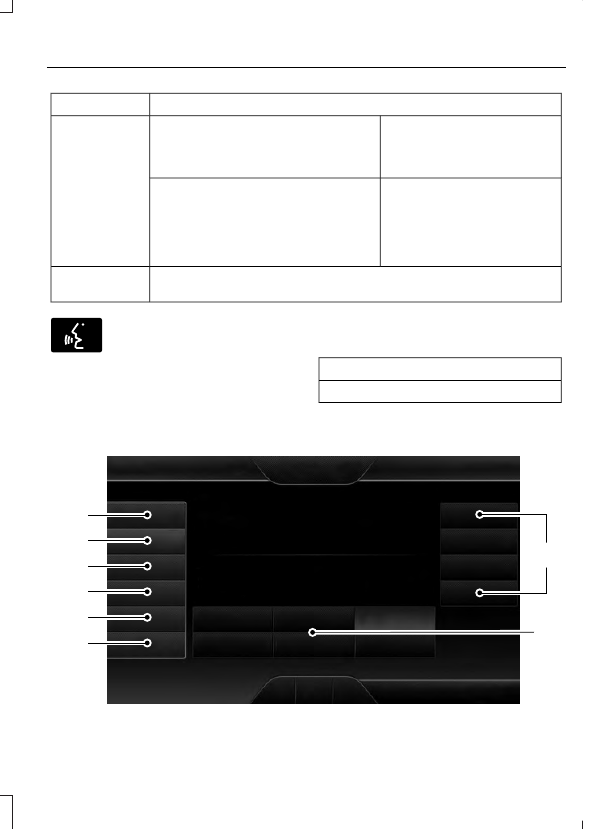
ENTERTAINMENT

A

B

C

D

E

F

G

H

E161892

Message and Description

Message

AM

A

FM

B

SIRIUS

C

CD

D

USB

E

Touch this button to scroll down for more options, for example
SD Card and USB

F

These buttons change with the media mode you are in.

G

Radio memory presets.

H

Note: Some features may not be available in your area. Contact an authorized dealer for
more information.

You can access these options using the
touchscreen or voice commands.

AM/FM Radio

E142611

The following controls are
available for AM/FM radio

Action and Description

Item

Touch either tab to listen to the radio. To change between AM and FM
presets, just touch the AM or FM tab.

AM

FM

Save a station by pressing and holding one of the memory preset areas.
There is a brief mute while the radio saves the station. Sound returns
when finished.

Presets

Touch this button to turn HD Radio on. The light on the button illumin-
ates when the feature is on. HD Radio allows you to receive radio
broadcasts digitally, where available, providing free, crystal-clear sound.
See HD Radio information later in this chapter.

HD Radio

Touch this button to make adjustments to your audio settings.

Options

Touch this button to go to the next strong AM or FM radio station. The
light on the button illuminates when the feature is on.

Scan

Touch this button to manually enter the desired station number. Touch
Enter when you are done.

Direct Tune

Options

You can make adjustments to the following options:

Action and Description

Menu Item

Touch this button to adjust settings for:

Sound Settings

Bass

Midrange

Treble

Set Balance and Fade

DSP

Occupancy Mode

Speed Compensated Volume

This allows you to select a category of music you would like to search
for. You can then choose to either seek or scan for the stations playing
that category.

Set PTY for
Seek / Scan

This allows you to view the information broadcast by FM stations.

RDS Text
Display

AST (Autostore) allows you to have the system automatically store
the six strongest stations in your current location.

AST

This feature is available when HD Radio is on, and allows you to tag a
song to download later. When you select On, TAG appears on-screen
when HD Radio is active. You can touch TAG to save the information
of the song that is playing. When you plug in your portable music player,
the information transfers, if supported by your device. When you are
connected to iTunes, the tags appear to remind you of the songs you
would like to download. See HD Radio information later in this chapter.

TAG Button

Note: Your vehicle may not have all these sound settings.

HD Radio™ Information (If Available)

Note: HD Radio broadcasts are not
available in all markets.

HD Radio technology is the digital
evolution of analog AM/FM radio. Your
system has a special receiver that allows
it to receive digital broadcasts (where
available) in addition to the analog
broadcasts, it already receives. Digital

broadcasts provide a better sound quality
than analog broadcasts with free,
crystal-clear audio and no static or
distortion. For more information, and a
guide to available stations and
programming, please visit
www.hdradio.com.

When HD Radio is on and you tune to a
station broadcasting HD Radio technology,
you may notice the following indicators on
your screen:

E142616

The HD logo either blinks when acquiring
a digital station, and then stays solid when
digital audio is playing, or is grey when
acquiring a digital station, and then
changes to orange when digital audio is
playing. When this logo is available, you
may also see Title and Artist fields
on-screen.

The multicast indicator appears in FM
mode (only) if the current station is
broadcasting multiple digital broadcasts.
The highlighted numbers signify available
digital channels where new or different
content is available. HD1 signifies the main
programming status and is available in
analog and digital broadcasts. Other
multicast stations (HD2 through HD7) are
only available digitally.

TAG allows you to save a song to
download later when you are on an
acquired HD Radio station and the feature
is on.

To turn the feature on and use it, select AM or FM and the select:

Action and Description

Message

Options

TAG Button

When you hear a song you want to tag, select:

On

The system automatically saves the song's information and transfers
it to your portable music player (if supported) when you connect it to
the system. The system automatically transfers the tag to your player
(if already connected) and a pop-up confirms the transfer.

TAG

When you access iTunes with your portable music player, the tags
appear to you as a reminder. The system allows you to tag up to
approximately 100 songs. For a list of devices that support tagging,
see www.SYNCMyRide.com, www.SYNCMyRide.ca or www.sync-
maroute.ca


Content   ..  82  83  84  85   ..