Ford Mustang (2018 year). Manual - part 88
 

  Index      Ford     Ford Mustang - service manual 2018 year in english


Search            


Content   ..  86  87  88  89   ..


Ford Mustang (2018 year). Manual - part 88


E249671

i

Description

Item

Callout

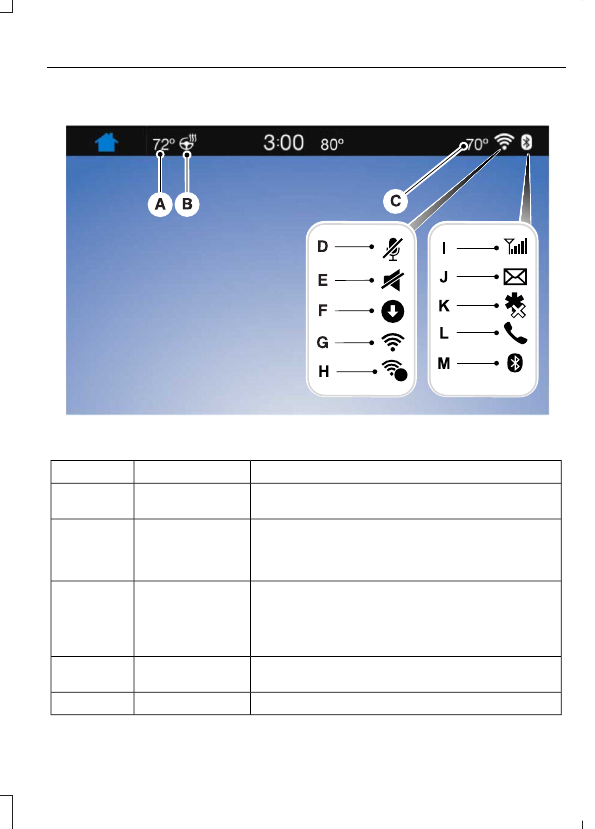
This shows the temperature the driver selects through
the climate control system.

Driver Temper-
ature

A

When you activate the heated steering wheel option
on the touch screen, this icon displays. It only displays
when there is not a physical button for the heated
steering wheel.

Heated steering
wheel

B

(If equipped)

When the passenger's temperature has been
adjusted and is no longer linked to the driver's
temperature, it displays here. If Dual is turned off and
the temperatures are linked, the passenger's
temperature does not display.

Passenger
Temperature

C

This icon displays when your phone's microphone is
muted. A caller cannot hear you.

Microphone Mute

D

This icon displays when the audio system is muted.

Mute

E

 (If Equipped)

Description

Item

Callout

This icon appears when SYNC 3 receives a software
update. Pressing the icon shows more details about
the new software.

Download

F

This icon appears if a Wi-Fi network is connected.

Wi-Fi

G

An available Wi-Fi network is within range.

Wi-Fi in Range

H

This icon displays the phone and roaming signal
strength.

Signal Strength

I

This icon displays when you receive a text message
on your phone.

Text Message

J

This icon displays when 911 Assist is set to off and
your phone is connected to SYNC.

911 Assist Off

K

This icon displays when a phone call is active.

In-Call

L

This icon displays to show an active Bluetooth
connection.

Bluetooth

M

Messages may also appear in the status
bar to provide you with notifications. You
can select the message to view the
associated feature.

Feature Bar

Functions

Feature Bar Item

Allows you to control the media playing in
your vehicle. You can control all audio
features including AM, FM and satellite
radio, CDs, and media streaming over a
Bluetooth device or through a USB
connection.

Audio

Allows you to adjust the temperature, fan
speed and airflow within the vehicle.

Climate

Allows you to make calls, receive calls, and
access the phonebook of your connected
device.

Phone

 (If Equipped)

Functions

Feature Bar Item

Allows you to see your vehicle's location on
a virtual road map, get driving directions to
your destination and find points of interest
along your route.

Navigation

(If equipped)

Connect and control SYNC 3 compatible
apps running on your iphone or android
device. Also, access built-in additional
features such as SiriusXM Traffic and Travel
Link (if equipped).

Apps

You can customize your system with
various settings for the touchscreen display,
feature preferences, and how you want to
interact with your vehicle.

Settings

Cleaning the Touchscreen

You can remove fingerprints with a dry,
clean, soft cloth.

If dirt or fingerprints are still on the screen,
apply a small amount of alcohol to the
cloth and try to clean it again.

Note:  Do not use detergent or any type of
solvent to clean the touchscreen.

Note: Do not pour or spray alcohol onto the
touchscreen.

Using Voice Recognition

Using voice commands allows you to keep
your hands on the wheel and focus on
what is in front of you. The system provides
feedback through audible tones, prompts,
questions and spoken confirmations
depending on the situation and the chosen
level of interaction (voice settings).

The system also asks short questions
(confirmation prompts) when it is not sure
of your request or when there are multiple
possible responses to your request.

When using voice commands, words and
icons may appear in the status bar
indicating the status of the voice command
session.  See Using Voice Recognition
(page 365).

Using the Steering Wheel Controls

Depending on your vehicle and option
package, you can use different controls on
your steering wheel to interact with the
touchscreen system in different ways.

VOL: Control the volume of audio output.

Mute: Mute the audio output.

Voice: Press to start a voice session. Press
again to stop the voice prompt and
immediately begin speaking. Press and
hold to end a voice session.

SEEK NEXT:

While in radio mode, press to seek
between memory presets.

While in USB, Bluetooth Audio or CD
mode, press to seek between songs or
press and hold to fast seek.

 (If Equipped)

SEEK PREVIOUS:

While in radio mode, press to seek
between memory presets.

While in USB, Bluetooth Audio or CD
mode, press to seek between songs or
press and hold to fast seek.

PHONE ACCEPT: Press to answer a call
or switch between calls.

PHONE REJECT: Press to end a call or
reject an incoming call.

Note: On some models, SEEK NEXT may
be combined with PHONE REJECT and
SEEK PREVIOUS may be combined with
PHONE ACCEPT.

M:Touch the control repeatedly to switch
between media sources (modes).

See Steering Wheel (page 66).

Using Your Bezel Controls

Depending on your vehicle and option
package, you may also have these controls
on your instrument panel:

Power: Switch the audio system on
and off.

VOL: Control the volume of playing
audio.

Seek and Tune: Use as you normally
would in audio modes.

Eject: Eject a CD from the audio
system.

SOURCE  or MEDIA: Press repeatedly
to advance through available media
modes.

SOUND: Press to access the Sound
menu where you can adjust sound and
other audio settings.

1-6: Press and hold to store or press to
select an AM, FM or SIRIUS memory
preset.  See Audio System (page 302).

DISP: Switch the display on or off. You
can also touch the screen to switch the
display back on.

Temperature, fan and climate
control buttons: Control the
temperature, fan speed or settings of
the climate control system.  See
Climate Control (page 108).

911 Assist

WARNINGS

Unless the 911 Assist setting is set on
before a crash, the system will not
dial for help which could delay

response time, potentially increasing the
risk of serious injury or death after a crash.

Do not wait for 911 Assist to make an
emergency call if you can do it
yourself. Dial emergency services

immediately to avoid delayed response
time which could increase the risk of
serious injury or death after a crash. If you
do not hear 911 Assist within five seconds
of the crash, the system or phone may be
damaged or non-functional.

Always place your phone in a secure
location in your vehicle so it does not
become a projectile or get damaged

in a crash. Failure to do so may cause
serious injury to someone or damage the
phone which could prevent 911 Assist from
working properly.

Note: The SYNC 911 Assist feature must be
set on before the incident.

Note: The SYNC 911 Assist feature only
operates in the U.S., Canada or in a territory
in which 911 is the emergency number.

Note: Before setting this feature on, make
sure that you read the 911 Assist Privacy
Notice later in this section for important
information.

 (If Equipped)


Content   ..  86  87  88  89   ..