Ford Fusion Hybrid / Fusion Energi (2018 year). Manual - part 101
 

  Index      Ford     Ford Fusion Hybrid / Fusion Energi - service manual 2018 year in english


Search            


Content   ..  99  100  101  102   ..


Ford Fusion Hybrid / Fusion Energi (2018 year). Manual - part 101


Button

Start

Range Rings and Charge Points (Energi
Only)

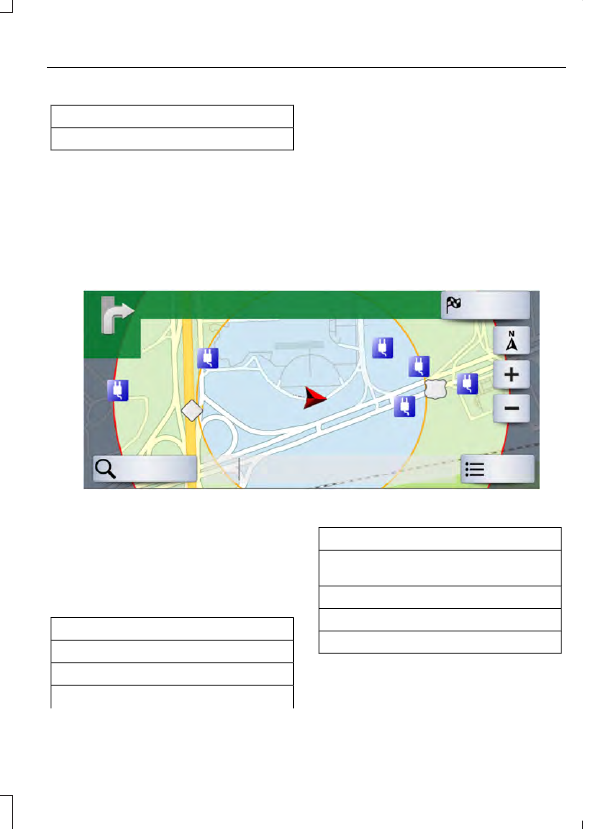
Shaded rings appear on the map when you
are driving in EV Now mode. The inner ring
with no shading indicates a safe range you
can travel using plug-in power only. The
lightly shaded outer band reflects areas

you may or may not be able to reach while
in EV Now mode. If your destination is
within this band, your vehicle may operate
in Auto EV mode, running the engine as
needed. The darker shaded area, beyond
the rings, is not likely reachable using only
the vehicle's available plug-in energy.

The rings represent approximate ranges.
Actual route distances, road grades,
vehicle speed, accessory usage and other
conditions affect how far your vehicle can
travel in EV Now mode before recharging.

E235274

You can select charging POI's so that you
can always see them on the map when the
scale is 5 mi (8 km) or lower.

To switch this on from the settings menu
select:

Menu Item

Navigation

Map Preferences

You can then switch the POI Icons on.

Menu Item

With the POI icons switched on, you can
select:

Select POIs

Travel

Charging

Destination Mode

To set a destination, press:

Description

Menu Item

Destination

Enter a navigation destination in any of the following formats:

Street Address

Search

(number, street, city, state)

For example "12 Mainstreet Dearborn MI"

Partial Address
(number, street) if searching in current state
(number, street and zip code (or postal code in Canada)) if searching
out of state
You can enter unique addresses that contain door number prefixes
with or without the prefix. For example, you could enter "6N340
Fairway Lane" or "340 Fairway Lane".

City

(name or zip code)

Point of Interest

(name or category)

Intersection

(street 1 / street 2)
(street 1 and street 2)
(street 1 & street 2)
(street 1 @ street 2)
(street 1 at street 2)

Latitude and Longitude

(##.###### , ##.######)
This is in a decimal degrees format, one to six decimal places are
accepted.

You are given autocomplete options below the address bar to select
as you type.
If you do not give an exact destination, a menu displays with your
possible selections.

Collections of your last 40 navigation destinations display here.

Previous Destina-
tions

You can select any option from the list to select it as your destination.

Description

Menu Item

Select this option to remove all previous destinations.

Delete
All

Select this option to remove individual previous destinations.

Delete
One by
One

Select to navigate to your set Home destination.

Home

The time it takes to travel from your current location to Home displays.
To set your Home, press:

A prompt appears asking if you would like to create a
favorite for home. Select:

Home

Enter a location into the search bar and press:

Yes

Save

Select to navigate to your set Work destination.

Work

The time it takes to travel from your current location to Work displays.
To set your Work:

A prompt appears asking if you would like to create a
favorite for work. Select:

Work

Enter a location into the search bar and press:

Yes

Save

Favorites include any location you have previously saved.

Favorites

To add Favorites:

Select this button and enter a location into the destination
bar.

Add a
Favorite

Select this option to have the system locate the address
you have entered.

Search

Select this button when the address you have entered
appears on the screen.

Save

The address saves as a favorite and you see the favorites screen. You
can now select this address from the favorites screen.

POI categories that may display (based on market and vehicle
configuration):

Point of Interest
(POI) Categories

Food

Fuel

Description

Menu Item

Hotel

ATM

Press to view additional categories. Once you have selected
a category, follow the menus to find what you are looking
for.

See All

Inside of these categories you can search by:

Nearby

Along Route

Near Destination

In a City

Once you have chosen your destination, press:

Action and Description

Menu Item

This saves the destination to your favorites.

Save

This shows you a map of your entire route. You can then choose your
route from three different options.

Start

Uses the fastest moving roads
possible.

Fastest

Uses the shortest distance possible.

Shortest

Uses the most fuel-efficient route.

Economical Route

The time and distance for each route also displays.

On the route screen, you can choose to cancel the current navigation.
The system asks for confirmation then returns you to the map mode
screen.

Cancel

Once you have chosen you destination, press:

Action and Description

Menu Item

The system uses a variety of screens and prompts to guide you to your
destination.

Start


Content   ..  99  100  101  102   ..