Tesla Model Y (2022 year). Manual in english - page 4
Tra
c Light and Stop Sign Control
Trac Lights
When driving with Autosteer or Tra
c-Aware Cruise Control engaged, and Tra
c Light and Stop Sign Control
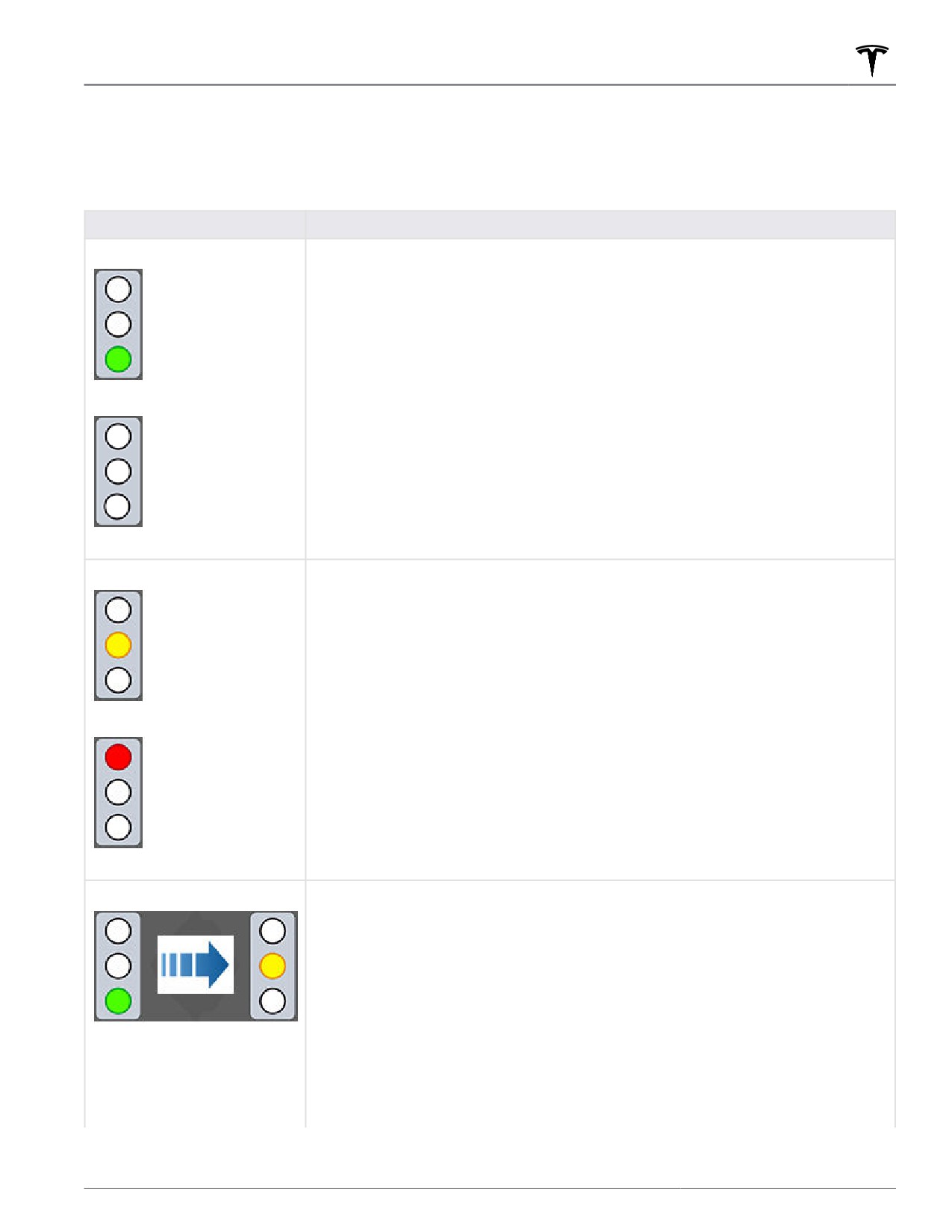
enabled, Model Y is designed to respond as follows when approaching intersections controlled by a tra
c light:
Type of Tra
c Light
Vehicle Intended Response
At a solid green tra
c light, or at a tra
c light that is currently off (not
illuminated), Model Y slows down.
If you are following a car in front of you that continues through the intersection,
the touchscreen displays a green stop line and provided your hands are detected
on the steering wheel, Model Y also continues. If a car is not in front of you, the
touchscreen displays a red stop line and you must confirm that you want to
continue through the intersection by pressing down on the drive stalk or briefly
pressing the accelerator pedal. If you don’t confirm, Model Y stops at the red stop
line.
NOTE: Model Y resumes the set cruising speed when it continues through the
intersection, taking into consideration the speed of a vehicle in front of you.
Model Y slows down and comes to a complete stop at the red stop line displayed
on the touchscreen. When you want to continue through the intersection (for
example, the light turns green again, or once Model Y has come to a complete
stop), you must press down on the drive stalk or briefly press the accelerator
pedal.
Model Y slows down and comes to a complete stop at the red stop line displayed
on the touchscreen. When you want to proceed through the intersection (for
example, the light turns green again), you must press down on the drive stalk or
briefly press the accelerator pedal.
NOTE: If the tra
c light changes after you've confirmed that you want to proceed
(for example, a green tra
c light turns yellow), Model Y may stop instead of
continuing, especially if Model Y determines that it can safely stop before entering
the intersection.
NOTE: Model Y is not designed to proceed through an intersection when the tra
c
light is red or if the light turns yellow in situations when there is adequate distance
to safely stop before entering the intersection.
NOTE: You can take over driving at any time by manually braking to cancel
Autosteer or Tra
c-aware Cruise Control.
Autopilot
103
Tra
c Light and Stop Sign Control
Type of Tra
c Light
Vehicle Intended Response
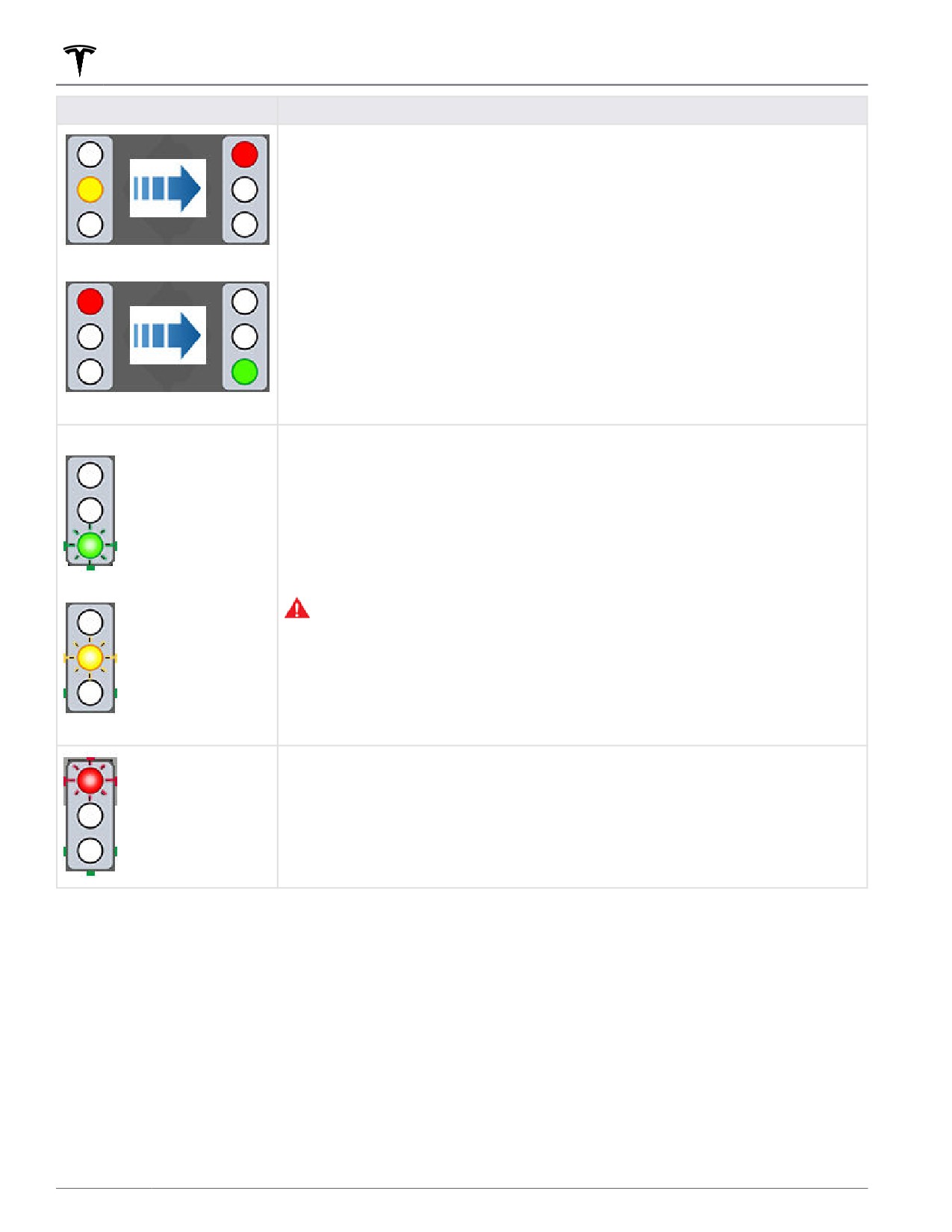
Model Y slows down. To proceed, you must press down on the drive stalk or briefly
press the accelerator pedal. If you don’t, Model Y stops at the red stop line
displayed on the touchscreen.
NOTE: To prevent Model Y from stopping, and to minimize how much it slows
down as it approaches, you can confirm that you want to proceed by pressing
down on the drive stalk or briefly pressing the accelerator pedal at any time after
the touchscreen displays the red stop line. Model Y resumes your set cruising
speed immediately after you confirm (taking into consideration the speed of a
vehicle in front of you).
WARNING: Approach attentively and be prepared to press the brake pedal to
slow down or stop.
Model Y slows down and comes to a complete stop at the red stop line displayed
on the touchscreen. When you want to proceed through the intersection (for
example, tra
c laws and conditions indicate it is safe and legal to proceed), you
must press down on the drive stalk or briefly press the accelerator pedal.
104
Tra
c Light and Stop Sign Control
Stop Signs and Road Markings
When driving with Autosteer or Tra
c-aware Cruise Control engaged, and Tra
c Light and Stop Sign Control
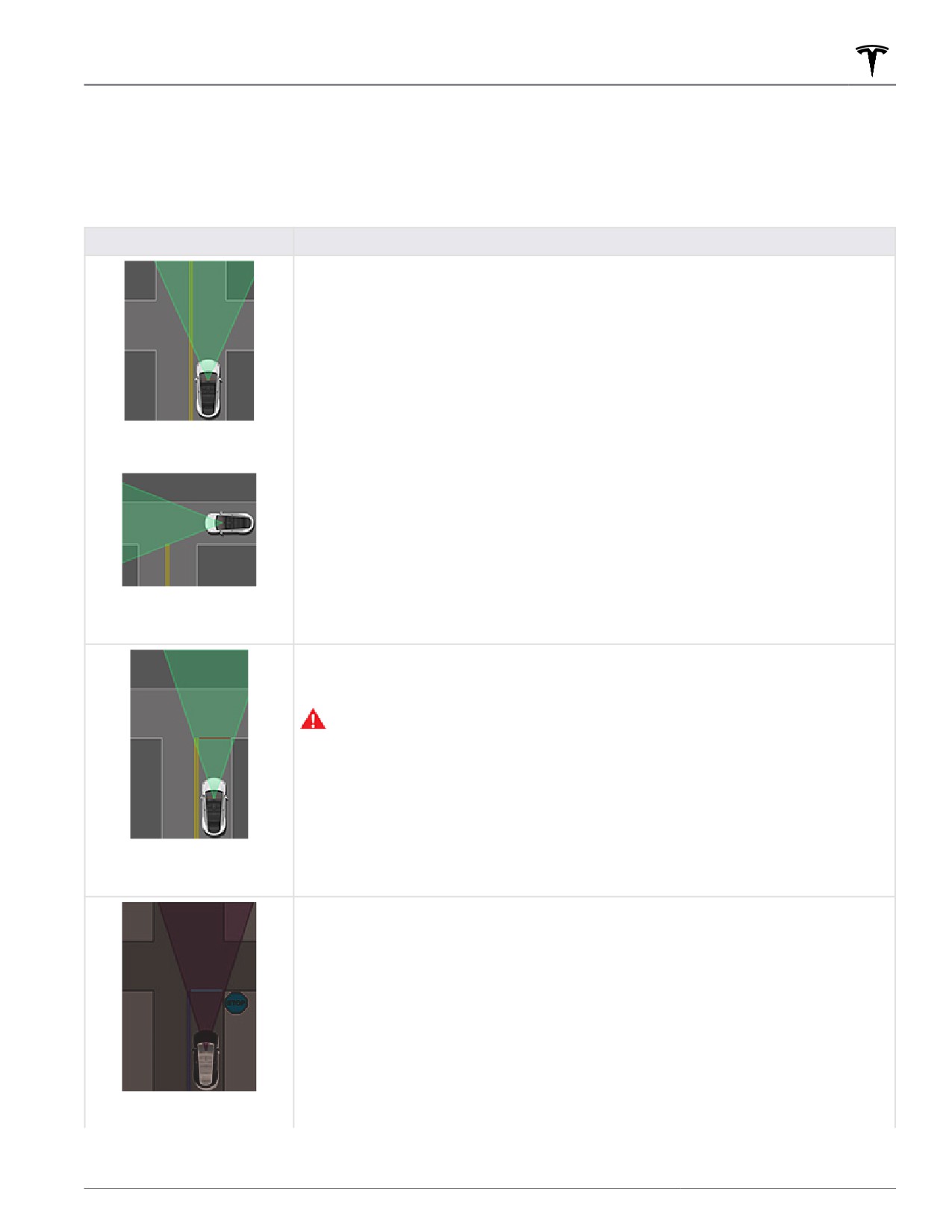
enabled, Model Y is designed to respond as follows when approaching intersections controlled by stop signs, stop
lines, or road markings:
Type of Intersection
Vehicle Intended Response
Model Y assumes the right of way and continues straight without slowing down or
stopping.
No Tra
c Control
Arm of T-junction
If Model Y detects a T-junction based on the map data, Model Y slows down and
comes to a complete stop at the red stop line displayed on the touchscreen. When
you want to proceed, you must take over steering and acceleration.
WARNING: Model Y may not stop at a T-junction that does not have a stop
sign or stop line, or if the T-junction is not included in the map data. Drive
attentively and be prepared to stop (when necessary and/or appropriate).
End of T-junction
Model Y slows down and comes to a complete stop at the red stop line displayed on
the touchscreen. When you want to proceed through the intersection, you must
press down on the drive stalk or briefly press the accelerator pedal.
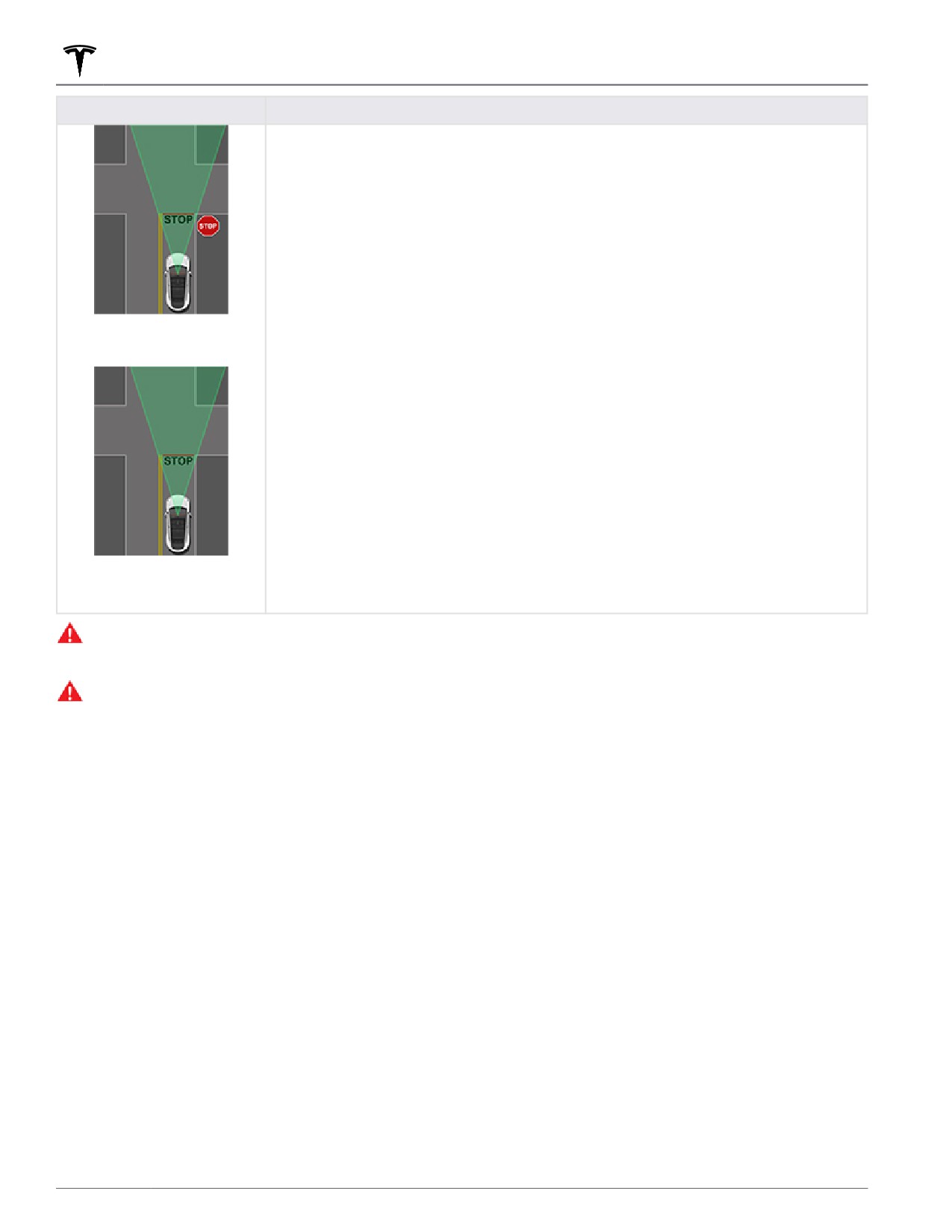
NOTE: If you confirm that you want to proceed through an intersection controlled by
a stop sign by pressing down on the drive stalk or briefly pressing the accelerator
pedal before Model Y has stopped, your confirmation is ignored. Model Y is not
designed to proceed through a stop sign without stopping.
NOTE: Even when using Autosteer, and even if you have engaged a turn signal, you
must turn the steering wheel yourself (which cancels Autosteer) to complete a turn
at an intersection.
Stop Sign
Autopilot
105
Tra
c Light and Stop Sign Control
Type of Intersection
Vehicle Intended Response
Stop Sign and Road Marking
Road Marking
WARNING: Model Y also slows down and stops at a roundabout. You must take over steering (which cancels
Autosteer) and press down on the drive stalk or briefly press the accelerator pedal to confirm that you want to
continue through the roundabout.
WARNING: At crosswalks, Model Y may slow down and may stop, depending on whether the crosswalk is
controlled by a tra
c light and whether the cameras detect pedestrians, bicyclists, etc. in the crosswalk. Pay
particular attention at crosswalks and be prepared to take over at any time. Failure to do so can result in injury
or death.
Limitations
Depending on many different circumstances and environmental conditions, Tra
c Light and Stop Sign Control may
or may not stop at:
• Railroad crossings.
• Keep-out zones.
• Toll booths.
• Crosswalk systems.
• Yield signs or temporary tra
c lights and stop signs (such as at construction areas).
• Miscellaneous tra
c U-turn lights, bicycle and pedestrian crossing lights, lane availability lights, etc.
In addition, Tra
c Light and Stop Sign Control is particularly unlikely to operate as intended, can disengage, or may
not operate, when one or more of the following conditions are present:
• Driving through consecutive light-controlled intersections that are very close to each other.
• Visibility is poor (heavy rain, snow, fog, etc.) or weather conditions are interfering with camera or sensor
operation.
106
Tra
c Light and Stop Sign Control
• Bright light (such as direct sunlight) is interfering with the view of the camera(s).
• A camera is obstructed, covered, damaged, or not properly calibrated.
• Driving on a hill or on a road that has sharp curves on which the cameras are unable to see upcoming tra
c lights
or stop signs.
• A tra
c light, stop sign, or road marking is obstructed (for example, a tree, a large vehicle, etc.).
• Model Y is being driven very close to a vehicle in front of it, which is blocking the view of a camera.
WARNING: The limitations listed above are not an exhaustive list of reasons why Model Y may not operate as
expected. Many unforeseen circumstances can adversely impact the accurate operation of Tra
c Light and
Stop Sign Control. Using this feature does not reduce or eliminate the need to drive attentively and
responsibly. You must be prepared to take appropriate and immediate action at all times.
Autopilot
107
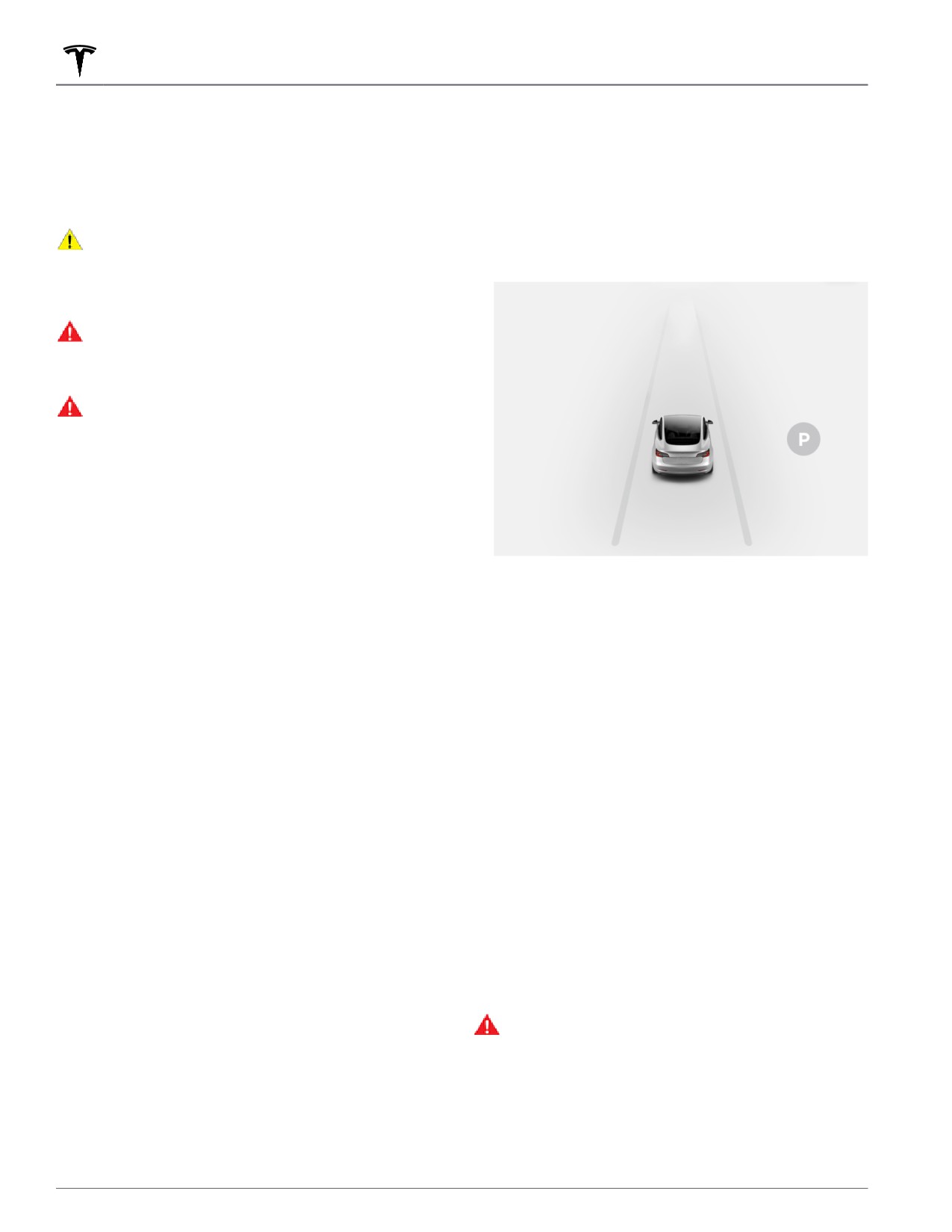
Autopark
NOTE: Depending on market region, vehicle
To Use Autopark
configuration, options purchased, and software version,
your vehicle may not be equipped with Autopark.
When driving, follow these steps to allow Autopark to
maneuver Model Y into a parking space:
Autopark uses data to simplify parking on public roads
by maneuvering Model Y into parallel and perpendicular
parking spaces.
1. While driving slowly on a public road, monitor the
touchscreen to determine when Autopark has
CAUTION: Ensure all cameras and sensors (if
detected a parking space. The touchscreen will
equipped) are clean. Dirty cameras and sensors, as
display a parking icon if the vehicle detects a
well as environmental conditions such as rain and
potential parking spot.
faded lane markings, can affect Autopilot
performance.
WARNING: Autopark's performance depends on
the ability of the cameras and ultrasonic sensors (if
equipped) to determine the vehicle's proximity to
curbs, objects, and other vehicles.
WARNING: Do not use Autopark if anything, such
as a ball hitch, bike rack, or trailer, is attached to
the tow hitch. Autopark may not stop for hitches
when parking between or in front of other vehicles.
Parameters
Autopark detects potential parking spaces based on the
following parameters:
NOTE: The parking icon appears only if the vehicle's
Perpendicular Parking
position and/or the circumstances of the surrounding
area are such that Autopark can determine an
• Your driving speed must be below 8 mph (13 km/h). If
appropriate driving path. If Autopark cannot
driving too fast, Autopark may not be able to
determine an appropriate path (for example, when
accurately detect your desired parking space.
driving on a narrow street where moving into the
• The parking space must be at least 7.2 feet (2.2
parking space causes the front of the vehicle to
meters) wide.
extend into the adjacent lane), you can either
reposition the vehicle, find a different parking space,
• The parking space must have at least three visible
or park manually.
lines for the vehicle to park into, such as parking lines,
road markings, or distinct curbs. Autopark may not
2. Check to determine if the detected parking space is
work in a garage, for example, without three visible
appropriate and safe. If so, pull forward and stop
parking lines.
approximately one car length ahead of the parking
• Autopark may not work with textured road surfaces
space (as you normally would when parallel parking
such as cobblestone or brick.
or when backing into a perpendicular parking space).
3. Release the steering wheel, shift Model Y into
Parallel Parking
Reverse, then touch Start Autopark on the
touchscreen.
• Your driving speed must be below 13 mph (21 km/h).
4. Autopark displays a message when parking is
If driving too fast, Autopark may not be able to
complete.
accurately detect your desired parking space.
• There must be a vehicle in front of the space you
NOTE: If you press the brake pedal when Autopark is
want to park in.
actively parking Model Y, the parking process pauses
• A distinct curb or edge must be visible. Autopark
until you touch Resume on the touchscreen.
may not correctly identify the parking space if the
WARNING: Never depend on Autopark to find a
curb is not distinct, such as grass or dirt.
parking space that is legal, suitable, and safe.
Autopark may not always detect objects in the
NOTE: Autopark does not operate on angled parking
parking space. Always perform visual checks to
spaces.
confirm that a parking space is appropriate and
safe.
108

Autopark
WARNING: When Autopark is actively steering
• The sensors (if equipped) are affected by other
Model Y, the steering wheel moves in accordance
electrical equipment or devices that generate
with Autopark's adjustments. Do not interfere with
ultrasonic waves.
the movement of the steering wheel. Doing so
cancels Autopark.
WARNING: Many unforeseen circumstances can
WARNING: During the parking sequence,
impair Autopark's ability to park Model Y. Keep
continually check your surroundings. Be prepared
this in mind and remember that as a result,
to apply the brakes to avoid vehicles, pedestrians,
Autopark may not steer Model Y appropriately. Pay
or objects.
attention when parking Model Y and stay prepared
to immediately take control.
WARNING: When Autopark is active, monitor the
touchscreen to ensure that you are aware of the
instructions that Autopark is providing.
To Pause Parking
To pause Autopark, press the brake pedal once. Model Y
stops and remains stopped until you touch Resume on
the touchscreen.
To Cancel Parking
Autopark cancels the parking sequence when you
manually move the steering wheel, shift, or touch Cancel
on the touchscreen. Autopark also cancels parking
when:
• The parking sequence exceeds seven moves.
• Model Y detects that the driver is exiting the vehicle.
• A door is opened.
• You press the accelerator pedal.
• You press the brake pedal while Autopark is paused.
• An Automatic Emergency Braking event occurs (see
Collision Avoidance Assist on page 119).
Limitations
Autopark is particularly unlikely to operate as intended
in these situations:
• The road is sloped. Autopark is designed to operate
on flat roads only.
• Visibility is poor (due to heavy rain, snow, fog, etc.).
• The curb is constructed of material other than stone,
or the curb cannot be detected.
• The target parking space is directly adjacent to a wall
or pillar (for example, the last parking space of a row
in an underground parking structure).
• One or more of the ultrasonic sensors (if equipped)
or cameras is damaged, dirty, or obstructed (such as
by mud, ice, or snow, or by a vehicle bra, excessive
paint, or adhesive products such as wraps, stickers,
rubber coating, etc.).
• Weather conditions (heavy rain, snow, fog, or
extremely hot or cold temperatures) are interfering
with sensor operation.
Autopilot
109
Summon
NOTE: Depending on market region, vehicle
WARNING: Parking in a narrow space limits the
configuration, options purchased, and software version,
ability of the sensors to accurately detect the
your vehicle may not be equipped with Summon, or the
location of obstacles, increasing the risk of
feature may not operate exactly as described.
damage to Model Y and/or surrounding
objects.
Summon allows you to automatically park and retrieve
Model Y while you are standing outside the vehicle.
• Require Continuous Press: By default, Summon
Summon moves Model Y forward and reverse up to 39
requires that you press and hold a button on the
feet (12 meters) in, or out of, a parking space.
mobile app to move Model Y during the parking
process. When Require Continuous Press is set to No,
To move Model Y a longer distance while steering
you can press and release the button—you don't need
around objects, you can use Smart Summon (if
to hold it down to keep the vehicle moving. Also,
equipped) and your mobile phone. Smart Summon
when Require Continuous Press is set to No, you can
allows your vehicle to find you (or you can send your
operate Summon using the key fob accessory instead
vehicle to a chosen location). See Smart Summon on
of the mobile app (see Operating Summon with the
page 113.
Key Fob on page 111) and you can start a parking
sequence from inside the vehicle (see Starting
CAUTION: Ensure all cameras and sensors are
Summon Before Exiting the Vehicle on page 111).
clean. Dirty cameras and sensors, as well as
• Use Auto HomeLink (if equipped): Set to ON if you
environmental conditions such as rain and faded
want to activate HomeLink to open/close a
lane markings, can affect Autopilot performance.
programmed HomeLink device (such as a gate or a
WARNING: Summon is designed and intended for
garage door) during the parking process when using
use only on parking lots and driveways on private
Summon. If enabled, the device automatically opens
property where the surrounding area is familiar
and closes when Model Y enters or exits during a
and predictable.
Summon session. In a Smart Summon session (if
equipped), the device automatically opens when, at
WARNING: Summon is a BETA feature. You must
the beginning of a session, Smart Summon detects
continually monitor the vehicle and its
that Model Y is parked in a garage.
surroundings and stay prepared to take immediate
action at any time. It is the driver's responsibility to
WARNING: Always ensure that Model Y is fully
use Summon safely, responsibly, and as intended.
in or out of a garage before HomeLink lowers
the garage door. Summon and Smart Summon
WARNING: Summon's performance depends on
(if equipped) cannot detect where an overhead
the ability of the ultrasonic sensors (if equipped)
door will lower.
to determine the vehicle's proximity to objects,
people, animals, and other vehicles.
NOTE: When enabled, the HomeLink device
automatically opens and closes when using Summon,
and automatically opens as needed when using
Before Using Summon
Smart Summon (if equipped). To automate HomeLink
in other situations (such as normal driving), you must
Before operating Summon, use the touchscreen to
adjust the HomeLink device's main settings by
enable it and customize how you want it to work. Touch
touching the HomeLink icon at the top of the
Controls > Autopilot > Customize Summon and adjust
Controls screen (see HomeLink Universal Transceiver
the following settings to suit your preferences:
on page 157).
• Bumper Clearance: Set the distance that you want
Summon to stop from a detected object (for
NOTE: The above settings, with the exception of
example, you may want Summon to stop within just a
HomeLink, apply only to Summon—not Smart Summon
few inches of a garage wall). Note that this distance
(if equipped) (see Before Using Smart Summon on page
applies only to objects that Summon detects directly
113). You cannot customize Smart Summon's bumper
in front of Model Y when moving forward, or directly
clearance, distance, and side clearance. And when using
behind Model Y when reversing.
Smart Summon, you must always hold down the button
on the mobile app to keep Model Y moving. Also, Smart
• Summon Distance: Set a maximum distance that
Summon operates with the mobile app only—not the key
Model Y can travel when entering or exiting a parking
fob accessory.
space.
NOTE: All settings are retained until you manually
• Side Clearance: Choose an option to specify how
change them.
much side clearance you want to allow. Tight allows
Model Y to enter and exit very narrow parking
spaces.
Using Summon to Park and Retrieve
your Vehicle
Follow these steps to use Summon to park your Model
Y:
110
Summon
• Align Model Y within 39 feet (12 meters) of the
WARNING: Model Y cannot detect obstacles that
parking space so Model Y can follow a straight path
are located lower than the bumper, are very
into or out of the space in either Drive or Reverse.
narrow, or are hanging from a ceiling (for example,
bicycles). In addition, many unforeseen
• From outside the vehicle, initiate the parking
circumstances can impair Summon's ability to
maneuver by touching Summon on the mobile app,
move in or out of a parking space and, as a result,
then holding down the Forward or Reverse button.
Summon may not move Model Y appropriately.
NOTE: If the Require Continuous Press setting is No,
Therefore, you must continually monitor the
you do not need to hold down the button, just press
vehicle's movement and its surroundings and
and release.
remain prepared to stop Model Y at any time.
NOTE: You can also initiate the parking maneuver
from inside the vehicle (see Starting Summon Before
Operating Summon with the Key Fob
Exiting the Vehicle on page 111).
NOTE: Summon may not operate if the battery is low on
the key fob accessory.
Summon shifts Model Y into Drive or Reverse (based on
the direction you specified) and drives into or out of the
Follow these steps to park Model Y from outside the
parking space. When parking is complete, or if an
vehicle using the key fob accessory:
obstacle is detected, Summon shifts Model Y into Park.
Summon shifts Model Y into Park when:
1. On the touchscreen, ensure that Require Continuous
Press is disabled (touch Controls > Autopilot >
• Model Y detects an obstacle in its driving path
Customize Summon > Require Continuous Press).
(within the Bumper Clearance setting that you
specified).
2. With Model Y in Park, stand within 10 feet (three
meters) and press and hold the top center button on
• Summon has moved Model Y the maximum distance
the key fob accessory (Lock/Unlock All button) until
of 39 feet (12 meters).
the hazard lights blink continuously.
• You release the Forward or Reverse button (when
NOTE: The hazard lights flash once as Model Y locks,
Require Continuous Press is turned on).
then within five seconds, Model Y powers on and the
• You press any button to manually stop Summon.
hazard lights flash continuously. Do not proceed to
the next step until the hazard lights are flashing. If,
If you used Summon to park Model Y, you can then use
after five seconds, the hazard lights are not flashing,
Summon to return Model Y back to its original position
release the button on the key fob accessory, move
(provided Model Y has remained in Park), or to the
closer to Model Y, and try again. If Summon receives
maximum Summon Distance that you have specified
no further input within ten seconds, Summon cancels.
(whichever comes first). Simply specify the opposite
3. Press the Front Trunk button on the key fob
direction on the mobile app and Summon moves Model
accessory to move Model Y forward into the parking
Y along the original path, provided no obstructions have
been introduced. If an obstacle is detected, Model Y
space, or press the Rear Trunk button to reverse
attempts to avoid the obstacle while staying very close
Model Y into the parking space.
to its original path (Summon does not steer around
obstacles).
Starting Summon Before Exiting the
NOTE: To use Summon to move Model Y multiple times
Vehicle
in the same direction (not to exceed the maximum of 39
feet (12 meters), cancel Summon and then restart the
To start a Summon parking sequence before exiting
parking process using the same direction.
Model Y:
NOTE: Although Summon can move Model Y a short
distance laterally to avoid an obstacle, it does not
1. On the touchscreen, ensure that Require Continuous
attempt to steer around an obstacle to return Model Y to
Press is disabled (touch Controls > Autopilot >
its original driving path. Only Smart Summon (if
Customize Summon > Require Continuous Press).
equipped) can steer Model Y around objects.
2. Close all doors and trunks.
NOTE: Summon requires that Model Y can detect a valid
3. With Model Y powered on and Park engaged, double
key nearby.
press the Park button on the drive stalk. The
NOTE: Summon requires that Model Y can detect an
touchscreen displays a popup screen.
authenticated phone nearby (Canada only).
4. On the touchscreen, choose the direction of travel.
5. Exit Model Y and close the driver's door.
Summon now moves Model Y according to the direction
you specified on the touchscreen.
Autopilot
111
Summon
NOTE: To cancel the parking maneuver before exiting
the vehicle, touch Cancel on the popup screen.
NOTE: If you do not choose a direction of travel on the
touchscreen, Summon does not start a parking
maneuver when you exit.
Stopping or Canceling Summon
Stop Model Y at any time while Summon is active by
using the mobile app or by pressing any button on the
key fob accessory. Summon also cancels when:
• A door handle is engaged or a door is opened.
• You interact with the steering wheel, brake pedal,
accelerator pedal, or shift.
• Model Y detects an obstacle.
• Summon has moved Model Y the maximum distance
of approximately 39 feet (12 meters).
• Your phone enters sleep mode or loses connectivity
to Model Y.
Limitations
Summon is unlikely to operate as intended in the
following types of situations:
• The driving path is sloped. Summon is designed to
operate on flat roads only (up to 10% grade).
• A raised concrete edge is detected. Summon does
not move Model Y over an edge that is higher than
approximately 1 in (2.5 cm).
• One or more of the ultrasonic sensors (if equipped)
or cameras is damaged, dirty, or obstructed (such as
by mud, ice, or snow, or by a vehicle bra, excessive
paint, or adhesive products such as wraps, stickers,
rubber coating, etc.).
• Weather conditions (heavy rain, snow, fog, or
extremely hot or cold temperatures) are interfering
with sensor operation.
• The sensors (if equipped) are affected by other
electrical equipment or devices that generate
ultrasonic waves.
• Model Y is in Trailer Mode or an accessory is
attached.
NOTE: Summon is disabled if Model Y is in Valet mode
(see Valet Mode on page 47).
WARNING: The list above does not represent an
exhaustive list of situations that may interfere with
proper operation of Summon. It is the driver's
responsibility to remain in control of Model Y at all
times. Pay close attention whenever Summon is
actively moving Model Y and stay prepared to take
immediate action. Failure to do so can result in
serious property damage, injury or death.
112
Smart Summon
NOTE: Depending on market region, vehicle
• Your phone must be connected to Model Y and
configuration, options purchased, and software version,
located within approximately 213 feet (65 meters).
your vehicle may not be equipped with Smart Summon,
• The vehicle's cameras must be fully calibrated (see
or the feature may not operate exactly as described.
Drive to Calibrate Cameras on page 86).
Smart Summon is designed to allow you to move Model
• You must have a clear line of sight to Model Y.
Y to your location (using your phone's GPS as a target
• Model Y must be in Park, not charging, and all doors
destination) or to a location of your choice, maneuvering
and trunks must be closed.
around and stopping for objects as necessary. Smart
Summon works with the Tesla mobile app when your
phone is located within approximately 213 feet (65
Using Smart Summon
meters) of Model Y. Smart Summon maneuvers Model Y
out of parking spaces and around corners. This is useful
for moving Model Y out of a tight parking spot, through
1. Open the Tesla mobile app, and press Summon.
puddles, or helping you retrieve your car while carrying
2. Press the Smart Summon icon located in the center
packages. You must maintain a clear line of sight
of the image of your Model Y. It may take several
between you and Model Y and closely monitor the
seconds for Smart Summon to start up.
vehicle and its surroundings at all times.
NOTE: You can use Standby Mode to eliminate the
CAUTION: Ensure all cameras and sensors are
delay that occurs when Smart Summon is starting up
clean. Dirty cameras and sensors, as well as
(see Standby Mode on page 114).
environmental conditions such as rain and faded
The mobile app displays a map with a blue circle,
lane markings, can affect Autopilot performance.
which represents the maximum proximity of 213 feet
WARNING: Smart Summon is designed and
(65 meters) that you must maintain between your
intended for use only on parking lots and
phone and Model Y. The blue dot on the map
driveways located on private property where the
represents your location, and the red arrow
surrounding area is familiar and predictable. Do
represents the location of Model Y.
not use Smart Summon on public roads.
WARNING: Smart Summon must only be used on
3. Position yourself anywhere within the blue circle
paved surfaces.
where you have a clear line of sight to Model Y.
WARNING: Smart Summon is a BETA feature. You
4. You can now operate Smart Summon using either of
must continually monitor the vehicle and its
these modes:
surroundings and stay prepared to take immediate
◦ Come to Me mode: Press and hold the Come to
action at any time. It is the driver's responsibility to
Me button. Model Y moves to your GPS location.
use Smart Summon safely, responsibly, and as
As you move, Model Y follows you. When Model Y
intended.
reaches you, it stops and shifts into park.
WARNING: Smart Summon may not stop for all
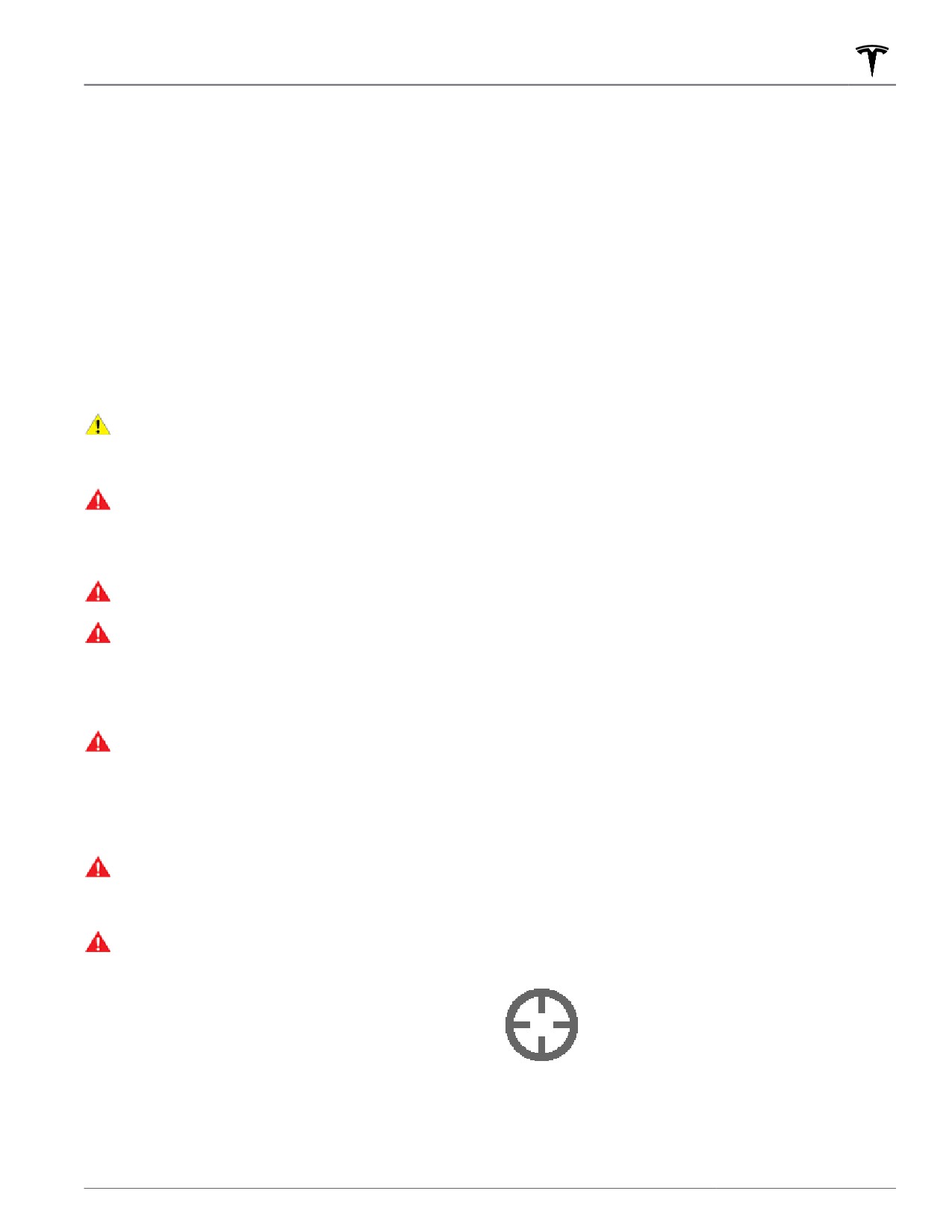
◦ Go to Target mode: Touch the crosshair icon then
objects (especially very low objects such as some
drag the map to position the pin on a chosen
curbs, or very high objects such as a shelf) and
destination. Press and hold the Go to Target
may not react to all tra
c. Smart Summon does
button. Model Y moves to the destination. When
not recognize the direction of tra
c, does not
reaching the location, Model Y stops and shifts
navigate around empty parking spaces, and may
into Park and the mobile app displays a message
not anticipate crossing tra
c.
indicating that Summon has completed.
WARNING: Smart Summon's performance
NOTE: To subsequently change the location, lift
depends on the ultrasonic sensors (if equipped),
your finger, reposition the map, then press and
the visibility of the cameras, and the availability of
hold Go to Target again.
an adequate cellular signal and GPS data.
To stop Model Y at any time, simply release the Come
WARNING: When using Smart Summon, you must
to Me or Go to Target button.
maintain a clear line of sight between you and
Model Y and stay prepared to stop the vehicle at
any time by releasing the button on the mobile
The map's crosshair icon toggles between
app.
Go to Target and Come to Me modes.
When Come to Me mode is selected, the
icon is blue.
Before Using Smart Summon
NOTE: The map also has an icon that
allows you to display/hide satellite imagery.
• Download the latest version of the Tesla mobile app
to your phone, and ensure your phone has cellular
service and GPS enabled.
Autopilot
113

Smart Summon
Immediately after initiating Smart Summon in either
Standby Mode
mode, hazard lights briefly flash, mirrors fold, and Model
Y shifts into Drive or Reverse. Model Y then slowly
To keep Model Y ready to Summon and reduce the time
moves to within 3 feet (1 meter) of you (COME TO ME)
it takes to warm up, turn on Standby Mode. Touch
or your chosen destination (GO TO TARGET), navigating
Controls > Autopilot > Standby Mode. When Standby
obstacles as needed. As Model Y moves, the
Mode is turned on, you can conserve Battery energy by
corresponding red arrow on the map also moves to
disabling Standby Mode at these locations:
show the vehicle’s location. As you move, the
corresponding blue dot also moves to show your
• Exclude Home - Disables Standby Mode at the
location.
location you set as Home in your Favorites list.
In either mode, Model Y stops moving and shifts into
• Exclude Work - Disables Standby Mode at the
park when:
location you set as Work in your Favorites list.
• Exclude Favorites - Disables Standby Mode at any
• You release the button on the mobile app.
location in your Favorites list.
• The maximum proximity of 213 feet (65 meters)
between your phone and Model Y is exceeded (if
NOTE: To conserve energy, Smart Summon
moving Model Y to a destination away from you, you
automatically exits Standby mode from midnight to
may need to follow the car to maintain this distance).
6:00 am. During these hours, a delay occurs as Smart
• The driving path is blocked.
Summon starts up.
• Model Y has moved the maximum distance of 475
NOTE: Additional battery power may be consumed
feet (145 meters) since the start of the Smart
while Standby Mode is active.
Summon session, or has moved 492 feet (150 meters)
NOTE: For details on how to designate a location as
away from the location from which the vehicle was
Home, Work, or Favorites, see Home, Work, and Favorite
last driven manually.
Destinations on page 137.
NOTE: If Smart Summon moves Model Y forward
three feet and then backwards two feet, this is
Stopping or Canceling Smart
considered five feet of travel.
Summon
NOTE: There is no need to look at the mobile app—just
Smart Summon stops Model Y whenever you release the
hold down the button while keeping your eye on Model
button on the mobile app. To resume the Smart
Y and its driving path at all times, remaining ready to
Summon session, simply press the Come to Me or Go to
release the button to stop the vehicle if needed.
Target button again.
If equipped and Auto HomeLink is enabled for Summon
WARNING: Always anticipate when you need to
(touch Controls > Autopilot > Customize Summon > Use
stop Model Y. Depending on the quality of the
Auto HomeLink), Smart Summon automatically opens a
connectivity between the phone and Model Y,
HomeLink device if you start the Smart Summon
there may be a slight delay between when you
maneuver when Model Y is located inside a garage. The
release the button and when the car stops.
mobile app informs you that the door has opened.
Smart Summon cancels, and requires you to restart it,
WARNING: When you release the button to stop
when:
Model Y, a slight delay occurs before the vehicle
stops. Therefore, it is critical that you pay close
• A door handle is engaged or a door is opened.
attention to the vehicle’s driving path at all times
and proactively anticipate obstacles that the
• You interact with the steering wheel, brake pedal,
vehicle may be unable to detect.
accelerator pedal, or shift.
WARNING: Use extreme caution when using Smart
• Model Y is blocked by an obstacle.
Summon in environments where movement of
• Smart Summon has moved Model Y the maximum
obstacles can be unpredictable. For example,
distance of approximately 475 feet (145 meters)
where people, children or animals are present.
within a 213 foot (65 meter) radius of the phone's
WARNING: Smart Summon may not stop for all
location. To move further than this distance, you must
objects (especially very low objects such as some
shift Model Y into Drive or Reverse and then re-
curbs, or very high objects such as a shelf) and
initiate an Smart Summon session.
may not react to all oncoming or side tra
c. Pay
• Your phone enters sleep mode or loses connectivity
attention and be ready to stop Model Y at all times
to Model Y.
by releasing the button on the mobile app.
114
Smart Summon
Limitations
Smart Summon is unlikely to operate as intended in the
following types of situations:
• GPS data is unavailable due to poor cellular coverage.
• The driving path is sloped. Smart Summon is
designed to operate on flat roads only (up to 10%
grade).
• A raised concrete edge is detected. Depending on
the height of the concrete edge, Smart Summon may
not move Model Y over it.
• One or more of the ultrasonic sensors (if equipped)
or cameras is damaged, dirty, or obstructed (such as
by mud, ice, or snow, or by a vehicle bra, excessive
paint, or adhesive products such as wraps, stickers,
rubber coating, etc.).
• Weather conditions (heavy rain, snow, fog, or
extremely hot or cold temperatures) are interfering
with sensor or camera operation.
• The sensors (if equipped) are affected by other
electrical equipment or devices that generate
ultrasonic waves.
• Model Y is in Trailer Mode or an accessory is
attached.
NOTE: Smart Summon is disabled if Model Y is in Valet
mode (see Valet Mode on page 47).
WARNING: The list above does not represent an
exhaustive list of situations that may interfere with
proper operation of Smart Summon. It is the
driver's responsibility to remain in control of Model
Y at all times. Pay close attention whenever Smart
Summon is actively moving Model Y and stay
prepared to take immediate action. Failure to do
so can result in serious property damage, injury or
death.
Autopilot
115
Lane Assist
Model Y monitors the markers on the lane you are
Steering Interventions
driving in as well as the surrounding areas for the
presence of vehicles or other objects.
Lane Assist provides steering interventions if Model Y
drifts into (or close to) an adjacent lane in which an
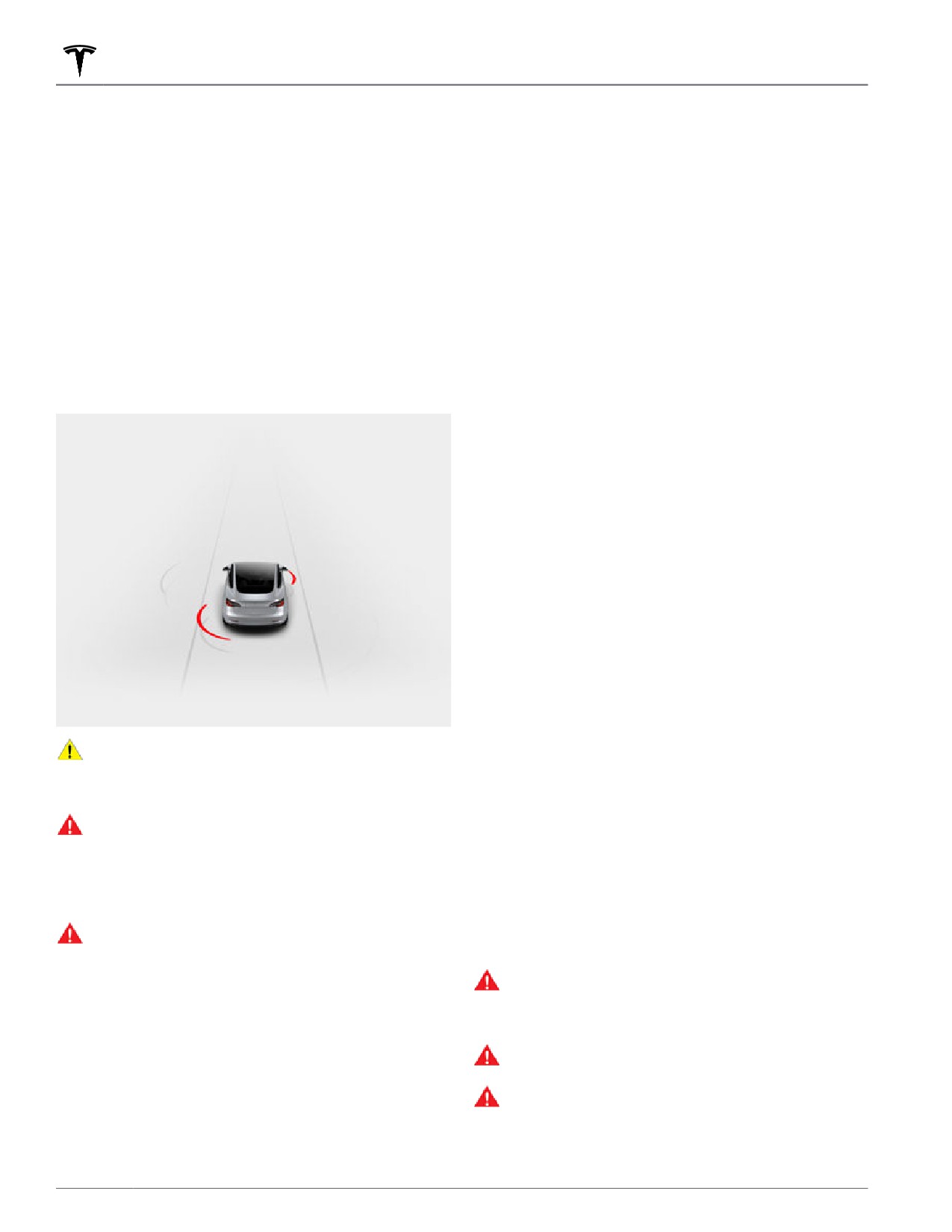
When an object is detected in your blind spot or near
object, such as a vehicle, is detected. In these situations,
the side of Model Y (such as a vehicle, guard rail, etc.),
Model Y automatically steers to a safer position in the
the touchscreen displays colored lines radiating from the
driving lane. This steering is applied only when Model Y
image of your vehicle. The location of the lines
is traveling between 30 and 85 mph (48 and 140 km/h)
correspond to the location of the detected object. The
on major roads with clearly visible lane markings. When
color of the lines (white, yellow, orange, or red)
a steering intervention is applied, the touchscreen briefly
represent the object's proximity to Model Y, with white
displays a warning message.
being the farthest and red being the closest and
requiring your immediate attention. These colored lines
only display when driving between approximately 7 and
Lane Departure Avoidance
85 mph (12 and 140 km/h). When Autosteer is active,
these colored lines also display if driving slower than 7
Lane Departure Avoidance is designed to warn you if
mph (12 km/h). However, the colored lines do not display
Model Y is drifting out of, or nears the edge of, your
if Model Y is at a standstill (for example, in heavy tra
c).
driving lane.
Lane Departure Avoidance operates when driving
between 40 and 90 mph (64 and 145 km/h) on roads
with clearly visible lane markings. You can choose if and
how you want Lane Departure Warning to operate by
touching Controls > Autopilot > Lane Departure
Avoidance and selecting between these options:
• Off: You are not warned of lane departures or
potential collisions with a vehicle in an adjacent lane.
• Warning: If a front wheel passes over a lane marking,
the steering wheel vibrates.
• Assist: Corrective steering is applied to keep Model Y
in a safe position if Model Y drifts into an adjacent
lane or near the edge of the road.
When Lane Departure Avoidance is enabled and Tra
c-
Aware Cruise Control is active, if Model Y drifts out of
the driving lane when the associated turn signal is off,
CAUTION: Ensure all cameras and sensors are
Lane Assist also checks to see whether your hands are
clean. Dirty cameras and sensors, as well as
on the steering wheel. If hands are not detected, the
environmental conditions such as rain and faded
touchscreen displays a series of alerts, similar to those
lane markings, can affect Autopilot performance.
that are used when driving with Autosteer. If hands are
WARNING: Lane Assist features are for guidance
repeatedly not detected Model Y gradually slows down
purposes only and is not intended to replace your
to 15 mph (25 km/h) below the detected speed limit, or
own direct visual checks. Before changing lanes,
below the set cruising speed, and the hazard lights start
always use side mirrors and perform the
flashing.
appropriate shoulder checks to visually determine
if it is safe and appropriate to change lanes.
NOTE: Lane Departure Avoidance does not warn you of
lane departures, or provide steering interventions, if the
WARNING: Never depend on Lane Assist to inform
associated turn signal is on, which indicates an
you if you unintentionally drive outside of the
intentional lane change.
driving lane, or to inform you that there is a vehicle
WARNING: Lane Departure Avoidance is intended
beside you or in your blind spot. Several external
factors can reduce the performance of Lane Assist
to help keep you safe, but it does not work in
(see Limitations and Inaccuracies on page 117). It
every situation and does not replace the need to
is the driver's responsibility to stay alert and pay
remain attentive and in control.
attention to the driving lane and other road users.
WARNING: Keep your hands on the steering wheel
Failure to do so can result in serious injury or
and drive attentively at all times.
death.
WARNING: Steering interventions are minimal and
are not designed to move Model Y out of its
driving lane. Do not rely on steering interventions
to avoid side collisions.
116
Lane Assist
WARNING: Blind Spot Camera does not eliminate
Emergency Lane Departure
the need to drive attentively and manually perform
Avoidance
shoulder checks when changing lanes.
WARNING: Blind Spot Collision Warning Chime
Emergency Lane Departure Avoidance automatically
cannot detect every collision. It is the driver's
applies steering to avoid a potential collision in
responsibility to remain alert and perform the
situations where:
appropriate shoulder checks when changing lanes.
• Model Y is departing a lane and may collide with a
Limitations and Inaccuracies
vehicle traveling in the same direction in the adjacent
lane (regardless of the status of the turn signal).
Lane Assist features cannot always detect lane markings
• Model Y is departing a lane into an oncoming lane,
and you may experience unnecessary or invalid warnings
the turn signal is off, and an oncoming vehicle is
in these situations:
detected.
• Model Y is departing the road and the turn signal is
• Visibility is poor and lane markings are not clearly
off (for example, very close to the edge of the road
visible (due to heavy rain, snow, fog, etc.). The exact
and a collision may occur).
detection zone of the ultrasonic sensors (if equipped)
varies depending on environmental conditions.
To turn this feature on or off, touch Controls > Autopilot
• Bright light (such as from oncoming headlights or
> Emergency Lane Departure Avoidance.
direct sunlight) is interfering with the view of the
camera(s).
When Emergency Lane Departure Avoidance applies
steering, a chime sounds and the touchscreen displays a
• A vehicle in front of Model Y is blocking the view of
warning and highlights the lane marking in red.
the camera(s).
• The windshield is obstructing the view of the
Emergency Lane Departure Avoidance operates when
camera(s) (fogged over, dirty, covered by a sticker,
Model Y is traveling between 40 and 90 mph (64 and
etc.).
145 km/h) on a road with clearly visible lane markings,
curbs, etc.
• Lane markings are excessively worn, have visible
previous markings, have been adjusted due to road
WARNING: Emergency Lane Departure Avoidance
construction, or are changing quickly (for example,
is not a substitute for attentive driving and sound
lanes branching off, crossing over, or merging).
judgment. Keep your eyes on the road when
• The road is narrow or winding.
driving and never depend on Emergency Lane
Departure Avoidance to prevent a collision. Several
• Objects or landscape features are casting strong
factors can reduce or impair performance.
shadows on lane markers.
Depending on Emergency Lane Departure
Avoidance to prevent a potential collision can
Lane Assist may not provide warnings, or may apply
result in serious injury or death.
inappropriate warnings, in these situations:
• One or more of the ultrasonic sensors (if equipped)
Blind Spot Camera and Collision
or cameras is damaged, dirty, or obstructed (by mud,
Warning Chime
ice, or snow, or by a vehicle bra, excessive paint, or
adhesive products such as wraps, stickers, rubber
To display the image from the corresponding side
coatings, etc.).
repeater camera whenever you engage a turn signal to
• Weather conditions (heavy rain, snow, fog, or
change lanes, touch Controls > Autopilot > Blind Spot
extremely hot or cold temperatures) are interfering
Camera.
with sensor operation.
If you want a chime to sound when a vehicle is in your
• The sensors (if equipped) are affected by other
blind spot and a possible collision is detected, touch
electrical equipment or devices that generate
Controls > Autopilot > Blind Spot Collision Warning
ultrasonic waves.
Chime.
• An object that is mounted to Model Y is interfering
with and/or obstructing a sensor (such as a bike rack
When the turn signal is engaged and the touchscreen is
or a bumper sticker).
displaying the image from the side repeater camera, you
can move the image to a different location on the
In addition, Lane Assist may not steer Model Y away
touchscreen. To do so, touch and drag the image to the
from an adjacent vehicle, or may apply unnecessary or
new location (valid locations are indicated by shaded
inappropriate steering, in these situations:
areas that display when you touch and hold the image).
Active Safety Features
117
Lane Assist
• You are driving Model Y on sharp corners or on a
curve at a relatively high speed.
• Bright light (such as from oncoming headlights or
direct sunlight) is interfering with the view of the
camera(s).
• You are drifting into another lane but an object (such
as a vehicle) is not present.
• A vehicle in another lane cuts in front of you or drifts
into your driving lane.
• Model Y is not traveling within the speeds at which
the Lane Assist feature is designed to operate.
• One or more of the ultrasonic sensors (if equipped) is
damaged, dirty, or obstructed (such as by mud, ice,
or snow, or by a vehicle bra, excessive paint, or
adhesive products such as wraps, stickers, rubber
coating, etc.).
• Weather conditions (heavy rain, snow, fog, or
extremely hot or cold temperatures) are interfering
with sensor operation.
• The sensors (if equipped) are affected by other
electrical equipment or devices that generate
ultrasonic waves.
• An object mounted to Model Y (such as a bike rack or
a bumper sticker) is interfering with or obstructing a
sensor.
• Visibility is poor and lane markings are not clearly
visible (due to heavy rain, snow, fog, etc.).
• Lane markings are excessively worn, have visible
previous markings, have been adjusted due to road
construction or are changing quickly (for example,
lanes branching off, crossing over, or merging).
WARNING: The lists above do not represent every
possible situation that may interfere with Lane
Assist features. There are many reasons why Lane
Assist may not operate as intended. To avoid a
collision, stay alert and always pay attention to the
road so you can anticipate the need to take
corrective action as early as possible.
118
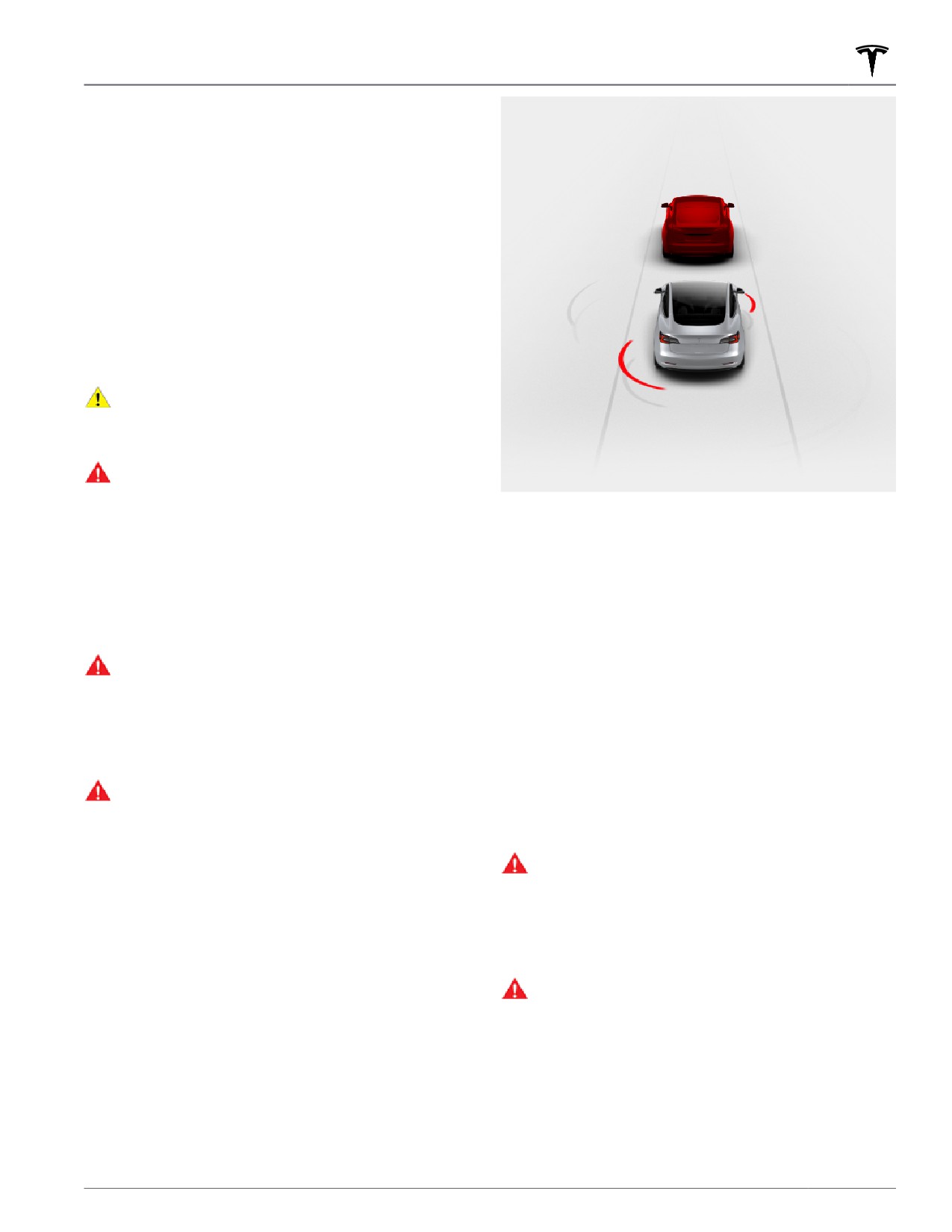
Collision Avoidance Assist
The following collision avoidance features are designed
to increase the safety of you and your passengers:
• Forward Collision Warning - provides visual and
audible warnings in situations when Model Y detects
that there is a high risk of a frontal collision (see
Forward Collision Warning on page 119).
• Automatic Emergency Braking - automatically
applies braking to reduce the impact of a frontal
collision (see Automatic Emergency Braking on page
120).
• Obstacle-Aware Acceleration - reduces acceleration
if Model Y detects an object in its immediate driving
path (see Obstacle-Aware Acceleration on page
120).
CAUTION: Ensure all cameras and sensors are
clean. Dirty cameras and sensors, as well as
environmental conditions such as rain and faded
lane markings, can affect performance.
WARNING: Forward Collision Warning is for
guidance purposes only and is not a substitute for
attentive driving and sound judgment. Keep your
eyes on the road when driving and never depend
Warnings cancel automatically when the risk of a
on Forward Collision Warning to warn you of a
collision has been reduced (for example, you have
potential collision. Several factors can reduce or
decelerated or stopped Model Y, or the object in front of
impair performance, causing either unnecessary,
your vehicle has moved out of your driving path).
invalid, inaccurate, or missed warnings. Depending
on Forward Collision Warning to warn you of a
If immediate action is not taken when Model Y issues a
potential collision can result in serious injury or
Forward Collision Warning, Automatic Emergency
death.
Braking (if enabled) may automatically apply the brakes
if a collision is considered imminent (see Automatic
WARNING: Automatic Emergency Braking is not
Emergency Braking on page 120).
designed to prevent all collisions. In certain
situations, it can minimize the impact of a frontal
By default, Forward Collision Warning is turned on. To
collision by attempting to reduce your driving
turn it off or adjust its sensitivity, touch Controls >
speed. Depending on Automatic Emergency
Autopilot > Forward Collision Warning. Instead of the
Braking to avoid a collision can result in serious
default warning level of Medium, you can turn the
injury or death.
warning Off, or you can choose to be warned Late or
WARNING: Obstacle-Aware Acceleration is not
Early.
designed to prevent a collision. In certain
situations, it can minimize the impact of a collision.
NOTE: Forward Collision Warning automatically resets to
Depending on Obstacle-Aware Acceleration to
Medium at the beginning of each drive.
avoid a collision can result in serious injury or
WARNING: The camera(s) and sensors associated
death.
with Forward Collision Warning are designed to
monitor an approximate area of up to 525 feet
Forward Collision Warning
(160 meters) in your driving path. The area being
monitored by Forward Collision Warning can be
adversely affected by road and weather
Model Y monitors the area in front of it for the presence
conditions. Use appropriate caution when driving.
of an object such as a vehicle, motorcycle, bicycle, or
pedestrian. If a collision is considered likely unless you
WARNING: Forward Collision Warning is designed
take immediate corrective action, Forward Collision
only to provide visual and audible alerts. It does
Warning is designed to sound a chime and highlight the
not attempt to apply the brakes or decelerate
vehicle in front of you in red on the touchscreen. If this
Model Y. When seeing and/or hearing a warning, it
happens, TAKE IMMEDIATE CORRECTIVE ACTION!
is the driver's responsibility to take immediate
corrective action.
Active Safety Features
119
Collision Avoidance Assist
WARNING: Forward Collision Warning may
WARNING: It is strongly recommended that you
provide a warning in situations where the
do not disable Automatic Emergency Braking. If
likelihood of collision may not exist. Stay alert and
you disable it, Model Y does not automatically
always pay attention to the area in front of Model
apply the brakes in situations where a collision is
Y so you can anticipate whether any action is
considered likely.
required.
WARNING: Automatic Emergency Braking is
designed to reduce the severity of an impact. It is
Forward Collision Warning operates only when driving
not designed to avoid a collision.
between approximately 3 mph (5 km/h) and 90 mph
(150 km/h).
WARNING: Several factors can affect the
performance of Automatic Emergency Braking,
WARNING: Forward Collision Warning does not
causing either no braking or inappropriate or
provide a warning when the driver is already
untimely braking, such as when a vehicle is
applying the brake.
partially in the path of travel or there is road
debris. It is the driver’s responsibility to drive
safely and remain in control of the vehicle at all
Automatic Emergency Braking
times. Never depend on Automatic Emergency
Braking to avoid or reduce the impact of a
Model Y is designed to determine the distance from a
collision.
detected object traveling in front of it. When a frontal
collision is considered unavoidable, Automatic
WARNING: Automatic Emergency Braking is
Emergency Braking is designed to apply the brakes to
designed to reduce the impact of frontal collisions
reduce the vehicle's speed and therefore, the severity of
only and does not function when Model Y is in
the impact. The amount of speed that is reduced
Reverse.
depends on many factors, including driving speed and
WARNING: Automatic Emergency Braking is not a
environment.
substitute for maintaining a safe traveling distance
between you and the vehicle in front of you.
When Automatic Emergency Braking applies the brakes,
the touchscreen displays a visual warning and sounds a
WARNING: The brake pedal moves downward
chime. You may also notice abrupt downward movement
abruptly during automatic braking events. Always
of the brake pedal. The brake lights turn on to alert
ensure that the brake pedal can move freely. Do
other road users that you are slowing down.
not place material under or on top of the driver’s
floor mat (including an additional mat) and always
ensure that the driver’s floor mat is properly
Emergency braking in progress
secured. Failure to do so can impede the ability of
the brake pedal to move freely.
Multi-Collision Braking
Automatic Emergency Braking operates only when
In addition to Automatic Emergency Braking, your
driving between approximately 3 mph (5 km/h) and 90
vehicle may apply the brakes to prevent or mitigate a
mph (150 km/h).
subsequent impact after an initial collision if airbag
deployment is detected. The brakes may be applied
Automatic Emergency Braking does not apply the
regardless of driving speed.
brakes, or stops applying the brakes, when:
Obstacle-Aware Acceleration
• You turn the steering wheel sharply.
• You press and release the brake pedal while
Obstacle-Aware Acceleration is designed to reduce the
Automatic Emergency Braking is applying the brakes.
impact of a collision by reducing motor torque and in
some cases applying the brakes, if Model Y detects an
• You accelerate hard while Automatic Emergency
object in its driving path. The touchscreen displays a
Braking is applying the brakes.
visual warning and sounds a chime when the brakes are
• The vehicle, motorcycle, bicycle, or pedestrian is no
automatically applied. For example, Model Y, while
longer detected ahead.
parked in front of a closed garage door with Drive
engaged, detects that you have pressed hard on the
Automatic Emergency Braking is always enabled when
accelerator pedal. Although Model Y still accelerates and
you start Model Y. To disable it for your current drive,
hits the garage door, the reduced torque may result in
touch Controls > Autopilot > Automatic Emergency
less damage.
Braking. Even if you disable Automatic Emergency
Braking, your vehicle may still apply the brakes after
Obstacle-Aware Acceleration is designed to operate
detecting an initial collision to reduce further impact
only when all of these conditions are simultaneously
(see Multi-Collision Braking on page 120).
met:
120
Collision Avoidance Assist
• Drive or Reverse is engaged.
WARNING: The limitations previously described do
not represent an exhaustive list of situations that
• Model Y is stopped or traveling less than 10 mph (16
may interfere with proper operation of Collision
km/h).
Avoidance Assist features. These features may fail
• Model Y detects an object in its immediate driving
to provide their intended function for many other
path.
reasons. It is the driver’s responsibility to avoid
collisions by staying alert, paying attention, and
taking corrective action as early as possible.
To disable Obstacle-Aware Acceleration, touch Controls
> Autopilot > Obstacle-Aware Acceleration.
CAUTION: If a fault occurs with a Collision
Avoidance Assist feature, Model Y displays an
WARNING: Obstacle-Aware Acceleration is
alert. Contact Tesla Service.
designed to reduce the severity of an impact. It is
not designed to avoid a collision.
WARNING: Obstacle-Aware Acceleration may not
limit torque in all situations. Several factors,
including environmental conditions, distance from
an obstacle, and a driver's actions, can limit, delay,
or inhibit Obstacle-Aware Acceleration.
WARNING: Obstacle-Aware Acceleration may not
limit torque when performing a sharp turn, such as
into a parking space.
WARNING: Do not rely on Obstacle-Aware
Acceleration to control acceleration or to avoid, or
limit, the severity of a collision, and do not attempt
to test Obstacle-Aware Acceleration. Doing so can
result in serious property damage, injury, or death.
WARNING: Several factors can affect the
performance of Obstacle-Aware Acceleration,
causing an inappropriate or untimely reduction in
motor torque. It is the driver's responsibility to
drive safely and remain in control of Model Y at all
times.
Limitations and Inaccuracies
Collision Avoidance features cannot always detect all
objects, vehicles, bikes, or pedestrians, and you may
experience unnecessary, inaccurate, invalid, or missed
warnings for many reasons, particularly if:
• The road has sharp curves.
• Visibility is poor (due to heavy rain, snow, fog, etc.).
• Bright light (such as from oncoming headlights or
direct sunlight) is interfering with the view of the
camera(s).
• A camera or sensor is obstructed (dirty, covered,
fogged over, covered by a sticker, etc.).
• One or more of the ultrasonic sensors (if equipped) is
damaged, dirty, or obstructed (such as by mud, ice,
or snow, or by a vehicle bra, excessive paint, or
adhesive products such as wraps, stickers, rubber
coating, etc.).
• Weather conditions (heavy rain, snow, fog, or
extremely hot or cold temperatures) are interfering
with sensor operation.
• The sensors (if equipped) are affected by other
electrical equipment or devices that generate
ultrasonic waves.
Active Safety Features
121
Speed Assist
How Speed Assist Works
• Absolute - Manually specify any speed limit between
20 and 140 mph (30 and 240 km/h).
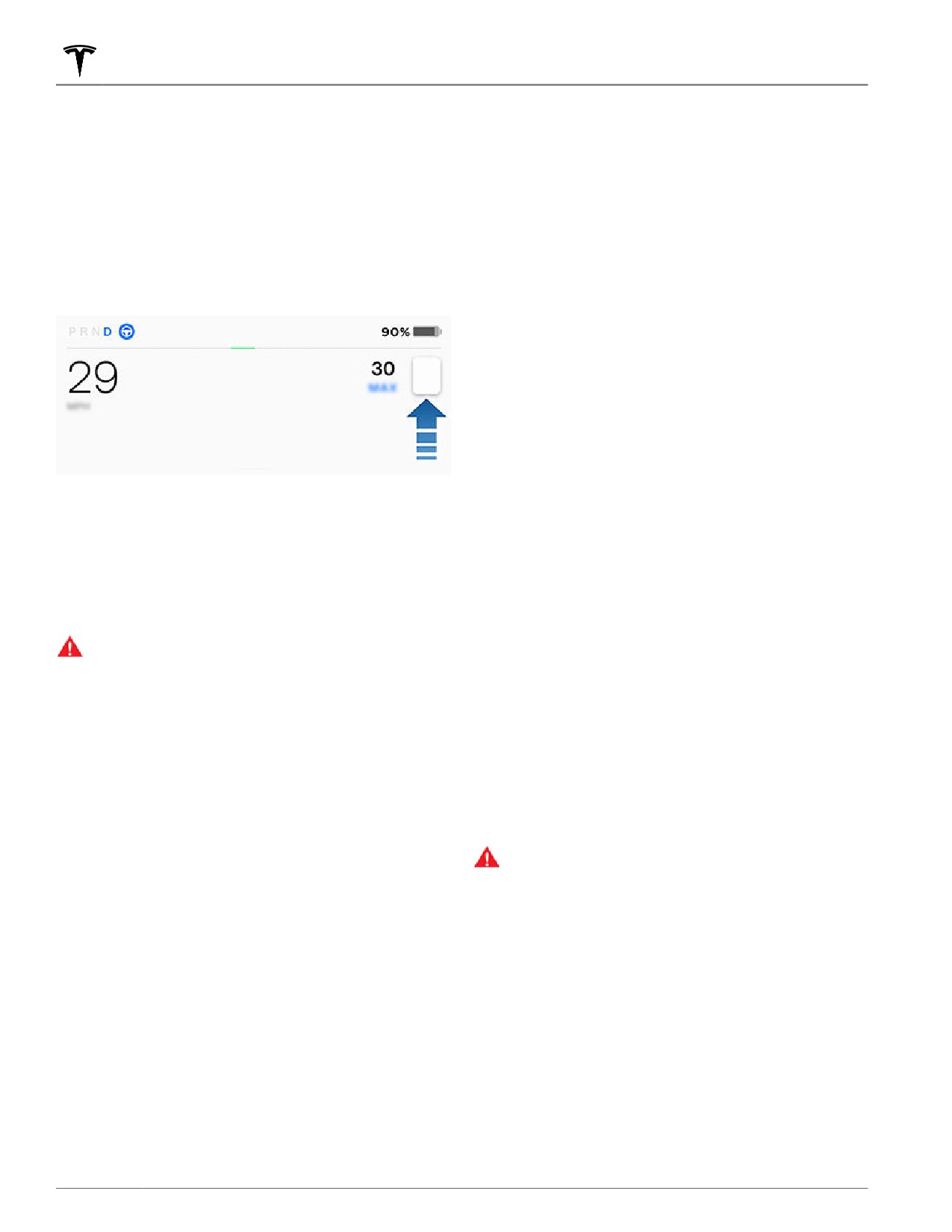
Model Y displays a speed limit on the touchscreen and
NOTE: Speed Assist is not always accurate. In some
you can choose if and how you are warned when you
situations, the location of a road can be miscalculated
exceed the speed limit. Also, instead of using the
detected speed limit, you can base warnings on an
and Speed Assist can display a speed for a directly
arbitrary speed limit that you enter manually.
adjacent road that may have a different speed limit. For
example, Speed Assist can assume Model Y is on a
NOTE: When using Tra
c-Aware Cruise Control, you can
controlled-access highway when it is actually on a
touch this speed limit sign to change your set cruising
nearby surface street, and vice versa.
speed to the detected speed limit (including any offsets
NOTE: Your chosen setting is retained until you manually
that you have set).
change it.
Limitations and Inaccuracies
Speed Assist may not be fully functional or may provide
inaccurate information in these situations:
• Visibility is poor and speed limit signs are not clearly
visible (due to heavy rain, snow, fog, etc.).
• Bright light (such as from oncoming headlights or
direct sunlight) is interfering with the view of the
In situations where Model Y is unable to determine a
camera(s).
speed limit, or if Speed Assist is uncertain that an
acquired speed limit is accurate, the touchscreen may
• Model Y is being driven very close to a vehicle in
not display a speed limit sign and warnings do not take
front of it which is blocking the view of the
effect.
camera(s).
• The windshield is obstructing the view of the
NOTE: Speed limit warnings go away after ten seconds,
camera(s) (fogged over, dirty, covered by a sticker,
or when Model Y slows down below the specified limit.
etc.).
WARNING: Do not rely on Speed Assist to
• Speed limit signs are concealed by objects.
determine the appropriate speed limit or driving
speed. Always drive at a safe speed based on
• The speed limits stored in the map database are
tra
c and road conditions.
incorrect or outdated.
• Model Y is being driven in an area where GPS or map
Controlling Speed Assist
data is not available or where speed limit signs can
not be detected.
To adjust the Speed Limit Warning setting, touch
• Tra
c signs do not conform to standard recognizable
Controls > Autopilot > Speed Limit Warning, then
formats.
choose one of these options:
• A road or a speed limit has recently changed.
• Off - Speed limit warnings do not display and chimes
WARNING: The list above does not represent an
are not sounded.
exhaustive list of situations that may interfere with
• Display - Speed limit signs display on the
proper operation of Speed Assist. Speed Assist
touchscreen and the sign increases in size when you
may fail to provide warnings for many other
exceed the determined limit.
reasons.
• Chime - In addition to the visual display, a chime is
sounded when you exceed the determined speed
limit.
You can also specify how the speed limit is determined:
• Relative - You can set a speed limit offset (+ or -) if
you want to be alerted only when you exceed the
offset speed limit by a specified amount. For
example, you can increase the offset to +10 mph (10
km/h) if you only want to be warned when you
exceed the speed limit by 10 mph (10 km/h).
122
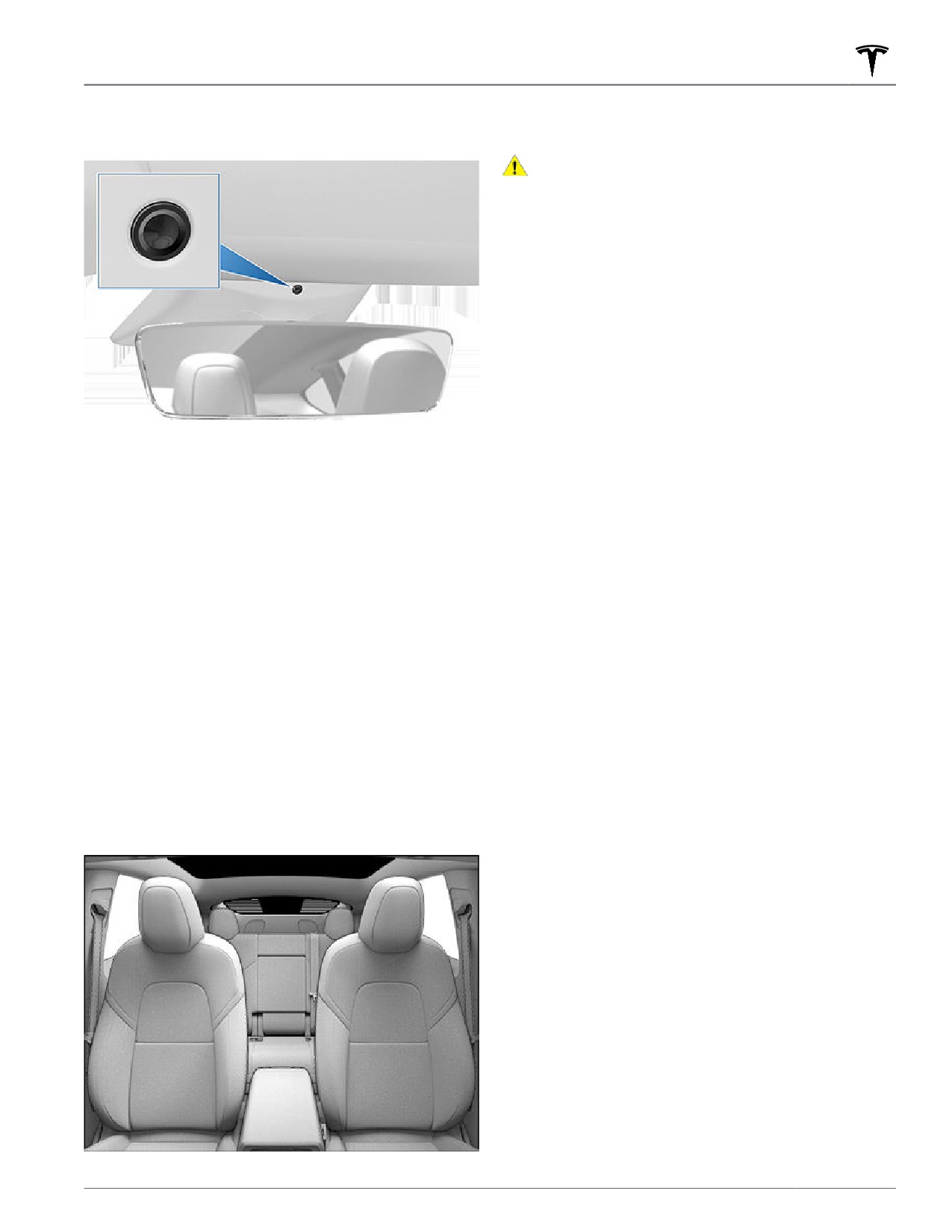
Cabin Camera
Your Model Y may be equipped with a cabin camera
NOTE: Keep the camera lens clean and free of
located above the rear view mirror.
obstructions. Remove any buildup of dirt or dust by
occasionally wiping the camera lens with a clean cloth.
CAUTION: Do not use chemical-based or abrasive
cleaners. Doing so can damage the surface of the
camera lens.
The cabin camera can determine driver inattentiveness
and provide you with audible alerts, to remind you to
keep your eyes on the road when Autopilot is engaged.
By default, images and video from the camera do not
leave the vehicle itself and are not transmitted to
anyone, including Tesla, unless you enable data sharing.
If you enable data sharing and a safety critical event
occurs (such as a collision), Model Y shares short cabin
camera video clips with Tesla to help us develop future
safety enhancements and continuously improve the
intelligence of features that rely on the cabin camera.
Data may also be shared if diagnostics are required on
cabin camera functionality. Cabin camera does not
perform facial recognition or any other method of
identity verification. To protect your privacy, cabin
camera data is not associated with your vehicle
identification number.
To adjust your data sharing preferences touch Controls >
Software > Data Sharing > Allow Cabin Camera
Analytics. You can change your data sharing settings at
any time.
Active Safety Features
123
Controls
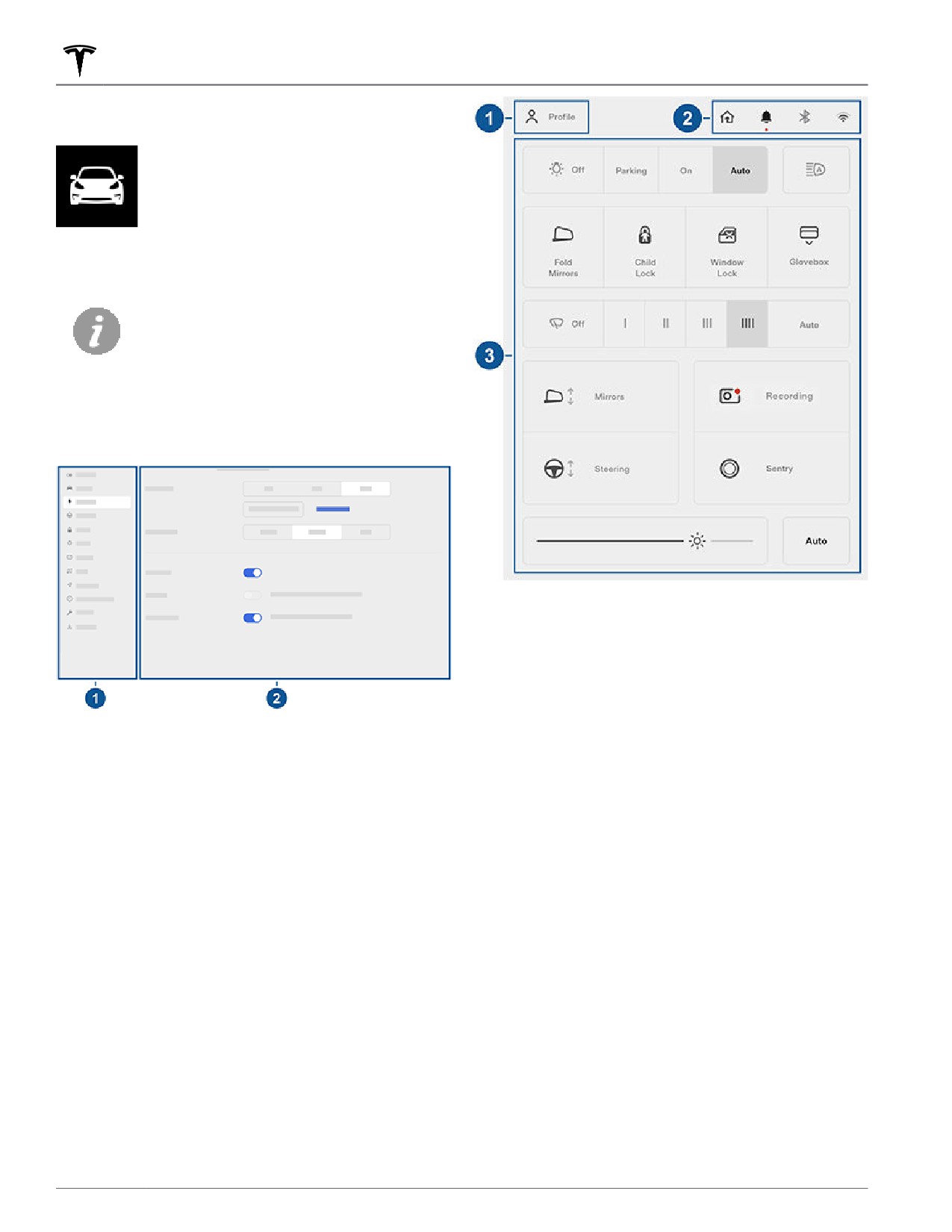
Controls - Overview
Touch Controls on the bottom corner of
the touchscreen to control features and
customize Model Y to suit your
preferences. The Controls screen appears
over the map. Touch an option on the
Controls screen to display the various
settings and options associated with the
chosen option. Swipe to close.
When an information icon displays beside
a specific setting, touch it to display a
popup that provides helpful details about
the associated setting.
NOTE: Many vehicle controls, settings, and preferences
(such as climate, media, and navigation) can be adjusted
hands-free using voice commands (see Voice
Commands on page 150).
1. Create and access driver profiles (see Driver Profiles
on page 46).
2. Display alerts (see Troubleshooting Alerts on page
220) and access settings for HomeLink (see
HomeLink Universal Transceiver on page 157),
Bluetooth (see Pairing a Bluetooth Phone on page
147) and networks (see Connecting to Wi-Fi on page
160).
1. List of available settings. When you select an item
from this list, its associated settings display on the
3. Commonly used controls.
right side of the screen.
2. Settings area. The options available for the chosen
Pedals & Steering
settings display here, and are described next.
Acceleration Adjust the amount of acceleration. Chill
If the touchscreen is unresponsive or demonstrates
limits acceleration for a slightly smoother and gentler
unusual behavior, you can restart it (see Restarting the
ride, whereas Standard provides the normal level of
Touchscreen on page 6).
acceleration.
NOTE: When Chill is selected, Chill displays on the
Shortcuts and Frequently Used Settings
touchscreen above the driving speed.
When you touch Controls, the touchscreen displays the
Steering Mode: Adjust the amount of effort required to
following shortcuts and frequently used settings:
turn the steering wheel (see Adjusting Steering Effort on
page 48).
Regenerative Braking: When you release the accelerator
when driving, regenerative braking slows Model Y and
feeds any surplus energy back to the Battery. If set to
LOW, Model Y does not slow down as quickly, but also
feeds less energy back to the Battery (see Regenerative
Braking on page 63).
124
Controls
NOTE: Regardless of the setting selected, the energy
• Navigate on Autopilot (Beta) (if equipped): Navigate
gained by regenerative braking is reduced if the Battery
on Autopilot automatically exits at off-ramps and
is full, or is extremely cold or hot (in which case, surplus
interchanges based on your navigation route and can
energy is used to heat or cool it).
also make lane changes designed to prepare for exits
and minimize the driving time to your destination.
NOTE: The regenerative braking setting is not available
Touch Customize Navigate on Autopilot to specify
on all vehicles.
how you want Navigate on Autopilot to operate, such
Stopping Mode: Choose how you want Model Y to
as whether you want it to automatically enable at the
behave once regenerative braking has reduced the
start of every trip, how you want it to perform lane
driving speed to a very low speed, Drive or Reverse is
changes, etc. (see Navigate on Autopilot on page
still engaged, and both the accelerator and brake pedals
98).
are released. See Stopping Mode on page 63. You can
NOTE: Navigate on Autopilot is not available in all
adjust this setting only when Model Y is in Park.
market regions.
Apply Brakes When Regenerative Braking Is Limited:
• Trac Light and Stop Sign Control (Beta) (if
Choose if you want the regular braking system to
equipped): Turn on if you want Model Y to
automatically engage whenever regenerative braking is
automatically stop at tra
c lights and stop signs
unavailable or limited (for example, the Battery is cold or
when using Tra
c-Aware Cruise Control or Autosteer
fully charged). When enabled and you release your foot
(see Tra
c Light and Stop Sign Control on page 101).
from the accelerator pedal when regenerative braking is
• Summon (Beta) (if equipped): Automatically park
limited, the braking system engages to provide the same
and retrieve Model Y from outside the vehicle (see
amount of deceleration you experience when
Summon on page 110) .
regenerative braking is available. This results in
consistent deceleration regardless of the state of the
Customize Summon: Determine the bumper
Battery. See Regenerative Braking on page 63.
clearance, distance, amount of side clearance, and
whether Summon requires continuous press to
Slip Start (on Rear-Wheel Drive vehicles): Turn on to
operate (the ability to disable continuous press is not
allow wheels to spin (see Traction Control on page 66).
available in all market regions).
Off-Road Assist (on All-Wheel Drive vehicles): Enable
Standby Mode: Use Standby Mode to eliminate the
Off-Road Assist to disable traction control and allow
delay that occurs when Smart Summon (if equipped)
wheels to spin when driving off-road (see Traction
is starting up.
Control on page 66).
Trailer Mode (available only if equipped with a tow
• Set Speed: When you engage Tra
c-Aware Cruise
package): Must always be active when towing a trailer.
Control or Autosteer, choose whether you want the
Some Autopilot features and rear sensor functionality
initial cruising speed set to the Speed Limit or your
may not be available. See Towing and Accessories on
Current Speed (see Tra
c-Aware Cruise Control on
page 75).
page 88).
• Offset: When set to cruise at the speed limit, you can
Charging
choose a Fixed offset, in which the speed is adjusted
by a specific number of mph (km/h) on all roads, or a
View charging status and adjust settings related to
Percentage offset, in which the speed adjustment
charging Model Y (see Charging Instructions on page
varies depending on the detected speed limit of the
169).
road.
• Blind Spot Camera (if equipped): When ON, the
Autopilot
touchscreen displays the view from the
corresponding side repeater camera whenever you
engage a turn signal to change lanes. See Blind Spot
NOTE: Depending on market region, vehicle
Camera and Collision Warning Chime on page 117.
configuration, options purchased, and software version,
your vehicle may not be equipped with all Autopilot
• Blind Spot Collision Warning Chime (if equipped):
features described below.
Choose if you want a chime to sound when a vehicle
is in your blind spot and a possible collision is
Customize how some of the Autopilot features operate
detected (see Blind Spot Camera and Collision
to provide a safer and more convenient driving
Warning Chime on page 117).
experience. See About Autopilot on page 85 for an
overview of Autopilot components and features.
• Speed Limit Warning: Choose the type of warnings, if
any, you receive if driving speed exceeds the
• Autosteer (Beta): Turn on the feature that provides
detected speed limit (see Speed Assist on page 122).
automatic steering in addition to Tra
c-Aware Cruise
Control (see Autosteer on page 93).
Using the T
ouchscreen
125
Controls
• Speed Limit: Choose if you want Speed Limit
Car Left Open Notification: Choose whether you want
Warning to use a relative or an absolute speed limit
Model Y to send a notification to your Tesla mobile app
(see Speed Assist on page 122). If you choose a
if your car remains open for over approximately 10
relative speed limit, you can specify an Offset to be
minutes after you have left:
alerted only when you exceed the speed limit by the
specified offset amount.
• Off: You are not notified if you leave Model Y open.
• Lane Departure Avoidance: Choose if and how you
• Doors: You are notified only if a door or trunk is left
want the steering wheel to respond if a front wheel
open.
passes over a lane marking when the associated turn
• Doors & Windows: In addition to being notified if a
signal is off (see Lane Assist on page 116).
door or trunk is left open, you are notified if Model Y
• Forward Collision Warning: Choose if and when
is locked and a window is left open.
Model Y displays visual and audible warnings in
situations when there is a high risk of a frontal
Touch Exclude Home to disable the notification when
collision (see Collision Avoidance Assist on page 119).
Model Y is parked at the location you set as Home in
your Favorites list (see Home, Work, and Favorite
• Emergency Lane Departure Avoidance (if equipped):
Destinations on page 137).
When enabled, Model Y attempts to prevent a
potential collision with an object in an adjacent lane
NOTE: To use the Car Left Open Notification, the mobile
by steering the vehicle back into your driving lane in
access setting must be turned on (Controls > Safety >
emergency situations (see Emergency Lane
Allow Mobile Access).
Departure Avoidance on page 117).
NOTE: Notifications are not sent when Model Y is in
• Automatic Emergency Braking: Choose if you want
Camp Mode or if Tesla Theater (if equipped) is active.
Model Y to automatically apply braking when a
frontal collision is imminent (see Collision Avoidance
Lock Confirmation Sound: If on, a soft horn sounds
Assist on page 119).
whenever Model Y locks or unlocks (see Walk-Away
Door Lock on page 12).
• Obstacle-Aware Acceleration: Choose if you want
acceleration to be automatically reduced in situations
Close Windows on Lock: If on, all windows automatically
where Model Y is stopped (or moving slowly) and
close when you lock Model Y.
you accelerate toward a detected obstacle (see
Obstacle-Aware Acceleration on page 120).
Lights
• Trac-Aware Cruise Control Chime: If on, a chime
sounds when you engage or cancel Tra
c-Aware
Cruise Control.
Control interior and exterior lights. See Lights on page
55.
• Green Trac Light Chime (if equipped): In Canada
and U.S.: If on, a chime sounds when you are waiting
at a red tra
c light and the light turns green.
Display
• Appearance: Customize the display to be Dark or
Locks
Light. When set to Auto, the brightness changes
automatically based on ambient lighting conditions.
Keys: You can see all the keys used for Model Y and their
• Brightness: Drag the slider to manually control the
associated driver profiles. You can add, delete, and
brightness level. If Display Mode is set to Auto, the
change the driver profile associated with each key (see
touchscreen further adjusts based on both the
Driver Profiles on page 46).
ambient lighting conditions and your brightness
preference. Model Y remembers your chosen
Window Lock: Locks the rear window switches.
brightness preference and adjusts the touchscreen
Child Lock: If on, safety locks prevent the rear doors
accordingly.
from being opened from inside the vehicle.
• Screen Clean Mode: When enabled, your touchscreen
darkens and temporarily disables to facilitate
Walk-Away Door Lock: If on, doors automatically lock
cleaning. Follow the onscreen instructions to exit
when you walk away from the vehicle carrying your key
Screen Clean Mode.
fob or phone key (see Walk-Away Door Lock on page
12).
• Touchscreen Language: Select the language that the
touchscreen displays.
Driver Door Unlock Mode: Driver Door Unlock Mode will
NOTE: Model Y must be in Park to change the
only unlock the driver's door when first unlocking the
language. When you change the language, you
vehicle.
experience a brief delay as Model Y shuts down and
restarts the touchscreen.
Unlock on Park: If on, doors automatically unlock when
you engage Park (see Unlock on Park on page 12).
126
Controls
• Voice Recognition Language: Choose the language
• Trip Planner (if available in your market region): Use
to be used for voice commands.
Trip Planner to plan your driving and add stops at
superchargers if charging is needed to reach a
• Voice Navigation Language: Choose the language
destination to which you are navigating (see Trip
that the navigation system uses for spoken
Planner on page 139).
instructions.
• Online Routing: When selected, Model Y can
NOTE: For languages that require a download, select
automatically reroute you to a navigation destination
the language in the dropdown list to initiate the
to avoid delays (see Online Routing on page 139).
download (Wi-Fi connection required).
• Avoid Ferries: When on, navigation routes avoid the
• Time: Choose to display time in either 12 or 24 hour
use of ferries.
format.
• Avoid Tolls: When on, navigation routes avoid the use
• Energy Display: Choose to display remaining energy
of tolls.
and charging units as either a percentage of battery
• Use HOV Lanes: When on, navigation routes include
energy remaining, or as an estimate of the distance
the use of High Occupancy Vehicle (HOV) lanes. This
you can drive.
is particularly useful when using Navigate on
NOTE: When anticipating when you need to charge,
Autopilot, if equipped (see Navigate on Autopilot on
use energy estimate as a general guideline only. Many
page 98). You are responsible for ensuring Model Y is
factors have an impact on energy consumption. See
eligible to use HOV lanes.
Factors Affecting Energy Consumption on page 71.
NOTE: You can also display these navigation settings by
• Distance: Choose to display range using miles or
touching the settings icon on the map (see Maps and
kilometers.
Navigation on page 135).
• Temperature: Choose to display temperature using
Fahrenheit or Celsius.
Safety
• Tire Pressure: Choose to display tire pressures using
BAR or PSI.
Allow Mobile Access: Allow your Tesla mobile app to
access your Model Y (see Mobile App on page 163).
Trips
NOTE: To disable Allow Mobile Access, you must enter
your Tesla account credentials.
View the odometer and view and reset up to two trip
Parking Brake: Manually apply and release the parking
meters that summarize how far you have driven (see Trip
brake (see Parking Brake on page 64).
Information on page 70).
Power Off: Manually power off Model Y (see Powering
Navigation
Off on page 52).
Sentry Mode: When enabled, cameras and sensors
Customize how the navigation system works:
remain powered on and ready to record suspicious
activity whenever Model Y is locked and in Park. See
• Navigation Volume: Increase or decrease the volume
(Using Sentry Mode on page 154).
of spoken navigation instructions by touching - or +,
respectively. Fully decreasing the volume mutes the
View Live Camera via Mobile App (if equipped): Enable
instructions. You can also mute navigation
to see a live video feed of your vehicle’s surroundings
instructions when a navigation route is active by
from the mobile app (see Using Sentry Mode on page
touching the volume icon on the turn-by-turn
154).
direction list.
NOTE: This volume setting applies only to the
Dashcam (if equipped): When enabled, cameras can
navigation system’s spoken instructions. It does not
record and save video footage of the surrounding
change the volume of media player and phone calls.
roadway (see Using Dashcam on page 154). Customize
Dashcam by selecting:
• Automatic Navigation: Enable if you want Model Y to
automatically initiate a navigation destination when
• Auto: Dashcam automatically saves a recording to
you get in your vehicle. Destinations are predicted
the USB flash drive (if available and installed) in
based on commonly driven routes, time of day, and
situations where Model Y detects a safety event, such
calendar entries (see Automatic Navigation on page
as a collision or airbag deployment.
137).
• Manual: You must touch the Dashcam icon to save a
recording of the most recent 10 minutes of driving to
the USB flash drive.
Using the T
ouchscreen
127
Controls
• Off: Dashcam is disabled until you select Auto or
Adjust Headlights: Make adjustments to the level of the
Manual.
headlights . See Headlight Adjustments on page 56.
• On Honk: When you press the horn, Dashcam saves a
CAUTION: Headlights should only be adjusted by
recording of the most recent 10 minutes of driving to
Tesla Service.
the USB flash drive.
Towing: Prepare Model Y to be transported by keeping it
in Neutral (with the parking brake disengaged), when
Delete Dashcam Clips: Deletes all Dashcam and Sentry
you exit. See Instructions for Transporters on page 209.
Mode footage, including recent and saved clips.
Wheel Configuration: Update your vehicle's wheel
Format USB Drive (if equipped): If a USB flash drive is
configuration if you are installing new wheels or
inserted into a front USB port, touch to format the flash
swapping them for different ones.
drive to allow Model Y to save video recordings using
Dashcam, Sentry Mode , if equipped (see USB Drive
CAUTION: Changing your vehicle's wheel
Requirements for Recording Videos on page 22).
configuration can impact range estimates, tire
pressure warnings, and vehicle visualization. See
Park Assist Chimes: If on, a beep sounds when Model Y
Tire Care and Maintenance on page 176.
approaches an object while parking (see Park Assist on
WARNING: Tesla is not liable for damage caused
page 67).
by using wheels not approved by Tesla.
Joe Mode: If on, Joe Mode lowers the volume of your
Notifications: Display a list of notifications that have
vehicle's chimes, except for turn signals.
recently appeared on your vehicle.
NOTE: Joe Mode may not be available at delivery.
Camera Calibration (if equipped): Clear the existing
Security Alarm (if equipped): Enable the security alarm
calibration of Autopilot cameras to reset the stored
(see Safety & Security Settings on page 152).
camera positions and angles. Once calibration is cleared,
you must drive to calibrate the cameras. See Drive to
Tilt/Intrusion: If your vehicle is equipped with the
Calibrate Cameras on page 86 for more information.
security package, a battery-backed siren sounds in
situations where Model Y detects motion inside the
Factory Reset: Erase all personal data (saved addresses,
cabin, or is moved or tilted (for example, with a tow
music favorites, HomeLink programming, etc.) and
truck or jack). See Tilt/Intrusion (if equipped) on page
restore all settings to their factory defaults. This is useful
152.
when transferring ownership of Model Y. Before erasing,
you must enter the credentials for your Tesla account.
PIN to Drive: Increase security by preventing Model Y
from being driven until a 4-digit PIN (Personal
Wiper Service Mode: Turn on to provide easy access to
Identification Number) is entered (see PIN to Drive on
wiper blades (see Wiper Blades and Washer Jets on
page 152).
page 186).
Glovebox PIN: For additional security, protect glovebox
Software
contents using a 4-digit PIN (see Glovebox PIN on page
152).
Learn more about your Model Y and the status of
Cabin Overheat Protection: Reduce the temperature of
software updates:
the cabin in extremely hot ambient conditions for a
period of up to twelve hours after you exit Model Y (see
• Get more information about your Model Y such as the
Cabin Overheat Protection on page 133). Cabin
VIN, vehicle name, and odometer. Touch Additional
Overheat Protection stops operating after 12 hours, or
vehicle information to display a list of the various
when the energy remaining in the Battery drops to 20%,
options your vehicle is equipped with.
whichever occurs first.
• View your current software version, map version, and
release notes.
Service
• View and install new software updates. Model Y must
be connected to Wi-Fi to update the software.
• Customize how often you want to receive software
new version of the onscreen owner's manual is typically
updates by touching Software Update Preferences
provided with every software update and therefore
(see Software Update Preferences on page 161).
contains more recent information that those provided by
Tesla elsewhere (for example, via the web).
• Data Sharing: Allow sharing cabin camera analytics
with Tesla to help improve safety features (see Cabin
Car Wash Mode: Enable before using a car wash to
Camera on page 123).
ensure all doors and windows are closed, and all chimes
are turned off. See Car Wash Mode on page 183.
128
Controls
To further personalize Model Y, you can name it. Touch
Controls > Software > Name Your Vehicle located on the
right side of the screen below the image of your Model
Y. If your Model Y has already been named, its name
displays instead and you can simply touch the existing
name to change it. Enter the new name in the popup,
then touch Save. The name of your Model Y also appears
in your Tesla mobile app.
Erasing Personal Data
You can erase all personal data (saved addresses, music
favorites, HomeLink programming, etc.) and restore all
customized settings to their factory defaults. This is
useful when transferring ownership of Model Y. Touch
Controls > Service > Factory Reset. Before erasing,
Model Y verifies your credentials by prompting you to
enter the user name and password associated with your
Tesla account.
Using the T
ouchscreen
129
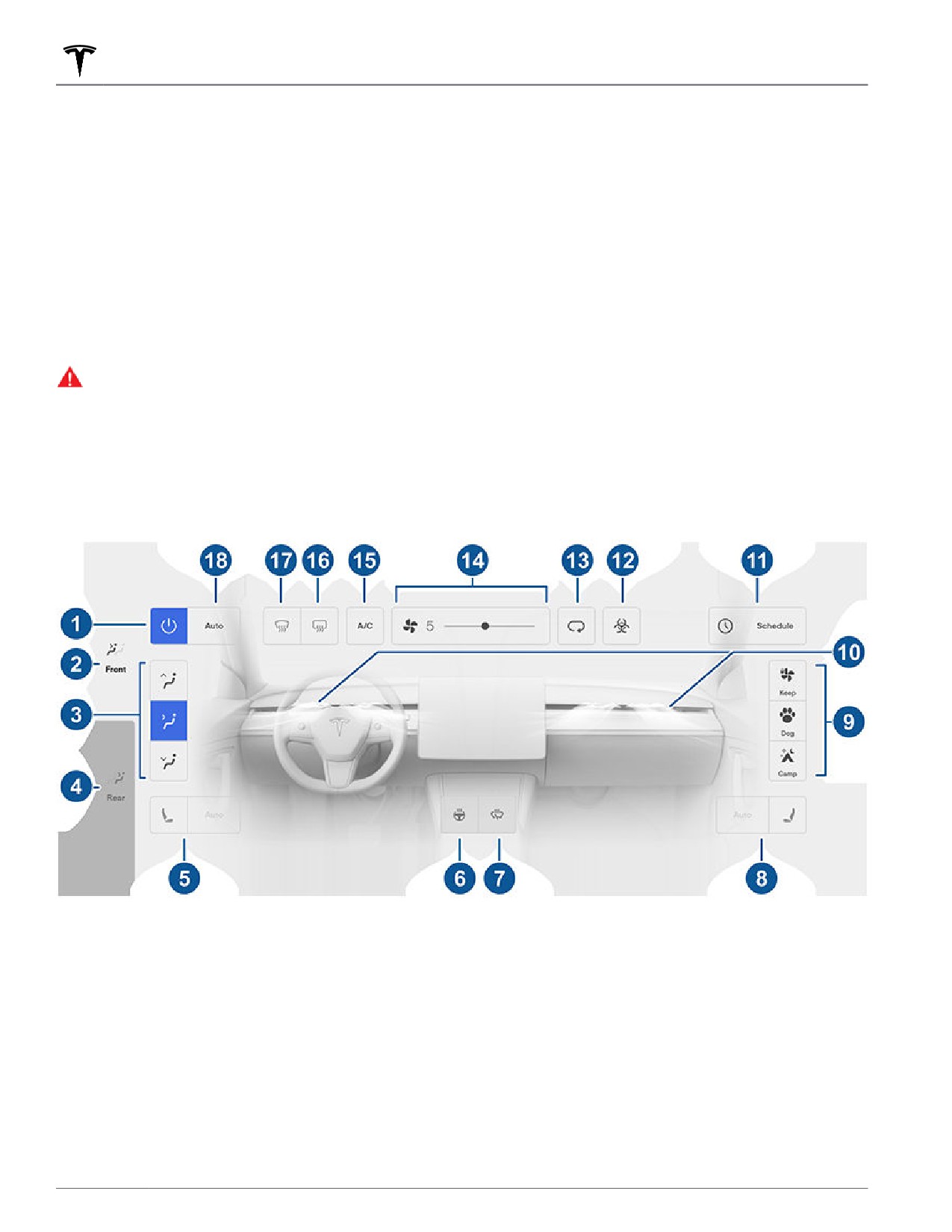
Climate Controls
Overview of Climate Controls
Climate controls are available at the bottom of the touchscreen. By default, climate control is set to Auto, which
maintains optimum comfort in all but the most severe weather conditions. When you adjust the cabin temperature
while in the Auto setting, the system automatically adjusts the heating, air conditioning, air distribution, and fan
speed to maintain the cabin at your selected temperature.
Touch the displayed temperature at the bottom of the touchscreen to access the main climate controls screen,
where you can adjust your climate preferences. You can revert back to Auto at any time by touching Auto. Touch the
power button on the main climate controls screen to toggle on or off. For quick access to common controls, touch <
or > to display the climate popup.
NOTE: The climate control system is powered by the high voltage Battery. Therefore, prolonged use decreases
driving range.
WARNING: To avoid burns resulting from prolonged use, individuals who have peripheral neuropathy, or whose
capacity to feel pain is limited because of diabetes, age, neurological injury, or some other condition, should
exercise caution when using the climate control system and seat heaters.
Adjusting Climate Control Settings
NOTE: Easily adjust your climate preferences, such as turning on the seat heater or changing the cabin temperature,
hands-free by using voice commands (see Voice Commands on page 150).
NOTE: For one-touch access to seat heaters and defrosters, you can add these controls to My Apps. See
Customizing My Apps on page 6.
1. Touch to turn the climate control system on or off.
2. Touch to adjust the climate settings for the front cabin.
3. Choose where air flows into the front cabin (windshield, face-level, or foot-level vents). You can choose one or
more vents.
4. Touch to adjust the climate settings for the rear cabin. If set to Auto, the rear vents turn on automatically when
the front climate system is on and a passenger is detected (see Adjusting the Rear Vents on page 133).
130
Climate Controls
5. Touch the driver's side seat icon to adjust seat heaters for the driver. The seat operates at three levels from 3
(highest) to 1 (lowest). The seat icon displays twisting lines that turn red (heating) corresponding with the set
level. Auto, which displays when the climate control system is set to Auto, warms the front seats based on cabin
temperature. For one-touch access to seat heaters, you can add them to the touchscreen's bottom bar (see
Customizing My Apps on page 6).
6. Touch to turn on the heated steering wheel (if equipped).
7. Touch to turn on the wiper defrosters (if equipped). Wipers defrost for 30 minutes then turn off automatically.
8. Touch the passenger's side seat icon to adjust seat heaters for the front passenger. The seat operates at three
levels from 3 (highest) to 1 (lowest). The seat icon displays twisting lines that turn red (heating) to corresponding
with the set level. Auto, which displays when the climate control system is set to Auto, warms the front seats
based on cabin temperature. For one-touch access to seat heaters, you can add them to the touchscreen's
bottom bar (see Customizing My Apps on page 6).
9. When in Park, these settings display to allow you to keep the climate control system operating, even when you
leave Model Y (see Keep Climate On, Dog, and Camp on page 132).
10. Touch to adjust how air flows from the front vents. See Adjusting the Front Vents on page 133.
11. When Model Y is in Park, touch Schedule to set a recurring daily time when you want Model Y to be ready to
drive by preconditioning the Battery and cabin climate and/or charging during off-peak hours (see Scheduled
Charging and Scheduled Departure on page 172).
12. If your Model Y is equipped with the medical-grade HEPA (High E
ciency Particulate Air) filter, this filter ensures
the best quality air inside the cabin whenever the climate control system is on and outside air is entering the
cabin (recirculate is off). The HEPA filter is extremely effective at removing particles, including pollution,
allergens, bacteria, pollen, mold spores, and viruses. Both the HEPA filter and the secondary filtration system also
contain activated carbon to remove a broad spectrum of odors and gases. When you engage Bioweapon Defense
Mode, the positive pressure inside the cabin minimizes the amount of outside air that can enter the vehicle.
NOTE: Some gases, such as carbon monoxide, are not effectively removed by activated carbon.
13. Touch to control the flow of air inside the cabin. Air can be drawn into Model Y from outside or air can be
recirculated inside the cabin.
14. Use the slider to adjust the fan speed.
NOTE: Adjusting the fan speed may change the selected setting for how air is drawn into Model Y in order to
increase or reduce air flow.
15. Touch to turn the air conditioning system on or off. Turning it off reduces cooling, but saves energy.
NOTE: Because Model Y runs much quieter than a gasoline-powered vehicle, you may notice the sound of the air
conditioning compressor as it is operating. To minimize noise, reduce the fan speed.
16. Touch to warm up the rear windshield. After 15 minutes, the rear window defroster automatically turns off. The
exterior side mirrors are also heated whenever the rear window defroster is operating.
17. The windshield defroster distributes air flow to the windshield. Touch once to defog the windshield (the icon turns
blue) (the icon turns yellow). Touch a second time to defrost the windshield (the icon turns red and the heating
and fan operate at maximum levels). Touch a third time to turn off and restore the air distribution, heating, and
fan to their previous settings. In cold ambient temperatures, the exterior side mirrors are also heated whenever
the windshield defroster is operating. See Cold Weather Best Practices on page 81 for more information on
preparing for cold weather.
18. Touch Auto to turn the Auto setting on or off.
Climate Popup
Touch the temperature arrows on the bottom of the touchscreen to display a popup for easy access to some of the
most common climate controls:
Using the T
ouchscreen
131
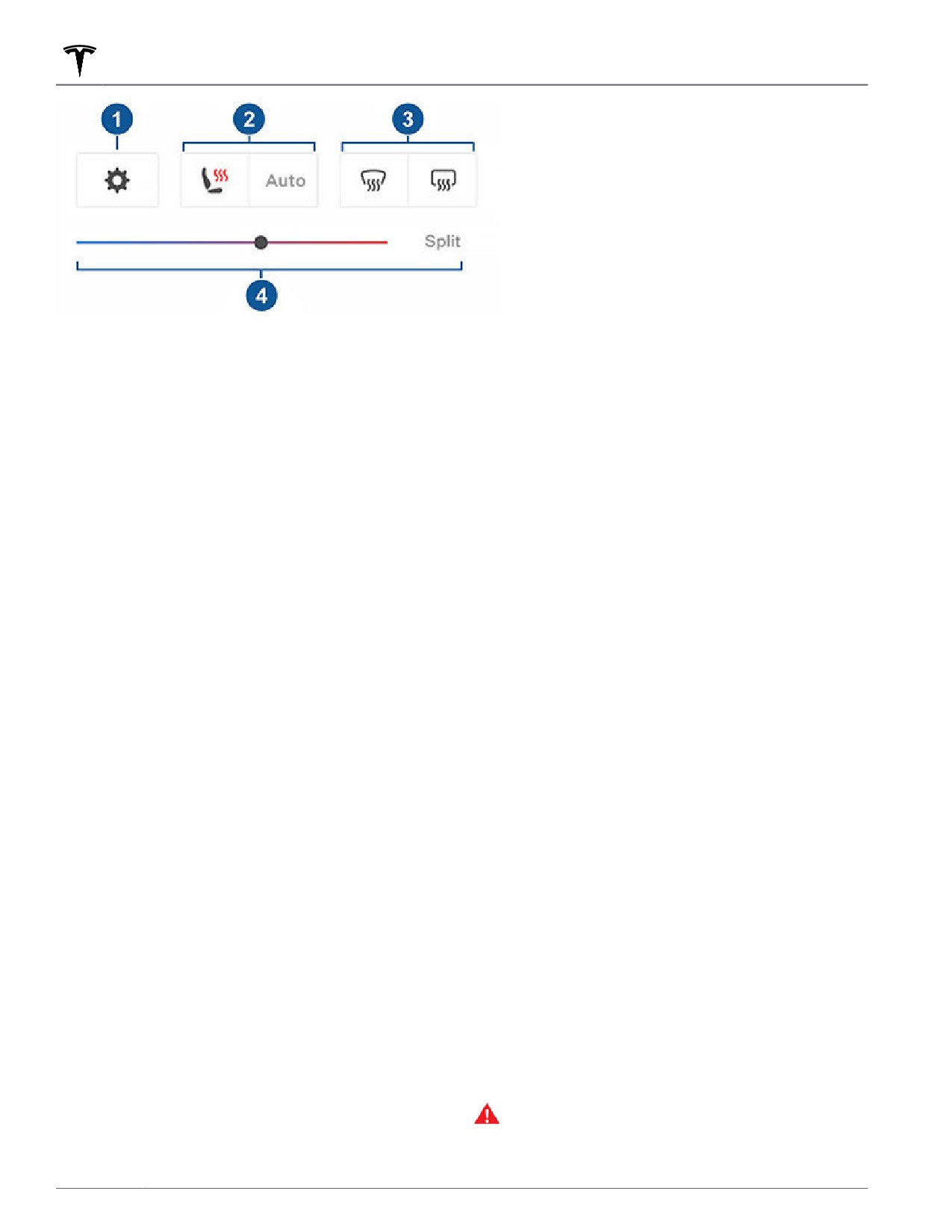
Climate Controls
NOTE: For one-touch access to seat heaters and defrosters, you can add these controls to My Apps. See
Customizing My Apps on page 6.
1. Touch to access the main climate controls screen.
2. Enable or disable heated seats.
3. Enable or disable the front or rear windshield defrosters.
4. Modify the cabin temperature by dragging along the slider. You can also enable temperature splitting which
allows the driver and front passenger to customize their own climate preferences. The front passenger can touch
the temperature icon on the bottom of the touchscreen or the main climate controls screen to adjust. Touch Split
again to disable climate splitting.
1. Make sure the Battery's charge level is at least 20%.
Keep Climate On, Dog, and Camp
2. Engage Park. The Keep Climate On, Dog, and Camp
The Keep Climate On, Dog, and Camp settings allow you
settings are available only when Model Y is in Park.
to keep the climate control system running when in Park,
3. If necessary, adjust the climate settings.
even after you've left Model Y or choose to stay inside
the vehicle. These settings are useful when it is
4. On the climate controls screen, touch Keep Climate
important to maintain the cabin temperature in hot or
On, Dog, or Camp.
cold weather conditions. For example, when leaving
NOTE: You can also control Dog and Camp from the
groceries in Model Y on hot days, you may want to use
mobile app, by swiping up from the gray bar on the
Keep Climate On to prevent spoilage.
Climate screen.
Dog is designed to maintain a comfortable cabin
temperature for your pet while you actively and
The climate control system attempts to maintain your
frequently monitor this temperature using the mobile
climate settings until you shift out of Park or manually
app (which requires both your phone and the vehicle to
turn it off. Avoid using Keep Climate On, Dog, or Camp
have cellular connectivity). When in Dog, the
when the battery charge is low. If the Battery's charge
touchscreen displays the current cabin temperature to
level drops below 20%, the Tesla mobile app attempts to
inform people passing by that your pet is safe. This
repeatedly send you notifications reminding you to
setting is not intended for people, and should only be
check on anything that you have left in Model Y.
used for short periods of time while you stay in close
proximity should you need to return to the vehicle in
NOTE: Software updates cannot be performed when
situations where the temperature can no longer be
Keep Climate On, Dog, or Camp is active.
maintained.
NOTE: The intrusion sensor (if equipped) automatically
disables when Keep Climate On, Dog, or Camp is active.
Camp allows you to power electronics through the USB
However, you can override this behavior and keep the
ports and low voltage outlet in addition to maintaining
intrusion sensor enabled. To do so, touch Controls >
the cabin temperature. The touchscreen remains on so
Safety > Tilt/Intrusion after enabling Keep Climate On,
you can play music, browse the internet, play games in
Dog, or Camp. However, note that keeping the intrusion
the arcade, or watch shows in Tesla Theater. You can
sensor enabled while Keep Climate On, Dog, or Camp is
also control media and climate settings from a paired
active can trigger an alarm event as a result of air
phone. Camp is ideal for remaining inside your vehicle,
movement inside the cabin.
such as camping or staying with a child. While active,
Sentry Mode and the vehicle alarm system are disabled.
WARNING: Never leave a child unattended in your
vehicle.
To operate Keep Climate On, Dog, or Camp:
132
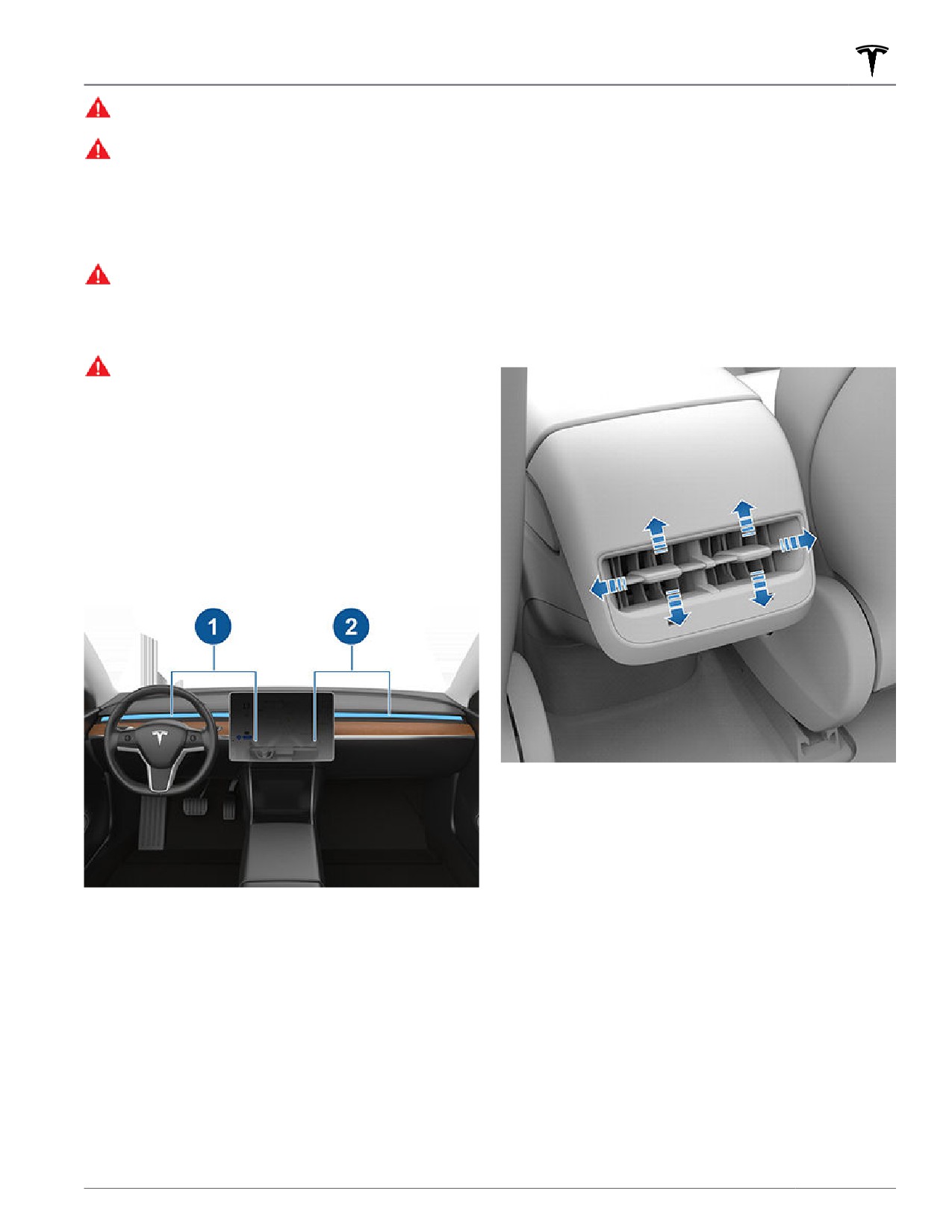
Climate Controls
WARNING: Check local laws for any restrictions on
NOTE: When you split a vent into two separate air flows,
leaving pets unattended in your vehicle.
the air flow in each direction is not as strong as when all
air is flowing in a single direction.
WARNING: You are responsible for the safety of
your dog or pet. Never leave them in Model Y for
NOTE: Outside air is drawn into Model Y through the
long periods of time. Constantly monitor the
grill in front of the windshield. Keep the grill clear of
vehicle temperature and their well-being. Make
obstructions, such as leaves and snow.
sure you have su
cient cellular coverage on your
phone and time to return to the vehicle, if
Adjusting the Rear Vents
necessary.
WARNING: In the unlikely event that your climate
Model Y has vents located at the back of the center
control system needs service or is not working as
console where air flows from when the setting is turned
expected, avoid using Keep Climate On, Dog, and
on from the touchscreen. To direct the flow of air in the
Camp. Never rely on your vehicle to protect
rear cabin area, adjust the vents at the rear of the center
something irreplaceable.
console up, down, or from side to side as necessary.
WARNING: You can adjust and monitor the climate
control system remotely using the mobile app.
However, if you use the mobile app to turn off the
climate control system, Keep Climate On, Dog, and
Camp stop operating.
Adjusting the Front Vents
Model Y has a unique horizontal face-level vent that
spans the width of the dashboard. Using the
touchscreen, you can pinpoint exactly where you want
to direct the air flowing from this vent when heating or
cooling the front cabin area.
Cabin Air Filter(s)
Model Y has one or more air filters to prevent pollen,
industrial fallout, road dust and other particles from
entering through the vents.
NOTE: Cabin air filter(s) require periodic replacement.
1. Driver vent and controls
See Service Intervals on page 174.
2. Passenger vent and controls
Cabin Overheat Protection
When the face-level vent is on you can adjust the
direction of the air flow from each vent. To adjust the
The climate control system can reduce the temperature
direction of the air flow, simply touch the radiating air
of the cabin in extremely hot ambient conditions for a
waves from the corresponding vent on the touchscreen.
period of up to twelve hours after you exit Model Y.
The air flows in a single stream when centered or splits
Touch Controls > Safety > Cabin Overheat Protection
into mirrored air streams when air is directed outward or
and choose:
inward from the center of the vent.
• Off: Disable Cabin Overheat Protection.
When Model Y detects that there are no passengers
sitting in the passenger seat, the passenger vent and
controls automatically turn off. Adjust the climate
settings to enable passenger air flow.
Using the Touchscreen
133
Climate Controls
• No A/C: Only the fan operates when the cabin
• It is normal for a small pool of water to form under
temperature exceeds 105° F (40° C). This option
Model Y when parked. Extra water produced by the
consumes less energy but the cabin temperature may
dehumidifying process is drained underneath.
exceed 105° F (40° C).
• Model Y is designed to automatically maximize
• On: The air conditioning operates when the cabin
e
ciency; therefore, your air conditioning
temperature exceeds 105° F (40° C).
compressor and external fan may run and make noise
even when the outside temperature is cold and your
NOTE: Cabin Overheat Protection operates until 12 hours
vehicle is heating or supercharging.
has elapsed since you exited Model Y, or until the
• To reduce the temperature in the cabin in hot
Battery energy drops below 20%, whichever comes first.
weather conditions, the fan may turn on to vent the
WARNING: Never leave children or pets in the
cabin when the vehicle is parked. This occurs only if
the battery's charge level is above 20%.
vehicle unattended. Due to automatic shut-off or
extreme outside conditions, the inside of the
vehicle can become dangerously hot, even when
Cabin Overheat Protection is enabled.
Climate Control Operating Tips
• You can direct the face-level vents toward the
windows to help defrost or defog them.
• When you use the mobile app to turn on the climate
control system, it automatically turns off after four
hours or if the charge level drops to 20%. To cool or
heat the cabin for a longer period, you must turn it on
again.
• Your charge port latch may freeze in extremely cold
weather or icy conditions. In cases where you cannot
remove or insert the charge cable, or your vehicle is
not Supercharging due to the latch being frozen in
place, enable Defrost Car in the mobile app. This
helps thaw ice on the charge port latch so the charge
cable can be removed or inserted. See Cold Weather
Best Practices on page 81 for more information.
• If the climate control system is louder than you prefer,
manually reduce the fan speed.
• In addition to cooling the interior, the air conditioning
compressor also cools the Battery. Therefore, in hot
weather, the air conditioning compressor can turn on
even if you turned it off. This is normal because the
system’s priority is to cool the Battery to ensure it
stays within an optimum temperature range to
support longevity and optimum performance.
• Even when not in use, you may hear Model Y emit a
whining noise or the sound of water circulating.
These sounds are normal and occur when the internal
cooling systems turn on to support various vehicle
functions, such as maintaining the low voltage
battery and balancing the temperature of the high
voltage Battery.
• To ensure the climate control system operates
e
ciently, close all windows and ensure that the
exterior grille in front of the windshield is free of ice,
snow, leaves, and other debris.
• In very humid conditions, it is normal for the
windshield to fog slightly when you first turn on the
air conditioning.
134
Maps and Navigation
Map Overview
Map Display
The touchscreen displays a map at all times (except
Touch these icons to customize what the map displays:
when Model Y is shifted into Reverse).
Display/hide satellite imagery (if equipped
Use your finger(s) to interact with the map:
with premium connectivity).
• To move the map in any direction, hold and drag a
finger.
• To rotate the map in any direction, hold and turn two
Display/hide tra
c conditions (if equipped
fingers.
with premium connectivity). Green lines
• To zoom the map in or out, expand or pinch two
indicate no tra
c; orange lines indicate
fingers, respectively.
light tra
c; red lines indicate moderate
tra
c; and pink lines indicate heavy tra
c.
NOTE: When you rotate or move the map, your current
To ensure tra
c is easy to identify along a
location is no longer tracked. The message "Tracking
navigation route, green tra
c lines display
under the blue route line, whereas orange,
Disabled" displays briefly next to the map orientation
red, and pink tra
c lines display on top of
icon and the icon turns gray. To re-enable tracking, touch
the blue route line.
the map's orientation icon and choose North Up or
Heading Up.
Display/hide map details (such as points of
NOTE: The map zooms in and out automatically when a
interest).
navigation route is active.
To change the orientation of the map, toggle between
these options:
Drop a pin anywhere on the map by pressing and
North Up - North is always at the top of
holding your finger on a desired location. When you
the screen.
drop a pin, or touch an existing pin, the chosen location
is centered on the map, and a popup screen provides
information about the location. From this popup, you
can navigate to the location, call the location (if a phone
number is available) and add or remove the location
from your list of favorite destinations (see Home, Work,
Heading Up - The direction you are
and Favorite Destinations on page 137).
driving is always at the top of the screen.
The map rotates as you change direction.
This icon has an integrated compass that
indicates the direction you are driving.
Display/hide all charging locations and a
popup list that includes the city and
NOTE: Touching this icon while
proximity of the corresponding stations on
navigating to a destination displays the
the map. Charging locations include Tesla
route overview.
Superchargers, destination charging sites,
third-party fast chargers, and public
The route overview is available when you
chargers that you have used previously.
are navigating to a destination. The route
See Charging Locations on page 138.
overview also displays when you expand
the turn-by-turn direction list (by swiping
Touch the lightning bolt icons in the popup
it downward). When you collapse the
list to filter by the types of chargers based
turn-by-turn direction list by swiping it
on max power.
upward, the map reverts back to
displaying your previously chosen
NOTE: In some market regions, third-party
orientation.
fast chargers are also included on the map
as dark gray pins when you display
Your current location is shown on the map. When you
chargers.
rotate or move the map, your current location is no
longer tracked. To re-enable tracking, touch the map's
orientation icon to choose North Up or Heading Up.
When you touch the map while a navigation route is
active, the turn-by-turn direction list displays the next
set of directions and the orientation icon disappears.
Touch anywhere on the map to re-display it.
Using the Touchscreen
135

Maps and Navigation
Navigation Settings
Navigating to a Destination
To navigate to a location, touch the search bar in the
The navigation settings icon displays when
corner of the map and enter a destination, send the
you touch ... once you start navigating to a
destination from your phone, or speak a voice command
destination.
(see Voice Commands on page 150). You can enter or
NOTE: You can also access navigation
speak an address, landmark, business, etc. When you
settings by touching Controls >
touch the search bar, you can also choose from the
Navigation.
following types of locations:
• A saved Home or Work location (see Home, Work,
Touch the navigation settings icon to customize the
and Favorite Destinations on page 137).
navigation system to suit your preferences: (the
available settings vary depending on your market region
• A Charging destination (see Charging Locations on
and vehicle configuration):
page 138).
• A Recent destination (the most recent destination is
• Touch - or + to increase or decrease the volume of
listed at the top).
spoken navigation instructions. Decreasing all the
• A destination you have marked as a Favorite (see
way to the left, or touching the speaker icon, mutes
Home, Work, and Favorite Destinations on page
the instructions. You can also mute/unmute
137).
navigation instructions by touching the speaker icon.
This volume setting applies only to the navigation
• A popular restaurant when you're feeling Hungry or a
system's spoken instructions. Volume for Media
popular destination (such as museums and
Player and Phone is not changed.
amusement parks) when you're feeling Lucky (see I'm
Feeling Lucky, Hungry on page 137).
NOTE: Your Model Y automatically adjusts the
volume based on driving speed and climate settings.
NOTE: If a data connection is not available, onboard
• Enable Automatic Navigation if you want Model Y to
maps allow you to navigate to any destination, but you
automatically initiate a navigation destination when
must enter the exact and complete address.
you get in your vehicle. Destinations are predicted
NOTE: You can start navigation remotely from your IOS®
based on commonly driven routes, time of day, and
or Android™ device using the "share" functionality on
calendar entries (see Automatic Navigation on page
your device after allowing access to the Tesla mobile
137).
app.
• Enable Trip Planner (if available in your market
region) to add supercharger stops as needed.
When you specify a location, the touchscreen zooms out
Supercharging stops are added to navigation routes
to provide an overview of the route you need to travel
with the goal of minimizing the amount of time you
and displays a turn-by-turn direction list. Estimated
spend driving and charging (see Trip Planner on page
arrival time, driving time, and mileage displays at the
139).
bottom of the direction list. Note the following about the
turn-by-turn direction list:
• Enable Online Routing to be automatically rerouted
to avoid heavy tra
c (see Online Routing on page
• The Battery icon on the turn list provides a visual
139).
representation showing an estimate of how much
• Touch Avoid Ferries to be automatically routed to
energy will remain when you reach your destination,
avoid ferries.
and how much will remain if you make a round trip
back to your current location. See Predicting Energy
• Touch Avoid Tolls to be automatically routed to avoid
Usage on page 139.
tolls.
• If charging is needed to reach your destination and
• Touch Use HOV Lanes to include High Occupancy
Trip Planner is enabled (and available in your market
Vehicle (HOV) lanes on navigation routes. This is
region), the navigation route automatically includes
particularly useful when using Navigate on Autopilot
Supercharger stops (see Trip Planner on page 139).
(see Navigate on Autopilot on page 98).
• If you won't have enough energy to reach your
NOTE: The navigation settings available can vary
destination and there is no Supercharger on the
depending on region and vehicle configuration.
route, an alert tells you that charging is needed to
reach your destination.
• Each turn is preceded by the distance to the
maneuver.
• To see the bottom of the list, you may need to drag
the list upward.
• Touch the top of the list to minimize it.
136