Lincoln Aviator (2023 year). Manual in english - page 34
 

  Index      Manuals     Lincoln Aviator (2023 year). Manual in english


Search            copyright infringement  


Content      ..     32      33      34      35     ..


Lincoln Aviator (2023 year). Manual in english - page 34


Changing the Format of the Map

Display the map in one of the following
formats:

A two-dimensional map with the direction
you are traveling toward the top of the
screen.

A two-dimensional map with north toward
the top of the screen.

A three-dimensional map with the
direction you are traveling toward the
front.

Zoom

Display more or less detail on the map.

Note:

Use pinch gestures to zoom in and

out. Place two fingers on the screen and
move them apart to zoom in. Place two
fingers on the screen and bring them
together to zoom out.

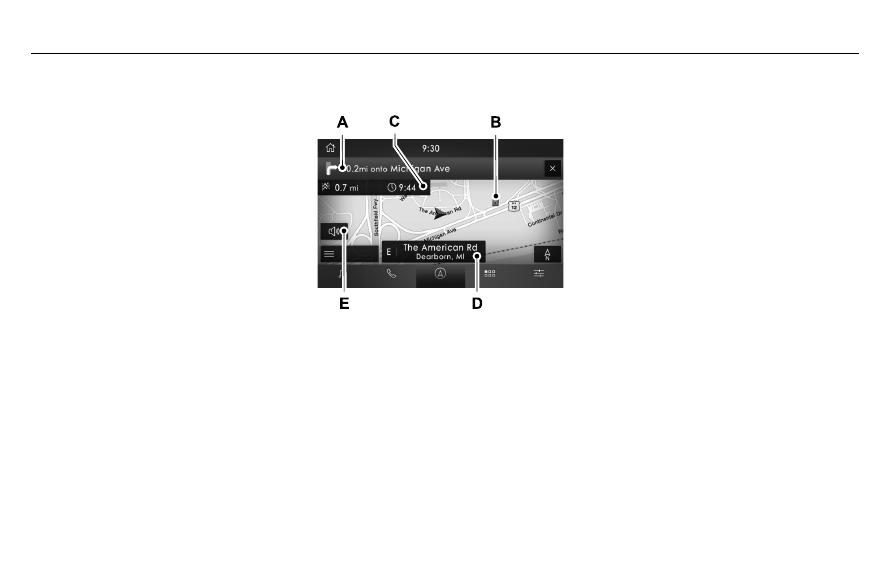
Route Guidance

E297859

E297859

Turn indicator. Select to hear the
last voice prompt.

A

Point of interest.

B

Estimated time of arrival, distance
to destination or time to
destination.

C

Current road.

D

Mute guidance prompts.

E

Note:

To change guidance prompt volume,

turn the volume control when a guidance
prompt plays.

542

SYNC™ 3

-------------------------------------------------------------------------------------------------------------------------------------------------------------

Route Guidance Menu

Description

Menu Item

Adjust your map preferences for when route guidance is active.

Screen View

View a full screen map when route guidance is active.

Full Map

View highway exit information for your current route.

Highway Exit Info

View the turn list for your current route. Select a road to avoid it.

Turn List

You can find the SiriusXM Traffic and Travel Link information by pressing this button. This information
requires an active subscription to SiriusXM Traffic and Travel Link. When a route is not active, a list
of nearby traffic incidents displays. When a route is active, you can choose to display a list of traffic
nearby or on the route.

Traffic List

Adjust navigation settings.  See 

Settings

 (page 555).

Navigation Settings

View information about your current location.

Where Am I?

Cancel route guidance.

Cancel Route

View the entire current route on the map.

View Route

View an alternative route compared to your current one.

Detour

Change the order or remove waypoints.

Edit Waypoints

The system determines the order of waypoints for you.

Optimize Order

Go to the next screen and start the new route.

Go

543

SYNC™ 3

-------------------------------------------------------------------------------------------------------------------------------------------------------------

Adjusting the Guidance Prompt Volume

Turn the volume control when a guidance
prompt plays to adjust the volume.

Note:

If you have inadvertently adjusted the

volume to zero, press the turn indicator
button to play the last voice prompt and then
adjust the volume to the desired level.

Muting Guidance Prompts

Select the mute option on the
screen to mute guidance prompts.

Note:

The system mutes the next and all

future guidance prompts.

Adding Waypoints

You can add a waypoint to a navigation route
as a destination along your route. You can
add up to five waypoints.

1.

Select the search option on the map.

2. Set a destination.

3. Select 

Add Waypoint

.

4. Select 

Go

.

Canceling Route Guidance

Select the route guidance menu
option on the active guidance
screen.

Select 

Cancel Route

.

E297860

E297860

Note:

The route guidance menu option is

always in the bottom right-hand corner of
the main map.

cityseeker

 (If Equipped)

E225487

cityseeker, when available, is a service that
provides more information about certain
points of interest such as restaurants, hotels
and attractions.

Note:

cityseeker information is limited to

approximately 1,110 cities (1,049 in the United
States, 36 in Canada and 15 in Mexico).

When you have selected a point of interest,
the location and information appear, such as
address, phone number and a star rating.

Press 

More Information

 to see a photo, a

review, a list of services and facilities, the
average room or meal price and the web
address. This screen displays the point of
interest icons.

544

SYNC™ 3

-------------------------------------------------------------------------------------------------------------------------------------------------------------

For restaurants, cityseeker can provide
information such as star rating, average cost,
review, handicap access, hours of operation,
and website address.

For hotels, cityseeker can provide
information such as star rating, price
category, review, check-in and checkout
times, hotel service icons and website
address. Hotel service icons include:

Restaurant

Business center

Handicap facilities

Laundry

Refrigerator

24 hour room service

Fitness center

Internet access

Pool

Wi-Fi

Attractions include nearby landmarks,
amusement parks, historic buildings and
more. cityseeker can provide information
such as star rating, reviews, hour of operation
and admission price.

SiriusXM Traffic and Travel Link

 (If

Equipped)

SiriusXM Traffic and Travel Link is available
on vehicles equipped with navigation and
only in select markets. You must activate and
subscribe to receive SiriusXM Traffic and
Travel Link information. It helps you locate
the best gas prices, find movie listings, get
current traffic alerts, view the weather map,
get accurate ski conditions and see current
sports scores.

The system calculates a reasonable efficient
route based on available speed limits, traffic,
and road conditions. You may know a local
shortcut that is more efficient at a given time
than the route provided by SYNC 3, but you
should expect a slight difference in minutes
or miles with the SYNC 3 route.

Michelin Travel Guide

 (If Equipped)

The Michelin travel guide is a service which
provides additional information about certain
places of interest, for example restaurants,
hotels and tourist sites. Points of interest that
have Michelin travel guide information
display a button to show you more
information. Press the button to see the
additional information. If you have paired
your phone with the system, you can press
the phone button to directly establish a call
with the selected point of interest.

Navigation Map Accuracy and Updates

HERE is the digital map provider for the
navigation application. If you find map data
errors, you may report them directly to HERE
by going to www.here.com. HERE evaluates
all reported map errors and responds with
the result of their investigation by e-mail.

545

SYNC™ 3

-------------------------------------------------------------------------------------------------------------------------------------------------------------

The navigation system map data may contain
inaccurate or incomplete information due to
the passage of time, changing
circumstances, sources used and the nature
of collecting comprehensive geographic
data, any of which may lead to incorrect
results. Inaccurate speed limit information,
turn restrictions and other road attributes
may affect the determined route and
associated guidance

Annual navigation map updates are available
for purchase through your dealership.
Depending on your purchase agreement,
you might be eligible for free map update.
You can choose to download the map data
update onto a USB, order a USB, or use Wi-Fi
to deliver automatic updates. To update your
map data over Wi-Fi, your vehicle must be
connected to a Wi-Fi access point. Map data
files are large, so it is highly recommended
to perform the update when free Wi-Fi is
available otherwise high data rates may
apply. For USB updates, free map update
eligibility, and other details, contact dealers
at 1-866-462-8837 in the United States and
Canada or 800-557-5539 in Mexico or visit
our local website for more information.

ELECTRIC VEHICLE INFORMATION

(IF EQUIPPED)

Power Flow

E304437

The Power Flow information for
your plug-in hybrid vehicle is
available through the Home screen

or under Apps.

Vehicle Operational States

Power will flow to or from the front and rear
wheels depending on operational state and
drive conditions.

Idling: The vehicle is running and in park
(P). The engine and, or the high voltage
battery are on.

Electric Driving: The vehicle is running
and in drive (D) or neutral (N). The high
voltage battery provides power to the
wheels.

Hybrid Driving: The vehicle is running
and in drive (D) or neutral (N). The engine
and the high voltage battery provide
power to the wheels.

Engine Driving: The vehicle is running
and in drive (D) or neutral (N). The engine
provides power to the wheels.

Regenerative Braking: The vehicle is
running in drive gear (D) and is slowing
down. The regenerative braking system
captures power and sends it back to the
high voltage battery.

Charging: The vehicle is plugged in and
the high voltage battery is being charged.

Engine On Due To

The following conditions help to explain why
the engine is on, and what you can do to
allow all electric operation.

Drive Power: The engine is on due to
accelerator pedal pressure or speed
control activation. Reduce pressure on
the accelerator pedal or switch off the
speed control to return to full electric
mode.

High Speed: The engine is on because
the vehicle speed exceeds the level for
full electric operation. Reduce the speed
to return to electric operation.

546

SYNC™ 3

-------------------------------------------------------------------------------------------------------------------------------------------------------------

Heater Setting: The engine is on because
of the heater setting. Reduce or switch
off the heater setting to return to electric
operation.

Neutral Gear: The engine is on because
the vehicle is in neutral (N). Shift out of
neutral gear to return to electric
operation.

Engine Cold: The engine is on because
it is cold. The vehicle returns to electric
operation once the engine is sufficiently
warm.

Battery Charging: The engine is on to
charge the high-voltage battery. The
vehicle returns to electric operation once
the battery is sufficiently charged.

Low Gear: The engine is on because the
vehicle is in low gear. Shift out of low
gear to return to electric operation.

Normal Operation: The engine is on to
optimize vehicle operation. The vehicle
returns to electric operation when
possible.

Low Use: The engine is on to maintain
engine oil quality. The vehicle returns to
electric operation when low engine use
mode is complete. See 

Plug-In Hybrid

Vehicle Operation

 (page 219).

Fuel Maintenance: The engine is on to
maintain fuel freshness. The vehicle
returns to electric operation when fuel
freshness mode is complete. See 

Fuel

Quality

 (page 224).

Engine Braking Active: The engine is on
to provide increased powertrain braking.
This can occur when you turn on the
grade assist feature, when speed control
is on or when driving with your foot off
the accelerator pedal. Turning off grade
assist or speed control may allow the
vehicle to return to electric operation.

Battery Temperature: The engine is on
due to high or low high-voltage battery
temperature. This is a normal operating
condition. The vehicle returns to electric
operation when possible.

Drive Mode: The engine is on due to the
drive mode selection. Select an
appropriate drive mode for electric only
operation.

Charge Settings

E304452

The Charge Settings information
for your plug-in hybrid vehicle is
available through the Home screen

or under Vehicle Settings. To Improve your
charging experience, your vehicle has the
following convenience features.

Charge Times

Once you set up Charge Times for a specific
charging location, your vehicle prioritizes
charging based on your preferred time
settings. You can set two preferred charging
time windows for weekdays and two for
weekends. This feature allows you to take
advantage of electric utility rate plans that
offer lower pricing during certain times of
day. Contact your utility company to see what
plans are available.

Note:

You can also set up and use these

features using the Lincoln Way app.

547

SYNC™ 3

-------------------------------------------------------------------------------------------------------------------------------------------------------------

Departure Times

Setting Departure Times allows you to
control charging schedules and have the
vehicle cabin heated or cooled while
plugged in, so your vehicle is ready to drive
when you are. By setting a departure time
your vehicle can use your charge time
settings to minimize your electricity costs but
still prioritize finishing charging before your
scheduled departure. A calendar view allows
you to program two departure times per day
for each day of the week.

Note:

You can also set up and use these

features using the Lincoln Way app.

Charge Settings Screen

E304455

E304455

Charging status.

A

Charging time information.

B

High voltage battery state of
charge.

C

Plug and charging status.

D

Charging Status

Displays the present state of the charging
system. See 

Charging the High Voltage

Battery

 (page 238).

548

SYNC™ 3

-------------------------------------------------------------------------------------------------------------------------------------------------------------

Description and Action

Charging Status

Your vehicle is unplugged and starts charging when plugged in.

Will charge when plugged in.

Your vehicle is unplugged at a saved location with Charge Times is

enabled. Charging is scheduled to start at the time displayed based

on your charge time settings. You must plug in prior to the start time

shown for the vehicle to begin charging at that time.

Will wait for preferred charge time.

Your vehicle is plugged in at a saved location with Charge Times

enabled. Charging starts at the time displayed, which is based on your

Charge Times settings.

Waiting for preferred charge time.

Your vehicle is plugged in and using power to charge the high voltage

battery or run electrical systems.

Charging.

Your vehicle is finished charging.

Charged.

Your vehicle is plugged in and there is a fault within the vehicle

charging system. Unplug and plug back in. If the fault is still present,

contact your dealer.

Vehicle charge fault.

Your vehicle is plugged in and a fault is detected with the charge

station or charging cord. Check the charging cord and the charge

station or electrical supply.

Charge station fault.

549

SYNC™ 3

-------------------------------------------------------------------------------------------------------------------------------------------------------------

Description and Action

Charging Status

A charging coupler is plugged into the vehicle but there is no

connection with a charging power source.

Charge station not detected.

Your vehicle is plugged in but cannot communicate with the charging

station. Contact the station provider.

Incompatible charge station.

Your vehicle is plugged in and charging is paused at the charge

station.

Charge station paused.

Charging Time Information

Displays estimates of how long your vehicle
takes to fully charge when plugged into a
high or low power charger.

High power estimate: The minimum time
to a 100% charge using a high power
charger.

Low power estimate: The longest time to
a 100% charge using a low power
charger.

When charging, the start and estimated end
time displays. When your vehicle is not
plugged in and at a location with Charge
Times enabled, the start and end times
display based on known charging power.

Note:

Charging durations and end times are

only estimates. Certain conditions may result
in longer charging times. See 

Charging the

High Voltage Battery

 (page 238).

High Voltage Battery State of Charge

Displays the remaining charge percentage
with 100% representing the total amount of
energy you can get from an external charge.

Plug and Charging Status

Displays the plug and charging status icons.

E304458

Not plugged in.

E304459

Plugged in and not currently
charging.

E304460

Plugged in and charging.

E304461

Plugged in and waiting to charge
based on charge time settings.

Charge Preferences

Touch the button to access Charge Time and
Departure Time settings. Additional
information and settings are displayed on
the charge settings screen once Charge
Time or Departure Times are set up.

550

SYNC™ 3

-------------------------------------------------------------------------------------------------------------------------------------------------------------

E304454

Charge Times on and off switch.

A

Charge time location name.

B

Departure Times on and off switch.

C

Next departure time and cabin
temperature.

D

Charge Times On and Off Switch

This switch is visible when your vehicle is at
a saved Charge Times location. Use the
switch to turn your charge time settings on
and off for this location.

Charge Times Location Name

Displays when your vehicle is at a saved
Charge Times location.

Departure Times On and Off Switch

This switch is visible when you have at least
one departure time set. Use this switch to
turn all departure times on and off. Switching
departure times off does not delete your
settings.

Next Departure Times and Cabin
Temperature

Displays the next departure time and
associated cabin temperature setting.

Charge Time Settings

Follow these steps to set a preferred charge
time for a charging location.

1.

Select Charge Preferences on the
Charge Settings screen.

2. Select Charge Time Setup on the Edit

Charge Preferences screen.

3. Select Add New Location on the Charge

Times screen. You can also edit settings
for previously saved locations from this
screen.

4. Select an address from the Recent

Charge Locations screen.

5. Set Location Name as desired and then

select Continue to Schedule on the
Confirm Location for Charge Times
screen.

6. Select WEEKDAY or WEEKEND on the

Preferred Charge Times screen.

7.

On the Select preferred WEEKDAY or
WEEKEND Charge Times screen, use the
circular 24 hour clock to select your
charging time windows. You can select
up to two time windows by pressing and
dragging across the hour buttons. When

551

SYNC™ 3

-------------------------------------------------------------------------------------------------------------------------------------------------------------

you have selected your preferred times
then press Next to return to the Preferred
Charge Times screen. Repeat for
WEEKEND or WEEKDAY as desired.
Once you are done setting preferred
charge times, press Save.

Note:

Selecting all or none of the 24 hours

results in any time of day given equal priority
for charging.

8. Your saved location now shows on the

Charge Times screen. Select Done to
return to the main charge settings screen.
Whenever your vehicle is at a saved
charging location, the charge settings
screen displays the location name, and
the charging times are based on your
Charge Time settings for that location
plus the next Departure Time.

Note:

A 100% charge by your next Departure

Time is always the priority. When Charge
Times are set, charging outside your
preferred charging time windows could be
necessary in order to finish by your next
Departure Time. A notification appears when
this condition occurs.

Note:

When a 100% charge cannot be done

by your next departure time, a notification
appears which includes an estimate of the
charge level you will have at your departure
time.

Departure Time Settings

1.

Select Charge Preferences on the
Charge Settings screen.

2. Select Departure Time Setup on the Edit

Charge Preferences screen.

3. Two time settings show for each day of

the week on the Departure Times
schedule screen. Select any one.

4. On the Departure Time settings screen,

set your desired departure time, cabin
temperature and days of the week to
repeat. Press Save.

5. Your settings are now shown on the

Departure Times schedule screen. Press
Back two times to return to the main
charge settings screen. The next
departure time and cabin temperature
setting display.

Note:

Cabin conditioning can perform

differently depending on if you plug in with
the included convenience cord or a higher
power charging station. The power available
for conditioning is limited to the charging
station power available.

Note:

Your vehicle may not always reach

the set cabin temperature due to charging
and ambient temperature conditions. This is
normal operation

APPS

The system allows you interact with select
mobile apps while keeping your eyes on the
road. Voice commands, your steering wheel
buttons, or a quick tap on your touchscreen
give you advanced control of compatible
mobile apps. You can also stream your
favorite music or podcasts, share your time
of arrival with friends, and keep connected
safely.

552

SYNC™ 3

-------------------------------------------------------------------------------------------------------------------------------------------------------------

When you start an app through the system
for the first time, you could be asked to grant
certain permissions. You can review and
change the permissions that you have
granted at any time when your vehicle is not
moving. We recommend that you check your
data plan before using your apps through
the system. Using them could result in
additional charges. We also recommend that
you check the app provider's terms and
conditions and privacy policy before using
their app. Make sure that you have an active
account for apps that you want to use
through the system. Some apps will work
with no setup. Others require you to
configure some personal settings before you
can use them.

Note:

For more information about available

apps, visit catalog.ford.com.

Using Apps on an iOS Device

Select the apps option on the
feature bar.

1.

If your device is connected via USB,
switch Apple CarPlay off.  See 

Phone

(page 536).

2. Connect your device to a USB port or

pair and connect using Bluetooth.

3. If prompted to enable CarPlay, select

Disable

.

4. Start the apps on your device that you

want to use through SYNC.

Note:

If you close the apps on your device,

you will not be able to use them through the
system.

5. Select the app that you want to use on

the touchscreen.

Note:

Connect your device to a USB port if

you want to use a navigation app. When
using a navigation app, keep your device
unlocked and the app open.

Using Apps on an Android Device

Select the apps option on the
feature bar.

1.

If your device is connected via USB,
switch Android Auto off.  See 

Phone

(page 536).

2. Pair your device.  See 

Phone

 (page 536).

3. Start the apps on your device that you

want to use through SYNC.

Note:

If you close the apps on your device,

you will not be able to use them through the
system.

4. Select 

Find Mobile Apps

.

Note:

The system searches and connects to

compatible apps that are running on your
device.

5. Select the app that you want to use on

the touchscreen.

Note:

Mobile Apps on your device use the

USB port to establish a connection with
SYNC. Some devices may lose the ability to
play music over USB when Mobile Apps are
enabled.

Using Mobile Navigation on an Android
Device

1.

Connect your device to a USB port.

2. Switch Android Auto off.  See 

Phone

(page 536).

3. Switch on 

Enable Mobile Apps via USB

in the Mobile Apps Settings tile.

553

SYNC™ 3

-------------------------------------------------------------------------------------------------------------------------------------------------------------

4. Select the apps option on the feature bar.

5. Select the navigation app that you want

to use on the touchscreen.

Note:

When using a navigation app, keep

your device unlocked and the app open.

SiriusXM Traffic and Travel Link

 (If

Equipped)

WARNING: 

Driving while distracted

can result in loss of vehicle control, crash
and injury. We strongly recommend that
you use extreme caution when using any
device that may take your focus off the
road. Your primary responsibility is the safe

operation of your vehicle. We recommend
against the use of any hand-held device
while driving and encourage the use of
voice-operated systems when possible.
Make sure you are aware of all applicable
local laws that may affect the use of
electronic devices while driving.

Note:

SiriusXM Traffic and Travel Link may

not be available in all markets.

Note:

In order to use SiriusXM Traffic and

Travel Link, your vehicle must have
navigation.

Note:

A paid subscription is required to

access and use these features. Go to
www.siriusxm.com/travellink for more
information.

Note:

Visit www.siriusxm.com/traffic and click

on Coverage map and details for a complete
listing of all traffic areas covered by SiriusXM
Traffic and Travel Link.

Note:

Neither Sirius nor Ford is responsible

for any errors or inaccuracies in the SiriusXM
Traffic and Travel Link services or its use in
vehicles.

When you subscribe to SiriusXM Traffic and
Travel Link, it can help you locate the best
gas prices, find movie listings, get current
traffic alerts, view the current weather map,
get accurate ski conditions and see scores
to current sports games.

Action and Description

Menu Item

Touch these buttons to identify traffic incidents on your route, near your vehicle’s current location
or near any of your favorite places, if programmed.

Traffic on Route

Traffic Nearby

Touch this button to view fuel prices at stations close to your vehicle’s location or on an active
navigation route.

Fuel Prices

554

SYNC™ 3

-------------------------------------------------------------------------------------------------------------------------------------------------------------

Action and Description

Menu Item

Touch this button to view nearby movie theaters and their show times, if available.

Movie Listings

Touch this button to view the nearby weather, current weather, or the five-day forecast for the
chosen area.

Weather

Select to see the weather map, which can show storms,
radar information, charts and winds.

Map

Select to choose from a listing of weather locations.

Area

Touch this button to view scores and schedules from a variety of sports. You can also save up to
10 favorite teams for easier access. The score automatically refreshes when a game is in progress.

Sports Info

Touch this button to view ski conditions for a specific area.

Ski Conditions

SETTINGS

E280315

Press the button to enter the
settings menu.

E268570

Once you select a tile, press the
button next to a menu item to view
an explanation of the feature or

setting.

Sound

Select this tile to adjust the sound settings.

Clock

Select this tile to adjust the clock settings.

Bluetooth

Select this tile to switch Bluetooth on and off
and adjust settings.

Phone

Select this tile to connect, disconnect, and
manage the connected device settings.

Audio

Select this tile to adjust the audio settings.

555

SYNC™ 3

-------------------------------------------------------------------------------------------------------------------------------------------------------------

Driver Assist

 (If Equipped)

Select this tile to adjust Driver Assist features
like Parking Aids, Lane Keeping system,
Pedestrian Detection, and Auto-Start-Stop.

Vehicle

Select this tile to adjust vehicle settings like
windows, alarm, lighting, backup starting
passcode, and MyKey settings.

Lincoln Way

Select this tile to adjust the Lincoln Way
settings.

General

Select this tile to adjust settings like
language, measurement units, or to reset the
system.

911 Assist

 (If Equipped)

Select this tile to switch 911 Assist on and off.

Automatic Updates

Select this tile to adjust automatic update
settings.

Mobile Apps

Select this tile to adjust permissions, enable,
disable, and update mobile apps.

Display

Select this tile to adjust display settings like
brightness and auto dim.

Charge Settings

 (If Equipped)

Select this tile to adjust the electric vehicle
charge setting.

Voice Control

Select this tile to adjust voice control settings
like command confirmations and displayed
lists.

Navigation

 (If Equipped)

Select this tile to adjust navigation settings
like map preferences and route guidance.

Seats

 (If Equipped)

Select this tile to adjust the lumbar function
and massage function of your multi contour
seats.

Message Center

 (If Equipped)

Select this tile to view vehicle messages.

Personal Profiles

 (If Equipped)

Select this tile to adjust recalled memory
features when using personal profiles.

Valet Mode

 (If Equipped)

Select this tile to enable and disable valet
mode.

Ambient Lighting

 (If Equipped)

Select this tile to change the color or
intensity of the interior lighting.

556

SYNC™ 3

-------------------------------------------------------------------------------------------------------------------------------------------------------------

SYNC™ 3 TROUBLESHOOTING

Voice Recognition

Possible Cause and Resolution

Symptom

The system does not understand what I am
saying.

You might not be using supported voice commands.

See 

Using Voice Recognition

 (page 509).

For a complete list of voice commands, refer to our website.

You might be speaking too soon.

Wait for the voice prompt before you speak.

The system does not understand the name of
a track or artist.

Device limitation.  

Bluetooth®

 does not support voice commands.

Connect your device to a USB port.

If you have an iOS device, press and hold the voice control button on the steering
wheel to use Siri to play specific tracks.

You might not be using supported voice commands.

See 

Using Voice Recognition

 (page 509).

For a complete list of voice commands, refer to our website.

You might not be saying the name exactly as it appears on your device.

Say the name of the track or artist exactly as it appears on your device. Spell out any
abbreviations in the name.

The name contains special characters, for example *, - or +.

Rename the files on your device or use the touchscreen to select and play the track.

557

SYNC™ 3

-------------------------------------------------------------------------------------------------------------------------------------------------------------


Content      ..     32      33      34      35     ..