Citroen DS4 (2017 year). Instruction - part 25
 

  Index      Citroen     Citroen DS4 - instruction 2017 year in english


Search            


Content   ..  23  24  25  26   ..


Citroen DS4 (2017 year). Instruction - part 25


383

Audio and Telematics

DS4_en_Chap10c_RD5_ed01-2016

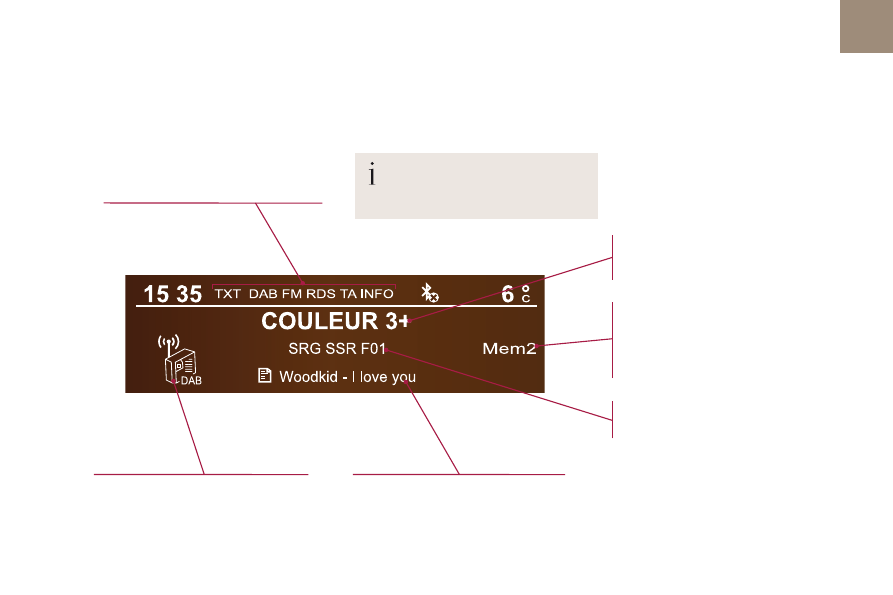
DAB (Digital Audio Broadcasting) radio

Display options:
if active but not available, the display will be 
struck out.

Preset stations, buttons 1 to 6.
Short press: select the preset radio 
station.
Long press: preset a radio station.

Display the name of the multiplex 
service being used.

Represents the signal strength for the 
band being listened to.

Display of RadioText (TXT) for the 
current radio station.

Display the name of the current 
station.

If the "DAB" station being listened to 
is not available on "FM", "DAB FM" is 
struck out.

384

Audio and Telematics

DS4_en_Chap10c_RD5_ed01-2016

Select "Multimedia

" and confirm.

Select "DAB / FM auto tracking
and confirm

Long press: select the desired 
categories of announcements from 
Transport, News, Entertainment and 
Flash special (availability according 
to the station).

Change of station within the same 
"multiplex service".

Press the "Menu

" button.

Start a search for the next "multiplex 
service".

Change band (FM1, FM2, DAB, ...).

Digital radio provides a superior audio 
quality and also additional categories of 
traffic announcements (TA INFO).
The different "multiplex services" 
offer a choice of radio stations in 
alphabetical order.

Digital radio

When the radio station is displayed in 
the screen, press on "OK

" to display 

the contextual menu.
(Frequency hopping (RDS), DAB / FM 
auto tracking, RadioText (TXT) display, 
Information on the station, ...)

DAB / FM tracking

"DAB" does not have 100% coverage of 
the country.
When the digital signal is weak, 
"DAB / FM auto tracking" allows you to 
continue listening to the same station, 
by automatically switching to the 
corresponding analogue "FM" station 
(if it exists).

If "DAB / FM auto tracking" is on, there 
will be a difference of a few seconds 
in the programme when the system 
changes to analogue "FM" radio, with 
sometimes a variation in volume.
When the strength of the digital signal 
is good again, the system automatically 
switches back to "DAB"

If the "DAB" station you are listening 
to is not available on "FM" ("DAB/FM
option barred), or if "DAB / FM auto 
tracking" is not on, the sound will be cut 
when the digital signal is too weak.

385

Audio and Telematics

DS4_en_Chap10c_RD5_ed01-2016

Press and hold one of the buttons for 
fast forward or backward.

Press one of the buttons to select a 
track on the CD.

Press LIST

 to display the list of 

tracks on the CD.

To play a disc which has already 
been inserted, press the SOURCE 
or SRC

 button several times in 

succession and select "CD".

Audio CD

Playing a CD

Insert 12 cm diameter circular compact discs 
only.
Some anti-pirating systems, on original discs 
or CDs copied using a personal recorder, may 
cause faults which are no reflection on the 
quality of the original player.
Without pressing the EJECT button, insert a 
CD in the player, play begins automatically.

CD, USB

Information and advice

The audio system will only play files with 
extension ".mp3" or ".wma" and a compression 
rate that is constant or variable between 
32 Kbps and 320 Kbps.

It is advisable to restrict file names to 
20 characters without using special characters 
(e.g. " ? ; ù) to avoid any playing or displaying 
problems.

The playlists accepted are types .m3u and .pls.
The number of files is limited to 5 000 in 
500 directories on a maximum of 8 levels.

On a single disc, the CD player can 
read up to 255 MP3 files spread 
over 8 directory levels. However, it 
is recommended that this be kept to 
2 levels so as to limit the time taken to 
access and play the CD.
During play, the folder structure is not 
observed.

In order to be able to play a recorded CDR or 
CDRW, when recording it is preferable to select 
standards ISO 9660 level 1. 2 or Joliet.
If the disc is recorded in another format, it may 
not be played correctly.
It is recommended that the same recording 
standard is always used for an individual disc, 
with as low a speed as possible (4x maximum) 
for optimum sound quality.
In the particular case of a multi-session CD, the 
Joliet standard is recommended.

Use only USB memory sticks formatted FAT32 
(File Allocation Table).

Do not connect a hard disk or USB 
device other than audio players to the 
USB port. This may cause damage to 
your installation.

To protect the system, do not use a 
USB hub.

Media

386

Audio and Telematics

DS4_en_Chap10c_RD5_ed01-2016

Up a level in the menu.

Select a line in the list.

Press one of the buttons to select the 
next or previous track.

Press and hold one of the buttons for 
fast forwards or backwards.

Skip a track.

Select a track or a folder.

Press LIST

 to display the menu of 

folders in the compilation.

To play a disc or memory stick which 
has already been inserted, press 
SOURCE or SRC

 several times in 

succession and select "CD" or "USB".

Press one of the buttons to select the 
next or previous folder in the order 
chosen.

CD, USB

Playing a compilation

Insert an MP3 compilation in the CD 
player or connect a memory stick to the 
USB port, directly or via an extension 
lead.

The system creates playlists (temporary 
memory) the creation time for which can take 
from a few seconds to several minutes.
The playlists are updated every time the 
ignition is switched off or a USB memory stick 
is connected.
Play starts automatically after a period which 
depends on the capacity of the USB memory 
stick.

At a first connection, the order suggested is 
by folder. When connecting again, the order 
previously chosen is retained.

387

Audio and Telematics

DS4_en_Chap10c_RD5_ed01-2016

Having selected the desired sorting 
("By folders", "By artists", "By 
genres
", "By playlists") press OK

.

Then confirm OK to save the 
modifications.

By folders

: all folders containing 

audio files recognised on the 
peripheral device, in alphabetical 
order without following the folder 
structure.

By artists

: all of the artist names 

defined in the ID3 Tags, in 
alphabetical order.

By genres

: all of the genres 

defined in the ID3 Tags.

By playlists

: if playlists have 

been saved.

Make a long press on LIST or press 
MENU, select "Multimedia", then 
"Media parameters

" and finally 

"Choice of track listing

" to display 

the different types of sorting.

USB memory stick - File 

sorting

* Check your player's manual.

USB port

The audio files on a Mass Storage portable 
player* can be heard through the vehicle's 
speakers by connecting it to the USB port 
(cable not supplied).

To protect the system, do not use a 
USB hub.

Management of the device is via the 
audio system controls.

If the portable player is not recognised by 
the USB port, connect it to the auxiliary Jack 
socket.
The Apple

®

 player must be updated regularly 

for the best connection.

The playlists are those defined in the 
Apple

®

 player.

The Apple

®

 player must be generation 5 or 

later.

388

Audio and Telematics

DS4_en_Chap10c_RD5_ed01-2016

Activate the streaming source by 
pressing SOURCE or SRC. Control 
of playback is via the audio system. 
The contextual information can be 
displayed in the screen.

Then adjust the volume of the audio 
system.

Pair/connect the telephone: see the 
"USING THE TELEPHONE" section.

Press the SOURCE or SRC button 
several times in succession and 
select "AUX

".

Auxiliary socket (AUX)

The auxiliary Jack socket permits the 
connection of a portable non-mass storage 
device or an Apple

®

 player if not recognised by 

the USB port.

Do not connect a device to the USB 
port and to the auxiliary Jack socket at 
the same time.

Connect the portable device to the auxiliary 
Jack socket using a suitable cable (not 
supplied).

First adjust the volume on your portable device.

The display and management of controls is on 
the portable device.

Depending on the compatibility of the phone

Streaming - Playing audio 

files via Bluetooth

Streaming allows music files on a telephone to 
be heard via the vehicle's speakers.
The telephone must support the appropriate 
Bluetooth profiles (Profiles A2DP / AVRCP).

In certain cases, playing of the 
audio files must be initiated from the 
telephone.

The audio quality depends on the quality of the 
transmission from the telephone.

389

Audio and Telematics

DS4_en_Chap10c_RD5_ed01-2016

Select "Multimedia

" and confirm.

Select "Media parameters

" and 

confirm.

Select "Read mode

" and confirm.

Select the desired play mode and 
confirm OK to save the modifications.

Press OK for access to the 
contextual menu.
or
Press MENU

.

Play mode

The play modes available are:
-  Normal: the tracks are played 

in order, depending on the 
classification of the selected files.

-  Random: the tracks in an album 

or folder are played in a random 
order.

-  Random all: all of the tracks saved 

in the media are played in random 
order.

-  Repeat: the tracks played are only 

those from the current album or 
folder.

390

Audio and Telematics

DS4_en_Chap10c_RD5_ed01-2016

A message is displayed on the screen of the 
telephone: enter the same code and confirm.

Select "Bluetooth connection

" and 

confirm.

A virtual keypad is displayed on the 
screen: enter a code with at least 
4 digits and conform with OK.

Select "Search for a device

".

Select the telephone to be connected 
from the list. Only one telephone can 
be connected at a time.

A window is displayed "Search in progress…".

In some cases, the reference number of the 
telephone or the Bluetooth address may appear 
instead of the name of the telephone.

If pairing fails, try again; the number of attempts is not limited.

Accept the connection to the telephone.

A message appears in the screen to confirm 
successful connection.

Pairing can also be initiated from the 
telephone by searching for detected 
Bluetooth devices.
The directory and the calls list can be 
accessed after the synchronisation 
period (if the telephone is compatible).
Automatic connection must be 
configured in the telephone to allow 
the connection each time the vehicle 
is started.

Press MENU

.

Telephone

Pairing a telephone
First connection

The services offered depend on the network, 
the SIM card and the compatibility of the 
Bluetooth telephone used.
Consult your telephone's manual and your 
operator to find out which services are 
available to you.

As a safety measure and because they 
require prolonged attention on the part 
of the driver, the operations for pairing 
of the Bluetooth mobile telephone with 
the Bluetooth hands-free system of 
your audio system must be carried out 
with the vehicle stationary

 and the 

ignition on.
Visit www.citroen.co.uk for more 
information (compatibility, additional 
help, ...).

Activate the telephone's Bluetooth function 
and ensure that it is "visible to all" (refer to the 
telephone user guide).

391

Audio and Telematics

DS4_en_Chap10c_RD5_ed01-2016

Streaming - Playing audio 

files via Bluetooth

Pair/connect the telephone then play the files: 
see the "Pairing" section.

The telephone connection 
automatically includes hands free 
operation and audio streaming.
The ability of the system to connect 
to just one profile depends on the 
telephone. Both profiles may connect 
by default.

Indicates that a device is connected.

Indicates connection of the audio 
steaming profile.

Indicates connection of the hands-
free profile.

Press MENU

.

Managing connections

Select "Bluetooth connection

" and 

confirm.

Select "Connections management
and confirm. The list of paired 
telephones is displayed.

Select a telephone and confirm.

392

Audio and Telematics

DS4_en_Chap10c_RD5_ed01-2016

To display the "TELEPHONE" menu:
-  Make along press on SOURCE 

or SRC

.

-  Or, press OK to display the 

contextual menu. Select "Call
and confirm.

-  Or, press MENU, select 

"Telephone

" and confirm.  

Select "Call

" and confirm.

Select "Dial

" to enter a number and 

confirm.

Select OK

 and confirm to start the 

call.

Select numbers one at a time using 
the 7

 and 8 buttons and confirm.

Making a call - Dialling

Correction allows numbers to be deleted one 
at a time.

Then select and confirm:
- "Connect telephone

" / 

"Disconnect telephone

": 

to connect / disconnect the 
telephone or the hands-free 
connection only.

- "Connect media player

" / 

"Disconnect media player

": 

to connect / disconnect only 
streaming.

- "Connect telephone + 

media player

" / "Disconnect 

telephone + media player

": 

to connect / disconnect the 
telephone (hands-free and 
streaming).

- "Delete connection

": to delete 

the pairing.

393

Audio and Telematics

DS4_en_Chap10c_RD5_ed01-2016

To display the "TELEPHONE" menu:
-  Make a long press on SRC/TEL.
-  Or, press the dial to display the 

contextual menu. Select "Call
and confirm.

-  Or, press MENU, select 

"Telephone

" and confirm.  

Select "Call

" and confirm.

To display the "TELEPHONE" menu:
-  Make a long press on SRC/TEL.
-  Or, press the dial to display the 

contextual menu. Select "Call
and confirm.

-  Or, press MENU, select 

"Telephone

" and confirm. Select 

"Call

" and confirm.

Select "Calls list

" and confirm.

Select "Directory

" and confirm.

Select the number and confirm to 
start the call.

Making a call - Recently called 

numbers*

Making a call - From the 

directory of contacts

The calls list includes calls sent 
and received in the vehicle using 
the connected telephone.

It is possible to make a call directly 
from the telephone; park the vehicle 
first as a safety measure.

*  Depending on the compatibility of the 

telephone.

394

Audio and Telematics

DS4_en_Chap10c_RD5_ed01-2016

During a call, press OK to display the 
contextual menu.

A long press on ESC or on TEL
SOURCE or SRC

 also rejects an 

incoming call.

Select a contact then confirm.

Select the number and confirm.

"YES

" to accept the call is selected 

by default.
Press OK

 to accept the call.

Select "NO

" and confirm to reject 

the call.
or
Press one of these buttons to accept 
the call.

In the contextual menu, select  
"Hang up

" to end the call.

A long press on one of these buttons 
also ends the call.

Home

Receiving a call

An incoming call is announced by a ring and 
a superimposed display in the multifunction 
screen.

Business

Mobile
(depending on the information 
available in the contact 
records of the telephone 
connected).

Managing calls

Hang up

395

Audio and Telematics

DS4_en_Chap10c_RD5_ed01-2016

(so that the caller cannot hear)

In the contextual menu:

select "Micro OFF" to switch off 
the microphone.

-  deselect "Micro OFF" to switch 

the microphone on.

In the contextual menu:

select "Telephone mode" to 
transfer the call to the telephone.

-  deselect "Telephone mode" to 

transfer the call to the vehicle.

From the contextual menu, select 
"DTMF tones

" and confirm to use 

the digital keypad to navigate in the 
interactive voice response menu.

From the contextual menu, select 
"Switch

" and conform to return to a 

call left on hold.

Secret - Mute

Combined mode

Interactive voice response

Consultation call

In certain cases, the combined mode has to 
activated from the telephone.
If the contact has been cut off, when you 
reconnect on returning to the vehicle, 
the Bluetooth connection will be restored 
automatically (depending on the compatibility of 
the telephone).

(to leave the vehicle without ending the call)

396

Audio and Telematics

DS4_en_Chap10c_RD5_ed01-2016

To modify the contacts saved in the 
system, press MENU then select 
"Telephone

" and confirm.

Select "Directory management
and confirm.
You can:
- "Consult an entry",
- "Delete an entry",
- "Delete all entries

".

Make a long press on SOURCE or 
SRC

 for access to the directory

or press OK

, and

select "Call

" and confirm.

The system accesses the telephone's 
contacts directory, depending on 
its compatibility, and while it is 
connected by Bluetooth

®

.

With certain telephones connected 
by Bluetooth

®

 you can send a contact 

to the directory of the audio system.
Contacts imported in this way are 
saved in a permanent directory 
visible to all, whatever the telephone 
connected.
The menu for the directory is not 
accessible if it is empty.

Select "Directory" to see the list of 
contacts.

Directory

397

Audio and Telematics

DS4_en_Chap10c_RD5_ed01-2016

The Ambience, Treble and Bass audio 
settings are different and independent 
for each sound source.

On-board audio: Arkamys

©

 Sound 

Staging optimises sound distribution in 
the passenger compartment.

The distribution (or spatialisation using 
the Arkamys

©

 system), is an audio 

process which allows the sound quality 
to be improved according to the setting 
chosen, corresponding to the position 
of the listeners in the vehicle.

Audio settings

Screen C

Press ¯

 to display the audio settings 

menu.

The settings available are:
-  Ambience,
-  Bass,
-  Treble,
-  Loudness,
-  Distribution: Personalised or Driver,
-  Left / right balance,
-  Fader (front / rear balance),
-  Auto. volume.

Select and confirm "Other 
settings…

" to display the next 

setting in the list.

398

Audio and Telematics

DS4_en_Chap10c_RD5_ed01-2016

Screen menu map(s)

Option A

Option A11

Option B...

Media parameters

MEDIA

TELEPHONE

Choice of playback mode

Choice of track listing

Option A1

Normal

By folders

Random all

By genres

Random

By artists

Repeat

By playlists

3

3

3

3

3

3

3

3

3

1

1

2

1

2

2

Main function

Call

Radio parameters

Directory

Calls list

Voice mail box

Dial

Directory management

Telephone management

Hang up

Vehicle diagnosis

TRIP COMPUTER

Delete an entry

Delete all entries

Consult an entry

Telephone status

1

1

1

1

2

2

2

2

1

1

2

2

2

2

Screen C


Content   ..  23  24  25  26   ..