Citroen DS3 (2016 year). Instruction - part 18
 

  Index      Citroen     Citroen DS3 - instruction 2016 year in english


Search            


Content   ..  16  17  18  19   ..


Citroen DS3 (2016 year). Instruction - part 18


271

Audio and Telematics

DS3_en_Chap11b_BTA_ed02-2015

Localised Assistance Call

If you purchased your vehicle outside 
the CITROËN dealer network, we 
invite you to have a dealer check the 
configuration of these services and, if 
desired, modified to suit your wishes.
In a multi-lingual country, configuration 
is possible in the official national 
language of your choice.

For technical reasons, particularly 
to improve the quality of Telematic 
services to customers, the 
manufacturer reserves the right to 
carry out updates to the vehicle's  
on-board telematic system.

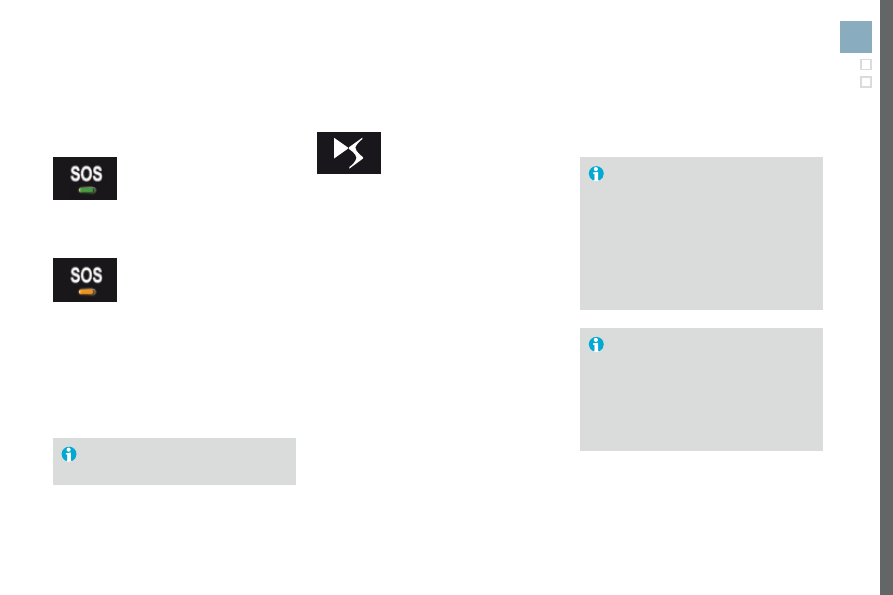
Press this button for more than 
2 seconds to request assistance 
if the vehicle breaks down.
A voice message confirms that 
the call has been started*.

Pressing this button again immediately cancels 
the request.
The cancellation is confirmed by a voice 
message.

Operation of the system

When the ignition is switched on, 
the green indicator lamp comes 
on for 3 seconds indicating that 
the system is operating correctly.

The orange indicator lamp is on fixed: the back-
up battery should be replaced.
In both cases, the emergency and assistance 
calls service may not work.
Contact a qualified repairer as soon as 
possible.

The orange indicator lamp 
flashes then goes off: the system 
has a fault.

*  These services are subject to conditions and  

availability.

  Consult a CITROËN dealer.

The fault with the system does not 
prevent the vehicle being driven.

DS3_en_Chap11b_BTA_ed02-2015

273

Audio and Telematics

DS3_en_Chap11c_SMEGplus_ed02-2015

7-inch touch screen tablet

gPS satellite navigation - Multimedia audio - Bluetooth

®

 telephone

Contents

First steps 

274

Steering mounted controls 

276

Menus 277
Navigation 

278

Navigation - Guidance 

286

Traffic 

290

Radio Media 

292

Radio 298
DAB (Digital Audio Broadcasting) radio 

300

Media 302
Settings 

306

Connected services 

314

Internet browser 

315

MirrorLink

TM

 318

CarPlay

®

 322

Telephone 326
Frequently asked questions 

334

The system is protected in such a way that it will only operate in 
your vehicle.

As a safety measure, the driver should only carry out operations 
which require prolonged attention while the vehicle is stationary.
The display of the energy economy mode message signals 
that the system is about to go into standby. Refer to the energy 
economy mode section.

DS3_en_Chap11c_SMEGplus_ed02-2015

First steps

Use the buttons arranged below the touch 
screen tablet for access to the menu carousel, 
then press the virtual buttons in the touch 
screen tablet.
Each menu is displayed in one or two pages 
(primary page and secondary page).

Secondary page

Primary page

In very hot conditions, the system may 
go into stand-by (screen and sound 
completely off) for a minimum period of 
5 minutes.

275

Audio and Telematics

DS3_en_Chap11c_SMEGplus_ed02-2015

Selecting the audio source (depending on 
version):
-  "FM" / "DAB" / "AM"* stations.
-  "USB" memory stick.
-  Smartphone via MirrorLink

TM

 or CarPlay

®

.

Telephone connected by Bluetooth* and 
Bluetooth audio streaming*.

-  Media player connected to the auxiliary 

socket (jack, cable not supplied).

-  Jukebox*, after first copying audio files to 

the internal memory of the system.

* Depending on equipment.

Short-cuts: using the touch buttons in the upper 
band of the touch screen tablet, it is possible 
to go directly to the selection of audio source, 
the list of stations (or titles, depending on the 
source).

The screen is of the "resistive" type, it 
is necessary to press firmly, particularly 
for "flick" gestures (scrolling through a 
list, moving the map...). A simple wipe 
will not be enough. pressing with more 
than one finger is not recognised.
The screen can be used when wearing 
gloves. This technology allows use at 
all temperatures.

Following prolonged operation in very 
high temperatures, the volume may be 
limited to protect the system. The return to 
normal takes place when the temperature 
in the passenger compartment drops.

To clean the screen, use a soft 
non-abrasive cloth (spectacles cloth) 
without any additional product.
Do not use pointed objects on the 
screen.
Do not touch the screen with wet 
hands.

Volume adjustment (each source is 
independent, including traffic announcements 
(TA) and navigation instructions).

Press Menu to display the menu 
carousel.

Increase volume.

Reduce volume.

Mute the sound by pressing simultaneously on 
the volume increase and reduce buttons.
Unmute the sound by pressing one of the two 
volume buttons.

DS3_en_Chap11c_SMEGplus_ed02-2015

Steering mounted controls

Radio: select the previous/next 
preset station.
Media: select a genre / artist / folder 
from the list.
Select the previous/next entry in a 
menu.

Decrease volume.

Radio: automatic search for a higher 
frequency.
Media: Select next track.
Media, press and hold: fast forward.
Jump in the list.

Mute: cut the sound by pressing 
the volume increase and decrease 
buttons simultaneously.
Restore the sound by pressing one of 
the two volume buttons.

Radio: automatic search for a lower 
frequency.
Media: select previous track.
Media, press and hold: fast back.
Jump in the list.

Change the audio source.
Confirm a selection.
Call/end call on the telephone.
Press for more than 2 seconds: 
access to the telephone menu.

Increase volume.

277

Audio and Telematics

DS3_en_Chap11c_SMEGplus_ed02-2015

Menus

Settings

Radio Media

navigation

Driving

Connected services

Telephone

Adjust the settings for sound (balance, 
ambience, ...), colour schemes and the display 
(language, units, date, time, ...).

Select an audio source, a radio station, display 
photographs.

Enter navigation settings and choose a 
destination.

Access to the trip computer.
Activate, deactivate or enter settings for certain 
vehicle functions.

Connect using the "Internet browser".
Operate certain applications on your 
smartphone via MirrorLink

TM

 or CarPlay

®

.

Connect a telephone by Bluetooth

®

.

Access to the CarPlay

®

 function after 

connection of your smartphone by USB cable.

(Depending on equipment)

(Depending on equipment)

1

DS3_en_Chap11c_SMEGplus_ed02-2015

Level 1

Level 2

Level 3

Navigation

navigation

Route settings

279

Audio and Telematics

DS3_en_Chap11c_SMEGplus_ed02-2015

Level 1

Level 2

Level 3

Comments

navigation

Settings

navigation

Enter destination

Display recent destinations.

Route settings

Fastest

Choose the navigation criteria.
The map displays the route chosen according to 
these criteria.

Shortest

Time/distance
Ecological

Tolls

Ferries

Traffic

Close-Strict

Show route on map

Display the map and start navigation.

Confirm

Save the options.

Save current location

Save the current address.

Stop navigation

Delete the navigation information.

Voice synthesis

Choose the volume for voice and announcement 
of street names.

Diversion

Detour from your initial route by a determined 
distance.

navigation

Display in text mode.

Zoom in.

Zoom out.
Display in full screen mode.
Use the arrows to move the map.
Switch to 2D map.

1

2

7

12

3

8

13

4

9

14

5

10

15

6

11

DS3_en_Chap11c_SMEGplus_ed02-2015

Level 1

Level 2

Level 3

To use the telephone functions, 
refer to the "Telephone

" section.

For managing contacts and 
their addresses, refer to the 
"Telephone

" section.

navigation

Address

Enter destination

Contacts

1

7

8

12

9

13

10

14

11

15

2

3

4

5

6

281

Audio and Telematics

DS3_en_Chap11c_SMEGplus_ed02-2015

Level 1

Level 2

Level 3

Comments

navigation

Secondary page

Enter destination

Address

Current loc.

Address settings.

Point of interest

Town center

Save

Save the current address.

Add waypoint

Add a waypoint to the route.

Navigate to

Press to calculate the route.

Contacts

Addresses

Select a contact then calculate the route.

View

Navigate to

Search for contact

Call

On the map

Display the map and zoom to view the roads.

Itinerary

Create, add or delete a waypoint or view the 
itinerary.

Stop

Delete navigation information.

navigate to

Press to calculate the route.

1

16

20

17

21

18

22

19

DS3_en_Chap11c_SMEGplus_ed02-2015

Search for a point of interest

navigation

Point of interest displayed on the map

Level 1

Level 2

Level 3

16

20

19

18

22

17

21

1

1

283

Audio and Telematics

DS3_en_Chap11c_SMEGplus_ed02-2015

Level 1

Level 2

Level 3

Comments

navigation

Secondary page

Search for POI

All POIs

List of categories available.
After choosing the category, select the points of 
interest.

Motor

Dining/hotels

Personal

Search

Save the settings.

navigation

Secondary page

Show POIs

Select all

Choose the display settings for POIs.

Delete

Import POIs

Confirm

Save the options.

1

23

30

30

30

24

31

31

31

25

32

32

32

26

33

33

33

27

27

28

28

29

29

DS3_en_Chap11c_SMEGplus_ed02-2015

Moving 
between 
the two 
menus.

Level 1

Level 2

Level 3

Traffic messages

Settings

Diversion

Map settings

navigation

Map settings

Settings

Settings

1

1

1

23

24

25

26

27

28

29

30

31

32

33

285

Audio and Telematics

DS3_en_Chap11c_SMEGplus_ed02-2015

Level 1

Level 2

Level 3

Comments

navigation

Secondary page

Traffic messages

On the route

Settings for the choice of messages and the 
filter radius.

Around vehicle

near destination

Detour

Detour over a distance

Recalculate route

Finish

Save your selections.

navigation

Secondary page

Map settings

Orientation

Flat view north heading

Choose the display and orientation of the 
map.

Flat view vehicle heading

Perspective view

Maps

Aspect

"Day" map colour

"Night" map colour

Automatic day/night

Confirm

Save the settings.

navigation

Secondary page

Settings

Route settings

Enter settings and choose the volume for the 
voice and announcement of street names.

Voice

Alarm!

Traffic options

Confirm

Save your selections.

1

2

10

DS3_en_Chap11c_SMEGplus_ed02-2015

Navigation - Guidance

Choosing a new destination

Select "Enter destination

".

Select "Save" to save the address 
entered as a contact entry.
The system allows up to 200 entries.

Select "Confirm

".

Press "Show route on map" to start 
navigation.

Select "Address

".

Select the "Country:" from 
the list offered, then in the 
same way the "City:" or 
its post code, the "Road:", 
the "n°:

".

Confirm each time.

Select "navigate to

".

Choose the restriction criteria: 
"Tolls", "Ferries", "Traffic", "Strict", 
"Close

".

Choose the navigation criteria: 
"Fastest" or "Shortest" or "Time/
distance
" or "Ecological

".

To delete navigation information, press 
"Settings

".

Press "Stop navigation

".

To resume navigation press "Settings".

Press "Resume guidance

".

Press on navigation to display the 
primary page.

Press on the secondary page.

Towards a new destination

Or


Content   ..  16  17  18  19   ..