Chrysler Grand Caravan (2022 year). Manual in english - page 6
88
GETTING TO KNOW YOUR INSTRUMENT PANEL
I
NSTRUMENT
C
LUSTER
D
ISPLAY
M
ENU
I
TEMS
The instrument cluster display can be used to view
the main menu items for several features. Use the
up and down arrow buttons to scroll through
the driver interactive display menu options until
NOTE:
The instrument cluster display menu items display
in the center of the instrument cluster. Menu items
may vary depending on your vehicle features.
Speedometer
Push and release the up or down arrow
button until Speedometer is highlighted in the
instrument cluster display. Push and release the
OK button to toggle between MPH and km/h.
Vehicle Info
Push and release the up or down arrow
button until Vehicle Info is highlighted in the
instrument cluster display. Push the left or
right arrow button to scroll through the following
information submenus:
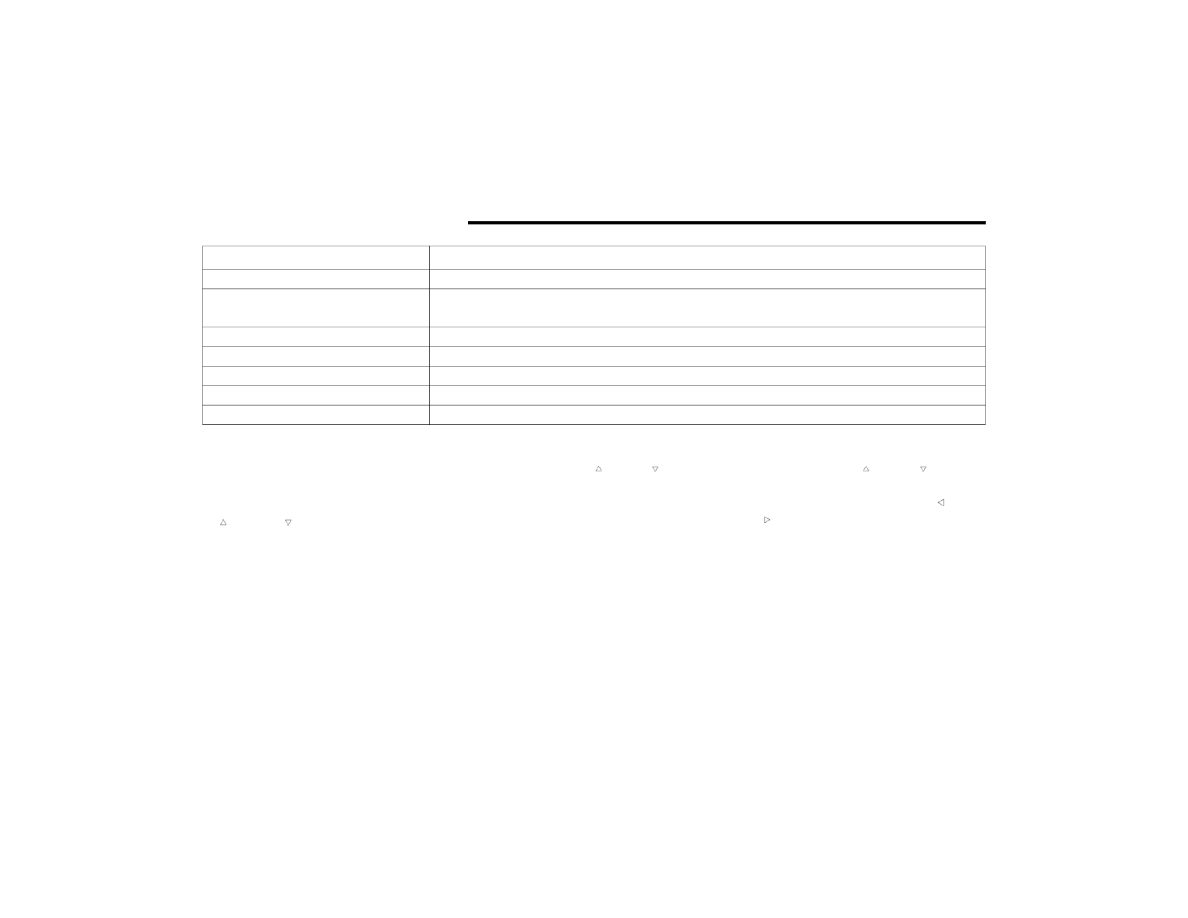
Setting
Instrument Cluster Display Message
None – With vehicle ignition ON
“KeySense in use. Max vehicle speed set to xx MPH/or km/h”
Max Vehicle Speed
“Max speed reached. KeySense in use” supported by a chime
“Approaching max speed xx MPH/km/h” supported by a chime
Start Up Fuel Alert message
“Range to empty xxx miles or km”
Early Low Fuel Alert Message
“Fuel Low”
ParkSense
“Feature cannot be disabled. KeySense in use”
Blind Spot
“Feature cannot be disabled. KeySense in use”
Forward Collision Warning
“Feature cannot be disabled. KeySense in use”