Acura RDX (2021 year). Manual in english - page 32
 

  Index      Manuals     Acura RDX (2021 year). Manual in english


Search            copyright infringement  


Content      ..     30      31      32      33     ..


Acura RDX (2021 year). Manual in english - page 32


510

uu

Parking Your Vehicle

u

Parking Sensor System

*

Driving

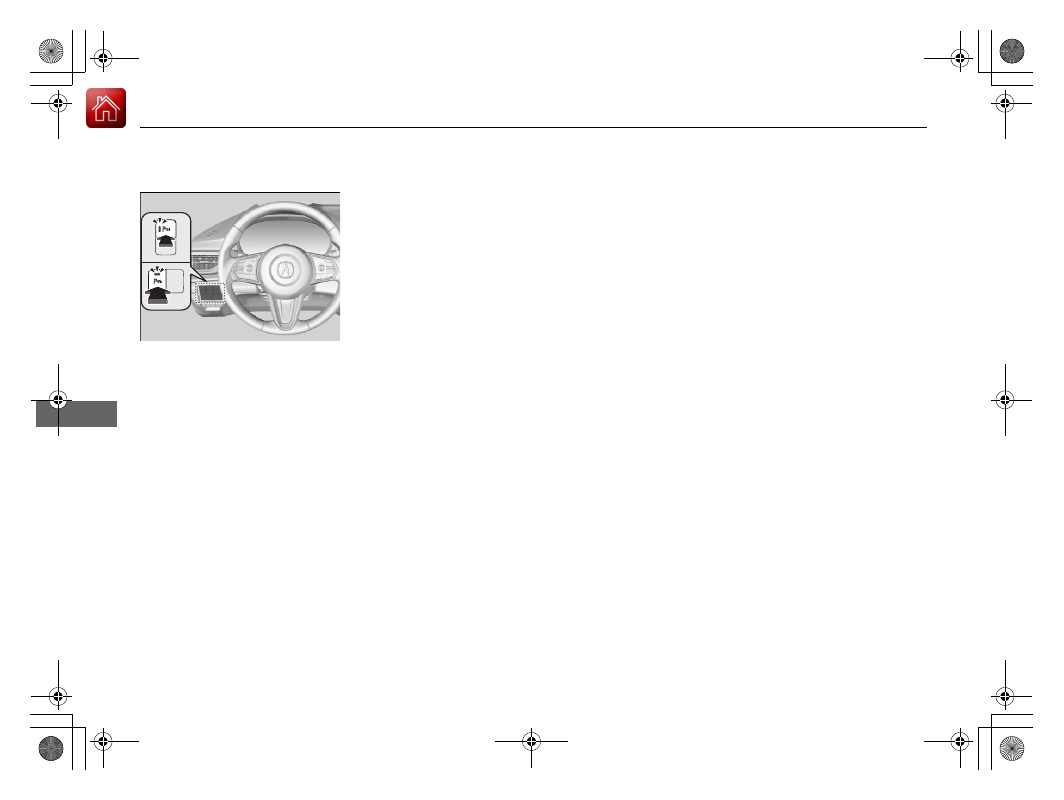
Parking sensor system on and off

With the power mode in ON, press the 
parking sensor system button to turn on or off 
the system. The indicator in the button comes 
on when the system is on.

The front center and front corner sensors start 
to detect an obstacle when the transmission is 
in any position other than 

(

P

or 

(

R

, and the 

vehicle speed is less than 5 mph (8 km/h).

The front corner, rear center and rear corner 
sensors start to detect an obstacle when the 
transmission is in 

(

R

, and the vehicle speed is 

less than 5 mph (8 km/h).

-------------------------------------------------------------------------------------------------------------------------------------------------------------

511

uu

Parking Your Vehicle

u

Parking Sensor System

*

Continued

Driving

When the distance between your vehicle and obstacles becomes shorter

*1: At this stage, only the center sensors detect obstacles.

Direction

Length of the 

intermittent 

beep

Distance between the Bumper and Obstacle

Indicator

Audio/information 

screen

Corner Sensors

Center Sensors

Forward

Moderate

Front: About 30-24 in (75-60 cm)

Rear: About 43-28 in (110-70 cm)

Blinks in 
Yellow

*1

Short

Front: About 24-18 in (60-45 cm)

Rear: About 28-18 in (70-45 cm)

Front: About 24-18 in (60-45 cm)

Rear: About 28-18 in (70-45 cm)

Blinks in 

Amber

Very short

About 18-14 in (45-35 cm)

About 18-14 in (45-35 cm)

Continuous

About 14 in (35 cm) or less

About 14 in (35 cm) or less

Blinks in 

Red

Backward

Moderate

Front: About 32-26 in (80-65 cm)

Rear: About 45-30 in (115-75 cm)

Blinks in 
Yellow

*1

Short

Front: About 26-20 in (65-50 cm)

Rear: About 30-20 in (75-50 cm)

Front: About 26-20 in (65-50 cm)

Rear: About 30-20 in (75-50 cm)

Blinks in 

Amber

Very short

About 20-16 in (50-40 cm)

About 20-16 in (50-40 cm)

Continuous

About 16 in (40 cm) or less

About 16 in (40 cm) or less

Blinks in 

Red

Indicators light where 
the sensor detects an 
obstacle

-------------------------------------------------------------------------------------------------------------------------------------------------------------

uu

Parking Your Vehicle

u

Parking Sensor System

*

512

Driving

1.

Make sure that the parking sensor system is not activated. Set the power mode to 
VEHICLE OFF (LOCK).

2.

Press and hold the parking sensor system button, and set the power mode to ON.

3.

Keep pressing the button for 10 seconds. Release the button when the indicator 
in the button flashes.

4.

Press the button again. The indicator in the button goes off.

u

The beeper sounds twice. The rear sensors are now turned off.

To turn the rear sensors on again, follow the above procedure. The beeper sounds 
three times when the rear sensors come back on.

Turning off All Rear Sensors

1

Turning off All Rear Sensors

When you shift to 

(

R

, the indicator in the parking 

sensor system button blinks as a reminder that the 
rear sensors have been turned off.

-------------------------------------------------------------------------------------------------------------------------------------------------------------

513

uu

Parking Your Vehicle

u

Cross Traffic Monitor

*

Continued

Driving

Cross Traffic Monitor

*

Monitors the rear corner areas using the radar sensors when reversing, and alerts 
you if a vehicle approaching from a rear corner is detected.

The system is convenient when you are backing out of a parking space.

1

Cross Traffic Monitor

*

The parking sensor system’s alerting buzzer overrides 
the Cross Traffic Monitor buzzer when the sensors 
are detecting obstacles at the closest range.

3

CAUTION

Cross Traffic Monitor cannot detect all 
approaching vehicles and may not detect 
an approaching vehicle at all.

Failure to visually confirm that it is safe to 
back up the vehicle before doing so may 
result in a collision.

Do not solely rely on the system when 
reversing; always also use your mirrors, and 
look behind and to the sides of your vehicle 
before reversing.

Models with Parking Sensor System

* Not available on all models

-------------------------------------------------------------------------------------------------------------------------------------------------------------

uu

Parking Your Vehicle

u

Cross Traffic Monitor

*

514

Driving

The system activates when:

The power mode is in ON.

The Cross Traffic Monitor is turned on.

2

Cross Traffic Monitor On and Off

 P. 516

The transmission is in 

(

R

.

Your vehicle is moving at 3 mph (5 km/h) or 
lower.

When a vehicle is detected approaching from a rear corner, Cross Traffic Monitor 
alerts you with a buzzer and a displayed warning.

The system will not detect a vehicle that approaches from directly behind your 
vehicle, nor will it provide alerts about a detected vehicle when it moves directly 
behind your vehicle.

The system does not provide alerts for a vehicle that is moving away from your 
vehicle, and it may alert for pedestrians, bicycles, or stationary objects.

How the System Works

1

Cross Traffic Monitor

*

Cross traffic monitor may not detect or may delay 
alerting an approaching vehicle, or may alert without 
an approaching vehicle under the following 
conditions:

An obstacle, such as another vehicle and a wall, 
near your vehicle’s rear bumper, is blocking the 
radar sensor’s scope.

Your vehicle is moving at the speed of about 3 mph 
(5 km/h) or higher.

A vehicle is approaching at the speed other than 
between about 6 mph (10 km/h) and 16 mph (25 
km/h).

The system picks up external interference such as 
other radar sensors from another vehicle or strong 
radio wave transmitted from a facility nearby.

Either corner of the rear bumper is covered with 
snow, ice, mud or dirt.

When there is bad weather.

Your vehicle is on an incline.

Your vehicle is tilted due to a heavy load in the rear.

Your vehicle is reversing towards a wall, a pole, a 
vehicle, and so on.

The rear bumper or the sensors have been 
improperly repaired or the rear bumper has been 
deformed. Have your vehicle checked by a dealer.

For proper operation, always keep the rear bumper 
corner area clean.
Do not cover the rear bumper corner area with labels 
or stickers of any kind.

Radar sensors:
Underneath the rear bumper 
corners

* Not available on all models

-------------------------------------------------------------------------------------------------------------------------------------------------------------

Continued

515

uu

Parking Your Vehicle

u

Cross Traffic Monitor

*

Driving

An arrow icon appears on the side a vehicle is approaching on the audio/information 
screen.

When the System Detects a Vehicle

1

When the System Detects a Vehicle

If the 

 on the lower right changes to 

 in amber 

when the gear position is in 

(

R

, obstructions (mud, 

snow, ice, etc.) may have accumulated in the vicinity 
of the sensor. The system is temporarily canceled. 
Check the bumper corners for any obstructions, and 
thoroughly clean the area if necessary.

If the 

 comes on in amber when the gear position 

is in 

(

R

, there may be a problem with the Cross 

Traffic Monitor system. Do not use the system and 
have your vehicle checked by a dealer.

If the display remains the same with the transmission 
in 

(

R

, there may be a problem with the rear camera 

system and the Cross Traffic Monitor system.
Do not use the system and have your vehicle checked 
by a dealer.

Wide View

Normal View

Arrow Icon

Top Down View

Models with multi-view rear camera system

Models with surround view camera system

Arrow Icon

Rear Wide View

Rear Ground View

-------------------------------------------------------------------------------------------------------------------------------------------------------------

516

uu

Parking Your Vehicle

u

Cross Traffic Monitor

*

Driving

You can switch the system on and off using 
the audio/information screen.

Cross Traffic Monitor On and Off

 Icon

Models with multi-view rear camera 
system

Models with surround view camera 
system

 Icon

-------------------------------------------------------------------------------------------------------------------------------------------------------------

517

Continued

Driving

Multi-View Rear Camera

About Your Multi-View Rear Camera

The audio/information screen can display your vehicle’s rear view. The display 
automatically changes to the rear view when the transmission is put into 

(

R

.

Multi-View Rear Camera Display Area

1

About Your Multi-View Rear Camera

The rear camera view is restricted. You cannot see 
the corner ends of the bumper or what is underneath 
the bumper. Its unique lens also makes objects 
appear closer or farther than they actually are.

Visually confirm that it is safe to drive before backing 
up. Certain conditions (such as weather, lighting, and 
high temperatures) may also restrict the rear view. Do 
not rely on the rearview display which does not give 
you all information about conditions at the back of 
your vehicle.

If the rear camera lens is covered with dirt or 
moisture, activate the rearview camera washer

*

 or 

use a soft, moist cloth to keep the lens clean and free 
of debris.

2

Rear Wiper/Washer

 P. 199

Guidelines

 appear when you put the transmission 

into 

(

R

.

You can change the 

Guidelines

 setting.

2

Customized Features

 P. 341

Off: 

Guidelines do not appear.

Fixed: 

Fixed Guidelines appear.

Dynamic: 

Guidelines that move according to the 

steering wheel direction appear.

Both: 

Fixed guidelines and dynamic guidelines 

appear.

Guidelines

Bumper

Camera

Approx. 20 inches 
(50 cm)
Tailgate Open Range

Approx. 39 inches 
(1 m)

Wide View Mode

Normal View Mode

Top Down View Mode

Approx. 20 inches (50 cm)
Tailgate Open Range

Approx. 39 inches (1 m)

* Not available on all models

-------------------------------------------------------------------------------------------------------------------------------------------------------------

518

uu

Multi-View Rear Camera

u

About Your Multi-View Rear Camera

Driving

You can view three different camera modes on the rearview display. Swipe to 
highlight the view mode icon and click the A-zone touchpad to change the mode.

2

True Touchpad Interface

 P. 250

: Wide view mode
: Normal view mode
: Top down view mode

If the last used viewing mode was Wide or Normal view mode, the same mode is 
selected the next time you put the transmission into 

(

R

.

If Top down view mode was last used before you turned the power mode to OFF, 
Wide View mode is selected next time you set the power mode to ON and put the 
transmission into 

(

R

.

If Top down view mode was last used more than 10 seconds after you change 
from 

(

R

, Wide View mode is selected the next time you put the transmission into 

(

R

.

-------------------------------------------------------------------------------------------------------------------------------------------------------------

519

Driving

Surround View Camera System

*

Is a four camera system that views areas commonly known as “blind spots” from 
different angles, then displays the images on the audio/information screen. This 
system can be used to:

Check the right and left sides of the vehicle while crossing at intersections with 
poor visibility (fog, heavy rain, obstructed view, etc.).

2

Checking from the front wide view at intersections

 P. 525

Check for obstacles in front of the vehicle when parking or maneuvering in 
confined areas.

2

Checking the sides of your vehicle

 P. 525

Check for obstacles when you are moving in 

(

R

.

2

When Parking Your Vehicle

 P. 523

1

Surround View Camera System

*

3

WARNING

Failure to visually assess the area around 
the vehicle (directly or by use of the 
mirrors) may result in a crash causing 
serious injury or death.

The areas shown in the surround view 
camera system display are limited. The 
display may not show all pedestrians or 
other objects around your vehicle.

Do not solely rely only on the surround 
view camera system display to assess 
whether it is safe to move your vehicle.

3

WARNING

Failure to pay proper attention to your 
surroundings while driving may result in a 
crash causing serious injury or death.

To help mitigate the chances of a collision, 
only look at the surround view camera 
system display when it is safe to do so.

* Not available on all models

-------------------------------------------------------------------------------------------------------------------------------------------------------------

520

uu

Surround View Camera System

*

u

Displaying an Image From the Surround View Cameras

Driving

Displaying an Image From the Surround View 
Cameras

For frontal views:

Press the 

CAMERA

 button when the vehicle is 

stationary or moving at 12 mph (20 km/h) or 
slower. Press the button again to switch 
camera views.

For rear reviews:

Change the gear position to 

(

R

 when the 

vehicle is stationary. Press the 

CAMERA 

button to switch to rear view mode.

You can customize the display setting.

2

Customized Features

 P. 341

1

Surround View Camera System

*

The surround view camera system does not eliminate 
all blind spots. The system is for your convenience 
only.

If the rear camera lens is covered with dirt or 
moisture, activate the rearview camera washer

*

 or 

use a soft, moist cloth to keep the lens clean and free 
of debris.

2

Rear Wiper/Washer

 P. 199

CAMERA


Button

1

Displaying an Image From the Surround View Cameras

The navigation system is disabled when the gear 
position is in 

(

R

.

Pressing the 

 (home) or 

 (back) button while 

the surround view camera system screen is displayed 
cancels the front view screen of the surround view 
camera system.

If you press the 

CAMERA

 button while the vehicle 

speed is more than 16 mph (25 km/h), the standby 
screen appears.
When the vehicle speed is reduced below 12 mph (20 
km/h), the screen switches to a surround view camera 
system image.

* Not available on all models

-------------------------------------------------------------------------------------------------------------------------------------------------------------

521

uu

Surround View Camera System

*

u

Displaying an Image From the Surround View Cameras

Continued

Driving

Camera Locations and Images

Ground View
An overhead view created by the 
combination of images captured 
by four cameras.

Front 
Ground View

Side View 

Ground View

Front 
Wide View

Sideview Camera 
(Passenger side)

Sideview Camera 
(Driver side)

The unique surround view camera lenses make distances appear 
differently than they actually are - objects seen on the audio/
information screen may appear closer or further away, and may be 
distorted. This becomes more apparent the further away an object is 
from your vehicle.

Rear 
Ground 
View

Rear 
Wide 
View

Press the 

CAMERA


button.

Rearview Camera

Front-view Camera

Side View

Audio/
Information 
Screen

Click the ground 
view icon.

Ground View Icon

-------------------------------------------------------------------------------------------------------------------------------------------------------------

uu

Surround View Camera System

*

u

Displaying an Image From the Surround View Cameras

522

Driving

The following can be displayed when the system is on.

Guide lines

: Help you to get a sense of a distance between your vehicle and the 

rear surroundings. The distance may appear differently than the actual distance.

Projection lines

: Indicate vehicle direction while the steering wheel is in the current 

position.

Reference Lines and Guides

1

Reference Lines and Guides

The positions/distances indicated by the guide lines 
and camera views on the display may differ from the 
actual positions/distances due to the changes in the 
vehicle height, road conditions, and other factors.
The guide lines should be used as a reference only.

The guide lines can be turned on and off using the 
audio/information screen.

2

Customized Features

 P. 341

If you turn the guide lines off, they remain off until 
you turn them back on.

-------------------------------------------------------------------------------------------------------------------------------------------------------------

523

uu

Surround View Camera System

*

u

Using the Surround View Camera System

Continued

Driving

Using the Surround View Camera System

Checking for Obstacles at the Back of Your Vehicle

The display automatically changes to the rear view when the gear position is 
changed to 

(

R

.

When Parking Your Vehicle

1

When Parking Your Vehicle

The ground view can be displayed even with the door 
mirrors folded. However, the viewable angle and 
blind spot change.
Do not refer to the surround view camera system 
when the door mirrors are folded.

When changing the gear position from/to 

(

R

, you 

may experience a delay in switching between the 
audio/information screen and a rear view image.

Canadian models

Folded

Not folded

Rear Wide View

Rear Ground View

When the 
steering wheel 
is turned more 
than 90 
degrees.

The projection lines 
appear approx. 16 
inches (40 cm) outside 
the vehicle body.

Blind spots 
appear in 
black.

Press the 

CAMERA


button.

Approximate distances 
the guide lines indicate

Approximate distances the 
projection lines indicate

39 inches 
(1 m)

20 inches 
(50 cm)

39 inches 
(1 m)

Ground View Icon

Click the ground 
view icon.

-------------------------------------------------------------------------------------------------------------------------------------------------------------

uu

Surround View Camera System

*

u

Using the Surround View Camera System

524

Driving

You can display the front ground view screen using all the four cameras for the 
system. Pressing the 

CAMERA

 button when the vehicle speed is at below 12 mph 

(20 km/h) changes the image as follows.

Checking for the Sides of Your Vehicle

1

Checking for the Sides of Your Vehicle

When the vehicle speed exceeds 16 mph (25 km/h), 
the front or side view on the screen automatically 
switches to the audio/information screen. The front 
or side view screen resumes when the vehicle speed 
is reduced below 12 mph (20 km/h).

0 mph (0 km/h)

Down

Up

Camera 

Screen

Camera 

Screen

Audio/Information 

Screen

Audio/Information 

Screen

16 mph (25 km/h)

12 mph (20 km/h)

0 mph (0 km/h)

Front Ground View

Front Wide View

Audio/Information Screen

Approximate distance 
the reference line 
indicates.

Press the 

CAMERA


button.

approx. 3 feet (1 m)

Blind spots appear 
in black.

Click the ground 
view icon.

Ground View Icon

Side View + Ground View

Side View

-------------------------------------------------------------------------------------------------------------------------------------------------------------

Continued

525

uu

Surround View Camera System

*

u

Using the Surround View Camera System

Driving

Checking from the front wide view at intersections

The front wide view screen is useful when you need to check for vehicles crossing 
from either direction at an intersection with poor visibility.

Checking the sides of your vehicle

The side view screens are convenient when you pull over at a curb or tollbooth, or 
slowly pass by oncoming vehicles on a narrow road.

1

Checking from the front wide view at intersections

The front wide view image is a wide-angled view. The 
displayed image will be largely distorted, and objects 
may appear closer or more distant than they actually 
are.

The angle provided 
by the front wide 
view screen is 180 
degrees.

Front Wide View Screen

When the vehicle speed is below 12 mph (20 km/h), 
press the 

CAMERA

 button and touch the ground 

view icon.

Ground View Icon

1

Checking the sides of your vehicle

When the door mirrors are folded, the side views 
cannot be displayed.

12 inches

(30 cm)

Approximate distance 
the projection lines 
indicate is 12 inches 
(30 cm) from the 
vehicle.

Side Views
The images from the side cameras.

12 inches 
(30 cm)

-------------------------------------------------------------------------------------------------------------------------------------------------------------


Content      ..     30      31      32      33     ..