Maserati Ghibli (Maserati Touch Control). Service Manual - part 2
appear, then you can select a team by
touching the corresponding box. A
check mark appears for all teams that
are chosen.
Remove Selection
Touch the Remove Selection tab at the
top of the screen. Touch the Delete All
soft-key to delete all of the Selections
or touch the Trash Can icon next to the
Selection to be deleted.
Alert Settings
Touch the Alert Setting tab at the top
of the screen. The Alert Settings menu
allows you to choose from “Alert me
to on-air games upon start” or “Alert
upon score update” or both when one
or more of your selections is airing on
any of the SIRIUS channels.
Traffic & Weather
Touch the Traffic & Weather soft-key
to tune to a SiriusXM™ Traffic &
Weather channel.
Touch the Up and Down arrows to the
right side of the list to view all the
available cities. This operation can also
be done with operation of the
Scroll/Tune Knob.
Touch the check box next to the
desired City. A check mark appears
besides the selected City.
Audio
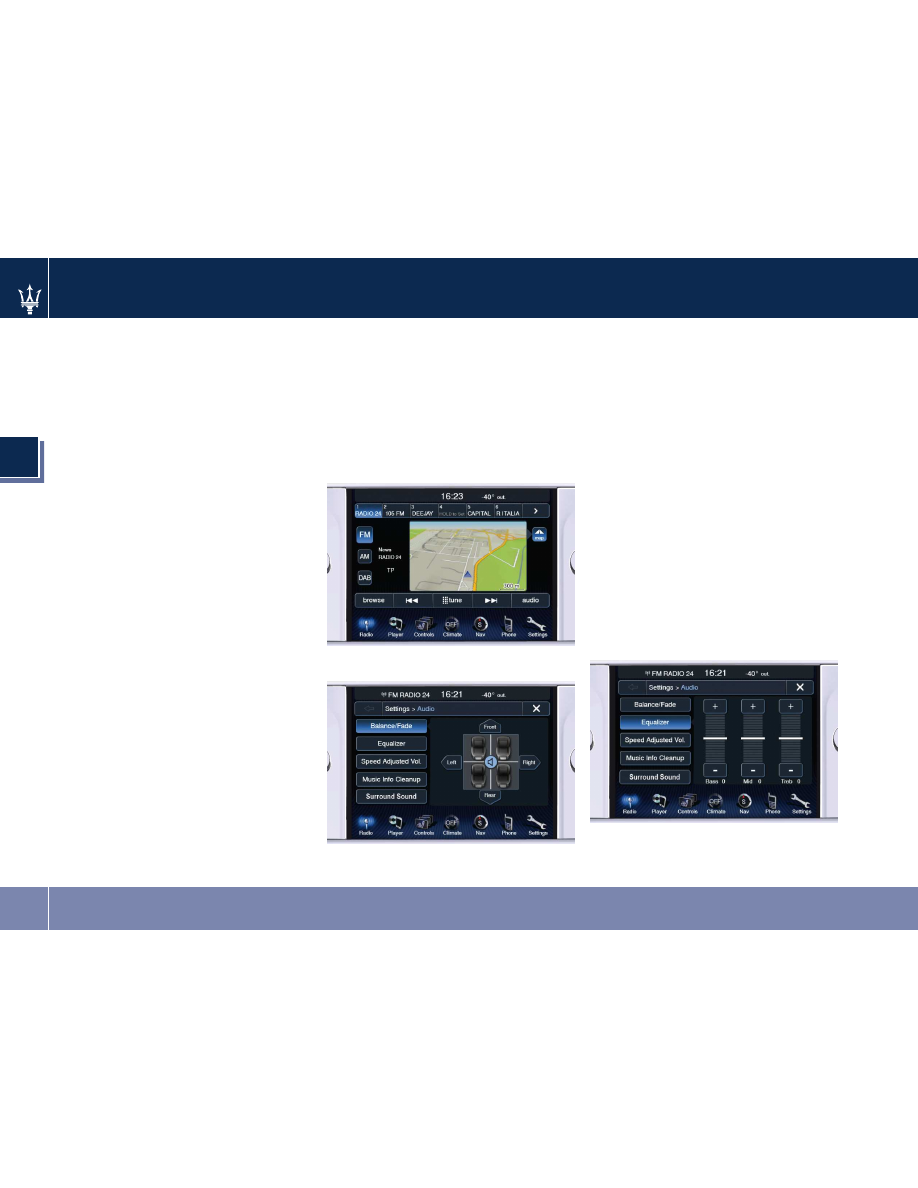
Touch of the audio soft-key fig. 9 to
activate the Audio settings screen to
adjust Balance/Fade, Equalizer, Speed
Adjusted Vol., Music Info Cleanup and
Surround Sound fig. 10. You can return
to the Radio screen by touching the X
located at the top right.
Balance/Fade
Touch the Balance/Fade soft-key fig. 10
to balance audio between the front
speakers or fade the audio between
the rear and front speakers.
Touching the Front, Rear, Left, or Right
soft-keys or touch and drag the blue
Speaker Icon to adjust the
Balance/Fade.
Equalizer
Touch the Equalizer soft-key fig. 11 to
activate the Equalizer screen.
Touch the + or - soft-keys, or by
touching and dragging over the level
bar for each of the equalizer bands.
The level value, which spans between
±9, is displayed at the bottom of each
of the Bands.
fig. 9
fig. 10
fig. 11
Radio mode
3
24