TRAKTOR PRO 2.9. Manual Englisch (2015) - part 10
 

  Index      Tractors     TRAKTOR PRO 2.9. Manual Englisch (2015)


Search            copyright infringement  


Content   ..  8  9  10  11   ..


TRAKTOR PRO 2.9. Manual Englisch (2015) - part 10


Relative Tracking mode is activated automatically when entering a loop or when syncing a
track to another tempo source (e.g. the master tempo or another Deck).

13.6.3 Internal Playback Mode


In Internal Playback mode, playback on the Deck is controlled with the Play button and the

tempo fader in TRAKTOR—the external turntable or CD player is ignored in this mode.

This comes in handy in case of a hardware problem, or when using only one turntable or CD
player to control two or more Decks.

13.7 Timecode Preferences


The  following  sections  explain  a  few  of  the  settings  in  the  Preferences  relevant  to  timecode
control.
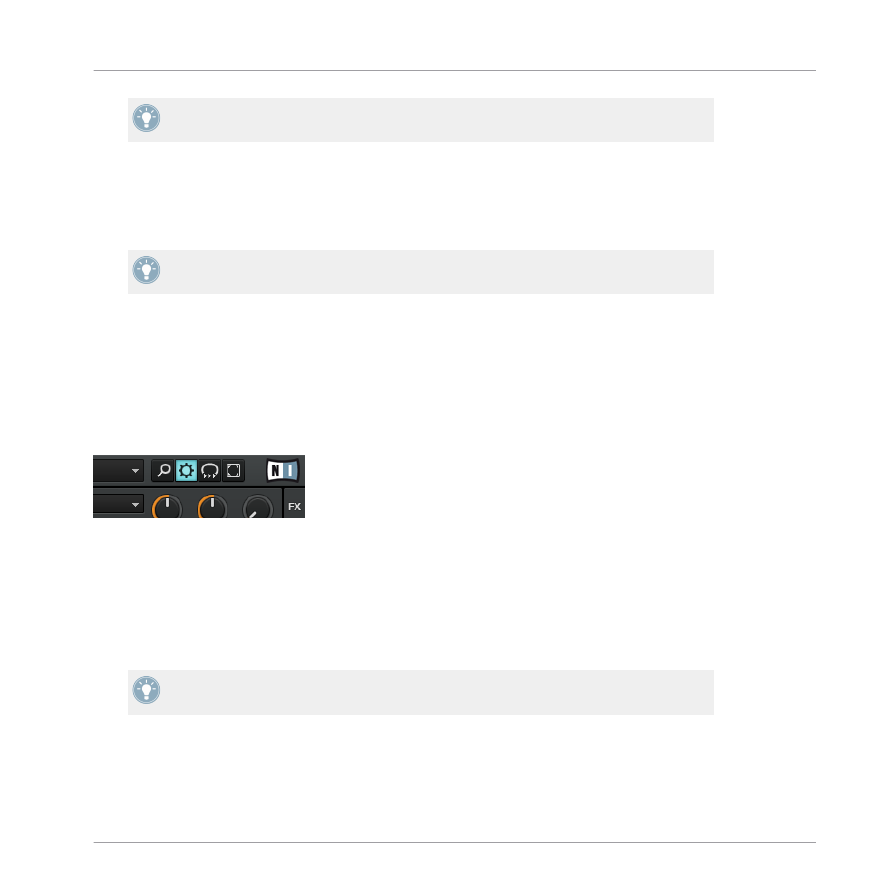
To open the Preferences, click on the Preferences button in the upper-right corner:

The Preferences button

Preferences > Audio Setup > Built-In Soundcard (Fallback Option)

Windows only: Here you can define the audio device that TRAKTOR SCRATCH 2 uses by de-
fault when no TRAKTOR AUDIO series soundcard (i.e., an AUDIO 4/8 DJ or a TRAKTOR AU-
DIO 6/10) is attached to your computer. In this case, you may also use Internal Playback mode
—click on the Deck’s letter to open its context menu and choose Internal Playback.

This comes in handy when you’re on an airplane and want to prepare tracks for your next

gig!

Setting Up TRAKTOR SCRATCH

Tracking Modes


TRAKTOR - Manual - 161

Preferences > Timecode Setup > Switch to Absolute Mode in Lead-In

Several  TRAKTOR  commands,  such  as  looping  or  synching,  automatically  switch  to  Relative

Tracking  mode.  When  this  option  is  active,  you  can  easily  switch  back  to  Absolute  Tracking

mode without touching the computer:

On vinyl, drop the needle in the lead-in area of the record

On CD, skip to Track 1

Preferences > Loading > Duplicate Deck when Loading Same Track

Imagine a track running in a Loop in Deck A. If you load the same track in Deck B, the play-
back position starts exactly at the playback position of Deck A when this preference is enabled.
The  activated  Loop  and  all  tempo  information  will  also  be  duplicated.  Turntablists  prefer  to
have this option activated for faster access to manual beat-juggle actions.

13.8 TRAKTOR SCRATCH PRO 2 Troubleshooting


This chapter describes a few common issues when using timecode. More troubleshooting tips
can be found in chapter 16.

13.8.1 Calibration Troubleshooting


In general, we recommend always checking the Scope panel when setting up TRAKTOR to en-
sure timecode control is working properly. This is especially important if the Deck platters do
not follow the movement of your turntables or CD players as expected.
You can open the Scope panel by clicking on the platter, or, if the platter is not shown, by click-
ing on the small arrow (minimize button) above the timecode quality meter.

The  small  arrow  (minimize  button)  above  the  quality  meter  will  also  minimize  the  Scope
panel if you would rather have a larger view of the track waveform.

The panel provides four valuable indicators:

Setting Up TRAKTOR SCRATCH

TRAKTOR SCRATCH PRO 2 Troubleshooting


TRAKTOR - Manual - 162

The four indicators on the Scope panel.

(1) The central Scope with a circular representation of the incoming timecode signal
(2) The orange quality meter on the right side
(3) The small stereo input level meter on the bottom right
(4) The status information on the bottom center
In addition, the 

CALIBRATE

 button resets timecode calibration. This is executed automatically

when starting TRAKTOR.
The following pictures describe the most common setup scenarios:

Successful Calibration

• SCOPE:  blue  circle  and  an  orange  diagonal  line  (or  two  orange  circles  using  timecode

MK1)

• QUALITY: fully orange
• INPUT: two channels about halfway up
• TEXT: one of the following

Setting Up TRAKTOR SCRATCH

TRAKTOR SCRATCH PRO 2 Troubleshooting


TRAKTOR - Manual - 163

Vinyl MK2 (15/10 min)

CD MK2

Vinyl MK1 (15/10 min)

Setting Up TRAKTOR SCRATCH

TRAKTOR SCRATCH PRO 2 Troubleshooting


TRAKTOR - Manual - 164

CD MK1

CD MK1 (dotted line shows up at specific playback speeds)

Scratch Disabled

Scratch functionality in TRAKTOR is only available with specific audio interfaces which have
been "certified" by Native Instruments.

• SCOPE: blank
• QUALITY: blank
• INPUT: two channels about halfway up
• TEXT: "Scratch disabled"

Setting Up TRAKTOR SCRATCH

TRAKTOR SCRATCH PRO 2 Troubleshooting


TRAKTOR - Manual - 165

Scratch disabled

WHY: No Scratch certified device is selected.
FIX: Please make sure that you have chosen the right audio driver in Preferences > Audio Set-
up, namely an audio interface that supports TRAKTOR SCRATCH PRO 2 (i.e., TRAKTOR AU-
DIO 6/10, AUDIO 4/8 DJ, TRAKTOR KONTROL S4 or a certified Mixer).

No Input

• SCOPE: blank
• QUALITY: blank
• INPUT: blank
• TEXT: Waiting…

TRAKTOR is waiting for input.

Setting Up TRAKTOR SCRATCH

TRAKTOR SCRATCH PRO 2 Troubleshooting


TRAKTOR - Manual - 166

WHY: No signal is detected on the Input channels, or the signal received is not suitable for cal-
ibration.
FIX: Please check that the RCA cables from turntable or CD player are securely connected, and
check whether input sensitivity is correctly switched to Phono for all connected turntables or

Line for all connected CD players. Check that a signal level is displayed in both channels of
the  level  meter  under  the  quality  indicator.  Also  check  the  correct  assignment  inputs  to  the

decks in the preferences.

Missing Channel

• SCOPE: horizontal or vertical line
• QUALITY: blank
• INPUT: only one channel
• TEXT: "Waiting... Left/Right ch. missing"

Missing channel left

Setting Up TRAKTOR SCRATCH

TRAKTOR SCRATCH PRO 2 Troubleshooting


TRAKTOR - Manual - 167

Missing channel right

WHY: One channel of the signal from turntable or CD player is not present.
FIX: Please verify that all RCA cables from the turntable or CD player are securely connected
and check the contacts connecting the headshell to the tone-arm.

Input Sensitivity Too Low

• SCOPE: small white circle
• QUALITY: blank
• INPUT: blank
• TEXT: "Waiting… Low input"

Turntable is connected to CD/Line input.

WHY: A record player is connected to a line-level input.

Setting Up TRAKTOR SCRATCH

TRAKTOR SCRATCH PRO 2 Troubleshooting


TRAKTOR - Manual - 168

FIX: Switch input sensitivity to Phono in the control panel of the audio interface.

Input Sensitivity Too High

• SCOPE: random figures
• QUALITY: random (depends on signal level)
• INPUT: full (clipping red)
• TEXT: random (depends on signal level)

CD player is connected to Phono input (MK2).

CD player is connected to Phono input (MK1).

WHY: A CD player or other line-level source is connected to a phono preamp input.
FIX: Switch input sensitivity to Line in the control panel of the audio interface.

Setting Up TRAKTOR SCRATCH

TRAKTOR SCRATCH PRO 2 Troubleshooting


TRAKTOR - Manual - 169

Ground Hum Warning

• SCOPE: overlaid red grounding symbol
• QUALITY: full
• INPUT: two channels about halfway up
• TEXT: depends on the severity of the hum

Vinyl MK2 (10 min)

Vinyl MK1 (15 min)

WHY: Defective grounding of turntables.
FIX: Please ensure that the grounding wire of the turntable is connected to the ground on your
mixer or audio interface and that your turntables and cables are in good working order.

Setting Up TRAKTOR SCRATCH

TRAKTOR SCRATCH PRO 2 Troubleshooting


TRAKTOR - Manual - 170

Note that the ground hum warning may be triggered when playing "normal" audio records into a
timecode input, and also when a CD player is connected to a Phono input. You can disregard
the warning in this case.

Heavy Rumble

• SCOPE: oscillating and unsteady
• QUALITY: full
• INPUT: two channels about halfway up
• TEXT: type of played timecode medium

Vinyl MK2 (15 min)

Vinyl MK1 (15 min)

WHY: Your turntable is subject to strong vibrations due to, e.g., loud bass or heavy dancing.

Setting Up TRAKTOR SCRATCH

TRAKTOR SCRATCH PRO 2 Troubleshooting


TRAKTOR - Manual - 171

FIX: You don't need to worry too much, as most of the rumble is filtered by the decoder.

Wrong Timecode Version, Timecode MK1 greyed out in Scope

• SCOPE: two grey circles
• QUALITY: blank
• INPUT: two channels about halfway up
• TEXT: "Unknown Medium - Calib. failed"

Vinyl MK1 failing to calibrate.

This could mean one of the following:
WHY: You are attempting to use old timecode records or CDs (MK1) on systems purchased af-
ter October 2011.
FIX: Please use only MK2 timecode media on systems purchased after October 2011.
or
WHY: Your system is compatible with timecode MK1, but calibration failed for another reason.
FIX: Please check that the four wires connecting the cartridge to the headshell are attached in
the right order. If your records are old, try a new timecode record, or troubleshoot using a time-
code CD.

Mono Input due to Faulty Routing

• SCOPE: grey diagonal line

Setting Up TRAKTOR SCRATCH

TRAKTOR SCRATCH PRO 2 Troubleshooting


TRAKTOR - Manual - 172

• QUALITY: blank
• INPUT: two channels about halfway up
• TEXT: Waiting…

Failed calibration due to faulty input routing.

WHY: The decoder receives a mono signal due to an unassigned input channel.

• FIX: Press the 

Restore

 button in Preferences > Audio Setup > Routing.

Switching Timecode Media without Recalibrating

• SCOPE: uncommon shape (see pictures)
• QUALITY: blank
• INPUT: two channels about halfway up
• TEXT: see pictures

Setting Up TRAKTOR SCRATCH

TRAKTOR SCRATCH PRO 2 Troubleshooting


TRAKTOR - Manual - 173

Vinyl MK1 calibrated as MK2.

CD MK2 calibrated as MK1.

CD MK1 calibrated as MK2.

Setting Up TRAKTOR SCRATCH

TRAKTOR SCRATCH PRO 2 Troubleshooting


TRAKTOR - Manual - 174

Vinyl MK2 calibrated as MK1.

WHY: The timecode medium has been switched to another generation (MK1 or MK2) without
recalibrating.
FIX: Recalibrate by pressing 

CALIBRATE

.

Other Reasons for Calibration Failure

• SCOPE: oscillating and unsteady
• QUALITY: blank
• INPUT: two channels about halfway up
• TEXT: "Unknown Medium - Calib. failed"

Vinyl MK2 failing to calibrate.

Setting Up TRAKTOR SCRATCH

TRAKTOR SCRATCH PRO 2 Troubleshooting


TRAKTOR - Manual - 175

Calibration has failed for an unknown reason. Please check that the four wires connecting the
cartridge  to  the  headshell  are  attached  in  the  right  order.  If  your  records  are  old,  try  a  new
timecode record, or troubleshoot using a timecode CD.

13.8.2 Audio Troubleshooting


In case you run into sound problems like crackles and interruptions, you should have a look at

chapter 

17.2, Latency Issues

 first for general performance improvement tips.

Setting Up TRAKTOR SCRATCH

TRAKTOR SCRATCH PRO 2 Troubleshooting


TRAKTOR - Manual - 176


Content   ..  8  9  10  11   ..